Browser Windows
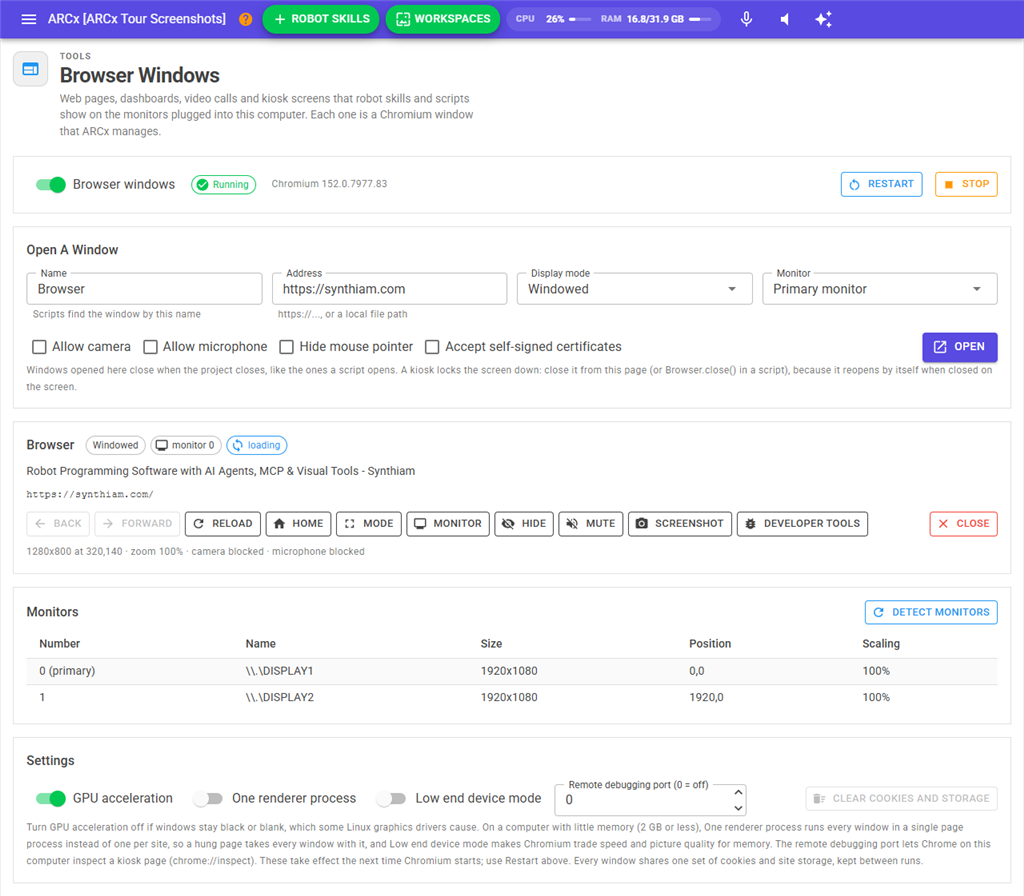
Robot skills and scripts can show web pages on the monitors plugged into the computer ARCx runs on: a robot face, a dashboard, a video call, or a locked down kiosk screen. Each one is a Chromium browser window that ARCx opens, watches and closes for you. This page lists those windows, gives you live controls for each one, shows the monitors they can go on, and holds the settings for the browser itself.
These windows are not the browser you are reading this page in. Your browser can be anywhere on the network. Browser windows always appear on the screens attached to the robot's own computer.
Where to find it: Side menu → Views → Browser Windows. The Browser Windows link beside a browser check in Views → Diagnostics also opens it.
Contents
On, off and status
The top panel has the Browser windows switch and a status chip.
| Status | What it means |
|---|---|
| Off | Browser windows are turned off. Robot skills and scripts cannot open any until you turn them back on. |
| Unavailable | This computer cannot show browser windows. A red message underneath says why. |
| Ready | Everything is in place. Chromium starts when the first window opens. |
| Running | Chromium is running. Its version number is shown beside the chip. |
Browser windows are on by default. The switch is saved on this computer, not in the project. Turning it off closes every open window and stops Chromium.
The buttons on the right depend on the status:
- Start starts Chromium now, without opening a window. Use it to see the monitors before anything is open.
- Restart stops Chromium and starts it again with the current settings, then reopens the windows that were open. Use it after changing anything under Settings.
- Stop closes every window and stops Chromium. Windows are not reopened. The next window that a robot skill or script opens starts Chromium again.
Chromium also stops by itself when no window has been open for 2 minutes, to free its memory.
Open A Window
This form opens a window by hand. It is handy for trying an address, or for checking that a monitor works before you write a script.
| Field | What it does |
|---|---|
| Name | The name of the window. Scripts find the window by this name. Opening a window with a name that is already open changes that window's page instead of opening a second one. |
| Address | The page to show. A web address, or a path to a file on this computer. If you leave off https://, it is added for you. An address on localhost or a bare IP address gets http:// instead. |
| Display mode | Windowed, Fullscreen or Kiosk. See below. |
| Monitor | Primary monitor, or a monitor from the list. A monitor that is not connected falls back to the primary one. |
| Allow camera | Lets the page use the camera, for example in a video call. There is no prompt on the robot's screen, because nobody is there to click Allow. Off by default. |
| Allow microphone | Lets the page use the microphone. Off by default. |
| Hide mouse pointer | Hides the pointer over the page. Useful on a touch screen. |
| Accept self-signed certificates | Opens an HTTPS page even when its certificate is not trusted, for example a camera, a router, or another ARCx with its own certificate. Only use it for addresses you control. |
Press Open. It is greyed out until Name and Address are filled in.
The display modes:
- Windowed is a normal window with a title bar, 1280 by 800 pixels (or the size of the monitor if smaller), in the middle of the screen.
- Fullscreen fills the monitor.
- Kiosk fills the monitor, stays on top of every other window, keeps the screen awake, and retries the page if it fails to load. If someone closes a kiosk window on the robot's screen, it opens again by itself. Developer tools are never available in a kiosk.
Windows you open here close when the project closes, the same as windows a script opens.
Open windows
Each open window has its own card. When nothing is open, the page says No browser windows are open.
The heading
The window's name is followed by chips that show its state:
| Chip | What it means |
|---|---|
| Display mode | Windowed, Fullscreen or Kiosk. |
| monitor n | The monitor the window is on. |
| loading | The page is still loading. |
| camera in use | The page is using the camera right now. |
| microphone in use | The page is using the microphone right now. |
| hidden | The window has been hidden. |
| muted | The page's sound is muted. |
| n crash(es) | The page has crashed this many times. ARCx reloads a crashed page by itself, unless it keeps crashing. |
Under the heading are the page title (or (no title)) and the address it is showing. If the page could not load, a yellow message gives the reason.
The buttons
| Button | What it does |
|---|---|
| Back / Forward | Moves through the window's history, like a browser's back and forward buttons. Greyed out when there is nowhere to go. |
| Reload | Loads the page again. |
| Home | Goes back to the address the window was opened with. |
| Mode | Changes the display mode to Windowed, Fullscreen or Kiosk. |
| Monitor | Moves the window to another monitor. Only shown when more than one monitor is connected. |
| Hide / Show | Hides the window from the screen, or shows it again. The page keeps running while hidden. |
| Mute / Unmute | Turns the page's sound off or on. |
| Screenshot | Takes a picture of the page and shows it on the card, so you can see what is on the robot's screen from wherever you are. Press it again for a new picture. |
| Developer Tools | Opens Chromium's developer tools on the robot's screen. Not shown for a kiosk window. |
| Close | Closes the window. There is no confirmation. A kiosk closed here stays closed. |
Page console
If the page has written messages to its console, a Page console panel shows the most recent 30 lines. Errors are shown in red and warnings in yellow. This is useful when you are building your own page for the robot's screen.
The footer
The last line shows the window's size and position, its zoom, whether the camera and microphone are allowed or blocked, and, if a robot skill opened it, which robot skill.
Monitors
The Monitors table lists the screens connected to this computer.
| Column | What it shows |
|---|---|
| Number | The monitor number used by Monitor menus and scripts. The primary monitor is marked (primary). |
| Name | The name the operating system gives the monitor. |
| Size | Its size in pixels. |
| Position | Where it sits on the desktop, in pixels from the top left corner. |
| Scaling | The display scaling set in the operating system. |
Only Chromium can see the monitors, so the list is empty until it is running. Detect Monitors starts Chromium if needed and reads the monitors again. Use it after plugging in or removing a screen.
Settings
Every setting here is saved on this computer and takes effect the next time Chromium starts. After changing one, press Restart at the top of the page. A blue message reminds you.
| Setting | What it does |
|---|---|
| GPU acceleration | Uses the graphics card to draw pages. On by default. Turn it off if windows stay black or blank, which some Linux graphics drivers cause. |
| One renderer process | Runs every window in one page process instead of one per site. Saves memory on a computer with 2 GB or less, but a page that hangs takes every window with it. Off by default. |
| Low end device mode | Makes Chromium use less memory, at the cost of speed and picture quality. For computers with little memory. Off by default. |
| Remote debugging port (0 = off) | Lets Chrome on this computer inspect a page through chrome://inspect. Most useful for a kiosk page, which has no developer tools. 0 turns it off. |
| X display (empty = find it) | Linux only. The X display that windows appear on, such as :0. Leave it empty and ARCx uses its own display, or the first X server running on the computer. The line underneath says which display is being used, or none found. |
| Clear Cookies And Storage | Deletes the cookies, site storage and cache that every window shares. Only possible while no window is open. It stops Chromium first. |
Every window shares one set of cookies and site storage, and it is kept between runs. A page you sign in to stays signed in the next time it opens.
Troubleshooting
"Browser windows are not available on ..." Browser windows work on Windows x64, Linux x64 and Linux ARM64. They are not available on macOS or other systems.
"The Chromium runtime is missing from ..." or "... is incomplete: icudtl.dat is missing." Part of ARCx is missing. Reinstall ARCx.
"Browser windows need ARCx started through its own program (ARCx or ARCx.exe), not with 'dotnet ARCx.dll'." Start ARCx with its own program file.
"No X server is running, so there is nothing to show a browser window on." (Linux) Nothing is drawing on the robot's screen. Start a desktop session, or a bare X server, or set X display under Settings.
"This is a Wayland session without XWayland." (Linux) Browser windows need X11. Install XWayland, or run a bare X server.
Windows are black or blank. Turn GPU acceleration off and press Restart.
A red message appears after Start or Restart. Chromium did not start, or stopped unexpectedly. The message gives the reason. Views → Debug Log has Chromium's own messages.
A script says browser windows are turned off. The Browser windows switch at the top of this page is off.