

 Amin
AminBroadcast live audio and video from ARC camera to the web via HLS; cross-browser streaming. Requires router configuration for external access.
Requires ARC
v9
(Updated 10/28/2019)
Compatible with:
 Windows
Windows
How to add the Live Stream Broadcast robot skill
- Load the most recent release of ARC (Get ARC).
- Press the Project tab from the top menu bar in ARC.
- Press Add Robot Skill from the button ribbon bar in ARC.
- Choose the Camera category tab.
- Press the Live Stream Broadcast icon to add the robot skill to your project.
Don't have a robot yet?
Follow the Getting Started Guide to build a robot and use the Live Stream Broadcast robot skill.
How to use the Live Stream Broadcast robot skill
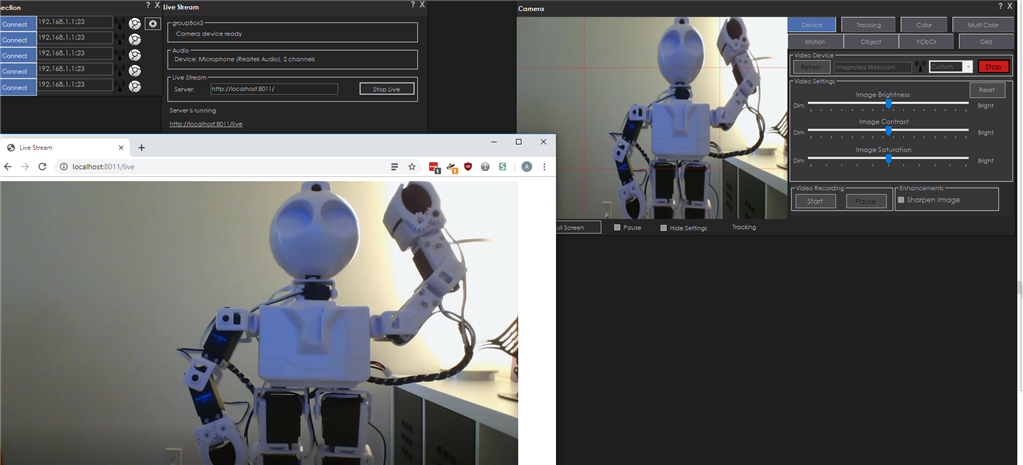
This control allows you to broadcast live audio and video from the camera control to the Web. Live stream implements HLS protocol from Apple and works cross-browser. You will have to configure your router to access the live broadcast link from external networks.
- If you would like to serve a webpage with an embedded video stream without audio, check out the Custom HTTP Server.
- If you are looking for receiving a live stream feed in camera control check out Live Stream Receiver.
*Icon credit Flat Icon