
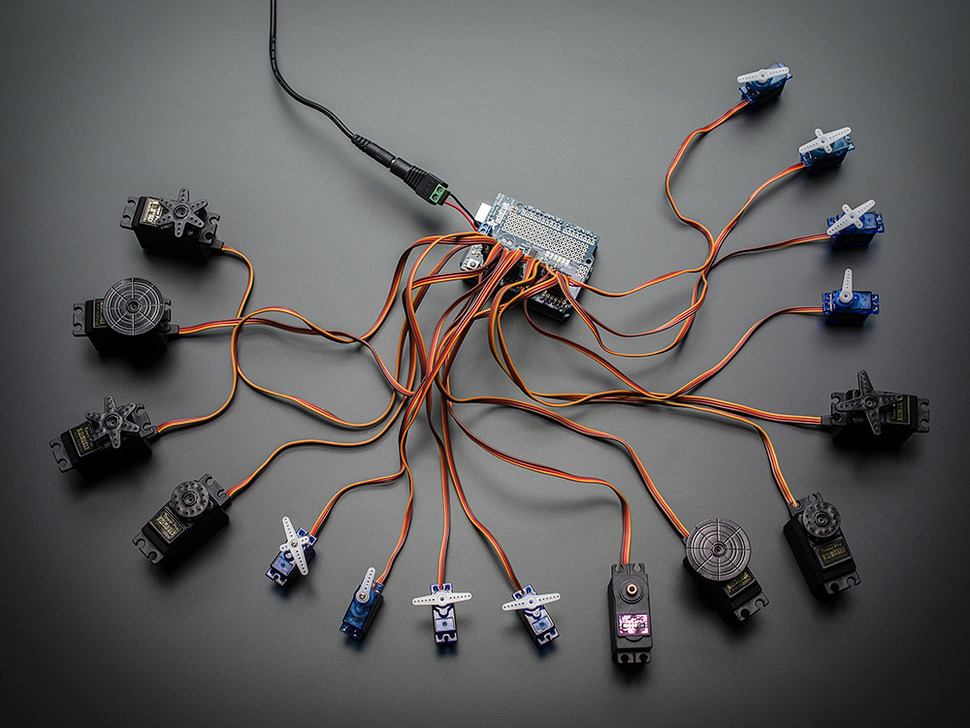
Arduino With PCA9685 Servo Controller by Adafruit
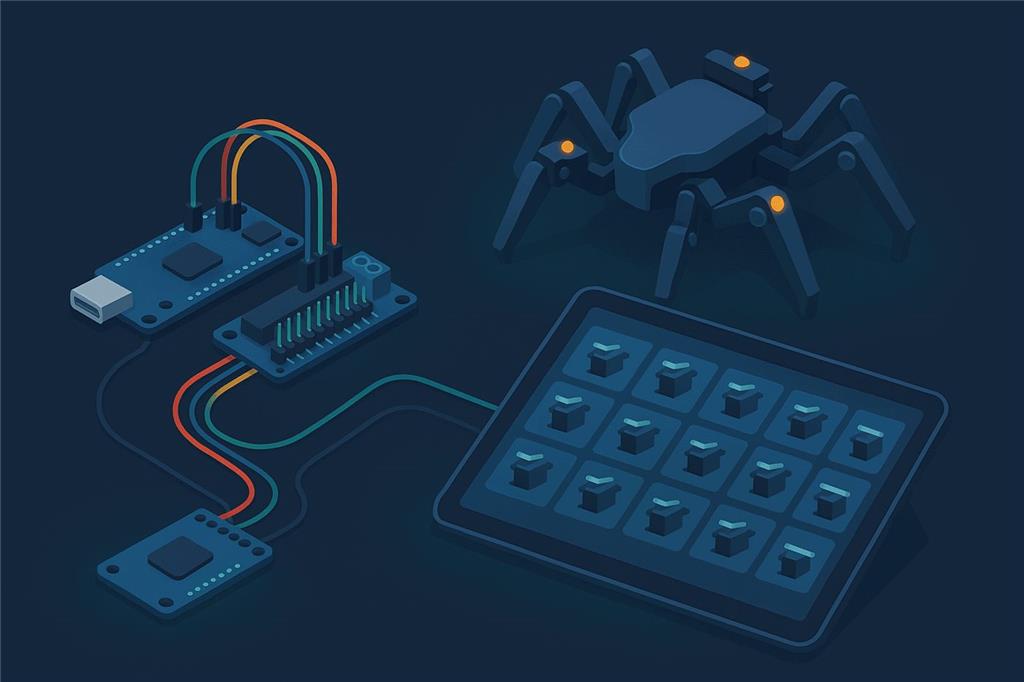
16 servo channels from one small board
The PCA9685 adds 16 hardware-timed servo outputs over a two-wire I2C connection. Use it with ARCx's PCA9685 Servo Driver robot skill, or with an Arduino Uno running EZB firmware that drives the board for you. Either way, hexapods, animatronics and pan/tilt arrays get all the servos they need.
Two ways to use a PCA9685 with Synthiam. 1. The PCA9685 Servo Driver robot skill (recommended). The ARCx skill (and the ARC skill) talks to the PCA9685 over the I2C port of an EZB whose firmware supports I2C, and in ARCx on Linux it can use the computer's own I2C bus with no EZB at all. 2. EZB firmware on an Arduino (this page's original setup): the Arduino runs EZB firmware that drives the PCA9685 itself, and ARCx's Ezb Connection or ARC sees the 16 channels as ordinary servo ports. We recommend ARCx, which runs on Windows, Ubuntu and Raspberry Pi and is used from any web browser.
The firmware configuration is the older method
Synthiam recommends the PCA9685 robot skill wherever your controller's firmware can carry it, because the skill gives every channel its own settings and works with several boards. The Arduino firmwares on this page remain available for builds where the Arduino drives the PCA9685 directly.
What is a PCA9685 servo controller?
If you are building a robot or project with lots of servos (hexapods, animatronics, kinetic art, pan/tilt arrays), the PCA9685 makes it much easier. Instead of plugging many servos directly into an Arduino's limited pins, the PCA9685 provides up to 16 servo outputs over a simple two-wire connection (I2C).
The PCA9685 is a 16-channel, 12-bit PWM chip from NXP. It is on the Adafruit 16-Channel PWM/Servo Shield, the Adafruit 16-Channel PWM/Servo breakout and many low-cost boards based on them. The chip generates stable servo pulses for all 16 channels by itself, so the controller only sends a command when a position changes.
The shield version fits Arduino boards that accept shields, such as the Uno, Leonardo, Mega or ADK. For the firmware method we recommend the Arduino Uno for beginners because it is compact, inexpensive, and the firmwares on this page are written for it.
PCA9685 at a glance
| Type | 16-channel, 12-bit PWM / servo driver |
|---|---|
| Common boards | Adafruit 16-Channel PWM/Servo Shield, PCA9685 breakouts |
| Interface | I2C, default address 0x40 (A0–A5 jumpers change it) |
| Servos | 16 per board |
| Servo power | Separate supply on the board's V+ terminal |
| Synthiam uses it for | Many-servo robots: hexapods, arms, animatronics |
| Website | adafruit.com |
Robot skill or Arduino firmware?
| PCA9685 Servo Driver robot skill Recommended | Arduino Uno with PCA9685 EZB firmware | |
|---|---|---|
| The PCA9685 connects to | The I2C port of an EZB whose firmware supports I2C (for example an EZ-B v4 or IoTiny), or in ARCx on Linux, the computer's I2C bus (/dev/i2c-1) | The Arduino's I2C pins (SDA/SCL); the Arduino connects to the computer by USB |
| Servo ports | Any virtual port (V0–V255) to any channel | Fixed: servo port Dn is PCA9685 channel n |
| Per-channel settings | Pulse range, trim, invert and speed per channel, in the skill | Reverse and limits in each servo skill |
| Several boards | Yes, one skill per board, each at its own address | One board at address 0x40 |
| Arduino digital, PWM and ADC pins | Not involved | Still available as EZB ports alongside the 16 servos |
| Software | ARCx Pca9685 Servo Driver, ARC PCA9685 Servo Driver | ARCx Ezb Connection or ARC EZB Connection, plus any servo skill |
Check your firmware for I2C. The robot skill sends I2C commands through the EZB, so the EZB firmware must support I2C; ARCx and ARC check the firmware's capabilities and tell you when it is missing. Synthiam's Uno, Mega and Leonardo EZB firmwares do not list I2C, so with those boards use the firmware method below, or run ARCx on a Linux computer and put the PCA9685 on its I2C bus.
The ARCx PCA9685 Servo Driver robot skill
The skill drives up to 16 hobby servos per PCA9685 board from ARCx virtual servo ports. Every robot skill that moves servos (Auto Position, joysticks, scripts, Servo Animation, kinematics) moves a port such as V7, and the skill turns that move into a pulse width on the chip.
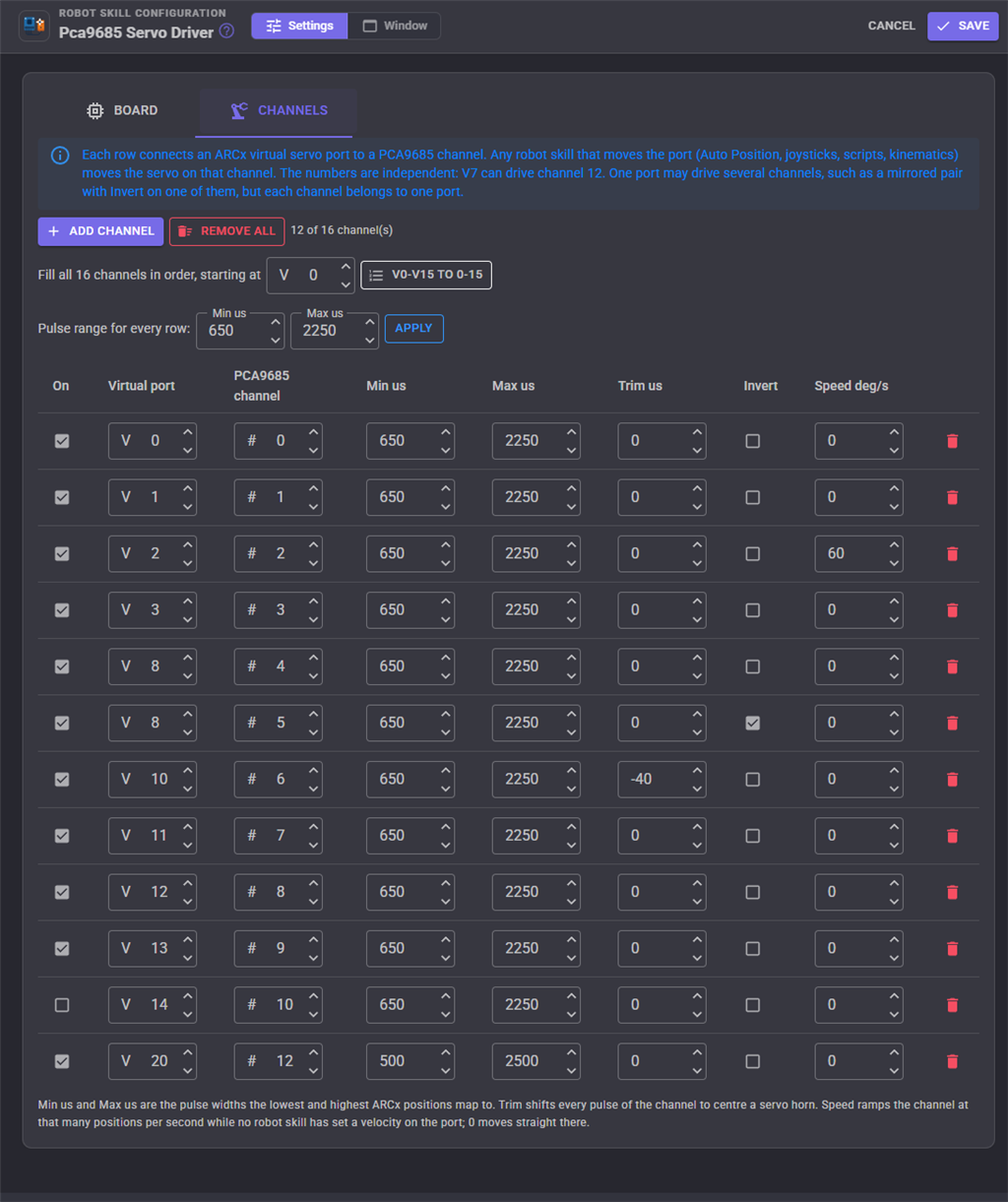
- Any port to any channel. V7 can drive channel 12, and one port can drive two channels for a mirrored pair.
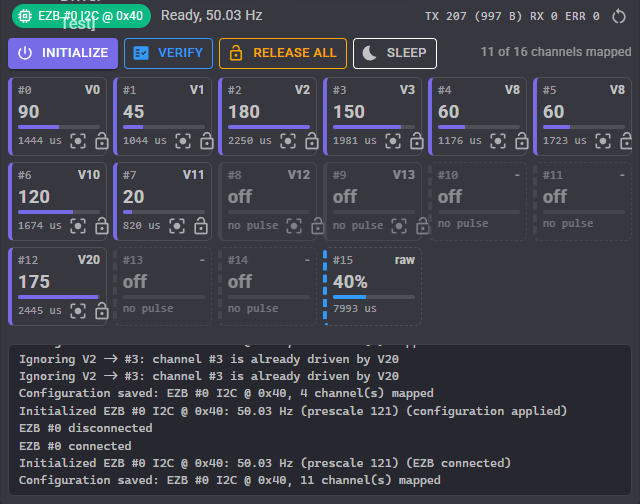
- Per-channel pulse range, trim, invert and speed. The skill ramps each servo itself, so ARCx servo velocities work even though the chip has no speed control.
- Several boards. Add the skill once per board, each with its own address.
- Linux I2C bus. On a single-board computer running Ubuntu, the board can sit on
/dev/i2c-1with no EZB in between. - Oscillator calibration, sleep, release all and a Custom UI widget with live channel tiles.
Set it up
- Wire and power the board. Connect SDA, SCL, VCC and GND to the EZB's I2C port (or the Linux computer's I2C header), and a servo supply sized for your servos to V+. The ground must be shared.
- Add the skill. Install Pca9685 Servo Driver in ARCx. On the Board tab choose the EZB (or the Linux bus), address 0x40 and 50 Hz.
- Map the channels. On the Channels tab press Fill all 16 channels for V0–V15 on channels 0–15, or add rows one by one.
- Move a servo. Add a Servo skill on V0 and move it. The channel 0 tile follows.
The full skill manual, including oscillator calibration and script commands, is on the skill's page.
An Arduino running PCA9685 EZB firmware
This method uses a PCA9685 16-channel servo controller (like the Adafruit 16-Channel PWM/Servo Shield or a PCA9685 breakout board) with an Arduino running EZB firmware, so it can be controlled by ARCx or ARC.
1. Load EZB firmware
You load EZB firmware onto the Arduino. This turns the Arduino into a controller that ARCx and ARC can talk to.
2. The Arduino talks I2C
The Arduino sends I2C commands (over its SDA/SCL pins) to the PCA9685, which generates stable servo pulses for up to 16 channels.
3. ARCx controls the servos
You add servo skills and scripts, and ARCx or ARC sends commands through the Arduino's EZB firmware to the PCA9685 outputs.
Two sets of ports
The servo connectors on the PCA9685 are separate from the Arduino's own pins, so the firmware gives you two sets of ports. A servo on port D3 uses the PCA9685's channel 3. Reading or setting digital port D3 uses Arduino pin 3. The PCA9685 channels are servo-only; the Arduino's digital pins can be PWM, digital in/out or serial TX.
Download EZB firmware source code
Choose one of the firmware packages below. These downloads are source code: you upload (flash) them to your Arduino with the Arduino IDE. Each needs the Adafruit PWM Servo Driver library (in the Arduino IDE: Tools → Manage Libraries, search for “adafruit pwm servo driver”).
Port reference for the Arduino Uno firmwares
The firmwares differ in which channels they use and how they start the PCA9685. All three connect at 57600 baud.
| Miller's Generic (EZB_UNO_PCA9685) | Adafruit 16 Servo Shield firmware (Mar 2019 and Dec 2022) | |
|---|---|---|
| Servo ports | D0–D15 = PCA9685 channels 0–15 | D2–D15 = PCA9685 channels 2–15 (channels 0 and 1 are not used) |
| Digital, PWM and serial TX ports | Dn = Arduino pin n. Leave D0 and D1 alone: pins 0 and 1 carry the USB serial link. | D2–D15 = Arduino pins 2–15 |
| D14 and D15 on the Uno | Arduino pins 14 and 15 are the analog pins A0 and A1, shared with ADC0 and ADC1 | |
| PWM duty | Only on the Uno's PWM pins: 3, 5, 6, 9, 10, 11 | |
| ADC ports | ADC0–ADC5 = A0–A5. A4 and A5 are the Uno's SDA and SCL, which are wired to the PCA9685, so they are not free for sensors. | |
| PCA9685 address | 0x40 | The library default (0x40) |
| Start-up | Initializes the PCA9685 and sets 50 Hz when the Arduino starts | Does not set the PWM frequency at start-up |
Before you start
- Servo power: servos often need more power than USB can provide. In most builds use a separate 5–6 V power supply for servos. Many servo issues (jittering, resetting, random movement) are power-related.
- Common ground: connect the servo supply's GND to the GND of the Arduino and PCA9685.
- Servo count: the PCA9685 provides 16 channels. Start with one board until everything works.
- Firmware choice matters: if a firmware does not match your hardware, ARCx may connect but servo channels may not respond as expected.
Wiring a breakout board to an Uno
- SDA to the Uno's SDA (A4)
- SCL to the Uno's SCL (A5)
- VCC to the Uno's 5V (logic power)
- GND to the Uno's GND
- V+ to your servo power supply, with its ground joined to GND
The Adafruit shield makes these connections for you when it is stacked on the Uno.
Program the firmware and connect
- Install the Arduino IDE and the Adafruit PWM Servo Driver library.
-
Open the firmware. Extract the zip you downloaded and open its
.inofile. - Upload. Select your Arduino board type (for example Uno) and the correct COM port, then upload. The firmware upload tutorial shows each step.
-
Connect ARCx. Add the Ezb Connection skill, set Baud rate to 57600 on the Connection tab of EZB 0, save,
then pick the Uno's port (
COM3,/dev/ttyACM0or/dev/ttyUSB0) and connect. In ARC, set the baud rate in the connection control's Config → Settings. - Test a single servo first. Add a Servo skill on one channel (D0 with Miller's firmware, D2 or higher with the shield firmware) before connecting all servos.
Both support the PCA9685, ARCx goes further
| ARCx Recommended | ARC | |
|---|---|---|
| Runs on | Windows 10/11 x64, Ubuntu 24.04 x64 and ARM64, Raspberry Pi 4/5 with Ubuntu 24.04 | Windows |
| User interface | Any web browser, several people at once | Windows desktop application |
| PCA9685 robot skill | Any virtual port to any channel; per-channel range, trim, invert and speed; Linux I2C bus | Binds a fixed window of 16 ports (V0–V15, V16–V31...) to channels 0–15 |
| Arduino PCA9685 firmware | Works through Ezb Connection | Works through EZB Connection |
| AI agents | Built-in MCP server | Through ARC robot skills |
If something does not work
i2cdetect -l lists the buses), or the user running ARCx is not in the i2c group.
Frequently asked questions
/dev/i2c-1) in the Pca9685 Servo Driver skill. No Arduino is needed. Raspberry Pi OS is not supported by ARCx.
Give your robot 16 more servos
Add the PCA9685 Servo Driver skill in ARCx, or flash an Uno with the PCA9685 EZB firmware, and drive every channel from your browser.

Great info on th this site https://learn.adafruit.com/16-channel-pwm-servo-driver?view=all
I read the connections on the PCA9685 module are duplicated on each end, making it easy to use multiple modules. By using right-angled DuPont male and female connectors you could "daisy chain" the modules. Just make sure to select a unique I2C address for each module.
Wow, 992 servo motors, like to see that project, lol
Thanks for your reply. I just want to be clear if I I connect three of these boards together that ARC can address each boards ports. Also what are the changes needed to the firmware to support more than one board? Because looking at the firmware I don't see how this would work.
on ARC, not sure, was using an Arduino.
I can test when I get back However, I would think it is one board on ARC
correct the firmware needs to be updated with each PCA 9685 you add
// Creat object to represent PCA9685 at default I2C address Adafruit_PWMServoDriver pca9685 = Adafruit_PWMServoDriver(0x40);
**(adding another PCA 9685 ) Adafruit_PWMServoDriver pca9685 = Adafruit_PWMServoDriver(0x41);
**(adding another PCA 9685 ) Adafruit_PWMServoDriver pca9685 = Adafruit_PWMServoDriver(0x42);
now you have 48 servos
and so on
I don't think you'd be able to do that very easily. You'd have to create a custom robot skill and extend the existing ezb protocol. The ezb protocol supports 25 servos - a legacy from the ezrobot days. There are two alternatives...
Hard way. Have a robot skill servo driver, similar to Dynamixel, which uses a custom protocol that extends the servo count. Or use the servo Script: https://synthiam.com/Support/Skills/Scripting/Servo-Script?id=19068
Easy way. Have 3 arduinos and 3 pca's. Connect each Arduino to a different physical port
If you decide to go the hard way, the servo Script can send a custom serial command for each servo and position. It isn't super difficult, but you'd have to make your own firmware.
DJ thank you for confirming the limitation. I thought this could not be done with this skill without a lot of changes.
the servo Script skill doesn't require any changes. Just send the servo id and position for each servo. Your arduino code merely has to listen on a loop to get the servo id and position
Smiller29,
Here is a video for Linking Multiple PCA9685 servo Driver Boards
https://youtu.be/v1f_EDHV390
EzAng, Thanks for posting this but I wanted a solution that works in ARC.