
3D virtual robot simulator wired to ARCx EZBs with servo, sensor, camera and lidar support for testing and training without hardware
 Windows
 ARM
ARM
 Linux
Linux
 MacOS
MacOS
How to add the Virtual Robot robot skill
- Load the most recent release of ARCx on a compatible operating system (Get ARCx).
- Press the + Skills menu from the top menu bar in ARCx.
- Choose the Display category tab.
- Press the Virtual Robot icon to add the robot skill to your project.
Don't have a robot yet?
Follow the Getting Started Guide to build a robot and use the Virtual Robot robot skill.
How to use the Virtual Robot robot skill
The Virtual Robot robot skill builds a robot that exists only on screen and wires it to the EZBs of your project. Whatever ARCx sends those EZBs' servo, digital and PWM ports moves it, whether or not a real EZB is connected: servos turn joints, motors spin wheels that drive the robot across a floor, and lights glow. With a real robot connected, the real robot and the virtual one move together; without one, the virtual robot moves alone. Its sensors answer ARCx's reads while the EZB is not connected, a camera on the robot is a video source of ARCx, and a lidar sends its scans to ARCx's navigation messaging system, so a navigator maps and drives the virtual world.
Design the robot in a 3D designer, from simple shapes (boxes, cylinders, spheres, cones, capsules) or from STL and OBJ files exported from CAD. Give each part a joint, say which servo or motor drives it and on which port, and mount the sensors, lights and cameras it needs. It is a way to build and test a project before the hardware exists, to teach without a robot on every desk, to try a design out before printing it, or to watch a 3D twin of the real robot move as it does.
How it follows ARCx
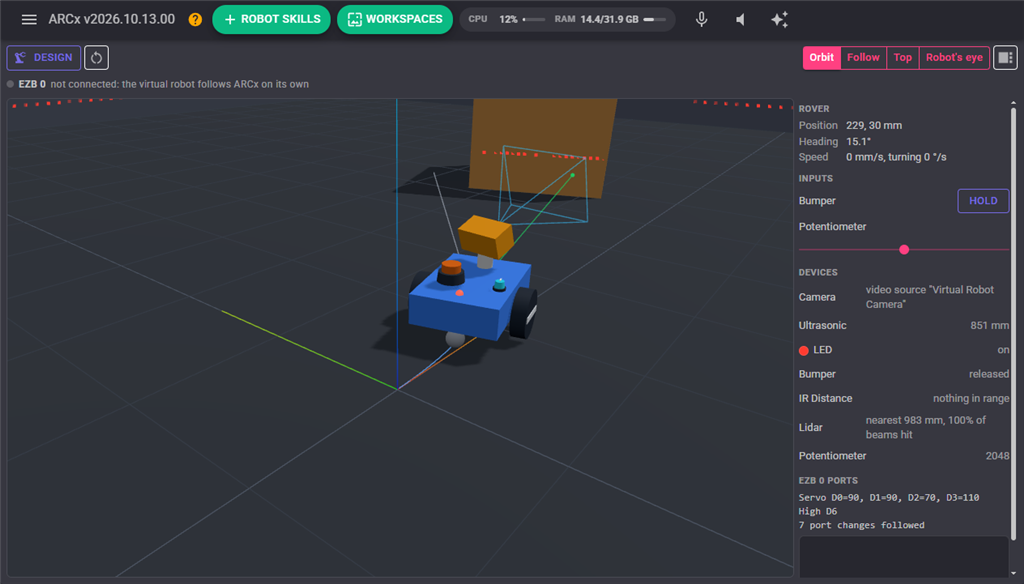
Every servo move, servo speed, servo release, digital port and PWM duty cycle that ARCx sends an EZB raises an event inside ARCx, whether or not that EZB is connected to anything. The Virtual Robot listens to those events on every EZB of the project, so there is nothing to connect or start: the robot skill works as soon as it is added. servo controls, movement panels, Auto Position, the joystick, scripts and every other robot skill that moves servos or sets ports move the virtual robot exactly as they move the real one.
Each joint and light names the EZB its port is on by its number, the same number the EZB Connection robot skill gives it (0 is the first). servo ports can be the EZB's own ports, D0 to D23, or the virtual ports V0 and up that robot skills such as Dynamixel or other servo controllers use, so a robot built from smart servos follows too.
Reads work the same way in reverse. While an EZB is connected, its digital ports, ADC ports and HC-SR04 ultrasonic sensors are read from the real hardware. While it is not connected, the virtual robot answers instead, with what its button, distance sensor or analog device wired to that port measures. So a script, a movement panel's ping sensors or an ADC monitor reads the virtual world when there is no robot, and the real one when there is. A port that no device of the virtual robot is wired to reads as it always has without a connection. Scripts can also read the virtual sensors at any time with this robot skill's control commands (see Scripts below).
The window
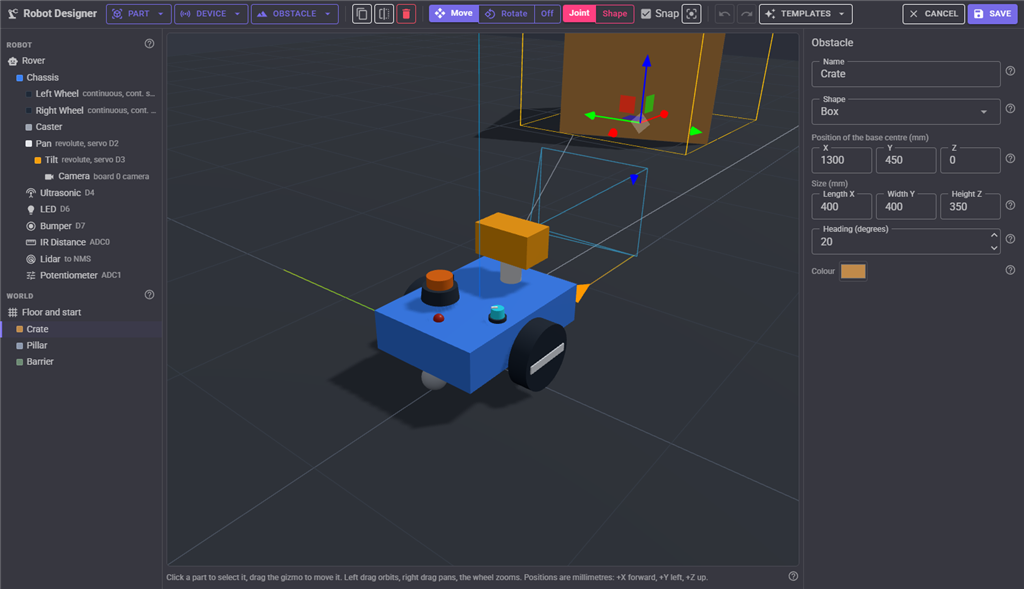
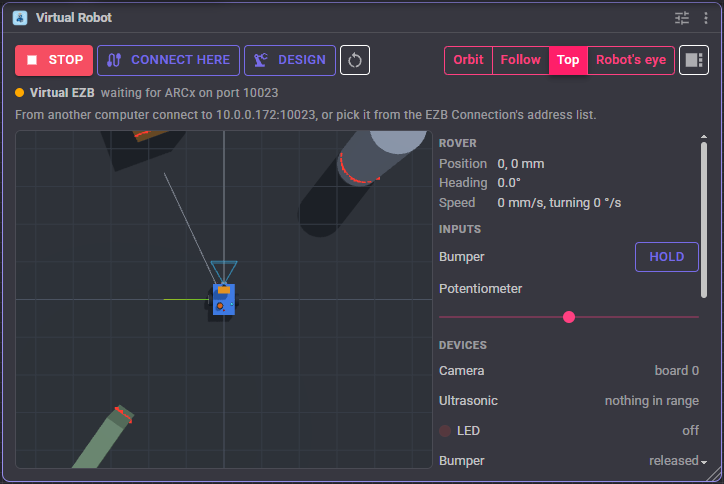
The window has a toolbar, a line for each EZB the robot is wired to, the robot in 3D and a side panel.
| Control | What it does |
|---|---|
| Design | Opens the robot designer. |
| Reset | Puts the robot back at its start position with every joint at home, and clears its trail. |
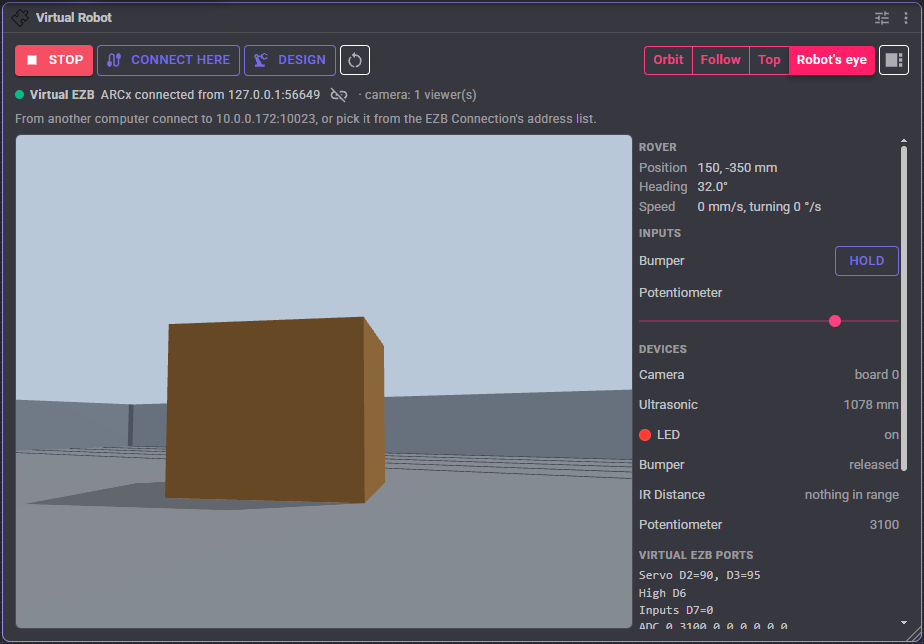
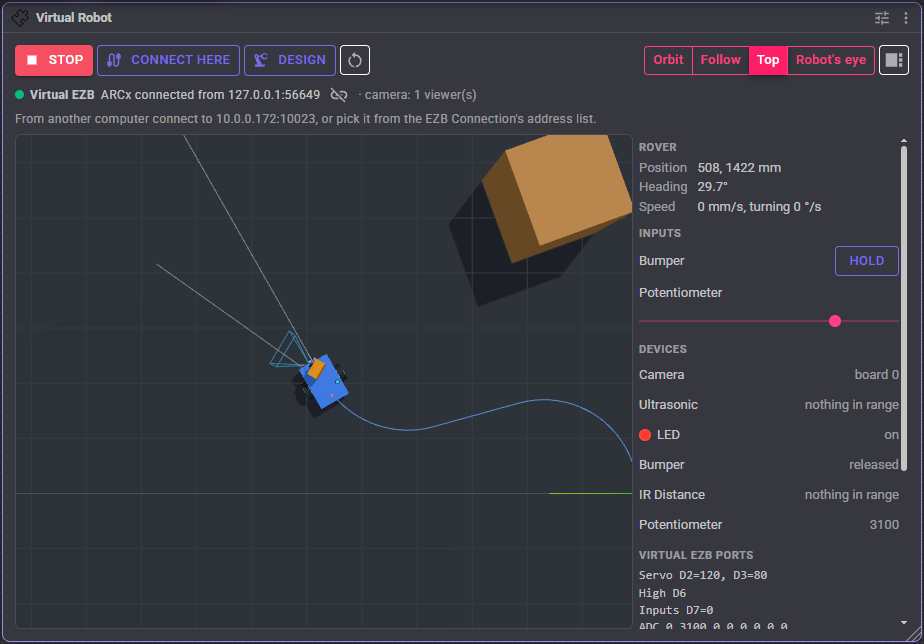
| Orbit, Follow, Top, Robot's eye | How the view watches the robot: free orbit, orbit that follows the robot around the floor, straight down from above, or through the robot's first camera. |
| Panel | Shows or hides the side panel. |
Each EZB's line shows whether a real EZB is connected (green, with its address) or not (grey, the virtual robot follows ARCx on its own). A red line means the design is wired to an EZB number the project does not have: add an EZB connection, or wire the robot to another EZB in the designer.
In the 3D view, drag with the left mouse button to orbit, the right button to pan, and the wheel to zoom. Click a button on the robot to press it. Distance sensors draw their beam: green with a dot where it hits something, grey to the end of its range when it sees nothing. A blue line on the floor is the robot's trail.
The side panel
- Position, heading and speed of the robot on the floor, in millimetres and degrees.
- Inputs: a Hold or Toggle button for each button on the robot, and a slider for each analog input. These change what ARCx reads on their ports while the EZB is not connected, and what the control commands read.
- Devices: each device's state: lights on or off, buttons pressed, distances measured, analog values, and the name of each camera's video source.
- Ports: what ARCx has set on each EZB the robot is wired to (servo positions and speeds, high digital ports, PWM duty cycles), what the virtual sensors answer on its digital, ping and ADC ports, and how many port changes it has followed.
- Log: design saves, resets and other things the robot skill did.
The designer
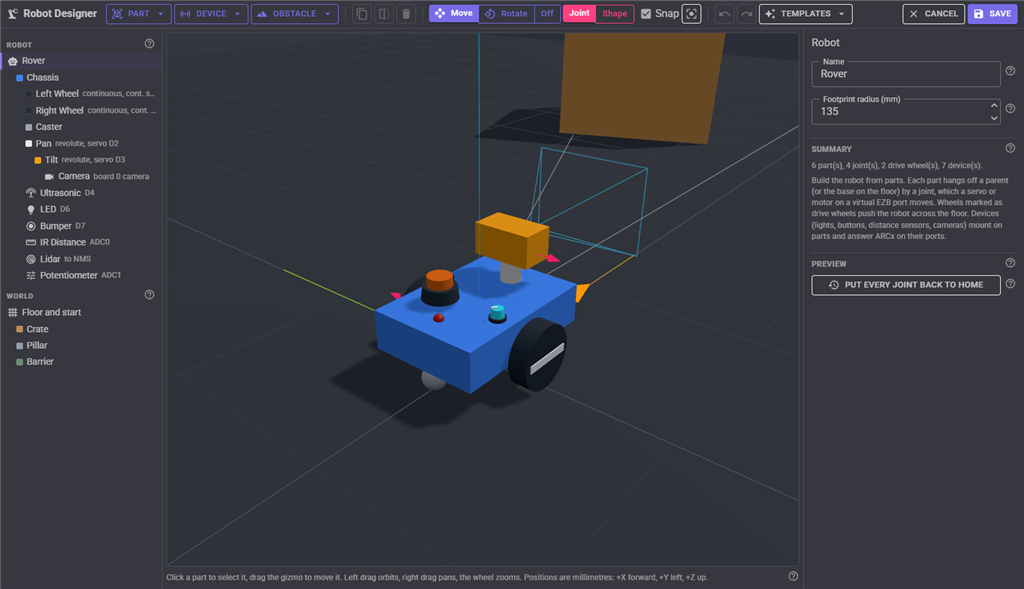
The designer edits a copy of the robot and its world. Nothing reaches the running robot until Save; Cancel throws the changes away (it asks first). The robot keeps running while the designer is open, and saving keeps it where it is on the floor, so the project carries on through a redesign. Save the ARCx project afterwards to keep the design in the project file.
The tree on the left lists the robot's parts, each indented under the part it is attached to, with the devices mounted on a part beneath it, and then the world's floor and obstacles. Click an item to select it; click a part in the 3D view to select it there. The inspector on the right edits whatever is selected.
Every setting in the inspector has a small question mark beside it. Rest the mouse on it to see what the setting does, what units it is in and what it is typically set to. Every toolbar button and every entry of the toolbar's menus explains itself the same way when the mouse rests on it.
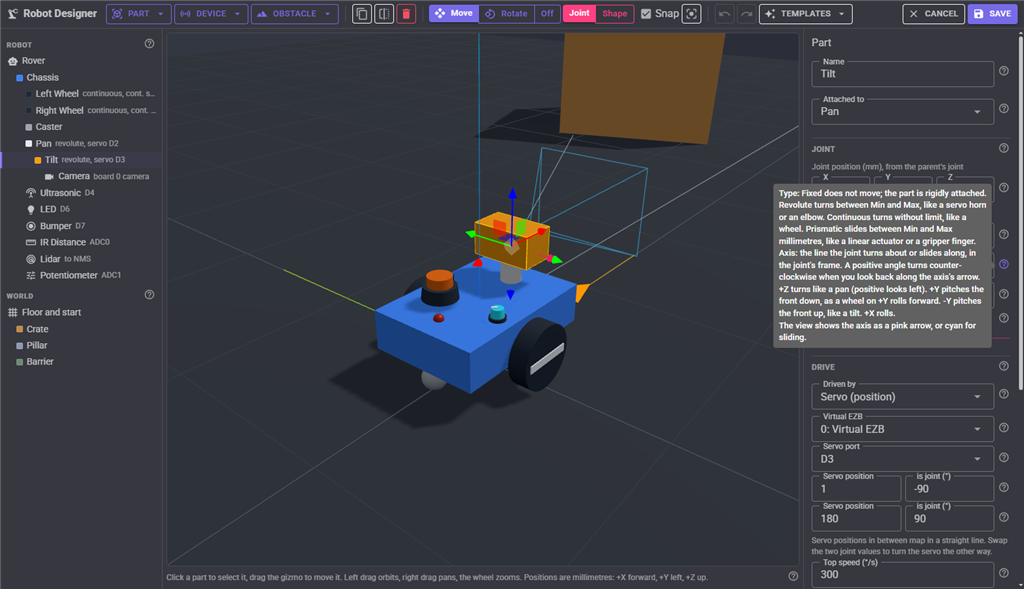
The toolbar adds parts, devices and obstacles (to the selected part, or to the robot's base when nothing is selected), copies, mirrors and deletes the selection, and undoes and redoes changes. Deleting asks first, and names the parts and devices attached below a part that go with it. Templates starts again from a ready-made robot: the two wheeled Rover a new Virtual Robot begins with, a four joint Robot Arm with a gripper, or an empty base. It asks first, because the current robot is replaced; the world is kept. Undo brings back anything deleted or replaced, until the designer is saved.
Drag the gizmo in the 3D view to move or rotate the selection. Move, Rotate and Off choose what the gizmo does. For a part, Joint moves the joint itself, carrying everything attached to the part with it; Shape moves only the part's shape around its joint, which is how a box is made to swing about one end. Snap moves in 5 mm and turns in 5 degree steps. Typing the numbers into the inspector does the same as dragging, and is the easier way to get a joint exactly where it belongs.
Directions and units
Everything is in millimetres and degrees. +X is forward, +Y is left and +Z is up, the same as the Kinematics Service robot skill and ROS. A rotation is roll (about X), pitch (about Y) and yaw (about Z). The red, green and blue lines through the world's centre are X, Y and Z, and an orange arrow on the floor marks where the robot starts.
Which way a positive angle turns follows the right-hand rule: point the thumb of your right hand along the axis, and your fingers curl the positive way. Put another way, a positive angle turns counter-clockwise when you look back along the axis's arrow towards its start. So a positive yaw turns the front to the left, a positive pitch tips the front down, and a positive roll lifts the left side.
How parts and joints fit together
A robot is a tree of parts. The robot's base is the point on the floor under the robot, which drives around the floor and turns as the robot does. Every part hangs off a parent, either another part or the base, through a joint. When a parent moves, everything below it in the tree moves with it, the way a forearm moves with the upper arm and the hand moves with the forearm.
Each part has two places, and keeping them apart is the key to building anything that moves:
- The joint is the pivot: the point the part turns about or slides from, such as a servo's output shaft. Its joint position and joint rotation are measured from the parent's joint, along the parent's directions. For a part on the base they are measured from the floor under the robot's centre, so the joint position's Z is its height above the floor.
- The shape is the part's body: a box, cylinder, sphere, cone, capsule or imported mesh. Its shape offset and shape rotation place it relative to the joint, and they move with the joint but never move the joint or anything attached to the part.
A joint value of 0 is the pose the joint position and rotation describe. Turning or sliding the joint then moves the part (and everything below it) away from that pose, about or along the joint's axis. The axis is one of the six directions of the joint's own frame, after its joint rotation, so a joint can be pointed any way at all: leave the rotation at 0 and pick an axis for the common cases, or rotate the joint first for an angled one, such as a shoulder splayed 30 degrees outwards.
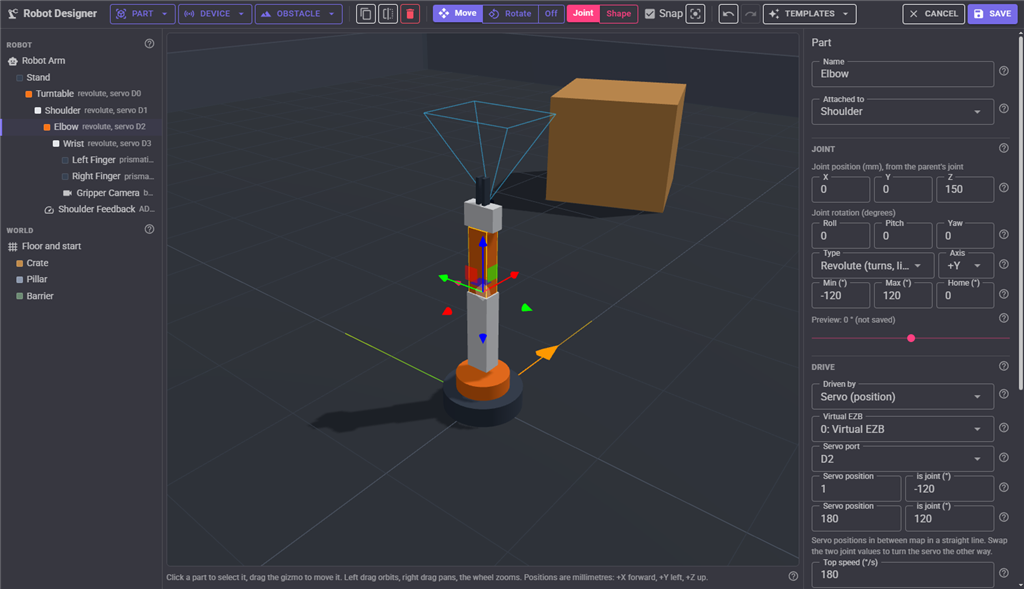
A worked example: an upper arm 150 mm long whose servo is at its bottom end. Put its joint at the servo's shaft, give it a box 150 mm tall, and offset the shape by half its length, 0, 0, 75, so the box stands up from the joint. Turning the joint now swings the arm about its bottom end, the way the real one moves. The next part, the forearm, attaches to the upper arm with its joint at 0, 0, 150: the top of the upper arm, where the elbow servo is. Leave the offset at 0 and the box would be centred on the joint and swing about its middle instead.
A part with no shape (Joint only in the Part menu) is a joint that exists only to carry other parts. Use one wherever one body turns about two axes, such as a two axis wrist or a hip: the shapeless part gives the first axis, and the part attached to it the second.
Parts and joints
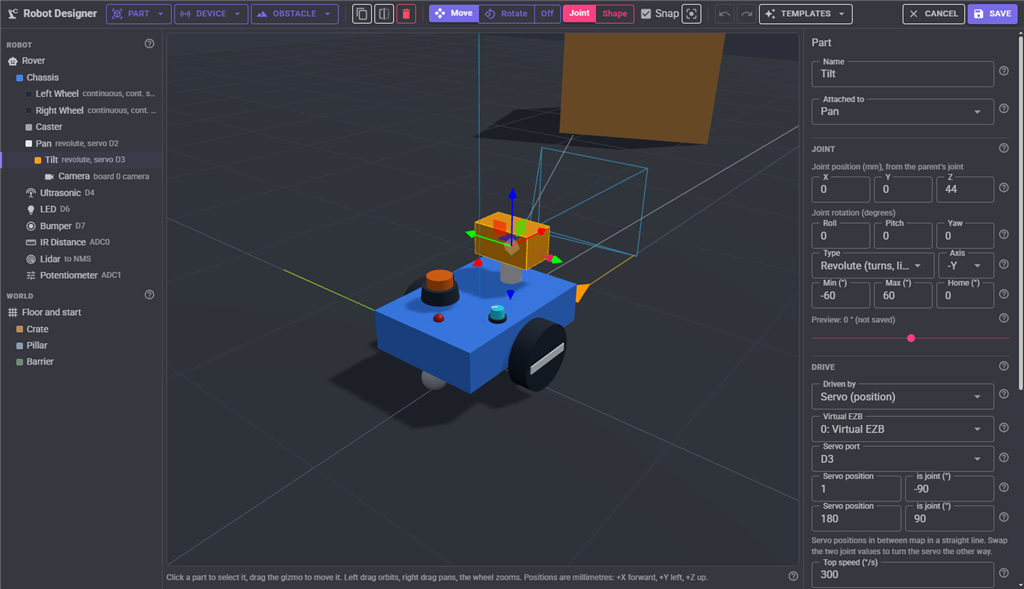
| Joint | Moves |
|---|---|
| Fixed | Not at all. The part is rigidly attached: a chassis, a bracket, a caster, a sensor mount. |
| Revolute | Turns about the joint axis between its minimum and maximum angle, like a servo horn, an elbow or a pan and tilt head. |
| Continuous | Turns about the joint axis without limit, like a wheel or a spinning turret. |
| Prismatic | Slides along the joint axis between its minimum and maximum distance in millimetres, like a linear actuator, a lift or a gripper finger. |
The axis can be any of the joint frame's six directions, and a small arrow shows it in the view (pink for turning, cyan for sliding). Choosing the axis is choosing both the line the joint moves about and which way is positive:
| Axis | A positive turn | Typical use |
|---|---|---|
| +Z | Turns the front to the left, counter-clockwise seen from above. | A pan, a turntable, a waist. |
| -Z | Turns the front to the right. | A pan that should go right on higher servo positions. |
| +Y | Tips the front down. An upright arm leans forward; a wheel rolls the robot forward. | Wheel axles, shoulders, elbows, knees. |
| -Y | Tips the front up. An upright arm leans back. | A camera tilt, a head nod. |
| +X | Lifts the left side (rolls to the right). | A wrist roll, a body lean. |
| -X | Lifts the right side. | The mirror of a +X roll. |
A sliding joint moves towards the axis's arrow as its value grows: +Z lifts, +Y moves left, +X moves forward.
Min and Max limit how far the joint goes, measured from the pose it is drawn in (0). Nothing drives it past them, not even a servo sent further, so set them to what the real mechanism can do. Home is where the joint starts, where it returns on Reset, and where it stays while nothing drives it. The Preview slider poses a joint in the designer to check it moves the way it should; it is not saved and the running robot does not move. Put every joint back to home, on the robot item at the top of the tree, undoes every preview.
Driving a joint
| Driven by | How it moves |
|---|---|
| Servo (position) | The servo position ARCx sends (1 to 180, unless the project's servo range is changed in its properties) maps in a straight line onto the joint, from the value at the first servo position to the value at the second. On D0 to D23 the joint moves at its top speed at EZB servo speed 0, half of it at speed 1, a third at speed 2, and so on; a virtual port always moves at the top speed. A released servo stays where it is. |
| Continuous rotation servo | The further the servo position is from the stop position (normally 90), the faster the joint turns, reaching its top speed at either end of the servo range. Positions within 2 of the stop position also stop, like a real servo's dead band. A released servo stops. |
| Motor on a PWM port | The duty cycle (0 to 100) sets the speed. An optional direction port reverses it while high. |
| Motor on an H-Bridge | Port A high drives forward, port B high drives in reverse, neither or both stops. An optional enable port's duty cycle sets the speed; without one the motor runs at full speed. This is the wiring of the H-Bridge Movement Panel robot skill. |
A position servo is calibrated with two rows: at this servo position, the joint is at this value. The defaults, 1 is -90 and 180 is 90, suit a standard 180 degree servo centred at 90. Some examples:
| The real servo | First row | Second row |
|---|---|---|
| A standard servo, centred at 90 | 1 is -90 | 180 is 90 |
| The same servo turning the other way | 1 is 90 | 180 is -90 |
| A servo that only turns 90 degrees over its whole range | 1 is -45 | 180 is 45 |
| A gripper finger that slides 22 mm (a prismatic joint) | 1 is 0 | 180 is 22 |
| A servo used only between 30 and 150 | 30 is -60 | 150 is 60 |
Positions outside the two rows hold at the nearer one, and the joint's Min and Max still apply. Two joints can share one port, such as two gripper fingers driven by the same servo, by giving both the same EZB and port.
Invert turns a motor the other way, for the same motor mounted mirrored on the other side of the robot. Each joint names the EZB its ports are on, so one robot can be wired across several EZBs, just as the real one is.
Wheels and driving
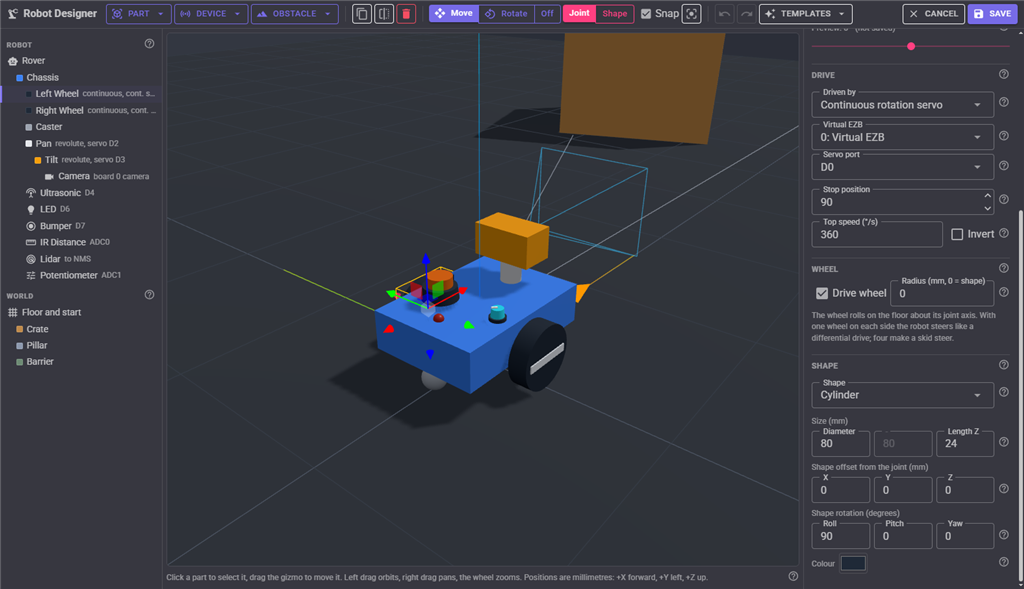
Tick Drive wheel on a turning joint and it rolls the robot across the floor as it turns, without slipping, at its radius (half the shape's diameter unless a radius is given). The wheel's axle, its joint axis, must point left or right along the robot's Y: a wheel whose axis is +Y rolls the robot forward as its value grows. One wheel on each side makes a differential drive that steers by turning the wheels at different speeds; four make a skid steer. Casters and other parts without the tick only come along for the ride. A drive wheel turning at 360 /s moves the robot one wheel circumference a second, so the top speed sets how fast the robot drives.
The Rover template's wheels match the defaults of the Continuous Rotation Movement Panel robot skill (left servo on D0 forward at 180, right servo on D1 forward at 1), so adding that Movement Panel and setting its ports to D0 and D1 drives the rover with the movement buttons, a joystick or any script.
The robot does not drive through obstacles or walls when its footprint radius (set on the robot, in the tree's top item) is more than 0: it turns on the spot but does not move into them. There is no gravity or other physics. Legs and arms move as their servos tell them, but a walking robot does not walk across the floor; only drive wheels move the base.
Building a robot step by step
The quickest way to learn the designer is to open the Rover and Robot Arm templates and click through their parts: each one is a working example of the steps below. To build from scratch, start from the Empty template, which is just a base plate.
A two wheeled base
- Select the robot's base plate (or nothing) and add a Box from the Part menu. Name it Chassis, set its size to 200 × 140 × 50 and its joint position to 0, 0, 40 so it sits 40 mm above the floor. Leave its joint Fixed.
- With the chassis selected, add a Cylinder and name it Left Wheel. Set its joint position to 0, 85, 0: on the chassis's left side, 40 mm above the floor. Set its size to a diameter of 80 and a length of 24, and its shape rotation to a roll of 90 so it lies on its side as a wheel.
- Make its joint Continuous with the axis +Y, drive it with a Continuous rotation servo on D0, and tick Drive wheel. With a diameter of 80, its radius matches its 40 mm height, so it looks right on the floor.
- With the left wheel selected, press Mirror. The copy is named Right Wheel, sits at 0, -85, 0 and has Invert ticked, so the same command drives both wheels forward. Change its servo port to D1.
- Add a Sphere to the chassis as a caster, at 0 Y and towards the back, underneath it (for example -80, 0, -25) with a diameter of 30. Leave its joint Fixed: it only comes along.
- Select the robot at the top of the tree and set a footprint radius of about half the robot's width, so it stops at walls and obstacles.
- Save, and add a Continuous Rotation Movement Panel set to D0 and D1. Forward should drive the robot along +X; if it spins on the spot instead, one wheel's Invert is wrong, and if it drives backwards, both are.
A pan and tilt camera head
- With the chassis selected, add a Cylinder named Pan, at the front of the chassis and on top of it (for example 60, 0, 45), with a shape offset of 0, 0, 17 so it stands up from its joint. Make its joint Revolute about +Z, from -90 to 90, driven by a Servo on D2.
- With Pan selected, add a Box named Tilt with its joint at 0, 0, 44, the top of the pan. Make its joint Revolute about -Y, so higher values look up, from -60 to 60, driven by a Servo on D3.
- With Tilt selected, add a Camera from the Device menu at 24, 0, 10, on the front of the tilt box. It looks along its +X, so it looks wherever the head points.
- Drag each part's Preview slider to check that pan turns left and right and tilt nods up and down about the right points before saving.
An arm
Each segment is a part attached to the one before it, with its joint at the far end of its parent. In the Robot Arm template the shoulder is a 150 mm tall box on the turntable, turning about +Y just above the turntable, with a shape offset of 0, 0, 75; the elbow is attached to the shoulder with its joint at 0, 0, 150; and the wrist is attached to the elbow at 0, 0, 120. The two gripper fingers are Prismatic joints on the wrist that slide along +Y and -Y, both driven by the same servo on D4, so they open and close together. A Joint feedback device on ADC0 reports the shoulder's angle, as a servo with a feedback potentiometer would.
Checking and fixing a design
| What happens | What to change |
|---|---|
| A joint turns the wrong way. | Pick the opposite axis (+Y for -Y). For a servo, swapping the two joint values in its calibration rows does the same; for a motor, tick or untick Invert. |
| A part swings about its middle instead of its end. | Its joint is in the wrong place. Move the joint to the pivot (the gizmo set to Joint), then offset the shape by half its length (the gizmo set to Shape, or the shape offset). |
| A part moves, but the parts on it stay behind. | They are attached to the wrong parent. Set their Attached to to the moving part. |
| The wheels turn but the robot does not move. | Tick Drive wheel, make sure the joint axis points along the robot's Y, and check the footprint is not already touching an obstacle. |
| The robot spins on the spot when told to go forward. | One wheel needs Invert (or needs it removed). Mirroring a wheel sets it for you. |
| A servo stops short of where it was sent. | The joint's Min and Max, or the servo calibration rows, are narrower than the move. |
| Nothing moves at all. | Check that the joint is driven by something, and that its EZB number and port match what ARCx sends to (the window's Ports list shows what arrives). A released servo does not move. |
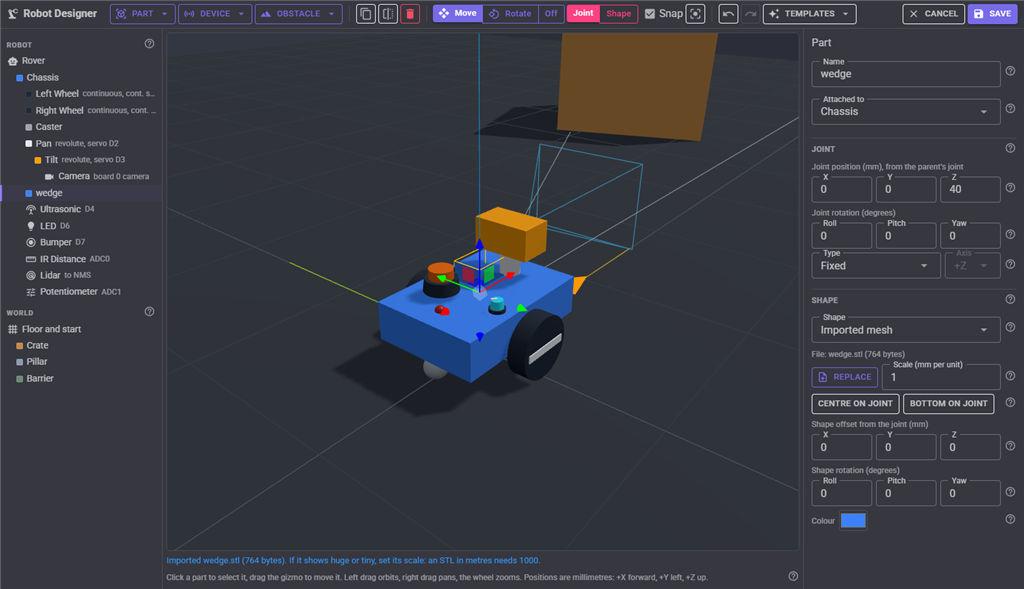
| An imported mesh is huge, tiny or off to one side. | Set its scale (1000 for a file in metres), then press Centre on joint or Bottom on joint. |
| A sensor never sees anything. | It looks along its own +X: check its rotation and its range. The robot's own parts are invisible to sensors, so a sensor inside the robot still sees out. |
Shapes and imported meshes
A part's shape is a box, cylinder, sphere, cone or capsule of the size given, or an imported mesh, or nothing at all for a joint that only exists to move its children. Cylinders, cones and capsules run along Z; turn the shape with its rotation (a roll of 90 lays a cylinder on its side as a wheel). The shape has no weight and collides with nothing; only the joint decides how the part moves.
Part, Import STL or OBJ adds a part made from a file, and Replace swaps a part's mesh. The file is stored inside the project, compressed, so the project still opens on another computer. STL files are normally in millimetres; a file in metres needs a scale of 1000, in centimetres 10 and in inches 25.4. A mesh keeps the origin it was drawn with, which is often a corner: Centre on joint moves its middle onto the joint, and Bottom on joint sits it level with the joint. Use the shape rotation to stand a mesh the right way up when the CAD program used a different up direction. Mirroring a part does not reflect its mesh.
Devices
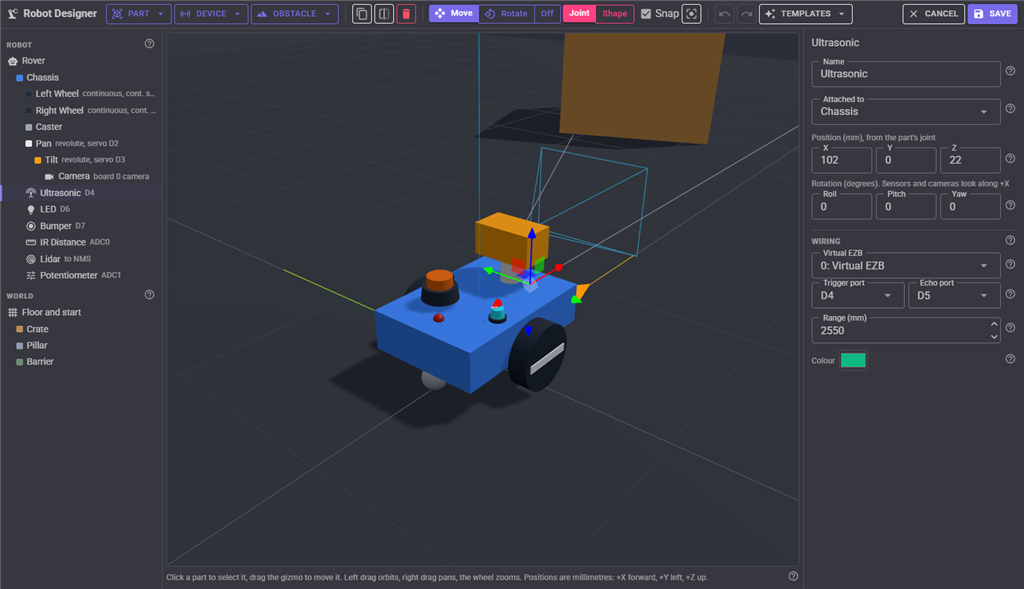
Devices mount on a part (or the base), move with it, and look along their own +X. Turn a device with its rotation to point it: a yaw of 90 looks left and -90 right, a pitch of 90 looks straight down (a cliff sensor) and -90 straight up. Each is wired to a port of one of the project's EZBs. A light follows that port; a sensor answers ARCx's reads of that port while the EZB is not connected.
| Device | Port | What ARCx reads while the EZB is not connected |
|---|---|---|
| LED | Digital, or PWM | Nothing: it is lit while the digital port is high, or as bright as the PWM port's duty cycle. |
| Button or bumper | Digital | High while pressed (or low, for a button wired with a pull-up). Press it in the window, with a click on the robot, or from a script. With a bumper range it also presses itself when an obstacle is that close in front of it. |
| Ultrasonic distance (HC-SR04) | Digital trigger | The distance to the nearest obstacle, wall or the floor along its beam, in about centimetres, up to 255. Nothing in range reads as its range. |
| Infrared distance | ADC | A 12 bit value that falls off as 1 / distance from the value at its nearest distance to 0 at its furthest, like a Sharp sensor. |
| Analog input | ADC | The value of its slider in the window, 0 to 4095, like a potentiometer. |
| Joint feedback | ADC | A joint's position, its minimum reading 0 and its maximum 4095, like a servo's feedback potentiometer. |
| Camera | None | A video source; see Cameras below. |
| Lidar | None | A 2D laser scanner. Its sweeps go to this ARCx's navigation messaging system; see below. |
The world
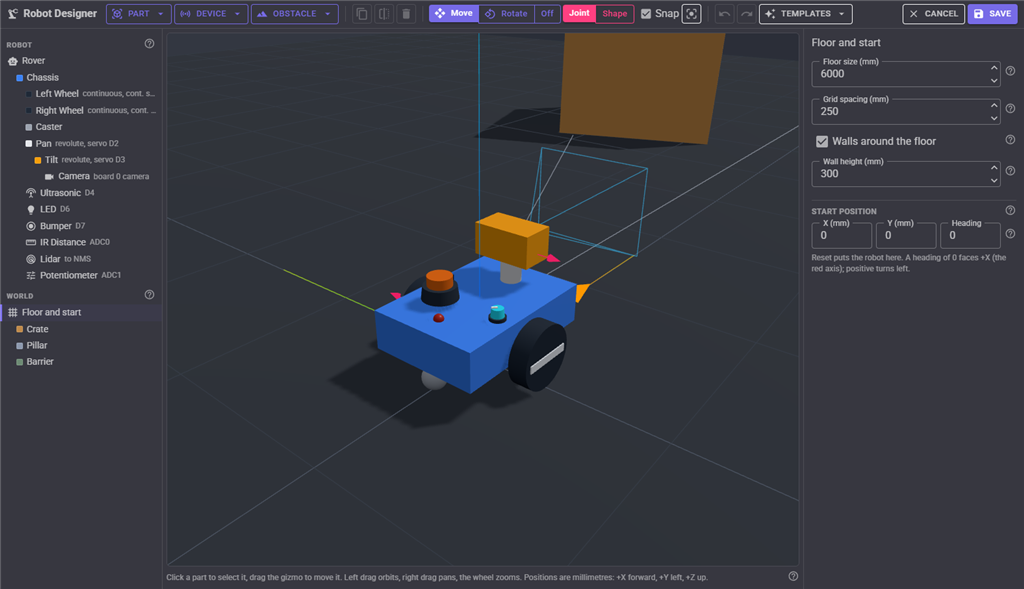
The world is a square floor centred on the world's origin, with an optional grid and wall around its edge, and obstacles: boxes and upright cylinders, each with a position, heading, size and colour. Distance sensors and bumpers see the floor, walls and obstacles; the robot's own parts are invisible to them. Without walls, the robot can drive off the edge of the floor. Floor and start also sets where the robot starts and returns to on Reset.
Cameras
Each camera on the robot is a video source of ARCx, named after the robot skill's window and the device, such as Virtual Robot Camera. Pick it in the Camera Device robot skill, or in any robot skill that takes a video source. Vision robot skills (object tracking, colour tracking, face detection) then work on the robot's view of the world. The window's Devices list shows each camera's video source name.
The 3D graphics are drawn by a web browser, so a camera is rendered by a browser showing the Virtual Robot window: the newest skill window that is open, or a Custom UI widget when no window is. While no browser is rendering, the video source shows a picture explaining that once a second. A browser tab in the background renders slowly, so keep the window visible while a camera is in use. The robot's cameras see a sky and a grey floor whatever ARCx's theme, and never the beams, gizmos and outlines drawn for you.
Lidar and navigation
A lidar sweeps a fan of beams across its own XY plane, level when the lidar is mounted level, and measures the distance to the walls, obstacles and floor along each one. The scan points show as red dots in the 3D view where the beams hit. The Rover template carries one on top of its chassis.
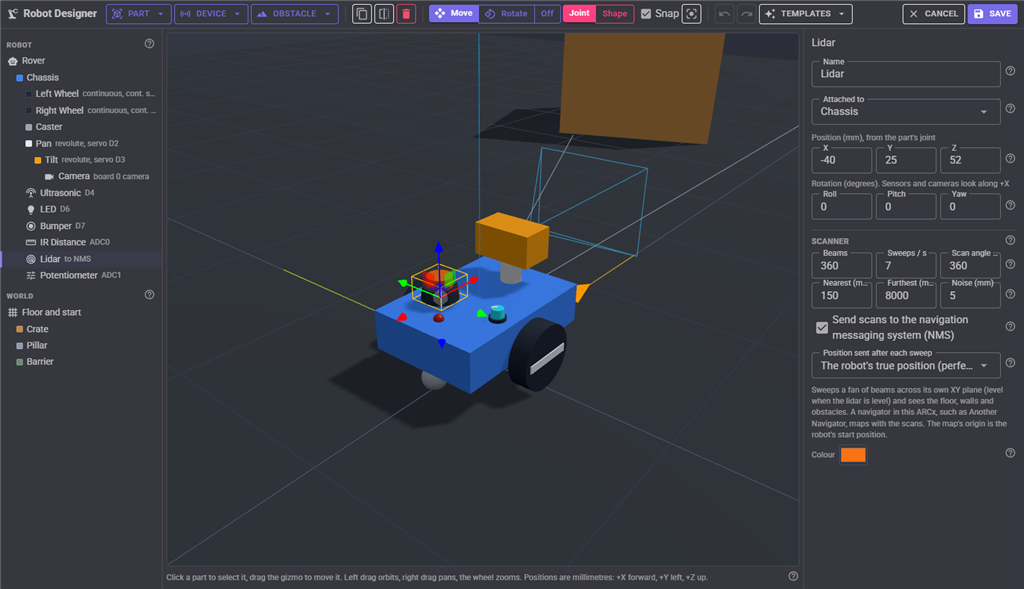
| Setting | What it does |
|---|---|
| Beams | How many beams one sweep has, 8 to 2000. 360 is one a degree. |
| Sweeps / s | How many sweeps a second, 1 to 30. |
| Scan angle | How wide the fan is, centred on the lidar's +X. 360 is all the way round. |
| Nearest, Furthest | The range it measures. A beam that hits nearer than Nearest, or nothing before Furthest, reads as nothing. |
| Noise | The random error on each distance, as a real lidar has. 0 is perfect. |
| Send scans to the NMS | Send each sweep to this ARCx's navigation messaging system. |
| Position sent after each sweep | A navigator only takes in scans when a position arrives. The robot's true position is perfect odometry, measured from where the robot starts. Repeat the last position sends a position only while no other robot skill reports one, for a navigator that works its position out from the scans alone, as the RPLidar robot skill does. None leaves it to another robot skill. |
Each sweep is sent as it would come from a real lidar robot skill: distances in metres and bearings in radians from the robot's base, counter-clockwise, 0 straight ahead. A navigator such as Another Navigator then maps the virtual world and drives the robot through it with the movement panel, so a navigation project can be built and tested before the robot exists. The map's origin is the robot's start position.
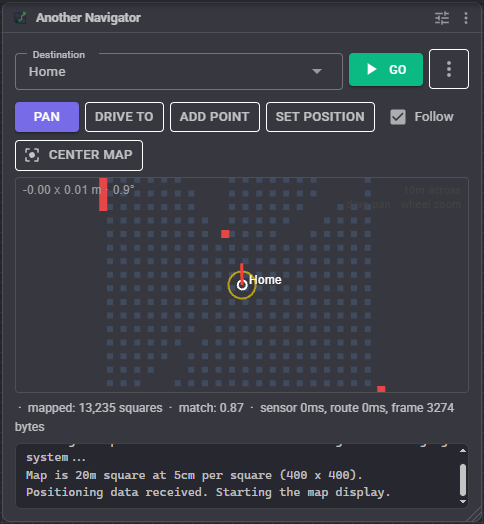
The Navigation Messaging System belongs to the ARCx the Virtual Robot runs in, so the navigator has to be in the same project. While a configuration window is open in this ARCx, the scans are held back, as other sensor robot skills do.
Configuration
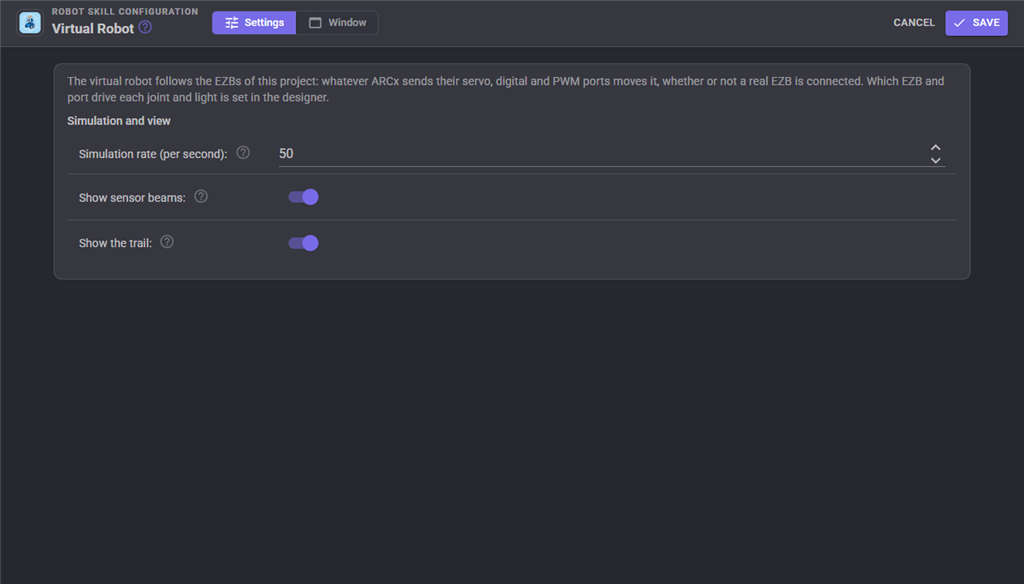
The configuration holds the simulation and view settings. The robot, its wiring and its world are designed in the designer, and saving the configuration never changes them.
| Setting | What it does |
|---|---|
| Simulation rate | How many times a second joints, wheels and sensors are simulated. |
| Show sensor beams, Show the trail | What the 3D views draw. |
Custom UI
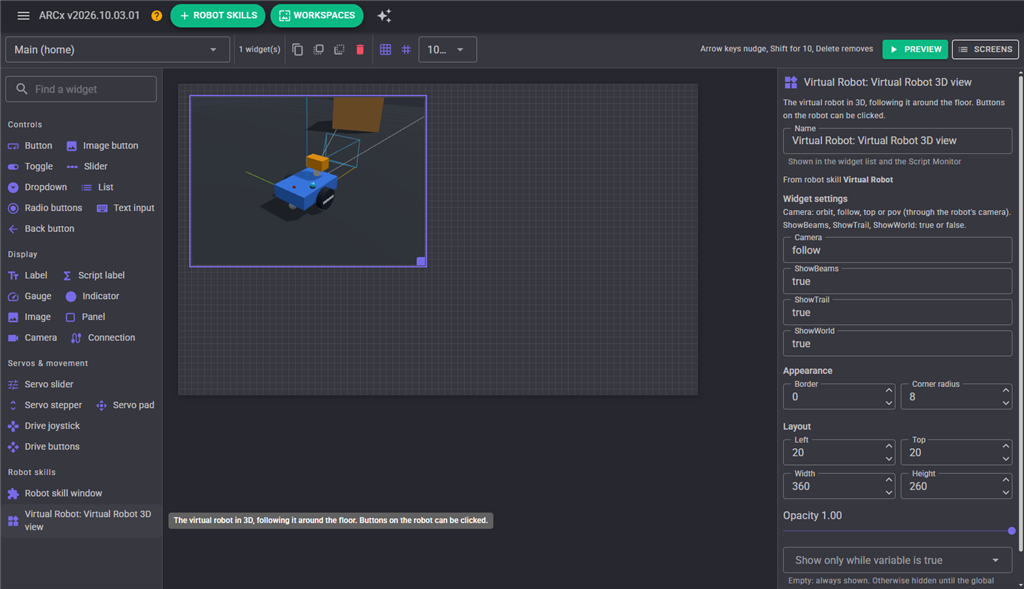
The robot skill offers a Virtual Robot 3D view widget for the Custom UI. Its settings choose how it watches the robot (orbit, follow, top or pov through the robot's camera) and whether it draws the beams, the trail and the world. Buttons on the robot can be clicked in it, except while the screen is being designed.
Scripts
Scripts can do with control commands what the window does: reset or place the robot, read its position, hold a joint at a value, press buttons, set analog inputs, and read what each sensor sees (buttons, distances, analog values, lidar sweeps, how bright a light is). The script editor's ControlCommand list describes each one. Parts and devices are addressed by the names given in the designer. Positions, distances and lidar scans are in metres and the yaw in radians (0 faces +X, positive is turned left), as every ARCx robot skill uses for scripts; joint values are in the units the designer shows them in, degrees for a turning joint and millimetres for a sliding one.
Things to know
- The robot keeps following the EZBs while a configuration window is open in this ARCx, as the real robot would.
- Servo, digital and PWM ports move the robot, and digital, ADC and HC-SR04 reads are answered by it. UARTs, I2C and EZB audio are not simulated; with a real EZB connected they reach the real robot as usual.
- There is no physics: no gravity, collisions between parts, or walking. Only drive wheels move the robot, and its footprint keeps it out of obstacles.
- Several Virtual Robots can run in one project. Each follows the ports it is wired to, so two can mirror the same EZB, or each a different one.
Control Commands for the Virtual Robot robot skill
There are Control Commands available for this robot skill which allows the skill to be controlled programmatically from scripts or other robot skills. These commands enable you to automate actions, respond to sensor inputs, and integrate the robot skill with other systems or custom interfaces. If you're new to the concept of Control Commands, we have a comprehensive manual available here that explains how to use them, provides examples to get you started and make the most of this powerful feature.
Control Command ManualThis robot skill has 16 control commands, listed below. Send them from a JavaScript or Python script, from Blockly, or from another robot skill.
The first value is always the window title, which is the name in the title bar of the robot skill on your workspace. It starts out as Virtual Robot, which is what every example below uses. If you rename the robot skill, or add a second copy of it to the project, use the title as it appears on that window instead.
ControlCommand() can be shortened to CC(), and both spellings work in JavaScript and in Python. The examples are JavaScript; Python is the same call, except that true and false are written True and False.
GetAnalog
The 12 bit reading (0 to 4095) of an analog device by name: an analog input, an infrared distance sensor (higher is nearer) or a joint feedback (the joint's minimum is 0, its maximum 4095).
Syntax
ControlCommand("Virtual Robot", "GetAnalog", (String)device)
Parameters
| # | Name | Type | What to pass |
|---|---|---|---|
| 1 | device | Text | Your text, in quotes |
Returns: Integer [-2,147,483,648 to 2,147,483,647]
Example
var result = ControlCommand("Virtual Robot", "GetAnalog", "device");
GetButton
Whether a button device is pressed, by the user or (for a bumper) by an obstacle.
Syntax
ControlCommand("Virtual Robot", "GetButton", (String)device)
Parameters
| # | Name | Type | What to pass |
|---|---|---|---|
| 1 | device | Text | Your text, in quotes |
Returns: Boolean [true or false]
Example
var result = ControlCommand("Virtual Robot", "GetButton", "device");
GetDistance
What a distance sensor (ultrasonic, infrared, bumper or lidar) sees, by device name: metres to the nearest obstacle, or -1 when nothing is in range.
Syntax
ControlCommand("Virtual Robot", "GetDistance", (String)device)
Parameters
| # | Name | Type | What to pass |
|---|---|---|---|
| 1 | device | Text | Your text, in quotes |
Returns: Double [5.0e324 to 1.7e308]
Example
var result = ControlCommand("Virtual Robot", "GetDistance", "device");
GetJoint
A part's joint value by part name: degrees for a rotating joint, millimetres for a sliding one.
Syntax
ControlCommand("Virtual Robot", "GetJoint", (String)part)
Parameters
| # | Name | Type | What to pass |
|---|---|---|---|
| 1 | part | Text | Your text, in quotes |
Returns: Double [5.0e324 to 1.7e308]
Example
var result = ControlCommand("Virtual Robot", "GetJoint", "part");
GetLed
A light device's brightness by name, 0 (off) to 1 (fully on).
Syntax
ControlCommand("Virtual Robot", "GetLed", (String)device)
Parameters
| # | Name | Type | What to pass |
|---|---|---|---|
| 1 | device | Text | Your text, in quotes |
Returns: Double [5.0e324 to 1.7e308]
Example
var result = ControlCommand("Virtual Robot", "GetLed", "device");
GetLidarScan
A lidar's latest sweep by device name: metres along each beam, 0 where the beam saw nothing. The beams run counter-clockwise from the right edge of the scan angle (from straight behind for a full circle).
Syntax
ControlCommand("Virtual Robot", "GetLidarScan", (String)device)
Parameters
| # | Name | Type | What to pass |
|---|---|---|---|
| 1 | device | Text | Your text, in quotes |
Returns: Array of Double
Example
var result = ControlCommand("Virtual Robot", "GetLidarScan", "device");
GetPose
Where the robot is on the floor: [x, y, yaw] in metres from the floor's centre and radians (0 faces +X, positive is turned left, -PI to PI).
Syntax
ControlCommand("Virtual Robot", "GetPose")
Returns: Array of Double
Example
var result = ControlCommand("Virtual Robot", "GetPose");
GetX
The robot's X position on the floor in metres from the floor's centre.
Syntax
ControlCommand("Virtual Robot", "GetX")
Returns: Double [5.0e324 to 1.7e308]
Example
var result = ControlCommand("Virtual Robot", "GetX");
GetY
The robot's Y position on the floor in metres from the floor's centre.
Syntax
ControlCommand("Virtual Robot", "GetY")
Returns: Double [5.0e324 to 1.7e308]
Example
var result = ControlCommand("Virtual Robot", "GetY");
GetYaw
The robot's yaw in radians, -PI to PI. 0 faces +X; positive is turned left.
Syntax
ControlCommand("Virtual Robot", "GetYaw")
Returns: Double [5.0e324 to 1.7e308]
Example
var result = ControlCommand("Virtual Robot", "GetYaw");
ReleaseJoint
Hand a part's joint held by SetJoint back to its servo or motor.
Syntax
ControlCommand("Virtual Robot", "ReleaseJoint", (String)part)
Parameters
| # | Name | Type | What to pass |
|---|---|---|---|
| 1 | part | Text | Your text, in quotes |
Returns: nothing
Example
ControlCommand("Virtual Robot", "ReleaseJoint", "part");
Reset
Put the robot back at its start position with every joint at home, and clear its trail.
Syntax
ControlCommand("Virtual Robot", "Reset")
Returns: nothing
Example
ControlCommand("Virtual Robot", "Reset");
SetAnalog
Set an analog input device's value by name, 0 to 4095 (a 12 bit reading), as its slider in the window does. While its EZB is not connected, ARCx reads it on its ADC port.
Syntax
ControlCommand("Virtual Robot", "SetAnalog", (String)device, (Number)value)
Parameters
| # | Name | Type | What to pass |
|---|---|---|---|
| 1 | device | Text | Your text, in quotes |
| 2 | value | Number | A number, without quotes |
Returns: nothing
Example
ControlCommand("Virtual Robot", "SetAnalog", "device", 0);
SetButton
Press (true) or release (false) a button device on the robot by name, as clicking it in the 3D view does. While its EZB is not connected, ARCx reads it on its digital port.
Syntax
ControlCommand("Virtual Robot", "SetButton", (String)device, (Bool)pressed)
Parameters
| # | Name | Type | What to pass |
|---|---|---|---|
| 1 | device | Text | Your text, in quotes |
| 2 | pressed | True or false | true or false, without quotes |
Returns: nothing
Example
ControlCommand("Virtual Robot", "SetButton", "device", true);
SetJoint
Hold a part's joint at a value by part name, overriding whatever drives it until ReleaseJoint or Reset.
Syntax
ControlCommand("Virtual Robot", "SetJoint", (String)part, (Number)value)
Parameters
| # | Name | Type | What to pass |
|---|---|---|---|
| 1 | part | Text | Your text, in quotes |
| 2 | value | Number | A number, without quotes |
Returns: nothing
Example
ControlCommand("Virtual Robot", "SetJoint", "part", 0);
SetPose
Place the robot on the floor: x and y in metres from the floor's centre, yaw in radians (0 faces +X, positive turns left). Clears the trail.
Syntax
ControlCommand("Virtual Robot", "SetPose", (Number)x, (Number)y, (Number)yaw)
Parameters
| # | Name | Type | What to pass |
|---|---|---|---|
| 1 | x | Number | A number, without quotes |
| 2 | y | Number | A number, without quotes |
| 3 | yaw | Number | A number, without quotes |
Returns: nothing
Example
ControlCommand("Virtual Robot", "SetPose", 0, 0, 0);
This list is read out of the robot skill itself each time its package is uploaded, so it matches the published version (v6).




This robot skill has been updated to v1.
What has changed
first release
This robot skill has been updated to v2.
What has changed
Added support to simulate a laser lidar scanner that publishes to the NMS
This robot skill has been updated to v3.
What has changed
updated to use new threading features of ARCx v2026.10.04.01
This robot skill has been updated to v4.
What has changed
added additional help hover over stuff in the designer
This robot skill has been updated to v5.
What has changed
works as a virtual robot without requiring an ezb connection
This robot skill has been updated to v6.
What has changed
updated to use some new ARCx UI features for improved performance.