Segway-style self-balancing robot control with live tuning, auto-tune, EEPROM saving, and ARCx drive/status support for Arduino or ESP32.
 Windows
 ARM
ARM
 Linux
Linux
 MacOS
MacOS
How to add the Two Wheel Self Balancing Robot robot skill
- Load the most recent release of ARCx on a compatible operating system (Get ARCx).
- Press the + Skills menu from the top menu bar in ARCx.
- Choose the Movement Panels category tab.
- Press the Two Wheel Self Balancing Robot icon to add the robot skill to your project.
Don't have a robot yet?
Follow the Getting Started Guide to build a robot and use the Two Wheel Self Balancing Robot robot skill.
How to use the Two Wheel Self Balancing Robot robot skill
The Two Wheel Self Balancing Robot is the Movement Panel for a two wheeled, Segway style robot: two driven wheels on one axle, and a body that stays upright only because the wheels keep driving under it. An Arduino Uno, Nano, Mega or an ESP32 on the robot runs the firmware that comes with this robot skill, reads an MPU6050 and balances the robot 200 times a second. ARCx drives it, shows what it is doing, tunes it live over the serial link, auto-tunes it, and saves the tuning into the robot so it balances the same way without ARCx.
Nothing about the tuning is compiled into the firmware. Every PID gain, the balance point, the speed limits, the motor and encoder directions and the IMU orientation are parameters this robot skill sends to the robot. You edit the firmware once, for the wiring, and never again to tune it.
The robot
| Part | Notes |
|---|---|
| Controller | Arduino Uno, Nano or Mega, or an ESP32 DevKit. |
| IMU | MPU6050 (GY-521), or an MPU6500 / MPU9250 at address 0x68, mounted firmly. Any orientation: the robot skill detects it. |
| Motor driver | TB6612FNG, L298N, DRV8833, L9110S, BTS7960, or a DIR + PWM driver such as a Cytron. |
| Motors | Two DC gear motors, ideally with quadrature encoders. With encoders the robot holds its position and drives at a real speed in m/s; without them it still balances and drives, but drifts. |
| Link to ARCx | USB cable, Bluetooth serial (HC-05, HC-06), Wi-Fi (the ESP32 firmware runs its own TCP server, as an access point or on your network), a serial bridge such as ser2net or ESP-Link, or an EZB hardware UART. |
The robot balances on its own. If the link drops, it keeps standing where it is: it stops driving when the drive commands stop arriving, and goes on balancing.
The firmware
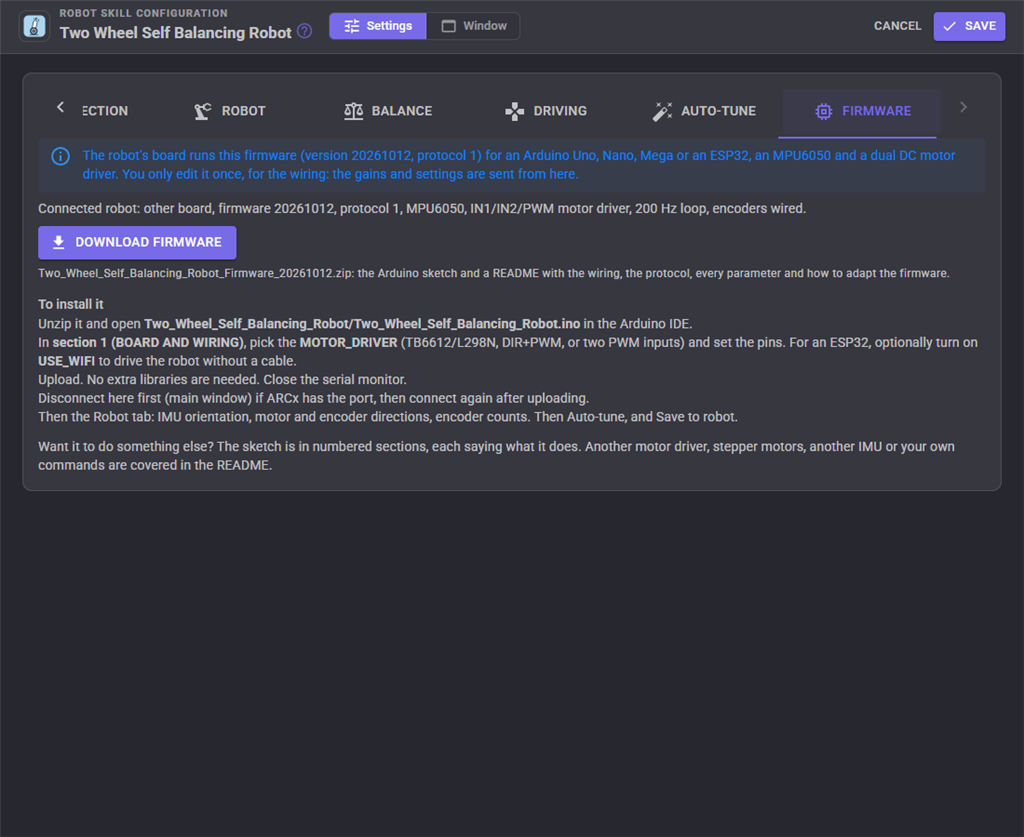
The configuration's Firmware tab downloads the sketch and a README. Open the sketch in the Arduino IDE, set the motor driver type and the pins in section 1, and upload. It needs no extra libraries. The README has the default wiring for an Uno, Nano, Mega and ESP32, how the balancing works, the serial protocol, every parameter, and how to adapt the firmware: another motor driver, stepper motors, another IMU, or commands of your own. The sketch is written to be read, in numbered sections that each explain what they do.
The window
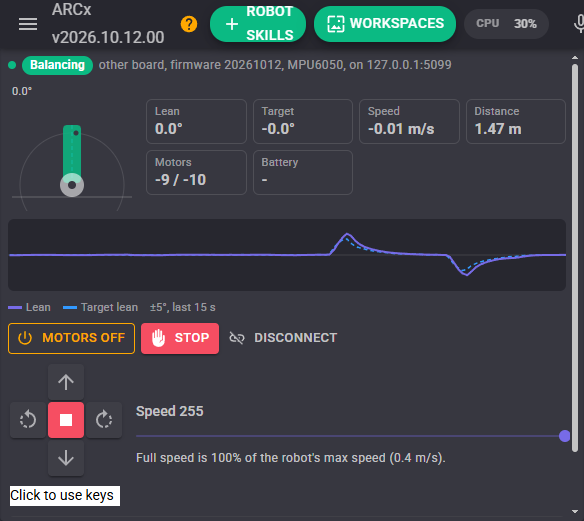
The window shows the robot from the side at its current lean, with the lean the robot is aiming for as a dashed line, and its lean, target lean, speed, distance driven, motor power and battery. The chart below draws the lean and target lean over the last 15 seconds: a well tuned robot draws a nearly flat line.
Balance turns balancing on: the robot balances as soon as it is stood upright and held still for a moment. Motors off turns the motors off; a standing robot falls, so hold it first. Stop stops driving at once and leaves the robot balancing. Connect and Disconnect open and close the link; disconnect before uploading new firmware so the Arduino IDE can use the port.
The direction buttons and the speed slider drive the robot. They go through ARCx's movement manager, so joysticks, scripts, the Custom UI and every other robot skill that moves a robot drive it the same way. Forward and reverse with different left and right speeds curve, the way a joystick asks for it.
Configuration
Connection
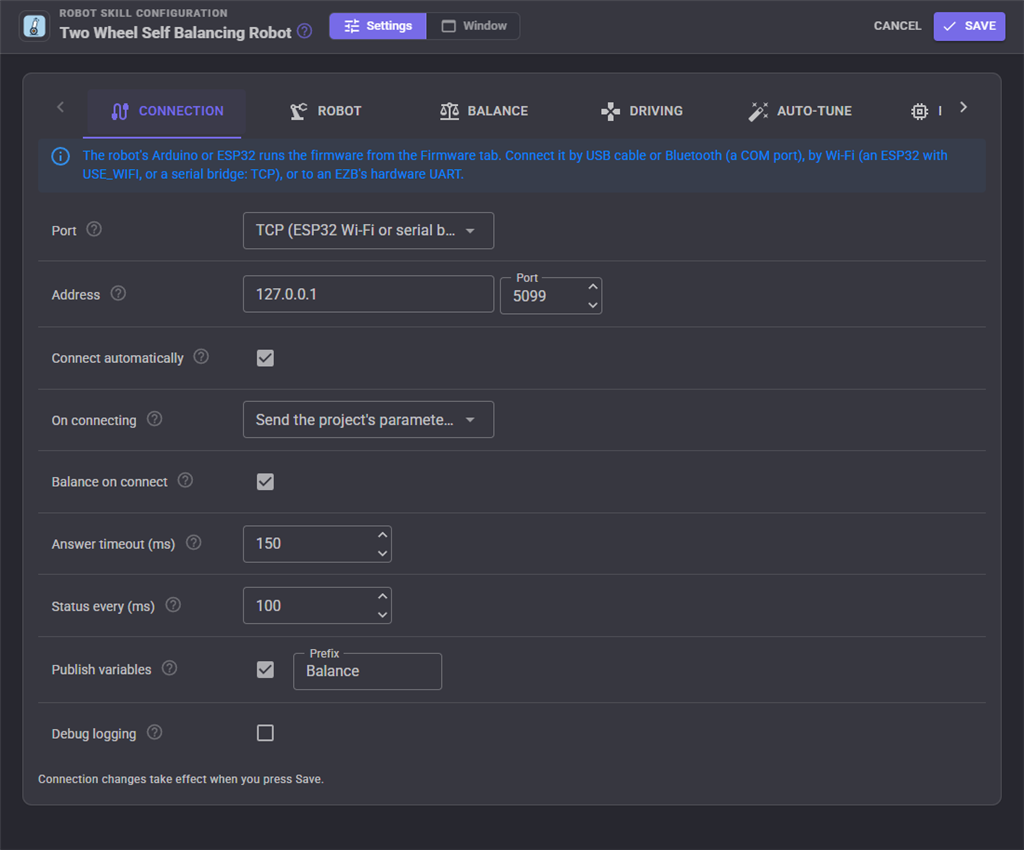
Choose the port: a COM port (USB or Bluetooth), TCP (the ESP32's address, 192.168.4.1 when it is its own access point, port 23), or an EZB UART. Leave DTR off for an Uno, Nano or Mega: raising DTR resets them, and a balancing robot then falls every time ARCx connects.
On connecting, the robot skill either sends this project's parameters to the robot (the default) or reads the robot's own, saved in its EEPROM, into the project. Balance on connect turns balancing on as soon as ARCx connects.
The robot's state is published as global variables for scripts: BalanceLean, BalanceSpeed, BalanceDistance, BalanceBattery, BalanceIsBalancing, BalanceState and BalanceConnected, with a prefix you can change.
Robot
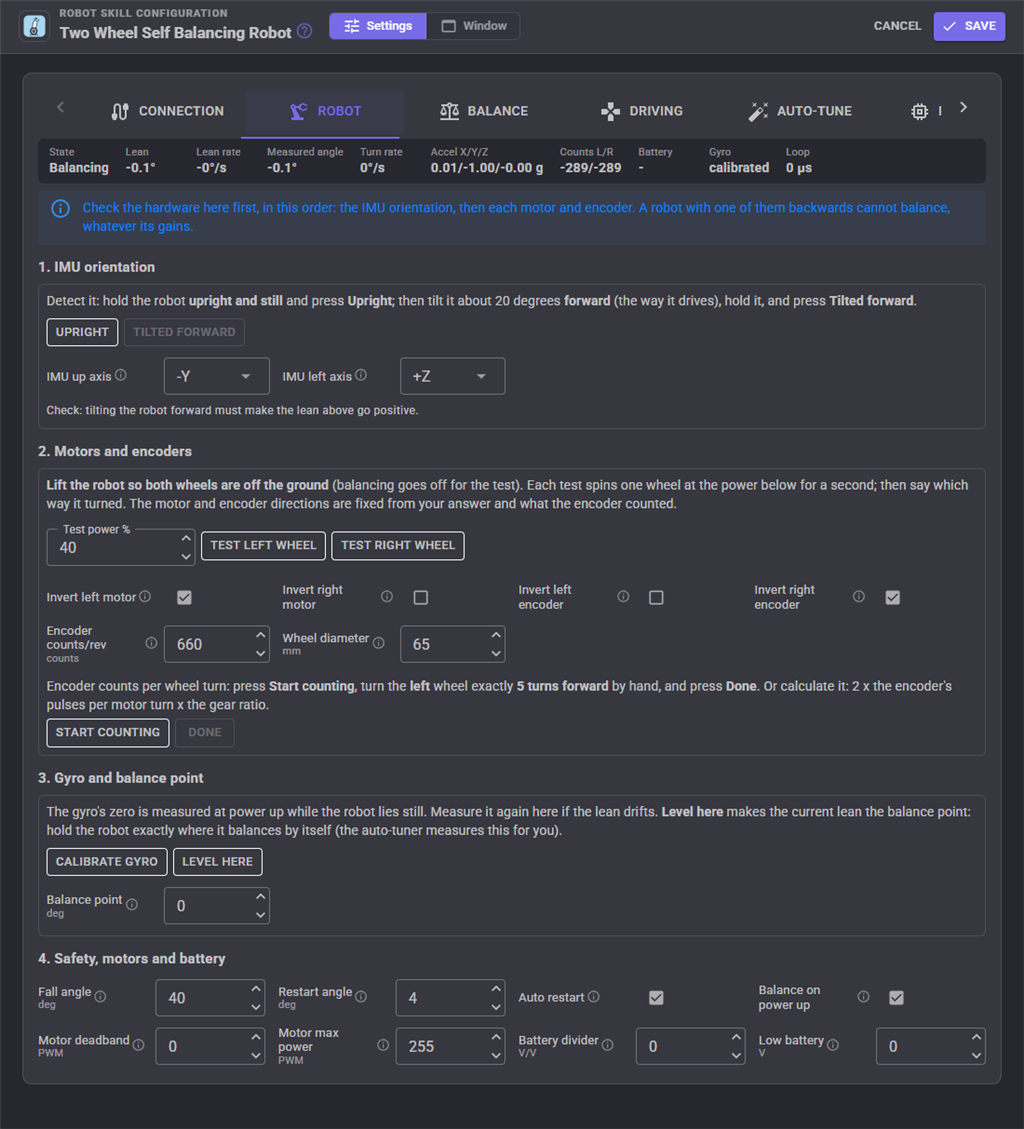
Check the hardware here before tuning, in order. A robot with its IMU, a motor or an encoder backwards cannot balance whatever its gains, and falls the same way every time.
- IMU orientation. Hold the robot upright and still and press Upright, then tilt it about 20 degrees forward and press Tilted forward. The up and left axes are found and sent to the robot. Tilting the robot forward must then make the lean positive.
- Motors and encoders. Lift the robot so its wheels are off the ground and test each wheel. It spins for a second; say which way it turned, and the motor and encoder directions are fixed from your answer and what the encoder counted. Then set the encoder counts per wheel turn (turn the left wheel five times by hand between Start counting and Done) and the wheel diameter.
- Gyro and balance point. The gyro's zero is measured at power up while the robot lies still; measure it again here if the lean drifts. Level here makes the current lean the balance point; the auto-tuner measures it for you.
- Safety, motors and battery. The fall angle (past it the motors stop), the restart angle (stood back up within it, the robot balances again), balancing at power up without ARCx, the motor deadband and maximum power, and the battery voltage divider.
Balance
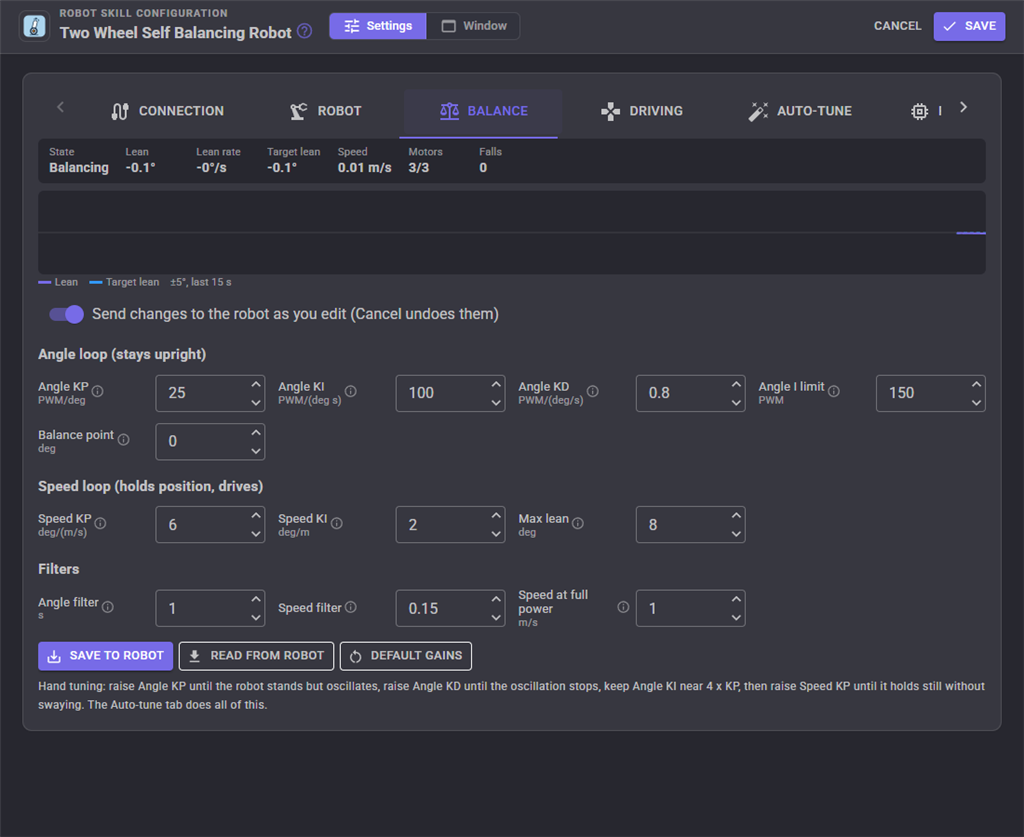
The gains, with the robot's lean and target lean live above them. Changes go to the robot as you type, so you can watch what each one does; Cancel puts the saved values back.
| Setting | What it does |
|---|---|
| Angle KP | Motor power per degree of lean. Too low and the robot falls; too high and it shakes. |
| Angle KI | Supplies the power the motors need to keep up as they turn faster, so the robot does not run away when it drives. About 4 x Angle KP. |
| Angle KD | Damps the wobble. Too high and the motors buzz. |
| Balance point | The measured lean at which the robot balances. Wrong, and the robot creeps forward or backward. |
| Speed KP | How far the robot leans to reach the speed it is asked for. Too high and it sways. |
| Speed KI | Holds the robot's position while it stands still. |
| Max lean | The furthest the robot leans to speed up or stop. |
Save to robot stores the parameters in the robot's EEPROM so it balances this way without ARCx; the motors stop for a moment while it saves, so hold the robot. Read from robot brings the robot's values into the page. Default gains puts the gains back to the firmware's defaults.
Driving
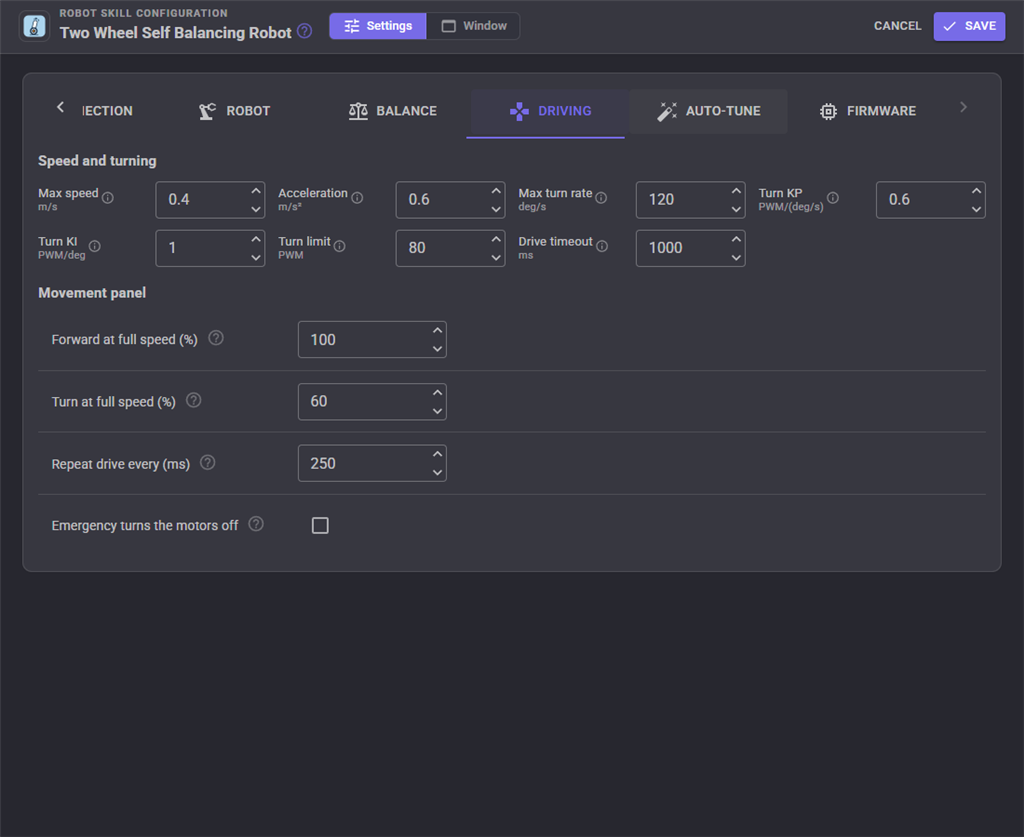
The robot's top speed in m/s, how fast it speeds up and slows down, its top turn rate and the turn gains, and how the movement panel's speed maps onto them. The drive timeout stops the robot driving when ARCx stops sending (a dropped link); the drive command is repeated more often than that while driving. The emergency stop and the panic button normally stop driving and keep the robot balancing; tick Emergency turns the motors off to have them drop it instead.
Auto-tune
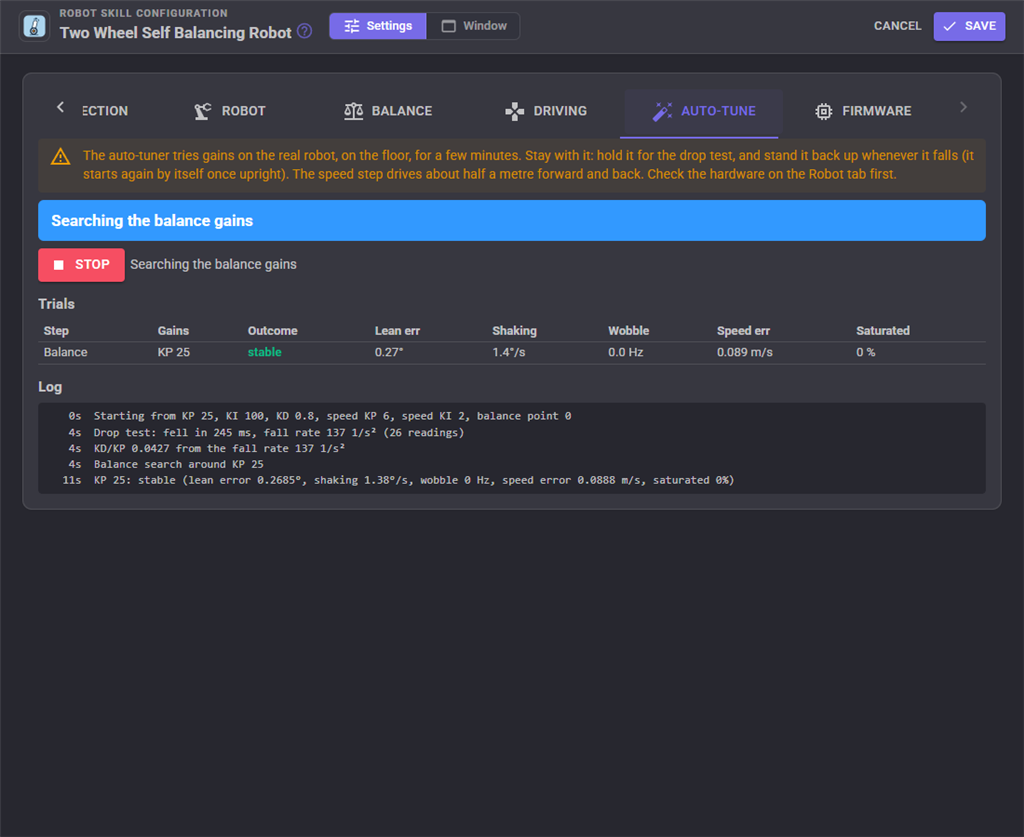
The auto-tuner tunes the robot on the floor in a few minutes. Stay with it: it tells you, in large text, when to hold the robot, when to let go, and when to stand it back up after a fall (it starts again by itself once upright).
- Drop test. Hold the robot upright, and let go when told: it falls with its motors off. How fast it falls sets the ratio of Angle KD to Angle KP. A short robot falls fast and needs quicker damping than a tall one.
- Balance gain search. Angle KP, with KI and KD in proportion, is raised until the robot shakes or saturates its motors, and lowered until it gets sloppy or falls. The middle of the range that balanced leaves the most margin both ways.
- Balance point. Standing still, the robot's average lean is its true balance point.
- Speed loop. The robot drives forward, stops, reverses and stops (about half a metre each way) while Speed KP is tuned for tracking the speed without swaying.
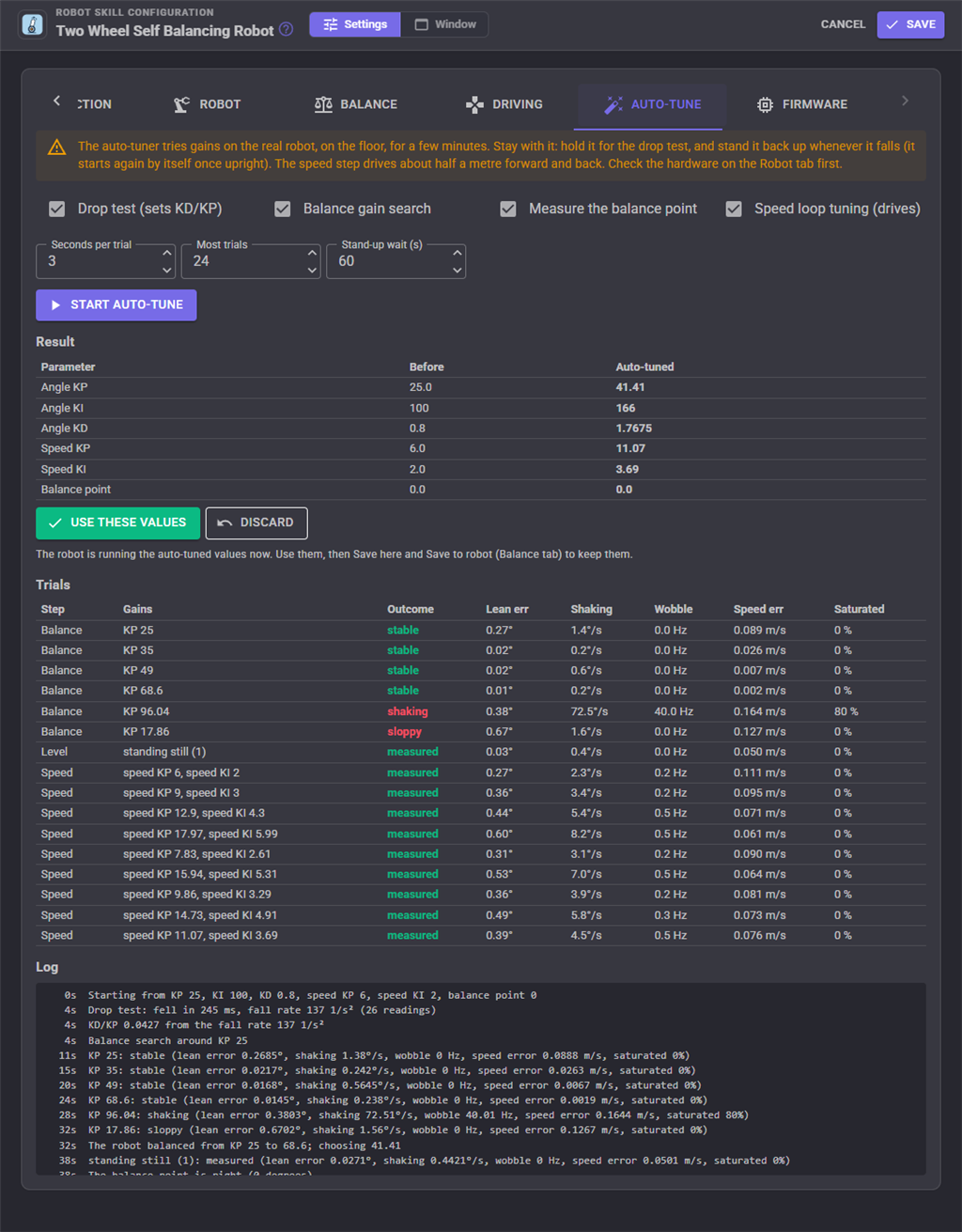
Every trial is listed with how it went: the lean error, the shaking, the wobble frequency, the speed error and how often the motors were at full power. At the end the result is shown beside the values from before. Use these values keeps it (then press Save, and Save to robot); Discard puts the old gains back on the robot. Stop, or driving the robot, ends the tune and puts the old gains back.
Tips
A robot that falls the same way every time has its IMU orientation, a motor or an encoder backwards: check the Robot tab. A robot that rocks slowly with its wheels still needs some motor deadband. A robot that buzzes has too much Angle KD, or a loose IMU. A robot that creeps one way while standing has a wrong balance point. A robot that runs away when driving needs more Angle KI. Heavy batteries mounted high make a robot easier to balance, not harder: it falls more slowly.
Control Commands for the Two Wheel Self Balancing Robot robot skill
There are Control Commands available for this robot skill which allows the skill to be controlled programmatically from scripts or other robot skills. These commands enable you to automate actions, respond to sensor inputs, and integrate the robot skill with other systems or custom interfaces. If you're new to the concept of Control Commands, we have a comprehensive manual available here that explains how to use them, provides examples to get you started and make the most of this powerful feature.
Control Command ManualThis robot skill has 22 control commands, listed below. Send them from a JavaScript or Python script, from Blockly, or from another robot skill.
The first value is always the window title, which is the name in the title bar of the robot skill on your workspace. It starts out as Two Wheel Self Balancing Robot, which is what every example below uses. If you rename the robot skill, or add a second copy of it to the project, use the title as it appears on that window instead.
ControlCommand() can be shortened to CC(), and both spellings work in JavaScript and in Python. The examples are JavaScript; Python is the same call, except that true and false are written True and False.
CalibrateGyro
Measure the gyro's zero again. The robot must be still with its motors off; it takes a second.
Syntax
ControlCommand("Two Wheel Self Balancing Robot", "CalibrateGyro")
Returns: nothing
Example
ControlCommand("Two Wheel Self Balancing Robot", "CalibrateGyro");
Connect
Connect to the robot (open the link, check the firmware and send the project's parameters). Returns true when connected. Takes up to a few seconds.
Syntax
ControlCommand("Two Wheel Self Balancing Robot", "Connect")
Returns: Boolean [true or false]
Example
var result = ControlCommand("Two Wheel Self Balancing Robot", "Connect");
Disconnect
Disconnect from the robot and stay disconnected until Connect, freeing the port (for the Arduino IDE to upload firmware). The robot keeps balancing on its own.
Syntax
ControlCommand("Two Wheel Self Balancing Robot", "Disconnect")
Returns: nothing
Example
ControlCommand("Two Wheel Self Balancing Robot", "Disconnect");
Drive
Drive with a speed and a turn, like a joystick: forward is -100 (full reverse) to 100 (full forward) percent of the robot's max speed, turn is -100 (left) to 100 (right) percent of its max turn rate. It keeps driving until Stop or another movement command.
Syntax
ControlCommand("Two Wheel Self Balancing Robot", "Drive", (Number)forward, (Number)turn)
Parameters
| # | Name | Type | What to pass |
|---|---|---|---|
| 1 | forward | Number | A number, without quotes |
| 2 | turn | Number | A number, without quotes |
Returns: nothing
Example
ControlCommand("Two Wheel Self Balancing Robot", "Drive", 0, 0);
GetBattery
The battery voltage, or 0 when the robot does not measure it.
Syntax
ControlCommand("Two Wheel Self Balancing Robot", "GetBattery")
Returns: Double [5.0e324 to 1.7e308]
Example
var result = ControlCommand("Two Wheel Self Balancing Robot", "GetBattery");
GetDistance
The distance driven since power up or ResetDistance, metres, forward positive.
Syntax
ControlCommand("Two Wheel Self Balancing Robot", "GetDistance")
Returns: Double [5.0e324 to 1.7e308]
Example
var result = ControlCommand("Two Wheel Self Balancing Robot", "GetDistance");
GetLean
The robot's lean from its balance point, degrees, positive forward.
Syntax
ControlCommand("Two Wheel Self Balancing Robot", "GetLean")
Returns: Double [5.0e324 to 1.7e308]
Example
var result = ControlCommand("Two Wheel Self Balancing Robot", "GetLean");
GetParameter
One of the robot's parameters as the robot has it (read from the robot when connected, the project's value otherwise). Name as for SetParameter.
Syntax
ControlCommand("Two Wheel Self Balancing Robot", "GetParameter", (String)name)
Parameters
| # | Name | Type | What to pass |
|---|---|---|---|
| 1 | name | Text | Your text, in quotes |
Returns: Double [5.0e324 to 1.7e308]
Example
var result = ControlCommand("Two Wheel Self Balancing Robot", "GetParameter", "name");
GetSpeed
The robot's speed, m/s, positive forward (estimated from the motor power when it has no encoders).
Syntax
ControlCommand("Two Wheel Self Balancing Robot", "GetSpeed")
Returns: Double [5.0e324 to 1.7e308]
Example
var result = ControlCommand("Two Wheel Self Balancing Robot", "GetSpeed");
GetState
What the robot is doing: Motors off, Waiting to be stood up, Balancing, Calibrating the gyro, Drop test, Motor test, IMU not answering, or Not connected.
Syntax
ControlCommand("Two Wheel Self Balancing Robot", "GetState")
Returns: String
Example
var result = ControlCommand("Two Wheel Self Balancing Robot", "GetState");
IsAutoTuning
Whether the auto-tuner is running.
Syntax
ControlCommand("Two Wheel Self Balancing Robot", "IsAutoTuning")
Returns: Boolean [true or false]
Example
var result = ControlCommand("Two Wheel Self Balancing Robot", "IsAutoTuning");
IsBalancing
Whether the robot is balancing right now.
Syntax
ControlCommand("Two Wheel Self Balancing Robot", "IsBalancing")
Returns: Boolean [true or false]
Example
var result = ControlCommand("Two Wheel Self Balancing Robot", "IsBalancing");
IsConnected
Whether ARCx is connected to the robot.
Syntax
ControlCommand("Two Wheel Self Balancing Robot", "IsConnected")
Returns: Boolean [true or false]
Example
var result = ControlCommand("Two Wheel Self Balancing Robot", "IsConnected");
LevelHere
Make the robot's current lean its balance point. Hold it exactly where it balances first. Returns the new balance point, degrees.
Syntax
ControlCommand("Two Wheel Self Balancing Robot", "LevelHere")
Returns: Double [5.0e324 to 1.7e308]
Example
var result = ControlCommand("Two Wheel Self Balancing Robot", "LevelHere");
ResetDistance
Set the distance driven back to 0.
Syntax
ControlCommand("Two Wheel Self Balancing Robot", "ResetDistance")
Returns: nothing
Example
ControlCommand("Two Wheel Self Balancing Robot", "ResetDistance");
SaveToRobot
Save the robot's current parameters in its EEPROM, so it balances the same way without ARCx. Not while it is balancing (turn the motors off first).
Syntax
ControlCommand("Two Wheel Self Balancing Robot", "SaveToRobot")
Returns: nothing
Example
ControlCommand("Two Wheel Self Balancing Robot", "SaveToRobot");
SetParameter
Change one of the robot's parameters now, and in the project (save the project, and SaveToRobot, to keep it). Name is a parameter of the configuration's Parameters, such as AngleKp, AngleKi, AngleKd, SpeedKp, SpeedKi, BalancePoint, MaxSpeed or MaxTurnRate. Returns the value applied after clamping to its range. The names: AngleKp, AngleKi, AngleKd, SpeedKp, SpeedKi, TurnKp, TurnKi, BalancePoint, MaxLean, MaxSpeed, MaxTurnRate, DriveAcceleration, FallAngle, RestartAngle, AutoRestart, BalanceOnPowerUp, MotorDeadband, MotorMaxPower, AngleFilterSeconds, SpeedFilter, CommandTimeoutMs, EncoderCountsPerRevolution, WheelDiameterMm, OpenLoopSpeed, InvertLeftMotor, InvertRightMotor, InvertLeftEncoder, InvertRightEncoder, ImuUpAxis, ImuLeftAxis, BatteryDividerRatio, LowBatteryVolts, AngleIntegralLimit, TurnLimit.
Syntax
ControlCommand("Two Wheel Self Balancing Robot", "SetParameter", (String)name, (Number)value)
Parameters
| # | Name | Type | What to pass |
|---|---|---|---|
| 1 | name | Text | Your text, in quotes |
| 2 | value | Number | A number, without quotes |
Returns: Double [5.0e324 to 1.7e308]
Example
var result = ControlCommand("Two Wheel Self Balancing Robot", "SetParameter", "name", 0);
StartAutoTune
Start the auto-tuner with the configuration's auto-tune settings. Someone must stand by to hold the robot for the drop test and to stand it up after falls. It runs for a few minutes; the result goes into the project's parameters when it finishes. Returns immediately.
Syntax
ControlCommand("Two Wheel Self Balancing Robot", "StartAutoTune")
Returns: nothing
Example
ControlCommand("Two Wheel Self Balancing Robot", "StartAutoTune");
StartBalancing
Turn balancing on: the robot balances as soon as it is stood upright. Returns the robot's state.
Syntax
ControlCommand("Two Wheel Self Balancing Robot", "StartBalancing")
Returns: String
Example
var result = ControlCommand("Two Wheel Self Balancing Robot", "StartBalancing");
Stop
Stop driving at once. The robot keeps balancing in place.
Syntax
ControlCommand("Two Wheel Self Balancing Robot", "Stop")
Returns: nothing
Example
ControlCommand("Two Wheel Self Balancing Robot", "Stop");
StopAutoTune
Stop the auto-tuner; the gains from before it started go back on the robot.
Syntax
ControlCommand("Two Wheel Self Balancing Robot", "StopAutoTune")
Returns: nothing
Example
ControlCommand("Two Wheel Self Balancing Robot", "StopAutoTune");
StopBalancing
Turn the motors off. A standing robot falls over: hold it first. Returns the robot's state.
Syntax
ControlCommand("Two Wheel Self Balancing Robot", "StopBalancing")
Returns: String
Example
var result = ControlCommand("Two Wheel Self Balancing Robot", "StopBalancing");
This list is read out of the robot skill itself each time its package is uploaded, so it matches the published version (v2).

This robot skill has been updated to v1.
What has changed
initial release
This robot skill has been updated to v2.
What has changed
updated to use some new ARCx UI features for improved performance.