Turns MIDI controllers into robot controls for servos, movement, variables, scripts, lighting, and synth output with layers and feedback
 Windows
 ARM
ARM
 Linux
Linux
 MacOS
MacOS
How to add the Midi Control robot skill
- Load the most recent release of ARCx on a compatible operating system (Get ARCx).
- Press the + Skills menu from the top menu bar in ARCx.
- Choose any of these category tabs, the robot skill appears in each of them: Audio, Remote Control, Servo.
- Press the Midi Control icon to add the robot skill to your project.
Don't have a robot yet?
Follow the Getting Started Guide to build a robot and use the Midi Control robot skill.
How to use the Midi Control robot skill
MIDI Control turns a MIDI keyboard or controller into the robot's control panel. Every key, pad, knob, fader, endless encoder, pitch wheel, pedal and button can move a servo, set a PWM or digital port, drive the robot, set a global variable or run scripts. A controller with eight knobs can control far more than eight things by switching layers, and pads light up to show what is switched on. It can also send notes and control changes to a synthesizer or any other MIDI device.
Plug a controller in and it is ready: every MIDI input is opened as soon as it appears, so there is nothing to select before the first control works.
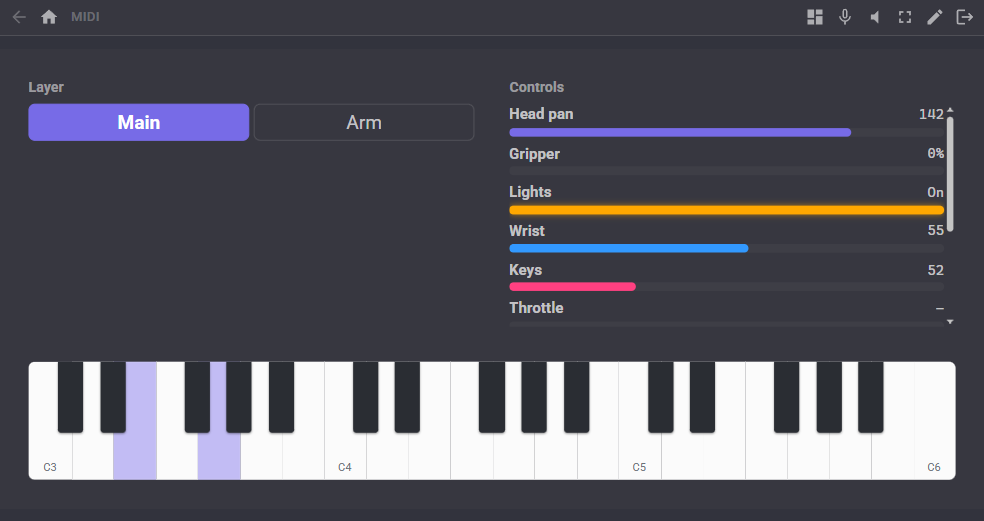
The window
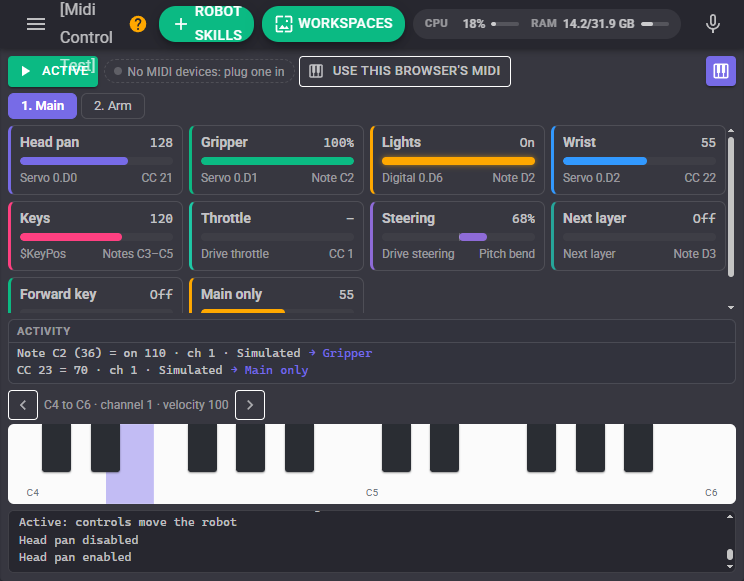
The bar along the top shows:
- Active / Paused: while paused, messages still arrive and show in the activity list, but nothing moves. Pausing stops the robot if a control was driving it.
- The MIDI devices: a green dot for each open input (it flashes as messages arrive), amber for a device you selected that is not plugged in, and red for one that could not be opened, for example because another program is using it. Hover over a device for the details.
- Use this browser's MIDI: see A controller on another computer below.
- The keyboard button shows or hides the on-screen keyboard.
When there is more than one layer, the layer buttons come next, with the current layer highlighted.
Each binding of the current layer (and each binding that works on every layer) has a tile. A tile shows the binding's name, its value, a bar (or a light for a button), what it controls and the control it listens to. A tile flashes when a message reaches it. A binding waiting for soft takeover shows an amber mark on its bar where the control has to go, and a binding that could not move its target says why.
The activity list shows the most recent messages and which bindings each one reached, so you can see what a control sends by touching it. "no binding" means nothing listens to it; "held" means it reached a binding but was not acted on (paused, or a configuration window is open).
The on-screen keyboard plays into the bindings exactly as a real keyboard would. Click or touch the keys, or drag across them with the mouse. With the keyboard focused, the computer keyboard plays it: A W S E D F T G Y H U J K O L P ; ' are the notes up from the lowest C, and Z and X change the octave. The keys also light up for the notes a real keyboard is playing.
Bindings
A binding is one control and what it does. Open the configuration and press Learn at the top of the list, then touch the control on your MIDI device: press a key or pad, turn a knob, move a fader, or turn an endless encoder a few clicks. MIDI Control fills in the message, the number and the channel, and recognises the type of control: a key or a button becomes a button, a knob or fader follows the control, and an endless encoder gets the right encoding. If nothing is touched within 20 seconds, the new binding is removed again.
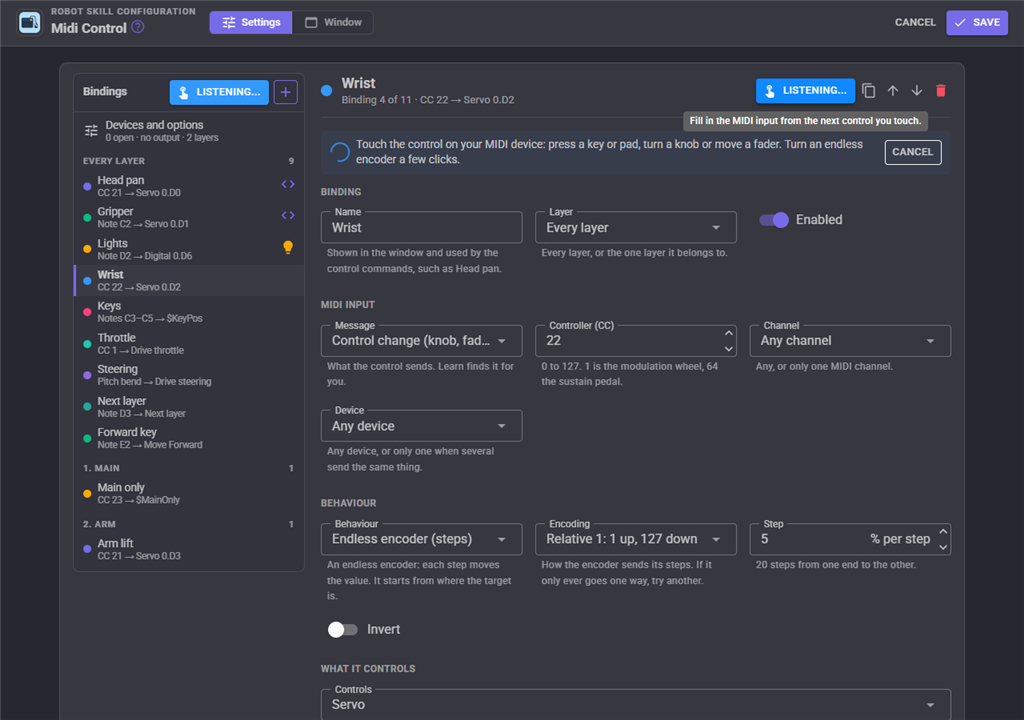
Learn in a binding's header fills in an existing binding the same way. While the configuration is open nothing moves, so touching a control to learn it never drives the robot.
The copy button (Duplicate for the next control) copies a binding for the next control along: the next note or controller number, the next servo, PWM or digital port, and the next number at the end of the name and the variable. To put eight faders on eight servos, learn the first fader, set its servo, and duplicate it seven times.
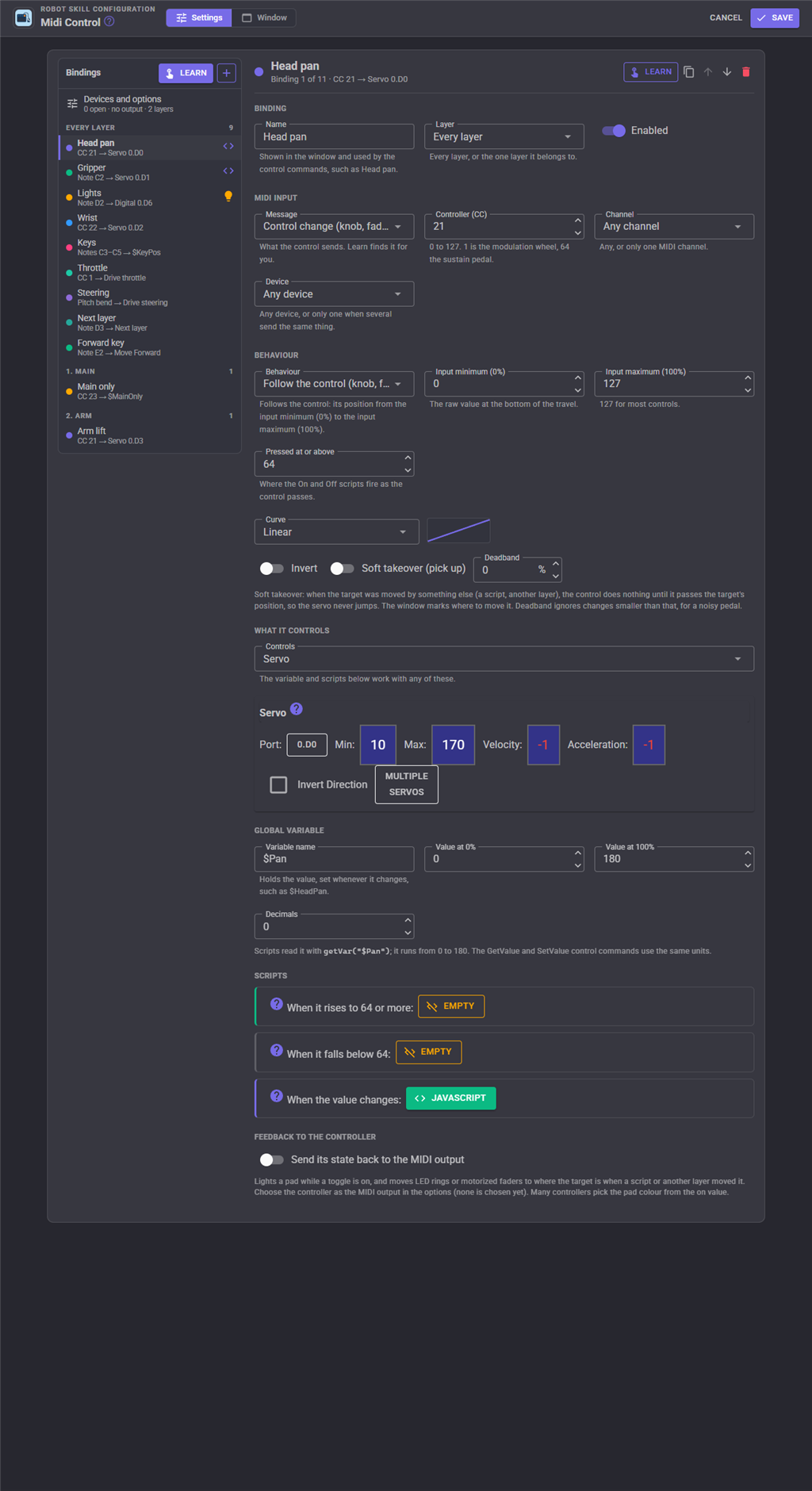
MIDI input
| Setting | What it does |
|---|---|
| Message | What the control sends: Note (a key or pad), Control change (most knobs, faders, buttons, the modulation wheel and pedals), Pitch bend, Channel aftertouch, Polyphonic aftertouch or Program change. |
| Note / Controller / Program | The number. Middle C is note 60, called C4. |
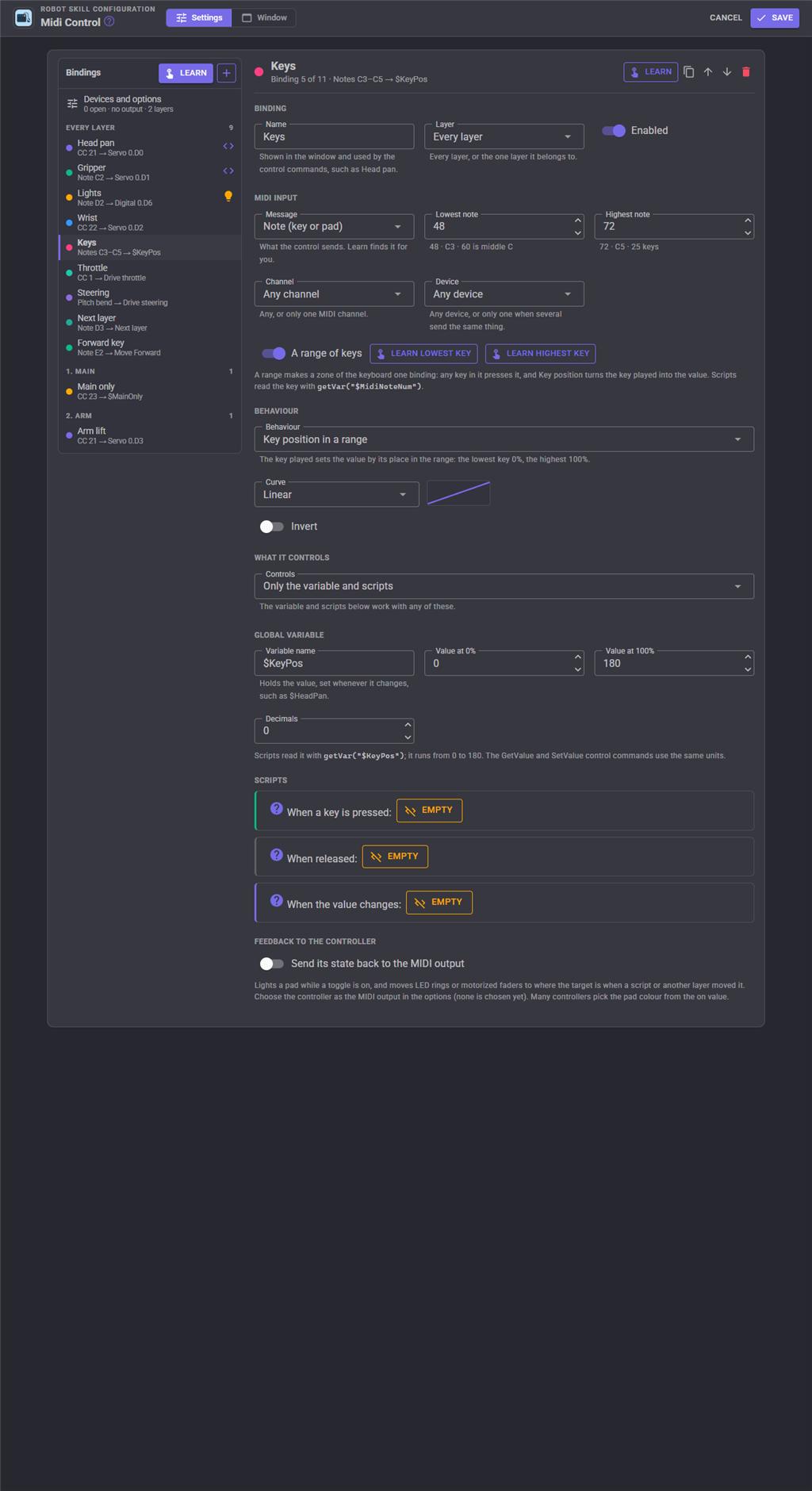
| A range of keys | For notes: a zone of the keyboard becomes one binding. Any key in it presses the binding, and Key position in a range turns the key played into the value. Use Learn lowest key and Learn highest key to set the range. |
| Channel | Any channel, or only one of the 16. |
| Device | Any device, or only one when several send the same messages. The on-screen keyboard is a device too. |
| Layer | Every layer, or the one layer the binding belongs to. |
Behaviour
The behaviour decides how messages become the binding's value, from 0 to 100%.
| Behaviour | What it does |
|---|---|
| Follow the control | The value follows a knob, fader, wheel or pressure from Input minimum (0%) to Input maximum (100%). For a key, the value is how hard it was struck while it is held, and returns to 0 when it is released. For a program change, the program number is the value. |
| Endless encoder | Each click of the encoder moves the value by Step percent, starting from where the target is now. Encoding must match the controller: Relative 1 (1 up, 127 down), Relative 2 (65 up, 63 down) or Relative 3 (1 up, 65 down). If the value only ever moves one way, try another encoding. On a key, each press is one step, so two keys, one of them inverted, can nudge a servo up and down. |
| Button: on while held | 100% while the key or button is held down, 0 when it is released. |
| Button: press to switch on and off | Each press switches between 0 and 100%. |
| Button: fire once per press | Each press fires once; releasing does nothing. Use it for switching layers, starting a movement or running a one-shot script. |
| Key position in a range | The key played sets the value by its place in the range: the lowest key is 0, the highest 100%. Play the keyboard to point a servo. |
A control change, pitch bend or aftertouch counts as pressed when its value is at or above Pressed at or above (64 suits buttons that send 127 and 0).
| Option | What it does |
|---|---|
| Curve | Linear, Ease in (fine control at the bottom), Ease out (fine control at the top) or S-curve (fine control at both ends). The drawing beside it shows the shape. |
| Invert | Reverses the direction: the top of a fader gives 0%, a pressed button 0%, an encoder turned clockwise counts down. |
| Soft takeover (pick up) | When something else moved the target (a script, a Custom UI slider, or the same knob on another layer), the control does nothing until it passes through the target's position, so the servo never jumps. The tile marks where to move the control. |
| Deadband | Ignores changes smaller than this, to steady a noisy pedal or a worn potentiometer. 0% and 100% are always reached. |
What it controls
| Controls | What it does |
|---|---|
| Only the variable and scripts | Nothing else; the binding's variable and scripts do the work. |
| Servo | A servo, or several that move together (Multiple servos). 0% is each servo's minimum and 100% its maximum. |
| PWM port | A PWM port's duty cycle, from Duty at 0% to Duty at 100%. |
| Digital port | On at 50% and above, off below. A fire once per press button flips the port on each press. |
| Movement (one direction) | The Movement Panel moves in Direction while the binding is on, and stops when it goes off. A button is on while held; a knob or fader is on above 5%. With Speed from the value, a fader sets the speed, or for a key, how hard it is struck. Releasing a key stops the robot only if that binding is still the one moving it. |
| Drive (throttle or steering) | Bind one control as the Throttle and another as the Steering, and the robot drives like a car: forward, reverse, turns, and spins on the spot. See below. |
| Movement speed | Sets the movement panel's speed, 0 to 255 across the travel. |
| Layer | Switches to a layer on each press: a chosen layer, the next one or the previous one. With Follow the control, a knob picks the layer by its position. |
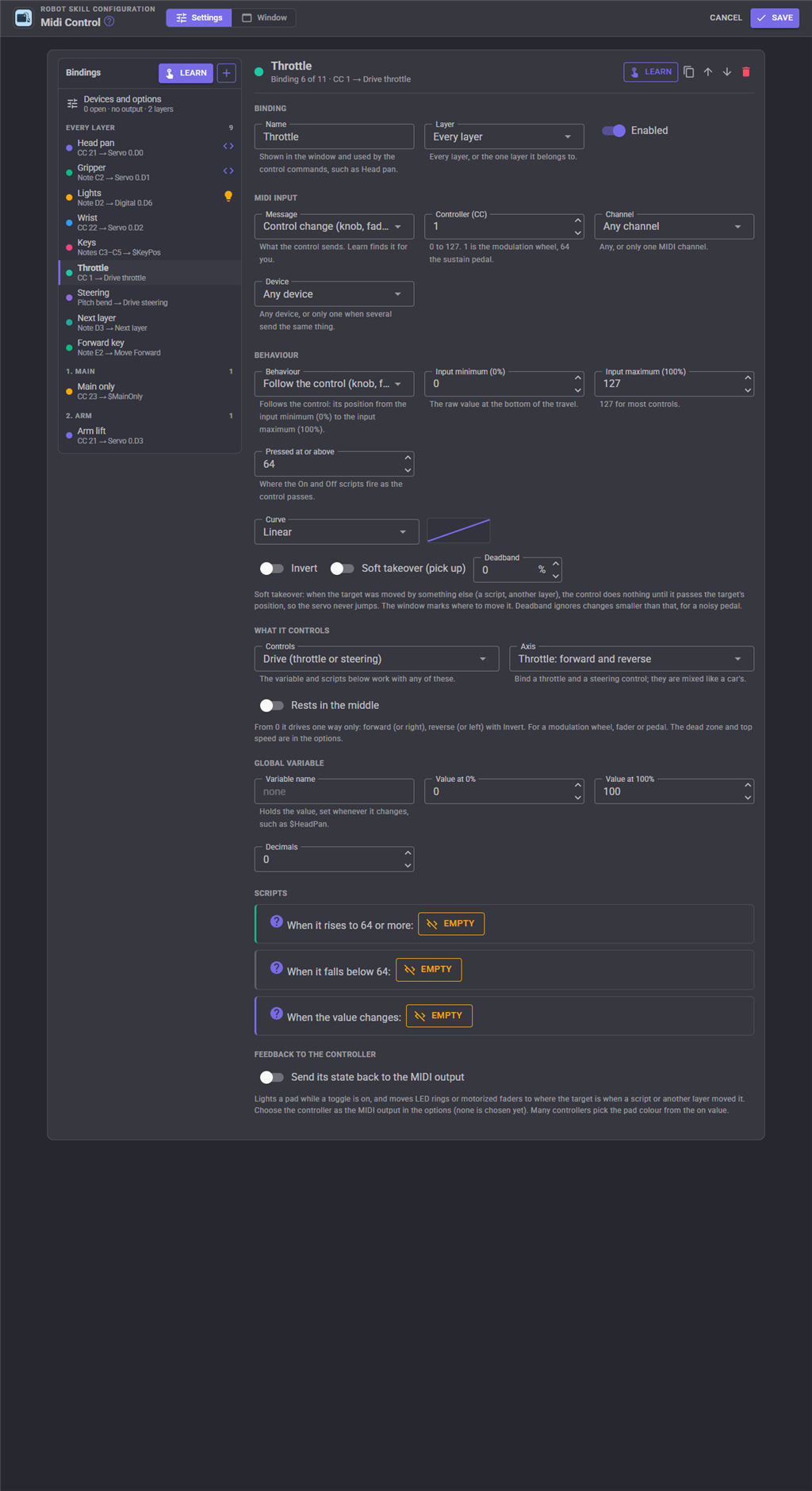
Driving
A control that rests in the middle, such as the pitch wheel, a joystick or a centre-detent knob, drives both ways: below the middle is reverse (or left), above it is forward (or right). Leave Rests in the middle on for these. A control that rests at 0, such as the modulation wheel, a fader or a pedal, drives one way only: forward (or right), or reverse (or left) with Invert. A button is full throttle (or full right) while it is held; inverted, it is reverse (or left). Several bindings on the same axis add up, so a forward key and an inverted reverse key work together.
The throttle and steering are mixed like an arcade stick. Steering while driving turns, steering alone spins on the spot, and both at rest stop the robot. A keyboard with a pitch wheel and a modulation wheel is a complete drive control: the wheel steers and the modulation wheel is the throttle. Drive Dead Zone and Drive Top Speed are in Devices and options.
Global variable
Each binding can keep its value in a global variable, such as $HeadPan, scaled from Value at 0% to Value at 100% and rounded to Decimals. Scripts read it with getVar("$HeadPan"). The variable is set whenever the value changes.
Scripts
| Script | When it runs |
|---|---|
| When pressed / When a key is pressed / When it switches on / On each press | The binding turns on. For a knob or fader, when it rises to Pressed at or above. Starting it again stops the previous run. |
| When released / When it switches off | The binding turns off. |
| When the value changes | A knob, fader, encoder or key position changed the value. A fast knob does not queue up hundreds of runs: while the script runs, newer changes wait, and it runs once more afterwards with the latest value. |
Every message also sets the message variables, so a script can see what started it: $MidiNote (the note name, such as C4), $MidiNoteNum, $MidiVelocity, $MidiChannel, $MidiNumber, $MidiValue, $MidiType and $MidiDevice. $MidiLayer and $MidiLayerName hold the current layer. A binding that covers a range of keys can run one script for every key and use $MidiNoteNum to tell them apart.
Feedback to the controller
With Send its state back to the MIDI output on, the binding tells the controller its state. A pad lights while a toggle is on, using On value and Off value as the velocity (many controllers choose the pad colour from it). LED rings and motorized faders move to where the target is when a script or another layer has moved it. For feedback to work, select the controller as the Output Device in Devices and options.
Layers
Layers give the same knobs and keys different jobs. With a layer for the head and one for the arm, the same eight knobs can drive the head's servos on one layer and the arm's on the other. Only the bindings of the current layer respond, together with those set to Every layer. Put the layer switch itself, the drive controls, and anything you need all the time on Every layer.
When the layer changes, buttons held on the old layer are released and its throttle closes, so nothing keeps moving without a control to stop it. Bindings with soft takeover wait for their knob to reach the target again, and feedback updates the controller's lights and rings for the new layer.
You can switch layers with a Layer binding, the layer buttons in the window, the MIDI layers Custom UI widget, or the SetLayer control command.
Devices and options
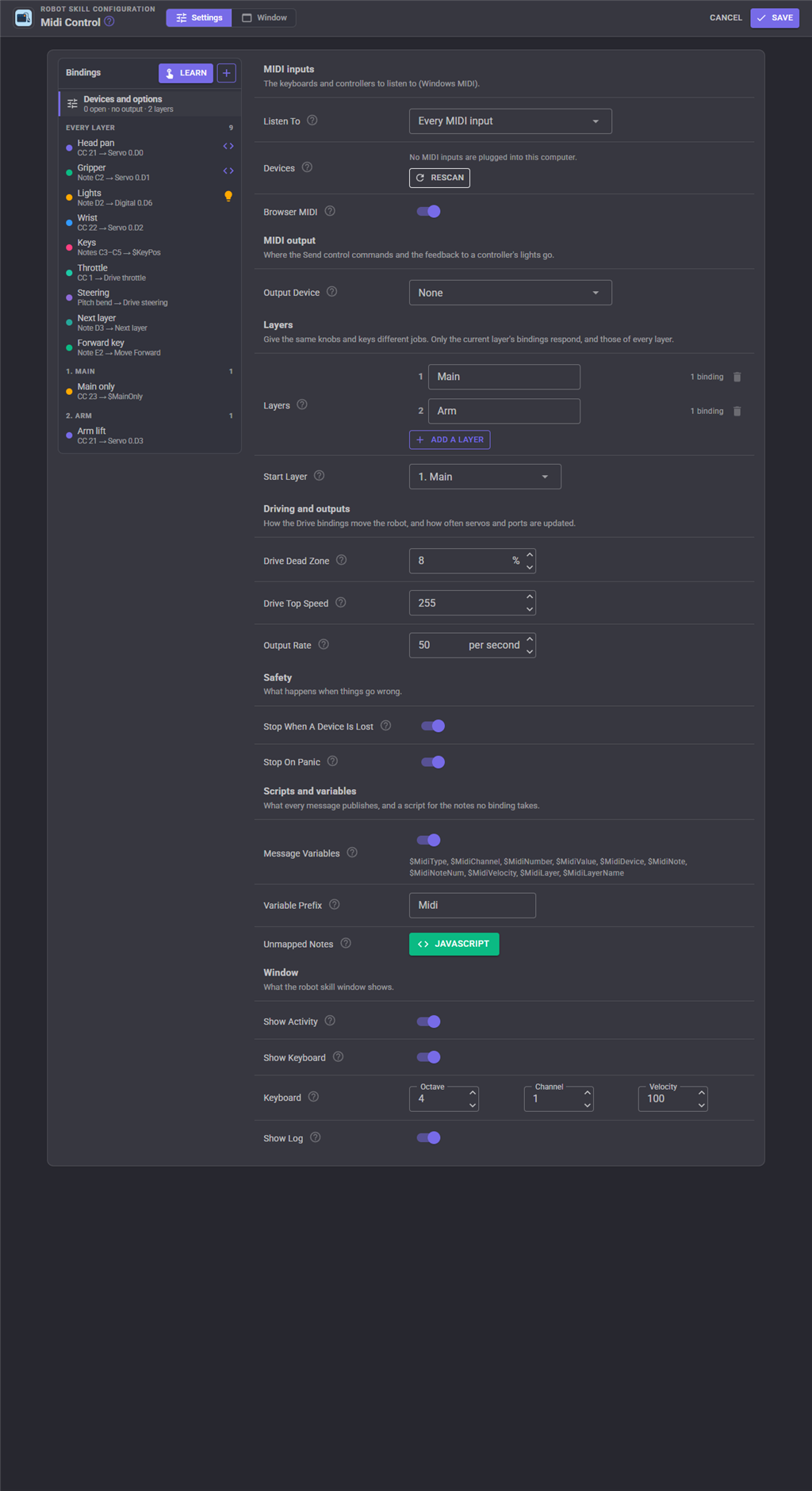
| Setting | What it does |
|---|---|
| Listen To | Every MIDI input opens every input plugged in, now or later. Only the ones ticked opens the inputs you tick, even ones not plugged in yet, which open as soon as they are. |
| Devices | The MIDI inputs plugged in and their state. Rescan looks again straight away and retries a device that could not be opened. |
| Browser MIDI | Accepts MIDI from a controller plugged into the computer a web browser runs on. See below. |
| Output Device | Where the send control commands and the feedback to a controller's lights go: a synthesizer such as Microsoft GS Wavetable Synth, or the controller itself. |
| Layers | The names of the layers. A layer that still has bindings cannot be removed until its bindings are moved or removed. |
| Start Layer | The layer that is current when the project loads. |
| Drive Dead Zone | How far from rest a throttle or steering control must move before the robot moves, so a pitch wheel that does not quite centre does not make the robot creep. |
| Drive Top Speed | The movement speed at full throttle, 1 to 255. |
| Output Rate | The most times a second each binding updates its servo, PWM port or the movement panel. A knob sends far more messages than a servo needs; the newest value is sent at this rate, so the EZB's connection is never flooded. |
| Stop When A Device Is Lost | Stops the robot when the device (or browser) driving it disappears while a key is held or the throttle is open. Leave it on: otherwise a cable pulled out mid-drive leaves the robot driving. |
| Stop On Panic | The ARCx panic button stops every binding's script and any movement this robot skill started. |
| Message Variables / Variable Prefix | Publishes the message variables. With several MIDI Control robot skills, give each one its own prefix. |
| Unmapped Notes | A script that runs for every Note On and Program Change no binding responded to, for example to speak or play a sound for each key. |
| Window | Shows or hides the activity list, the on-screen keyboard (with its octave, channel and velocity) and the log. |
A controller on another computer
ARCx often runs on the robot while you use it from a laptop or a tablet. Plug the controller into the laptop, open this robot skill's window in the laptop's browser, and press Use this browser's MIDI. The browser asks for permission once. After that, its MIDI inputs appear in the bar as Browser: name, and the browser reconnects by itself the next time the window opens. If the browser disconnects while its controller is driving the robot, the robot stops.
Browsers only allow MIDI on an https page or on localhost, and Chrome and Edge support it (Safari does not). When that is not available, the button says Browser MIDI unavailable, and its tooltip explains why.
Custom UI widgets
| Widget | What it shows |
|---|---|
| MIDI keyboard | A piano keyboard that plays into the bindings, so a phone or tablet becomes a keyboard for the robot. It lights the keys a real keyboard is playing. Its settings choose the octave, the number of octaves, the channel and the velocity. |
| MIDI values | The bindings of the current layer (or of every layer) with their live values. |
| MIDI layers | A button for each layer, with the current one lit. |
Sending to a synthesizer
The send control commands play notes, change instruments and send control changes on the Output Device, so a script can play a tune on a synthesizer, or light a controller's pads to show the robot's state. Notes are written as a number (60 is middle C) or a name such as C4, F#3 or Bb2, on channels 1 to 16. A project that used ARC's MIDI Control keeps working: SendNote, SendNoteOn, SendNoteOff and ProgramChange take the same parameters.
Tips
- Not sure what a control sends? Touch it and read the activity list.
- A control that moves the wrong way: turn on Invert. An encoder that only goes one way: try another Encoding.
- For a servo controlled by both a knob and a script, turn on Soft takeover so the servo doesn't jump when you touch the knob.
- Most Windows MIDI drivers let only one program use a device at a time. If a device shows red with "another program is using it", close the music program, ARC, or the other copy of ARCx that has it open, then press Rescan.
- On Linux, ARCx needs permission to use /dev/snd. The logged-in desktop user has it; a service account needs to be in the audio group. Only the first port of a multi-port MIDI interface is available.
- No MIDI device at hand? The on-screen keyboard and the simulate control commands work exactly like a real device, so you can build and test bindings without one.
Control Commands for the Midi Control robot skill
There are Control Commands available for this robot skill which allows the skill to be controlled programmatically from scripts or other robot skills. These commands enable you to automate actions, respond to sensor inputs, and integrate the robot skill with other systems or custom interfaces. If you're new to the concept of Control Commands, we have a comprehensive manual available here that explains how to use them, provides examples to get you started and make the most of this powerful feature.
Control Command ManualThis robot skill has 35 control commands, listed below. Send them from a JavaScript or Python script, from Blockly, or from another robot skill.
The first value is always the window title, which is the name in the title bar of the robot skill on your workspace. It starts out as Midi Control, which is what every example below uses. If you rename the robot skill, or add a second copy of it to the project, use the title as it appears on that window instead.
ControlCommand() can be shortened to CC(), and both spellings work in JavaScript and in Python. The examples are JavaScript; Python is the same call, except that true and false are written True and False.
AllNotesOff
Silence every note on every channel of the MIDI output.
Syntax
ControlCommand("Midi Control", "AllNotesOff")
Returns: Boolean [true or false]
Example
var result = ControlCommand("Midi Control", "AllNotesOff");
DisableBinding
Stop a binding responding (it is released first). Saved with the project.
Syntax
ControlCommand("Midi Control", "DisableBinding", (String)binding)
Parameters
| # | Name | Type | What to pass |
|---|---|---|---|
| 1 | binding | Text | Your text, in quotes |
Returns: Boolean [true or false]
Example
var result = ControlCommand("Midi Control", "DisableBinding", "binding");
EnableBinding
Let a disabled binding respond again. Saved with the project.
Syntax
ControlCommand("Midi Control", "EnableBinding", (String)binding)
Parameters
| # | Name | Type | What to pass |
|---|---|---|---|
| 1 | binding | Text | Your text, in quotes |
Returns: Boolean [true or false]
Example
var result = ControlCommand("Midi Control", "EnableBinding", "binding");
GetBindings
The names of the bindings, in the order the window shows them.
Syntax
ControlCommand("Midi Control", "GetBindings")
Returns: Array of String
Example
var result = ControlCommand("Midi Control", "GetBindings");
GetInputDevices
The names of the MIDI inputs plugged into this computer.
Syntax
ControlCommand("Midi Control", "GetInputDevices")
Returns: Array of String
Example
var result = ControlCommand("Midi Control", "GetInputDevices");
GetLastMessage
The last MIDI message received, as text such as "CC 21 = 64 ch 1 nanoKONTROL2". Empty before the first.
Syntax
ControlCommand("Midi Control", "GetLastMessage")
Returns: String
Example
var result = ControlCommand("Midi Control", "GetLastMessage");
GetLayer
The current layer's number, 1 for the first.
Syntax
ControlCommand("Midi Control", "GetLayer")
Returns: Integer [-2,147,483,648 to 2,147,483,647]
Example
var result = ControlCommand("Midi Control", "GetLayer");
GetLayerName
The current layer's name.
Syntax
ControlCommand("Midi Control", "GetLayerName")
Returns: String
Example
var result = ControlCommand("Midi Control", "GetLayerName");
GetOpenDevices
The names of the MIDI inputs being listened to right now, including any in a web browser.
Syntax
ControlCommand("Midi Control", "GetOpenDevices")
Returns: Array of String
Example
var result = ControlCommand("Midi Control", "GetOpenDevices");
GetOutputDevices
The names of the MIDI outputs plugged into this computer.
Syntax
ControlCommand("Midi Control", "GetOutputDevices")
Returns: Array of String
Example
var result = ControlCommand("Midi Control", "GetOutputDevices");
GetPercent
A binding's value as a percentage, 0 to 100.
Syntax
ControlCommand("Midi Control", "GetPercent", (String)binding)
Parameters
| # | Name | Type | What to pass |
|---|---|---|---|
| 1 | binding | Text | Your text, in quotes |
Returns: Double [5.0e324 to 1.7e308]
Example
var result = ControlCommand("Midi Control", "GetPercent", "binding");
GetRawValue
The raw MIDI value a binding last received: velocity, controller value or pressure 0 to 127, pitch bend 0 to 16383, or program number. -1 before the first message.
Syntax
ControlCommand("Midi Control", "GetRawValue", (String)binding)
Parameters
| # | Name | Type | What to pass |
|---|---|---|---|
| 1 | binding | Text | Your text, in quotes |
Returns: Integer [-2,147,483,648 to 2,147,483,647]
Example
var result = ControlCommand("Midi Control", "GetRawValue", "binding");
GetValue
A binding's value in its variable's units (Output Minimum to Output Maximum, 0 to 100 unless changed). The binding is its name, its source such as "CC 21", or its variable name.
Syntax
ControlCommand("Midi Control", "GetValue", (String)binding)
Parameters
| # | Name | Type | What to pass |
|---|---|---|---|
| 1 | binding | Text | Your text, in quotes |
Returns: Double [5.0e324 to 1.7e308]
Example
var result = ControlCommand("Midi Control", "GetValue", "binding");
IsActive
Whether the MIDI controls are moving the robot (not paused).
Syntax
ControlCommand("Midi Control", "IsActive")
Returns: Boolean [true or false]
Example
var result = ControlCommand("Midi Control", "IsActive");
IsOn
Whether a binding is on: its button held, its toggle on, or its value at 50% or more.
Syntax
ControlCommand("Midi Control", "IsOn", (String)binding)
Parameters
| # | Name | Type | What to pass |
|---|---|---|---|
| 1 | binding | Text | Your text, in quotes |
Returns: Boolean [true or false]
Example
var result = ControlCommand("Midi Control", "IsOn", "binding");
NextLayer
Go to the next layer, after the last back to the first. Returns the layer number.
Syntax
ControlCommand("Midi Control", "NextLayer")
Returns: Integer [-2,147,483,648 to 2,147,483,647]
Example
var result = ControlCommand("Midi Control", "NextLayer");
Pause
Stop the MIDI controls from moving anything. Messages are still shown and their variables set. Stops the robot if a control was driving it.
Syntax
ControlCommand("Midi Control", "Pause")
Returns: Boolean [true or false]
Example
var result = ControlCommand("Midi Control", "Pause");
PreviousLayer
Go to the previous layer, before the first round to the last. Returns the layer number.
Syntax
ControlCommand("Midi Control", "PreviousLayer")
Returns: Integer [-2,147,483,648 to 2,147,483,647]
Example
var result = ControlCommand("Midi Control", "PreviousLayer");
ProgramChange
Change the instrument (program 0 to 127) of a channel on the MIDI output. On a General MIDI synthesizer 0 is a piano, 40 a violin, 56 a trumpet.
Syntax
ControlCommand("Midi Control", "ProgramChange", (Number)channel, (Number)program)
Parameters
| # | Name | Type | What to pass |
|---|---|---|---|
| 1 | channel | Number | A number, without quotes |
| 2 | program | Number | A number, without quotes |
Returns: Boolean [true or false]
Example
var result = ControlCommand("Midi Control", "ProgramChange", 0, 0);
Rescan
Look for MIDI devices now, and try again any that could not be opened.
Syntax
ControlCommand("Midi Control", "Rescan")
Returns: Boolean [true or false]
Example
var result = ControlCommand("Midi Control", "Rescan");
Resume
Let the MIDI controls move the robot again after Pause.
Syntax
ControlCommand("Midi Control", "Resume")
Returns: Boolean [true or false]
Example
var result = ControlCommand("Midi Control", "Resume");
SendCC
Send a control change to the MIDI output: controller 0 to 127, value 0 to 127. Also lights a controller's pads and LED rings.
Syntax
ControlCommand("Midi Control", "SendCC", (Number)channel, (Number)controller, (Number)value)
Parameters
| # | Name | Type | What to pass |
|---|---|---|---|
| 1 | channel | Number | A number, without quotes |
| 2 | controller | Number | A number, without quotes |
| 3 | value | Number | A number, without quotes |
Returns: Boolean [true or false]
Example
var result = ControlCommand("Midi Control", "SendCC", 0, 0, 0);
SendNote
Play a note on the MIDI output for timeMs milliseconds, then release it. Returns straight away. The note is a number (60 is middle C) or a name such as "C4".
Syntax
ControlCommand("Midi Control", "SendNote", (Number)channel, (String)note, (Number)velocity, (Number)timeMs)
Parameters
| # | Name | Type | What to pass |
|---|---|---|---|
| 1 | channel | Number | A number, without quotes |
| 2 | note | Text | Your text, in quotes |
| 3 | velocity | Number | A number, without quotes |
| 4 | timeMs | Number | A number, without quotes |
Returns: Boolean [true or false]
Example
var result = ControlCommand("Midi Control", "SendNote", 0, "note", 0, 0);
SendNoteOff
Release a note on the MIDI output.
Syntax
ControlCommand("Midi Control", "SendNoteOff", (Number)channel, (String)note)
Parameters
| # | Name | Type | What to pass |
|---|---|---|---|
| 1 | channel | Number | A number, without quotes |
| 2 | note | Text | Your text, in quotes |
Returns: Boolean [true or false]
Example
var result = ControlCommand("Midi Control", "SendNoteOff", 0, "note");
SendNoteOn
Start a note on the MIDI output. It plays until SendNoteOff or AllNotesOff.
Syntax
ControlCommand("Midi Control", "SendNoteOn", (Number)channel, (String)note, (Number)velocity)
Parameters
| # | Name | Type | What to pass |
|---|---|---|---|
| 1 | channel | Number | A number, without quotes |
| 2 | note | Text | Your text, in quotes |
| 3 | velocity | Number | A number, without quotes |
Returns: Boolean [true or false]
Example
var result = ControlCommand("Midi Control", "SendNoteOn", 0, "note", 0);
SendPitchBend
Send a pitch bend to the MIDI output: -8192 to 8191, 0 for none.
Syntax
ControlCommand("Midi Control", "SendPitchBend", (Number)channel, (Number)value)
Parameters
| # | Name | Type | What to pass |
|---|---|---|---|
| 1 | channel | Number | A number, without quotes |
| 2 | value | Number | A number, without quotes |
Returns: Boolean [true or false]
Example
var result = ControlCommand("Midi Control", "SendPitchBend", 0, 0);
SetLayer
Make a layer current, by its number (1 for the first) or its name. Held buttons of the old layer are released. Returns the layer number.
Syntax
ControlCommand("Midi Control", "SetLayer", (String)layer)
Parameters
| # | Name | Type | What to pass |
|---|---|---|---|
| 1 | layer | Text | Your text, in quotes |
Returns: Integer [-2,147,483,648 to 2,147,483,647]
Example
var result = ControlCommand("Midi Control", "SetLayer", "layer");
SetPercent
Set a binding as if its control had moved, as a percentage 0 to 100. Returns the percentage used.
Syntax
ControlCommand("Midi Control", "SetPercent", (String)binding, (Number)percent)
Parameters
| # | Name | Type | What to pass |
|---|---|---|---|
| 1 | binding | Text | Your text, in quotes |
| 2 | percent | Number | A number, without quotes |
Returns: Double [5.0e324 to 1.7e308]
Example
var result = ControlCommand("Midi Control", "SetPercent", "binding", 0);
SetToggle
Switch a Toggle binding on (true) or off (false), as if it had been pressed: its target, variable, script and pad light follow.
Syntax
ControlCommand("Midi Control", "SetToggle", (String)binding, (Bool)on)
Parameters
| # | Name | Type | What to pass |
|---|---|---|---|
| 1 | binding | Text | Your text, in quotes |
| 2 | on | True or false | true or false, without quotes |
Returns: Boolean [true or false]
Example
var result = ControlCommand("Midi Control", "SetToggle", "binding", true);
SetValue
Set a binding as if its control had moved, in its variable's units: moves its servo or other target, sets its variable and runs its scripts. Useful to centre a servo controlled by an endless encoder. Returns the value used.
Syntax
ControlCommand("Midi Control", "SetValue", (String)binding, (Number)value)
Parameters
| # | Name | Type | What to pass |
|---|---|---|---|
| 1 | binding | Text | Your text, in quotes |
| 2 | value | Number | A number, without quotes |
Returns: Double [5.0e324 to 1.7e308]
Example
var result = ControlCommand("Midi Control", "SetValue", "binding", 0);
SimulateCC
Act as if a knob, fader or button sent a control change: controller 0 to 127, value 0 to 127.
Syntax
ControlCommand("Midi Control", "SimulateCC", (Number)channel, (Number)controller, (Number)value)
Parameters
| # | Name | Type | What to pass |
|---|---|---|---|
| 1 | channel | Number | A number, without quotes |
| 2 | controller | Number | A number, without quotes |
| 3 | value | Number | A number, without quotes |
Returns: Boolean [true or false]
Example
var result = ControlCommand("Midi Control", "SimulateCC", 0, 0, 0);
SimulateNoteOff
Act as if a key were released on a MIDI keyboard.
Syntax
ControlCommand("Midi Control", "SimulateNoteOff", (Number)channel, (String)note)
Parameters
| # | Name | Type | What to pass |
|---|---|---|---|
| 1 | channel | Number | A number, without quotes |
| 2 | note | Text | Your text, in quotes |
Returns: Boolean [true or false]
Example
var result = ControlCommand("Midi Control", "SimulateNoteOff", 0, "note");
SimulateNoteOn
Act as if a key were pressed on a MIDI keyboard: the bindings respond exactly as to a real one. The note is a number (60 is middle C) or a name such as "C4" or "F#3". Channel 1 to 16, velocity 1 to 127.
Syntax
ControlCommand("Midi Control", "SimulateNoteOn", (Number)channel, (String)note, (Number)velocity)
Parameters
| # | Name | Type | What to pass |
|---|---|---|---|
| 1 | channel | Number | A number, without quotes |
| 2 | note | Text | Your text, in quotes |
| 3 | velocity | Number | A number, without quotes |
Returns: Boolean [true or false]
Example
var result = ControlCommand("Midi Control", "SimulateNoteOn", 0, "note", 0);
SimulatePitchBend
Act as if the pitch bend wheel moved: -8192 (down) to 8191 (up), 0 at rest.
Syntax
ControlCommand("Midi Control", "SimulatePitchBend", (Number)channel, (Number)value)
Parameters
| # | Name | Type | What to pass |
|---|---|---|---|
| 1 | channel | Number | A number, without quotes |
| 2 | value | Number | A number, without quotes |
Returns: Boolean [true or false]
Example
var result = ControlCommand("Midi Control", "SimulatePitchBend", 0, 0);
SimulateProgramChange
Act as if a program change arrived: program 0 to 127.
Syntax
ControlCommand("Midi Control", "SimulateProgramChange", (Number)channel, (Number)program)
Parameters
| # | Name | Type | What to pass |
|---|---|---|---|
| 1 | channel | Number | A number, without quotes |
| 2 | program | Number | A number, without quotes |
Returns: Boolean [true or false]
Example
var result = ControlCommand("Midi Control", "SimulateProgramChange", 0, 0);
This list is read out of the robot skill itself each time its package is uploaded, so it matches the published version (v2).


This robot skill has been updated to v1.
What has changed
initial release
This robot skill has been updated to v2.
What has changed
updated to use some new ARCx UI features for improved performance.