

Cross-platform controller skill for driving robots, steering servos, flying drones, and running scripts with USB or Bluetooth gamepads/joysticks.
 Windows
 ARM
ARM
 Linux
Linux
 MacOS
MacOS
How to add the Joystick robot skill
- Load the most recent release of ARCx on a compatible operating system (Get ARCx).
- Press the + Skills menu from the top menu bar in ARCx.
- Choose the Remote Control category tab.
- Press the Joystick icon to add the robot skill to your project.
Don't have a robot yet?
Follow the Getting Started Guide to build a robot and use the Joystick robot skill.
How to use the Joystick robot skill
Control a robot with a joystick or game controller. Drive with a stick, two sticks tank style, or the triggers like a racing game; aim a head or a camera with the other stick; open a gripper with the triggers; fly a drone; and run a script on any button.
Any controller the computer recognizes works: Xbox, PlayStation, Nintendo Switch Pro and Joy-Con, 8BitDo, Logitech, Steam, and flight sticks and wheels too, over USB or Bluetooth, on Windows, Linux and macOS.
This is the ARCx version of ARC's Joystick (XInput) robot skill, which only worked with Xbox controllers on Windows. Everything it did is here, with the same control commands and variable names, plus a good deal more.
Requirements
- A controller plugged into USB, or paired in the operating system's Bluetooth settings.
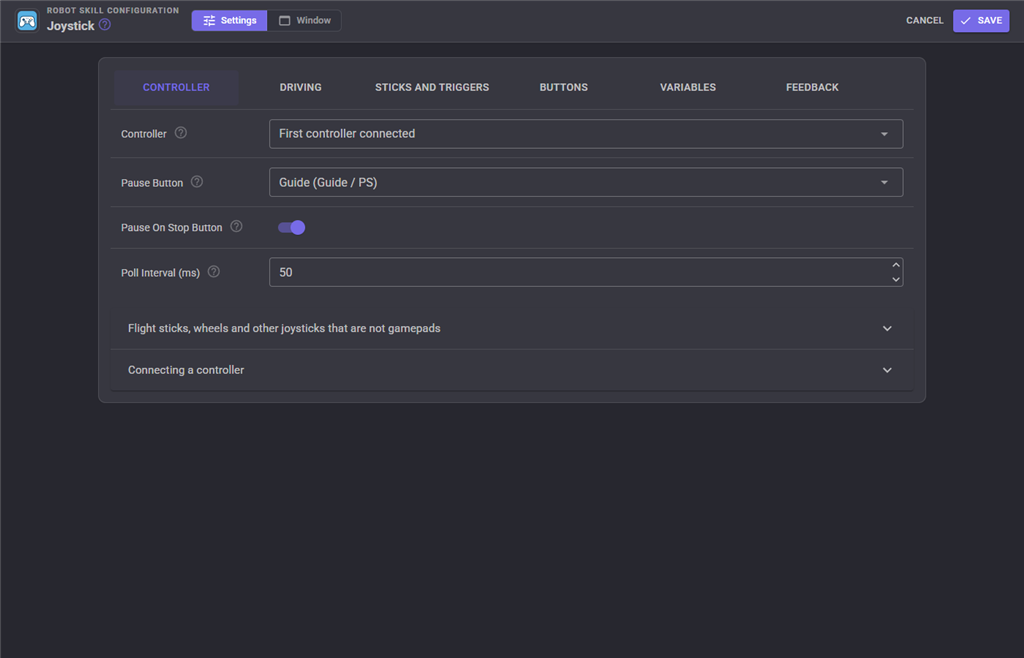
- Gamepad and HID support turned on in ARCx (it is on unless someone turned it off). Views, Gamepads And HID shows every controller ARCx can see, live - check there first if the skill does not find yours.
- For driving, a movement panel in the project. For servos, the servos.
- On Linux, the user running ARCx must be in the
inputgroup. See INSTALL, Gamepads and HID devices.
Several instances are allowed, one per controller: pick a different controller in each, and give each a different variable prefix and variable names.
Adding it to a project
- Connect the controller.
- Add the skill (Remote Control category). It picks up the first controller connected and buzzes it so you know which one.
- Push the left stick. The robot drives. The D-Pad drives too, through its button scripts.
The window
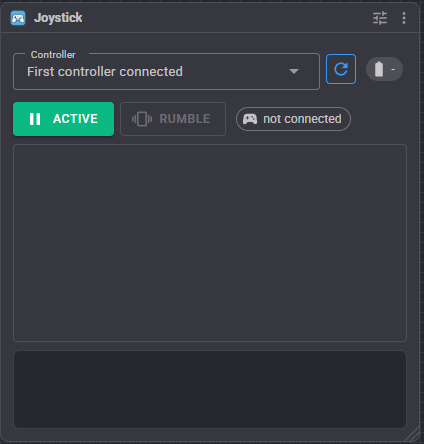
- Controller - which controller to use, and Refresh. First controller connected suits a robot with one controller. A controller that is chosen but unplugged stays in the list, marked "not connected", and is picked up again when it returns.
- Battery, when the controller reports it.
- Active / Paused - pause and resume.
- Rumble - buzz the controller, to check it is the one you think.
- A live view of both sticks (with the dead zone drawn as a circle), the triggers, what the skill is doing, and the buttons held.
Buttons
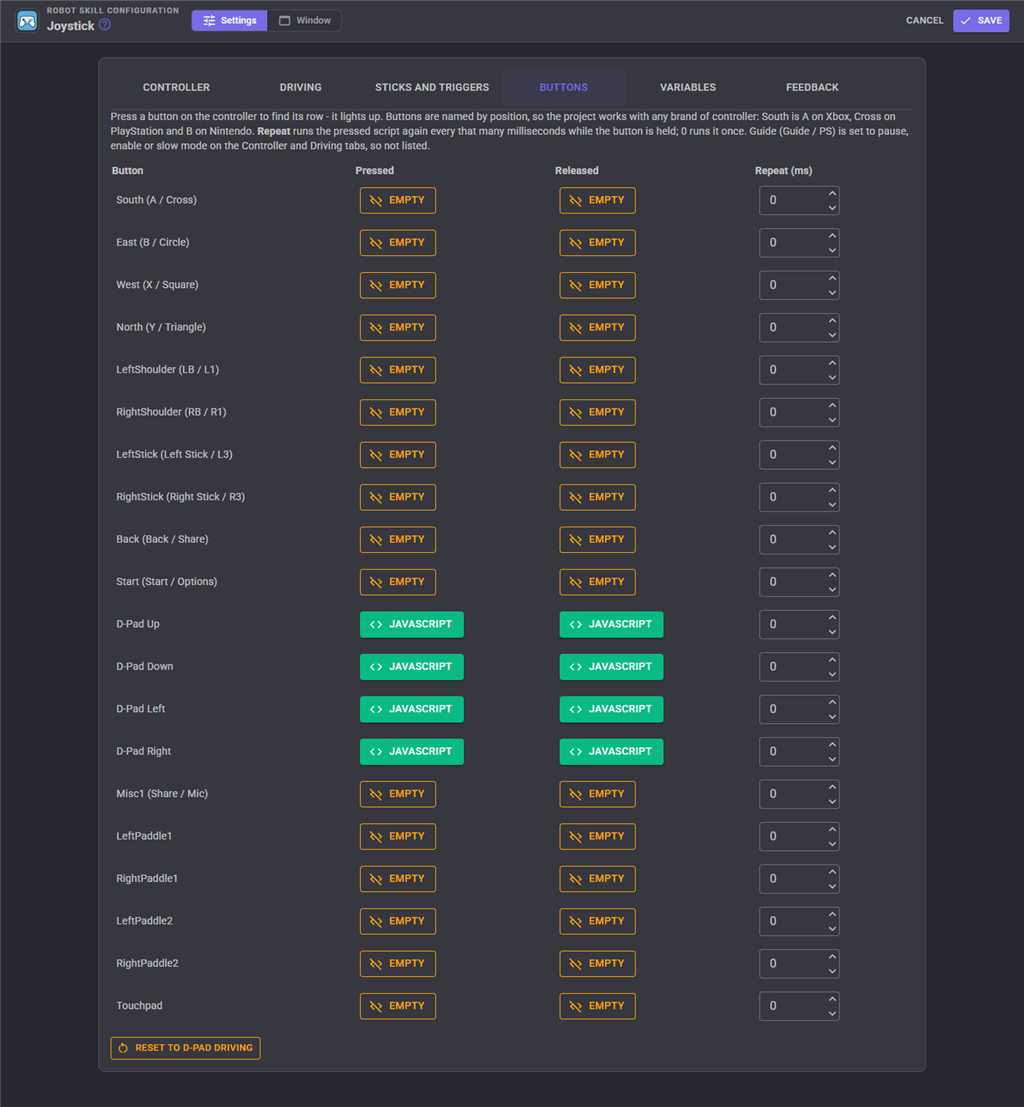
Buttons are named by position, so a project made with one brand of controller works with another: South is A on Xbox, Cross on PlayStation and B on Nintendo.
Every button can run a script when pressed and another when released, as in ARC. The D-Pad starts out with Movement.forward() and friends when pressed and Movement.stop() when released. Repeat runs the pressed script again every so many milliseconds while the button is held - for nudging a servo a step at a time, say.
In the configuration, press a button on the controller and its row lights up.
A flight stick, wheel or other joystick that is not a gamepad has numbered buttons (Button 0, Button 1, ...) and hat switches, whose four directions (Hat 0 Up, ...) are buttons of their own.
Driving
| Drive with | How |
|---|---|
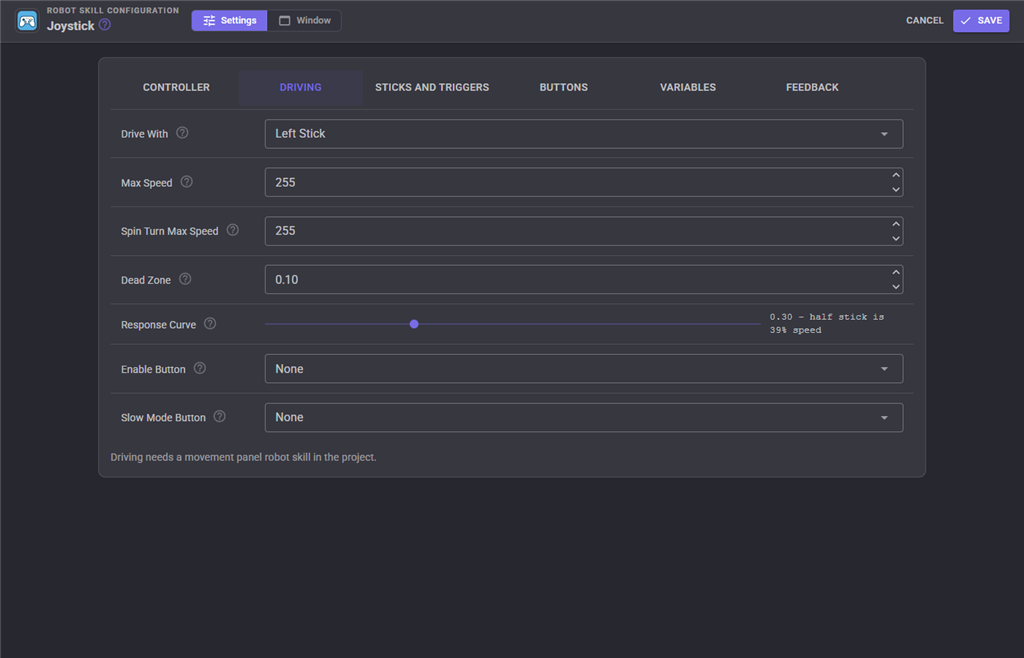
| Left Stick (default) | Forward and back set the speed; pushing sideways slows the wheel on that side to steer; sideways alone spins in place. ARC's "Joystick #1 Controls Movement Panel". |
| Right Stick | The same, on the right stick. |
| Tank | Each stick's up and down drives its own side. Opposite directions spin in place. |
| Racing | The right trigger is the throttle, the left trigger reverses, the left stick steers. |
| None | The controller does not drive (the D-Pad scripts still can). |
| Setting | Meaning | Default |
|---|---|---|
| Max Speed | Speed at full deflection, 0 to 255. | 255 |
| Spin Turn Max Speed | Speed when spinning in place. Lower is easier to control. | 255 |
| Dead Zone | How far a stick must move before it counts, 0 to 0.9. Speeds are measured from its edge, so there is no jump when the stick leaves it. | 0.1 |
| Response Curve | 0 is linear. Higher makes the middle of the stick gentler, keeping full speed at the end, for fine control at low speed. | 0.3 |
| Enable Button | A dead man's switch: when set, it must be held for the controller to drive, fly or move servos, and letting go stops the robot at once. | none |
| Slow Mode Button | While held, driving and relative servo movement slow to the Slow Mode Speed. | none |
Sticks and triggers
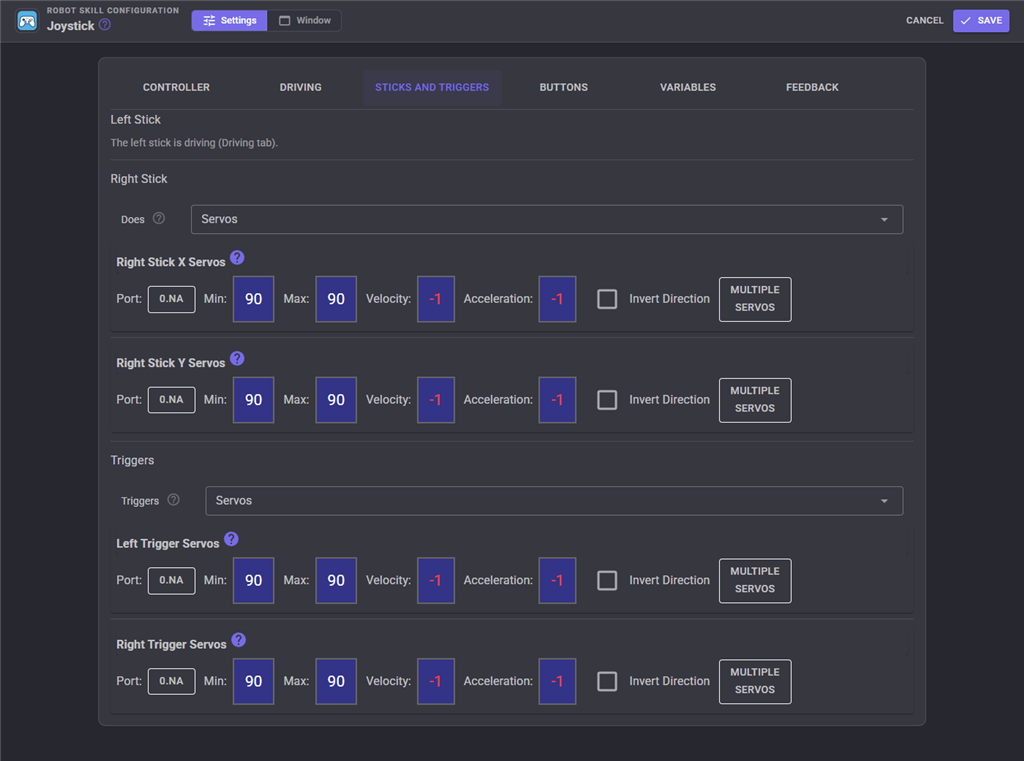
A stick that is not driving can:
| Mode | What it does |
|---|---|
| Servos | The stick position is the servo position, as in ARC. Letting go returns the servos to the middle. |
| Servos (relative) | The stick moves the servos, faster the further it is pushed, and they stay put when let go. Best for aiming a head or a camera. |
| Drone up, down and roll | Up climbs, down descends, left and right roll. ARC's "Joystick #2 Controls Drone Up/Down/Roll". |
| Nothing |
Each stick has an X and a Y servo group. Up moves towards each servo's maximum; tick Invert on a servo to reverse it.
The triggers each position a servo group, from minimum (released) to maximum (pulled) - unless the drive style is Racing, when they are the throttle.
Flight sticks and wheels
A joystick that is not a gamepad only has numbered axes. In the configuration, under Flight sticks, wheels and other joysticks, choose which of its axes act as the left stick, the right stick and the triggers; its axes are shown moving live so you can tell which is which. The defaults suit most flight sticks: axes 0 and 1 are the left stick and the throttle lever (2) is the right trigger.
Pausing
Pausing stops everything the controller does except resuming, and stops the robot if the controller was driving it. Pause with:
- the Pause Button on the controller (Guide - the Xbox, PS or Home button - unless changed),
- Active / Paused in the window or the Custom UI widget,
- the
Pause/UnPause/PauseTogglecontrol commands, - the ARCx stop button (release servos and stop movement), unless Pause On Stop Button is off - so the controller cannot drive the robot again until someone resumes it on purpose.
Unplugging the controller, a flat battery or walking out of Bluetooth range also stops the robot if the controller was driving it.
Feedback
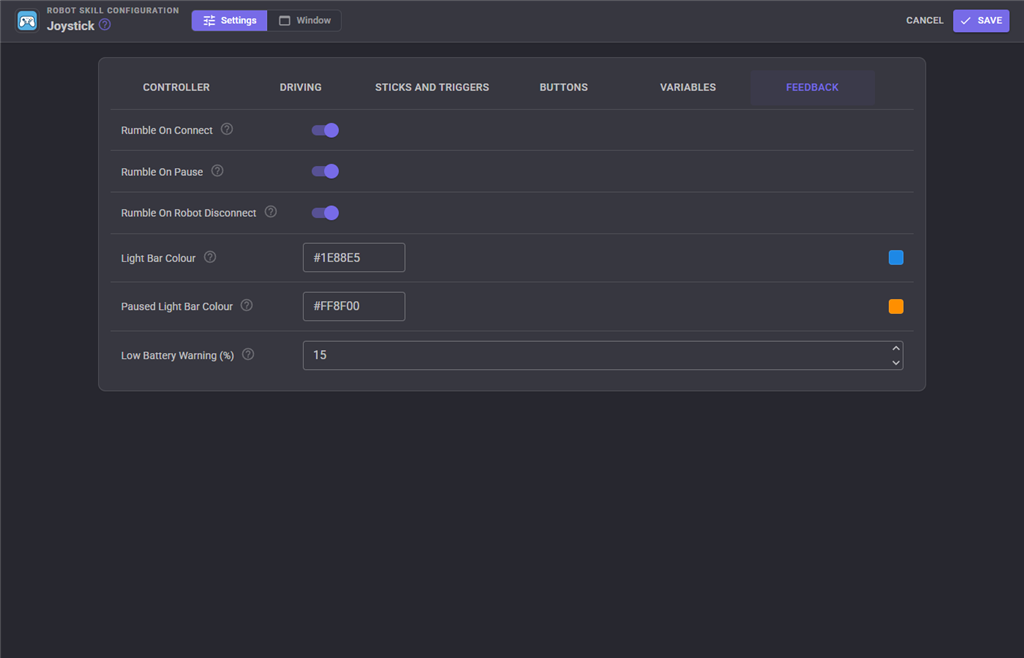
| Setting | Meaning | Default |
|---|---|---|
| Rumble On Connect | Buzz when the skill starts using the controller. | on |
| Rumble On Pause | A short buzz on pause, a longer one on resume. | on |
| Rumble On Robot Disconnect | Buzz hard when a robot controller (EZB) disconnects, so the driver knows the robot stopped listening. | on |
| Light Bar Colour / Paused Light Bar Colour | #RRGGBB, on controllers with a light bar (PS4, PS5 and others). | blue / orange |
| Low Battery Warning | Warn in the log, with a buzz, when the battery falls to this percent. | 15 |
Variables
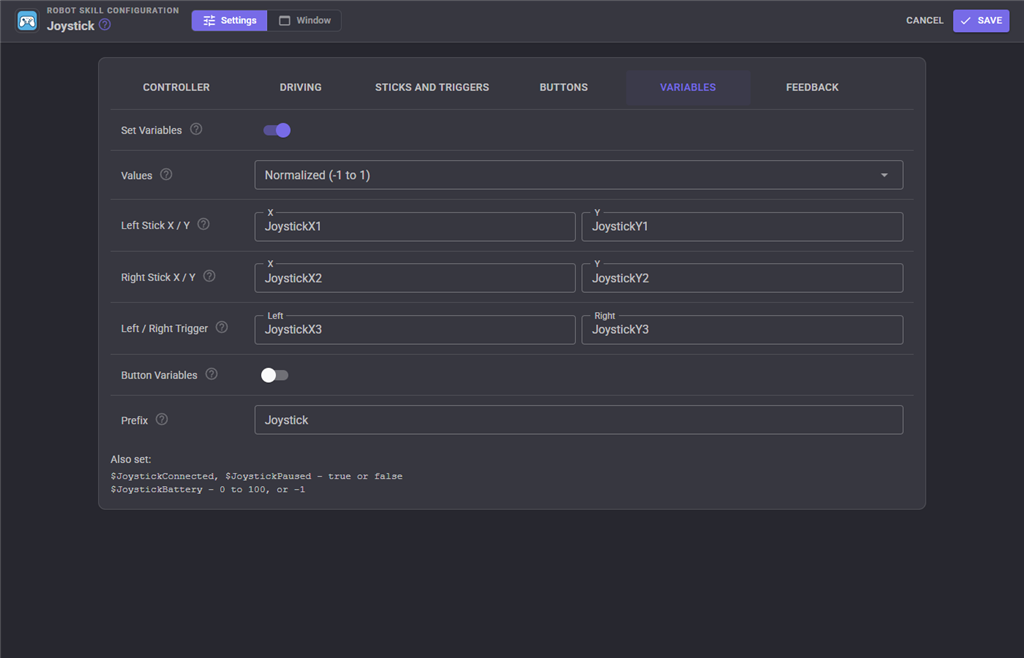
With Set Variables on:
| Variable | Contents |
|---|---|
$JoystickX1, $JoystickY1 |
Left stick. |
$JoystickX2, $JoystickY2 |
Right stick. |
$JoystickX3, $JoystickY3 |
Left and right trigger. |
$JoystickConnected, $JoystickPaused |
True or false. |
$JoystickBattery |
0 to 100, or -1. |
$JoystickButtonSouth, ... $JoystickButton0, ... |
True while held, with Button Variables on. |
The axis names are ARC's and can be changed. Values chooses Normalized (sticks -1 to 1, triggers 0 to 1) or ARC (sticks -32767 to 32767, triggers 0 to 255, so ARC scripts keep working). Up is positive either way. Everything returns to zero and false when the controller disconnects.
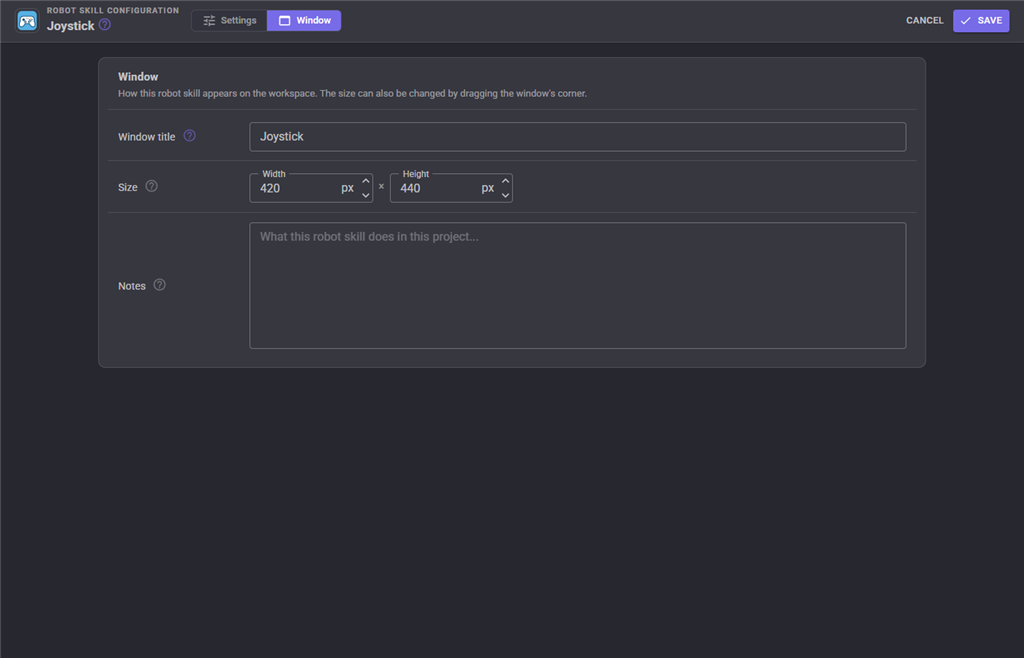
The Window tab sets the robot skill's window title, its size on the workspace and notes about what it does in this project.
Custom UI
The Joystick Status widget shows the controller, its battery, both sticks live and a pause button - for a control panel on a phone or tablet.
Troubleshooting
| Symptom | Cause |
|---|---|
| "Gamepad support is off" | Turned off, or could not start. Views, Gamepads And HID has the switch and the reason. |
| The controller is not in the list | Views, Gamepads And HID does not show it either: not connected or paired. On Linux, the Diagnostics page says whether the user lacks permission. |
| The stick does nothing | No movement panel, Drive With is None, the skill is paused, or an Enable Button is set and not held. The window says which. |
| The robot creeps with the stick let go | Raise Dead Zone. |
| Too twitchy at low speed | Raise Response Curve, or use a Slow Mode Button. |
| Servos do not move | The stick is driving (see Drive With), its mode is Nothing, no servos are selected, or the EZB is not connected. |
| A flight stick drives the wrong way | Pick different raw axes, or tick Invert on the servos. |
| No rumble or light | Some controllers only rumble over USB, and many have no light bar. |
| Two identical controllers swap | Controllers without serial numbers cannot be told apart; the first connected is used. |
See also
- Views, Gamepads And HID - every controller ARCx can see, live
- The Gamepad script commands - read any controller from a script
- Movement Joystick - an on-screen alternative
Control Commands for the Joystick robot skill
There are Control Commands available for this robot skill which allows the skill to be controlled programmatically from scripts or other robot skills. These commands enable you to automate actions, respond to sensor inputs, and integrate the robot skill with other systems or custom interfaces. If you're new to the concept of Control Commands, we have a comprehensive manual available here that explains how to use them, provides examples to get you started and make the most of this powerful feature.
Control Command ManualThis robot skill has 16 control commands, listed below. Send them from a JavaScript or Python script, from Blockly, or from another robot skill.
The first value is always the window title, which is the name in the title bar of the robot skill on your workspace. It starts out as Joystick, which is what every example below uses. If you rename the robot skill, or add a second copy of it to the project, use the title as it appears on that window instead.
ControlCommand() can be shortened to CC(), and both spellings work in JavaScript and in Python. The examples are JavaScript; Python is the same call, except that true and false are written True and False.
GetAxis
An axis, after raw axis mapping: LeftX, LeftY, RightX, RightY (-1 to 1, up is positive) or LeftTrigger, RightTrigger (0 to 1).
Syntax
ControlCommand("Joystick", "GetAxis", "LeftX")
Parameters
| # | Name | Type | What to pass |
|---|---|---|---|
| 1 | "LeftX" |
Text | The fixed value "LeftX". Leave it as it is. |
Returns: Double [5.0e324 to 1.7e308]
Example
var result = ControlCommand("Joystick", "GetAxis", "LeftX");
GetBattery
The controller's battery, 0 to 100, or -1 when it does not report one.
Syntax
ControlCommand("Joystick", "GetBattery")
Returns: Integer [-2,147,483,648 to 2,147,483,647]
Example
var result = ControlCommand("Joystick", "GetBattery");
GetButton
Whether a button is held, by button name: South, East, West, North, LeftShoulder, DPadUp and so on, or Button0, Button1 for a joystick that is not a gamepad.
Syntax
ControlCommand("Joystick", "GetButton", "South")
Parameters
| # | Name | Type | What to pass |
|---|---|---|---|
| 1 | "South" |
Text | The fixed value "South". Leave it as it is. |
Returns: Boolean [true or false]
Example
var result = ControlCommand("Joystick", "GetButton", "South");
GetControllerName
The name of the controller in use, or an empty string.
Syntax
ControlCommand("Joystick", "GetControllerName")
Returns: String
Example
var result = ControlCommand("Joystick", "GetControllerName");
IsConnected
Is a controller connected and in use?
Syntax
ControlCommand("Joystick", "IsConnected")
Returns: Boolean [true or false]
Example
var result = ControlCommand("Joystick", "IsConnected");
IsPaused
Is the skill paused?
Syntax
ControlCommand("Joystick", "IsPaused")
Returns: Boolean [true or false]
Example
var result = ControlCommand("Joystick", "IsPaused");
Pause
Pause: the controller stops driving, moving servos and running button scripts. The robot is stopped if the controller was driving it.
Syntax
ControlCommand("Joystick", "Pause")
Returns: Boolean [true or false]
Example
var result = ControlCommand("Joystick", "Pause");
PauseToggle
Pause or resume, the same as the pause button on the controller.
Syntax
ControlCommand("Joystick", "PauseToggle")
Returns: Boolean [true or false]
Example
var result = ControlCommand("Joystick", "PauseToggle");
Refresh
Pick up the configured controller if it is connected and not in use yet. Controllers are found on their own, so this is rarely needed.
Syntax
ControlCommand("Joystick", "Refresh")
Returns: Boolean [true or false]
Example
var result = ControlCommand("Joystick", "Refresh");
SetLightBar
Set the light bar colour, 0 to 255 each, on controllers that have one (PS4, PS5 and some others). Pausing and resuming put the configured colours back.
Syntax
ControlCommand("Joystick", "SetLightBar", (Number)red, (Number)green, (Number)blue)
Parameters
| # | Name | Type | What to pass |
|---|---|---|---|
| 1 | red | Number | A number, without quotes |
| 2 | green | Number | A number, without quotes |
| 3 | blue | Number | A number, without quotes |
Returns: Boolean [true or false]
Example
var result = ControlCommand("Joystick", "SetLightBar", 0, 0, 0);
SetMaxSpeed
Change the maximum drive speed, 0 to 255, until the project is reloaded. -1 goes back to the configured speed. Returns the speed now in use.
Syntax
ControlCommand("Joystick", "SetMaxSpeed", (Number)speed)
Parameters
| # | Name | Type | What to pass |
|---|---|---|---|
| 1 | speed | Number | A number, without quotes |
Returns: Integer [-2,147,483,648 to 2,147,483,647]
Example
var result = ControlCommand("Joystick", "SetMaxSpeed", 0);
UnPause
Resume after a pause.
Syntax
ControlCommand("Joystick", "UnPause")
Returns: Boolean [true or false]
Example
var result = ControlCommand("Joystick", "UnPause");
VibrateLeft
Run the left (heavy) rumble motor at a percent, 0 to 100, leaving the right as it is.
Syntax
ControlCommand("Joystick", "VibrateLeft", (Number)percent)
Parameters
| # | Name | Type | What to pass |
|---|---|---|---|
| 1 | percent | Number | A number, without quotes |
Returns: Boolean [true or false]
Example
var result = ControlCommand("Joystick", "VibrateLeft", 0);
VibrateLeftAndRight
Run the left (heavy) and right (light) rumble motors at a percent each, 0 to 100, until VibrateStop or for at most a minute.
Syntax
ControlCommand("Joystick", "VibrateLeftAndRight", (Number)leftPercent, (Number)rightPercent)
Parameters
| # | Name | Type | What to pass |
|---|---|---|---|
| 1 | leftPercent | Number | A number, without quotes |
| 2 | rightPercent | Number | A number, without quotes |
Returns: Boolean [true or false]
Example
var result = ControlCommand("Joystick", "VibrateLeftAndRight", 0, 0);
VibrateRight
Run the right (light) rumble motor at a percent, 0 to 100, leaving the left as it is.
Syntax
ControlCommand("Joystick", "VibrateRight", (Number)percent)
Parameters
| # | Name | Type | What to pass |
|---|---|---|---|
| 1 | percent | Number | A number, without quotes |
Returns: Boolean [true or false]
Example
var result = ControlCommand("Joystick", "VibrateRight", 0);
VibrateStop
Stop both rumble motors.
Syntax
ControlCommand("Joystick", "VibrateStop")
Returns: Boolean [true or false]
Example
var result = ControlCommand("Joystick", "VibrateStop");
This list is read out of the robot skill itself each time its package is uploaded, so it matches the published version (v5).

This robot skill has been updated to v3.
What has changed
compatible with the latest ARCx v2026.09.27.01
This robot skill has been updated to v4.
What has changed
spelling fix correction
This robot skill has been updated to v5.
What has changed
updated to use some new ARCx UI features for improved performance.