
Movement panel for iRobot robots: drive, read sensors, track position, run scripts, play tunes, and connect via serial, Wi-Fi, or ROS 2
 Windows
 ARM
ARM
 Linux
Linux
 MacOS
MacOS
How to add the Irobot Roomba Movement Panel robot skill
- Load the most recent release of ARCx on a compatible operating system (Get ARCx).
- Press the + Skills menu from the top menu bar in ARCx.
- Choose the Movement Panels category tab.
- Press the Irobot Roomba Movement Panel icon to add the robot skill to your project.
Don't have a robot yet?
Follow the Getting Started Guide to build a robot and use the Irobot Roomba Movement Panel robot skill.
How to use the Irobot Roomba Movement Panel robot skill
Drives and reads every iRobot robot that can be talked to: the Roomba 400 series, Discovery, Dirt Dog and Red (the SCI), the Roomba 500, 600, 700, 800 and 900 series (the Open Interface), the original Create and the Create 2, the connected Roombas that have no serial port (900, e, i, s, j and Combo series) over their own Wi-Fi, and the Create 3 over ROS 2.
This is a movement panel: once it is in the project, everything in ARCx that moves the robot - the Movement Joystick, the Wiimote, Movement.Forward() in a script, the Autonomous AI skill, a navigator - drives the iRobot. Only one Movement Panel can be in a project at a time.
What it does
- Finds out which robot is connected. With the robot set to Automatic and the baud rate to Automatic, it tries the rates iRobot robots use and asks the robot which protocol it answers to.
- Drives it from the movement manager, with a top speed, a separate turn speed and optional acceleration.
- Keeps it drivable. The Open Interface drops out of Safe mode by itself at a cliff, when a wheel drops, on its charger, and after any cleaning command. The skill puts it back in Safe (or Full) mode the next time it drives, and uses Full mode to back a robot off its dock.
- Reads every sensor a few dozen times a second: bumpers, light bumpers, cliff sensors and their signals, wheel drops, walls, virtual walls, buttons, infrared characters, motor currents, wheel encoders, battery, charging and the OI mode. All of them become global variables.
- Stops at bumps and cliffs while driving forward, and can pause a navigation in progress.
- Runs scripts when a button is pressed, the bumper hits something, a cliff or wheel drop triggers, the robot docks or leaves its dock, the battery runs low, and more.
- Tracks the robot's position from its wheel encoders and sends it to the Navigation Messaging System (NMS), with bumper hits as obstacles, so a mapping navigator such as Another Navigator can use it.
- Drives exact distances and angles from a script, measured by the wheels.
- Plays tunes, switches the brushes and vacuum, sets the LEDs and the digit display, sets the clock, presses buttons, cleans, spot cleans and docks.
- Wakes the robot and keeps it awake through its BRC pin, so a Roomba does not fall asleep after five minutes.
Which robots, and how to connect them
| Robot | Protocol | Connection | Baud |
|---|---|---|---|
| Roomba 400 series, Discovery, Dirt Dog, Red | SCI | Serial port, EZB UART, TCP bridge | 57600 |
| Create (Create 1) | Create Open Interface | Serial port, EZB UART, TCP bridge | 57600 |
| Roomba 500, 600, 700, 800, 900 series | Roomba Open Interface | Serial port, EZB UART, TCP bridge | 115200 |
| Create 2 | Roomba Open Interface | Serial port (the iRobot USB cable), EZB UART, TCP bridge | 115200 |
| Roomba 900, e, i, s, j, Combo series; Braava jet m6 | Local MQTT over Wi-Fi | Robot's own Wi-Fi | - |
| Create 3 | ROS 2 | rosbridge | - |
The robots with a serial port have a 7 pin mini-DIN connector under a cover (on most Roombas under the faceplate or the handle). Its pins are: 1 and 2 battery +, 3 RXD (into the robot), 4 TXD (out of the robot), 5 BRC (wake), 6 and 7 ground. The robot's serial lines are 5V TTL, so they need a USB to TTL adapter (or the iRobot Create USB cable) to reach a computer; never wire them to an RS-232 port. Cross the lines over: the robot's TXD goes to the adapter's or EZB's RX.
Connection types
| Connection | Use it for |
|---|---|
| Serial port | A USB cable or USB to TTL adapter on the computer running ARCx, or a Raspberry Pi's UART. Reads all sensors. |
| EZB hardware UART | An EZ-B v4's UART 0, 1 or 2 wired to the mini-DIN. Reads all sensors. Set the sensor rate to 100 to 200 ms. |
| EZB software serial | Any EZB digital port wired to the robot's RXD. The ARC version's transmit-only option: the robot can be driven and told to clean, but it cannot be heard, so there are no sensor readings, no odometry and no events. |
| Serial bridge over TCP | An ESP8266 or ESP32 running ESP-Link, a RooWifi, or ser2net on a Raspberry Pi plugged into the mini-DIN. Reads all sensors over the network. Set the bridge's own baud rate to the robot's. |
| Robot's own Wi-Fi | The connected Roombas with no serial port. They clean, pause, resume, stop, dock, empty their bin and report their state, but cannot be driven: iRobot gives them no velocity command. |
| Create 3 | A Create 3 through a rosbridge server on its ROS 2 network. Drives, reads its hazards, IR, battery, buttons and odometry, docks and undocks. |
The window
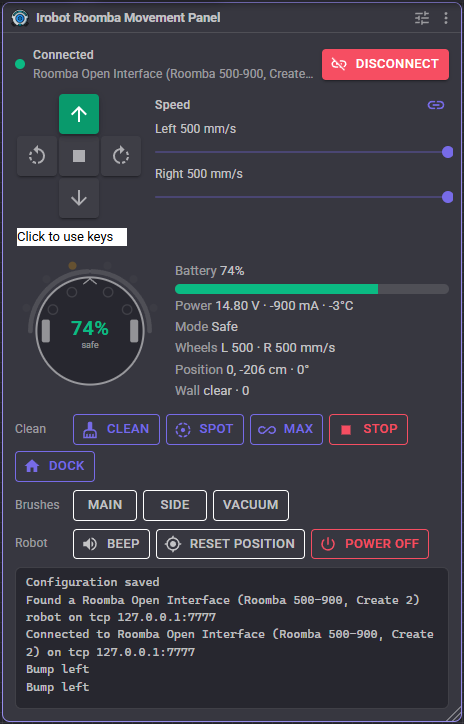
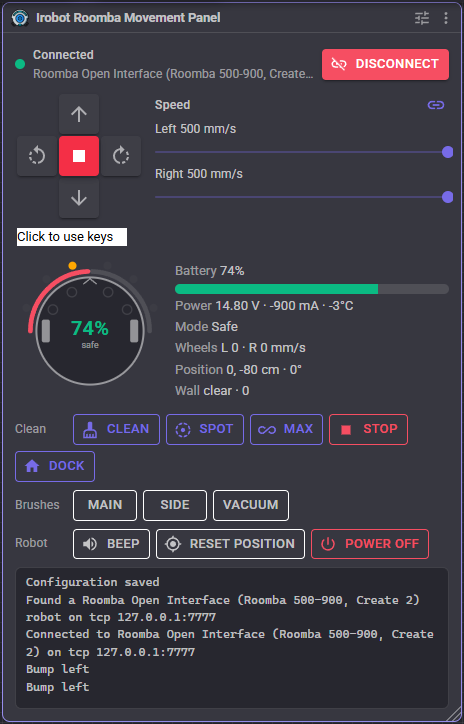
- Status - whether the robot is connected and, once it is, what it is and where. The Connect button connects and disconnects.
- Direction buttons - forward, reverse, spin left, spin right and stop. The highlighted button is the direction ARCx is moving in, whoever asked for it. Click to use keys, then drive with the arrow keys; releasing the key stops.
- Speed - ARCx's global left and right speeds, 0 to 255, shown as the wheel speed they give this robot. The link button makes both sliders move together.
- The robot - a top view, front up, that lights up what the sensors report: the bumper halves in red, the six light bumpers in orange (brighter as something gets closer), the four cliff sensors, the wheels (red when dropped, orange when overloaded) and a dashed ring for a virtual wall. The battery is in the middle, with the OI mode, docked or charging, or a Wi-Fi robot's mission phase under it. A sensor the robot does not have is not drawn.
- Readings - battery, voltage, current and temperature, the OI mode, what the wheels are being sent, the position from the wheels, the wall sensor, the buttons pressed and, for Wi-Fi robots, the mission, the bin and the signal strength.
- Clean - the cleaning commands the robot has: Clean, Spot, Max, Pause, Resume, Stop, Dock, Undock and Empty bin.
- Brushes - the main brush, side brush and vacuum (low side drivers 2, 0 and 1 on a Create 1).
- Robot - Beep, Reset position (makes the current position 0, 0 facing 0 degrees) and Power off.
- Log - what happened: connections, bumps, cliffs, buttons, docking, safety stops.
Driving and modes
The Open Interface robots only accept drive, brush, LED and song commands in Safe or Full mode. Safe mode is the recommended one: the robot itself stops and returns to passive mode at a cliff, when a wheel drops, or on its charger. Every cleaning command also leaves the robot in passive mode.
The skill takes care of this. Every time the robot starts moving from a standstill it is put into the configured mode first. When the robot drops out of the mode by itself while being driven, the skill stops ARCx's movement too (so the robot does not drive off the moment the hazard clears) and writes why in the log. Driving again carries on.
A robot on its charger refuses Safe mode. With Use Full mode to leave the dock on (the default), the skill drives it off in Full mode and goes back to Safe once it is clear.
In Safe or Full mode a Roomba neither charges nor sleeps. With Leave passive when disconnecting on (the default), disconnecting stops the wheels and brushes and puts the robot back in passive mode, so it charges on its dock and can sleep.
Turn speed sets how fast the robot spins in place, as a percent of the drive speed: a Roomba spinning at 500 mm/s is very fast. Acceleration ramps the wheel speed up so a robot carrying something tall does not lurch; stopping is always immediate.
An SCI Roomba cannot set its wheels separately; it drives with a speed and a turn radius. The skill converts the two wheel speeds into the matching arc, so steering from a joystick works the same.
Waking and keeping the robot awake
A Roomba in passive mode goes to sleep after five minutes and stops answering. Pulling its BRC pin (mini-DIN pin 5) low wakes it, and doing that once a minute keeps it awake. Wire BRC to the serial cable's RTS or DTR line, or to an EZB digital port, and choose it as the Wake line. The skill pulses it when connecting and, with Keep awake on, once a minute while the robot is passive.
Without a wake line, press the robot's Clean button to wake it before connecting.
Sensors and global variables
Every reading is published as a global variable named with the prefix (Roomba by default), using the same names as the ARC version: $RoombaBumpLeft, $RoombaCliffFrontLeft, $RoombaLightBumperCenterLeftSignal, $RoombaVoltage (in volts), $RoombaBatteryCharge, $RoombaLeftEncoderCounts, $RoombaButtonClean, $RoombaOIMode, $RoombaStatis and so on. New ones include $RoombaIsConnected, $RoombaModel, $RoombaBatteryPercent, $RoombaIsDocked, $RoombaIsCharging, $RoombaButtonPressed (the name of the button last pressed), $RoombaPoseX, $RoombaPoseY, $RoombaHeading, $RoombaOdometryDistance, and for Wi-Fi robots $RoombaMissionPhase, $RoombaMissionCycle, $RoombaBinFull and $RoombaWifiRssi. A robot only gets the variables for the sensors it has.
Only changed values are written. Before an event script runs, every variable is brought up to date, so the script reads the values that started it.
Position and navigation
The skill works out where the robot is from how its wheels turned. Open Interface robots (Roomba 500 to 900, Create 2) report raw wheel encoder counts, which is the most accurate source; the Create 1 and SCI Roombas report a distance and an angle instead; the Create 3 works out its own position. Positions are in centimetres from where tracking began (or from the last Reset position), with the heading in degrees clockwise from the direction the robot faced then, which is what the Navigation Messaging System and its navigators expect.
With Send position to the NMS on, the position goes to the Navigation Messaging System for navigator and mapping skills. With Send bumps as obstacles on, bumper and light bumper hits go to it as obstacles at the edge of the robot, so a mapping navigator draws what the robot touched.
If the position drifts, tune the wheel diameter (distance comes out short or long against a tape measure) and the wheel base (turns come out short or long: spin the robot ten turns with the Turn ControlCommand and compare).
Some Roomba firmware counts the encoders up whichever way the wheel turns. The skill corrects for that with the wheel speed it asked for. Roomba 500 and 600 firmware before 3.3 also reports the distance sensor wrongly, which is why the encoders are used when the robot has them.
The ARC version read the left and right encoders the wrong way round and mishandled the counters rolling over at 65535; both are fixed here.
Driving exact distances and angles
The DriveDistance and Turn control commands drive straight for a distance in centimetres, or spin in place by an angle in degrees, measured by the robot's own wheels, and return how far the robot actually went. They slow down near the end to stop close to the mark, stop at a bump or cliff (as configured), and are cancelled by any other movement command or by stopping the script that called them. They need the robot's sensors, so not over the software serial port.
Songs
PlayNotes plays a tune written as text: notes separated by spaces, each a name such as C4, F#3 or Bb5 (or a MIDI number such as 60), optionally followed by a colon and its length in 64ths of a second. R is a rest. For example C4:16 E4:16 G4:32 R:8 C5:48. The robot holds 16 notes per song, so a longer tune is played in pieces one after the other. A robot that had to leave passive mode to sing goes back to passive afterwards, so a docked robot carries on charging.
Wi-Fi robots
The connected Roombas without a serial port (900, e, i, s, j and Combo series) and the Braava jet m6 have a local interface on the home network, the one iRobot's own app uses. To set it up:
- Choose Robot's own Wi-Fi as the connection and press Find robots. Robots on the same network answer; press Use beside yours to fill in its address and BLID.
- Put the robot on its dock and hold its Home button for about two seconds until it chimes (on the i, s and j series, until the light ring turns blue), then press Get password within a few seconds.
- Save and connect.
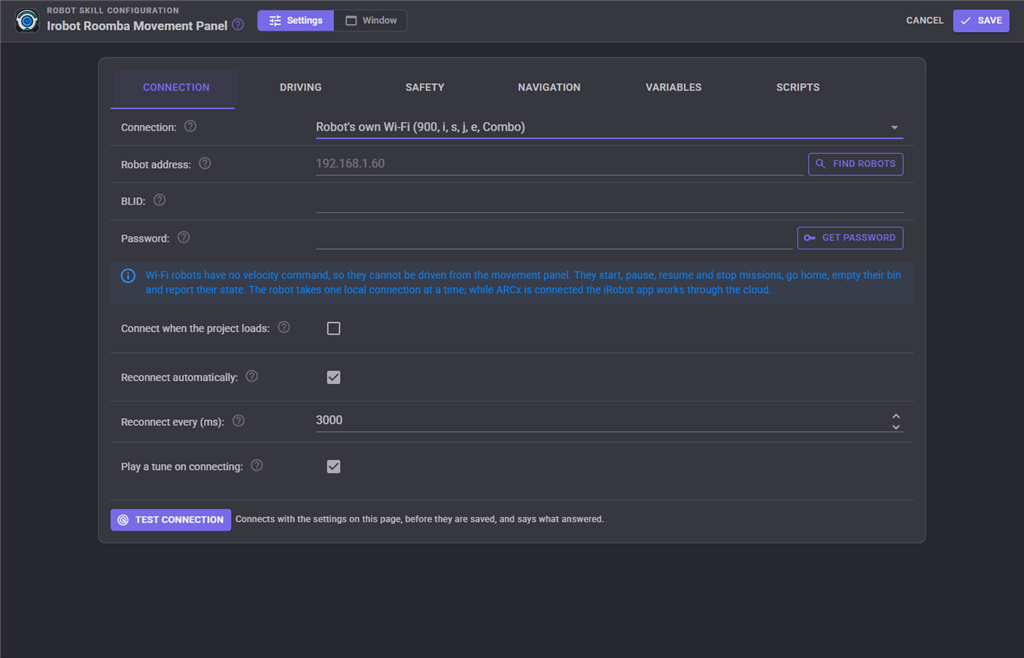
These robots cannot be driven: iRobot gives them no velocity command. They start, pause, resume and stop cleaning missions, go home, empty their bin into a Clean Base and beep to be found, and they report their battery, mission phase, bin and signal. The WifiCommand ControlCommand sends any other command the robot takes by name, SetWifiSetting changes a setting such as carpetBoost or twoPass, and GetWifiValue reads any value from the robot's reported state by its path, such as cleanMissionStatus.phase or bin.full.
The robot accepts one local connection at a time. While ARCx is connected, the iRobot app falls back to the cloud, which still works. Give the robot a reserved address in your router so it does not change.
Create 3
The Create 3 has no Open Interface; it is a ROS 2 robot. ARCx reaches it through a rosbridge server, so ARCx itself does not need ROS installed or to be on the robot's network domain. Run ros2 launch rosbridge_server rosbridge_websocket_launch.xml on a computer on the robot's ROS 2 network (a Raspberry Pi on the Create 3's adapter board works) with the same ROS_DOMAIN_ID and RMW as the robot, and enter its address, such as ws://192.168.1.20:9090. Enter the robot's namespace if it has one. rosbridge_suite 1.3 or newer is needed for docking and undocking, which are ROS 2 actions.
The skill drives the Create 3 with cmd_vel (repeated while it moves, because the Create 3 stops when it goes quiet), reads odom, battery_state, hazard_detection, ir_intensity, dock_status and interface_buttons, plays notes on cmd_audio and sets the light ring on cmd_lightring. Its top speed is 306 mm/s.
Configuration
Connection
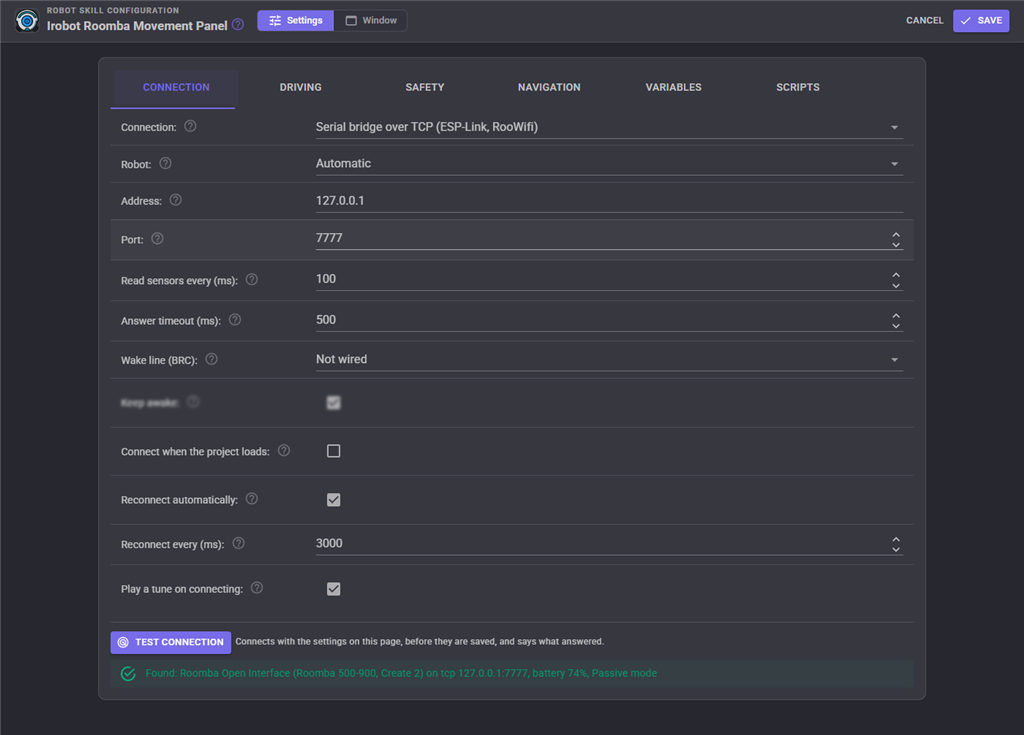
| Setting | What it does |
|---|---|
| Connection | How ARCx reaches the robot (see the table above). |
| Robot | Which serial protocol the robot speaks. Automatic asks the robot when connecting. |
| Serial port, EZB, UART, Digital port, Address, Port | Where the robot is, for the connection chosen. |
| Baud rate | Automatic tries 115200, 57600 and 19200 until the robot answers. |
| Read sensors every | How often the sensors are read. 50 ms suits a cable; 100 to 200 ms suits an EZB UART or a Wi-Fi bridge. |
| Answer timeout | How long to wait for an answer. Three missed answers in a row drop the connection. |
| Wake line, Wake port, Keep awake | The line wired to the robot's BRC pin, and whether to pulse it once a minute. |
| Connect when the project loads | Connect as soon as the project has loaded. |
| Reconnect automatically, Reconnect every | Keep trying when the robot stops answering or cannot be reached. |
| Play a tune on connecting | A rising tune on connecting and a falling one before Power off, as the ARC version always did. |
Test connection connects with the settings on the page before they are saved and says what answered, with its battery and mode. Disconnect the robot first.
Driving
| Setting | What it does |
|---|---|
| Top speed | The wheel speed, in mm/s, for the movement panel's fastest speed. |
| Turn speed | How fast the robot spins in place, as a percent of the drive speed. |
| Acceleration | How quickly the wheel speed may change. 0 changes it at once. |
| Drive mode | Safe (recommended) or Full. |
| Use Full mode to leave the dock | Back a docked robot off in Full mode, then return to Safe. |
| Auto stop after | Stop the robot when it has kept driving this long without a new movement command. 0 turns it off. |
| Leave passive when disconnecting | Stop everything and put the robot in passive mode on disconnecting, so it charges and sleeps. |
Safety
| Setting | What it does |
|---|---|
| Stop on bump | Stop when the bumper is pressed while driving forward or turning. |
| Stop at cliffs and wheel drops | Stop when a cliff sensor or wheel drop triggers while driving forward or turning. Also covers Full mode and the Create 3. |
| Pause navigation on a hazard | Pause a navigation in progress on a bump, cliff, wheel drop, light bumper or virtual wall. The ARC version's "pause NMS if sensor" option. |
| Low battery below | The battery level at which the low battery script runs. |
| Go home on low battery | Send the robot to its dock when the battery runs low. |
Navigation
| Setting | What it does |
|---|---|
| Send position to the NMS | Send the robot's position to the navigation messaging system. The ARC version's "Send NMS position data" option. |
| Position every | The least time between position updates. |
| Position from | Automatic, Wheel encoders, or Distance and angle sensors. |
| Encoder counts per turn, Wheel diameter, Wheel base | The robot's wheel geometry. The defaults are the Roomba 500 to 900 and Create 2's. |
| Send bumps as obstacles, Obstacle distance | Send bumper and light bumper hits to the NMS as obstacles this far from the robot's centre. |
Variables
| Setting | What it does |
|---|---|
| Set global variables | Publish the sensor readings as global variables. |
| Variable prefix | The start of every variable name. |
| Update every | The least time between updates. Event scripts always see fresh values. |
Scripts
Scripts that run when the robot connects or disconnects, a button is pressed (the ARC version's button script), the bumper is pressed, a cliff or wheel drop triggers, a virtual wall is seen, the robot docks or leaves its dock, the battery runs low, or a Wi-Fi robot's mission phase changes.
Custom UI widgets
- Robot Status - the battery in large numbers, whether the robot is connected, docked, charging or cleaning, and optionally Clean, Dock and Stop buttons.
- Bumpers and Cliffs - the same top view of the robot the window shows, lighting up as its sensors trigger.
Coming from the ARC version
The connection settings carry the same meaning: hardware UART, software serial and PC COM port are the EZB UART, EZB software serial and Serial port connections. The variable names are the same. The button script, the NMS position option and the "pause NMS if sensor" option are all here, on the Scripts, Navigation and Safety tabs. The ARC version's control commands (Init, Clean, MaxClean, SpotClean, SeekDockingStation, PowerOff, EnableSensorStream and DisableSensorStream) are replaced by Connect, Disconnect and the cleaning commands; sensors are read whenever the robot is connected.
The ARC version always drove in Full mode; this one defaults to Safe. Choose Full on the Driving tab for the old behaviour.
Troubleshooting
- No iRobot robot answered - check that the robot's TXD goes to the adapter's RX and the other way round, that ground is connected, and that the robot is awake (press Clean). A Roomba that was switched to 19200 baud with its Clean button held at power off answers at 19200 until its battery is removed.
- The robot connects but will not drive - it may be on its charger in Safe mode with Use Full mode to leave the dock off, or a cliff sensor or wheel drop is active (the robot is lifted, or on a dark carpet the cliff sensors read as a drop). The log says when the robot dropped out of Safe mode.
- It stops answering after a few minutes - it went to sleep. Wire the BRC pin as a wake line, or keep it in Safe mode by driving it.
- The position drifts or turns the wrong amount - tune the wheel diameter and wheel base on the Navigation tab.
- Wi-Fi: the robot refused the BLID or password - get the password again with the Home button held. The MQTT server is unavailable - close the iRobot app or anything else connected to the robot locally; it takes one connection at a time.
- Create 3: connected to rosbridge but nothing arrives - check the namespace, and that rosbridge runs with the robot's
ROS_DOMAIN_IDand RMW.
Control Commands for the Irobot Roomba Movement Panel robot skill
There are Control Commands available for this robot skill which allows the skill to be controlled programmatically from scripts or other robot skills. These commands enable you to automate actions, respond to sensor inputs, and integrate the robot skill with other systems or custom interfaces. If you're new to the concept of Control Commands, we have a comprehensive manual available here that explains how to use them, provides examples to get you started and make the most of this powerful feature.
Control Command ManualThis robot skill has 41 control commands, listed below. Send them from a JavaScript or Python script, from Blockly, or from another robot skill.
The first value is always the window title, which is the name in the title bar of the robot skill on your workspace. It starts out as Irobot Roomba Movement Panel, which is what every example below uses. If you rename the robot skill, or add a second copy of it to the project, use the title as it appears on that window instead.
ControlCommand() can be shortened to CC(), and both spellings work in JavaScript and in Python. The examples are JavaScript; Python is the same call, except that true and false are written True and False.
Beep
A short double beep.
Syntax
ControlCommand("Irobot Roomba Movement Panel", "Beep")
Returns: nothing
Example
ControlCommand("Irobot Roomba Movement Panel", "Beep");
BrushesOff
Switch the brushes and vacuum off.
Syntax
ControlCommand("Irobot Roomba Movement Panel", "BrushesOff")
Returns: nothing
Example
ControlCommand("Irobot Roomba Movement Panel", "BrushesOff");
Clean
Start the robot's own cleaning cycle (Cover on a Create 1, start on a Wi-Fi robot). The robot drives itself until it finishes or is stopped.
Syntax
ControlCommand("Irobot Roomba Movement Panel", "Clean")
Returns: nothing
Example
ControlCommand("Irobot Roomba Movement Panel", "Clean");
Connect
Connect to the robot with the configured settings. Returns false when it was already connecting or connected.
Syntax
ControlCommand("Irobot Roomba Movement Panel", "Connect")
Returns: Boolean [true or false]
Example
var result = ControlCommand("Irobot Roomba Movement Panel", "Connect");
Disconnect
Disconnect from the robot, stopping it and (when configured) leaving it in passive mode so it charges and can sleep. Returns false when it was not connected.
Syntax
ControlCommand("Irobot Roomba Movement Panel", "Disconnect")
Returns: Boolean [true or false]
Example
var result = ControlCommand("Irobot Roomba Movement Panel", "Disconnect");
DriveDistance
Drive straight for a distance in metres (negative reverses) at a speed in metres per second (default 0.2), measured by the robot's wheels, and return the distance actually driven in metres. Waits until done.
Syntax
ControlCommand("Irobot Roomba Movement Panel", "DriveDistance", (Number)metres, (Number)speedMS)
Parameters
| # | Name | Type | What to pass |
|---|---|---|---|
| 1 | metres | Number | A number, without quotes |
| 2 | speedMS | Number | A number, without quotes |
Returns: Double [5.0e324 to 1.7e308]
Example
var result = ControlCommand("Irobot Roomba Movement Panel", "DriveDistance", 0, 0);
DriveWheels
Drive each wheel at a speed in mm/s, positive forward, until another movement command. 0, 0 stops.
Syntax
ControlCommand("Irobot Roomba Movement Panel", "DriveWheels", (Number)leftMMS, (Number)rightMMS)
Parameters
| # | Name | Type | What to pass |
|---|---|---|---|
| 1 | leftMMS | Number | A number, without quotes |
| 2 | rightMMS | Number | A number, without quotes |
Returns: nothing
Example
ControlCommand("Irobot Roomba Movement Panel", "DriveWheels", 0, 0);
EmptyBin
Empty the bin into a Clean Base. Wi-Fi robots with a Clean Base only.
Syntax
ControlCommand("Irobot Roomba Movement Panel", "EmptyBin")
Returns: nothing
Example
ControlCommand("Irobot Roomba Movement Panel", "EmptyBin");
GetBatteryPercent
The battery level in percent, or -1 when the robot does not report it.
Syntax
ControlCommand("Irobot Roomba Movement Panel", "GetBatteryPercent")
Returns: Double [5.0e324 to 1.7e308]
Example
var result = ControlCommand("Irobot Roomba Movement Panel", "GetBatteryPercent");
GetModel
What the connected robot is, i.e. "Roomba Open Interface (Roomba 500-900, Create 2)" or "iRobot Create 3". Empty when not connected.
Syntax
ControlCommand("Irobot Roomba Movement Panel", "GetModel")
Returns: String
Example
var result = ControlCommand("Irobot Roomba Movement Panel", "GetModel");
GetPose
The robot's position from its wheels as [X, Y, yaw]: X in metres forward and Y in metres to the left of where tracking began, and the yaw in radians counter-clockwise from the way it faced then, -PI to PI (positive is turned left, negative right).
Syntax
ControlCommand("Irobot Roomba Movement Panel", "GetPose")
Returns: Array of Double
Example
var result = ControlCommand("Irobot Roomba Movement Panel", "GetPose");
GetSensor
One sensor reading by the name of its global variable without the prefix, i.e. BumpLeft, CliffFrontLeft, BatteryPercent, LeftEncoderCounts. Null when the robot does not have it.
Syntax
ControlCommand("Irobot Roomba Movement Panel", "GetSensor", (String)name)
Parameters
| # | Name | Type | What to pass |
|---|---|---|---|
| 1 | name | Text | Your text, in quotes |
Returns: Object
Example
var result = ControlCommand("Irobot Roomba Movement Panel", "GetSensor", "name");
GetState
Every current sensor reading as a JSON object.
Syntax
ControlCommand("Irobot Roomba Movement Panel", "GetState")
Returns: String
Example
var result = ControlCommand("Irobot Roomba Movement Panel", "GetState");
GetWifiValue
One value from a Wi-Fi robot's reported state by its path, i.e. batPct, cleanMissionStatus.phase, bin.full. Empty when it is not there.
Syntax
ControlCommand("Irobot Roomba Movement Panel", "GetWifiValue", (String)path)
Parameters
| # | Name | Type | What to pass |
|---|---|---|---|
| 1 | path | Text | Your text, in quotes |
Returns: String
Example
var result = ControlCommand("Irobot Roomba Movement Panel", "GetWifiValue", "path");
IsConnected
Whether the robot is connected right now.
Syntax
ControlCommand("Irobot Roomba Movement Panel", "IsConnected")
Returns: Boolean [true or false]
Example
var result = ControlCommand("Irobot Roomba Movement Panel", "IsConnected");
Locate
Make the robot beep so it can be found.
Syntax
ControlCommand("Irobot Roomba Movement Panel", "Locate")
Returns: nothing
Example
ControlCommand("Irobot Roomba Movement Panel", "Locate");
MaxClean
Start a max clean, which cleans until the battery runs low. Roomba serial robots only.
Syntax
ControlCommand("Irobot Roomba Movement Panel", "MaxClean")
Returns: nothing
Example
ControlCommand("Irobot Roomba Movement Panel", "MaxClean");
PauseCleaning
Pause a cleaning mission. Wi-Fi robots only.
Syntax
ControlCommand("Irobot Roomba Movement Panel", "PauseCleaning")
Returns: nothing
Example
ControlCommand("Irobot Roomba Movement Panel", "PauseCleaning");
PlayNotes
Play a tune on the robot's speaker and return how many notes it has. Notes are separated by spaces, each a name or MIDI number with an optional length in 64ths of a second: "C4:16 E4:16 G4:32" or "60 64 67:32". R is a rest. Plays in the background; a new tune replaces one playing.
Syntax
ControlCommand("Irobot Roomba Movement Panel", "PlayNotes", (String)notes)
Parameters
| # | Name | Type | What to pass |
|---|---|---|---|
| 1 | notes | Text | Your text, in quotes |
Returns: Integer [-2,147,483,648 to 2,147,483,647]
Example
var result = ControlCommand("Irobot Roomba Movement Panel", "PlayNotes", "notes");
PowerOff
Switch the robot off.
Syntax
ControlCommand("Irobot Roomba Movement Panel", "PowerOff")
Returns: nothing
Example
ControlCommand("Irobot Roomba Movement Panel", "PowerOff");
PressButton
Press one of the robot's buttons: Clean, Spot, Dock, Minute, Hour, Day, Schedule or Clock. Roomba 500 to 900 and Create 2.
Syntax
ControlCommand("Irobot Roomba Movement Panel", "PressButton", (String)button)
Parameters
| # | Name | Type | What to pass |
|---|---|---|---|
| 1 | button | Text | Your text, in quotes |
Returns: nothing
Example
ControlCommand("Irobot Roomba Movement Panel", "PressButton", "button");
Reset
Reset the robot as if its battery was taken out. It disconnects and reconnects. Roomba 500 to 900 and Create 2.
Syntax
ControlCommand("Irobot Roomba Movement Panel", "Reset")
Returns: nothing
Example
ControlCommand("Irobot Roomba Movement Panel", "Reset");
ResetLightRing
Give the Create 3's light ring back to the robot.
Syntax
ControlCommand("Irobot Roomba Movement Panel", "ResetLightRing")
Returns: nothing
Example
ControlCommand("Irobot Roomba Movement Panel", "ResetLightRing");
ResetPose
Make the robot's current position 0, 0 facing 0 radians.
Syntax
ControlCommand("Irobot Roomba Movement Panel", "ResetPose")
Returns: nothing
Example
ControlCommand("Irobot Roomba Movement Panel", "ResetPose");
ResumeCleaning
Resume a paused cleaning mission. Wi-Fi robots only.
Syntax
ControlCommand("Irobot Roomba Movement Panel", "ResumeCleaning")
Returns: nothing
Example
ControlCommand("Irobot Roomba Movement Panel", "ResumeCleaning");
SeekDockingStation
Send the robot to its dock to charge.
Syntax
ControlCommand("Irobot Roomba Movement Panel", "SeekDockingStation")
Returns: nothing
Example
ControlCommand("Irobot Roomba Movement Panel", "SeekDockingStation");
SendRaw
Send bytes straight to the robot's serial port, as numbers separated by spaces or commas, i.e. "139 4 0 128". For Open Interface commands this skill has no ControlCommand for.
Syntax
ControlCommand("Irobot Roomba Movement Panel", "SendRaw", (String)bytes)
Parameters
| # | Name | Type | What to pass |
|---|---|---|---|
| 1 | bytes | Text | Your text, in quotes |
Returns: nothing
Example
ControlCommand("Irobot Roomba Movement Panel", "SendRaw", "bytes");
SetBrushes
Switch the main brush, side brush and vacuum on or off (on a Create 1, low side drivers 2, 0 and 1).
Syntax
ControlCommand("Irobot Roomba Movement Panel", "SetBrushes", (Bool)mainBrush, (Bool)sideBrush, (Bool)vacuum)
Parameters
| # | Name | Type | What to pass |
|---|---|---|---|
| 1 | mainBrush | True or false | true or false, without quotes |
| 2 | sideBrush | True or false | true or false, without quotes |
| 3 | vacuum | True or false | true or false, without quotes |
Returns: nothing
Example
ControlCommand("Irobot Roomba Movement Panel", "SetBrushes", true, true, true);
SetBrushSpeeds
Run the main brush and side brush at a speed from -127 to 127 (negative turns the other way) and the vacuum from 0 to 127. Roomba 500 to 900, Create 2 and Create 1.
Syntax
ControlCommand("Irobot Roomba Movement Panel", "SetBrushSpeeds", (Number)mainBrush, (Number)sideBrush, (Number)vacuum)
Parameters
| # | Name | Type | What to pass |
|---|---|---|---|
| 1 | mainBrush | Number | A number, without quotes |
| 2 | sideBrush | Number | A number, without quotes |
| 3 | vacuum | Number | A number, without quotes |
Returns: nothing
Example
ControlCommand("Irobot Roomba Movement Panel", "SetBrushSpeeds", 0, 0, 0);
SetDisplayText
Show up to four characters on the robot's digit display (Roomba 560, 570, 700 and 800 series).
Syntax
ControlCommand("Irobot Roomba Movement Panel", "SetDisplayText", (String)text)
Parameters
| # | Name | Type | What to pass |
|---|---|---|---|
| 1 | text | Text | Your text, in quotes |
Returns: nothing
Example
ControlCommand("Irobot Roomba Movement Panel", "SetDisplayText", "text");
SetIndicatorLeds
Switch the indicator LEDs: debris, spot, dock (home) and check robot. On a Create 1 the first two are the Play and Advance LEDs.
Syntax
ControlCommand("Irobot Roomba Movement Panel", "SetIndicatorLeds", (Bool)debris, (Bool)spot, (Bool)dock, (Bool)checkRobot)
Parameters
| # | Name | Type | What to pass |
|---|---|---|---|
| 1 | debris | True or false | true or false, without quotes |
| 2 | spot | True or false | true or false, without quotes |
| 3 | dock | True or false | true or false, without quotes |
| 4 | checkRobot | True or false | true or false, without quotes |
Returns: nothing
Example
ControlCommand("Irobot Roomba Movement Panel", "SetIndicatorLeds", true, true, true, true);
SetLightRing
Set the Create 3's light ring to one color, red, green and blue from 0 to 255.
Syntax
ControlCommand("Irobot Roomba Movement Panel", "SetLightRing", (Number)red, (Number)green, (Number)blue)
Parameters
| # | Name | Type | What to pass |
|---|---|---|---|
| 1 | red | Number | A number, without quotes |
| 2 | green | Number | A number, without quotes |
| 3 | blue | Number | A number, without quotes |
Returns: nothing
Example
ControlCommand("Irobot Roomba Movement Panel", "SetLightRing", 0, 0, 0);
SetMode
Put the robot in an Open Interface mode: Passive, Safe, Full or Off. Driving puts it in Safe (or Full) by itself.
Syntax
ControlCommand("Irobot Roomba Movement Panel", "SetMode", (String)mode)
Parameters
| # | Name | Type | What to pass |
|---|---|---|---|
| 1 | mode | Text | Your text, in quotes |
Returns: nothing
Example
ControlCommand("Irobot Roomba Movement Panel", "SetMode", "mode");
SetPowerLed
Set the power LED's color (0 green to 255 red) and brightness (0 off to 255 full).
Syntax
ControlCommand("Irobot Roomba Movement Panel", "SetPowerLed", (Number)color, (Number)intensity)
Parameters
| # | Name | Type | What to pass |
|---|---|---|---|
| 1 | color | Number | A number, without quotes |
| 2 | intensity | Number | A number, without quotes |
Returns: nothing
Example
ControlCommand("Irobot Roomba Movement Panel", "SetPowerLed", 0, 0);
SetWifiSetting
Change a Wi-Fi robot's setting, i.e. carpetBoost true, twoPass true, binPause false, openOnly false. The value is JSON (true, 3, "text").
Syntax
ControlCommand("Irobot Roomba Movement Panel", "SetWifiSetting", (String)name, (String)value)
Parameters
| # | Name | Type | What to pass |
|---|---|---|---|
| 1 | name | Text | Your text, in quotes |
| 2 | value | Text | Your text, in quotes |
Returns: nothing
Example
ControlCommand("Irobot Roomba Movement Panel", "SetWifiSetting", "name", "value");
SpotClean
Start a spot clean: the robot spirals out and back over one patch of floor.
Syntax
ControlCommand("Irobot Roomba Movement Panel", "SpotClean")
Returns: nothing
Example
ControlCommand("Irobot Roomba Movement Panel", "SpotClean");
StopCleaning
Stop a cleaning cycle and leave the robot where it is.
Syntax
ControlCommand("Irobot Roomba Movement Panel", "StopCleaning")
Returns: nothing
Example
ControlCommand("Irobot Roomba Movement Panel", "StopCleaning");
SyncClock
Set the robot's clock to this computer's day and time. Roomba 500 to 900 and Create 2.
Syntax
ControlCommand("Irobot Roomba Movement Panel", "SyncClock")
Returns: nothing
Example
ControlCommand("Irobot Roomba Movement Panel", "SyncClock");
Turn
Spin in place by an angle in radians (positive turns left, counter-clockwise; negative turns right; 2*PI is a full circle) at a speed in radians per second (default 1.28), measured by the robot's wheels, and return the angle actually turned in radians, positive left and negative right. Waits until done.
Syntax
ControlCommand("Irobot Roomba Movement Panel", "Turn", (Number)radians, (Number)speedRadS)
Parameters
| # | Name | Type | What to pass |
|---|---|---|---|
| 1 | radians | Number | A number, without quotes |
| 2 | speedRadS | Number | A number, without quotes |
Returns: Double [5.0e324 to 1.7e308]
Example
var result = ControlCommand("Irobot Roomba Movement Panel", "Turn", 0, 0);
Undock
Drive off the dock. Create 3 only; other robots drive off with a reverse movement.
Syntax
ControlCommand("Irobot Roomba Movement Panel", "Undock")
Returns: nothing
Example
ControlCommand("Irobot Roomba Movement Panel", "Undock");
WifiCommand
Send a Wi-Fi robot any command its local interface takes by name: start, clean, pause, resume, stop, dock, evac, find, train.
Syntax
ControlCommand("Irobot Roomba Movement Panel", "WifiCommand", (String)command)
Parameters
| # | Name | Type | What to pass |
|---|---|---|---|
| 1 | command | Text | Your text, in quotes |
Returns: nothing
Example
ControlCommand("Irobot Roomba Movement Panel", "WifiCommand", "command");
This list is read out of the robot skill itself each time its package is uploaded, so it matches the published version (v4).

This robot skill has been updated to v1.
What has changed
First upload
This robot skill has been updated to v2.
What has changed
updated to work with latest ARCx NMS
This robot skill has been updated to v3.
What has changed
updated to use new threading features of ARCx v2026.10.04.01
This robot skill has been updated to v4.
What has changed
updated to use some new ARCx UI features for improved performance.