
Front-wheel steering car movement panel for RC cars, rovers and toy conversions with servo, ESC, motor and odometry support
 Windows
 ARM
ARM
 Linux
Linux
 MacOS
MacOS
How to add the Front Wheel Steering robot skill
- Load the most recent release of ARCx on a compatible operating system (Get ARCx).
- Press the + Skills menu from the top menu bar in ARCx.
- Choose any of these category tabs, the robot skill appears in each of them: Movement Panels, PWM, Servo.
- Press the Front Wheel Steering icon to add the robot skill to your project.
Don't have a robot yet?
Follow the Getting Started Guide to build a robot and use the Front Wheel Steering robot skill.
How to use the Front Wheel Steering robot skill
Drives a robot built like a car: a steering servo turns the front wheels and one drive motor turns the rear wheels. Think RC car conversions, ride-on toy cars, Ackermann rovers and anything else that steers its front wheels rather than driving its two sides at different speeds.
This is a movement panel: once it is in the project, everything in ARCx that moves the robot drives the car - the joystick in its own window, the Movement Joystick and Wiimote skills, Movement.forward() in a script, the Autonomous AI skill, an MCP client. Only one Movement Panel can be in a project at a time.
What drives the rear wheels
Pick the Drive type that matches your hardware. The ARC version of this skill only drove a continuous rotation servo; this one drives all of these:
| Drive type | Hardware | Ports |
|---|---|---|
| RC car ESC | The speed control of an RC car or truck, plugged into a servo port like a servo | One servo port. Arming, neutral, and the brake/reverse double tap are handled for you |
| Continuous rotation servo | A servo modified (or sold) for continuous rotation | One servo port |
| H-bridge | L298N, L293D, TB6612FNG and other boards with two direction inputs per motor | IN1 and IN2 digital ports, plus an optional PWM port on the enable (ENA) pin for speed |
| PWM + direction | Cytron MD10C and MD13S, Pololu G2 and other "PWM/DIR" drivers | A PWM port and a direction port, plus an optional brake port |
| Dual PWM | BTS7960 / IBT-2, DRV8871 and other drivers with one PWM input per direction | Two PWM ports (tie the BTS7960's R_EN and L_EN high) |
How the movement is turned into steering
ARCx's movement system was designed for robots that steer by driving their left and right wheels at different speeds. The joystick, for example, turns while driving forward by slowing one side down. This skill reads that difference as a steering amount: the faster side is the outside of the turn, so the robot turns the way a two wheeled robot would for the same command. The faster side's speed becomes the throttle. Pushing the joystick forward and right steers right; pulling it back and right reverses with the wheels turned right, just as a driver turns the steering wheel while backing up.
Left and Right on their own mean "spin on the spot", which a car cannot do. Left and Right do decides what they mean instead: turn to full lock and drive forward (the default), turn to full lock and keep going the way the car last drove, or only turn the front wheels.
Up, Down, Roll and Custom movements are ignored.
Steering
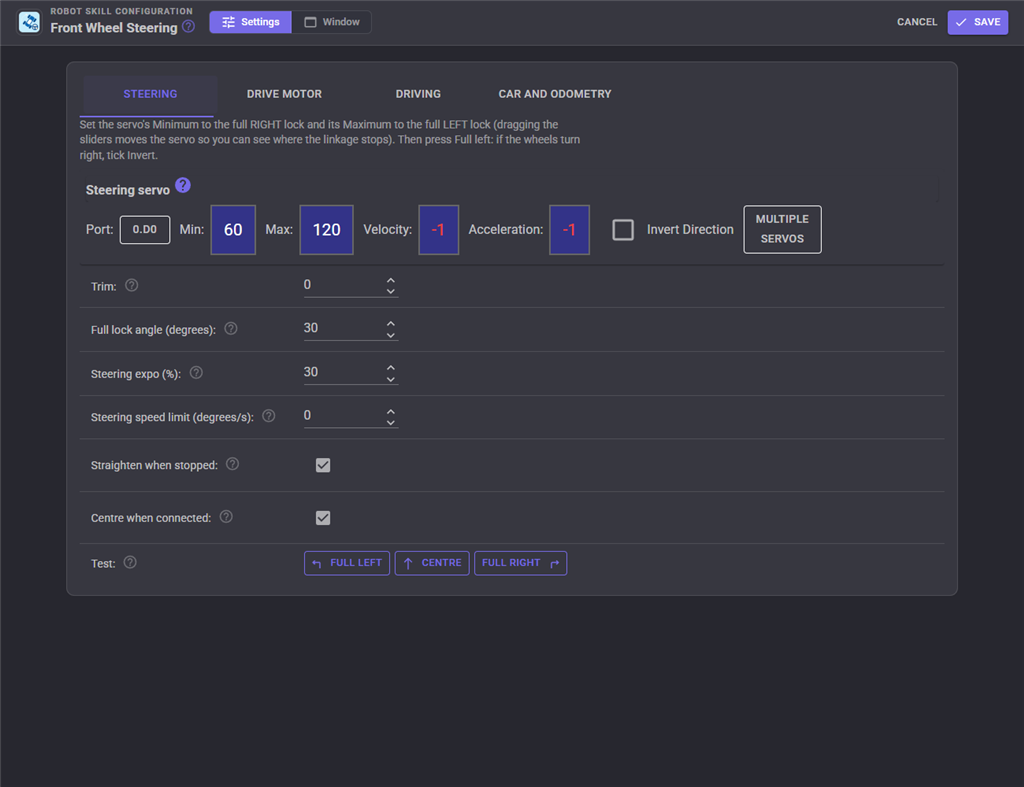
The steering servo is set up with the standard servo panel. Its Maximum is the full LEFT lock and its Minimum the full RIGHT lock: drag each slider until the linkage just reaches its stop (the servo moves as you drag, so you can watch it), so the servo never stalls against the end of its travel. Then press Full left under Test. If the front wheels turn right, tick Invert Direction.
Straight ahead is half way between Minimum and Maximum, moved by the Trim. Each side of the centre is scaled on its own, so a trimmed car still reaches both locks exactly. Trim while driving with the arrow buttons in the main window: nudge it until the car holds a straight line. The trim is saved with the project.
The steering servo panel takes more than one servo. Add a second steering servo for a heavy car, or the servo of a steered rear axle (Invert it so the rear wheels steer the opposite way, for a tighter turn).
Steering expo softens the steering near the centre for the joystick, keyboard and widget, so small corrections are small and full lock is still at the end of the stick. Commands that give an exact amount or angle (Drive, Steer, SteerAngle, the MCP tools) are never curved.
Steering speed limit slows a fast servo that would otherwise snap from lock to lock and unsettle the car.
Ackermann geometry and turning
The skill knows the shape of the car: its wheelbase (front axle to rear axle), its track width (left wheel to right wheel) and the angle the front wheels make at full lock. From those it works out the turning radius (wheelbase divided by the tangent of the wheel angle), the angle the inner and outer front wheels should each make (the inner one turns more, so both roll around the same point), and the floor space a full circle needs. The Car and odometry tab shows those numbers as you type.
Slow down in turns reduces the speed in proportion to the steering, so a tight turn is taken more slowly than a gentle one and a top-heavy car does not tip over or scrub its front tyres.
The window
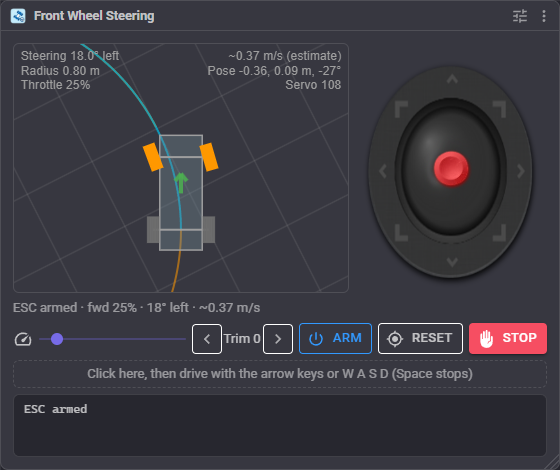
The drawing is the car seen from above, pointing up the window. The front wheels turn to their own Ackermann angles, the blue line is the path the rear axle will take at the current steering (ahead when driving forward, behind in reverse), the dot on the axle line is the centre of the turn when it is close enough to see, the green or red arrow is the throttle, and the orange line is where the car has been. The grid is fixed to the floor, so it slides and turns underneath the car as it drives. The corners show the steering angle, the turning radius, the throttle, the estimated speed and position, and the steering servo position.
The joystick on the right drives the car. Below the drawing:
- The status line: whether the drive is ready (and the ESC's arming and brake sequence as it happens), the throttle, the steering and the estimated speed.
- The speed slider sets the movement speed used by the keyboard,
Movement.forward()and the other commands that do not give a speed. - Trim nudges the straight-ahead position one servo position at a time.
- Arm (RC car ESC only) holds neutral for the arming time, for an ESC switched on after the EZB connected.
- Reset makes the current position the origin of the pose estimate.
- Stop stops the motor at once, skipping the deceleration ramp.
Click the dashed box to drive with the keyboard: the arrow keys or W A S D. Up and down drive at the movement speed, left and right steer to full lock, and holding two keys together drives round a corner. Space stops. Letting go of the keys stops the car, and so does clicking somewhere else.
RC car ESCs
An RC car ESC is driven like a servo: neutral is stopped, one side of neutral is forward and the other reverse. Two things make it different from a servo, and the skill handles both.
Arming. Most ESCs refuse to drive until they have seen neutral for a second or two after power up. With Arm when connected ticked, the skill sends neutral as soon as the EZB connects and holds it for the Arming time; a movement asked for during arming waits for it to finish rather than being lost. Switch the ESC on before connecting, or press Arm afterwards. The ESC is armed again after a reconnect, after the panic button and after the configuration is saved.
Brake, neutral, reverse. Most car ESCs ship in forward/brake/reverse mode: after driving forward, the first reverse pulse only brakes, and the ESC reverses only after it has seen neutral and then a second reverse pulse. With Reverse set to the double tap, the skill does that sequence for you whenever reverse is asked for: a brake pulse (Brake pulse milliseconds at the given strength), neutral (Neutral before reverse milliseconds), then reverse. Once reversing, it stays engaged until the car drives forward again. Set Reverse to Direct for an ESC in forward/reverse (crawler) mode.
Active brake on stop gives the ESC a brake pulse when the car is told to stop while it is driving forward, so it stops instead of coasting. After an active brake the next reverse is immediate.
The forward, neutral and reverse values are servo positions. 1 to 180 covers the EZB's full servo range, which is wider than an RC radio's, so a full forward value well below 180 is normal: find it with the test buttons, starting low.
If anything releases the drive servo behind the skill's back (a Release All, a script), the ESC loses its signal, so the skill stops the car and arms the ESC again before the next drive.
Motor drivers
For the H-bridge, PWM + direction and dual PWM drive types, the throttle becomes a duty cycle on the PWM port(s) and the direction inputs follow the direction. Stop chooses between coasting (outputs off) and braking (both H-bridge inputs high, both dual PWM inputs at 100%, or the brake input high on a PWM + direction driver that has one).
The skill never changes direction at speed: the throttle passes through zero first (holding there for one 40 ms step when ramps are off), the speed is lowered before the direction inputs change, and both inputs of an H-bridge go low before either goes high.
Minimum output is where any throttle above zero starts, so the bottom of the stick is not spent on a motor that only hums. It applies to every drive type.
Reverse motor direction swaps forward and reverse for every drive type, which is easier than rewiring the motor.
Ramps and speed limits
| Setting | What it does |
|---|---|
| Acceleration | How quickly the throttle may rise, in percent of full per second. 250 reaches full speed in 0.4 seconds. Stops wheel spin and wheelies. 0 is instant |
| Deceleration | How quickly the throttle may fall towards zero. 0 is instant |
| Stop with the ramp | Stop slows down with the deceleration ramp. Untick to stop the motor at once. Emergency stops, the Stop button, the panic button and an EZB disconnect are always instant |
| Top speed | The top speed allowed, in percent of the drive's full output. Lower it for a first drive, indoors or for children; scripts can change it with SetMaxSpeed |
| Reverse speed | The top reverse speed, in percent of the forward top speed |
Odometry: an honest estimate
The car has no wheel encoders, so the skill estimates where it is by dead reckoning: it multiplies the throttle by Speed at full output to get a speed, and the steering angle and wheelbase to get a rate of turn, and adds those up 25 times a second. Measure the speed at full output (time the car over a known distance at full throttle) and the estimate becomes useful for short manoeuvres. It still drifts: motors do not speed up in exact step with the throttle, wheels slip, batteries sag and floors differ. Treat it as a rough guess, not a measurement.
The estimate is what DriveDistance and Turn use, what the GetPose command and the pose variables report, and what is drawn in the window. Tick Send the pose to NMS to give it to a navigator skill through the Navigation Messaging System (with zero confidence, so anything that weighs its sources knows it is a guess). Leave that off when a lidar, tracking camera or other skill reports the pose.
Positions and angles follow ARCx's convention (the same as ROS): x is metres forward and y metres to the left of where tracking began, and angles are radians that grow as the car turns left.
Scripts
Everything the window does is also a control command, listed with its parameters in the script editor. Steering amounts are -1 (full right lock) to 1 (full left lock) and throttles -1 (full reverse) to 1 (full forward), so positive always means left or forward.
// Drive forward at 40% while turning gently left, for two seconds
controlCommand("Front Wheel Steering", "Drive", 0.4, 0.3);
sleep(2000);
controlCommand("Front Wheel Steering", "Drive", 0, 0);

// Turn the front wheels to 15 degrees right without moving
controlCommand("Front Wheel Steering", "SteerAngle", -0.2618);

// A three point turn, by the estimate
controlCommand("Front Wheel Steering", "Turn", 1.57, 0.3);
controlCommand("Front Wheel Steering", "DriveDistance", -0.4, 0.3);
controlCommand("Front Wheel Steering", "Turn", 1.57, 0.3);
DriveDistance and Turn wait until they are done and return true, or false when something else moved the car, the script was stopped, or they ran out of time. A car needs room to turn: about one turning radius to the side it turns to.
The skill publishes these global variables (the prefix is set on the Car and odometry tab):
| Variable | Meaning |
|---|---|
CarSteering |
Steering amount now, -1 full right to 1 full left |
CarSteeringAngle |
Front wheel angle now, radians, positive left |
CarThrottle |
Throttle sent to the motor now, after ramps and limits, -1 to 1 |
CarSpeed |
Estimated speed, metres per second |
CarTurnRadius |
Turning radius in metres, positive turning left, 0 straight |
CarEscArmed |
True when the drive is ready (an ESC is armed) |
CarPoseX, CarPoseY, CarPoseYaw |
Estimated position (metres) and heading (radians) |
CarOdometryDistance |
Estimated metres driven |
CarDriveOutput |
The raw drive output last written: the ESC or servo position, or the duty cycle |
AI assistants
An AI assistant connected to ARCx through MCP gets five tools from this skill: get_state (steering, throttle, turning radius, drive readiness and the estimated pose), drive (a throttle and steering for a number of seconds, then stop), drive_distance, turn (in degrees) and stop. The descriptions tell the assistant that the pose is an estimate and that a car needs room to turn.
Custom UI widgets
Two widgets can be placed on a Custom UI screen:
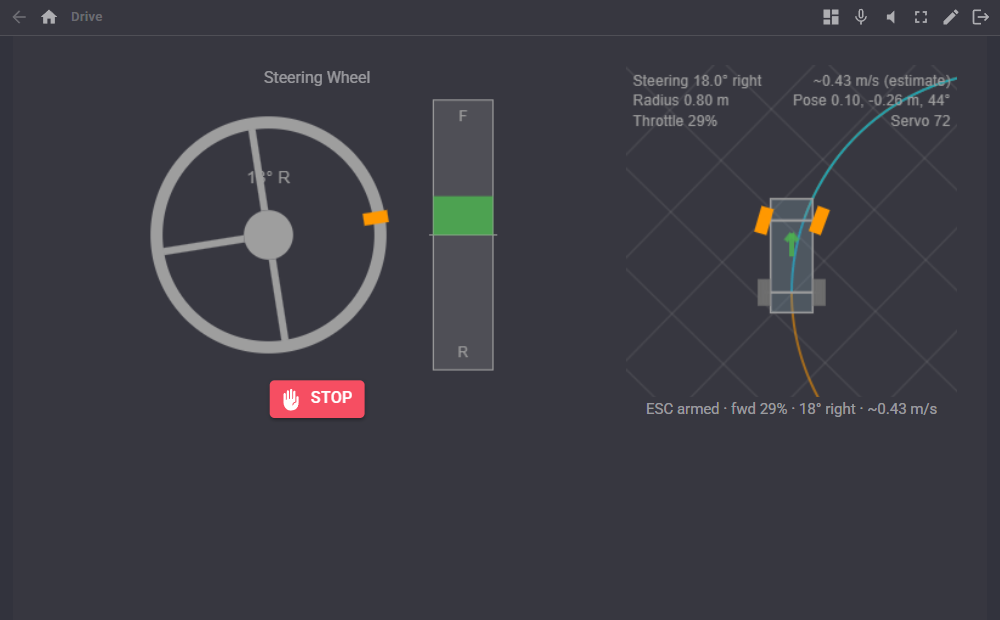
- Steering Wheel: drag the wheel round to steer and hold the pedal (above the middle forward, below it reverse) to drive. Letting go of the pedal stops the car; letting go of the wheel straightens it unless SelfCentre is off. The wheel turns with the real steering whatever moves it. Settings: Caption, MaxSpeed (the throttle at the end of the pedal, in percent), SelfCentre, ShowPedal (off for a wheel only) and ShowStopButton.
- Car View: the top-down drawing from the main window with the status line under it.
Configuration
Steering
| Setting | What it does |
|---|---|
| Steering servo | The servo (or servos) that turn the front wheels. Minimum is full right lock, Maximum full left lock; Invert swaps them |
| Trim | Moves straight ahead, in servo positions; positive moves it left |
| Full lock angle | The angle the front wheels make with straight ahead at full lock. Measure it on the car |
| Steering expo | Softens the steering near the centre for stick-like controls. 0 is linear |
| Steering speed limit | The fastest the wheels are turned, in degrees per second. 0 is unlimited |
| Straighten when stopped | Point the wheels straight ahead when the car stops |
| Centre when connected | Centre the steering servo as soon as its EZB connects |
| Test | Moves the servo to full left, centre or full right with the settings on the page, before they are saved |
Drive motor
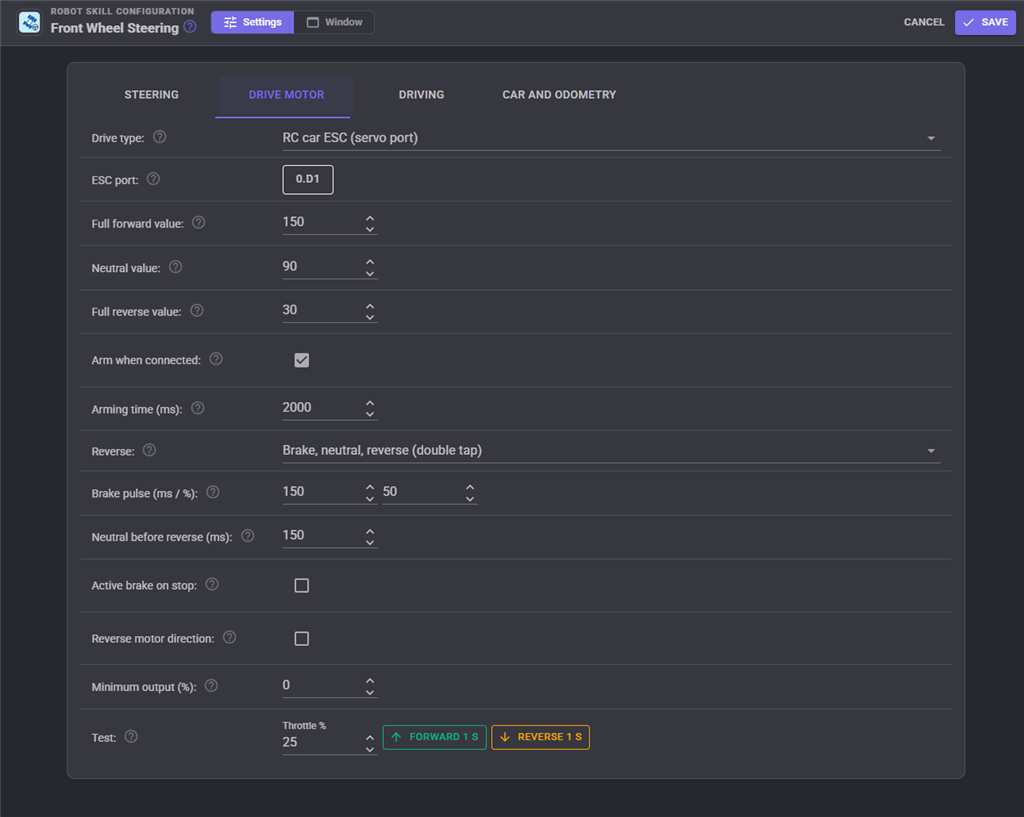
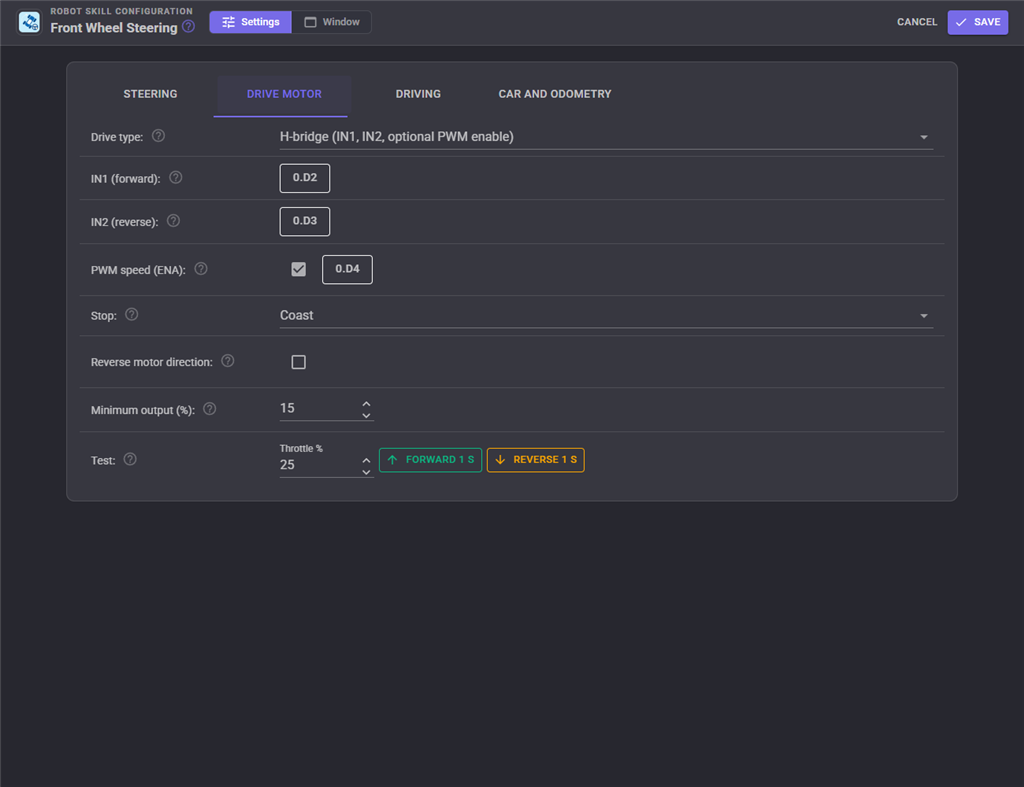
| Setting | What it does |
|---|---|
| Drive type | What turns the rear wheels (see the table at the top) |
| ESC port / servo port | The servo port of the ESC or continuous rotation servo |
| Full forward, Neutral (Stop), Full reverse value | Servo positions for full forward, stopped and full reverse |
| Hold the stop value | Continuous rotation servo only: keep sending the stop value while stopped, or release the servo (what the ARC version did) |
| Arm when connected, Arming time | RC car ESC only: see RC car ESCs above |
| Reverse, Brake pulse, Neutral before reverse, Active brake on stop | RC car ESC only: see RC car ESCs above |
| IN1, IN2, PWM speed | H-bridge only: the direction inputs, and the enable input when it is wired to a PWM port |
| PWM, DIR, Brake | PWM + direction only. DIR low is forward |
| Forward PWM, Reverse PWM | Dual PWM only |
| Stop | Motor drivers only: coast or brake |
| Reverse motor direction | Swap forward and reverse |
| Minimum output | Where any throttle above zero starts |
| Test | Drives the motor for one second at the test throttle with the settings on the page, then stops. Lift the wheels off the ground first. An ESC is armed first, and a reverse test does the double tap when the ESC needs it |
Driving
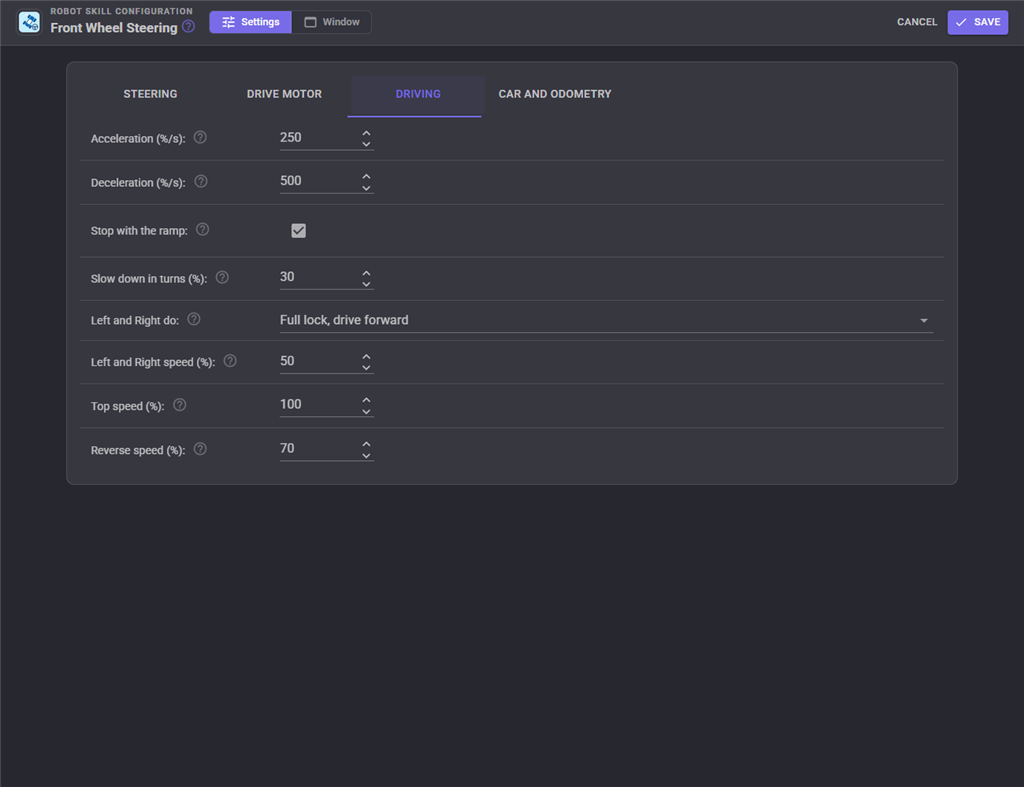
| Setting | What it does |
|---|---|
| Acceleration, Deceleration, Stop with the ramp | See Ramps and speed limits |
| Slow down in turns | How much slower the car drives at full lock, in percent |
| Left and Right do | What turning on the spot means for a car |
| Left and Right speed | The throttle for Left and Right, in percent of the speed they were given |
| Top speed, Reverse speed | See Ramps and speed limits |
Car and odometry
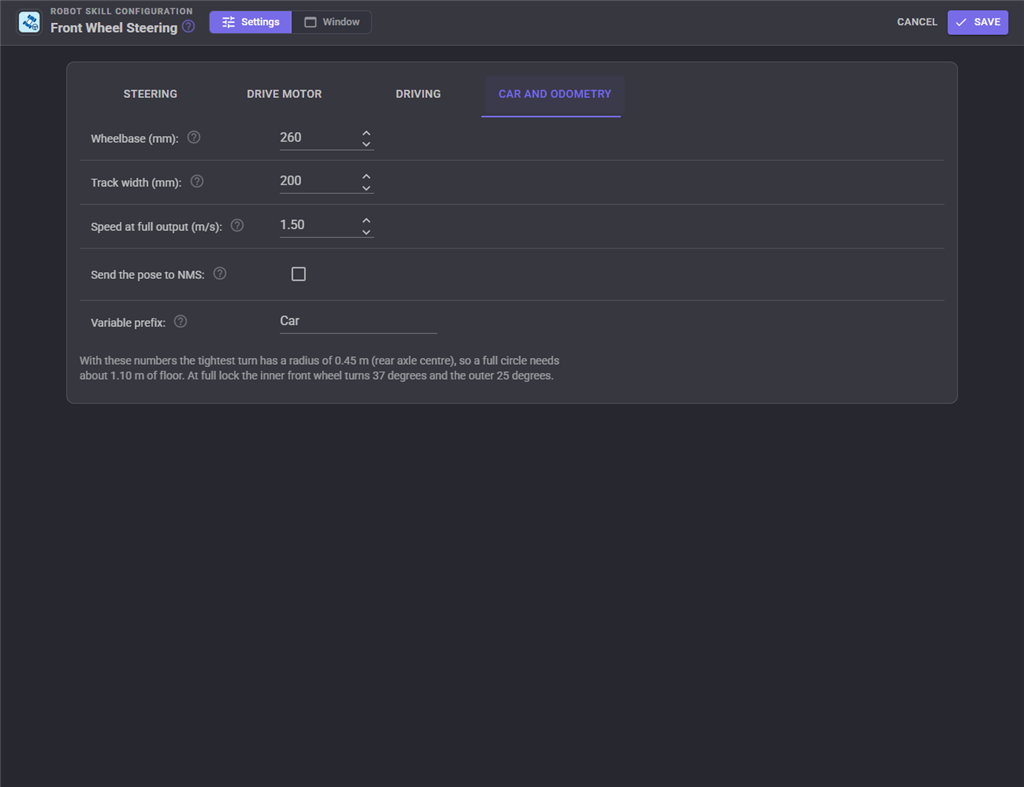
| Setting | What it does |
|---|---|
| Wheelbase | Front axle to rear axle, in millimetres |
| Track width | Left wheel to right wheel, centre to centre, in millimetres |
| Speed at full output | The car's measured speed at full throttle, for the odometry estimate |
| Send the pose to NMS | Give the estimated pose to a navigator skill |
| Variable prefix | The start of the global variables' names |
Window
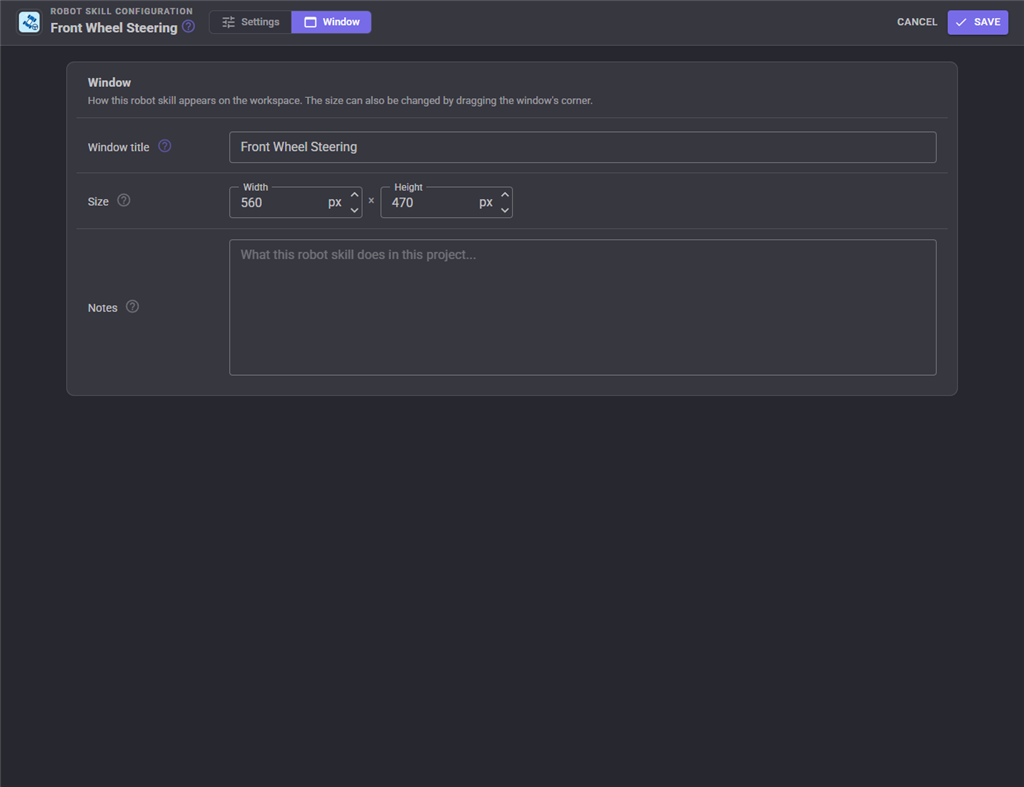
The window's title and size, as for every robot skill.
Safety
- Nothing is written to the steering or the drive until there is a reason to: the first movement, a command, or a connect when the configuration asks to centre the steering or arm the ESC. Adding the skill to a project never moves anything by itself.
- Opening the configuration stops the car at once, and the skill writes nothing while it is open except the tests you press.
- An EZB disconnect while driving stops the car, so it does not drive off by itself when the EZB comes back. The panic button stops it too.
- Removing the skill or closing the project stops the motor.
- Lift the wheels off the ground for the first test of a new drive, and start with a low Top speed.
Coming from the ARC version
The ARC version drove a continuous rotation servo with forward, stop and reverse values and a Use stop checkbox; pick Continuous rotation servo and copy those values across (Use stop is Hold the stop value). Its steering was never finished. Everything else here is new.
Troubleshooting
| Problem | What to check |
|---|---|
| The car does not move, the status says ESC arming | Wait for the arming time; if the ESC was switched on after connecting, press Arm |
| The ESC only brakes in reverse, never reverses | Set Reverse to the double tap. If it already is, lengthen the Neutral before reverse time |
| The car reverses when it should brake, or there is a pause before reversing | Your ESC is in forward/reverse mode: set Reverse to Direct |
| The wheels turn the wrong way | Tick Invert Direction on the steering servo |
| The car drifts to one side | Use the Trim buttons while driving straight |
| The servo buzzes at full lock | Bring the steering servo's Minimum or Maximum in until the linkage no longer hits its stop |
| The motor hums but does not turn at low speed | Raise Minimum output |
| The car drives backwards | Tick Reverse motor direction |
| The estimated position is far off | Measure Speed at full output and the full lock angle; remember it is an estimate |
Control Commands for the Front Wheel Steering robot skill
There are Control Commands available for this robot skill which allows the skill to be controlled programmatically from scripts or other robot skills. These commands enable you to automate actions, respond to sensor inputs, and integrate the robot skill with other systems or custom interfaces. If you're new to the concept of Control Commands, we have a comprehensive manual available here that explains how to use them, provides examples to get you started and make the most of this powerful feature.
Control Command ManualThis robot skill has 17 control commands, listed below. Send them from a JavaScript or Python script, from Blockly, or from another robot skill.
The first value is always the window title, which is the name in the title bar of the robot skill on your workspace. It starts out as Front Wheel Steering, which is what every example below uses. If you rename the robot skill, or add a second copy of it to the project, use the title as it appears on that window instead.
ControlCommand() can be shortened to CC(), and both spellings work in JavaScript and in Python. The examples are JavaScript; Python is the same call, except that true and false are written True and False.
ArmEsc
Arm (or re-arm) the RC ESC by holding neutral for the arming time, for an ESC that was powered up after the EZB connected. Waits until it is armed and returns true, or false when no ESC is configured or connected.
Syntax
ControlCommand("Front Wheel Steering", "ArmEsc")
Returns: Boolean [true or false]
Example
var result = ControlCommand("Front Wheel Steering", "ArmEsc");
CentreSteering
Point the front wheels straight ahead without changing the throttle.
Syntax
ControlCommand("Front Wheel Steering", "CentreSteering")
Returns: nothing
Example
ControlCommand("Front Wheel Steering", "CentreSteering");
Drive
Drive like a car. throttle: -1 (full reverse) to 1 (full forward), 0 stops. steering: -1 (full right lock) to 1 (full left lock), 0 straight. Ramps, the speed limits and the turn slowdown still apply. Keeps driving until told otherwise.
Syntax
ControlCommand("Front Wheel Steering", "Drive", (Number)throttle, (Number)steering)
Parameters
| # | Name | Type | What to pass |
|---|---|---|---|
| 1 | throttle | Number | A number, without quotes |
| 2 | steering | Number | A number, without quotes |
Returns: nothing
Example
ControlCommand("Front Wheel Steering", "Drive", 0, 0);
DriveDistance
Drive straight for a distance in metres (negative reverses) at a throttle of 0.05 to 1 (default 0.4), then stop. Waits until done and returns true, or false when stopped early. The distance comes from the odometry ESTIMATE (throttle x top speed), not from encoders, so expect it to be off by tens of percent until the top speed is measured.
Syntax
ControlCommand("Front Wheel Steering", "DriveDistance", (Number)metres, (Number)throttle)
Parameters
| # | Name | Type | What to pass |
|---|---|---|---|
| 1 | metres | Number | A number, without quotes |
| 2 | throttle | Number | A number, without quotes |
Returns: Boolean [true or false]
Example
var result = ControlCommand("Front Wheel Steering", "DriveDistance", 0, 0);
EmergencyStop
Stop the drive motor at once, skipping the deceleration ramp (with an ESC brake pulse when the active brake is on).
Syntax
ControlCommand("Front Wheel Steering", "EmergencyStop")
Returns: nothing
Example
ControlCommand("Front Wheel Steering", "EmergencyStop");
GetPose
The estimated pose [x, y, yaw]: metres forward and left of where tracking began, and radians turned left. Dead reckoning from the throttle and steering, so it drifts.
Syntax
ControlCommand("Front Wheel Steering", "GetPose")
Returns: Array of Double
Example
var result = ControlCommand("Front Wheel Steering", "GetPose");
GetSteering
The steering amount the front wheels are at now, -1 (full right lock) to 1 (full left lock).
Syntax
ControlCommand("Front Wheel Steering", "GetSteering")
Returns: Double [5.0e324 to 1.7e308]
Example
var result = ControlCommand("Front Wheel Steering", "GetSteering");
GetSteeringAngle
The angle of the front wheels now, in radians, positive left.
Syntax
ControlCommand("Front Wheel Steering", "GetSteeringAngle")
Returns: Double [5.0e324 to 1.7e308]
Example
var result = ControlCommand("Front Wheel Steering", "GetSteeringAngle");
GetThrottle
The throttle being sent to the drive motor now, after ramps and limits: -1 (full reverse) to 1 (full forward).
Syntax
ControlCommand("Front Wheel Steering", "GetThrottle")
Returns: Double [5.0e324 to 1.7e308]
Example
var result = ControlCommand("Front Wheel Steering", "GetThrottle");
GetTrim
The steering trim, in servo positions.
Syntax
ControlCommand("Front Wheel Steering", "GetTrim")
Returns: Integer [-2,147,483,648 to 2,147,483,647]
Example
var result = ControlCommand("Front Wheel Steering", "GetTrim");
IsEscArmed
True when the drive is ready to drive (an RC ESC is armed; the other drive types are always ready while connected).
Syntax
ControlCommand("Front Wheel Steering", "IsEscArmed")
Returns: Boolean [true or false]
Example
var result = ControlCommand("Front Wheel Steering", "IsEscArmed");
ResetPose
Make the car's current position and heading the origin of the pose estimate.
Syntax
ControlCommand("Front Wheel Steering", "ResetPose")
Returns: nothing
Example
ControlCommand("Front Wheel Steering", "ResetPose");
SetMaxSpeed
Limit the top speed to a percent of the drive's full output (5 to 100). Saved with the project.
Syntax
ControlCommand("Front Wheel Steering", "SetMaxSpeed", (Number)percent)
Parameters
| # | Name | Type | What to pass |
|---|---|---|---|
| 1 | percent | Number | A number, without quotes |
Returns: Integer [-2,147,483,648 to 2,147,483,647]
Example
var result = ControlCommand("Front Wheel Steering", "SetMaxSpeed", 0);
SetTrim
Set the steering trim, in servo positions (-30 to 30, positive moves the centre left), so the car drives straight. Saved with the project.
Syntax
ControlCommand("Front Wheel Steering", "SetTrim", (Number)positions)
Parameters
| # | Name | Type | What to pass |
|---|---|---|---|
| 1 | positions | Number | A number, without quotes |
Returns: Integer [-2,147,483,648 to 2,147,483,647]
Example
var result = ControlCommand("Front Wheel Steering", "SetTrim", 0);
Steer
Turn the front wheels without changing the throttle. steering: -1 (full right lock) to 1 (full left lock), 0 straight.
Syntax
ControlCommand("Front Wheel Steering", "Steer", (Number)steering)
Parameters
| # | Name | Type | What to pass |
|---|---|---|---|
| 1 | steering | Number | A number, without quotes |
Returns: nothing
Example
ControlCommand("Front Wheel Steering", "Steer", 0);
SteerAngle
Turn the front wheels to an angle in radians, positive left (0.2618 is 15 degrees left), limited to the configured full lock angle. The throttle is not changed.
Syntax
ControlCommand("Front Wheel Steering", "SteerAngle", (Number)radians)
Parameters
| # | Name | Type | What to pass |
|---|---|---|---|
| 1 | radians | Number | A number, without quotes |
Returns: nothing
Example
ControlCommand("Front Wheel Steering", "SteerAngle", 0);
Turn
Turn by an angle in radians (positive left) by driving forward at full lock at a throttle of 0.05 to 1 (default 0.4), then stop. A car cannot turn on the spot, so it needs room: about one turning radius to each side. Waits until done and returns true, or false when stopped early. The angle is an ESTIMATE from the throttle and steering.
Syntax
ControlCommand("Front Wheel Steering", "Turn", (Number)radians, (Number)throttle)
Parameters
| # | Name | Type | What to pass |
|---|---|---|---|
| 1 | radians | Number | A number, without quotes |
| 2 | throttle | Number | A number, without quotes |
Returns: Boolean [true or false]
Example
var result = ControlCommand("Front Wheel Steering", "Turn", 0, 0);
This list is read out of the robot skill itself each time its package is uploaded, so it matches the published version (v2).




This robot skill has been updated to v1.
What has changed
initial release
This robot skill has been updated to v2.
What has changed
updated to use some new ARCx UI features for improved performance.