Script-driven movement panel for any robot, drone, or API, with custom directions, speed control, and safety stops
 Windows
 ARM
ARM
 Linux
Linux
 MacOS
MacOS
How to add the Custom Movement Panel robot skill
- Load the most recent release of ARCx on a compatible operating system (Get ARCx).
- Press the + Skills menu from the top menu bar in ARCx.
- Choose any of these category tabs, the robot skill appears in each of them: Movement Panels, Scripting.
- Press the Custom Movement Panel icon to add the robot skill to your project.
Don't have a robot yet?
Follow the Getting Started Guide to build a robot and use the Custom Movement Panel robot skill.
How to use the Custom Movement Panel robot skill
The Custom Movement Panel is a Movement Panel where every direction runs a script you write. It lets ARCx drive any robot, whatever moves it: a motor controller on a UART, an H-bridge, continuous rotation servos, a serial or network API, a drone, a submarine, a walking gait, or anything else a script can reach.
Because it is the project's movement panel, everything that moves the robot reaches it: Movement.forward() in a script, a joystick, the Movement Joystick, a camera tracker, a navigator, the AI, and the buttons in its own window. Each request runs the script for that direction. A new direction stops the script that was running, so a script can loop (ramp a speed, pulse a motor) until it is replaced, and Stop always wins.
A project can have only one movement panel.
The Window
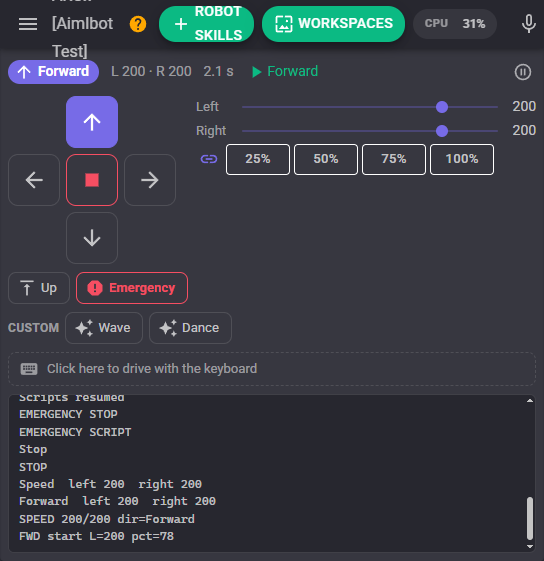
- Status line - The direction the robot is doing, the left and right speeds, how long it has been going that way, and the script running now. The pause button stops the robot and pauses the scripts: movements are still shown but nothing is driven, which is handy for testing a project without the robot moving.
- Direction pad - Forward, reverse, left, right and stop. The button of the current direction is lit, whoever started it. Roll Left and Roll Right appear in the top corners once they have scripts.
- Speed - Left and right speed sliders (0 to 255) and presets of 25, 50, 75 and 100 percent. With the link on, either slider sets both wheels.
- More directions - Up, Down, Takeoff and Land appear once their script is written, and the Emergency button is always there.
- Custom - A button for each custom movement that asks for one.
- Keyboard - Click the strip, then hold W A S D or the arrow keys to drive, Q and E to roll, R and F to go up and down, and Space or Esc to stop. The robot moves only while a key is held, and stops when focus leaves the strip.
- Log - Each new movement and speed change, script errors, and anything the scripts
print().
Banners appear when the scripts are paused, when a script has failed (dismiss it with the X), and when no movement script has been written yet.
Writing the Scripts
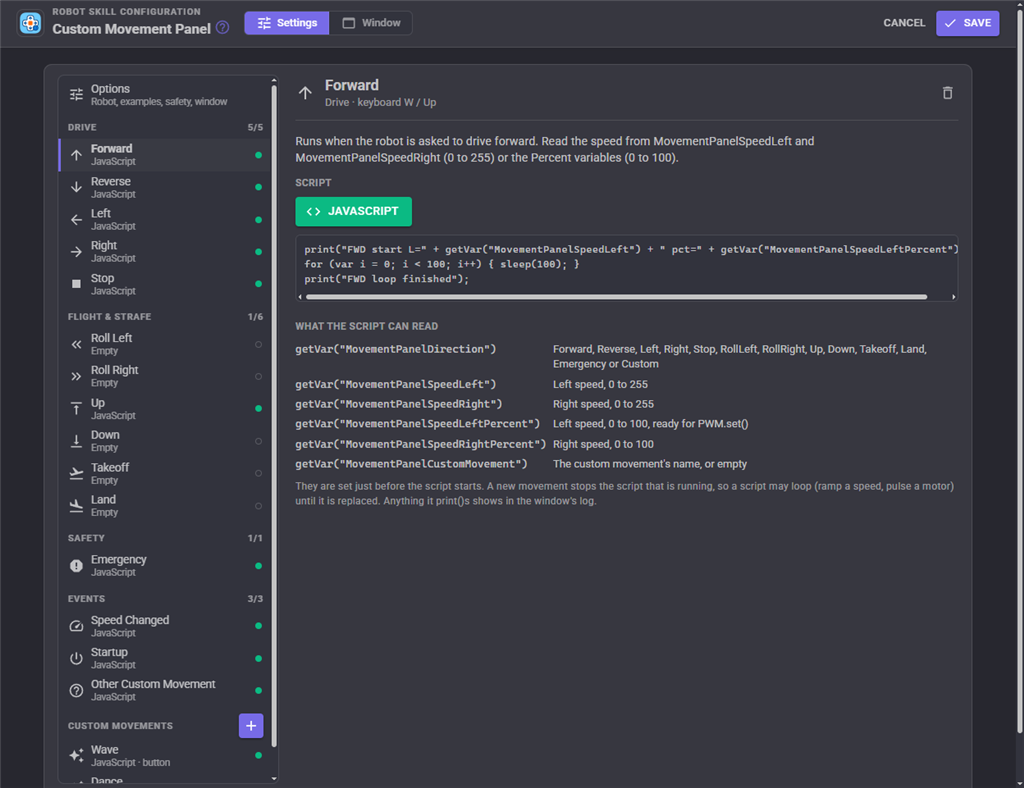
The configuration lists every script on the left, grouped as Drive, Flight & strafe, Safety and Events, with a green dot beside each one that is written. Pick one to edit it with the usual script editor (Blockly, JavaScript or Python); the pane shows the start of the script and what it can read.
Just before a script starts, these global variables are set so the script knows what was asked for:
| Variable | Value |
|---|---|
MovementPanelDirection |
Forward, Reverse, Left, Right, Stop, RollLeft, RollRight, Up, Down, Takeoff, Land, Emergency or Custom |
MovementPanelSpeedLeft |
Left speed, 0 to 255 |
MovementPanelSpeedRight |
Right speed, 0 to 255 |
MovementPanelSpeedLeftPercent |
Left speed, 0 to 100, ready for PWM.set() |
MovementPanelSpeedRightPercent |
Right speed, 0 to 100 |
MovementPanelCustomMovement |
The custom movement's name, or empty |
For Stop and the flight directions the speed variables hold the current speed setting, so a drone's Up script can use it too.
| Script | When it runs |
|---|---|
| Forward, Reverse, Left, Right | When the robot is asked to drive or turn. Also again when the speed changes while doing so, unless that option is turned off. |
| Stop | Every time a stop is requested, even when the robot is already stopped. Leave every motor stopped. |
| Roll Left, Roll Right | A drone rolling, or a mecanum, omni or holonomic robot strafing sideways. |
| Up, Down | A drone climbing or descending, a submarine surfacing or diving, a lift or mast raising or lowering. |
| Takeoff, Land | A flying robot taking off or landing. |
| Emergency | An emergency stop. Every script of this robot skill is stopped first. When it is empty, the Stop script runs instead. |
| Speed Changed | Whenever the left or right speed changes, moving or not. It runs beside the direction scripts, so it never interrupts them. |
| Startup | Once when the project has finished loading. Prepare the hardware here: open a UART, set a baud rate, initialise a motor controller. |
| Other Custom Movement | A custom movement whose name has no script of its own. |
A direction with no script still stops the script of the previous direction, because the robot was asked to do something else.
Custom Movements
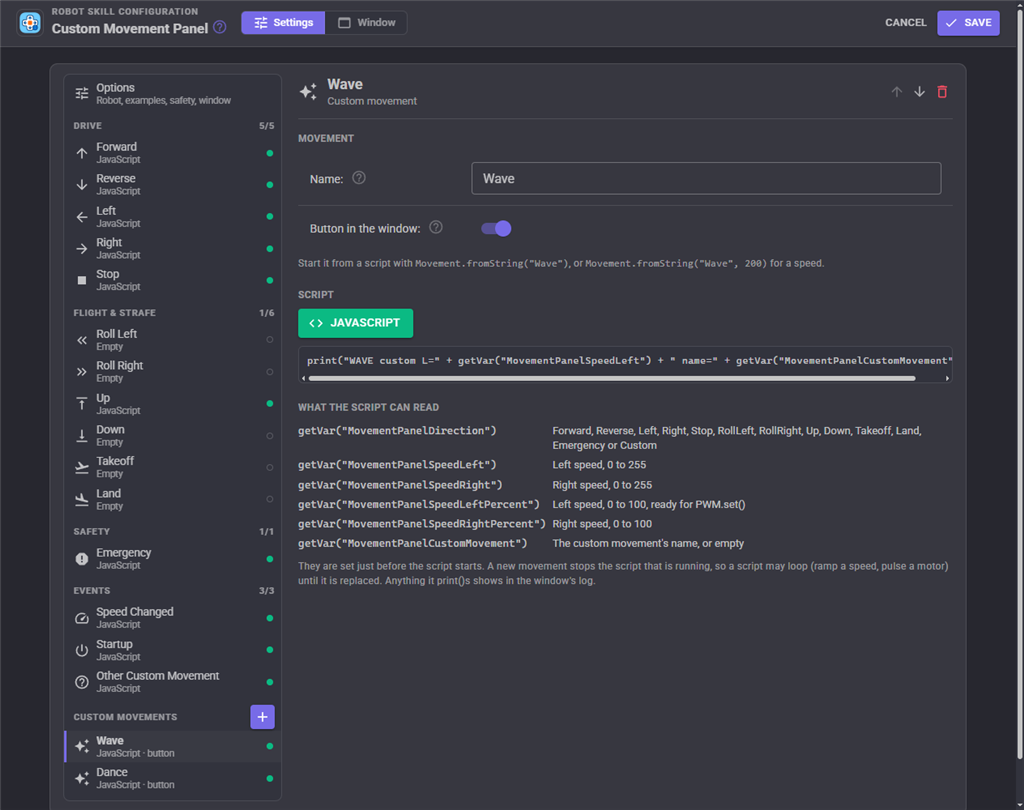
Custom movements are named movements beyond the built in directions, such as "Wave", "Dance" or "Strafe left". Add one with the + beside Custom movements, name it, write its script, and choose whether it gets a button in the window.
Start one from a script with Movement.fromString("Wave"), or Movement.fromString("Wave", 200) to give it a speed. It goes through the movement manager like any other direction, so other robot skills know the robot is busy, and it keeps going until another movement or a stop. Names are matched without regard to case, must be unique, and cannot be forward, reverse, left, right or stop (those are the built in directions).
Options
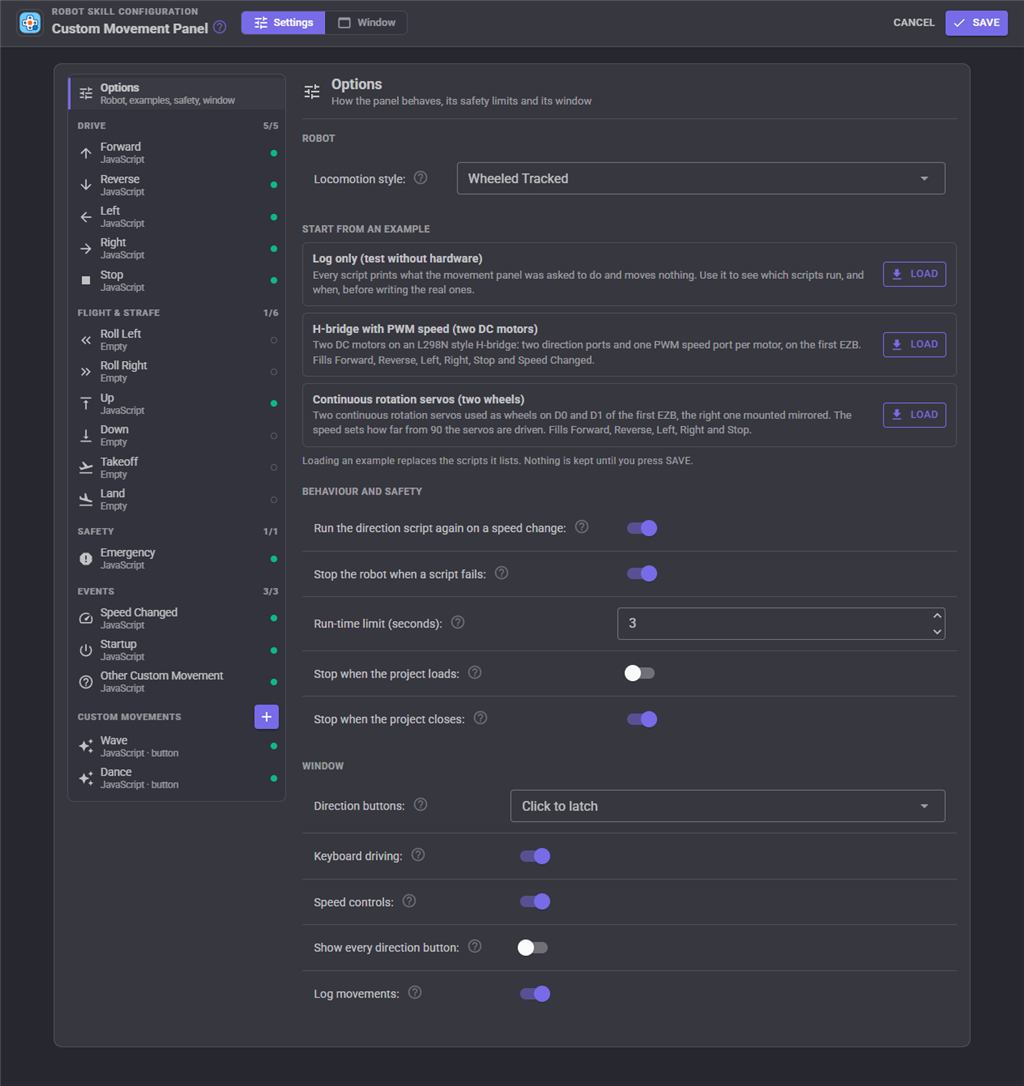
Start from an example
Three ready made sets of scripts, each loaded with one click after a confirmation:
- Log only - Every script prints what was asked and moves nothing. Load it first to see which scripts run, and when.
- H-bridge with PWM speed - Two DC motors on an L298N style H-bridge: D0/D1 direction and D2 PWM for the left motor, D3/D4 and D5 for the right, on the first EZB. Change the ports to match your wiring.
- Continuous rotation servos - Two continuous rotation servos as wheels on D0 and D1, the right one mounted mirrored. The speed sets how far from 90 the servos are driven.
Loading an example replaces only the scripts it lists, and nothing is kept until you press Save.
Settings
| Setting | Description | Default |
|---|---|---|
| Locomotion style | How the robot moves through space. Other robot skills read it to adapt to the robot. | Undefined |
| Run the direction script again on a speed change | When the speed changes while driving, run that direction's script again so it applies the new speed. Turn it off when the Speed Changed script handles speed. | On |
| Stop the robot when a script fails | When a movement script ends with an error, stop the robot (which runs the Stop script), so a half finished script never leaves a motor running. | On |
| Run-time limit (seconds) | Stop the robot when it has kept moving in one direction this long without a new movement command. Protects against a lost connection or a button held in a browser that went away. 0 turns it off. Takeoff and Land are not limited. | 0 (off) |
| Stop when the project loads | Run the Stop script after the Startup script, so the motors begin stopped. | Off |
| Stop when the project closes | Run the Stop script (waiting up to 2 seconds) when the robot skill is removed or the project is closed. | On |
| Direction buttons | Click to latch: one click and the robot keeps going. Hold to drive: the robot moves only while a button is held. | Click to latch |
| Keyboard driving | Show the keyboard strip. | On |
| Speed controls | Show the speed sliders and presets. | On |
| Show every direction button | Show the roll, up, down, takeoff and land buttons even before their scripts are written. | Off |
| Log movements | Write every new movement and speed change to the log. | On |
Safety
Several things keep a script driven robot from running away:
- A new movement always stops the running movement script first, and Stop runs every time it is asked for.
- Emergency stops every script of this robot skill before running the Emergency (or Stop) script.
- A failing movement script stops the robot.
- The run-time limit stops a robot that has been left moving.
- A window or Custom UI pad that is closed while a direction is held down, or a keyboard strip that loses focus, stops the robot.
- Opening this configuration stops the robot, so a script is never edited while it drives.
Custom UI Widgets
The skill offers three widgets for your own control screens:
- Direction pad - The pad with the current direction and a speed slider. Its Mode setting can be
hold,latch, or empty to follow the skill's own setting. - Custom movements - A button for each custom movement (or only the ones named in Names), and a stop button.
- Emergency stop - One large round stop button. Set Emergency to false for an ordinary Stop.
For AI Assistants
The status tool reports the movement, speeds, which scripts are written and in what language, the custom movements and the last error. The custom_movement tool starts a custom movement by name. Built in directions are driven with ARCx's move_robot tool.
Control Commands for the Custom Movement Panel robot skill
There are Control Commands available for this robot skill which allows the skill to be controlled programmatically from scripts or other robot skills. These commands enable you to automate actions, respond to sensor inputs, and integrate the robot skill with other systems or custom interfaces. If you're new to the concept of Control Commands, we have a comprehensive manual available here that explains how to use them, provides examples to get you started and make the most of this powerful feature.
Control Command ManualThis robot skill has 12 control commands, listed below. Send them from a JavaScript or Python script, from Blockly, or from another robot skill.
The first value is always the window title, which is the name in the title bar of the robot skill on your workspace. It starts out as Custom Movement Panel, which is what every example below uses. If you rename the robot skill, or add a second copy of it to the project, use the title as it appears on that window instead.
ControlCommand() can be shortened to CC(), and both spellings work in JavaScript and in Python. The examples are JavaScript; Python is the same call, except that true and false are written True and False.
AreScriptsPaused
True while the movement scripts are paused.
Syntax
ControlCommand("Custom Movement Panel", "AreScriptsPaused")
Returns: Boolean [true or false]
Example
var result = ControlCommand("Custom Movement Panel", "AreScriptsPaused");
CustomMovement
Start a custom movement by name through the movement manager, at the current speed. Its script runs (or the Other Custom Movement script for a name that is not listed). It keeps going until another movement or stop.
Syntax
ControlCommand("Custom Movement Panel", "CustomMovement", (String)name)
Parameters
| # | Name | Type | What to pass |
|---|---|---|---|
| 1 | name | Text | Your text, in quotes |
Returns: nothing
Example
ControlCommand("Custom Movement Panel", "CustomMovement", "name");
CustomMovementWithSpeed
Start a custom movement by name with its own left and right speeds, 0 to 255.
Syntax
ControlCommand("Custom Movement Panel", "CustomMovementWithSpeed", (String)name, (Number)speedLeft, (Number)speedRight)
Parameters
| # | Name | Type | What to pass |
|---|---|---|---|
| 1 | name | Text | Your text, in quotes |
| 2 | speedLeft | Number | A number, without quotes |
| 3 | speedRight | Number | A number, without quotes |
Returns: nothing
Example
ControlCommand("Custom Movement Panel", "CustomMovementWithSpeed", "name", 0, 0);
Emergency
Emergency stop: stops every script of this robot skill and runs the Emergency script (or the Stop script when there is none).
Syntax
ControlCommand("Custom Movement Panel", "Emergency")
Returns: nothing
Example
ControlCommand("Custom Movement Panel", "Emergency");
GetCustomMovement
The name of the custom movement running now, or an empty string when the robot is not doing a custom movement.
Syntax
ControlCommand("Custom Movement Panel", "GetCustomMovement")
Returns: String
Example
var result = ControlCommand("Custom Movement Panel", "GetCustomMovement");
GetCustomMovements
The names of the custom movements this panel has scripts for.
Syntax
ControlCommand("Custom Movement Panel", "GetCustomMovements")
Returns: Array of String
Example
var result = ControlCommand("Custom Movement Panel", "GetCustomMovements");
GetDirection
The direction the robot is moving: Stop, Forward, Reverse, Left, Right, RollLeft, RollRight, Up, Down, Takeoff, Land, Emergency or Custom.
Syntax
ControlCommand("Custom Movement Panel", "GetDirection")
Returns: String
Example
var result = ControlCommand("Custom Movement Panel", "GetDirection");
GetLastError
The last script error with the script it came from, or an empty string when there has been none.
Syntax
ControlCommand("Custom Movement Panel", "GetLastError")
Returns: String
Example
var result = ControlCommand("Custom Movement Panel", "GetLastError");
IsMoving
True unless the robot is stopped.
Syntax
ControlCommand("Custom Movement Panel", "IsMoving")
Returns: Boolean [true or false]
Example
var result = ControlCommand("Custom Movement Panel", "IsMoving");
PauseScripts
Stop the robot, then stop running movement scripts: movements are still tracked and shown but nothing is driven. For testing a project without moving the robot.
Syntax
ControlCommand("Custom Movement Panel", "PauseScripts")
Returns: nothing
Example
ControlCommand("Custom Movement Panel", "PauseScripts");
ResumeScripts
Run the movement scripts again after PauseScripts.
Syntax
ControlCommand("Custom Movement Panel", "ResumeScripts")
Returns: nothing
Example
ControlCommand("Custom Movement Panel", "ResumeScripts");
RunStartupScript
Run the Startup script again, for instance after the motor controller was power cycled, and wait for it to finish.
Syntax
ControlCommand("Custom Movement Panel", "RunStartupScript")
Returns: nothing
Example
ControlCommand("Custom Movement Panel", "RunStartupScript");
This list is read out of the robot skill itself each time its package is uploaded, so it matches the published version (v2).



This robot skill has been updated to v1.
What has changed
initial release
This robot skill has been updated to v2.
What has changed
updated to use some new ARCx UI features for improved performance.