
Build custom OpenCV pipelines to detect colors, shapes, edges, and contours with live step-by-step tuning in ARCx.
 Windows
 ARM
ARM
 Linux
Linux
 MacOS
MacOS
How to add the Opencv Filter Flow robot skill
- Load the most recent release of ARCx on a compatible operating system (Get ARCx).
- Press the + Skills menu from the top menu bar in ARCx.
- Choose any of these category tabs, the robot skill appears in each of them: Camera, Scripting.
- Press the Opencv Filter Flow icon to add the robot skill to your project.
Don't have a robot yet?
Follow the Getting Started Guide to build a robot and use the Opencv Filter Flow robot skill.
How to use the Opencv Filter Flow robot skill
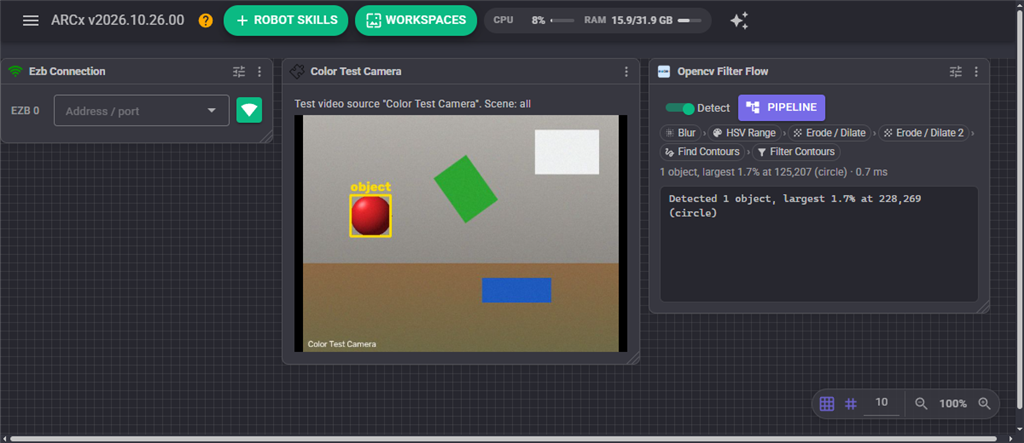
OpenCV Filter Flow turns a camera into a detector you build yourself, one OpenCV step at a time. Each step takes the picture from the step before it, does one thing to it (blur, keep a range of colours, threshold, erode, find edges, outline shapes) and hands the result to the next step. Every step shows its own live picture while you tune it, so instead of guessing thresholds blind you can see exactly where an object is kept and where it is lost.
Whatever the pipeline finds at the end is reported the same way as every other detection skill in ARCx: as tracked objects on the camera's processed video. A skill that follows detections, such as Vision Detection Tracking Script, can follow them without knowing where they came from. The skill also keeps global variables describing what it sees, and runs a script when something is detected and when it is lost.
The window
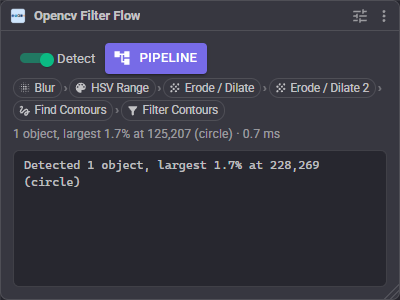
| Part | What it does |
|---|---|
| Detect | Switches detection on and off. While off, frames are not filtered (unless the pipeline editor is open) and nothing is reported. |
| Pipeline | Opens the pipeline editor. |
| Step chain | The steps of the pipeline in order. A step that is switched off is crossed out. Click a step to open the editor on it. |
| Status line | What is detected right now, and how long the whole pipeline took on the last frame, in milliseconds. |
| Log | What the skill did: detections, losses, presets loaded, steps changed and script errors. |
The pipeline editor
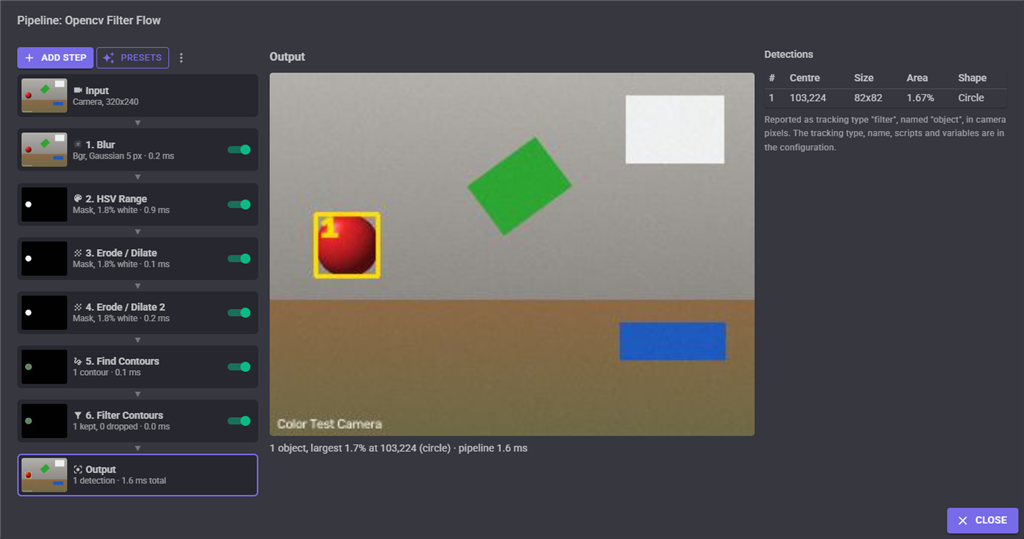
The editor is where the pipeline is built and tuned. It has three columns: the steps on the left, the selected step's live picture in the middle, and the selected step's settings on the right. Every change takes effect at once, so the pictures show the result straight away and detection uses it immediately.
The steps
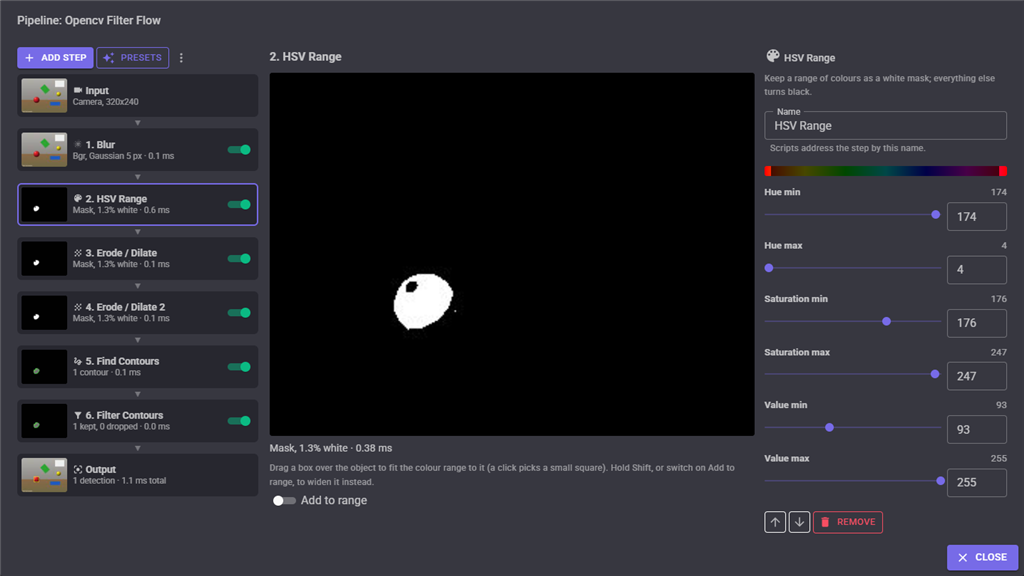
The list runs from Input (the camera frame going in) at the top to Output (the camera frame with the detections drawn) at the bottom. Each step in between shows a small live thumbnail of its own output, what it reported about the last frame (such as "Mask, 1.8% white" or "1 kept, 0 dropped") and how long it took. A step that fails is outlined in red with the reason, and the steps after it are not run.
- Click a step to see its output in the middle and its settings on the right.
- The switch on each step turns it off. A step that is off passes its input through unchanged, which is a quick way to see what a step is contributing.
- Add step inserts a new step after the selected one.
- Presets replaces the whole pipeline with a ready made one.
- The **** menu has Export JSON, Import JSON and Revert. Revert puts the pipeline back exactly as it was when the editor was opened.
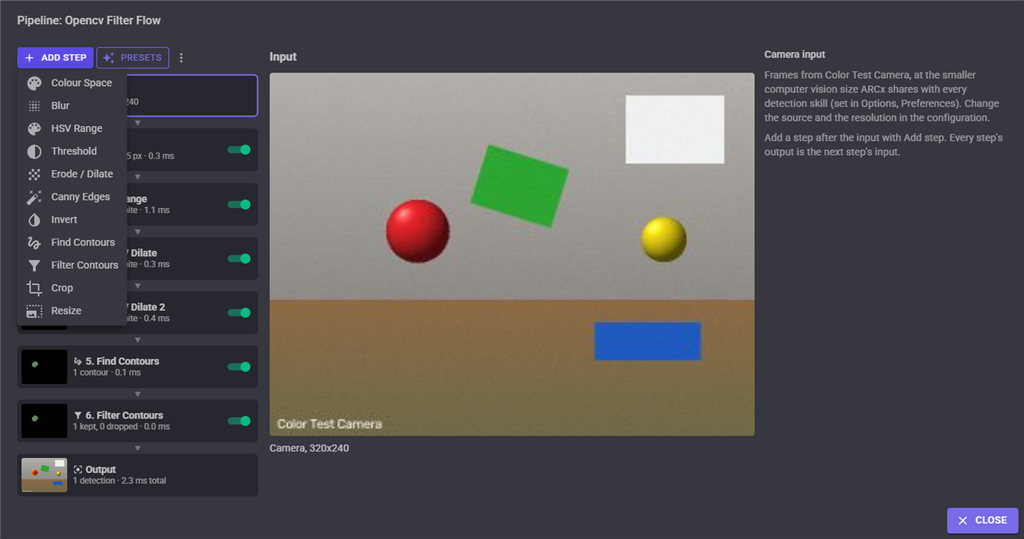
Seeing each step
The middle column shows the selected step's output at full size, updated several times a second. Masks are white where the step keeps pixels and black where it drops them. Steps that work in another colour space (HSV, Lab, YCrCb) show their raw channels as false colour, because that is what the next step receives.
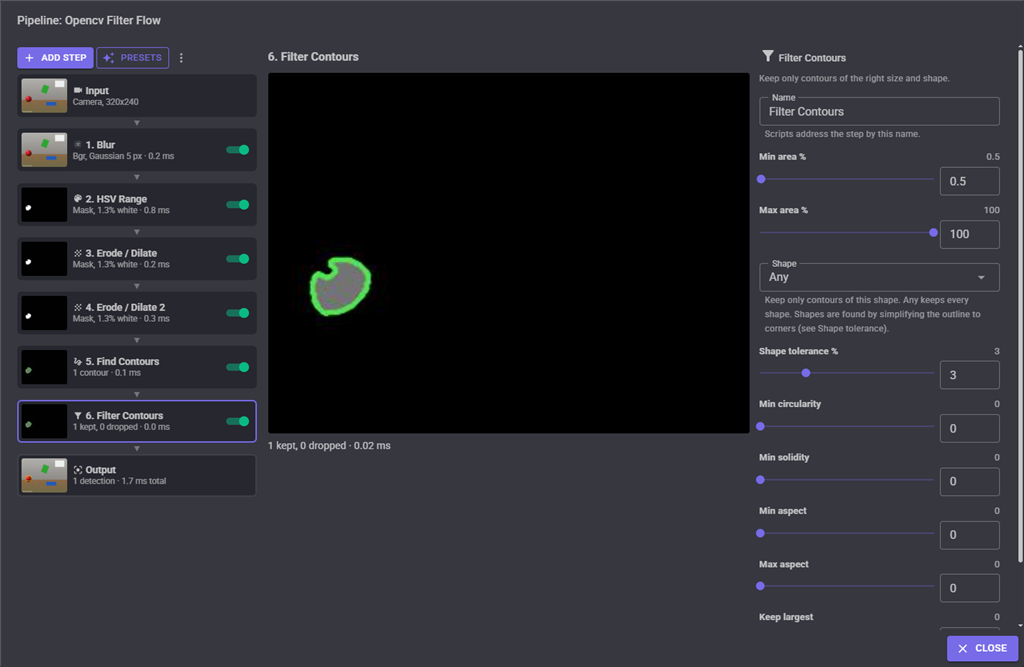
Contour steps show the mask dimmed, with the contours that were kept outlined in green and the ones a Filter Contours step dropped outlined in red, so it is obvious why something is or is not detected.
The Output view lists every detection with its centre, size, area and shape, in camera pixels.
Picking a colour from the video
When an HSV Range step is selected, drag a box over the object in the picture (or click it) and the step's hue, saturation and value ranges are fitted to the pixels under the box. The picture is taken from the camera frame, so this works whichever step's picture is showing in the middle. Hold Shift while dragging, or switch on Add to range, to widen the existing range instead of replacing it, so an object can be picked on its lit side and then on its shaded side.
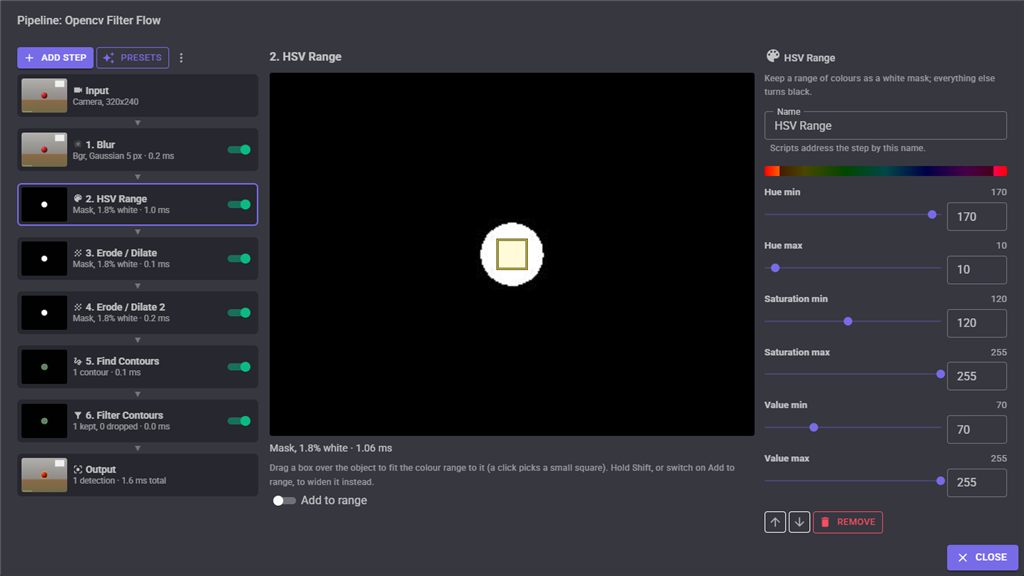
The bar above the sliders shows the hue circle with the kept hues bright and the dropped hues dark. A hue range whose minimum is larger than its maximum wraps around through 0, which is how red is kept: red sits at both ends of the hue circle.
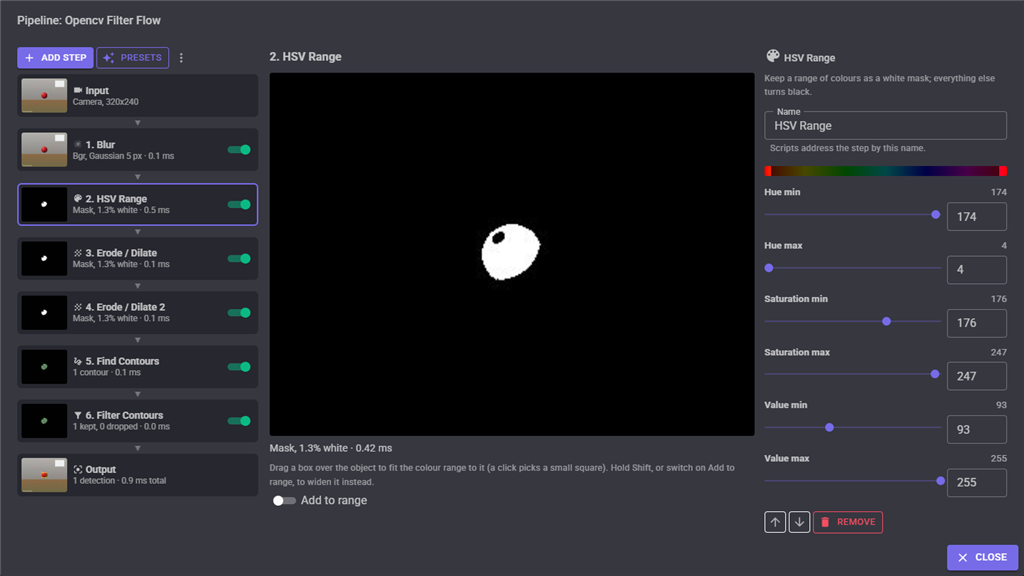
The steps
Every step's settings appear on the right when it is selected. Hover over a setting's name to read what it does. Numbers can be dragged with the slider or typed in the box beside it, and are kept within their limits.
| Step | What it does | Settings |
|---|---|---|
| Colour Space | Converts the picture to another colour space. | Gray, Hsv, Lab, YCrCb, Rgb or Bgr. |
| Blur | Softens the picture to remove noise before it is thresholded. | Gaussian, Median, Box or Bilateral, and the kernel size (odd, 1 to 31). |
| HSV Range | Keeps the pixels inside a range of hue, saturation and value as a white mask; everything else turns black. Converts the picture to HSV itself. | Hue 0 to 179 (OpenCV half degrees: red 0, yellow 30, green 60, cyan 90, blue 120, magenta 150), saturation and value 0 to 255. |
| Threshold | Turns brightness into a black and white mask. | Binary, Binary Inverted, Otsu and Otsu Inverted (which choose the threshold themselves), Adaptive Mean and Adaptive Gaussian (which cope with uneven light), the threshold, block size and offset. |
| Erode / Dilate | Shrinks, grows, opens (removes specks) or closes (fills holes in) the white areas of a mask. | Erode, Dilate, Open, Close, Gradient, Top Hat or Black Hat, the kernel shape and size, and how many times it is repeated. |
| Canny Edges | Finds edges as thin white lines. | Low and high thresholds, aperture and exact gradient. |
| Invert | Swaps black and white, or inverts every channel of a colour picture. | None. |
| Find Contours | Outlines every white area of the mask. Detections come from these. | Outside outlines only, or all outlines including holes. |
| Filter Contours | Keeps only the contours that are the right size and shape. | Minimum and maximum area in percent of the camera frame, shape (any, circle, triangle, rectangle, square or polygon) and its tolerance, minimum circularity, minimum solidity, aspect ratio limits, and how many of the largest to keep. |
| Crop | Keeps only a region of the picture, such as the bottom third for a line follower. Positions are still reported in full camera pixels. | Left, top, width and height in percent. |
| Resize | Scales the picture, usually down to make the steps after it faster. Positions are still reported in full camera pixels. | Scale in percent, 10 to 400. |
Detections come from the contours left after the last Find Contours step and any Filter Contours steps after it, so a pipeline that should detect things needs a Find Contours step. A pipeline without one still runs and shows its pictures, but reports nothing.
Presets
A preset replaces the whole pipeline with a ready made one to tune from. Loading one asks first; Revert in the editor brings the previous pipeline back.
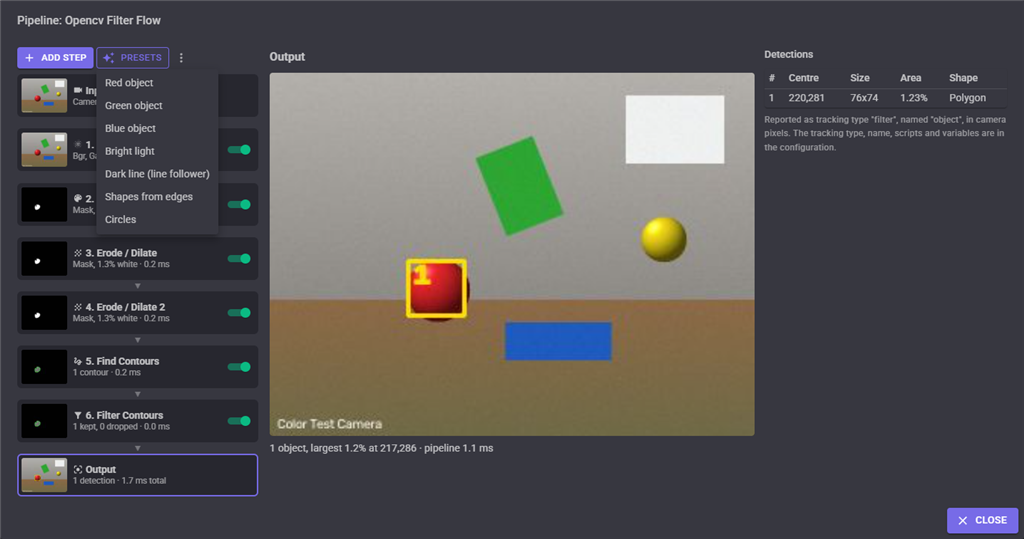
| Preset | What it finds |
|---|---|
| Red object | Blur, keep red (the hue range wraps through 0), clean up, outline, keep objects over 0.5% of the frame. This is the pipeline a new skill starts with. |
| Green object | The same for green. |
| Blue object | The same for blue. |
| Bright light | Grey, blur, keep the brightest pixels, outline small bright spots such as a torch or an LED. |
| Dark line (line follower) | Keep the bottom third of the picture, grey, Otsu threshold for dark, keep the largest dark area. |
| Shapes from edges | Grey, blur, Canny edges, close the gaps, outline closed shapes of any colour. |
| Circles | Like Shapes from edges, keeping only round shapes. |
Moving pipelines between projects
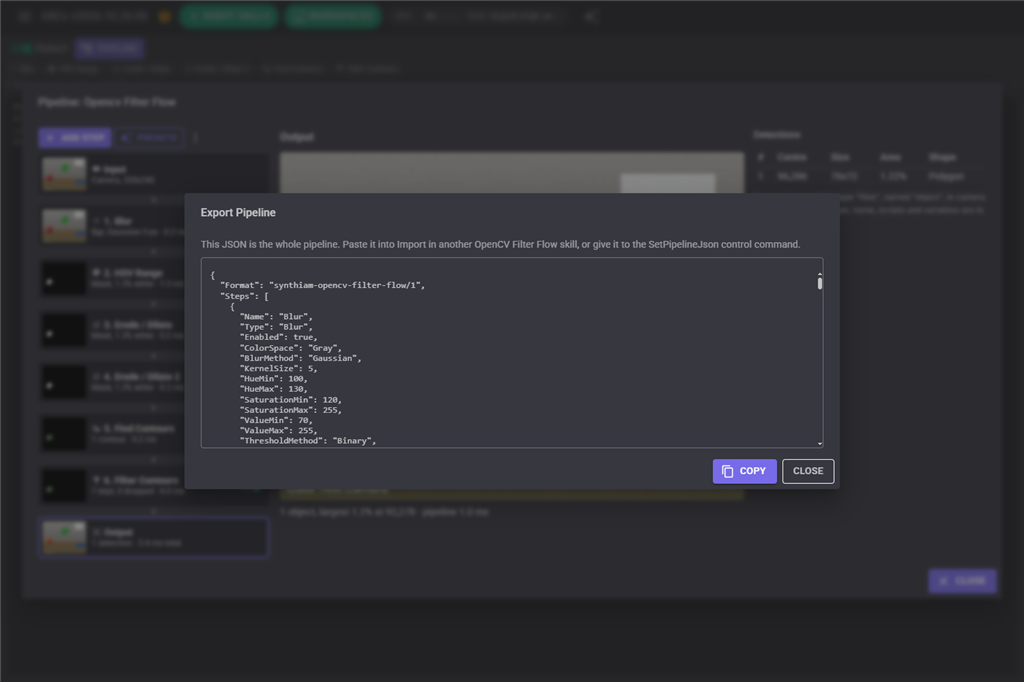
The pipeline is saved with the project. To use it somewhere else, open the **** menu in the editor and choose Export JSON, then Copy. In the other project (or another OpenCV Filter Flow skill in the same project), choose Import JSON, paste and Import. Scripts can do the same with the GetPipelineJson and SetPipelineJson control commands, so a script can keep several pipelines and switch between them.
What is reported
Every detection is added to the camera's processed video with this skill's tracking type and detection name (set in the configuration), its rectangle in camera pixels, and these attributes: Index, AreaPercent, Shape, Vertices, Circularity, Solidity and AspectRatio. The largest detection is flagged as the skill's primary detection, which is the one a skill following a single target follows. Detections are drawn as a box (the largest in yellow), as the contour outline, or not at all, with an optional label.
Scripts can also change the pipeline while it runs, which keeps the logic in the script and the pixel work in the skill. A script can switch steps on and off, change any step setting by name (for example the HSV Range step's HueMin, to look for a different colour), and load presets. The control commands are listed in the script editor's ControlCommand view.
Configuration
The pipeline itself is built in the editor. The configuration holds everything around it.
Video
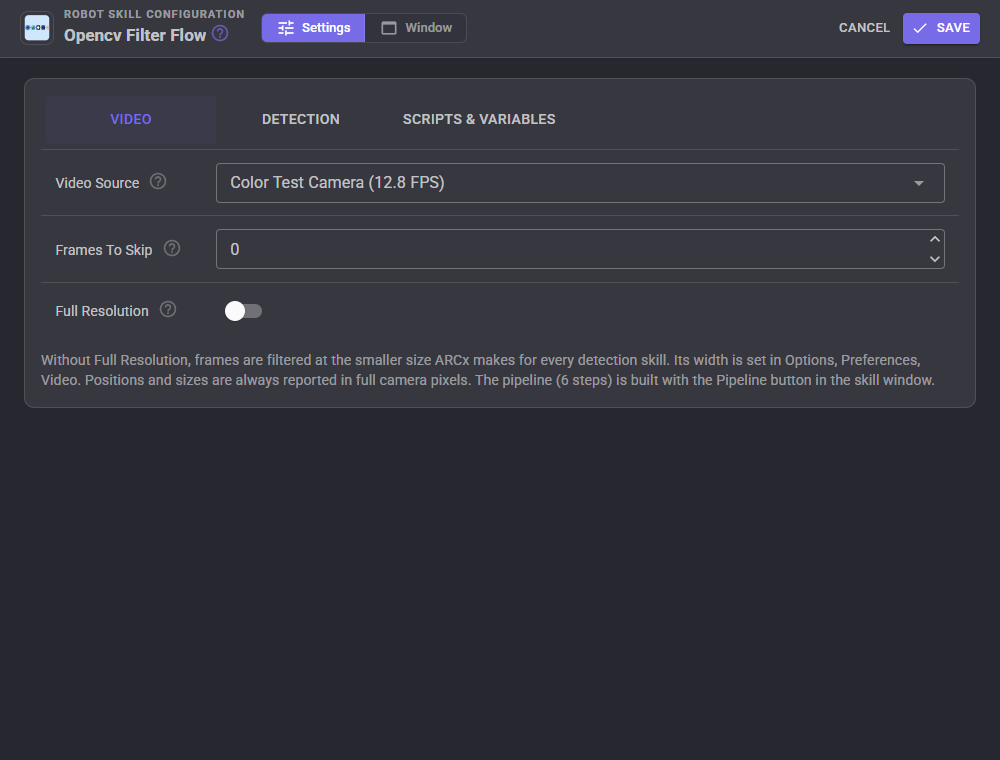
| Setting | What it does |
|---|---|
| Video Source | The camera whose frames go through the pipeline. |
| Frames To Skip | How many frames to ignore between each one filtered, to save CPU. 0 filters every frame. The detections stay drawn on the video in between. |
| Full Resolution | Filter the full camera resolution instead of the smaller copy ARCx makes for every detection skill (its width is set in Options, Preferences). Finds smaller and more distant objects, at a CPU cost that grows with the resolution. Positions are always reported in full camera pixels either way. |
Detection
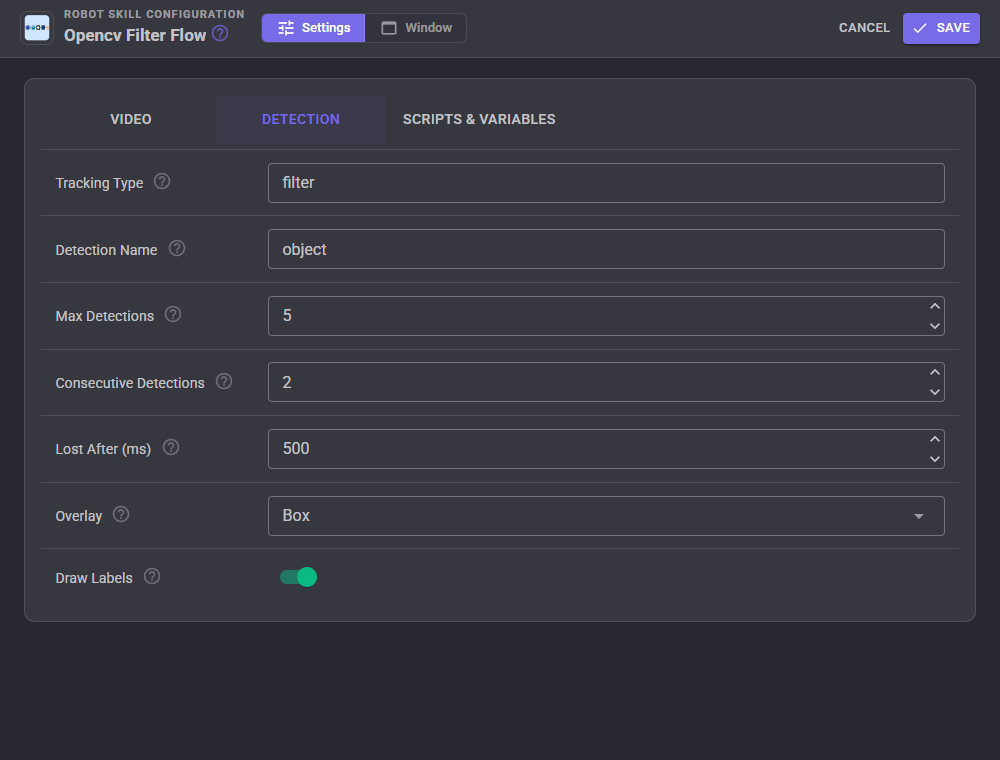
| Setting | What it does |
|---|---|
| Tracking Type | The tracking type given to every detection. Skills that follow detections choose what to follow by it. |
| Detection Name | The name given to every detection, shown as its label on the video, such as red ball. |
| Max Detections | The most detections reported per frame, largest first. |
| Consecutive Detections | How many filtered frames in a row must find something before it is reported and the When Detected script runs. Raise it if detections flicker. |
| Lost After (ms) | How long nothing has to be found before the detection is reported lost and the When Lost script runs. |
| Overlay | Box, Outline or None. |
| Draw Labels | Write the detection name beside each detection on the video. |
Scripts and variables
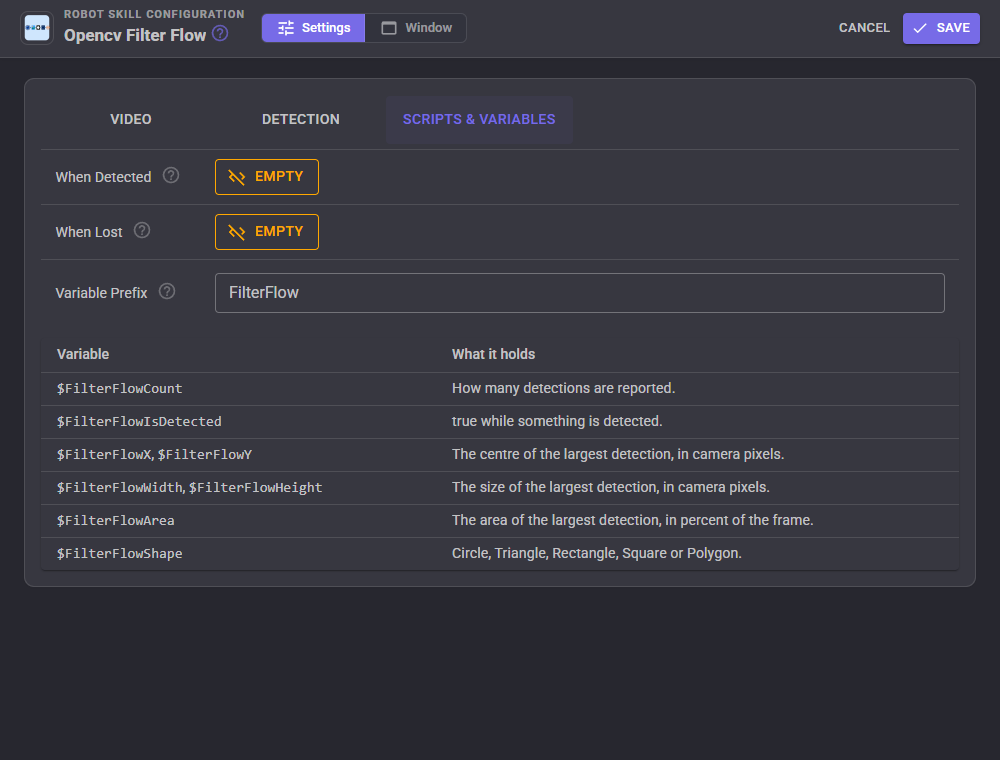
When Detected runs when something is detected after nothing was, and When Lost runs when nothing has been found for Lost After milliseconds. If the camera stops sending frames altogether, the detection is reported lost too.
The skill keeps these global variables, named after the Variable Prefix (FilterFlow by default). Empty the prefix to set no variables, and give each copy of the skill its own prefix when a project has more than one.
| Variable | What it holds |
|---|---|
| $FilterFlowCount | How many detections are reported. |
| $FilterFlowIsDetected | true while something is detected. |
| $FilterFlowX, $FilterFlowY | The centre of the largest detection, in camera pixels. |
| $FilterFlowWidth, $FilterFlowHeight | The size of the largest detection, in camera pixels. |
| $FilterFlowArea | The area of the largest detection, in percent of the frame. |
| $FilterFlowShape | Circle, Triangle, Rectangle, Square or Polygon. |
AI assistants
An AI connected to ARCx can build and tune the pipeline the same way a person does. The steps and every setting are in the skill's configuration, described in its schema, and the skill offers two tools of its own: one that returns the picture after any step (with that step's summary), so the AI can see what a threshold change did, and one that returns the status of every step and the current detections.
Performance
All the image work is compiled code that keeps and reuses its own images from frame to frame, so a running pipeline allocates almost nothing and scripts never hold camera images. Each step's time is shown in the editor, and the total in the skill window. The previews and thumbnails are only made while the editor is open. For a slow pipeline, put a Resize or Crop step early, keep Full Resolution off, or raise Frames To Skip.
Control Commands for the Opencv Filter Flow robot skill
There are Control Commands available for this robot skill which allows the skill to be controlled programmatically from scripts or other robot skills. These commands enable you to automate actions, respond to sensor inputs, and integrate the robot skill with other systems or custom interfaces. If you're new to the concept of Control Commands, we have a comprehensive manual available here that explains how to use them, provides examples to get you started and make the most of this powerful feature.
Control Command ManualThis robot skill has 12 control commands, listed below. Send them from a JavaScript or Python script, from Blockly, or from another robot skill.
The first value is always the window title, which is the name in the title bar of the robot skill on your workspace. It starts out as Opencv Filter Flow, which is what every example below uses. If you rename the robot skill, or add a second copy of it to the project, use the title as it appears on that window instead.
ControlCommand() can be shortened to CC(), and both spellings work in JavaScript and in Python. The examples are JavaScript; Python is the same call, except that true and false are written True and False.
GetCount
How many detections are being reported right now.
Syntax
ControlCommand("Opencv Filter Flow", "GetCount")
Returns: Integer [-2,147,483,648 to 2,147,483,647]
Example
var result = ControlCommand("Opencv Filter Flow", "GetCount");
GetParameter
Read one setting of a step.
Syntax
ControlCommand("Opencv Filter Flow", "GetParameter", (String)step, (String)parameter)
Parameters
| # | Name | Type | What to pass |
|---|---|---|---|
| 1 | step | Text | Your text, in quotes |
| 2 | parameter | Text | Your text, in quotes |
Returns: Object
Example
var result = ControlCommand("Opencv Filter Flow", "GetParameter", "step", "parameter");
GetPipelineJson
The pipeline as JSON, to save or to give another OpenCV Filter Flow skill.
Syntax
ControlCommand("Opencv Filter Flow", "GetPipelineJson")
Returns: String
Example
var result = ControlCommand("Opencv Filter Flow", "GetPipelineJson");
GetPresets
The names of the ready made pipelines LoadPreset accepts.
Syntax
ControlCommand("Opencv Filter Flow", "GetPresets")
Returns: Array of String
Example
var result = ControlCommand("Opencv Filter Flow", "GetPresets");
GetSteps
The names of the pipeline's steps, in order.
Syntax
ControlCommand("Opencv Filter Flow", "GetSteps")
Returns: Array of String
Example
var result = ControlCommand("Opencv Filter Flow", "GetSteps");
IsDetecting
Whether frames are being filtered for detections.
Syntax
ControlCommand("Opencv Filter Flow", "IsDetecting")
Returns: Boolean [true or false]
Example
var result = ControlCommand("Opencv Filter Flow", "IsDetecting");
LoadPreset
Replace the pipeline with a ready made one, such as Red object or Dark line (line follower).
Syntax
ControlCommand("Opencv Filter Flow", "LoadPreset", (String)presetName)
Parameters
| # | Name | Type | What to pass |
|---|---|---|---|
| 1 | presetName | Text | Your text, in quotes |
Returns: Boolean [true or false]
Example
var result = ControlCommand("Opencv Filter Flow", "LoadPreset", "presetName");
SetParameter
Change one setting of a step, such as SetParameter("HSV Range", "HueMin", 20). The setting is its name in the configuration or its label in the editor; numbers are kept in range. Returns the value set.
Syntax
ControlCommand("Opencv Filter Flow", "SetParameter", (String)step, (String)parameter, (String)value)
Parameters
| # | Name | Type | What to pass |
|---|---|---|---|
| 1 | step | Text | Your text, in quotes |
| 2 | parameter | Text | Your text, in quotes |
| 3 | value | Text | Your text, in quotes |
Returns: Object
Example
var result = ControlCommand("Opencv Filter Flow", "SetParameter", "step", "parameter", "value");
SetPipelineJson
Replace the pipeline with one exported as JSON (GetPipelineJson, or Export in the editor).
Syntax
ControlCommand("Opencv Filter Flow", "SetPipelineJson", (String)json)
Parameters
| # | Name | Type | What to pass |
|---|---|---|---|
| 1 | json | Text | Your text, in quotes |
Returns: Boolean [true or false]
Example
var result = ControlCommand("Opencv Filter Flow", "SetPipelineJson", "json");
SetStepEnabled
Switch a step on or off. A step that is off passes its input through. The step is its name or its number counting from 1.
Syntax
ControlCommand("Opencv Filter Flow", "SetStepEnabled", (String)step, (Bool)enabled)
Parameters
| # | Name | Type | What to pass |
|---|---|---|---|
| 1 | step | Text | Your text, in quotes |
| 2 | enabled | True or false | true or false, without quotes |
Returns: Boolean [true or false]
Example
var result = ControlCommand("Opencv Filter Flow", "SetStepEnabled", "step", true);
Start
Start filtering frames for detections.
Syntax
ControlCommand("Opencv Filter Flow", "Start")
Returns: Boolean [true or false]
Example
var result = ControlCommand("Opencv Filter Flow", "Start");
Stop
Stop filtering frames. The detection is cleared without running the Lost script.
Syntax
ControlCommand("Opencv Filter Flow", "Stop")
Returns: Boolean [true or false]
Example
var result = ControlCommand("Opencv Filter Flow", "Stop");
This list is read out of the robot skill itself each time its package is uploaded, so it matches the published version (v2).




This robot skill has been updated to v1.
What has changed
First release. Build a camera pipeline from OpenCV steps (colour space, blur, HSV range, threshold, erode/dilate, Canny, invert, find contours, filter contours by area and shape, crop, resize) with a live preview and thumbnail of every step, drag-to-pick HSV colour ranges, seven presets, and JSON import/export. Detections are published as tracking objects for other skills, with variables, Detected/Lost scripts, control commands to change steps at run time, and MCP tools that let an AI see each step's output.
This robot skill has been updated to v2.
What has changed
updated to use some new ARCx UI features for improved performance.