

Design touch-screen robot control panels with buttons, sliders, gauges, joysticks, live variables, scripts, and Wi-Fi/USB display support.
 Windows
 ARM
ARM
 Linux
Linux
 MacOS
MacOS
How to add the Touch Display Designer robot skill
- Load the most recent release of ARCx on a compatible operating system (Get ARCx).
- Press the + Skills menu from the top menu bar in ARCx.
- Choose any of these category tabs, the robot skill appears in each of them: Display, Remote Control, Servo.
- Press the Touch Display Designer icon to add the robot skill to your project.
Don't have a robot yet?
Follow the Getting Started Guide to build a robot and use the Touch Display Designer robot skill.
How to use the Touch Display Designer robot skill
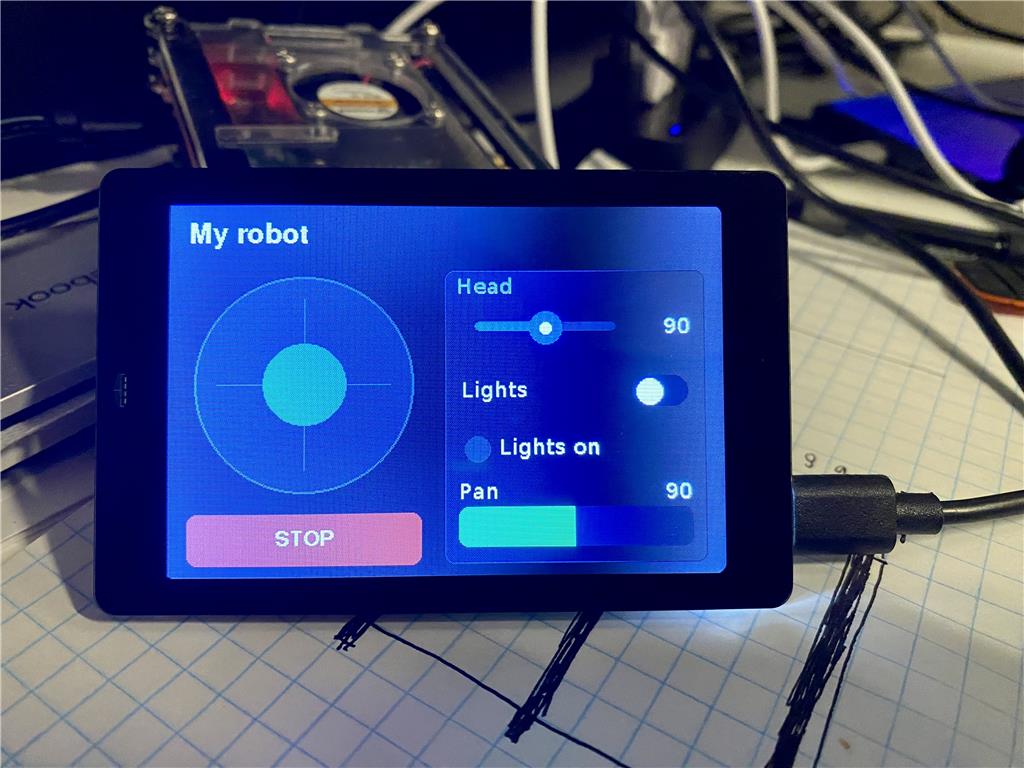
The Touch Display Designer puts your own control panel on a small touch screen beside the robot: buttons, joysticks, joypads, servo sliders, switches, gauges, lights and labels, over as many screens as you like. You design the screens in ARCx, and a touch screen such as the ESP32 WT32-SC01 shows them over Wi-Fi or a USB cable. A button can drive the robot while it is held, a slider can move a servo, a gauge can show a battery voltage, and any widget can run a script.
The touch screen only draws what ARCx sends it and reports what your finger did. Everything a widget does happens in ARCx, so you can change what a button does at any time without touching the display's firmware. The protocol between ARCx and the display is open and documented, so firmware for other touch screens can be written for it.
The window
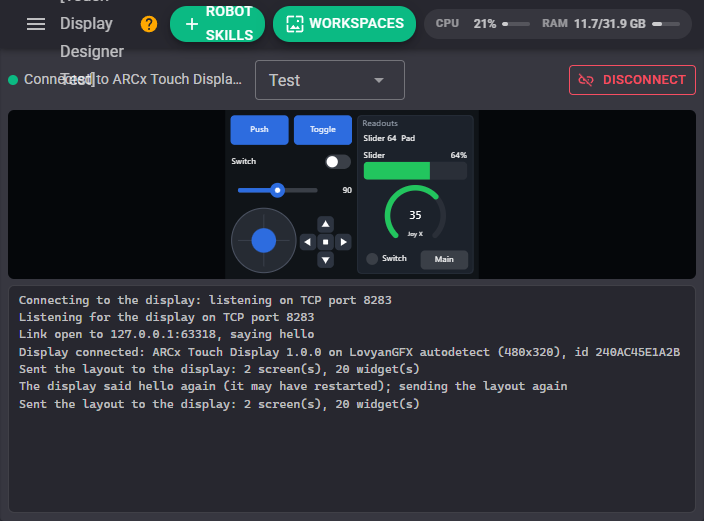
The window shows the screen that is up on the touch display, live, drawn the same way the display draws it. It is not just a picture: you can press its buttons, drag its sliders and move its joystick with the mouse or a finger, and they do exactly what they do on the display. That makes it possible to build and test a whole layout before the hardware arrives.
Above it, the dot and the line beside it say whether a display is connected, and which one. The list on the right switches the screen showing on the display, and the button connects or disconnects. The log underneath says what the display reported and why a connection failed.
Designing screens
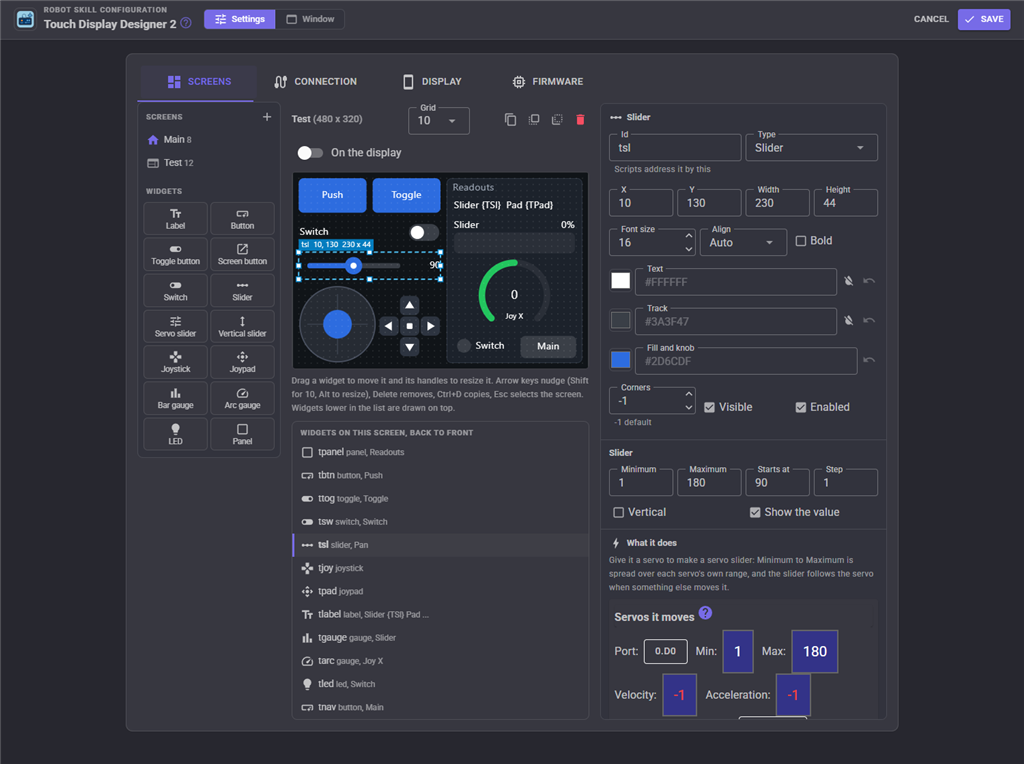
Open the configuration and stay on the Screens tab. On the left are the screens and the widget palette, in the middle is the screen you are designing, and on the right are the properties of the selected widget, or of the screen when nothing is selected.
- Click a widget in the palette to add it, or drag it onto the screen.
- Drag a widget to move it, and drag its handles to resize it. It snaps to the grid chosen above the screen.
- With the screen clicked, the arrow keys nudge the selected widget (Shift moves 10 pixels, Alt resizes), Delete removes it, Ctrl+D copies it and Esc selects the screen.
- The list under the screen shows every widget from back to front. Click one to select it, which is handy when widgets overlap. Widgets lower in the list are drawn on top, so put panels before the widgets that sit on them.
- On the display shows the design on the connected touch screen while you work. Touches do nothing until you save, and the saved design goes back when the configuration closes.
With no widget selected, the properties are the screen's: its title, its id (buttons that open the screen use it), its background colour and whether it is the home screen.
The widgets
| Widget | What it does |
|---|---|
| Label | Text. Put a global variable's name in braces, such as Battery {BatteryVoltage} V, and the label shows its value live. |
| Button | Pressed and released, or (Toggle button) tapped on and tapped off. It can open another screen, drive the Movement Panel while held, turn a digital port on, set a variable and run a script when pressed and when released. |
| Screen button | A button that opens another screen. The display switches by itself, without waiting for ARCx. |
| Switch | An on/off switch with a label. It can turn a digital port on, set a variable, and run a script when turned on and when turned off. |
| Slider | Sets a variable to its value and can run a script when it is let go. |
| Servo slider | A slider that moves servos. Its range is spread over each servo's own minimum and maximum, and it follows the servo when something else moves it. |
| Joystick | Moves an X and a Y servo, or drives the Movement Panel with variable speed, and sets two variables to its position. |
| Joypad | Four arrows that drive the Movement Panel while held, and a centre button that stops it. It can also set a variable to the direction and run scripts. |
| Bar gauge, ARC gauge | Show a variable, a servo's position or an ADC port's reading or voltage. |
| LED | A light that shows a variable or a digital port. |
| Panel | A box with a caption to group other widgets on. |
Each widget's properties have the same parts: its id, type, position, size, text and colours at the top, then the settings of its type, then What it does, which binds it to servos, the movement panel, digital ports, a global variable and scripts. A widget's variable is set before its script runs, so the script can read it. Colours left empty use the widget type's default, and the button beside a colour sets it to none.
The display's fonts hold plain letters, digits and punctuation, so a degree sign or an accented letter is left blank on the reference firmware.
Connection
| Setting | What it does |
|---|---|
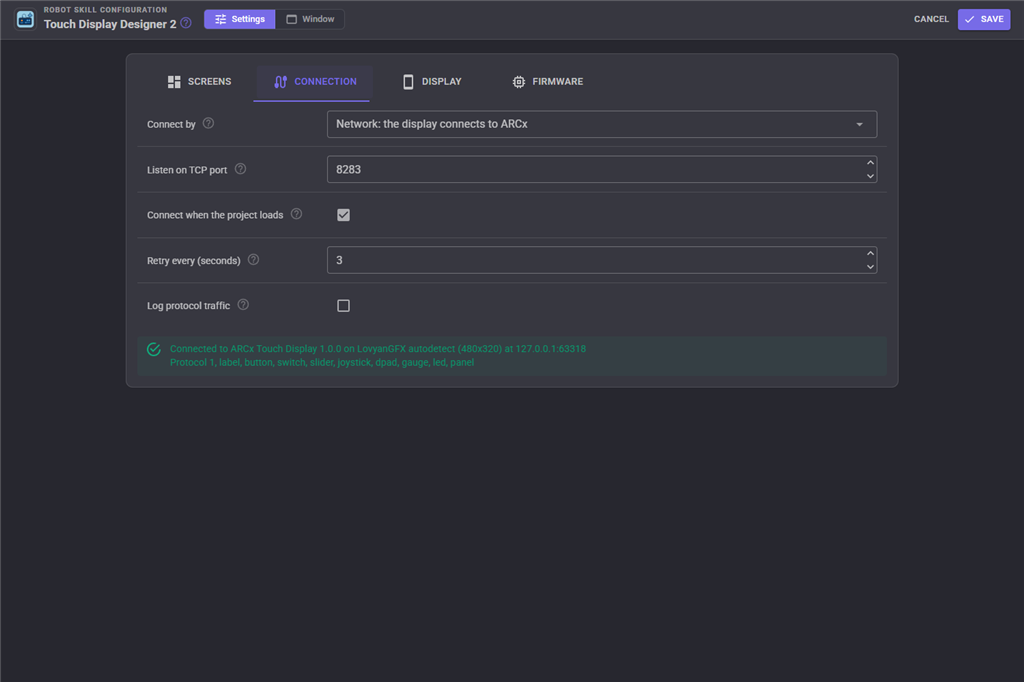
| Connect by | Network: ARCx connects to the display for a display on Wi-Fi that shows its address. Network: the display connects to ARCx for a display set up with this computer's address. USB / serial port for a display on a cable. |
| Display address, TCP port | Where the display listens (or the port ARCx listens on). The reference firmware uses port 8282, and is at 192.168.4.1 when it makes its own access point. |
| Serial port, Baud rate | The display's USB port and speed. The reference firmware uses 115200. |
| Reset the display on connect | Raises DTR and RTS when the port opens, which restarts most ESP32 boards. Leave it off unless your display needs it. |
| Connect when the project loads | Connects as soon as the project loads. Once connected, a dropped link is retried until you press Disconnect. |
| Retry every | The wait between attempts to connect. |
| Log protocol traffic | Writes every line sent to and received from the display (except the keep-alives) to the log. For writing or debugging firmware. |
When the display goes quiet for 6 seconds the link is dropped and connected again, and anything a finger was holding is let go: a held drive button or joystick stops the robot.
Display
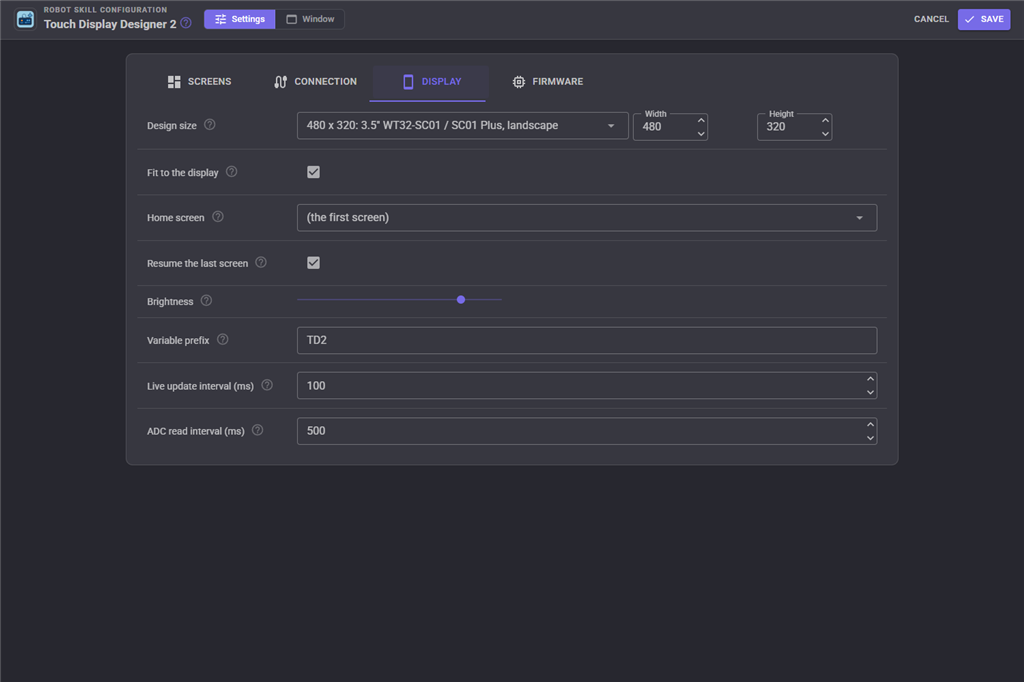
| Setting | What it does |
|---|---|
| Design size | The screen size you design at. Pick your display, or type a size. |
| Fit to the display | Stretches the design to the size the display reports, so one design works on displays of other sizes. |
| Home screen | The screen shown first when the display connects. |
| Resume the last screen | Shows the screen that was up when the display reconnects, rather than the home screen. |
| Brightness | The backlight brightness sent when the display connects. |
| Variable prefix | This skill sets [prefix]Connected and [prefix]Screen. Give each Touch Display Designer in a project its own prefix. |
| Live update interval | How often labels with variables, gauges and sliders that follow a servo are refreshed on the display. |
| ADC read interval | How often gauges that show an ADC port read it. |
Firmware
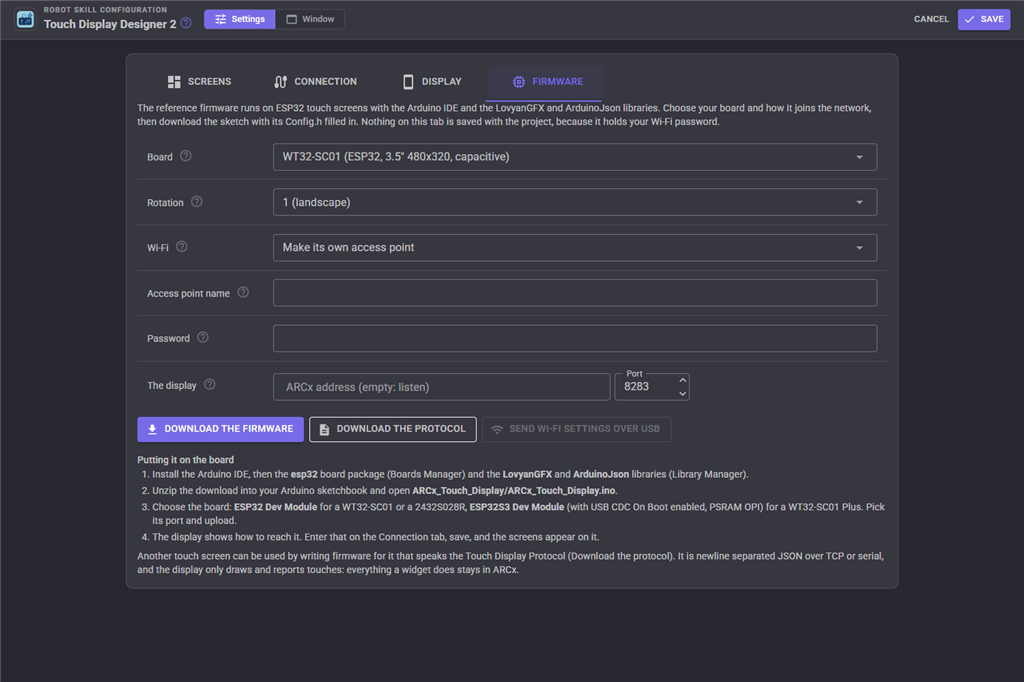
The Firmware tab hands out the reference firmware for ESP32 touch screens: the WT32-SC01, the WT32-SC01 Plus, the ESP32-2432S028R "Cheap Yellow Display", and other boards the LovyanGFX library recognises by itself. Choose the board, the rotation and how it joins the network, and Download the firmware gives you an Arduino sketch with its settings filled in, a README with the build steps and the protocol document. Nothing on this tab is saved with the project, because it holds your Wi-Fi password.
To build it, install the Arduino IDE, the esp32 board package and the LovyanGFX and ArduinoJson libraries, open the sketch, choose the board (ESP32 Dev Module for a WT32-SC01) and upload. When it starts, the display shows how to reach it: its Wi-Fi network, its address and port. If it cannot join your network it makes its own access point, so it can always be reached.
A display connected by USB can be moved to another Wi-Fi network without rebuilding the firmware: fill in the network and press Send Wi-Fi settings over USB. The display stores the settings and restarts.
Other touch screens
Download the protocol saves the Touch Display Protocol: newline separated JSON over TCP or serial. A display firmware says hello with its size, receives the screens one widget per line, draws them, reports touches, and accepts changes to text and values. It needs no knowledge of robots, so a tablet app, a single board computer or another microcontroller with a touch screen can be a display. Turn on Log protocol traffic while developing one, and compare it with the skill window, which draws the same screen.
Scripts and AI
Scripts can show a screen, change a widget's text, value, colours, visibility and whether it is enabled, act as if a widget was tapped, show a short message on the display and set its brightness; the control commands are listed in the script editor. The skill also sets [prefix]Connected and [prefix]Screen, and each widget's own variable.
An AI assistant connected to ARCx can design screens with this skill's MCP tools: read the widget types, read and change screens and single widgets, show a screen, simulate touches and read the protocol to write firmware for a new display.
The skill also offers a Touch display widget for the Custom UI, which shows the same live screen on a phone or a kiosk window.
Control Commands for the Touch Display Designer robot skill
There are Control Commands available for this robot skill which allows the skill to be controlled programmatically from scripts or other robot skills. These commands enable you to automate actions, respond to sensor inputs, and integrate the robot skill with other systems or custom interfaces. If you're new to the concept of Control Commands, we have a comprehensive manual available here that explains how to use them, provides examples to get you started and make the most of this powerful feature.
Control Command ManualThis robot skill has 19 control commands, listed below. Send them from a JavaScript or Python script, from Blockly, or from another robot skill.
The first value is always the window title, which is the name in the title bar of the robot skill on your workspace. It starts out as Touch Display Designer, which is what every example below uses. If you rename the robot skill, or add a second copy of it to the project, use the title as it appears on that window instead.
ControlCommand() can be shortened to CC(), and both spellings work in JavaScript and in Python. The examples are JavaScript; Python is the same call, except that true and false are written True and False.
Connect
Connect to the touch screen using the configured connection, and keep reconnecting until Disconnect.
Syntax
ControlCommand("Touch Display Designer", "Connect")
Returns: Boolean [true or false]
Example
var result = ControlCommand("Touch Display Designer", "Connect");
Disconnect
Disconnect from the touch screen and stop reconnecting.
Syntax
ControlCommand("Touch Display Designer", "Disconnect")
Returns: Boolean [true or false]
Example
var result = ControlCommand("Touch Display Designer", "Disconnect");
GetDeviceInfo
What the connected touch screen reported about itself, as JSON (firmware, version, board, size, limits), or an empty string when none is connected.
Syntax
ControlCommand("Touch Display Designer", "GetDeviceInfo")
Returns: String
Example
var result = ControlCommand("Touch Display Designer", "GetDeviceInfo");
GetScreen
The id of the screen showing.
Syntax
ControlCommand("Touch Display Designer", "GetScreen")
Returns: String
Example
var result = ControlCommand("Touch Display Designer", "GetScreen");
GetScreens
The ids of every screen, in order.
Syntax
ControlCommand("Touch Display Designer", "GetScreens")
Returns: Array of String
Example
var result = ControlCommand("Touch Display Designer", "GetScreens");
GetText
The text a widget is showing.
Syntax
ControlCommand("Touch Display Designer", "GetText", (String)widget)
Parameters
| # | Name | Type | What to pass |
|---|---|---|---|
| 1 | widget | Text | Your text, in quotes |
Returns: String
Example
var result = ControlCommand("Touch Display Designer", "GetText", "widget");
GetValue
A widget's value: a slider's or gauge's number, 1 or 0 for a switch, toggle button or LED, 1 while a push button is held, a joystick's X.
Syntax
ControlCommand("Touch Display Designer", "GetValue", (String)widget)
Parameters
| # | Name | Type | What to pass |
|---|---|---|---|
| 1 | widget | Text | Your text, in quotes |
Returns: Double [5.0e324 to 1.7e308]
Example
var result = ControlCommand("Touch Display Designer", "GetValue", "widget");
IsConnected
Whether a touch screen is connected and has answered (true), or not (false).
Syntax
ControlCommand("Touch Display Designer", "IsConnected")
Returns: Boolean [true or false]
Example
var result = ControlCommand("Touch Display Designer", "IsConnected");
Press
Act as if a widget was tapped: a button is pressed and released (a toggle flips), a switch flips, a joypad arm is pressed and released (pass up, down, left, right or center). Its actions run as for a real touch.
Syntax
ControlCommand("Touch Display Designer", "Press", (String)widget, "")
Parameters
| # | Name | Type | What to pass |
|---|---|---|---|
| 1 | widget | Text | Your text, in quotes |
| 2 | "" |
Text | The fixed value "". Leave it as it is. |
Returns: Boolean [true or false]
Example
var result = ControlCommand("Touch Display Designer", "Press", "widget", "");
ResendLayout
Send the whole layout to the touch screen again.
Syntax
ControlCommand("Touch Display Designer", "ResendLayout")
Returns: Boolean [true or false]
Example
var result = ControlCommand("Touch Display Designer", "ResendLayout");
ResetText
Put a widget's configured text back (with its placeholders) after SetText.
Syntax
ControlCommand("Touch Display Designer", "ResetText", (String)widget)
Parameters
| # | Name | Type | What to pass |
|---|---|---|---|
| 1 | widget | Text | Your text, in quotes |
Returns: Boolean [true or false]
Example
var result = ControlCommand("Touch Display Designer", "ResetText", "widget");
SetBrightness
The touch screen's backlight brightness, 0 (off) to 100.
Syntax
ControlCommand("Touch Display Designer", "SetBrightness", (Number)percent)
Parameters
| # | Name | Type | What to pass |
|---|---|---|---|
| 1 | percent | Number | A number, without quotes |
Returns: Boolean [true or false]
Example
var result = ControlCommand("Touch Display Designer", "SetBrightness", 0);
SetColor
Change one colour of a widget. part is text, fill, accent or border; color is #RRGGBB, none for no colour, or empty to go back to the configured colour.
Syntax
ControlCommand("Touch Display Designer", "SetColor", (String)widget, (String)part, (String)color)
Parameters
| # | Name | Type | What to pass |
|---|---|---|---|
| 1 | widget | Text | Your text, in quotes |
| 2 | part | Text | Your text, in quotes |
| 3 | color | Text | Your text, in quotes |
Returns: Boolean [true or false]
Example
var result = ControlCommand("Touch Display Designer", "SetColor", "widget", "part", "color");
SetEnabled
Enable (true) or disable (false) a widget. A disabled widget is drawn dimmed and ignores touches.
Syntax
ControlCommand("Touch Display Designer", "SetEnabled", (String)widget, (Bool)enabled)
Parameters
| # | Name | Type | What to pass |
|---|---|---|---|
| 1 | widget | Text | Your text, in quotes |
| 2 | enabled | True or false | true or false, without quotes |
Returns: Boolean [true or false]
Example
var result = ControlCommand("Touch Display Designer", "SetEnabled", "widget", true);
SetText
Change the text of a widget (a label, a button's caption, a switch's or LED's label, a gauge's or panel's caption). Replaces any placeholders until ResetText.
Syntax
ControlCommand("Touch Display Designer", "SetText", (String)widget, (String)text)
Parameters
| # | Name | Type | What to pass |
|---|---|---|---|
| 1 | widget | Text | Your text, in quotes |
| 2 | text | Text | Your text, in quotes |
Returns: Boolean [true or false]
Example
var result = ControlCommand("Touch Display Designer", "SetText", "widget", "text");
SetValue
Change what a widget shows: a slider's or gauge's value, or on (non zero) / off (0) for a switch, toggle button or LED. Only the display changes; the widget's actions (servos, scripts) do not run. Use Press to act like a touch.
Syntax
ControlCommand("Touch Display Designer", "SetValue", (String)widget, (Number)value)
Parameters
| # | Name | Type | What to pass |
|---|---|---|---|
| 1 | widget | Text | Your text, in quotes |
| 2 | value | Number | A number, without quotes |
Returns: Boolean [true or false]
Example
var result = ControlCommand("Touch Display Designer", "SetValue", "widget", 0);
SetVisible
Show (true) or hide (false) a widget.
Syntax
ControlCommand("Touch Display Designer", "SetVisible", (String)widget, (Bool)visible)
Parameters
| # | Name | Type | What to pass |
|---|---|---|---|
| 1 | widget | Text | Your text, in quotes |
| 2 | visible | True or false | true or false, without quotes |
Returns: Boolean [true or false]
Example
var result = ControlCommand("Touch Display Designer", "SetVisible", "widget", true);
ShowScreen
Show a screen, by its id or title, on the touch screen and in the skill window. Returns false when there is no such screen.
Syntax
ControlCommand("Touch Display Designer", "ShowScreen", (String)screen)
Parameters
| # | Name | Type | What to pass |
|---|---|---|---|
| 1 | screen | Text | Your text, in quotes |
Returns: Boolean [true or false]
Example
var result = ControlCommand("Touch Display Designer", "ShowScreen", "screen");
Toast
Show a short message on top of the touch screen for a number of milliseconds.
Syntax
ControlCommand("Touch Display Designer", "Toast", (String)text, 2500)
Parameters
| # | Name | Type | What to pass |
|---|---|---|---|
| 1 | text | Text | Your text, in quotes |
| 2 | 2500 |
Number | The fixed value 2500. Leave it as it is. |
Returns: Boolean [true or false]
Example
var result = ControlCommand("Touch Display Designer", "Toast", "text", 2500);
This list is read out of the robot skill itself each time its package is uploaded, so it matches the published version (v3).


This robot skill has been updated to v1.
What has changed
initial release
This robot skill has been updated to v2.
What has changed
allow no wifi option for firmware
This robot skill has been updated to v3.
What has changed
Added Video Source as a widget so camera feed can be displayed on the esp32 displays