Control Alexa devices from ARC: speak, announce, run routines, ask questions, play media, and trigger robot scripts from voice history.
 Windows
 ARM
ARM
 Linux
Linux
 MacOS
MacOS
How to add the Amazon Alexa robot skill
- Load the most recent release of ARCx on a compatible operating system (Get ARCx).
- Press the + Skills menu from the top menu bar in ARCx.
- Choose any of these category tabs, the robot skill appears in each of them: Audio, Communication, Remote Control.
- Press the Amazon Alexa icon to add the robot skill to your project.
Don't have a robot yet?
Follow the Getting Started Guide to build a robot and use the Amazon Alexa robot skill.
How to use the Amazon Alexa robot skill
The Amazon Alexa robot skill connects your robot to the Echo devices in your home. Anything you can say to Alexa, the robot can say for you: "turn on the living room lights", "lock the front door", "set the thermostat to 70", "add milk to my shopping list". It can also make an Echo speak, whisper or announce, play music and sound effects, run your Alexa routines, set volume and do not disturb, ask Alexa a question and read back the answer, and listen to what people say to their Echo devices so that "Alexa, tell the robot to dance" starts a robot script.
There is no Home Assistant or other server in between: the robot skill signs in to your Amazon account itself, the same way the Alexa app on a phone does.
Unofficial interface. Amazon does not offer a public interface for this. The robot skill uses the same private web interfaces as the Alexa app and Home Assistant's Alexa Devices integration. Amazon can change them at any time, which can stop the robot skill working until it is updated.
What you need
- An Amazon account with at least one Echo (or other Alexa device) set up in the Alexa app.
- Two-step verification with an authenticator app turned on for the account (Amazon account Login & security 2-step verification). Amazon asks for a code from it when the robot skill signs in. Any authenticator app works: Google Authenticator, Microsoft Authenticator, 1Password, Authy and so on.
- For listening: voice recordings saved in the account's Alexa privacy settings (the default), because listening reads the voice history.
Signing in
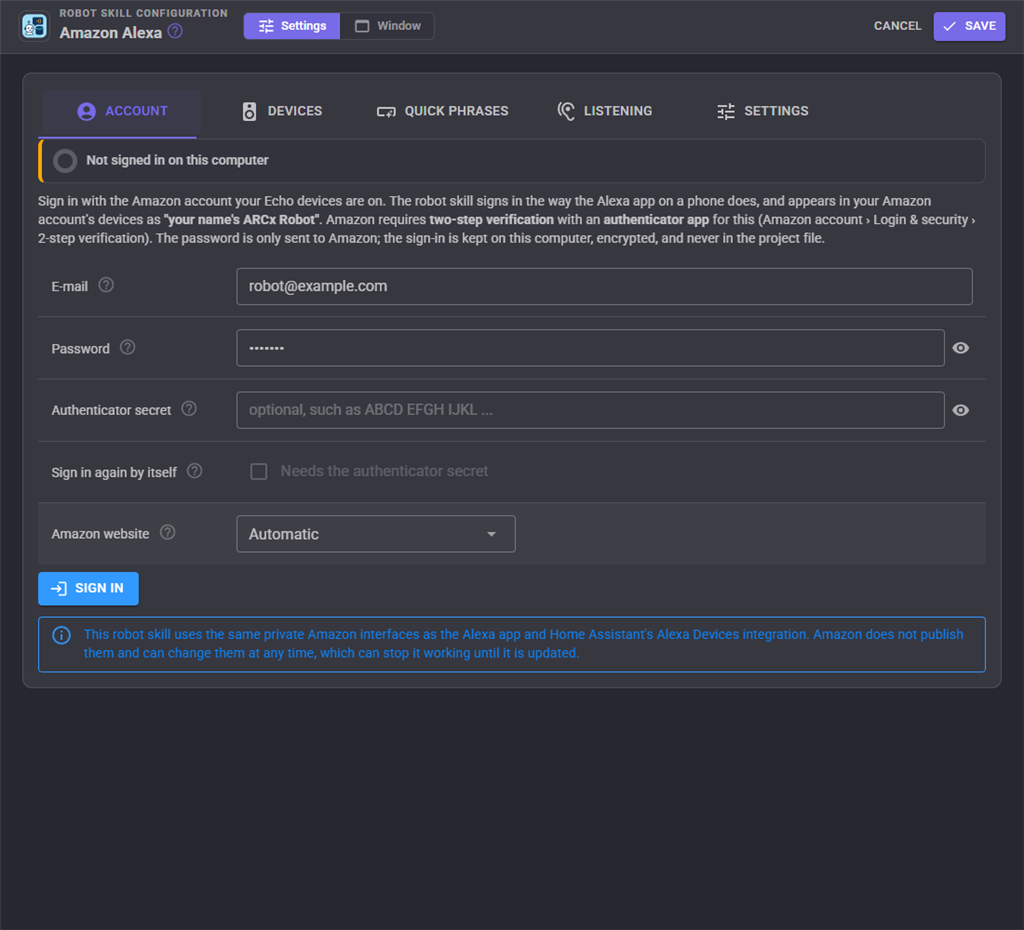
- Open the robot skill's configuration. The Account tab asks for the Amazon account's e-mail and password.
- Optionally paste the authenticator secret (see below).
- Press Sign in. When Amazon asks for the two-step verification code, type the 6 digit code from your authenticator app and press Verify.
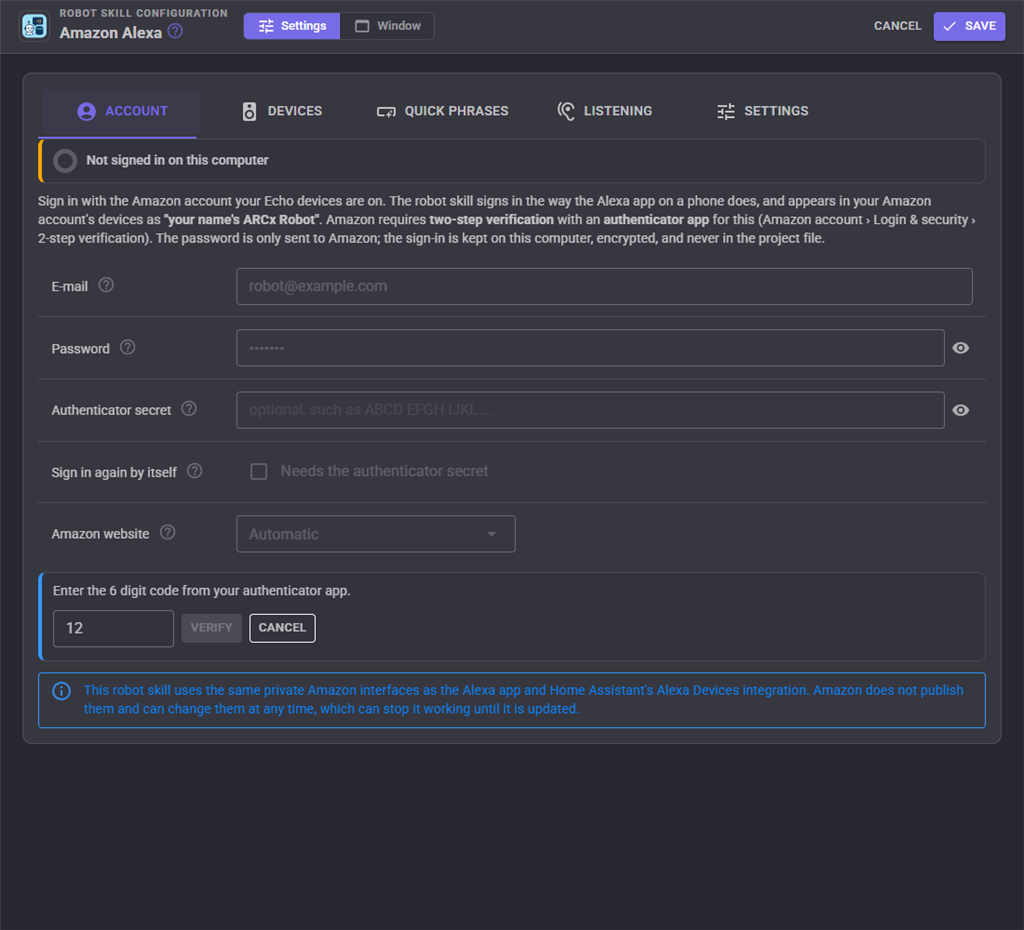
That is all: the robot skill finds which country's Amazon website your Echo devices are on, reads your devices and routines, and is ready. Your Amazon account's list of devices shows it as "your name's ARCx Robot".
Amazon sometimes asks for more: a picture of letters to type (it is shown on the page, type the letters and press Continue), or an approval on your phone (approve it, then press I approved it, continue).
The authenticator secret
When you add an authenticator app to your Amazon account, Amazon shows a QR code, and under Can't scan the barcode? the same secret as text (letters and digits, such as ABCD EFGH IJKL MNOP ...). If you paste that secret into the robot skill:
- the robot skill makes the 6 digit codes itself, so you never type one (the page shows the code it would use right now, so you can check it matches your app), and
- you can tick Sign in again by itself. Amazon ends sessions every few weeks or months; with this ticked, the robot skill keeps the password and the secret on this computer and signs in again on its own the moment Amazon ends the session, and resends the command that noticed. A robot that runs unattended should use this.
You can add a second authenticator to your Amazon account just for the robot, so your phone's authenticator keeps working as before.
Where the sign-in is kept
The sign-in (Amazon's tokens and cookies, and the password and secret only when you ticked Sign in again by itself) is never saved in the project file, because project files get copied and shared. It is kept on this computer in My Documents\ARCx Data\Amazon Alexa\Sign-ins (~/ARCx Data/Amazon Alexa/Sign-ins on Linux and macOS), encrypted with a key made from this computer's and this user's names. The project only remembers the e-mail address, so a project opened on another computer asks for a sign-in there.
Sign out removes the sign-in from this computer. Sign in again lets you sign in as someone else or change the authenticator settings.
The window
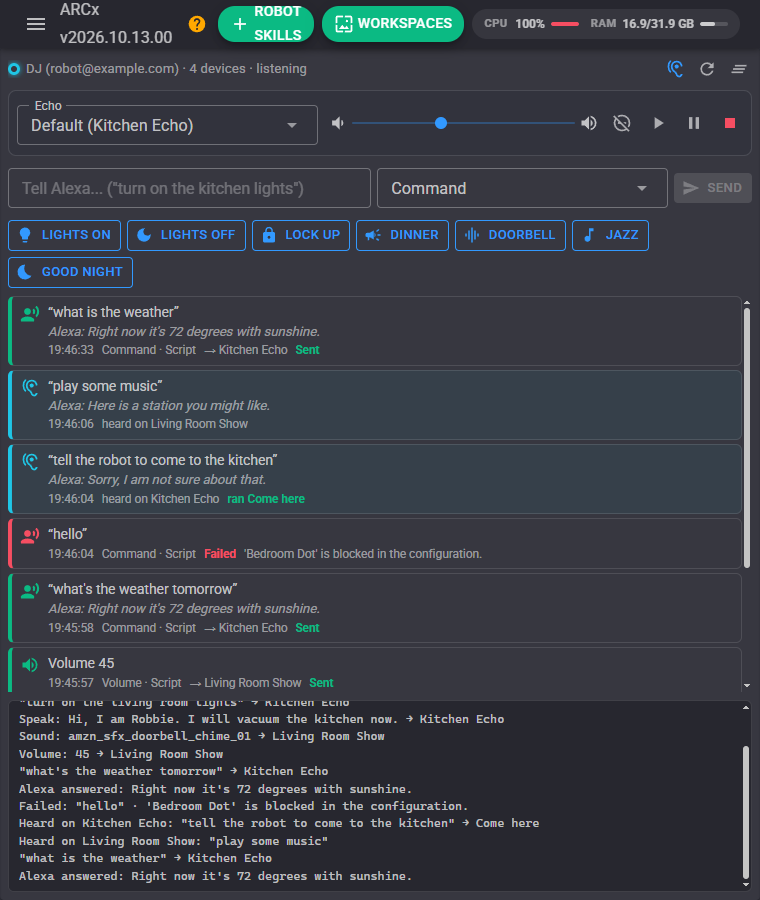
- Status bar: an Echo-style light ring (cyan when ready, spinning while connecting, red when the sign-in was lost), the account, how many devices, and whether it is listening. The ear button turns listening on and off, the refresh button reads the devices and routines again, and the last button clears the activity.
- Remote: pick an Echo (or leave it on the default) to control its volume, do not disturb, play, pause and stop.
- Command box: type something and choose what to do with it: Command (Alexa acts on it as if someone said it), Speak, Whisper, Announce, or Ask (the answer appears under the question). Enter sends.
- Quick phrases: your ready-made buttons.
- Activity: everything sent, whoever sent it (a script, a phrase, a widget, the AI, the box above), whether Amazon accepted it and why not, and everything heard while listening (in cyan) with Alexa's answer and the voice trigger that ran.
- Log: what the robot skill did.
Commands, speech and announcements
There are two ways to make an Echo do something, and they are different:
- Command sends words to Alexa as if someone had said them to that Echo. Alexa acts on them and answers out loud as usual. This is how the robot controls smart home devices, sets timers, adds to lists, plays a radio station or asks anything else Alexa knows. Leave out the wake word:
turn on the porch light, notAlexa, turn on the porch light. - Speak makes the Echo say exactly your text in Alexa's voice, without Alexa doing anything about it. Whisper whispers it. SpeakSsml takes SSML for pauses and effects, such as
Wait for it <break time="1s"/> ta da!. Long text is spoken in parts. - Announce plays your text as an announcement, with the chime, on several Echo devices at once: the announcement devices from the configuration, a list of names, or
all.
Text can contain {robot} (the robot's name), {time} and {date} (as they are spoken), and any global variable as {$Name}:
controlCommand("Amazon Alexa", "Command", "turn on the kitchen lights");
controlCommand("Amazon Alexa", "Command", "set the bedroom fan to high", "Bedroom Echo");
controlCommand("Amazon Alexa", "Speak", "Hello, I am {robot}. My battery is at {$BatteryPercent} percent.");
controlCommand("Amazon Alexa", "Whisper", "psst, I am right behind you");
controlCommand("Amazon Alexa", "Announce", "Dinner is ready!", "all");
Every command returns true when Amazon accepted it. When it returns false, $AlexaLastError says why: the device does not exist, it is blocked, Amazon refused, or the robot skill is not signed in. Commands are sent one at a time, at least the configured gap apart, so a script sending many in a row does not get the account throttled.
A device is named the way it is in the Alexa app ("Kitchen Echo"); part of the name works too. Leaving it out uses the default device. Speaker groups work: a command to a group goes to every Echo in it.
Asking Alexa
Ask sends a question to an Echo and waits for Alexa's answer to appear in the Alexa voice history, then returns the text of the answer:
var answer = controlCommand("Amazon Alexa", "Ask", "what's on my calendar today");
print(answer);
The Echo answers out loud as well, so the configuration lets you choose which Echo Ask uses (one in an empty room keeps it quiet). With Speak answers on, the robot also says the answer in its own voice through the project's text to speech. The answer comes from the voice history, so it takes a few seconds, and it is empty when the history did not show one before the timeout. This makes the household's own information available to the robot and to an AI connected to ARCx: the calendar, the shopping list, whether the front door is locked, the local weather.
Routines, music, sounds and Alexa's skills
- RunRoutine runs one of your Alexa routines by name, as if it had started on the chosen Echo, so its "this device" steps happen there. The Devices tab lists your routines with a Run button.
- PlayMusic plays music found by searching, on a device or a speaker group, from your default music service or a named one (Amazon Music, Spotify, TuneIn...).
- PlaySound plays one of Alexa's sound effects by id or title (doorbell, air horn, red alert, cat meow...).
- Play plays one of Alexa's own skills: the weather, traffic, flash briefing, news, a joke, a fun fact, a song, a story, good morning, good night, the time, the date or your calendar.
- Media plays, pauses, skips or goes back on what an Echo is playing, SetVolume sets its volume, Stop stops it and StopAll stops every Echo.
- SetDoNotDisturb turns do not disturb on and off.
- PushToPhone sends a notification to the phones with the Alexa app.
- GetAlarms lists the alarms, timers and reminders that are set.
Listening and voice triggers
With listening on, the robot skill reads the Alexa voice history every few seconds. Whatever anyone says to any Echo reaches the robot, a few seconds later:
$AlexaLastHeardhas the words (without the wake word),$AlexaLastHeardDevicethe Echo,$AlexaLastHeardTimewhen, and$AlexaLastResponsewhat Alexa answered.- Voice triggers run a script when a phrase is heard. Alexa itself does not know what "tell the robot to dance" means and says so, but the robot does. The words after the phrase are in
$AlexaTriggerRemainder, so one trigger "tell the robot to come to the" handles every room. - The When anything is heard script runs for everything.
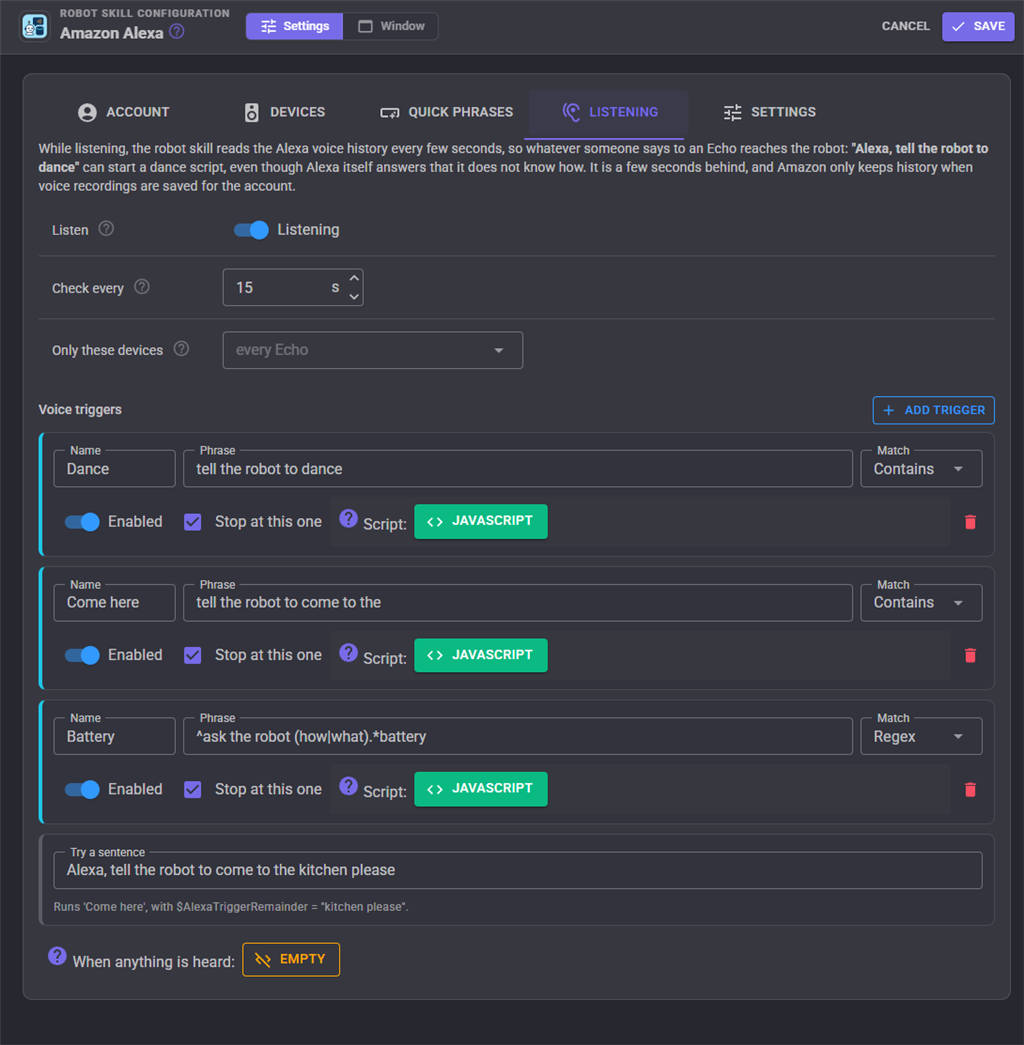
A trigger's phrase can match in four ways: Contains (anywhere, whole words), Starts with, Exactly, or Regex, a .NET regular expression where a group named rest (or the first group) becomes $AlexaTriggerRemainder, such as ^tell (the )?robot to (?<rest>.+). Case and punctuation are ignored except in Regex. The Try a sentence box shows which trigger a sentence would run without running anything.
Scripts run one after another in the order things were heard, and each one sees the variables of its own event, even when more was heard since. The robot's own commands also appear in the voice history; the robot skill recognises them and does not treat them as someone speaking.
Listening asks Amazon for the history every 15 seconds by default (10 at the fastest). Asking more often gets nothing sooner, as Amazon takes a few seconds to add each utterance, and risks the account being throttled.
Configuration
Account
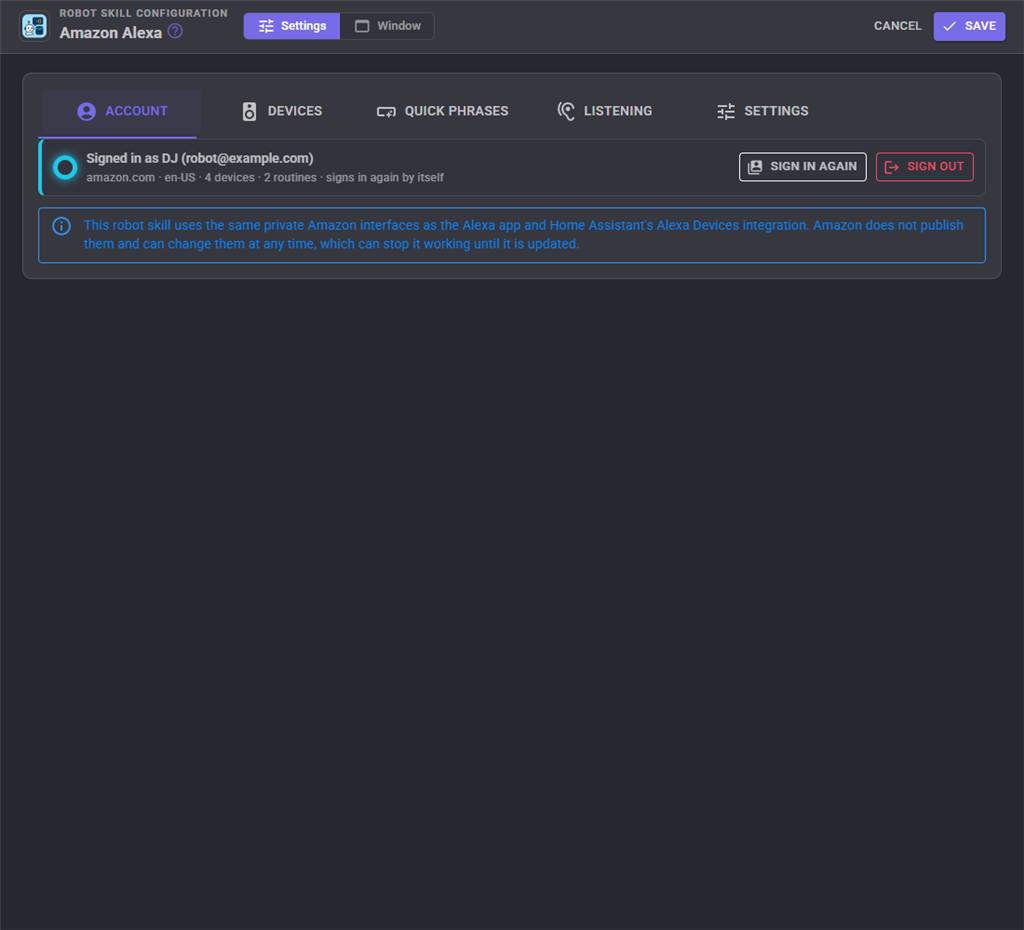
Signing in and out, described above. Amazon website is normally Automatic; choose one only when your Echo devices are registered to a country's Amazon website that the sign-in does not find on its own.
Devices
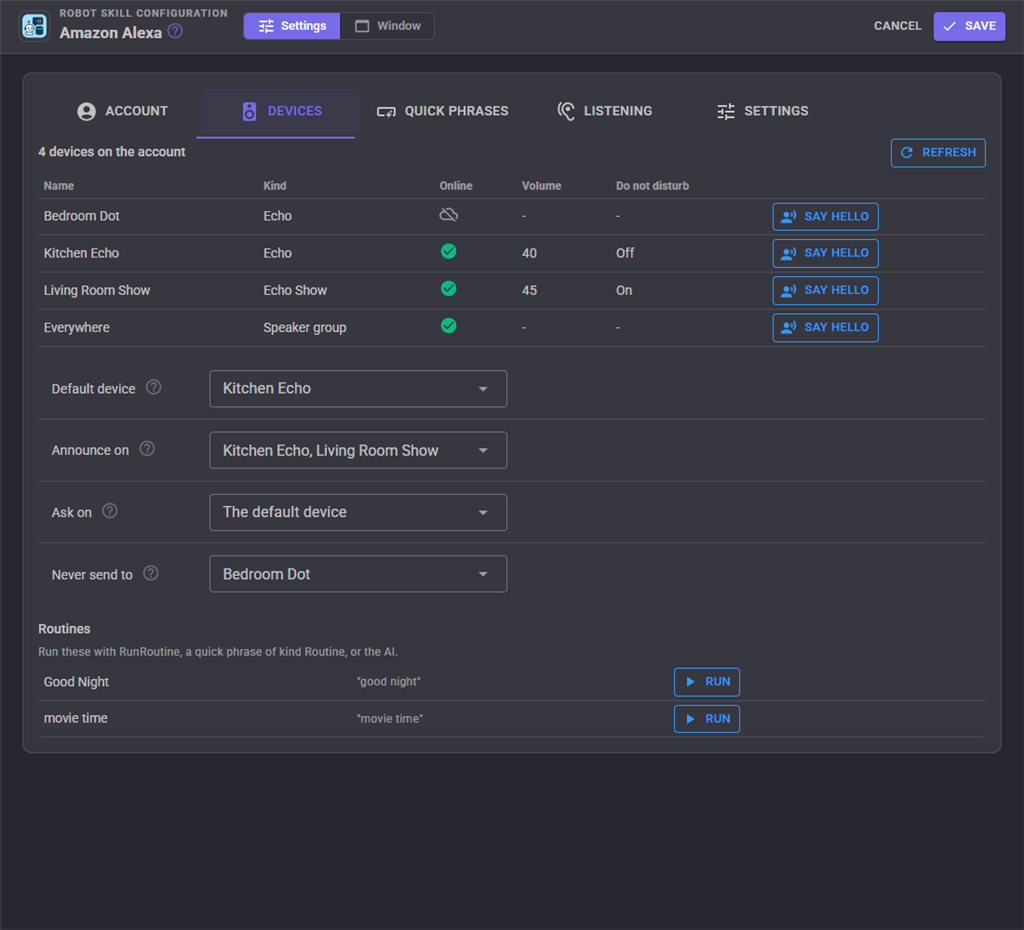
The Echo devices and speaker groups on the account, whether they are online, their volume and do not disturb, with a Say hello button that makes one introduce itself so you can tell them apart.
| Setting | What it does |
|---|---|
| Default device | Where commands go when they do not name a device. "First online Echo" picks one. |
| Announce on | The devices announcements play on when they do not name any. None ticked means every Echo. |
| Ask on | The device Ask puts its questions to. |
| Never send to | Devices the robot must leave alone, such as a bedroom Echo. Commands naming one are refused and announcements to everyone skip it. |
Quick phrases
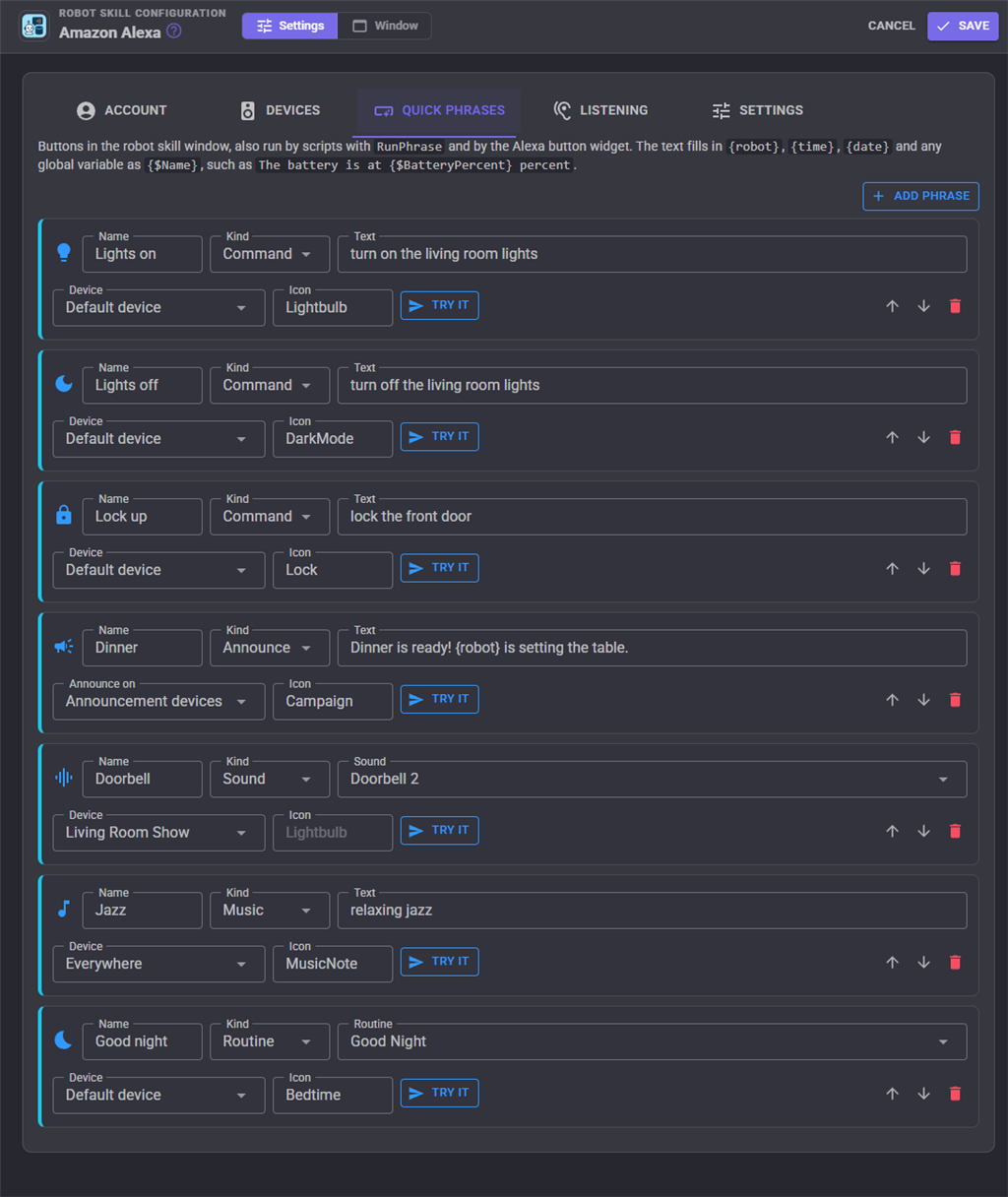
Buttons for the window, the Alexa button widget and the RunPhrase command. Each has a name, a kind (Command, Speak, Whisper, Announce, Routine, Music or Sound), its text (or a sound or routine picked from a list), a device, and a Material icon name such as Lightbulb, Lock, Tv, Campaign, MusicNote or Bedtime. Try it sends it straight away.
Listening
Turns listening on, sets how often the history is read, which Echo devices to listen to, the voice triggers and the heard script, described above.
Settings
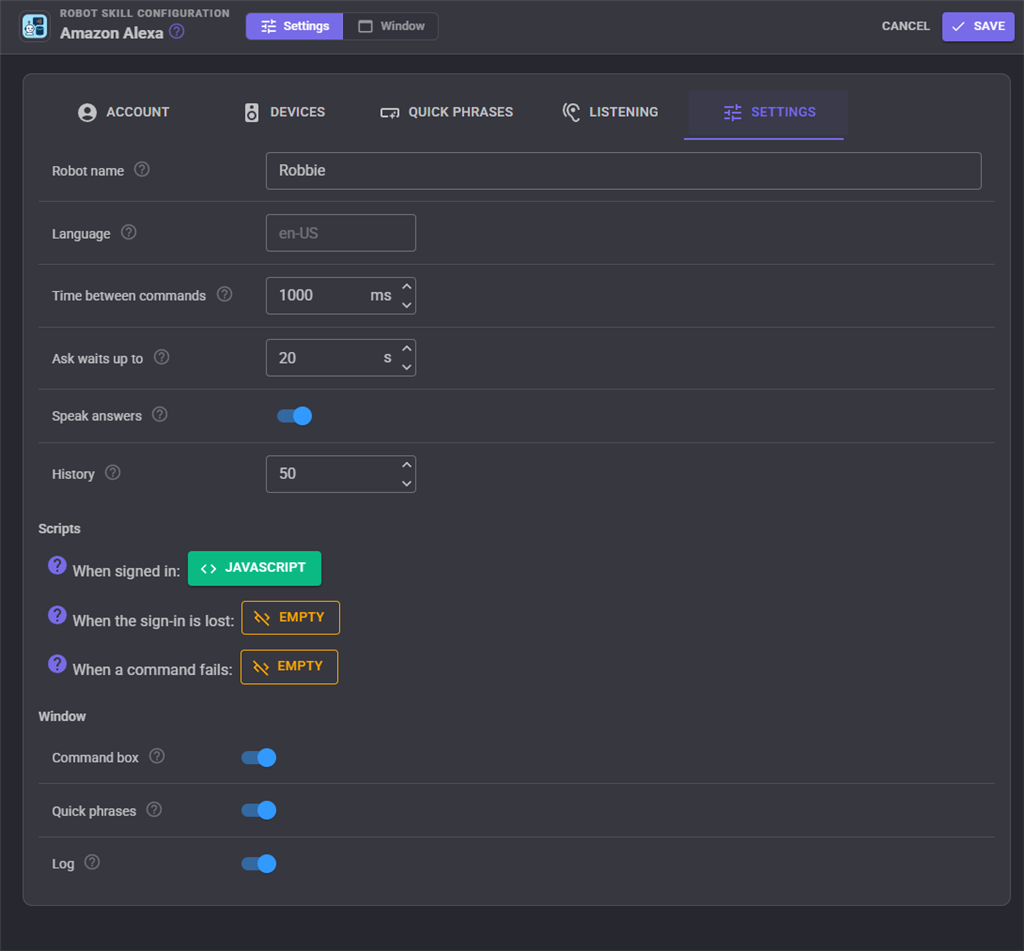
| Setting | What it does |
|---|---|
| Robot name | The name {robot} is filled in with. Empty uses the computer's name. |
| Language | The language commands are sent in, such as en-US, en-GB or de-DE. Empty uses the usual language of the account's Amazon website. |
| Time between commands | The shortest gap between two commands sent to Amazon. |
| Ask waits up to | How long Ask waits for the answer. |
| Speak answers | Also say Ask's answer with the robot's own voice. |
| History | How many commands the window keeps. |
| When signed in | A script that runs when the robot skill has signed in, at start-up or after a sign-in. |
| When the sign-in is lost | A script that runs when Amazon ends the sign-in and nobody (or nothing) signed in again, for instance to send yourself a notification. |
| When a command fails | A script that runs when a command could not be sent. $AlexaLastError has the reason. |
| Command box, Quick phrases, Log | Show or hide those parts of the window. |
Global variables
| Variable | Value |
|---|---|
$AlexaSignedIn |
True while signed in and able to send. |
$AlexaLastStatus |
Sent or Failed, for the last command. |
$AlexaLastError |
Why the last command failed; empty when it was sent. |
$AlexaDevices |
The names of the devices and speaker groups. |
$AlexaAnswer |
Alexa's answer to the last Ask. |
$AlexaLastHeard |
The last thing someone said to an Echo, while listening. |
$AlexaLastHeardDevice |
The Echo it was said to. |
$AlexaLastHeardTime |
When it was said. |
$AlexaLastResponse |
What Alexa answered to it. |
$AlexaTriggerRemainder |
The words after a voice trigger's phrase. |
Custom UI widgets
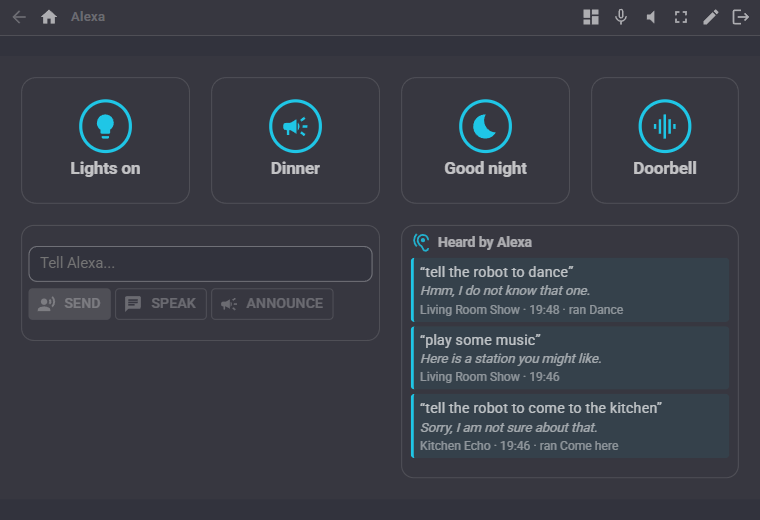
- Alexa button: one big button that sends a command, speech, an announcement, a routine, music, a sound or one of your quick phrases. Its light ring spins while sending, then glows green or red.
- Talk to Alexa: a text box with Send, Speak and Announce, to talk to the house from a phone or a kiosk.
- Heard by Alexa: what people last said to the Echo devices, with Alexa's answers and the triggers that ran.
AI assistants
An AI assistant connected to ARCx over MCP (Claude, ChatGPT, Cursor and others; Options Preferences AI connections) gets tools to tell Alexa to do something, make an Echo speak or announce, ask Alexa a question, run a routine, control volume, music and do not disturb, list the devices and routines, and read the alarms and what was heard. An AI can turn on the lights, check whether the door is locked, or call everyone to dinner.
Troubleshooting
- "Amazon showed the sign-in page again": the e-mail or password is wrong.
- Amazon never asks for a code, or asks how to verify by e-mail or text message: turn on two-step verification with an authenticator app in your Amazon account. The sign-in needs it.
- "Amazon showed a page this robot skill does not recognise": Amazon changed its sign-in pages, or asked for something new. The page is saved in
ARCx Data\Amazon Alexa\Diagnostics; send it to Synthiam with the message. - Commands fail with "throttled" or "Rate exceeded": increase Time between commands and the listening interval.
- Ask returns nothing: the voice history may be off for the account (Alexa app More Settings Alexa Privacy), or Alexa took longer than Ask waits up to.
- The sign-in is lost every so often: that is Amazon ending sessions. Give the robot skill the authenticator secret and tick Sign in again by itself.
Control Commands for the Amazon Alexa robot skill
There are Control Commands available for this robot skill which allows the skill to be controlled programmatically from scripts or other robot skills. These commands enable you to automate actions, respond to sensor inputs, and integrate the robot skill with other systems or custom interfaces. If you're new to the concept of Control Commands, we have a comprehensive manual available here that explains how to use them, provides examples to get you started and make the most of this powerful feature.
Control Command ManualThis robot skill has 25 control commands, listed below. Send them from a JavaScript or Python script, from Blockly, or from another robot skill.
The first value is always the window title, which is the name in the title bar of the robot skill on your workspace. It starts out as Amazon Alexa, which is what every example below uses. If you rename the robot skill, or add a second copy of it to the project, use the title as it appears on that window instead.
ControlCommand() can be shortened to CC(), and both spellings work in JavaScript and in Python. The examples are JavaScript; Python is the same call, except that true and false are written True and False.
Announce
Play an announcement, with its chime, on several Echo devices at once. Devices is a comma separated list of names, "all", or empty for the configured announcement devices. Returns true when Amazon accepted it.
Syntax
ControlCommand("Amazon Alexa", "Announce", (String)text, (String)devices)
Parameters
| # | Name | Type | What to pass |
|---|---|---|---|
| 1 | text | Text | Your text, in quotes |
| 2 | devices | Text | Your text, in quotes |
Returns: Boolean [true or false]
Example
var result = ControlCommand("Amazon Alexa", "Announce", "text", "devices");
Ask
Ask Alexa a question on an Echo and return the text of its answer ("what's the weather tomorrow", "how far is the moon"). The Echo also answers out loud. Waits up to the configured Ask timeout for the answer to appear in the Alexa voice history, and returns an empty string when it does not. The device is the Echo's name from the Alexa app; leave it out or empty for the default device. The answer is also in $AlexaAnswer.
Syntax
ControlCommand("Amazon Alexa", "Ask", (String)question, (String)device)
Parameters
| # | Name | Type | What to pass |
|---|---|---|---|
| 1 | question | Text | Your text, in quotes |
| 2 | device | Text | Your text, in quotes |
Returns: String
Example
var result = ControlCommand("Amazon Alexa", "Ask", "question", "device");
Command
Send words to Alexa as if someone said them to the Echo, such as "turn on the living room lights", "set a timer for 5 minutes" or "add milk to my shopping list". Anything Alexa understands works, including smart home control. The device is the Echo's name from the Alexa app; leave it out or empty for the default device. , and {$Variable} are filled in. Returns true when Amazon accepted it.
Syntax
ControlCommand("Amazon Alexa", "Command", (String)text, (String)device)
Parameters
| # | Name | Type | What to pass |
|---|---|---|---|
| 1 | text | Text | Your text, in quotes |
| 2 | device | Text | Your text, in quotes |
Returns: Boolean [true or false]
Example
var result = ControlCommand("Amazon Alexa", "Command", "text", "device");
GetAlarms
The alarms, timers and reminders set on the Echo devices, soonest first, one line each ("Alarm 7:00 AM on Bedroom Echo"). Optionally only those of one device.
Syntax
ControlCommand("Amazon Alexa", "GetAlarms", (String)device)
Parameters
| # | Name | Type | What to pass |
|---|---|---|---|
| 1 | device | Text | Your text, in quotes |
Returns: Array of String
Example
var result = ControlCommand("Amazon Alexa", "GetAlarms", "device");
GetDevices
The names of the Echo devices and speaker groups this robot skill can send to.
Syntax
ControlCommand("Amazon Alexa", "GetDevices")
Returns: Array of String
Example
var result = ControlCommand("Amazon Alexa", "GetDevices");
GetLastHeard
The last thing someone said to an Echo while listening (also $AlexaLastHeard, with $AlexaLastHeardDevice and $AlexaLastResponse).
Syntax
ControlCommand("Amazon Alexa", "GetLastHeard")
Returns: String
Example
var result = ControlCommand("Amazon Alexa", "GetLastHeard");
GetRoutines
The names of the account's Alexa routines.
Syntax
ControlCommand("Amazon Alexa", "GetRoutines")
Returns: Array of String
Example
var result = ControlCommand("Amazon Alexa", "GetRoutines");
IsSignedIn
Whether the robot skill is signed in to Amazon and can send.
Syntax
ControlCommand("Amazon Alexa", "IsSignedIn")
Returns: Boolean [true or false]
Example
var result = ControlCommand("Amazon Alexa", "IsSignedIn");
Media
Control what the Echo is playing: Play, Pause, Next or Previous. The device is the Echo's name from the Alexa app; leave it out or empty for the default device. Returns true when Amazon accepted it.
Syntax
ControlCommand("Amazon Alexa", "Media", (String)action, (String)device)
Parameters
| # | Name | Type | What to pass |
|---|---|---|---|
| 1 | action | Text | Your text, in quotes |
| 2 | device | Text | Your text, in quotes |
Returns: Boolean [true or false]
Example
var result = ControlCommand("Amazon Alexa", "Media", "action", "device");
Play
Play one of Alexa's own skills: Weather (the weather forecast), Traffic (the traffic on the commute), FlashBriefing (the flash briefing (news headlines)), News (the national news), GoodMorning (a good morning greeting), GoodNight (a good night message), ImHome (a welcome home greeting), Joke (a joke), FunFact (a fun fact), SingASong (a song Alexa sings), TellStory (a short story), Time (the time), Date (the date), CalendarToday (today's calendar), CalendarTomorrow (tomorrow's calendar), CalendarNext (the next calendar event), CleanUp (clean up music). The device is the Echo's name from the Alexa app; leave it out or empty for the default device. Returns true when Amazon accepted it.
Syntax
ControlCommand("Amazon Alexa", "Play", (String)what, (String)device)
Parameters
| # | Name | Type | What to pass |
|---|---|---|---|
| 1 | what | Text | Your text, in quotes |
| 2 | device | Text | Your text, in quotes |
Returns: Boolean [true or false]
Example
var result = ControlCommand("Amazon Alexa", "Play", "what", "device");
PlayMusic
Play music found by searching for the words ("jazz", "songs by Queen", "BBC Radio 2"). The provider is a music service name such as Amazon Music, Spotify or TuneIn; leave it out for the account's default. The device is the Echo's name from the Alexa app; leave it out or empty for the default device. Returns true when Amazon accepted it.
Syntax
ControlCommand("Amazon Alexa", "PlayMusic", (String)search, (String)device, (String)provider)
Parameters
| # | Name | Type | What to pass |
|---|---|---|---|
| 1 | search | Text | Your text, in quotes |
| 2 | device | Text | Your text, in quotes |
| 3 | provider | Text | Your text, in quotes |
Returns: Boolean [true or false]
Example
var result = ControlCommand("Amazon Alexa", "PlayMusic", "search", "device", "provider");
PlaySound
Play an Alexa sound effect by its id or title, such as amzn_sfx_doorbell_chime_01, air_horn_03, amzn_sfx_cat_meow_1x_01 or "Red alert". The device is the Echo's name from the Alexa app; leave it out or empty for the default device. Returns true when Amazon accepted it.
Syntax
ControlCommand("Amazon Alexa", "PlaySound", (String)sound, (String)device)
Parameters
| # | Name | Type | What to pass |
|---|---|---|---|
| 1 | sound | Text | Your text, in quotes |
| 2 | device | Text | Your text, in quotes |
Returns: Boolean [true or false]
Example
var result = ControlCommand("Amazon Alexa", "PlaySound", "sound", "device");
PushToPhone
Send a notification to the phones signed in to the account's Alexa app, with a title (empty for the robot's name). Returns true when Amazon accepted it.
Syntax
ControlCommand("Amazon Alexa", "PushToPhone", (String)message, (String)title)
Parameters
| # | Name | Type | What to pass |
|---|---|---|---|
| 1 | message | Text | Your text, in quotes |
| 2 | title | Text | Your text, in quotes |
Returns: Boolean [true or false]
Example
var result = ControlCommand("Amazon Alexa", "PushToPhone", "message", "title");
Refresh
Read the account's devices, routines and music services again, after adding one in the Alexa app. Returns how many devices there are.
Syntax
ControlCommand("Amazon Alexa", "Refresh")
Returns: Integer [-2,147,483,648 to 2,147,483,647]
Example
var result = ControlCommand("Amazon Alexa", "Refresh");
RunPhrase
Send one of the quick phrases from the configuration, by its name. Returns true when Amazon accepted it.
Syntax
ControlCommand("Amazon Alexa", "RunPhrase", (String)name)
Parameters
| # | Name | Type | What to pass |
|---|---|---|---|
| 1 | name | Text | Your text, in quotes |
Returns: Boolean [true or false]
Example
var result = ControlCommand("Amazon Alexa", "RunPhrase", "name");
RunRoutine
Run one of the account's Alexa routines by name, as if it had been started on the device. The device is the Echo's name from the Alexa app; leave it out or empty for the default device. Returns true when Amazon accepted it.
Syntax
ControlCommand("Amazon Alexa", "RunRoutine", (String)routine, (String)device)
Parameters
| # | Name | Type | What to pass |
|---|---|---|---|
| 1 | routine | Text | Your text, in quotes |
| 2 | device | Text | Your text, in quotes |
Returns: Boolean [true or false]
Example
var result = ControlCommand("Amazon Alexa", "RunRoutine", "routine", "device");
SetDoNotDisturb
Turn do not disturb on (true) or off (false) on an Echo. The device is the Echo's name from the Alexa app; leave it out or empty for the default device. Returns true when Amazon accepted it.
Syntax
ControlCommand("Amazon Alexa", "SetDoNotDisturb", (Bool)enabled, (String)device)
Parameters
| # | Name | Type | What to pass |
|---|---|---|---|
| 1 | enabled | True or false | true or false, without quotes |
| 2 | device | Text | Your text, in quotes |
Returns: Boolean [true or false]
Example
var result = ControlCommand("Amazon Alexa", "SetDoNotDisturb", true, "device");
SetVolume
Set the Echo's volume, 0 to 100. The device is the Echo's name from the Alexa app; leave it out or empty for the default device. Returns true when Amazon accepted it.
Syntax
ControlCommand("Amazon Alexa", "SetVolume", (Number)volume, (String)device)
Parameters
| # | Name | Type | What to pass |
|---|---|---|---|
| 1 | volume | Number | A number, without quotes |
| 2 | device | Text | Your text, in quotes |
Returns: Boolean [true or false]
Example
var result = ControlCommand("Amazon Alexa", "SetVolume", 0, "device");
Speak
Make the Echo say the text out loud in Alexa's voice. Long text is spoken in parts. The device is the Echo's name from the Alexa app; leave it out or empty for the default device. Returns true when Amazon accepted it.
Syntax
ControlCommand("Amazon Alexa", "Speak", (String)text, (String)device)
Parameters
| # | Name | Type | What to pass |
|---|---|---|---|
| 1 | text | Text | Your text, in quotes |
| 2 | device | Text | Your text, in quotes |
Returns: Boolean [true or false]
Example
var result = ControlCommand("Amazon Alexa", "Speak", "text", "device");
SpeakSsml
Make the Echo speak SSML, for pauses (<break time="1s"/>), emphasis, whispering or speechcons. The <speak> tags are added when missing. The device is the Echo's name from the Alexa app; leave it out or empty for the default device. Returns true when Amazon accepted it.
Syntax
ControlCommand("Amazon Alexa", "SpeakSsml", (String)ssml, (String)device)
Parameters
| # | Name | Type | What to pass |
|---|---|---|---|
| 1 | ssml | Text | Your text, in quotes |
| 2 | device | Text | Your text, in quotes |
Returns: Boolean [true or false]
Example
var result = ControlCommand("Amazon Alexa", "SpeakSsml", "ssml", "device");
StartListening
Start watching the Alexa voice history for what people say to the Echo devices, running the voice triggers. Saved with the project.
Syntax
ControlCommand("Amazon Alexa", "StartListening")
Returns: Boolean [true or false]
Example
var result = ControlCommand("Amazon Alexa", "StartListening");
Stop
Stop whatever the Echo is doing (music, an alarm going off, speech). The device is the Echo's name from the Alexa app; leave it out or empty for the default device. Returns true when Amazon accepted it.
Syntax
ControlCommand("Amazon Alexa", "Stop", (String)device)
Parameters
| # | Name | Type | What to pass |
|---|---|---|---|
| 1 | device | Text | Your text, in quotes |
Returns: Boolean [true or false]
Example
var result = ControlCommand("Amazon Alexa", "Stop", "device");
StopAll
Stop whatever every Echo of the account is doing. Returns true when Amazon accepted it.
Syntax
ControlCommand("Amazon Alexa", "StopAll")
Returns: Boolean [true or false]
Example
var result = ControlCommand("Amazon Alexa", "StopAll");
StopListening
Stop watching the Alexa voice history. Saved with the project.
Syntax
ControlCommand("Amazon Alexa", "StopListening")
Returns: Boolean [true or false]
Example
var result = ControlCommand("Amazon Alexa", "StopListening");
Whisper
Make the Echo whisper the text. The device is the Echo's name from the Alexa app; leave it out or empty for the default device. Returns true when Amazon accepted it.
Syntax
ControlCommand("Amazon Alexa", "Whisper", (String)text, (String)device)
Parameters
| # | Name | Type | What to pass |
|---|---|---|---|
| 1 | text | Text | Your text, in quotes |
| 2 | device | Text | Your text, in quotes |
Returns: Boolean [true or false]
Example
var result = ControlCommand("Amazon Alexa", "Whisper", "text", "device");
This list is read out of the robot skill itself each time its package is uploaded, so it matches the published version (v2).

This robot skill has been updated to v1.
What has changed
initial release
This robot skill has been updated to v2.
What has changed
Improved Amazon authentication