
Orbbec 3D camera skill for ARCx: obstacle scans, video, depth, IMU tilt, detections distance, recordings, point clouds, multi-camera support
 Windows
 ARM
ARM
 Linux
Linux
 MacOS
MacOS
How to add the Orbbec Depth Camera robot skill
- Load the most recent release of ARCx on a compatible operating system (Get ARCx).
- Press the + Skills menu from the top menu bar in ARCx.
- Choose any of these category tabs, the robot skill appears in each of them: Camera, Infrared Distance, Navigation.
- Press the Orbbec Depth Camera icon to add the robot skill to your project.
Don't have a robot yet?
Follow the Getting Started Guide to build a robot and use the Orbbec Depth Camera robot skill.
How to use the Orbbec Depth Camera robot skill
Connects Orbbec 3D cameras to ARCx through Orbbec's own open source SDK: an obstacle scan for the Navigation Messaging System (NMS) with the floor removed and drops found, colour, depth and infrared video for the camera skills, a measured distance for every detection a vision skill makes, the camera's tilt from its inertial sensor, Orbbec's depth presets and post-processing filters, laser control, .bag recording and playback, point clouds, and several cameras at once.
It runs on Windows, Linux (Ubuntu 24.04, x64 and ARM64) and macOS. Orbbec SDK 2.10.6 is included for each of them, so on Windows there is nothing else to install. A built-in simulator imitates a Gemini 335 and a Femto Bolt in a simulated room, so a project, its navigation and its scripts can be built and tried before the camera arrives.
A depth camera sees far more than a lidar. It measures a whole picture of distances, so it finds obstacles at every height the robot could hit: a table top, a chair seat, a shelf, a person's legs and a toy on the floor alike. Knowing how high the camera is mounted, the skill tells the floor from what stands on it and sees where the floor drops away at the top of a staircase. All of that becomes a scan the navigator reads like a lidar's.
Supported cameras
The skill drives what Orbbec SDK v2 drives. That is Orbbec's list for SDK 2.10.6, with the firmware the SDK expects:
| Family | Models | Kind | Notes |
|---|---|---|---|
| Gemini 330 series | Gemini 330, 330L, 335, 335L, 336, 336L, 335Lg, 335Le, 338Lg, 338Le | Active stereo | Depth presets, hardware alignment, IMU, left and right infrared. The 335Lg, 335Le and 338 models are GMSL or Ethernet versions; the Ethernet ones need Network cameras turned on. |
| Gemini 340, 435 and 305 | Gemini 345, 345Lg, 435Le, 305, 305g | Active stereo | Supported by SDK v2 only (not by Orbbec SDK v1). |
| Gemini 2 series | Gemini 2, Gemini 2 L, Gemini 215, Gemini 210 | Active stereo | Depth work modes, hardware alignment, IMU. Orbbec does not list the Gemini 2 XL for SDK v2. |
| Femto | Femto Bolt, Femto Mega, Femto Mega I | Time of flight | Depth work modes (narrow or wide field of view, binned or unbinned), IMU. The Mega is also an Ethernet camera. Not on macOS: Orbbec ships no depth engine for it. |
| Astra | Astra 2, Astra Mini Pro, Astra Mini S Pro | Structured light | The Astra Mini Pro and Mini S Pro need Orbbec's version 2 firmware (UVC); with their original version 1 (OpenNI) firmware they need Orbbec's firmware update first. |
| OpenNI protocol devices | DaBai, DaBai Pro, DaBai DC1, DaBai DCW, DaBai DW, DaBai DW2, DaBai DCW2, DaBai Max, DaBai Max Pro, Gemini E, Gemini E Lite, Gemini EW, Gemini EW Lite, Gemini UW, Astra Pro2 | Structured light | SDK 2.10.6 contains OpenNI protocol support for these, but they are not on Orbbec's official SDK v2 list: Orbbec is moving them to UVC firmware. Expect the basics (depth, colour) rather than every feature. |
Not supported, because Orbbec SDK v2 does not drive them: the original Astra, Astra S, Astra Pro, Astra Mini and Astra Mini S (OpenNI firmware), the Astra+ and Astra Pro Plus, and Orbbec's lidars. Those need Orbbec's OpenNI SDK or SDK v1, which this skill does not use.
This skill has been built and tested with the simulator and with recordings only. It has not been run with a real Orbbec camera yet.
What you need
Every computer. A USB 3 port and the camera's own cable. Most models work on USB 2 at reduced resolution and frame rate, and the log says when that happens.
Windows. Nothing to install: the skill carries the Orbbec SDK, its extensions and the Visual C++ runtime it needs (used only when Windows has none of its own). Orbbec's UVC cameras report their hardware timestamps through Windows frame metadata, which Windows only passes on once the camera has been registered for it. Without it the SDK pairs depth and colour by arrival time, which works but is less exact. With the camera plugged in, run Orbbec's registration script once per camera; the Camera tab shows the exact command, which is:
powershell -ExecutionPolicy Bypass -File "<skill folder>\scripts\obsensor_metadata_win10.ps1" -op install_all
Linux. A camera can only be opened by a normal user once Orbbec's udev rules are installed. The Camera tab shows the command, with the path filled in, while they are missing:
sudo cp "<skill folder>/udev/99-obsensor-libusb.rules" /etc/udev/rules.d/ && sudo udevadm control --reload-rules && sudo udevadm trigger
Unplug and replug the camera afterwards. The Femto cameras' depth engine uses OpenGL (libGL and libEGL), which a desktop Ubuntu has. For several cameras on one computer, Orbbec recommends raising the USB buffer memory: echo 128 | sudo tee /sys/module/usbcore/parameters/usbfs_memory_mb.
macOS. The skill carries Orbbec's universal (Intel and Apple silicon) SDK build. Orbbec ships no Femto depth engine for macOS, so the Femto cameras cannot give depth there. macOS's own camera driver can hold on to a camera's video interfaces; if a camera is listed but will not open, Orbbec's guidance for its tools on macOS is to run them with administrator rights (sudo).
Network cameras. The Femto Mega, the Gemini 335Le and the other Ethernet models are found once Network cameras is on (Camera tab).
The window
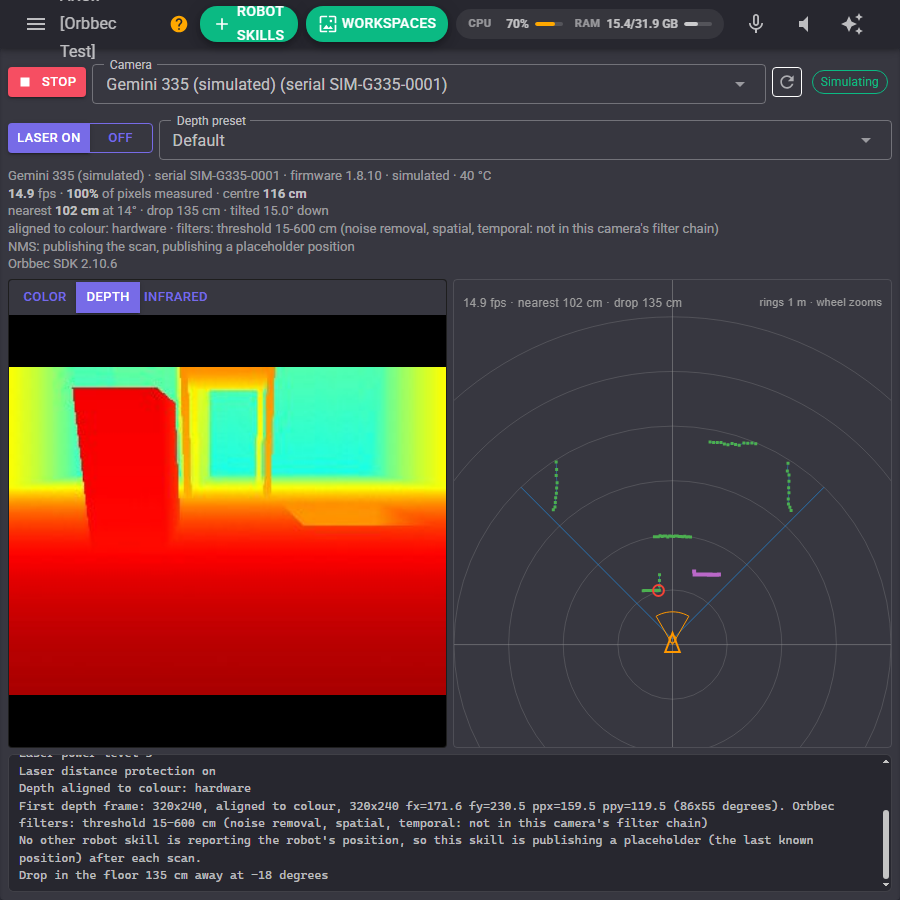
- Start / Stop opens the camera (or the recording, or the simulator) and starts streaming, or stops and closes it.
- Camera chooses which camera, by model and serial number. "First camera found" suits a robot with one. The simulator's two cameras are at the end of the list. The refresh button looks again. While a recording plays, its file name shows here instead.
- Status is Stopped, Connecting, Streaming, Simulating, Playing, Recording or Reconnecting, and Obstacle while something is inside the obstacle zone.
- Laser on / Off, the depth preset (on cameras that have presets) and Record act on the running camera straight away.
- Readouts: the camera's model, serial number, firmware, connection and hottest temperature; the frame rate, how much of the picture has a depth reading and the distance to whatever the middle of the picture sees; the nearest obstacle and its direction, the nearest drop and the camera's tilt; how the depth is aligned and which of Orbbec's filters are running; what the skill sends to the NMS; and the Orbbec SDK version, or why it did not load.
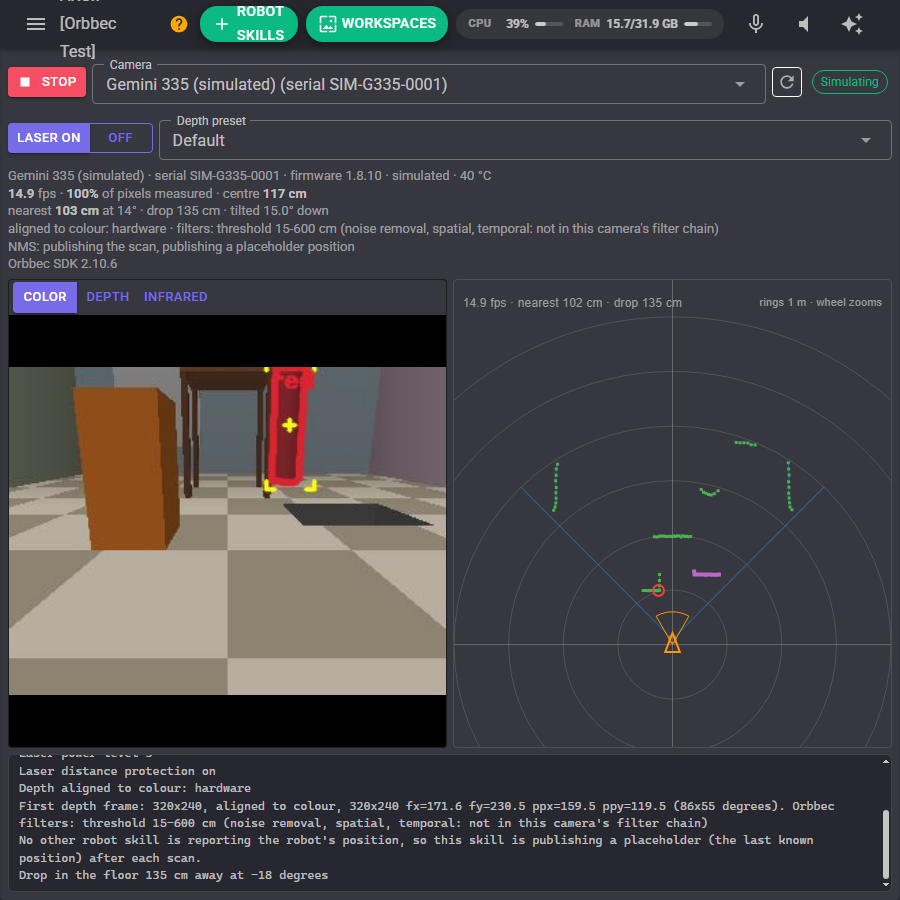
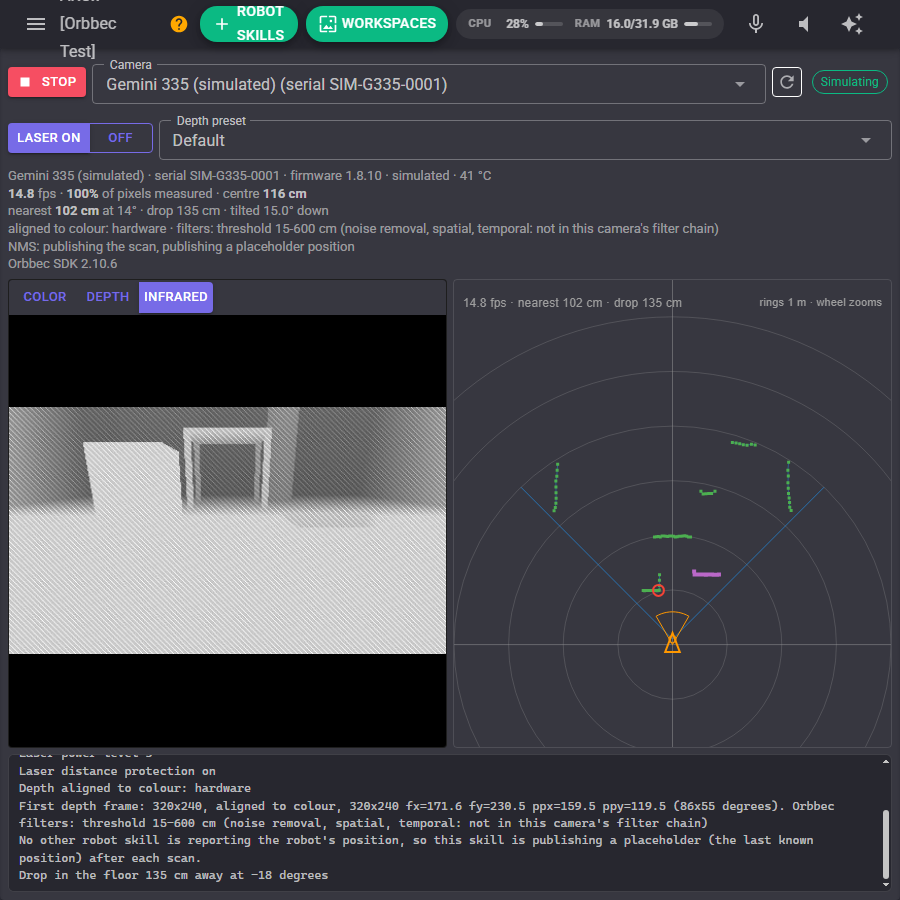
- Color, Depth, Infrared switch the picture. Depth is coloured near red to far blue (or another colour map), black where the camera has no reading. Detections other skills make on the colour video are drawn on it.
- The scan view is the robot from above, facing up the screen: the blue lines are the edges of what the camera sees, green dots the nearest obstacle in each direction, purple dots drops in the floor, the red circle the nearest obstacle, the orange triangle the robot and the grey rings distance markers. The obstacle zone is outlined in orange, red while something is in it. The mouse wheel zooms and a click reports that direction's reading in the log.
- The log says what the skill is doing: the camera it found, the streams it started, settings it changed, obstacles and drops, and anything that went wrong.
Nothing in the window costs anything while it is not on screen.
The simulator
Choose Simulator as the source (or pick a simulated camera from the list) to try everything without hardware. The simulated camera stands where the Mounting tab says, in a 5.5 by 4.4 metre room with a box, a table the robot fits under, a stairwell going down, a bare white panel and a person walking across, or in a corridor.
| Simulated camera | Imitates |
|---|---|
| SIM-G335-0001 | A Gemini 335: colour, depth, left and right infrared, IMU, the Gemini 330 presets (High Accuracy drops the doubtful far pixels, High Density keeps more noise, Hand limits the range), laser on and off (off loses the depth on bare surfaces such as the white panel and the ceiling, as a real stereo camera does), laser power, and depth noise that grows with the square of the distance. |
| SIM-FB-0002 | A Femto Bolt: colour, depth, infrared, IMU, its depth work modes (the wide modes widen the view), and no depth at all with its illuminator off. |
Both offer the multi-camera sync modes; in software triggering the simulated camera takes a picture only when the TriggerCapture ControlCommand is sent. The simulated depth goes through the Orbbec SDK's decimation and threshold filters exactly as a camera's would. Orbbec's other filters (spatial, temporal, noise removal and hole filling) come with a real Orbbec camera or a recording of one, so the simulator lists them as not in its filter chain. Recording needs a real camera too.
How the scan is made
Each depth picture is turned into points in the room, using where the camera is mounted (its height, tilt and position on the robot). Every point is then sorted by how high it is off the floor:
- Floor: lower than the lowest obstacle height (5 cm). Ignored, so the floor in front of the robot is never mistaken for a wall.
- Obstacle: between the lowest and highest obstacle heights (5 cm to 150 cm). The nearest one in each direction goes into the scan.
- Overhead: higher than the highest obstacle height, such as a table top the robot fits under or the ceiling. Ignored.
- Drop: more than the drop depth (8 cm) below the floor, when drop detection is on. Reported where the floor ends, and sent to the NMS as an obstacle so the navigator steers round the top of the stairs.
The result is one reading per degree across what the camera sees, sent to the NMS ten times a second. A Gemini 335 sees about 90 degrees across, so a navigator gets a wedge in front of the robot rather than a full circle. Mounting the camera a little higher than the robot's obstacles and tilting it 10 to 20 degrees down lets it see low things and drops just in front.
Without a mount height the skill cannot tell the floor from an obstacle and reports everything it sees, as a lidar would. Then the rows used setting (Navigation tab) can limit the scan to a band of the picture.
Like a lidar, the camera's scans only reach a navigator when something reports the robot's position. With no wheel encoders or other position source in the project, the skill publishes a placeholder position after each scan and stands aside as soon as another skill reports one.
Depth quality
Alignment. With colour streaming, the depth is lined up with the colour picture pixel for pixel. Automatic does it in the camera when the camera can (the Gemini 330 and Gemini 2 series and the Astra 2 have hardware alignment, which costs the computer nothing; the depth resolution then follows the colour one), and otherwise in the Orbbec SDK on the computer. Recordings are always aligned in software.
Presets and work modes. The Gemini 330 series loads depth presets by name: Default, High Accuracy (drops doubtful pixels, good for obstacle detection), High Density (fills more of the picture), Medium Density and Hand (close range). The Femto and Gemini 2 cameras switch between depth work modes instead, for example narrow or wide field of view, binned (less noise) or unbinned (more detail) on a Femto Bolt. The lists show what the chosen camera offers once it has been found.
Laser. The projector paints an infrared dot pattern so a stereo camera can measure blank walls. Leave it on indoors. Off gives a clean infrared picture but no depth on featureless surfaces; on a Femto (time of flight) it means no depth at all. The Gemini 330 series also has Auto. The laser power level and laser distance protection (which dims the laser when something comes very close) are on the Depth tab too.
Orbbec's filters. The skill runs the post-processing chain Orbbec recommends for each camera model and switches the filters it knows from the Depth tab: decimation (shrink the depth by 2 to 4, cutting the work four to sixteen times over), noise removal, spatial and temporal smoothing, hole filling and the near and far limits. Any steps of Orbbec's chain the skill does not know (a disparity transform, HDR merge) keep Orbbec's own setting. Decimation and the limits are part of the open SDK and can always be added; the others are Orbbec's own filters, which come in the chain Orbbec recommends for the camera (or the camera a recording was made with), so a filter the camera's chain does not include is listed as not in its filter chain.
Measuring detections
With colour streaming, depth aligned to colour and Measure detections on (they all are by default), every detection any vision skill makes on the colour video source is measured from the depth. Face tracking, colour tracking, glyph recognition and object tracking all report how far away things are, without knowing anything about the Orbbec camera:
- DistanceM: the straight-line distance from the camera, in metres.
- ForwardM, LeftM, HeightM: where the object is from the robot's centre: ahead, to the left (negative to the right) and above the floor.
- RangeM and Angle: its distance along the floor and its direction in radians, counter-clockwise from straight ahead.
The Vision Detection Tracking Script skill turns these into its object variables (ObjectDistance, ObjectForwardM and so on) and can stop the robot when the object it follows gets close.
The inertial sensor
The Gemini 330 and Gemini 2 series and the Femto Bolt and Mega have an accelerometer and gyroscope. The skill uses them three ways:
- The camera's tilt, measured from gravity, so the mounting tilt and roll need not be measured by hand. Measure the tilt now on the Mounting tab copies the camera's current tilt into the settings; Measure tilt with the IMU can instead measure it every time the camera starts (with the robot standing on level floor), or continuously for a camera on a tilting head.
- The robot's pitch, roll and turn rate, as global variables, for a robot that wants to know it is on a slope or spinning.
- The depth service: other skills read the readings in the robot's frame.
Recording and playback
Record in the window (or the StartRecording control command) records everything the camera streams to an Orbbec .bag file, without interrupting the stream; Stop recording (or StopRecording) finishes the file. A recording must be finished this way, or by stopping the camera, to be playable. Files go to My Documents/ARCx Data/Orbbec unless another folder is chosen.
To play one, enter its path as Recording to play on the Camera tab (with the source on Automatic or Recording). Everything then works as if the camera were connected: navigation, measured detections, variables, the obstacle zone and point clouds, so settings can be tried at a desk and a problem the robot met can be replayed. Recordings made with Orbbec Viewer or Orbbec's SDK samples play too, as long as they come from SDK version 2.4 or later. Repeat the recording starts it again at its end; without it the skill stops when the recording ends.
Several cameras
Add the skill once per camera and choose each one's camera by serial number. Each instance publishes its own video sources (named after its window title), its own depth sensor and its own variables: a second instance starts with the variable prefix Orbbec2. A camera already open in one instance is never opened again by another.
For pictures taken at the same moment, join the cameras with Orbbec's sync cable or sync hub and choose a Multi-camera sync mode on each (Camera tab): one Primary, the others Secondary or Secondary synced. The device information lists the modes each camera offers. In software triggering, a picture is taken each time the TriggerCapture ControlCommand is sent; a camera waiting for a trigger is never treated as lost. Set the camera's clock lines the cameras' timestamps up with the computer's when they start.
Global variables
With Set global variables on, the skill publishes these, each starting with the variable prefix (Orbbec by default). Distances are in metres and angles in radians counter-clockwise from straight ahead, like every robot skill in ARCx.
| Variable | Meaning |
|---|---|
| IsRunning, IsRecording | True while the camera is streaming, and while it records |
| NearestDistance, NearestAngle | The nearest obstacle, along the floor from the robot's centre |
| FrontDistance | The nearest obstacle within 10 degrees of straight ahead |
| LeftDistance, RightDistance | The nearest obstacle 10 to 60 degrees to the left or right |
| CenterDistance | Straight-line distance from the camera to what the middle of the picture sees |
| Cliff, CliffDistance, CliffAngle | Whether a drop in the floor is seen, and where the nearest one is |
| Obstacle, ObstacleDistance, ObstacleAngle | Whether something is in the obstacle zone, and where it was when it entered |
| CameraTilt, CameraRoll | The camera's tilt down and roll, from gravity |
| RobotPitch, RobotRoll, YawRate | The robot's pitch and roll, and how fast it is turning (positive left), from the inertial sensor |
| Temperature | The hottest temperature the camera reports, in degrees Celsius |
| FPS, ValidPercent | Depth frames per second, and how much of the picture has a reading |
Only changed values are written, at most every 200 ms.
The obstacle zone
The obstacle zone watches a wedge in front of the robot (60 degrees wide, closer than 50 cm by default). When something enters it, the skill can stop the robot, pause a navigation in progress (and carry on once the zone has been clear for half a second), and run a script. A drop in the floor inside the zone counts too. Because the depth camera sees things at every height, this catches what a lidar or ultrasonic sensor at one height would miss.
Point clouds
The SavePointCloud ControlCommand and the capture_point_cloud AI tool save the next depth frame as a 3D point cloud (.ply) in metres in the robot's frame, coloured from the colour camera when depth is aligned to it. MeshLab, CloudCompare, Blender and Open3D open it.
AI assistants (MCP)
An AI assistant connected to ARCx gets six tools from the skill:
- get_status: the camera, its streams, alignment, filters, preset or work mode, laser, sync mode, temperatures, frame rate, nearest obstacle and tilt.
- get_depth_scan: what is in front of the robot as sectors, with the nearest obstacle and drop in each.
- get_distance_at: how far away the thing at a point of the picture is and where it is relative to the robot.
- get_depth_snapshot: the depth as a picture together with a grid of distances, so the AI can both see it and read it.
- capture_point_cloud: saves a point cloud.
- set_depth_settings: the laser, a depth preset and Orbbec's spatial, temporal and noise removal filters.
With ARCx's own get_camera_image tool on the colour video source, an assistant can look at the picture and then measure what it sees.
Configuration
Camera
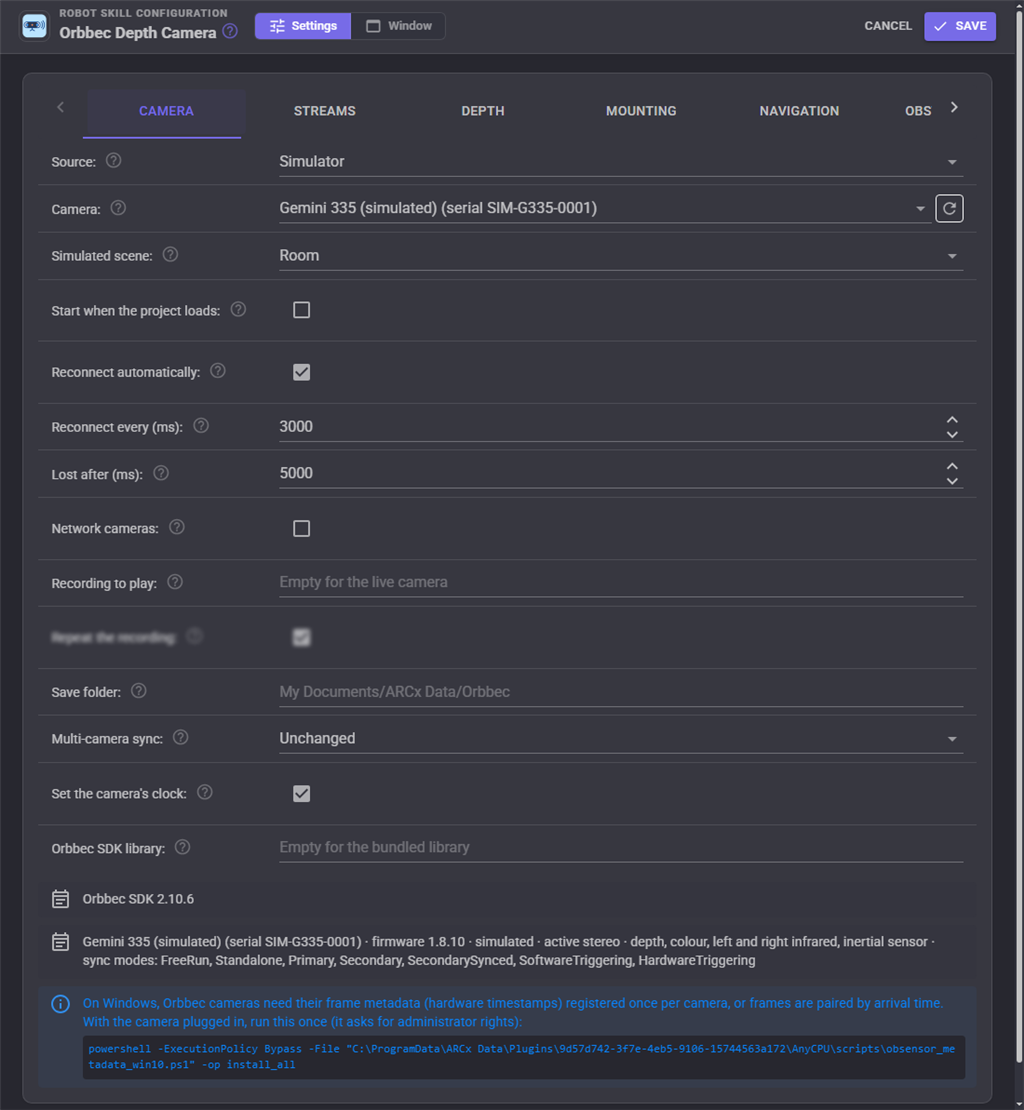
| Setting | Meaning |
|---|---|
| Source | Automatic (the recording when one is chosen, else the live camera), Live camera, Recording or Simulator |
| Camera | Which camera, by serial number, or the first one found |
| Simulated scene | The simulator's room or corridor |
| Start when the project loads | Open the camera and start streaming as soon as the project has loaded |
| Reconnect automatically, Reconnect every, Lost after | Keep trying when the camera is unplugged, stops sending frames or cannot be opened |
| Network cameras | Also look for Ethernet cameras (Femto Mega, Gemini 335Le) |
| Recording to play, Repeat the recording | An Orbbec .bag file to play instead of the live camera |
| Save folder | Where point clouds and recordings go |
| Multi-camera sync | The camera's sync mode, for several cameras on Orbbec's sync cable |
| Set the camera's clock | Set the camera's clock from the computer's when it starts |
| Orbbec SDK library | Empty uses the bundled Orbbec SDK 2.10.6. Another build's OrbbecSDK.dll, libOrbbecSDK.so.2 or libOrbbecSDK.2.dylib (with its extensions folder beside it) can be used instead, after an ARCx restart |
The tab also shows the camera's details and, where the computer needs it, the Linux udev command or the Windows metadata command.
Streams
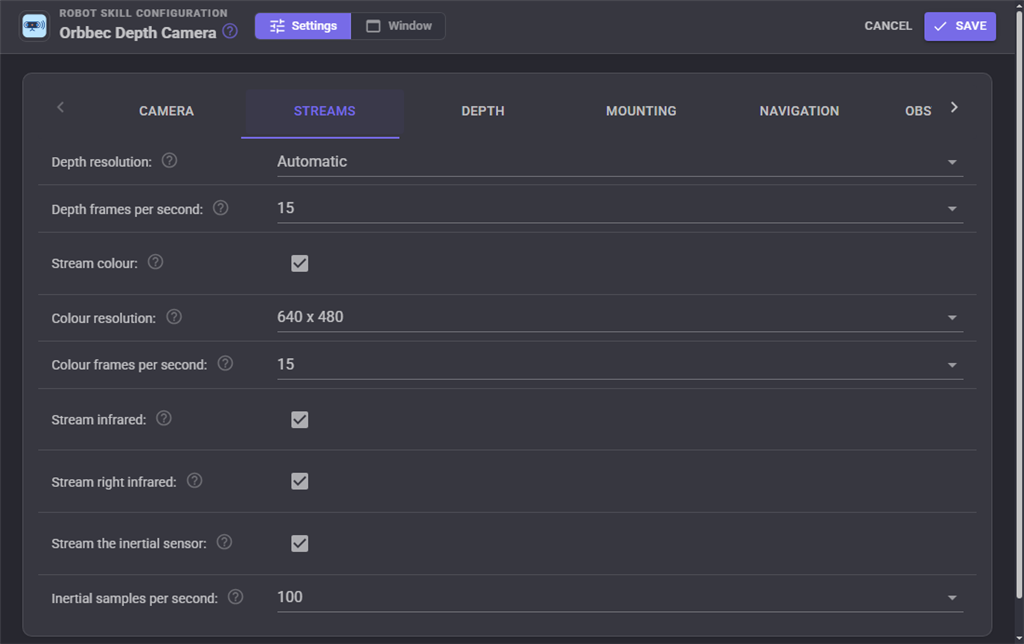
| Setting | Meaning |
|---|---|
| Depth resolution, frames per second | Automatic lets the camera choose its best depth resolution. 15 frames a second is plenty for navigation and costs half the processor time of 30 |
| Stream colour, resolution, frames per second | The colour camera, needed for the colour video source, coloured point clouds and measured detections. 640 x 480 suits ARCx's vision skills |
| Stream infrared, Stream right infrared | The infrared camera (the left one of a stereo camera) and the right one, as greyscale pictures that work in the dark |
| Stream the inertial sensor, samples per second | The accelerometer and gyroscope on models that have them |
When the exact streams cannot be had (a USB 2 port offers less), the skill falls back to what the camera can give and says so in the log.
Depth
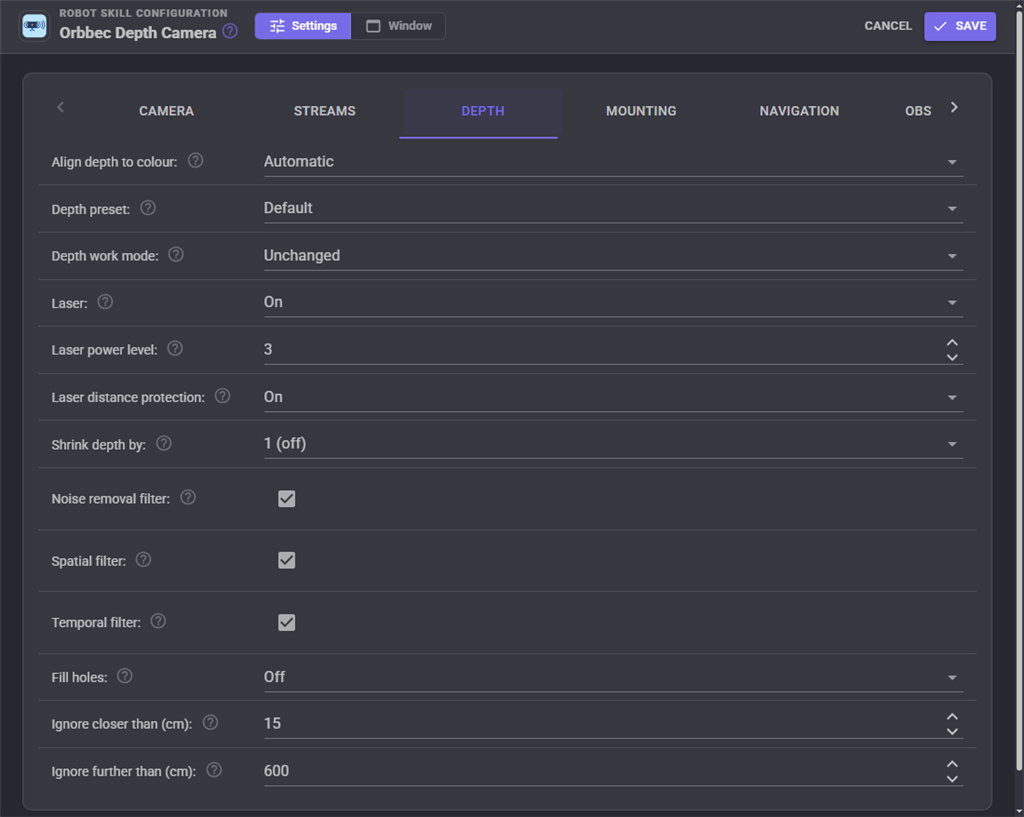
| Setting | Meaning |
|---|---|
| Align depth to colour | Automatic, in the camera, in the Orbbec SDK, or off |
| Depth preset | A Gemini 330 preset, or unchanged |
| Depth work mode | A Femto or Gemini 2 work mode, or unchanged |
| Laser, laser power level, laser distance protection | The projector |
| Shrink depth by | Orbbec's decimation filter |
| Noise removal, spatial, temporal filters, fill holes | Orbbec's post-processing filters |
| Ignore closer than, further than | Depth outside this range is discarded |
Mounting
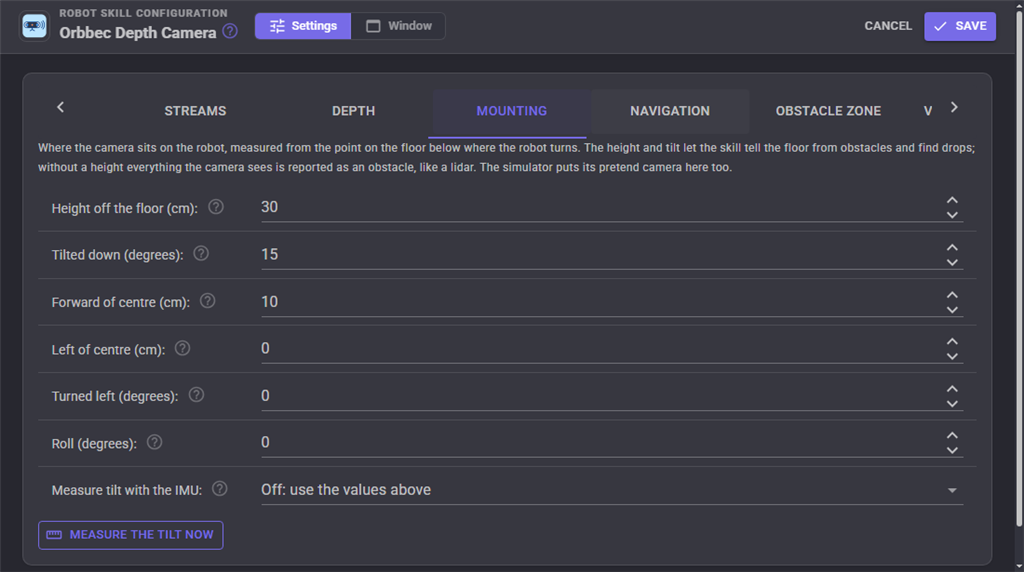
| Setting | Meaning |
|---|---|
| Height off the floor | From the floor to the camera's lenses. Needed to tell the floor from obstacles and to find drops |
| Tilted down | How far the camera looks down; negative when it looks up |
| Forward of centre, left of centre | Where the camera sits from the point the robot turns around |
| Turned left | Which way the camera faces: 0 ahead, 90 left, -90 right, 180 backwards |
| Roll | Positive when the camera's right side is lower |
| Measure tilt with the IMU | Off, at start, or continuously (see The inertial sensor) |
Navigation
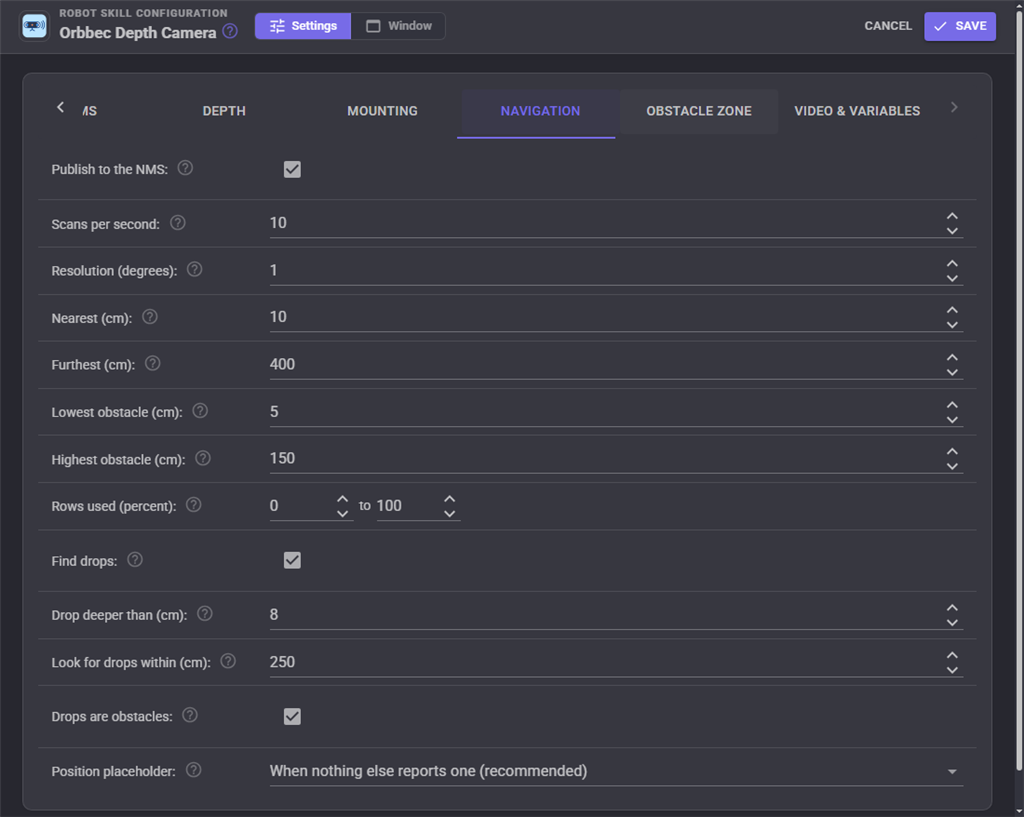
| Setting | Meaning |
|---|---|
| Publish to the NMS, scans per second | Send the scan to the navigation messaging system, at most this often |
| Resolution | Degrees per reading |
| Nearest, furthest | The distances along the floor the scan covers |
| Lowest obstacle, highest obstacle | The heights between which something is an obstacle |
| Rows used | The band of the picture used, for a camera without a mount height |
| Find drops, drop deeper than, look for drops within, drops are obstacles | Drop detection |
| Position placeholder | When to publish the placeholder position a navigator needs |
Obstacle zone
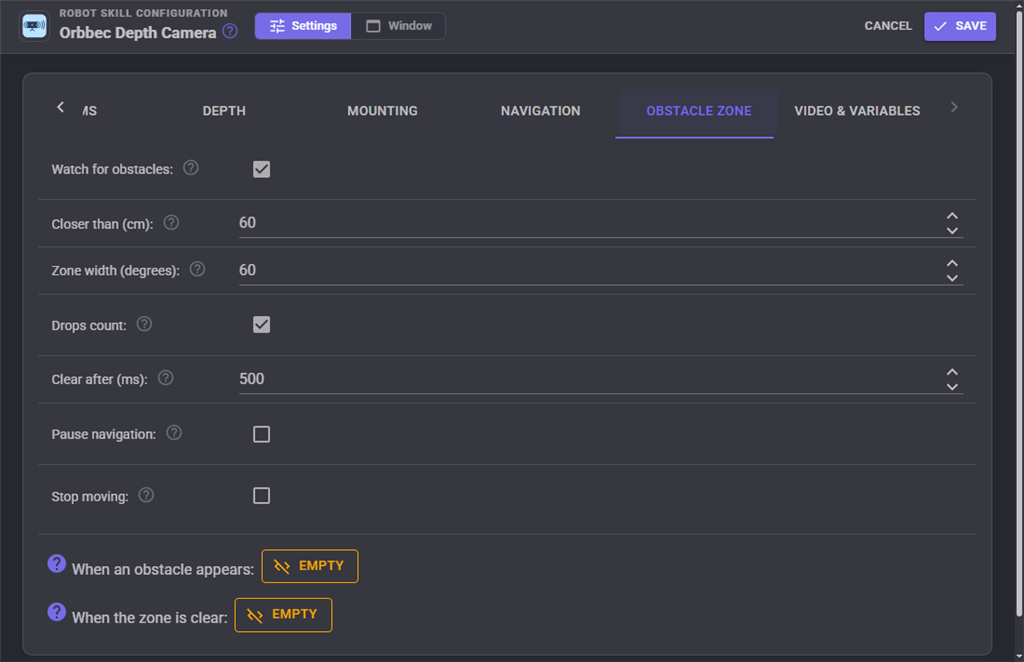
| Setting | Meaning |
|---|---|
| Watch for obstacles | Turn the zone on |
| Closer than, zone width | The size of the wedge in front of the robot |
| Drops count | A drop inside the zone is an obstacle too |
| Clear after | How long the zone must stay empty before the obstacle is over |
| Pause navigation, stop moving | What happens when something enters |
| When an obstacle appears, when the zone is clear | Scripts to run |
Video and variables
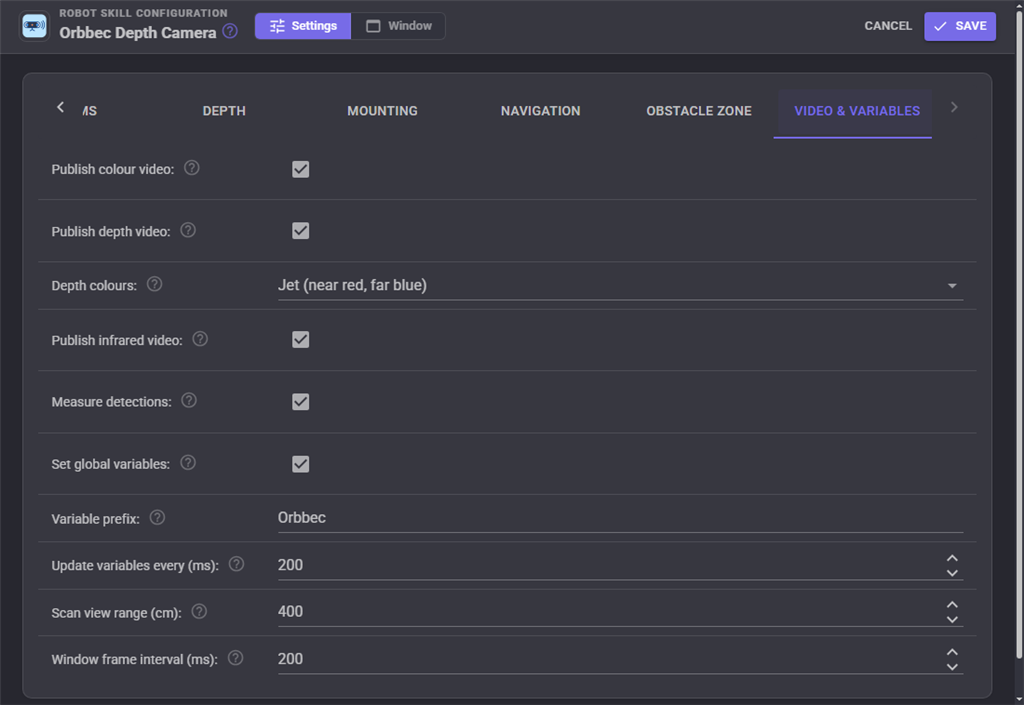
| Setting | Meaning |
|---|---|
| Publish colour, depth, infrared video | Video sources named after the window title ("Orbbec Depth Camera Color", "... Depth", "... Infrared" and "... Infrared Right") for the camera and vision skills, recording and the Custom UI |
| Depth colours | Jet, Turbo, Inferno, Viridis, Rainbow or Bone |
| Measure detections | Measure the detections made on the colour video source |
| Set global variables, prefix, update every | The global variables |
| Scan view range, window frame interval | How far the scan view shows when it opens, and how often the window's pictures update |
Custom UI
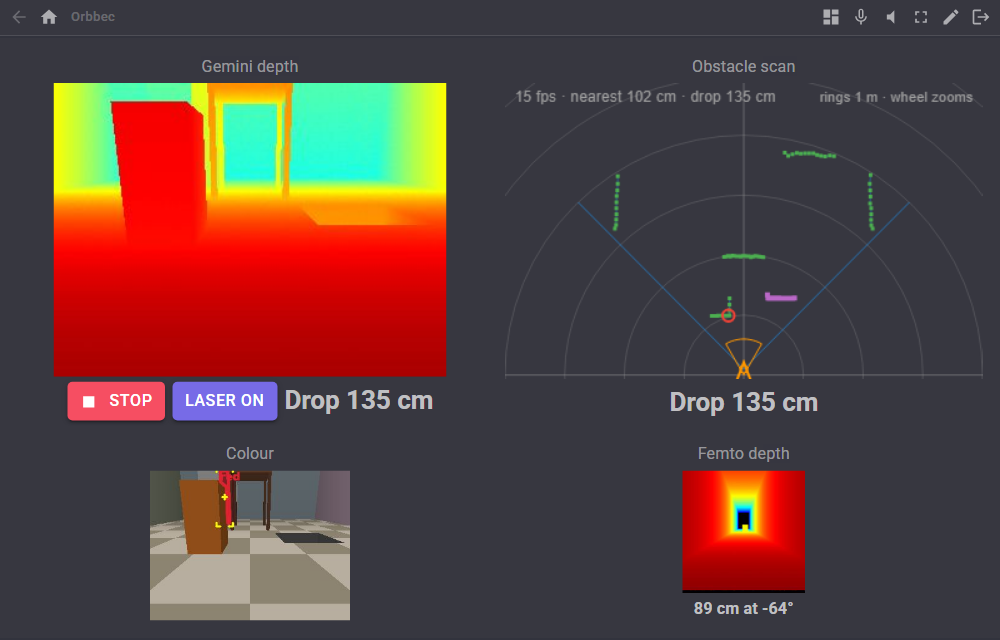
The Orbbec view widget puts the colour, depth or infrared picture, or the top down scan, on your own Custom UI screens, with a start/stop button, an optional laser button and the nearest obstacle or drop. Its View setting chooses which (Color, Depth, Infrared or Scan); several can show different views of the same camera, or of different cameras.
Troubleshooting
- No camera found: use a USB 3 port and cable. On Linux, install the udev rules (the Camera tab shows the command), then unplug and replug the camera. Ethernet cameras need Network cameras turned on. A camera already open in another program (Orbbec Viewer, another robot skill) cannot be opened again.
- The Orbbec SDK did not load: the window's last line says why. On Linux the bundled library needs a 64-bit Ubuntu 24.04 (or similar) with the standard C++ runtime; Orbbec's .deb package installs the SDK system wide as a fallback.
- Depth and colour slightly out of step on Windows: register the camera's frame metadata with Orbbec's script (Camera tab).
- Black holes in the depth: glass, mirrors, shiny and very dark surfaces, sunlight, and anything closer than the camera's minimum range (about 26 cm for a Gemini 335, 25 cm for a Femto Bolt) have no depth. Turn the laser on indoors; High Density fills more of the picture.
- The floor shows as obstacles: the mount height or tilt is wrong. Measure the tilt with the IMU, or raise the lowest obstacle height on an uneven floor.
- Drops everywhere: the same; a tilt set too far down makes the floor look as if it falls away.
- A filter is listed as not in the camera's filter chain: Orbbec's spatial, temporal, noise removal and hole filling filters come in the chain Orbbec recommends for each camera model, and only the ones in that chain can be used. The simulator has none of them.
- A recording will not play: it must come from Orbbec SDK 2.4 or later and must have been finished properly (StopRecording, or the camera stopped), not cut off.
Control Commands for the Orbbec Depth Camera robot skill
There are Control Commands available for this robot skill which allows the skill to be controlled programmatically from scripts or other robot skills. These commands enable you to automate actions, respond to sensor inputs, and integrate the robot skill with other systems or custom interfaces. If you're new to the concept of Control Commands, we have a comprehensive manual available here that explains how to use them, provides examples to get you started and make the most of this powerful feature.
Control Command ManualThis robot skill has 31 control commands, listed below. Send them from a JavaScript or Python script, from Blockly, or from another robot skill.
The first value is always the window title, which is the name in the title bar of the robot skill on your workspace. It starts out as Orbbec Depth Camera, which is what every example below uses. If you rename the robot skill, or add a second copy of it to the project, use the title as it appears on that window instead.
ControlCommand() can be shortened to CC(), and both spellings work in JavaScript and in Python. The examples are JavaScript; Python is the same call, except that true and false are written True and False.
GetCameraTilt
The camera's tilt measured from gravity by its inertial sensor, as [tilt down, roll] in radians (positive looking down, positive right side lower). [0, 0] for a camera without an inertial sensor.
Syntax
ControlCommand("Orbbec Depth Camera", "GetCameraTilt")
Returns: Array of Float
Example
var result = ControlCommand("Orbbec Depth Camera", "GetCameraTilt");
GetCenterDistance
The straight-line distance in metres from the camera to whatever the middle of its picture sees. 0 when there is no reading there.
Syntax
ControlCommand("Orbbec Depth Camera", "GetCenterDistance")
Returns: Float [1.5e45 to 3.4e38]
Example
var result = ControlCommand("Orbbec Depth Camera", "GetCenterDistance");
GetDepthPresets
The depth presets and depth work modes the running camera offers, presets first, each as "preset: name" or "work mode: name".
Syntax
ControlCommand("Orbbec Depth Camera", "GetDepthPresets")
Returns: Array of String
Example
var result = ControlCommand("Orbbec Depth Camera", "GetDepthPresets");
GetDeviceInfo
The camera's model, serial number, firmware and connection, the streams running, the alignment, the filters, the preset or work mode, the laser, the sync mode and the Orbbec SDK version.
Syntax
ControlCommand("Orbbec Depth Camera", "GetDeviceInfo")
Returns: String
Example
var result = ControlCommand("Orbbec Depth Camera", "GetDeviceInfo");
GetDistance
The distance in metres along the floor from the robot's centre to the nearest obstacle in a direction, from the latest depth scan. angle is in radians counter-clockwise from straight ahead (0 ahead, PI/2 left, -PI/2 right). 0 when nothing is seen there or the direction is outside the camera's view.
Syntax
ControlCommand("Orbbec Depth Camera", "GetDistance", (Number)angle)
Parameters
| # | Name | Type | What to pass |
|---|---|---|---|
| 1 | angle | Number | A number, without quotes |
Returns: Float [1.5e45 to 3.4e38]
Example
var result = ControlCommand("Orbbec Depth Camera", "GetDistance", 0);
GetDistanceAtPixel
The straight-line distance in metres from the camera to what a point of the picture sees. x and y are fractions of the picture's width and height from the top left (0.5, 0.5 is the middle), the same for the colour and depth pictures when depth is aligned to colour. 0 when there is no reading there.
Syntax
ControlCommand("Orbbec Depth Camera", "GetDistanceAtPixel", (Number)x, (Number)y)
Parameters
| # | Name | Type | What to pass |
|---|---|---|---|
| 1 | x | Number | A number, without quotes |
| 2 | y | Number | A number, without quotes |
Returns: Float [1.5e45 to 3.4e38]
Example
var result = ControlCommand("Orbbec Depth Camera", "GetDistanceAtPixel", 0, 0);
GetNearest
The nearest obstacle the camera sees as [distance in metres along the floor, direction in radians counter-clockwise from straight ahead]. [0, 0] when nothing is seen.
Syntax
ControlCommand("Orbbec Depth Camera", "GetNearest")
Returns: Array of Float
Example
var result = ControlCommand("Orbbec Depth Camera", "GetNearest");
GetPointAtPixel
Where the thing a point of the picture sees is, as [forward, left, height] in metres from the robot's centre on the floor (+forward ahead, +left to the robot's left, height off the floor). x and y are fractions of the picture from the top left. [0, 0, 0] when there is no reading there.
Syntax
ControlCommand("Orbbec Depth Camera", "GetPointAtPixel", (Number)x, (Number)y)
Parameters
| # | Name | Type | What to pass |
|---|---|---|---|
| 1 | x | Number | A number, without quotes |
| 2 | y | Number | A number, without quotes |
Returns: Array of Float
Example
var result = ControlCommand("Orbbec Depth Camera", "GetPointAtPixel", 0, 0);
GetSectorDistance
The distance in metres to the nearest obstacle between two directions, going counter-clockwise from startAngle to endAngle, in radians from straight ahead (-0.35 to 0.35 is the 40 degrees around straight ahead). 0 when nothing is seen there.
Syntax
ControlCommand("Orbbec Depth Camera", "GetSectorDistance", (Number)startAngle, (Number)endAngle)
Parameters
| # | Name | Type | What to pass |
|---|---|---|---|
| 1 | startAngle | Number | A number, without quotes |
| 2 | endAngle | Number | A number, without quotes |
Returns: Float [1.5e45 to 3.4e38]
Example
var result = ControlCommand("Orbbec Depth Camera", "GetSectorDistance", 0, 0);
GetTemperature
The hottest temperature the camera reports, in degrees Celsius. 0 when it reports none.
Syntax
ControlCommand("Orbbec Depth Camera", "GetTemperature")
Returns: Float [1.5e45 to 3.4e38]
Example
var result = ControlCommand("Orbbec Depth Camera", "GetTemperature");
IsCliffDetected
Whether the camera sees a drop in the floor (stairs, a ledge) right now. Needs drop detection turned on and the mount height set.
Syntax
ControlCommand("Orbbec Depth Camera", "IsCliffDetected")
Returns: Boolean [true or false]
Example
var result = ControlCommand("Orbbec Depth Camera", "IsCliffDetected");
IsObstacleDetected
Whether something is inside the obstacle zone right now. Always false when the obstacle zone is turned off.
Syntax
ControlCommand("Orbbec Depth Camera", "IsObstacleDetected")
Returns: Boolean [true or false]
Example
var result = ControlCommand("Orbbec Depth Camera", "IsObstacleDetected");
IsRecording
Whether the camera is recording to a .bag file.
Syntax
ControlCommand("Orbbec Depth Camera", "IsRecording")
Returns: Boolean [true or false]
Example
var result = ControlCommand("Orbbec Depth Camera", "IsRecording");
IsRunning
Whether the skill is running (connecting, streaming or waiting to reconnect).
Syntax
ControlCommand("Orbbec Depth Camera", "IsRunning")
Returns: Boolean [true or false]
Example
var result = ControlCommand("Orbbec Depth Camera", "IsRunning");
ListCameras
The Orbbec cameras connected to this computer, then the simulator's two, one "model (serial number)" per item.
Syntax
ControlCommand("Orbbec Depth Camera", "ListCameras")
Returns: Array of String
Example
var result = ControlCommand("Orbbec Depth Camera", "ListCameras");
MeasureTilt
Measure the camera's tilt and roll now with its inertial sensor and save them as the mounting tilt and roll. Stand the robot on level floor first. Returns the tilt down in degrees.
Syntax
ControlCommand("Orbbec Depth Camera", "MeasureTilt")
Returns: Float [1.5e45 to 3.4e38]
Example
var result = ControlCommand("Orbbec Depth Camera", "MeasureTilt");
Reboot
Restart the camera, for one that has stopped answering. Streaming carries on once it is back when reconnecting is on. Returns false when not running.
Syntax
ControlCommand("Orbbec Depth Camera", "Reboot")
Returns: Boolean [true or false]
Example
var result = ControlCommand("Orbbec Depth Camera", "Reboot");
SavePointCloud
Save the next depth frame as a 3D point cloud (.ply, opens in MeshLab, CloudCompare, Blender), in metres in the robot's frame, coloured when depth is aligned to colour. filename is optional: empty saves a dated file in the save folder. Returns the file's full path.
Syntax
ControlCommand("Orbbec Depth Camera", "SavePointCloud", (String)filename)
Parameters
| # | Name | Type | What to pass |
|---|---|---|---|
| 1 | filename | Text | Your text, in quotes |
Returns: String
Example
var result = ControlCommand("Orbbec Depth Camera", "SavePointCloud", "filename");
SelectCamera
Use the camera with this serial number (from ListCameras), restarting a running session on it. A simulator serial (SIM-G335-0001, SIM-FB-0002) switches to the simulator. Returns true.
Syntax
ControlCommand("Orbbec Depth Camera", "SelectCamera", (String)serial)
Parameters
| # | Name | Type | What to pass |
|---|---|---|---|
| 1 | serial | Text | Your text, in quotes |
Returns: Boolean [true or false]
Example
var result = ControlCommand("Orbbec Depth Camera", "SelectCamera", "serial");
SetDepthPreset
Load a depth preset by name while streaming (Gemini 330 series: "Default", "High Accuracy", "High Density", "Medium Density", "Hand"). GetDepthPresets lists what the camera has. Returns true when loaded.
Syntax
ControlCommand("Orbbec Depth Camera", "SetDepthPreset", (String)preset)
Parameters
| # | Name | Type | What to pass |
|---|---|---|---|
| 1 | preset | Text | Your text, in quotes |
Returns: Boolean [true or false]
Example
var result = ControlCommand("Orbbec Depth Camera", "SetDepthPreset", "preset");
SetDepthWorkMode
Switch the depth work mode by name (Femto and Gemini 2 cameras, e.g. "Binned Narrow FoV"). The camera restarts on the new mode. Returns true.
Syntax
ControlCommand("Orbbec Depth Camera", "SetDepthWorkMode", (String)mode)
Parameters
| # | Name | Type | What to pass |
|---|---|---|---|
| 1 | mode | Text | Your text, in quotes |
Returns: Boolean [true or false]
Example
var result = ControlCommand("Orbbec Depth Camera", "SetDepthWorkMode", "mode");
SetFilter
Turn one of Orbbec's depth post-processing filters on or off while streaming: "spatial", "temporal", "noise" (noise removal) or "holefill" (hole filling, nearest). Returns the new setting.
Syntax
ControlCommand("Orbbec Depth Camera", "SetFilter", (String)filter, (Bool)on)
Parameters
| # | Name | Type | What to pass |
|---|---|---|---|
| 1 | filter | Text | Your text, in quotes |
| 2 | on | True or false | true or false, without quotes |
Returns: Boolean [true or false]
Example
var result = ControlCommand("Orbbec Depth Camera", "SetFilter", "filter", true);
SetLaser
Set the laser projector while streaming: "on", "off" or "auto" (auto on the Gemini 330 series). Off gives a clean infrared picture but no depth on blank surfaces, and no depth at all on a Femto. Returns false when the camera has no laser setting or is not running.
Syntax
ControlCommand("Orbbec Depth Camera", "SetLaser", (String)mode)
Parameters
| # | Name | Type | What to pass |
|---|---|---|---|
| 1 | mode | Text | Your text, in quotes |
Returns: Boolean [true or false]
Example
var result = ControlCommand("Orbbec Depth Camera", "SetLaser", "mode");
SetLaserPower
Set the laser power level while streaming, on the camera's own scale (1 to 6 on a Gemini 330). Returns false when the camera has no laser power setting or is not running.
Syntax
ControlCommand("Orbbec Depth Camera", "SetLaserPower", (Number)level)
Parameters
| # | Name | Type | What to pass |
|---|---|---|---|
| 1 | level | Number | A number, without quotes |
Returns: Boolean [true or false]
Example
var result = ControlCommand("Orbbec Depth Camera", "SetLaserPower", 0);
SetLaserProtection
Turn laser distance protection (LDP, which dims the laser when something is very close) on or off while streaming. Returns false when the camera has none or is not running.
Syntax
ControlCommand("Orbbec Depth Camera", "SetLaserProtection", (Bool)on)
Parameters
| # | Name | Type | What to pass |
|---|---|---|---|
| 1 | on | True or false | true or false, without quotes |
Returns: Boolean [true or false]
Example
var result = ControlCommand("Orbbec Depth Camera", "SetLaserProtection", true);
SetPublishToNMS
Turn sending the depth scan to the Navigation Messaging System on or off. Returns the new setting.
Syntax
ControlCommand("Orbbec Depth Camera", "SetPublishToNMS", (Bool)publish)
Parameters
| # | Name | Type | What to pass |
|---|---|---|---|
| 1 | publish | True or false | true or false, without quotes |
Returns: Boolean [true or false]
Example
var result = ControlCommand("Orbbec Depth Camera", "SetPublishToNMS", true);
Start
Open the Orbbec camera (or play the recording, or start the simulator) and start streaming. Returns false if it was already running.
Syntax
ControlCommand("Orbbec Depth Camera", "Start")
Returns: Boolean [true or false]
Example
var result = ControlCommand("Orbbec Depth Camera", "Start");
StartRecording
Record everything the live camera streams to an Orbbec .bag file until StopRecording, without interrupting the stream. filename is optional: empty saves a dated file in the save folder. Returns the file's full path. Recordings grow by tens of megabytes a minute.
Syntax
ControlCommand("Orbbec Depth Camera", "StartRecording", (String)filename)
Parameters
| # | Name | Type | What to pass |
|---|---|---|---|
| 1 | filename | Text | Your text, in quotes |
Returns: String
Example
var result = ControlCommand("Orbbec Depth Camera", "StartRecording", "filename");
Stop
Stop streaming and close the camera. Returns false if it was not running.
Syntax
ControlCommand("Orbbec Depth Camera", "Stop")
Returns: Boolean [true or false]
Example
var result = ControlCommand("Orbbec Depth Camera", "Stop");
StopRecording
Finish the recording and carry on streaming. Returns the recorded file's path, or empty when nothing was being recorded.
Syntax
ControlCommand("Orbbec Depth Camera", "StopRecording")
Returns: String
Example
var result = ControlCommand("Orbbec Depth Camera", "StopRecording");
TriggerCapture
Take one picture in the SoftwareTriggering sync mode. Returns false when the camera cannot.
Syntax
ControlCommand("Orbbec Depth Camera", "TriggerCapture")
Returns: Boolean [true or false]
Example
var result = ControlCommand("Orbbec Depth Camera", "TriggerCapture");
This list is read out of the robot skill itself each time its package is uploaded, so it matches the published version (v2).


This robot skill has been updated to v1.
What has changed
initial release
This robot skill has been updated to v2.
What has changed
updated to use some new ARCx UI features for improved performance.