
Control DJI/Ryze Tello drones from ARCx with live video, telemetry, mission pads, movement scripts, HUD, and AI tools.
 Windows
 ARM
ARM
 Linux
Linux
 MacOS
MacOS
How to add the Dji Tello Movement Panel robot skill
- Load the most recent release of ARCx on a compatible operating system (Get ARCx).
- Press the + Skills menu from the top menu bar in ARCx.
- Choose any of these category tabs, the robot skill appears in each of them: Camera, Movement Panels, Remote Control.
- Press the Dji Tello Movement Panel icon to add the robot skill to your project.
Don't have a robot yet?
Follow the Getting Started Guide to build a robot and use the Dji Tello Movement Panel robot skill.
How to use the Dji Tello Movement Panel robot skill
Flies a DJI / Ryze Tello or Tello EDU drone from ARCx over the Tello SDK, the drone's own Wi-Fi text protocol. The drone's camera becomes an ARCx video source, its telemetry becomes global variables and a pilot's HUD, and its flight commands (take-off, landing, measured moves, turns, flips, mission pads) are there for scripts, Custom UI screens and AI assistants.
This is a movement panel: once it is in the project, everything in ARCx that moves the robot - the Movement Joystick, Movement.forward() in a script, a Custom UI joystick, a tracking skill, the Autonomous AI skill - flies the Tello. Only one Movement Panel can be in a project at a time.
Requirements
- A Tello or Tello EDU with a charged battery, and the computer running ARCx joined to the drone's Wi-Fi (TELLO-XXXXXX). The drone is then at 192.168.10.1, which is the default.
- Nothing to install for the video: the H.264 decoder is the one inside the OpenCV that ARCx ships. On an ARCx whose OpenCV was built without FFmpeg, install FFmpeg and choose the FFmpeg program decoder on the Camera tab.
- A firewall that lets UDP in on ports 8890 (telemetry) and 11111 (video). Windows asks the first time ARCx listens on them; allow it on private networks.
A computer joined to the Tello's Wi-Fi has no internet through it. Use a second Wi-Fi adapter or a cable for the internet if you need both, or switch a Tello EDU to station mode so it joins your own router.
The window
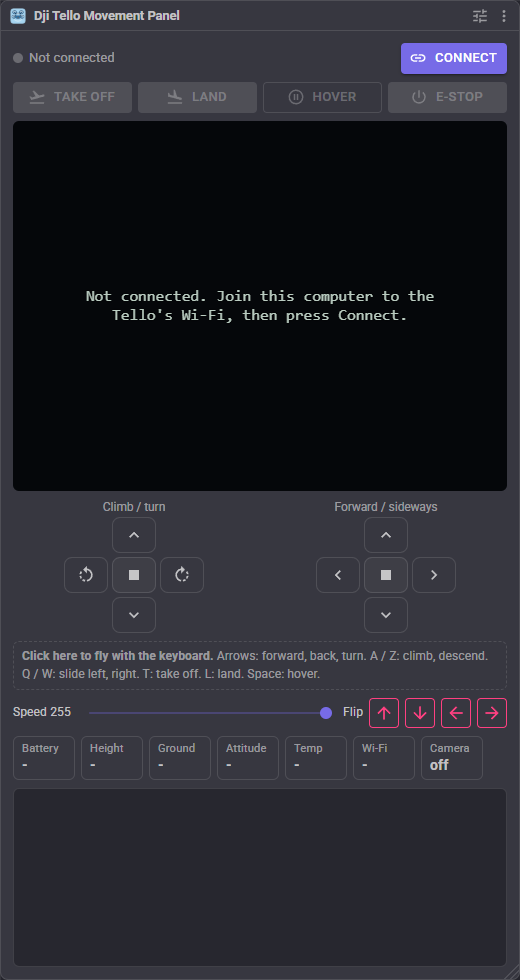
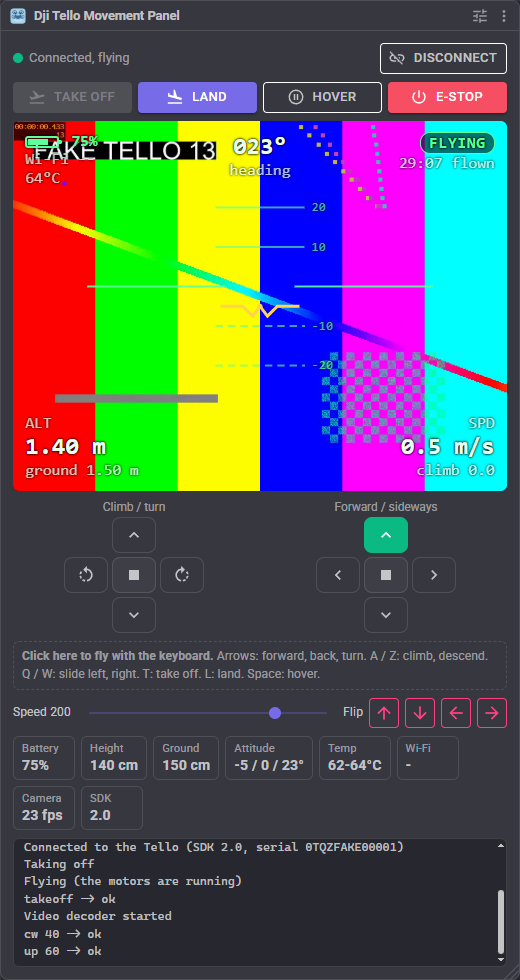
- Status and Connect - the link's state (green connected, amber connecting, red link lost), whether the drone is on the ground, taking off or flying, and the command it is busy with.
- Take off, Land, Hover, E-stop - take off to about 80 cm, land where it is, stop moving and hover, and cut the motors. E-stop drops the drone out of the air: it is for a drone about to hurt someone or itself, not for stopping.
- Camera and HUD - the drone's camera with a pilot's HUD over it: the artificial horizon (roll and pitch), the heading, the height above the take-off point and the distance to the ground, the speed and climb rate, the battery and Wi-Fi signal, the temperature, the flight time, the mission pad in view, and the move in progress. The HUD is only drawn in this window and in the HUD widget; the published video stays clean for the vision skills.
- The sticks - two pads laid out like a drone remote in mode 2. The left one climbs, descends and turns; the right one flies forward, back and slides sideways. Hold a button to fly that way and let go to hover. A button lights up while the drone goes that way, whoever asked for it.
- Keyboard - click the dashed box and fly with the keys: the arrows fly forward, back and turn, A and Z climb and descend, Q and W slide left and right (the same keys as the ARC version), T takes off, L lands and Space hovers. Letting go of a key hovers.
- Speed - the movement manager's speed, shared with every other skill and script. It scales every stick.
- Flip - flip forward, back, left or right. The Tello refuses below 50% battery.
- Tiles - battery, height, ground distance, attitude, temperature, Wi-Fi, the camera's frame rate and the SDK version.
- The log, which says what the skill and the drone are doing, and anything the drone refused.
Connecting and staying connected
Press Connect. The skill puts the drone in SDK mode (command), reads its SDK version and serial number, sets the speed of measured moves, and turns the camera on. With Reconnect automatically on, a drone that is not switched on yet is waited for.
A Tello lands by itself when it hears nothing for 15 seconds. The skill therefore asks for the battery or the Wi-Fi signal every few seconds when nothing else is being sent, and repeats the sticks five times a second while the drone moves (which also means a lost Wi-Fi packet costs only a moment). This keeps running while a configuration window is open.
When nothing is heard from the drone for a few seconds (out of range, battery pulled) the link counts as lost: the Disconnected script runs, the window turns red, and the skill keeps trying to reach the drone until it answers or Disconnect is pressed. A drone that hears nothing lands by itself after 15 seconds; one that comes back in range in time carries on.
Disconnect lands a flying drone first, and removing the skill or closing the project sends a flying drone the land command, unless those are turned off on the Safety tab.
How it flies
The movement panel's directions become the Tello's sticks (rc), as in the ARC version:
| Direction | Stick |
|---|---|
| Forward, Reverse | Forward stick; different left and right speeds also turn, toward the slower side |
| Left, Right | Turn on the spot (yaw), or slide sideways when Left and right is set to Slide |
| Up, Down | Climb and descend |
| Roll left, Roll right | Slide sideways |
| Take off, Land, Emergency | takeoff, land, emergency |
| Stop | All sticks centred: hover |
How far each stick is pushed at the top speed (255) is set on the Flying tab, and a lower movement speed pushes it less. The ARC version used a fixed 25 for climbing and sliding; here they follow the speed.
The movement manager's custom movements (Movement.fromString("FlipLeft") and the like) are understood too: YawLeft, YawRight, StrafeLeft, StrafeRight, Hover, FlipForward, FlipBack, FlipLeft and FlipRight.
Scripts can also fly measured moves that the drone carries out by itself and reports when done: a distance in centimetres, a turn in degrees, a flight to a point, an arc, a flip, and (Tello EDU) a flight to a point over a mission pad. These wait until the drone has arrived, and stop the script with the drone's own reason when it refuses ("error Not in flight", a low battery flip). Hover cuts a measured move short on SDK 2.0 drones.
Safety
- Ceiling - the highest the drone may climb above its take-off point. At the ceiling the climb stick stops working and measured moves up are refused. Set it below the ceiling of the room indoors.
- Low battery - at the warning level the window turns red and the Low battery script runs once; at the landing level a flying drone is landed automatically. The Tello also lands itself when nearly empty.
- Auto hover - hover when a movement goes on for too long without a new command, so a lost key up or a stuck script cannot fly the drone into a wall.
- Panic button - ARCx's panic button hovers, lands or cuts the motors, as chosen.
- The skill notices a take-off or landing it did not ask for (the drone landing on a low battery, after 15 seconds of silence, or from another app) from the drone's motor timer, and runs the matching script.
The camera
The camera is published as an ARCx video source named Tello Camera (changeable on the Camera tab), so the Camera, tracking and detection skills, the Custom UI camera widget and the AI's camera tools can use it like any camera. The ARC version needed a Camera Device set to CUSTOM and started by hand; that is no longer needed.
The skill receives the video itself and starts decoding at a key frame, so the picture appears clean about a second after the camera starts. If the computer falls behind, the backlog is dropped rather than shown late. When the drone sends no video for five seconds the camera is asked for again.
Most frames a second limits what is handed to the vision skills (the drone sends about 30). A Tello EDU can stream its downward camera instead with the SetCamera control command.
Telemetry variables
All start with the variable prefix (Tello by default):
| Variable | What it is |
|---|---|
| TelloConnected, TelloFlying | The link and the flight state |
| TelloBattery, TelloLowBattery | Battery percent, and whether it is at the warning level |
| TelloHeight, TelloTimeOfFlight | Height above the take-off point, and the downward sensor's distance to the ground, in cm |
| TelloPitch, TelloRoll, TelloYaw | Attitude in degrees |
| TelloSpeedX, TelloSpeedY, TelloSpeedZ | Speed as the drone reports it (believed to be decimetres a second) |
| TelloTemperatureLow, TelloTemperatureHigh | Board temperature in degrees Celsius |
| TelloBarometer, TelloMotorTime | Barometric altitude as reported, and seconds the motors have run |
| TelloAccelerationX, Y, Z | Acceleration in thousandths of g |
| TelloWifiSnr | The Wi-Fi signal to noise ratio |
| TelloMissionPad, TelloPadX, TelloPadY, TelloPadZ | Tello EDU: the mission pad in view (-1 none) and the drone's position over it in cm |
| TelloSdk, TelloSerialNumber | The SDK version and serial number |
| TelloLastAnswer | The drone's answer to the last command sent |
| TelloVideoFps | Frames a second decoded from the camera |
Scripts
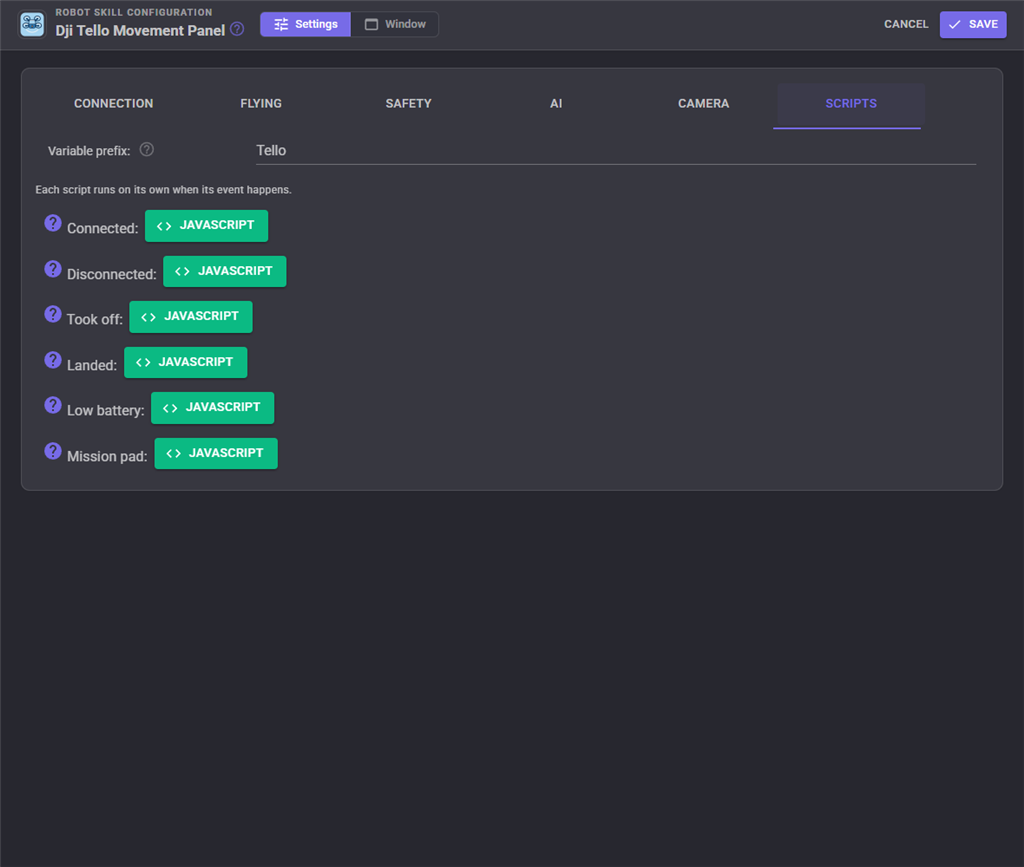
On the Scripts tab, a script for each event: Connected, Disconnected, Took off, Landed, Low battery and (Tello EDU) Mission pad. Each runs on its own, so the Took off script does not cut short the Connected script that ran a moment before. A simple Low battery script:
Audio.say("Battery low, coming home");
controlCommand("Dji Tello Movement Panel", "Land");
Mission pads (Tello EDU)
Turn detection on with the EnableMissionPads ControlCommand (0 looks down, 1 forward, 2 both). When a pad comes into view the Mission pad script runs with its number in TelloMissionPad, and the HUD shows it. GoToMissionPad flies to a point relative to a pad.
AI assistants
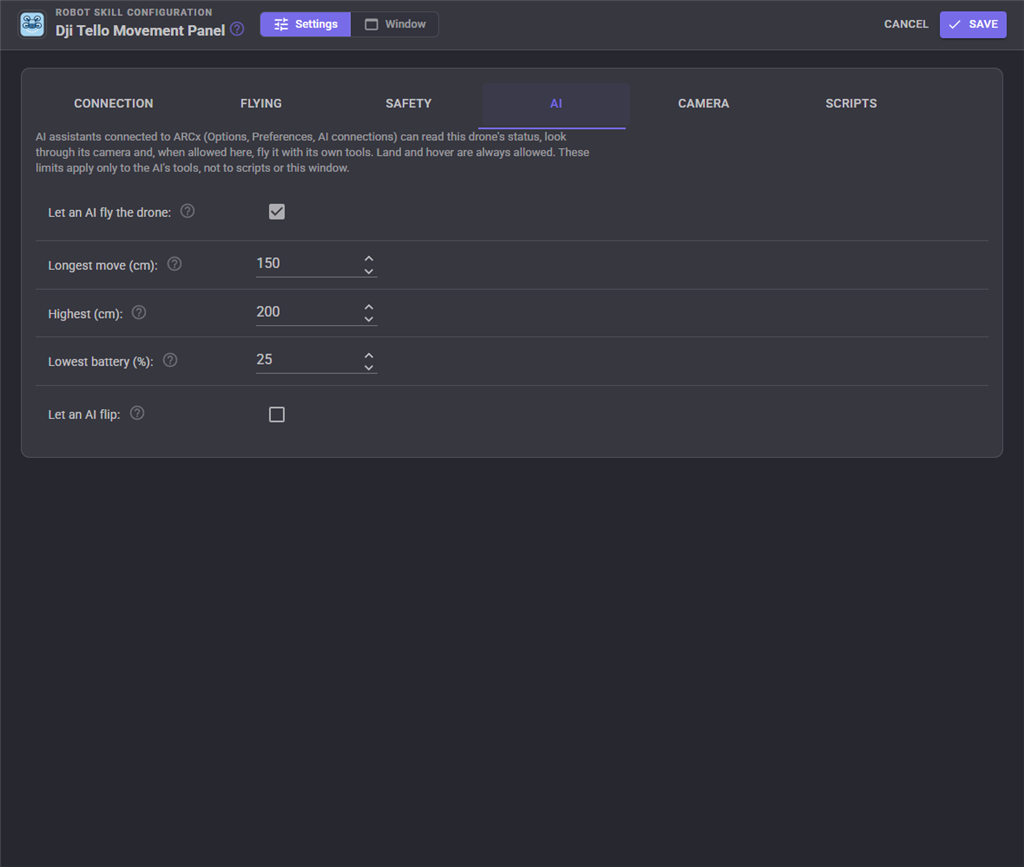
AI assistants connected to ARCx (Options, Preferences, AI connections) get this drone's own tools: read its status, look through its camera, take off, land, hover, move a measured distance, turn, and flip. The AI tab sets what an AI may do: whether it may fly at all, the longest single move, the highest it may go, the lowest battery it may fly on, and whether it may flip. Land and hover are always allowed. The limits apply only to the AI's tools; scripts and this window are not limited by them. ARCx's own "Allow the AI to control the robot" preference applies too.
Custom UI widgets
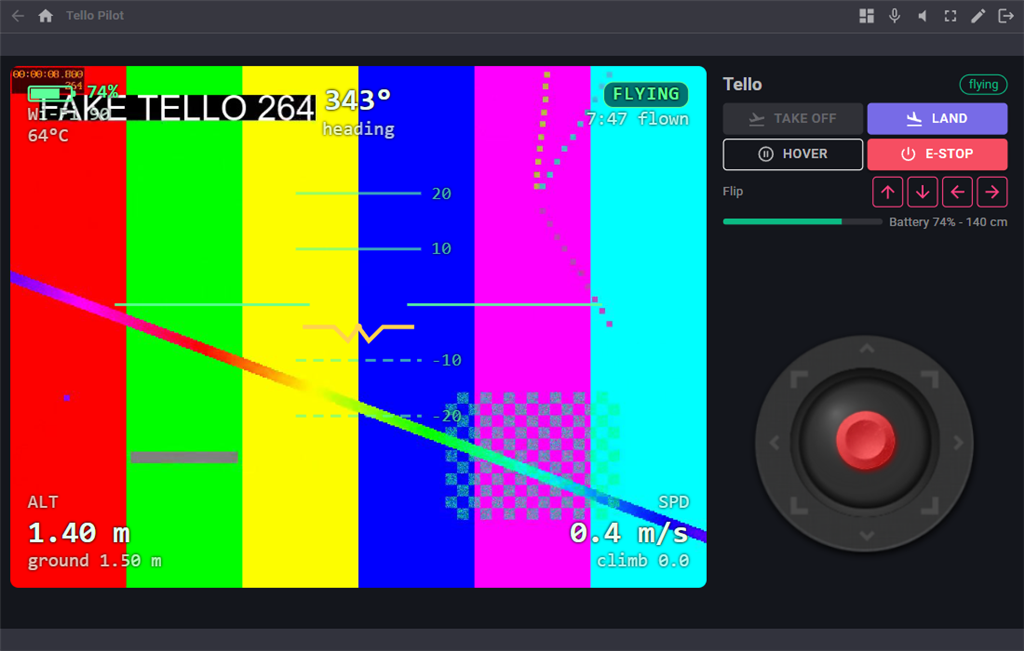
- Tello Camera HUD - the camera with the flight HUD over it, the pilot's view on a phone or kiosk. ShowVideo false shows the HUD on black, ShowHorizon false leaves out the horizon.
- Tello Flight Buttons - take off, land, hover and E-stop, the flight state, the battery and height, and optionally the four flips (ShowFlips). Put the Custom UI's Drive joystick beside it to fly.
Configuration
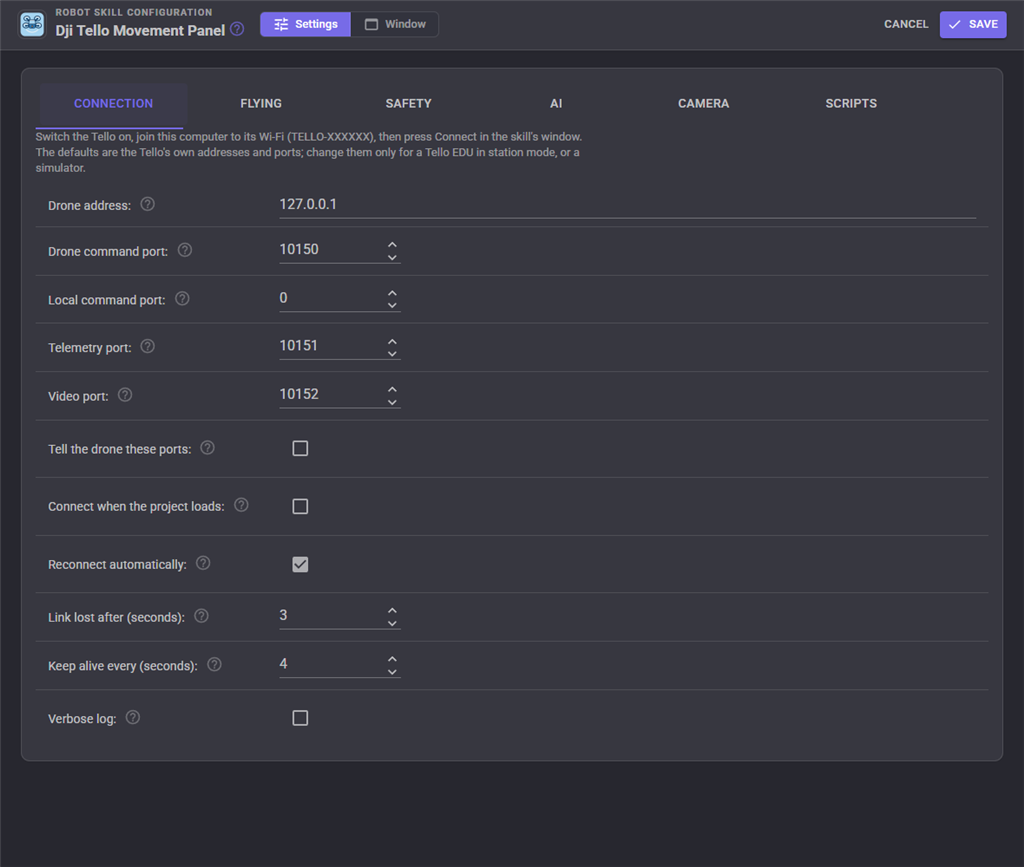
| Connection | |
|---|---|
| Drone address | 192.168.10.1 on the Tello's own Wi-Fi. A Tello EDU in station mode gets an address from your router. |
| Drone command port | 8889 on every Tello. |
| Local command port | The port commands are sent from. 0 lets the computer choose. |
| Telemetry port, Video port | Where the drone sends its telemetry and video: 8890 and 11111 on every Tello. |
| Tell the drone these ports | Tello EDU: send port so the drone uses the two ports above. Lets two drones in station mode share one computer. |
| Connect when the project loads | Connect without pressing Connect. |
| Reconnect automatically | Keep trying when the drone stops answering, or is not on yet. |
| Link lost after | Seconds without telemetry before the link counts as lost. |
| Keep alive every | Seconds between keep alive queries when nothing else is sent. Keep it well below 15. |
| Verbose log | Log every command and answer, sticks and keep alive included. |
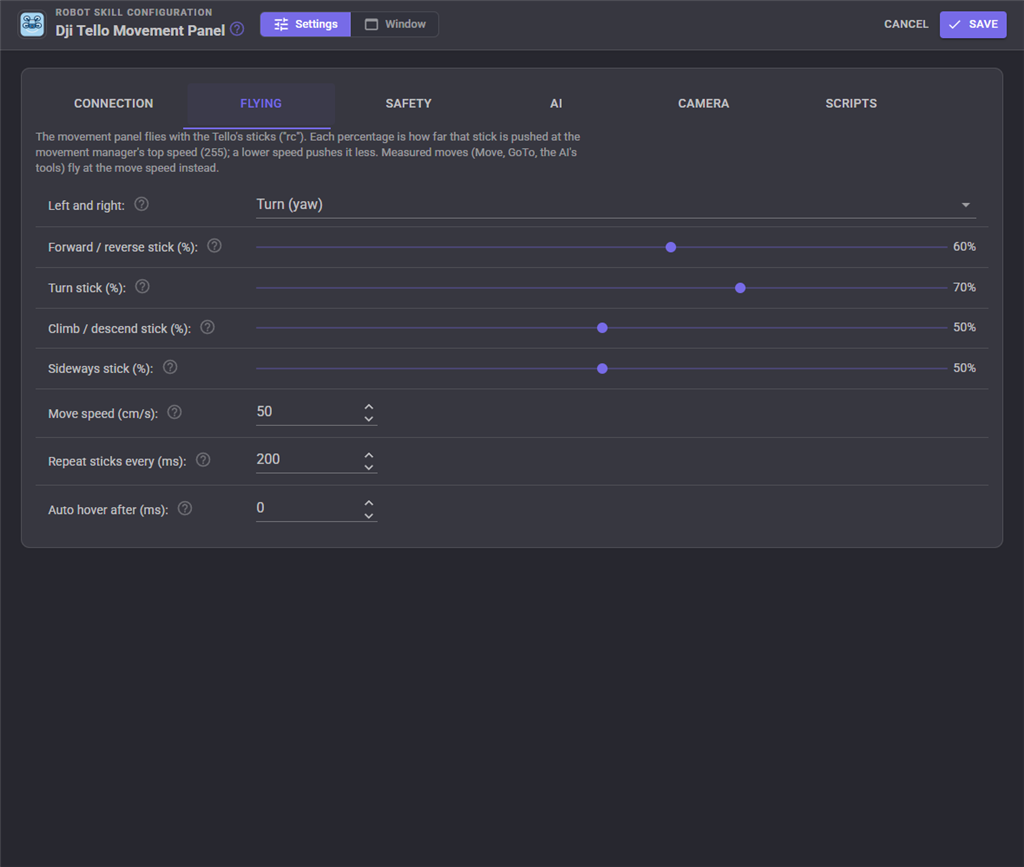
| Flying | |
|---|---|
| Left and right | Turn (yaw), as the ARC version, or slide sideways. |
| Forward / reverse, Turn, Climb / descend, Sideways stick | How far each stick is pushed at the top speed, in percent. |
| Move speed | The speed of measured moves, 10 to 100 cm/s. |
| Repeat sticks every | How often the sticks are sent again while moving. |
| Auto hover after | Hover when a movement goes on this long without a new command. 0 is off. |
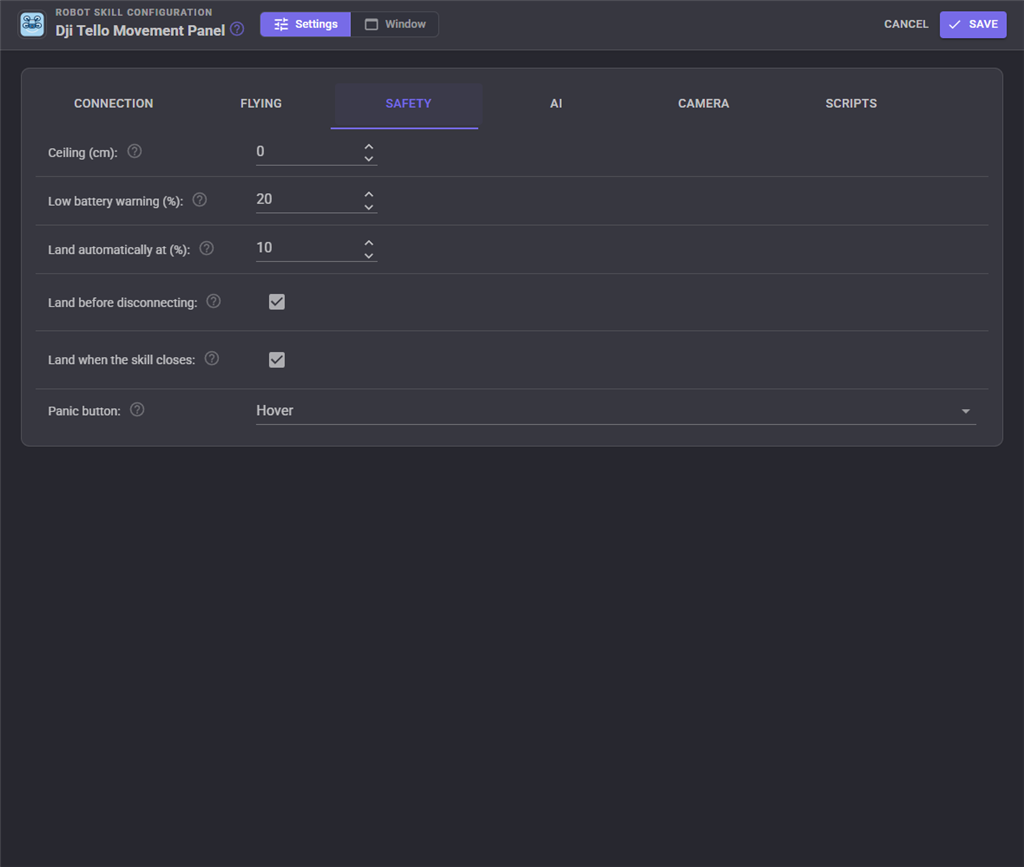
| Safety | |
|---|---|
| Ceiling | The highest the drone may climb above its take-off point, in cm. 0 is none. |
| Low battery warning | The battery percent that warns and runs the Low battery script. |
| Land automatically at | The battery percent that lands a flying drone. |
| Land before disconnecting | Disconnect lands a flying drone first. |
| Land when the skill closes | Removing the skill or closing the project lands a flying drone. |
| Panic button | Hover, land, or cut the motors. |
| AI | |
|---|---|
| Let an AI fly the drone | Off: an AI can only read the status, look, land and hover. |
| Longest move, Highest, Lowest battery | The limits on the AI's moves. |
| Let an AI flip | Allow the flip tool. |
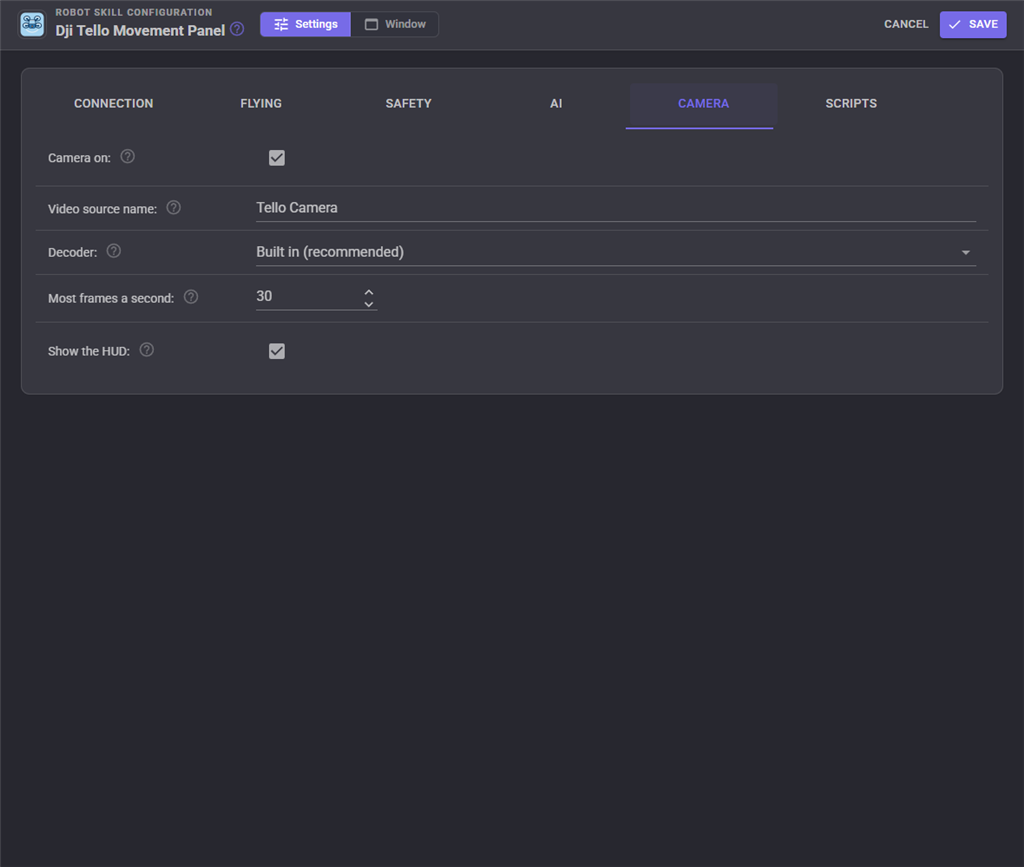
| Camera | |
|---|---|
| Camera on | Turn the camera on when connected and publish it. |
| Video source name | The name other skills choose the camera by. |
| Decoder | Built in, or an FFmpeg program on this computer. |
| FFmpeg program, Frame size | For the FFmpeg program decoder: where ffmpeg is, and the size it delivers. |
| Most frames a second | The most frames handed to the vision skills. 0 is every frame. |
| Show the HUD | Draw the HUD over the camera in this window. |
Coming from the ARC version
- The camera no longer needs a Camera Device set to CUSTOM: the skill publishes its own video source, decoded inside ARCx instead of by a bundled ffmpeg.exe, so it also works on Linux.
- The skill reads the drone's answers and telemetry. The ARC version sent commands without listening, so a refused take-off or flip went unnoticed and nothing knew whether the drone was flying.
- Keep alive, link loss detection and reconnection, low battery landing, a ceiling, auto hover, landing on disconnect and a panic action are new.
- Climbing and sliding follow the movement speed instead of a fixed 25.
- Control commands, scripts on events, telemetry variables, mission pads, the HUD, the widgets and the AI tools are new. The ARC version had none.
Troubleshooting
- No answer from the drone - is the computer joined to the TELLO-XXXXXX Wi-Fi, and is the drone's light blinking yellow (ready)? Some computers drop a Wi-Fi network without internet; tell the computer to stay connected. Only one program can fly a Tello: close the Tello app on your phone.
- Connected but no telemetry or no video - the firewall is blocking UDP 8890 or 11111. Allow ARCx on private networks.
- "OpenCV could not open the H.264 stream" - this ARCx's OpenCV has no FFmpeg. Choose the FFmpeg program decoder on the Camera tab.
- The take-off is refused - the battery is too low, the drone is too hot (it warms up quickly on the ground with the camera on), or it is not on a flat surface.
- Flips are refused - the Tello needs 50% battery to flip.
This skill was tested against a simulated Tello (commands, telemetry, a replayed H.264 stream); it has not flown a real Tello yet. The units of the speed fields, the sign of the climb rate and the axes of GoTo come from the SDK documentation and community notes, not from a drone.
Control Commands for the Dji Tello Movement Panel robot skill
There are Control Commands available for this robot skill which allows the skill to be controlled programmatically from scripts or other robot skills. These commands enable you to automate actions, respond to sensor inputs, and integrate the robot skill with other systems or custom interfaces. If you're new to the concept of Control Commands, we have a comprehensive manual available here that explains how to use them, provides examples to get you started and make the most of this powerful feature.
Control Command ManualThis robot skill has 26 control commands, listed below. Send them from a JavaScript or Python script, from Blockly, or from another robot skill.
The first value is always the window title, which is the name in the title bar of the robot skill on your workspace. It starts out as Dji Tello Movement Panel, which is what every example below uses. If you rename the robot skill, or add a second copy of it to the project, use the title as it appears on that window instead.
ControlCommand() can be shortened to CC(), and both spellings work in JavaScript and in Python. The examples are JavaScript; Python is the same call, except that true and false are written True and False.
Connect
Connect to the drone (enter SDK mode, set the move speed, start the camera) and wait up to 10 seconds. Returns true when connected.
Syntax
ControlCommand("Dji Tello Movement Panel", "Connect")
Returns: Boolean [true or false]
Example
var result = ControlCommand("Dji Tello Movement Panel", "Connect");
Curve
Fly an ARC through two points relative to the drone (centimetres, x forward, y left, z up) at 10 to 60 cm/s. The arc's radius must be 50 to 1000 cm or the drone refuses. Blocks until done.
Syntax
ControlCommand("Dji Tello Movement Panel", "Curve", (Number)x1, (Number)y1, (Number)z1, (Number)x2, (Number)y2, (Number)z2, (Number)speed)
Parameters
| # | Name | Type | What to pass |
|---|---|---|---|
| 1 | x1 | Number | A number, without quotes |
| 2 | y1 | Number | A number, without quotes |
| 3 | z1 | Number | A number, without quotes |
| 4 | x2 | Number | A number, without quotes |
| 5 | y2 | Number | A number, without quotes |
| 6 | z2 | Number | A number, without quotes |
| 7 | speed | Number | A number, without quotes |
Returns: nothing
Example
ControlCommand("Dji Tello Movement Panel", "Curve", 0, 0, 0, 0, 0, 0, 0);
DisableMissionPads
Tello EDU: stop detecting mission pads.
Syntax
ControlCommand("Dji Tello Movement Panel", "DisableMissionPads")
Returns: nothing
Example
ControlCommand("Dji Tello Movement Panel", "DisableMissionPads");
Disconnect
Close the link to the drone. A flying drone is landed first when Land on disconnect is on.
Syntax
ControlCommand("Dji Tello Movement Panel", "Disconnect")
Returns: nothing
Example
ControlCommand("Dji Tello Movement Panel", "Disconnect");
Emergency
Cut the motors at once. The drone falls; only for a drone about to hurt someone or itself.
Syntax
ControlCommand("Dji Tello Movement Panel", "Emergency")
Returns: nothing
Example
ControlCommand("Dji Tello Movement Panel", "Emergency");
EnableMissionPads
Tello EDU: detect mission pads. direction 0 looks down, 1 forward, 2 both (down and forward alternate at 10 Hz each).
Syntax
ControlCommand("Dji Tello Movement Panel", "EnableMissionPads", (Number)direction)
Parameters
| # | Name | Type | What to pass |
|---|---|---|---|
| 1 | direction | Number | A number, without quotes |
Returns: nothing
Example
ControlCommand("Dji Tello Movement Panel", "EnableMissionPads", 0);
Flip
Flip: forward, back, left or right. Blocks until done. The drone refuses below 50% battery.
Syntax
ControlCommand("Dji Tello Movement Panel", "Flip", (String)direction)
Parameters
| # | Name | Type | What to pass |
|---|---|---|---|
| 1 | direction | Text | Your text, in quotes |
Returns: nothing
Example
ControlCommand("Dji Tello Movement Panel", "Flip", "direction");
GetBattery
The battery charge in percent, -1 before the first reading.
Syntax
ControlCommand("Dji Tello Movement Panel", "GetBattery")
Returns: Integer [-2,147,483,648 to 2,147,483,647]
Example
var result = ControlCommand("Dji Tello Movement Panel", "GetBattery");
GetHeight
The height above the take-off point in centimetres.
Syntax
ControlCommand("Dji Tello Movement Panel", "GetHeight")
Returns: Integer [-2,147,483,648 to 2,147,483,647]
Example
var result = ControlCommand("Dji Tello Movement Panel", "GetHeight");
GetState
The drone's latest telemetry exactly as it sent it ("pitch:0;roll:0;yaw:0;..."), empty before the first.
Syntax
ControlCommand("Dji Tello Movement Panel", "GetState")
Returns: String
Example
var result = ControlCommand("Dji Tello Movement Panel", "GetState");
GoTo
Fly to a point relative to where the drone is, in centimetres along the Tello's own axes (x forward, y left, z up; each -500 to 500), at a speed of 10 to 100 cm/s. Blocks until it has arrived.
Syntax
ControlCommand("Dji Tello Movement Panel", "GoTo", (Number)x, (Number)y, (Number)z, (Number)speed)
Parameters
| # | Name | Type | What to pass |
|---|---|---|---|
| 1 | x | Number | A number, without quotes |
| 2 | y | Number | A number, without quotes |
| 3 | z | Number | A number, without quotes |
| 4 | speed | Number | A number, without quotes |
Returns: nothing
Example
ControlCommand("Dji Tello Movement Panel", "GoTo", 0, 0, 0, 0);
GoToMissionPad
Tello EDU: fly to a point relative to a mission pad (centimetres x, y, z; speed 10 to 100 cm/s; pad 1 to 8). The pad must be in view. Blocks until done.
Syntax
ControlCommand("Dji Tello Movement Panel", "GoToMissionPad", (Number)x, (Number)y, (Number)z, (Number)speed, (Number)pad)
Parameters
| # | Name | Type | What to pass |
|---|---|---|---|
| 1 | x | Number | A number, without quotes |
| 2 | y | Number | A number, without quotes |
| 3 | z | Number | A number, without quotes |
| 4 | speed | Number | A number, without quotes |
| 5 | pad | Number | A number, without quotes |
Returns: nothing
Example
ControlCommand("Dji Tello Movement Panel", "GoToMissionPad", 0, 0, 0, 0, 0);
Hover
Stop moving and hover: centres the sticks and stops a measured move in progress.
Syntax
ControlCommand("Dji Tello Movement Panel", "Hover")
Returns: nothing
Example
ControlCommand("Dji Tello Movement Panel", "Hover");
IsConnected
Whether the drone is connected and answering.
Syntax
ControlCommand("Dji Tello Movement Panel", "IsConnected")
Returns: Boolean [true or false]
Example
var result = ControlCommand("Dji Tello Movement Panel", "IsConnected");
IsFlying
Whether the drone is in the air (from the take-off and land commands and the motor timer in its telemetry).
Syntax
ControlCommand("Dji Tello Movement Panel", "IsFlying")
Returns: Boolean [true or false]
Example
var result = ControlCommand("Dji Tello Movement Panel", "IsFlying");
IsVideoRunning
Whether video frames are arriving and being decoded.
Syntax
ControlCommand("Dji Tello Movement Panel", "IsVideoRunning")
Returns: Boolean [true or false]
Example
var result = ControlCommand("Dji Tello Movement Panel", "IsVideoRunning");
Land
Land where it is. Blocks until it has landed. Cuts short any measured move in progress.
Syntax
ControlCommand("Dji Tello Movement Panel", "Land")
Returns: nothing
Example
ControlCommand("Dji Tello Movement Panel", "Land");
Move
Fly a measured distance and hover: direction forward, back, left, right, up or down, distance 20 to 500 cm. Blocks until the drone has arrived.
Syntax
ControlCommand("Dji Tello Movement Panel", "Move", (String)direction, (Number)centimetres)
Parameters
| # | Name | Type | What to pass |
|---|---|---|---|
| 1 | direction | Text | Your text, in quotes |
| 2 | centimetres | Number | A number, without quotes |
Returns: nothing
Example
ControlCommand("Dji Tello Movement Panel", "Move", "direction", 0);
Rc
Set the sticks directly, each -100 to 100: left/right, forward/back, up/down, yaw. They stay until changed (Rc 0 0 0 0, Hover, or any movement).
Syntax
ControlCommand("Dji Tello Movement Panel", "Rc", (Number)leftRight, (Number)forwardBack, (Number)upDown, (Number)yaw)
Parameters
| # | Name | Type | What to pass |
|---|---|---|---|
| 1 | leftRight | Number | A number, without quotes |
| 2 | forwardBack | Number | A number, without quotes |
| 3 | upDown | Number | A number, without quotes |
| 4 | yaw | Number | A number, without quotes |
Returns: nothing
Example
ControlCommand("Dji Tello Movement Panel", "Rc", 0, 0, 0, 0);
Rotate
Turn on the spot by an angle in degrees: positive turns right (clockwise, seen from above), negative left. Blocks until done.
Syntax
ControlCommand("Dji Tello Movement Panel", "Rotate", (Number)degrees)
Parameters
| # | Name | Type | What to pass |
|---|---|---|---|
| 1 | degrees | Number | A number, without quotes |
Returns: nothing
Example
ControlCommand("Dji Tello Movement Panel", "Rotate", 0);
SendCommand
Send any Tello SDK command ("battery?", "wifi?", "ccw 90", "mdirection 2") and return the drone's answer.
Syntax
ControlCommand("Dji Tello Movement Panel", "SendCommand", (String)command)
Parameters
| # | Name | Type | What to pass |
|---|---|---|---|
| 1 | command | Text | Your text, in quotes |
Returns: String
Example
var result = ControlCommand("Dji Tello Movement Panel", "SendCommand", "command");
SetCamera
Tello EDU: which camera is streamed, forward or down.
Syntax
ControlCommand("Dji Tello Movement Panel", "SetCamera", (String)camera)
Parameters
| # | Name | Type | What to pass |
|---|---|---|---|
| 1 | camera | Text | Your text, in quotes |
Returns: nothing
Example
ControlCommand("Dji Tello Movement Panel", "SetCamera", "camera");
SetSpeed
Set the speed of measured moves (Move, GoTo) in centimetres per second, 10 to 100. Saved in the configuration.
Syntax
ControlCommand("Dji Tello Movement Panel", "SetSpeed", (Number)cmPerSecond)
Parameters
| # | Name | Type | What to pass |
|---|---|---|---|
| 1 | cmPerSecond | Number | A number, without quotes |
Returns: nothing
Example
ControlCommand("Dji Tello Movement Panel", "SetSpeed", 0);
StartVideo
Turn the drone's camera on and publish it as this skill's video source.
Syntax
ControlCommand("Dji Tello Movement Panel", "StartVideo")
Returns: nothing
Example
ControlCommand("Dji Tello Movement Panel", "StartVideo");
StopVideo
Turn the drone's camera off.
Syntax
ControlCommand("Dji Tello Movement Panel", "StopVideo")
Returns: nothing
Example
ControlCommand("Dji Tello Movement Panel", "StopVideo");
Takeoff
Take off and hover at about 80 cm. Blocks until the drone has taken off (up to 20 seconds); throws when the drone refuses (low battery, too hot, not level).
Syntax
ControlCommand("Dji Tello Movement Panel", "Takeoff")
Returns: nothing
Example
ControlCommand("Dji Tello Movement Panel", "Takeoff");
This list is read out of the robot skill itself each time its package is uploaded, so it matches the published version (v2).


This robot skill has been updated to v1.
What has changed
initial release
This robot skill has been updated to v2.
What has changed
updated to use some new ARCx UI features for improved performance.