
Listens to microphone pitch, publishes frequency and note, moves servos, and triggers scripts from detected sound bands
 Windows
 ARM
ARM
 Linux
Linux
 MacOS
MacOS
How to add the Frequency Detector robot skill
- Load the most recent release of ARCx on a compatible operating system (Get ARCx).
- Press the + Skills menu from the top menu bar in ARCx.
- Choose any of these category tabs, the robot skill appears in each of them: Audio, Graphs.
- Press the Frequency Detector icon to add the robot skill to your project.
Don't have a robot yet?
Follow the Getting Started Guide to build a robot and use the Frequency Detector robot skill.
How to use the Frequency Detector robot skill
The Frequency Detector listens to the microphone and works out the pitch of what it hears: a whistle, a hum, a sung note, a tone from an instrument or a buzzer. The frequency is published in a global variable, drawn on a live graph, turned into a musical note name, used to move servos, and can run scripts when a sound lands in a band you choose. A robot can follow a melody with its head, react to a whistle at a particular pitch, or tell how high someone is singing.
It listens through the microphone chosen in the ARCx preferences, so a USB microphone, a webcam's microphone or a web browser all work, on every platform ARCx runs on.
The window
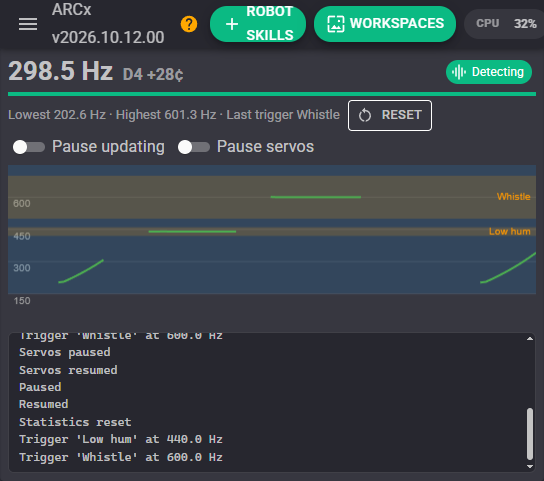
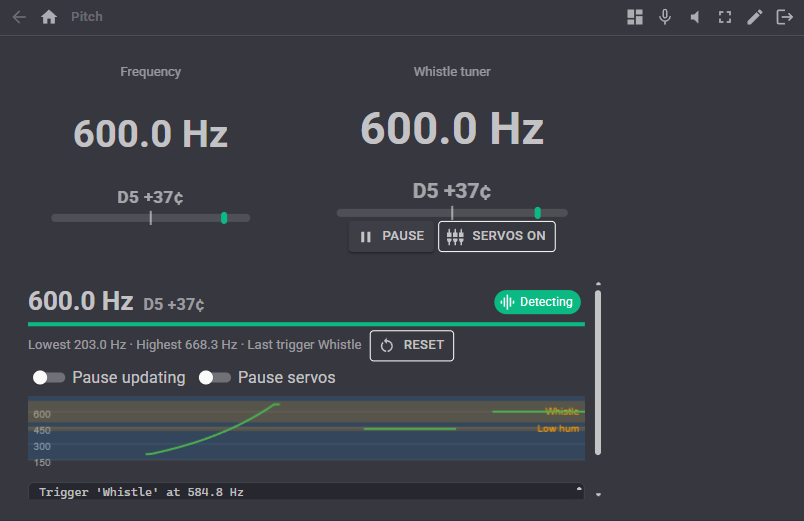
The large number is the frequency being heard, in Hz, with the nearest note and how many cents (hundredths of a semitone) sharp or flat it is. "-- Hz" means nothing with a clear pitch is being heard. The chip on the right says what the detector is doing: Listening for a pitch, Detecting one, Robot is talking while its own speech is being ignored, or Paused.
The bar under the reading is the microphone level, filled when the sound is loud enough to be measured (the Minimum level setting). If it never fills, the microphone is too quiet or the setting is too high.
Lowest and Highest are the lowest and highest frequencies heard since the statistics were last reset; Reset starts them over. Last trigger names the last trigger that fired.
Pause updating stops measuring and releases the microphone; the frequency drops to 0 and nothing moves or fires until it is turned off. Pause servos keeps measuring, publishing and firing triggers, but leaves the servos where they are. Neither switch is saved with the project; the Start paused settings are.
The graph shows the last thirteen seconds of frequency. The bottom is 0 Hz and the top is the highest frequency being detected. The blue band is the servo band and the orange bands are the triggers, labelled with their names, so it is easy to see whether a whistle lands where it should. Silence is a gap in the line rather than a drop to 0. The trace is green while listening, yellow while the robot's own speech is ignored, and grey while paused.
The log lists triggers as they fire, pauses, and changes to the settings.
How the pitch is found
The detector compares the newest 128 milliseconds of sound with itself shifted by every possible period, and looks for the shortest shift at which the sound repeats almost exactly. That shift is the period, and one over the period is the frequency. It is measured between samples rather than in whole samples, so the reading is smooth to a fraction of a Hz across the whole range. A new reading arrives every 64 milliseconds.
How well the sound repeats is its clarity, from 0 to 1. A whistle or a pure tone is close to 1, a hummed or sung note usually 0.8 to 0.95, speech consonants, fans and noise much lower. Sounds that are too quiet or not clear enough read 0 Hz, which is what keeps the robot from reacting to the room.
A sound above the detection band reads 0 Hz rather than being mistaken for a lower note, and a rich sound with strong overtones (a voice, an instrument) reads its fundamental, not an overtone.
Configuration
Detection
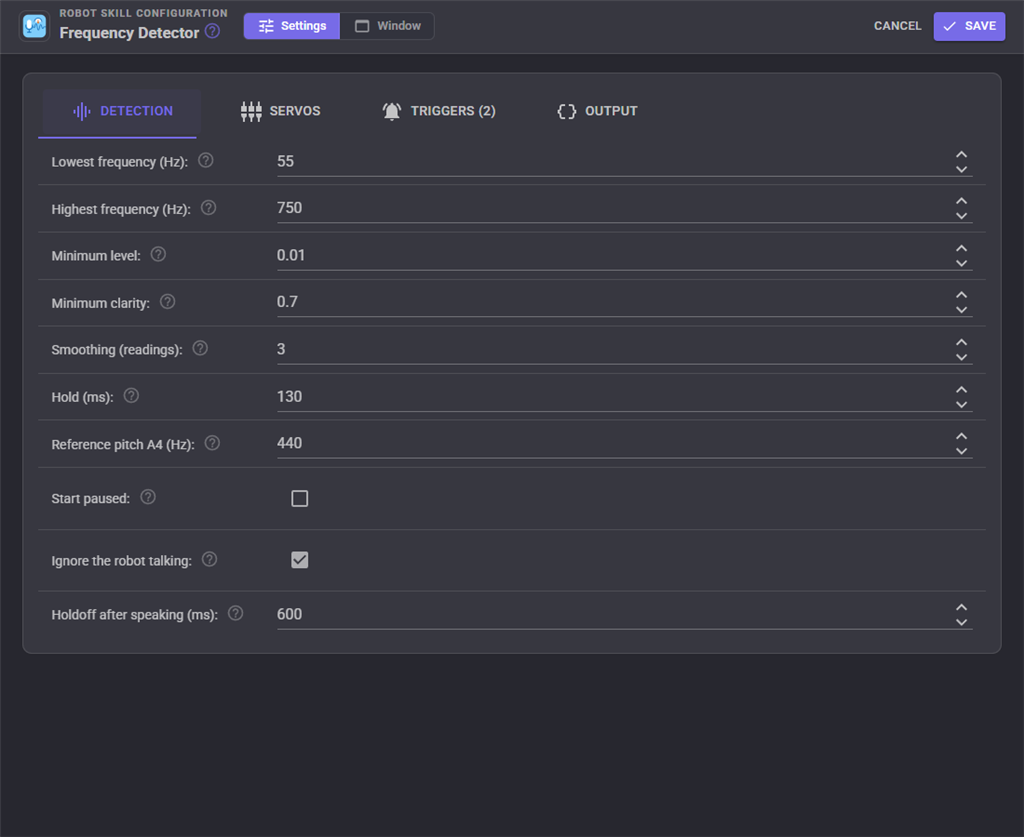
| Setting | What it does |
|---|---|
| Lowest frequency (Hz) | The lowest frequency looked for, 20 to 4000. Anything lower reads 0 Hz. The default 55 is the A two octaves below middle C. |
| Highest frequency (Hz) | The highest frequency looked for, 20 to 4000, and the top of the graph. The default 750 covers a voice, a hum and most whistles. Raise it to 2000 or more for high whistles and instruments. Above about 3000 Hz readings become less precise. |
| Minimum level | How loud the sound has to be, as an RMS level from 0 to 1, before a pitch is looked for. The level bar in the window is full when this is reached. Raise it if the room's background produces readings; lower it if a quiet sound is missed. Default 0.01. |
| Minimum clarity | How clearly periodic a sound has to be to count, 0.1 to 1. Lower it to accept rougher sounds such as speech; raise it to accept only clean whistles and tones. Default 0.7. |
| Smoothing (readings) | The reported frequency is the median of this many recent readings, 1 to 15. More is steadier and ignores a single wrong reading, at the cost of a little lag. Default 3. |
| Hold (ms) | How long the last frequency is kept after the sound stops being recognised. Bridges the short gaps in a wavering whistle so triggers and servos do not stutter. Default 130. |
| Reference pitch A4 (Hz) | The frequency of the A above middle C, which note names and cents are worked out from. 440 is standard concert pitch. |
| Start paused | Start with updating paused, so nothing is measured until the switch in the window or a script turns it on. |
| Ignore the robot talking | Ignore the microphone while the robot's own text to speech is playing, so it does not move servos or fire triggers with its own voice. |
| Holdoff after speaking (ms) | How long to keep ignoring the microphone after the robot's speech has been sent to the speaker, because the sound is still coming out after the audio queue is empty. Default 600. |
Servos
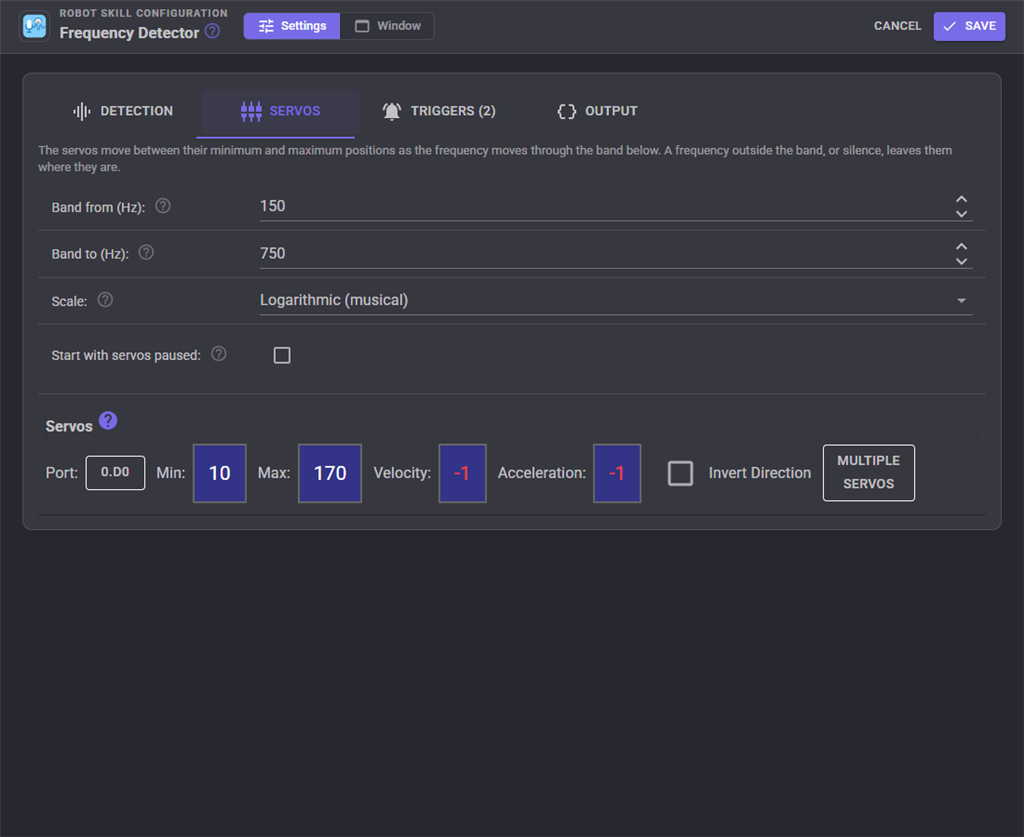
The servos move between their minimum and maximum positions as the frequency moves through the band. A frequency outside the band, or silence, leaves them where they are, so a servo holds its last position between sounds.
| Setting | What it does |
|---|---|
| Band from (Hz) | The frequency that moves the servos to their minimum position. Lower frequencies do not move them. |
| Band to (Hz) | The frequency that moves the servos to their maximum position. Higher frequencies do not move them. |
| Scale | Linear spreads the band evenly in Hz, so 100 Hz to 200 Hz moves a servo as far as 600 Hz to 700 Hz. Logarithmic (musical) spreads it evenly in musical intervals, so every octave moves the servo the same distance. Logarithmic follows a voice or a melody far more naturally. |
| Start with servos paused | Start with servo movement paused, so frequencies are measured but the servos stay put until the switch in the window or a script turns them on. |
| Servos | The servos to move. The first is the master; every other servo follows it with its own minimum, maximum, invert and multiplier. Use Multiple servos to add more. Leave the port unassigned to move no servo. |
For example, with a band of 150 to 750 Hz on the logarithmic scale and a servo from 10 to 170, a 440 Hz note puts the servo at about 117 and 600 Hz at about 148.
Triggers
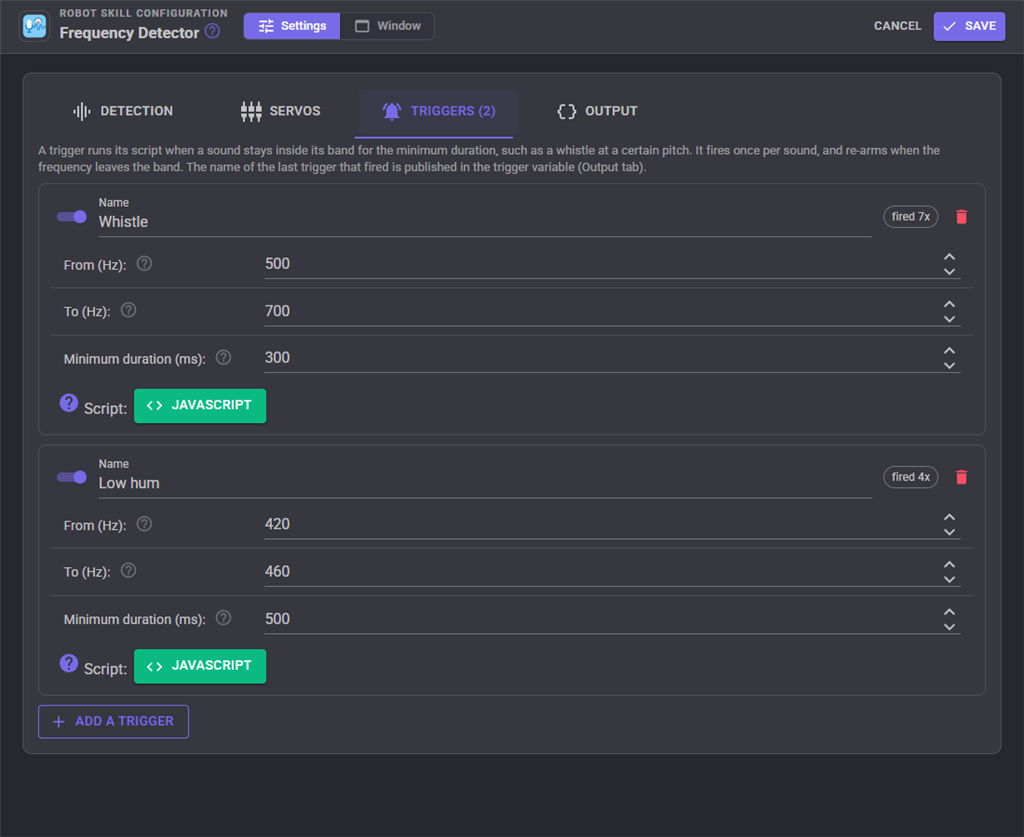
A trigger runs a script when a sound stays inside its band long enough. It fires once per sound and re-arms when the frequency leaves the band, so a long whistle fires it once, and two whistles fire it twice. Several triggers can share or overlap a band. Use the switch beside a trigger's name to turn it off without deleting it, and the bin to remove it (you are asked to confirm).
| Setting | What it does |
|---|---|
| Name | Shown in the log and the graph, and written to the trigger variable when it fires. Each trigger needs its own name. |
| From (Hz), To (Hz) | The band. |
| Minimum duration (ms) | How long the frequency has to stay in the band before the script runs. This is what stops a passing sound, or a voice sliding through the band, from firing it. 0 fires on the first reading. |
| Script | Runs once each time the trigger fires. The scripts of all triggers run one at a time, in the order they fired. |
The graph is the easiest way to set a band: whistle or hum at the robot, read where the line sits, and put the band around it. The chip beside each name counts how many times it has fired since the project was loaded.
Output
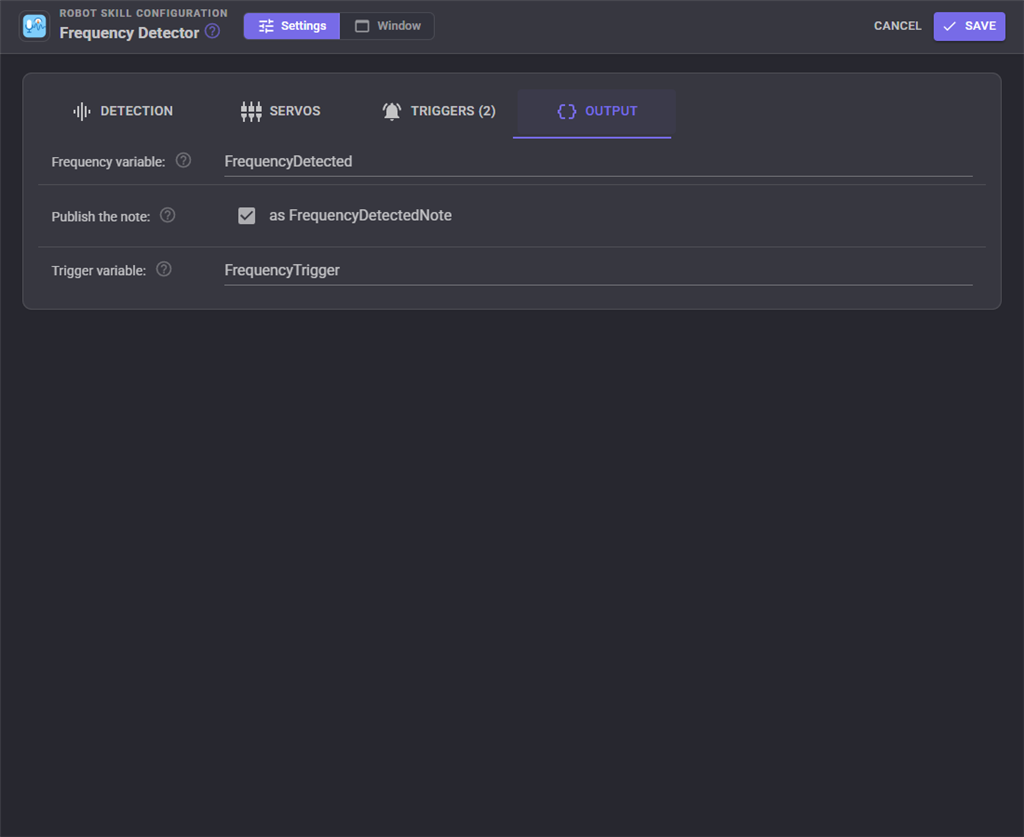
| Setting | What it does |
|---|---|
| Frequency variable | The global variable holding the frequency in Hz, to one decimal place, or 0 when nothing is heard. Default FrequencyDetected. Leave it empty to not publish it. |
| Publish the note | Also publish the note, such as A4 or C#5, in a variable named after the frequency variable with Note on the end (FrequencyDetectedNote by default). It is empty when nothing is heard. |
| Trigger variable | The global variable holding the name of the last trigger that fired. Default FrequencyTrigger. Leave it empty to not publish it. |
Using it from scripts
Read the variables to react to what is heard:
var hz = getVar("FrequencyDetected", 0);

if (hz > 500 && hz < 700)
  print("Whistling at " + hz + " Hz, note " + getVar("FrequencyDetectedNote", ""));
To wait for a sound rather than poll for it, the WaitForFrequency ControlCommand blocks until a frequency in a band is heard, or a timeout passes. It returns the frequency, or 0 on timeout:
var heard = controlCommand("Frequency Detector", "WaitForFrequency", 500, 700, 10000);

if (heard > 0)
  Audio.say("I heard you whistle");
else
  Audio.say("Nothing yet");
AI assistants connected to ARCx through MCP can call this skill's get_pitch tool to see the current frequency, note, clarity, level and recent history, which is handy for tuning the Minimum level and Minimum clarity settings by asking.
Custom UI widget
The Frequency widget shows the frequency in Hz with the note and a tuning needle: centred when the note is in tune, left when flat, right when sharp. Its settings are Caption, ShowNote (the note and needle) and ShowButtons (pause and pause servos buttons).
Tips
- If readings flicker on and off during a steady whistle, lower Minimum clarity a little or raise Hold.
- If the room's noise produces readings, raise Minimum level until the level bar stays empty in silence.
- A whistle is usually between 500 and 2500 Hz, above the default range. Raise Highest frequency to 2500 to follow one.
- Speech does read as a frequency (the pitch of the voice), but it jumps around with every syllable. Use a hum or a sung note to steer a servo smoothly.
- More than one Frequency Detector can be in a project, for example one moving a servo over a low band and another watching for a high whistle with stricter settings.
Control Commands for the Frequency Detector robot skill
There are Control Commands available for this robot skill which allows the skill to be controlled programmatically from scripts or other robot skills. These commands enable you to automate actions, respond to sensor inputs, and integrate the robot skill with other systems or custom interfaces. If you're new to the concept of Control Commands, we have a comprehensive manual available here that explains how to use them, provides examples to get you started and make the most of this powerful feature.
Control Command ManualThis robot skill has 13 control commands, listed below. Send them from a JavaScript or Python script, from Blockly, or from another robot skill.
The first value is always the window title, which is the name in the title bar of the robot skill on your workspace. It starts out as Frequency Detector, which is what every example below uses. If you rename the robot skill, or add a second copy of it to the project, use the title as it appears on that window instead.
ControlCommand() can be shortened to CC(), and both spellings work in JavaScript and in Python. The examples are JavaScript; Python is the same call, except that true and false are written True and False.
GetFrequency
The frequency being detected right now in Hz, or 0 when nothing is. The same value the global variable holds.
Syntax
ControlCommand("Frequency Detector", "GetFrequency")
Returns: Double [5.0e324 to 1.7e308]
Example
var result = ControlCommand("Frequency Detector", "GetFrequency");
GetLastTrigger
The name of the last trigger that fired, or an empty string when none has.
Syntax
ControlCommand("Frequency Detector", "GetLastTrigger")
Returns: String
Example
var result = ControlCommand("Frequency Detector", "GetLastTrigger");
GetMaximumDetected
The highest frequency detected since the statistics were reset, in Hz, or 0 when nothing has been.
Syntax
ControlCommand("Frequency Detector", "GetMaximumDetected")
Returns: Double [5.0e324 to 1.7e308]
Example
var result = ControlCommand("Frequency Detector", "GetMaximumDetected");
GetMinimumDetected
The lowest frequency detected since the statistics were reset, in Hz, or 0 when nothing has been.
Syntax
ControlCommand("Frequency Detector", "GetMinimumDetected")
Returns: Double [5.0e324 to 1.7e308]
Example
var result = ControlCommand("Frequency Detector", "GetMinimumDetected");
GetNote
The musical note being detected right now, such as A4, or an empty string when nothing is.
Syntax
ControlCommand("Frequency Detector", "GetNote")
Returns: String
Example
var result = ControlCommand("Frequency Detector", "GetNote");
GetPaused
Is measuring paused?
Syntax
ControlCommand("Frequency Detector", "GetPaused")
Returns: Boolean [true or false]
Example
var result = ControlCommand("Frequency Detector", "GetPaused");
GetServosPaused
Is servo movement paused?
Syntax
ControlCommand("Frequency Detector", "GetServosPaused")
Returns: Boolean [true or false]
Example
var result = ControlCommand("Frequency Detector", "GetServosPaused");
Pause
Stop measuring and release the microphone. The frequency goes to 0, and no servo moves or trigger fires until Resume. Returns true.
Syntax
ControlCommand("Frequency Detector", "Pause")
Returns: Boolean [true or false]
Example
var result = ControlCommand("Frequency Detector", "Pause");
PauseServos
Stop moving the servos. Measuring, the variables and the triggers carry on. Returns true.
Syntax
ControlCommand("Frequency Detector", "PauseServos")
Returns: Boolean [true or false]
Example
var result = ControlCommand("Frequency Detector", "PauseServos");
ResetStatistics
Start the lowest and highest detected frequencies over. Returns true.
Syntax
ControlCommand("Frequency Detector", "ResetStatistics")
Returns: Boolean [true or false]
Example
var result = ControlCommand("Frequency Detector", "ResetStatistics");
Resume
Start measuring again after Pause. Returns true.
Syntax
ControlCommand("Frequency Detector", "Resume")
Returns: Boolean [true or false]
Example
var result = ControlCommand("Frequency Detector", "Resume");
ResumeServos
Move the servos with the frequency again after PauseServos. Returns true.
Syntax
ControlCommand("Frequency Detector", "ResumeServos")
Returns: Boolean [true or false]
Example
var result = ControlCommand("Frequency Detector", "ResumeServos");
WaitForFrequency
Wait until a frequency between minHz and maxHz is detected, or timeoutMs passes (0 waits for ever). Returns the frequency that was heard, or 0 on timeout. Fails while measuring is paused.
Syntax
ControlCommand("Frequency Detector", "WaitForFrequency", (Number)minHz, (Number)maxHz, (Number)timeoutMs)
Parameters
| # | Name | Type | What to pass |
|---|---|---|---|
| 1 | minHz | Number | A number, without quotes |
| 2 | maxHz | Number | A number, without quotes |
| 3 | timeoutMs | Number | A number, without quotes |
Returns: Double [5.0e324 to 1.7e308]
Example
var result = ControlCommand("Frequency Detector", "WaitForFrequency", 0, 0, 0);
This list is read out of the robot skill itself each time its package is uploaded, so it matches the published version (v2).


This robot skill has been updated to v1.
What has changed
initial release
This robot skill has been updated to v2.
What has changed
updated to use some new ARCx UI features for improved performance.