Meta Quest teleoperation for ARCx: stereo video, head-tracked neck, 3D arm control, hand/finger tracking, driving, buttons, safety, haptics
 Windows
 ARM
ARM
 Linux
Linux
 MacOS
MacOS
How to add the Meta Quest Robot robot skill
- Load the most recent release of ARCx on a compatible operating system (Get ARCx).
- Press the + Skills menu from the top menu bar in ARCx.
- Choose any of these category tabs, the robot skill appears in each of them: Remote Control, Servo, Virtual Reality.
- Press the Meta Quest Robot icon to add the robot skill to your project.
Don't have a robot yet?
Follow the Getting Started Guide to build a robot and use the Meta Quest Robot robot skill.
How to use the Meta Quest Robot robot skill
Become the robot with a Meta Quest headset. Look through the robot's cameras in stereo, and the robot's head turns with yours. Reach out with a controller or your bare hand and the robot's arm reaches with you, in real 3D space, whatever arm it has. Curl your fingers and the robot's fingers curl. Drive with a thumbstick, and run a script from any button.
This is the ARCx version of ARC's Oculus Quest Robot, rebuilt around ARCx's kinematics. The ARC version moved servos straight from numbers squashed into servo positions on the headset; this one receives the headset's real positions (in millimetres) and rotations, and does the robotics in ARCx: true head angles in degrees, arms driven through any kinematic chain, finger curl worked out from the hand skeleton and calibrated to your hand, safety stops, and feedback to the headset.
What you need
- A Meta Quest headset (Quest 2, Quest 3, Quest 3S or Quest Pro) with the ARCx Quest Robot app. This is a new app that only works with ARCx; the old "Quest Robot Controller" app for ARC does not.
- The headset and the ARCx computer on the same network. 5 GHz Wi-Fi gives the smoothest video.
- One or two camera robot skills for the view (optional - the headset controls the robot without video).
- For arms in 3D, a kinematics robot skill such as Kinematics Service describing each arm as a named chain. Without one, an arm can still follow your hand on three plain servos.
- For driving, a movement panel in the project.
Connecting the headset
- The window lists this computer's addresses and the port (8082 unless changed). Allow that port through the computer's firewall.
- Start the ARCx Quest Robot app, enter one of the addresses and the port, and choose Connect Single (one screen in front of you) or Connect Dual (stereo, one image per eye).
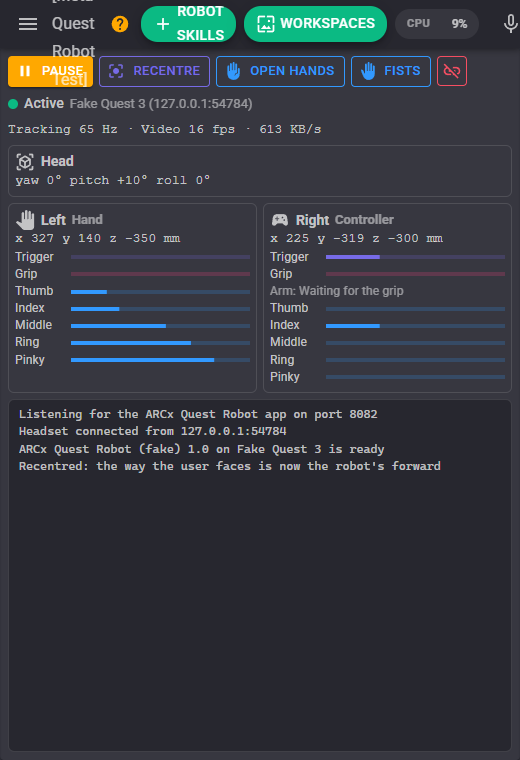
- The window turns green: Active. The direction you face when you connect is the robot's forward; press the left thumbstick at any time to make wherever you face now the robot's forward again (recentre).
The app's Open ARCx button opens ARCx itself in the Quest's browser, so you can change settings without taking the headset off.
The window
The buttons along the top:
| Button | What it does |
|---|---|
| Pause / Resume | Nothing moves from the headset while paused; the video keeps playing. |
| Recentre | The direction the user faces becomes the robot's forward, and the head servos centre. |
| Open Hands / Fists | Calibrate finger curl to this user's hands (see Fingers). |
| Unlink | Hang up on the headset. |
Below them: the status (Active, Paused, Tracking lost, Headset not worn, Headset menu open...), the headset's tracking rate, the video frame rate and bandwidth, the head's yaw, pitch and roll, and a card for each hand showing what is tracking it (a controller or a bare hand), where it is in millimetres, the trigger and grip, the arm's state and each finger's curl.
Head
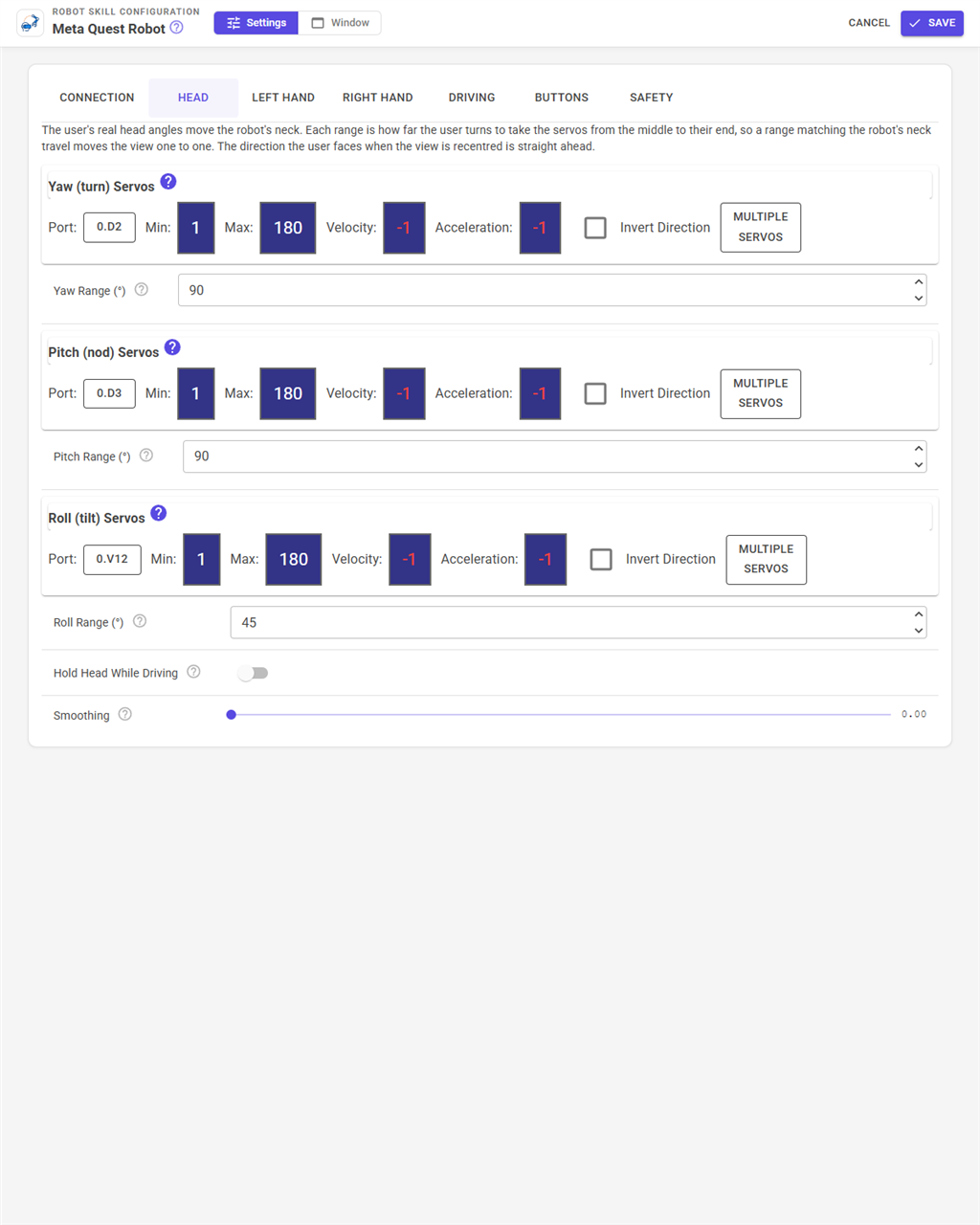
Your head's real angles move the robot's neck. Choose the yaw (turn), pitch (nod) and roll (tilt) servos, and for each a range: how many degrees you turn to take the servos from the middle to their end. Set the range to the neck's real travel (a 180 degree pan servo is 90) and the view moves one to one with your head, which is what makes it comfortable. Turning left, looking up and tilting your right ear down each move towards the servo's maximum; tick Invert on a servo that goes the wrong way.
Hold Head While Driving keeps the view still while the robot drives. Smoothing takes the shake out of the head and the arms; 0 is the most responsive.
Arms
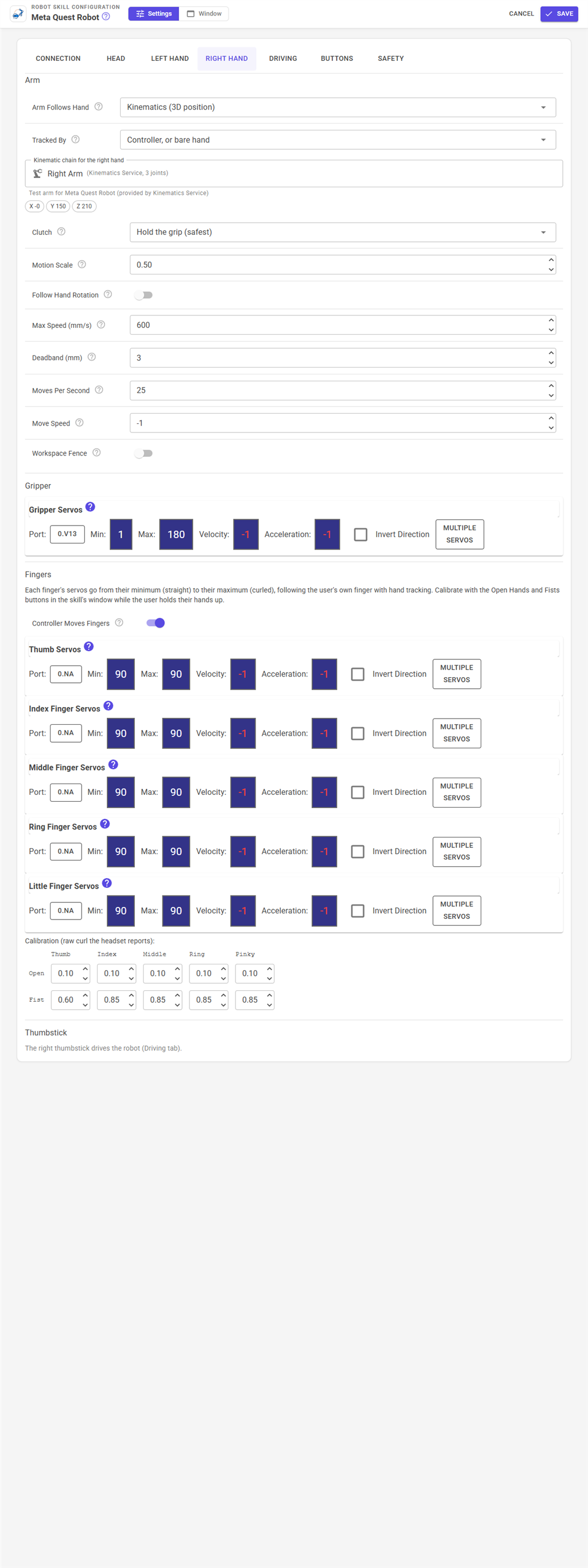
Each hand (Left Hand and Right Hand tabs) can drive an arm in one of two ways.
Kinematics (3D position) - pick the arm's kinematic chain. Your hand's movement in millimetres is sent to the chain, and the kinematics robot skill works out every joint. It works with any arm the kinematics skill can describe, from a 3-joint hobby arm to a 6-joint arm, and it respects that skill's joint limits and floor.
The arm follows your hand with a clutch, as teleoperated surgical and industrial robots do:
- Hold the grip (the default): the arm follows only while you squeeze the controller's grip. Let go and the arm stays put while you move your hand somewhere comfortable; squeeze again and carry on, so you can reach further than one arm's length by "ratcheting". With a bare hand, pinch your middle finger to your thumb instead.
- Squeeze the grip to toggle: squeeze once to start following and again to stop.
- Always follow: whenever the hand is tracked.
When the clutch engages, the skill remembers where your hand and the robot's gripper are, and from then on the gripper moves by however much your hand moves. You never have to line your hand up with the robot's, and the arm never jumps.
| Setting | What it does |
|---|---|
| Tracked By | The controller, the bare hand, or the controller when it is tracked and the bare hand when you put it down. |
| Motion Scale | Millimetres the arm moves per millimetre of hand. 0.5 for fine work, 2 for a big robot. |
| Follow Hand Rotation | Also turn the gripper as your wrist turns, for chains that can control orientation (usually 5 or 6 joints). |
| Max Speed | The fastest the arm's target may move. A flick of the wrist is spread out so the arm is never asked to jump. |
| Deadband | The hand must move this far before the arm is sent a new target, so a resting hand's tremor does not keep the servos hunting. |
| Moves Per Second | How often the arm is sent a new target. |
| Workspace Fence | A box, in the arm's own frame, the target can never leave: keep the gripper off the table and away from the robot's body. |
The controller buzzes when the clutch picks up and lets go, and rumbles while your hand is somewhere the arm cannot reach, so you feel the edge of its workspace.
Servos (forward, left, up) - no kinematics: how far your hand is forward, to the left and up from where it was when you recentred each move a servo. For simple robots, and for projects coming from ARC.
Gripper and fingers
The index trigger positions the gripper servos from their minimum (released) to their maximum (fully pulled). With a bare hand, pinching your index finger to your thumb does the same.
Each of the five fingers has its own servos, from their minimum (straight) to their maximum (curled). With hand tracking, the headset measures how much each of your fingers bends at every knuckle. With a controller, the index trigger curls the index finger, the grip curls the other three, and resting your thumb on a button or the thumb rest curls the thumb.
Everyone's hands are different, so calibrate: put the controllers down, have the user hold both hands up in front of the headset, open and flat, and press Open Hands; then fists, and press Fists. Save the project to keep it. The numbers are also on the hand tabs to adjust by hand.
Driving
The left (or right) thumbstick drives through the project's movement panel: forward and back set the speed, pushing sideways while moving steers, and sideways alone spins in place. Max Turn Speed is separate and lower by default, because spinning quickly is the fastest way to make someone feel sick in VR. The other thumbstick can move two servos of its own.
Buttons
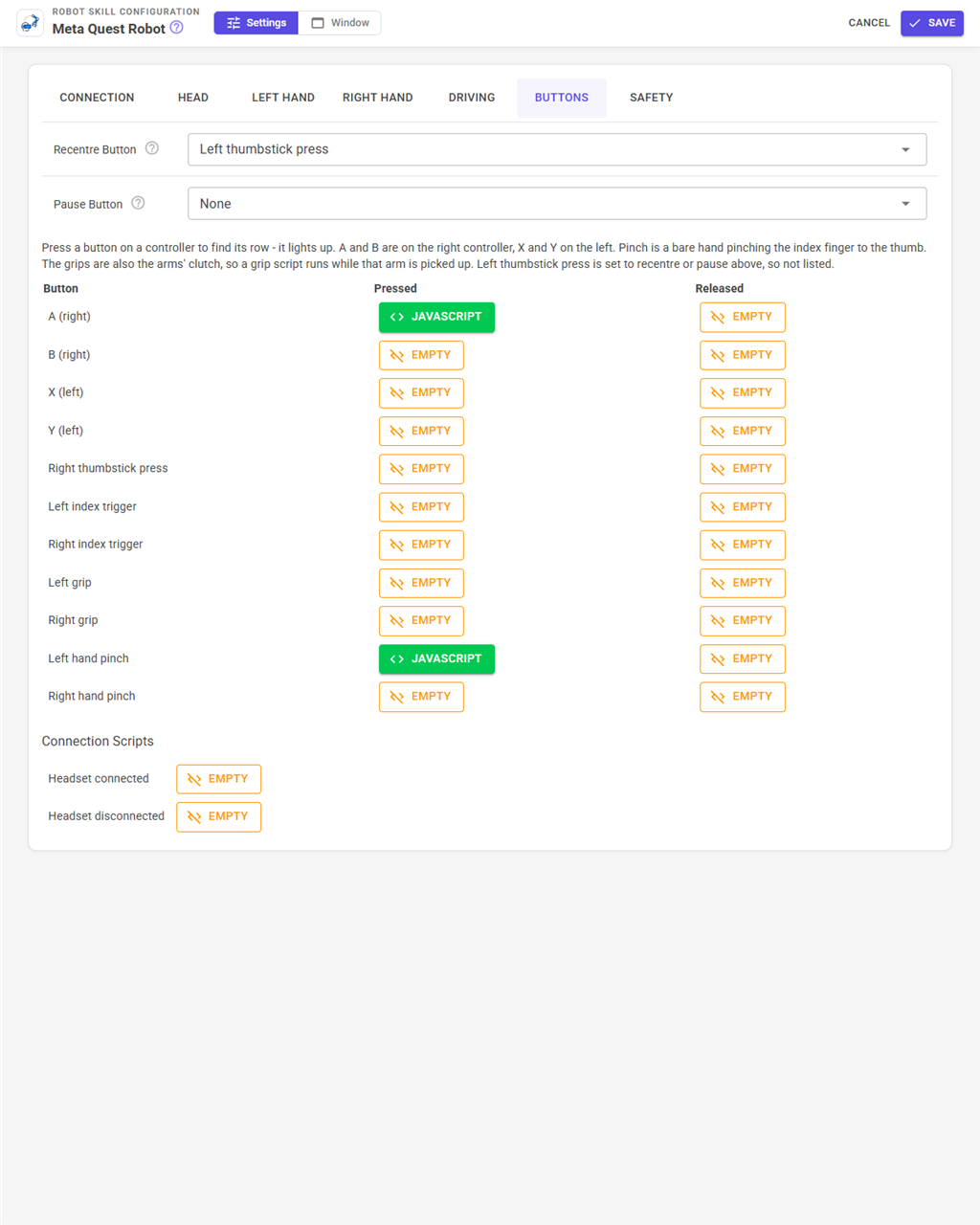
Every button can run a script when pressed and when released: A and B (right controller), X and Y (left controller), pressing either thumbstick, the index triggers, the grips, and a bare hand's index-finger pinch. Press a button on the headset while this tab is open and its row lights up. The recentre button (the left thumbstick unless changed) and an optional pause button do only that. There are also scripts for the headset connecting and disconnecting. The left controller's menu button belongs to the app: it opens the app's menu, and the robot holds still while it is open.
Safety
| Setting | What it does |
|---|---|
| Tracking Timeout | With no tracking from the headset for this long (Wi-Fi dropped, app closed), driving stops and the arms let go. 500 ms by default. |
| Stop When Headset Removed | The headset's proximity sensor stops everything the moment it comes off. |
| Start Paused | Nothing moves after the project loads until someone resumes. |
| Pause On Stop Button | The ARCx stop button pauses the skill, so the headset cannot move the robot again until someone resumes on purpose. |
| Haptic Feedback | The vibrations described above. |
Driving is only ever stopped by this skill if this skill started it, so a script or another skill driving the robot is not interrupted.
Video
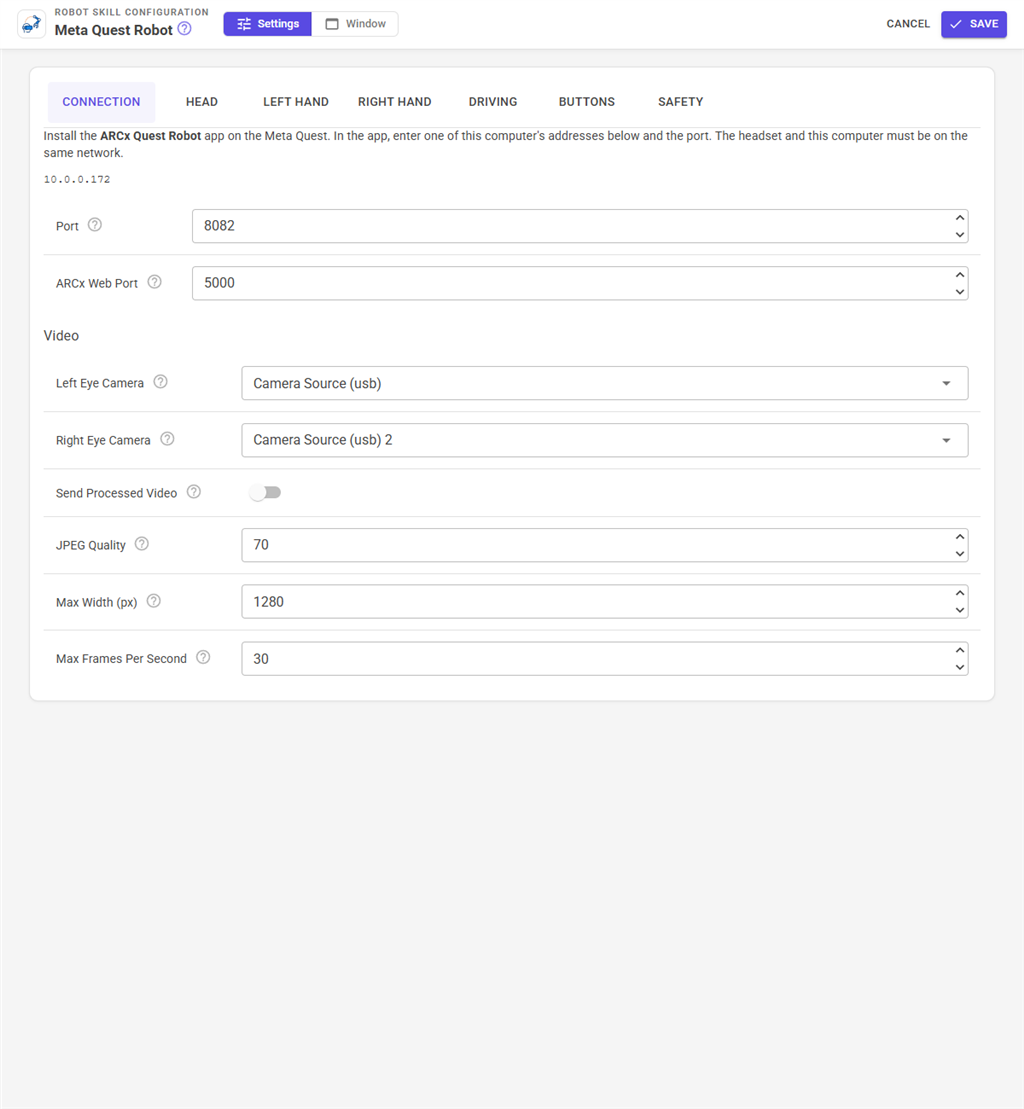
Choose the camera for the left eye and, for stereo, the right eye: two cameras side by side about 6 cm apart, like eyes, give real depth. With one camera both eyes see it. The newest frame is always the one sent and older ones are dropped, so a slow network lowers the frame rate rather than adding delay. Lower the JPEG quality or the width for weak Wi-Fi.
Variables
With Set Variables on (Safety tab), the headset's tracking is in global variables for scripts, all starting with the prefix (Quest):
| Variables | Meaning |
|---|---|
$QuestConnected, $QuestPaused, $QuestActive, $QuestWorn |
true or false |
$QuestHeadYaw, $QuestHeadPitch, $QuestHeadRoll |
Degrees: yaw positive left, pitch positive up, roll positive tilting the right ear down |
$QuestLeftX, $QuestLeftY, $QuestLeftZ |
The left hand in millimetres forward, left and up of where your head was at the last recentre |
$QuestLeftRoll, $QuestLeftPitch, $QuestLeftYaw |
The left hand's orientation in degrees |
$QuestLeftTrigger, $QuestLeftGrip |
0 to 1 (a bare hand: the index and middle finger pinches) |
$QuestLeftStickX, $QuestLeftStickY |
-1 to 1 |
$QuestLeftThumb ... $QuestLeftPinky |
Finger curl, 0 straight to 1 curled |
$QuestLeftSource, $QuestLeftArmEngaged |
Controller, Hand or None; whether the arm is following |
$QuestButtonA ... $QuestButtonRightPinch |
true while held |
The same for Right. Positions use the ARCx kinematics frame (+X forward, +Y left, +Z up), so a script can pass them straight to a kinematic chain.
Talking back to the user
A script can show text in front of the user and vibrate the controllers through this skill's control commands, for example to say "Battery low" or to buzz when a sensor sees something. AI assistants connected to ARCx get the same as tools, plus one that reads everything the headset is tracking.
Custom UI
The Quest Status widget shows whether the headset is connected and what it is doing, with Pause and Recentre buttons, for your own control panel screens.
Control Commands for the Meta Quest Robot robot skill
There are Control Commands available for this robot skill which allows the skill to be controlled programmatically from scripts or other robot skills. These commands enable you to automate actions, respond to sensor inputs, and integrate the robot skill with other systems or custom interfaces. If you're new to the concept of Control Commands, we have a comprehensive manual available here that explains how to use them, provides examples to get you started and make the most of this powerful feature.
Control Command ManualThis robot skill has 14 control commands, listed below. Send them from a JavaScript or Python script, from Blockly, or from another robot skill.
The first value is always the window title, which is the name in the title bar of the robot skill on your workspace. It starts out as Meta Quest Robot, which is what every example below uses. If you rename the robot skill, or add a second copy of it to the project, use the title as it appears on that window instead.
ControlCommand() can be shortened to CC(), and both spellings work in JavaScript and in Python. The examples are JavaScript; Python is the same call, except that true and false are written True and False.
CalibrateFists
Remember the user's tracked hands, closed in fists, as fully curled fingers. Returns how many hands were tracked.
Syntax
ControlCommand("Meta Quest Robot", "CalibrateFists")
Returns: Integer [-2,147,483,648 to 2,147,483,647]
Example
var result = ControlCommand("Meta Quest Robot", "CalibrateFists");
CalibrateOpenHands
Remember the user's tracked hands, held open and flat, as straight fingers. Returns how many hands were tracked.
Syntax
ControlCommand("Meta Quest Robot", "CalibrateOpenHands")
Returns: Integer [-2,147,483,648 to 2,147,483,647]
Example
var result = ControlCommand("Meta Quest Robot", "CalibrateOpenHands");
DisconnectHeadset
Hang up on the connected headset. The app can connect again.
Syntax
ControlCommand("Meta Quest Robot", "DisconnectHeadset")
Returns: nothing
Example
ControlCommand("Meta Quest Robot", "DisconnectHeadset");
GetHeadAngles
The user's head angles in degrees as [yaw, pitch, roll]: yaw positive turning left, pitch positive looking up, roll positive tilting the right ear down.
Syntax
ControlCommand("Meta Quest Robot", "GetHeadAngles")
Returns: Array of Double
Example
var result = ControlCommand("Meta Quest Robot", "GetHeadAngles");
IsConnected
Whether a headset running the ARCx Quest Robot app is connected.
Syntax
ControlCommand("Meta Quest Robot", "IsConnected")
Returns: Boolean [true or false]
Example
var result = ControlCommand("Meta Quest Robot", "IsConnected");
IsPaused
Whether the skill is paused.
Syntax
ControlCommand("Meta Quest Robot", "IsPaused")
Returns: Boolean [true or false]
Example
var result = ControlCommand("Meta Quest Robot", "IsPaused");
Pause
Pause: nothing on the robot moves from the headset (head, arms, fingers, driving) until resumed. The video keeps streaming.
Syntax
ControlCommand("Meta Quest Robot", "Pause")
Returns: nothing
Example
ControlCommand("Meta Quest Robot", "Pause");
PauseToggle
Pause when running, resume when paused. Returns true when now paused.
Syntax
ControlCommand("Meta Quest Robot", "PauseToggle")
Returns: Boolean [true or false]
Example
var result = ControlCommand("Meta Quest Robot", "PauseToggle");
Recenter
Make the direction the user faces now the robot's forward, and centre the head servos.
Syntax
ControlCommand("Meta Quest Robot", "Recenter")
Returns: nothing
Example
ControlCommand("Meta Quest Robot", "Recenter");
Resume
Resume after a pause.
Syntax
ControlCommand("Meta Quest Robot", "Resume")
Returns: nothing
Example
ControlCommand("Meta Quest Robot", "Resume");
SetLeftCamera
Show this camera robot skill (video source name) to the left eye, or to both eyes when there is no right camera. An empty name stops the video.
Syntax
ControlCommand("Meta Quest Robot", "SetLeftCamera", (String)videoSourceName)
Parameters
| # | Name | Type | What to pass |
|---|---|---|---|
| 1 | videoSourceName | Text | Your text, in quotes |
Returns: nothing
Example
ControlCommand("Meta Quest Robot", "SetLeftCamera", "videoSourceName");
SetRightCamera
Show this camera robot skill (video source name) to the right eye for stereo. An empty name shows the left camera to both eyes.
Syntax
ControlCommand("Meta Quest Robot", "SetRightCamera", (String)videoSourceName)
Parameters
| # | Name | Type | What to pass |
|---|---|---|---|
| 1 | videoSourceName | Text | Your text, in quotes |
Returns: nothing
Example
ControlCommand("Meta Quest Robot", "SetRightCamera", "videoSourceName");
ShowMessage
Float a line of text in front of the user in the headset for some seconds. Returns whether a headset is connected.
Syntax
ControlCommand("Meta Quest Robot", "ShowMessage", (String)text, (Number)seconds)
Parameters
| # | Name | Type | What to pass |
|---|---|---|---|
| 1 | text | Text | Your text, in quotes |
| 2 | seconds | Number | A number, without quotes |
Returns: Boolean [true or false]
Example
var result = ControlCommand("Meta Quest Robot", "ShowMessage", "text", 0);
Vibrate
Vibrate the headset's controllers. controller is left, right or both; amplitude 0 to 1; durationMs 1 to 5000. Returns whether a headset is connected.
Syntax
ControlCommand("Meta Quest Robot", "Vibrate", (String)controller, (Number)amplitude, (Number)durationMs)
Parameters
| # | Name | Type | What to pass |
|---|---|---|---|
| 1 | controller | Text | Your text, in quotes |
| 2 | amplitude | Number | A number, without quotes |
| 3 | durationMs | Number | A number, without quotes |
Returns: Boolean [true or false]
Example
var result = ControlCommand("Meta Quest Robot", "Vibrate", "controller", 0, 0);
This list is read out of the robot skill itself each time its package is uploaded, so it matches the published version (v1).

This robot skill has been updated to v1.
What has changed
intitial release