
Monitor EZB ADC ports with per-port schedules, scaled values, graphs/meters, alarms, and global variables for scripts and UI.
 Windows
 ARM
ARM
 Linux
Linux
 MacOS
MacOS
How to add the Adc Monitor robot skill
- Load the most recent release of ARCx on a compatible operating system (Get ARCx).
- Press the + Skills menu from the top menu bar in ARCx.
- Choose any of these category tabs, the robot skill appears in each of them: ADC, Graphs.
- Press the Adc Monitor icon to add the robot skill to your project.
Don't have a robot yet?
Follow the Getting Started Guide to build a robot and use the Adc Monitor robot skill.
How to use the Adc Monitor robot skill
The ADC Monitor robot skill watches the analog (ADC) ports of your EZB controllers for you. Pick the ports you care about, from any EZB in the project, and it reads each one on its own schedule, turns the reading into real units with a multiplier, shows it as a meter, a graph or a plain number, and publishes it as a global variable that every script in the project can read.
It is for anyone who wants to keep an eye on an analog value: a battery voltage, a potentiometer, a light sensor, an infrared distance sensor, a current sensor, a temperature sensor, a joystick axis.
Use the variable, not ADC read commands
Once a port is monitored by this robot skill, read its global variable in your scripts instead of calling the ADC read commands (ADC.get(), ADC.get12Bit(), ADC.waitForHigher() and the rest).
Every ADC read command is a request sent over the EZB's connection and an answer waited for. That connection is shared with everything else talking to the controller: servos, the camera, audio, digital ports and every other robot skill. If the ADC Monitor is already reading a port twice a second and a script also reads the same port in a loop, the controller is asked for the same number twice as often, and the extra traffic slows down everything else on the link. With several scripts doing it, the connection can become saturated.
The ADC Monitor has already done the read. Its variable holds the latest value, already converted to your units, so reading it costs the controller nothing:
// Instead of reading the port yourself...
var battery = ADC.get(1);

// ...read the value the ADC Monitor already published
var battery = getVar("$Battery");
battery = getVar("$Battery")
If a script needs the value more often, lower that port's Read every interval in the configuration rather than adding reads of your own. The ADC Monitor's control commands (such as GetValue, GetMin and GetMax) also answer from what it has already read and never query the controller.
The window
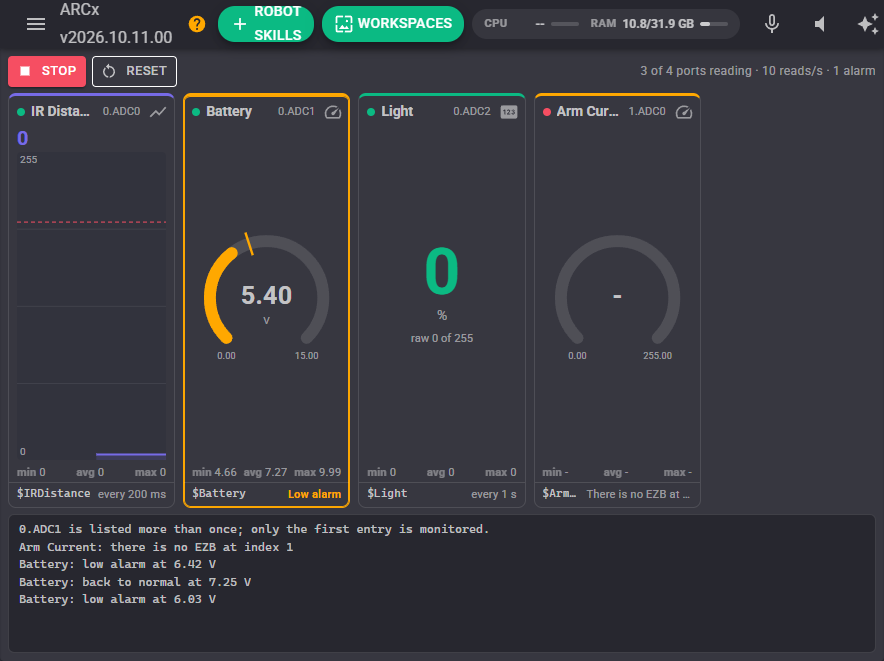
Each monitored port is a tile. The tiles share the window and grow when it is resized, so a bigger window means bigger meters and graphs.
- Status dot: green while the port is being read, amber while its EZB is not connected, red when the port cannot be read (the text at the bottom of the tile says why), grey while monitoring is stopped or paused, and hollow when the port is disabled.
- Display button: the icon at the top right of a tile switches it between a meter, a graph and a plain value. The choice is saved with the project.
- Meter: a dial from the bottom of the scale to the top, with the value and units in the middle. Ticks on the dial mark the low (amber) and high (red) alarm levels.
- Graph: the recent values scrolling from right to left, with the alarm levels as dashed lines. How much history it shows is set by Graph History in the options.
- Value: the value as a large number, with the raw reading under it.
- Statistics: the lowest, average and highest values since the statistics were last reset.
- Footer: the global variable the port is published to, and how often it is read. When an alarm is raised, the tile is outlined in the alarm's colour and the footer says so.
Along the top, Start/Stop starts and stops reading every port, and Reset starts the statistics and graphs over. The text on the right says how many ports are being read, how many reads per second the monitor is making in total, and how many alarms are raised. The log at the bottom records when monitoring starts and stops, ports whose EZB is not connected, failed reads, and alarms.
While any robot skill's configuration window is open, reading pauses, the same as other robot skills do, and resumes when it closes.
Configuration
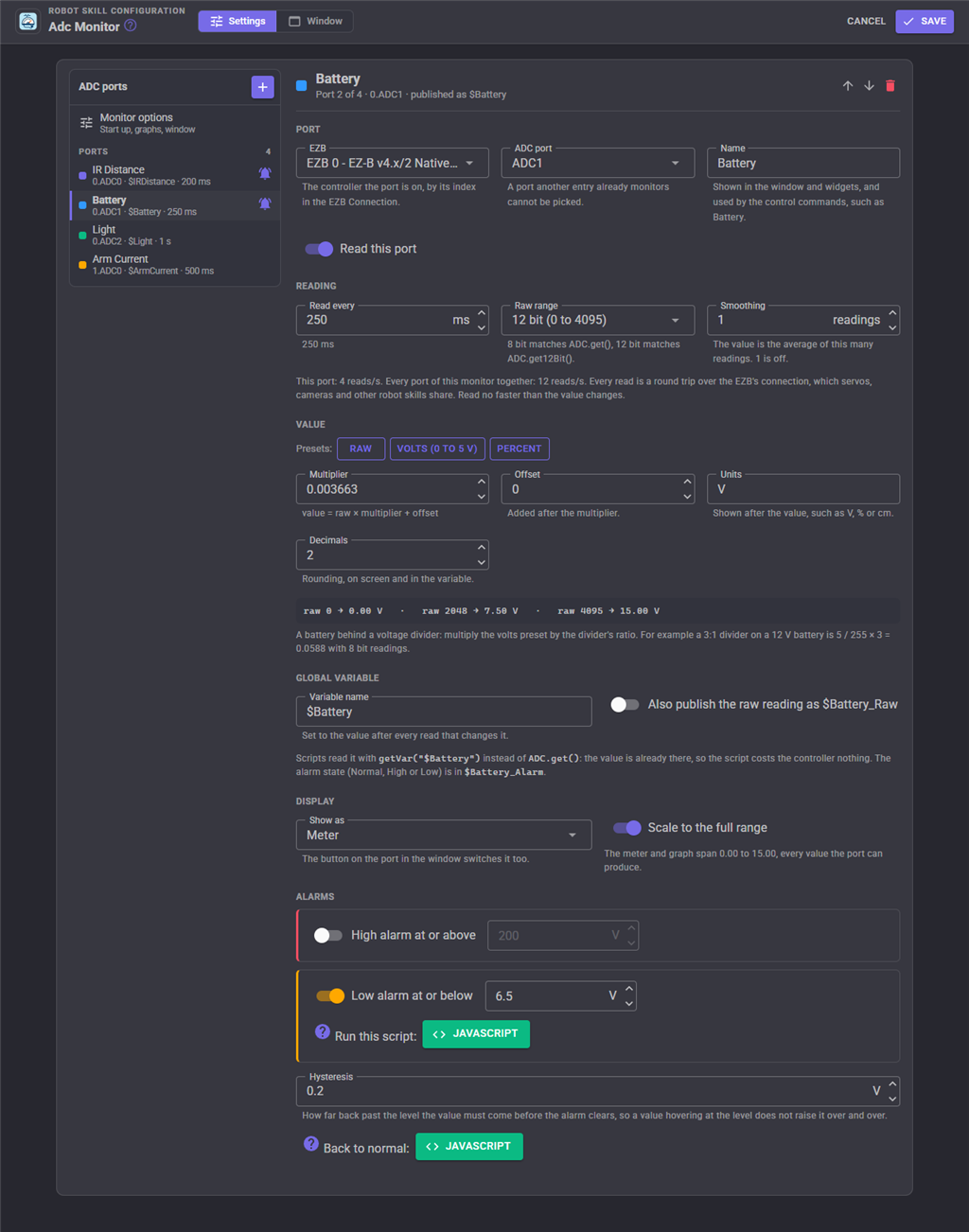
The configuration lists the monitored ports on the left. Press + to add a port: the first port that is not monitored yet is picked, and you change it in the pane on the right. When the list is empty you can also add ADC0 to ADC7 of the first EZB in one go. Select a port in the list to edit it, use the arrows to change the order the window shows them in, and the delete button to stop monitoring it.
A port can only be monitored once. In the port list, a port that another entry already monitors is disabled and says which entry has it, so the same port cannot be added twice. To read one port in two ways, publish the raw reading as well (below) rather than adding it again.
Port
| Setting | Description | Default |
|---|---|---|
| EZB | The controller the port is on, by its index in the EZB Connection robot skill. Any EZB in the project can be used. | EZB 0 |
| ADC port | The ADC port on that controller. Port descriptions from the project's properties are shown beside each port. | The first port not monitored yet |
| Name | The name shown in the window, the Custom UI widgets and the control commands, such as Battery. | The port's description, or the port |
| Read this port | A disabled port keeps its settings but is not read. | On |
Reading
| Setting | Description | Default |
|---|---|---|
| Read every | How often this port is read, in milliseconds (20 or more). Each port has its own interval, so a battery can be read every few seconds while a joystick is read ten times a second. The hint under the field shows how many reads per second this port, and the whole monitor, make. | 1000 ms |
| Raw range | 8 bit (0 to 255) gives the same numbers as ADC.get(); 12 bit (0 to 4095) gives the same numbers as ADC.get12Bit(). Controllers with a lower resolution ADC are scaled to the range you choose. |
8 bit |
| Smoothing | The value is the average of this many of the latest readings. Use it to steady a noisy sensor; larger numbers react more slowly. 1 turns it off. | 1 |
Every read is a round trip over the EZB's connection, so read each port no faster than its value actually changes.
Value
The value is the raw reading converted to your units: value = raw × multiplier + offset. The Raw, Volts (0 to 5 V) and Percent presets fill in the multiplier, units and decimals for the chosen raw range. A preview under the fields shows what the bottom, middle and top of the raw range become.
| Setting | Description | Default |
|---|---|---|
| Multiplier | The raw reading is multiplied by this. For example 5 / 255 = 0.0196 turns an 8 bit reading into volts. | 1 |
| Offset | Added after the multiplier, for sensors whose zero is not at 0 volts. | 0 |
| Units | Shown after the value, such as V, %, cm or A. | Empty |
| Decimals | How many decimal places the value is rounded to, both on screen and in the global variable. | 2 |
A battery is usually measured through a voltage divider, because the ADC port can only measure up to 5 volts. Multiply the volts preset by the divider's ratio: a 3:1 divider is 5 / 255 × 3 = 0.0588 with 8 bit readings, so a full 15 volts reads as 15.00 V.
Global variable
| Setting | Description | Default |
|---|---|---|
| Variable name | The global variable the value is published to. It must be unique among the ports of this robot skill, and use only letters, digits and underscores. | $ADC0 on EZB 0, $EZB1_ADC0 on EZB 1 |
| Also publish the raw reading | Also publishes the raw reading, before the multiplier and offset, as the variable name followed by _Raw (for example $Battery_Raw). |
Off |
The variable is set after every read that changes the value. When a port has an alarm, its alarm state is also published as the variable name followed by _Alarm (for example $Battery_Alarm), holding Normal, High or Low. Removing a port, renaming its variable or removing the robot skill removes its variables.
Display
| Setting | Description | Default |
|---|---|---|
| Show as | Meter, Graph or Value. The button on the tile switches it too. | Meter |
| Scale to the full range | The meter and graph span every value the port can produce: raw 0 to the top of the raw range, through the multiplier and offset. Turn it off to set the Bottom and Top of the scale yourself, for example 6 to 13 volts for a battery so the meter uses its whole sweep. | On |
Alarms
Each port can have a high alarm, raised when the value reaches the level or more, and a low alarm, raised when it drops to the level or less. Each alarm can run a script once when it is raised, and a Back to normal script can run once when a raised alarm clears. A low battery alarm that sends the robot to its charger, or a high current alarm that releases the servos, are typical uses. The alarm scripts of a monitor share one script runner, so when several alarms happen together their scripts are queued rather than run on top of each other.
Hysteresis is how far the value has to come back past the level before the alarm clears. Without it, a value hovering right at the level would raise and clear the alarm over and over. For example, a low alarm at 6.5 V with a hysteresis of 0.2 V is raised at 6.5 V and clears only once the battery is back above 6.7 V.
Monitor options
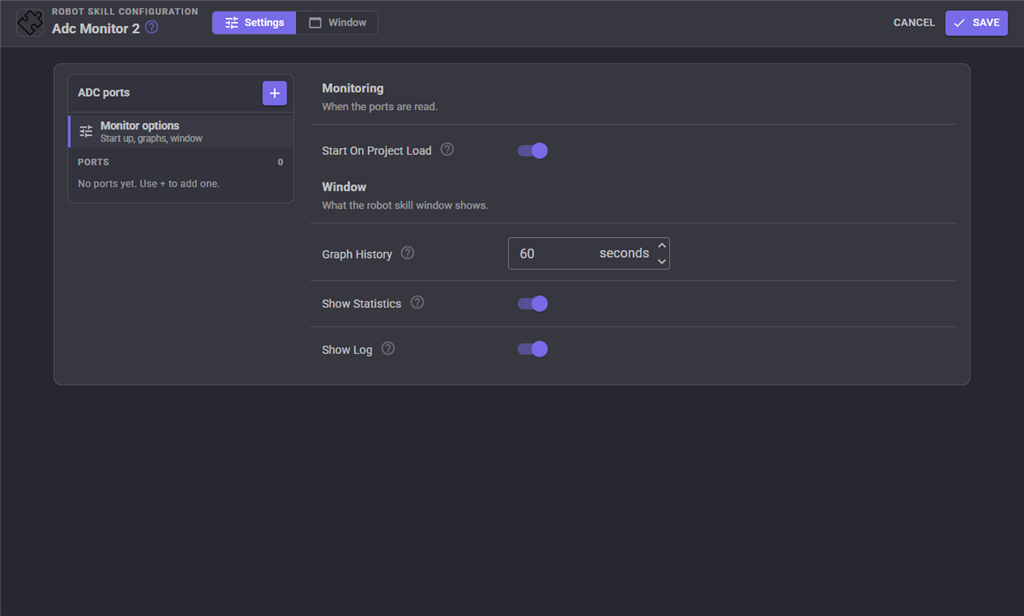
| Setting | Description | Default |
|---|---|---|
| Start On Project Load | Start reading the ports when the project loads. Ports on an EZB that is not connected yet are read the moment it connects. When off, press Start or use the Start control command. | On |
| Graph History | How many seconds of readings a graph shows, 5 to 3600. | 60 seconds |
| Show Statistics | Show the lowest, average and highest values on each tile. | On |
| Show Log | Show the log at the bottom of the window. | On |
Custom UI widgets
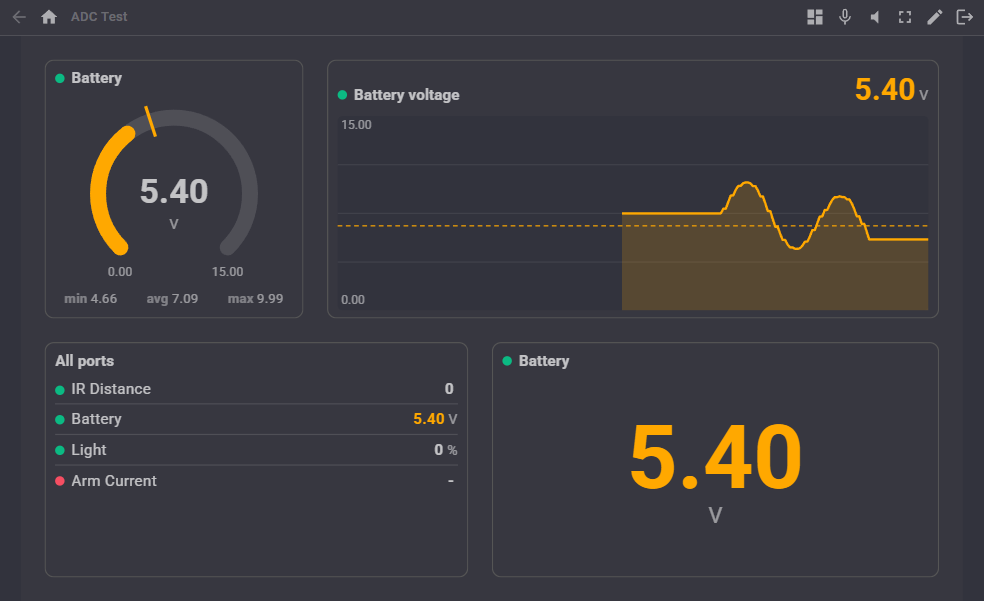
Three widgets can be placed on your own Custom UI screens. Each names the port it shows by its name (such as Battery), its variable name (such as $Battery) or its port (such as 0.ADC1).
- ADC meter: a dial gauge of one port, with optional statistics underneath.
- ADC graph: a scrolling graph of one port with its current value.
- ADC values: one port's value as a large number, or every monitored port as a list when the port setting is left empty. Values in alarm are coloured.
Like the window, the widgets only display what the ADC Monitor has already read, so adding widgets adds no traffic to the controller.
Several monitors
More than one ADC Monitor can be added to a project, for example one per controller or one per part of the robot. Each port should still be monitored by only one of them, and each one publishes its own variables, so give their variables different names.
AI assistants
An AI assistant connected to ARCx through MCP can read every monitored port with its value, statistics, alarm and status, and the recent history of a port to see a trend such as a battery draining. These read what the ADC Monitor already has and never query the controller.
Control Commands for the Adc Monitor robot skill
There are Control Commands available for this robot skill which allows the skill to be controlled programmatically from scripts or other robot skills. These commands enable you to automate actions, respond to sensor inputs, and integrate the robot skill with other systems or custom interfaces. If you're new to the concept of Control Commands, we have a comprehensive manual available here that explains how to use them, provides examples to get you started and make the most of this powerful feature.
Control Command ManualThis robot skill has 14 control commands, listed below. Send them from a JavaScript or Python script, from Blockly, or from another robot skill.
The first value is always the window title, which is the name in the title bar of the robot skill on your workspace. It starts out as Adc Monitor, which is what every example below uses. If you rename the robot skill, or add a second copy of it to the project, use the title as it appears on that window instead.
ControlCommand() can be shortened to CC(), and both spellings work in JavaScript and in Python. The examples are JavaScript; Python is the same call, except that true and false are written True and False.
DisablePort
Stop reading one port. Its variable keeps its last value. Saved with the project.
Syntax
ControlCommand("Adc Monitor", "DisablePort", (String)port)
Parameters
| # | Name | Type | What to pass |
|---|---|---|---|
| 1 | port | Text | Your text, in quotes |
Returns: Boolean [true or false]
Example
var result = ControlCommand("Adc Monitor", "DisablePort", "port");
EnablePort
Start reading a port that was disabled. Saved with the project.
Syntax
ControlCommand("Adc Monitor", "EnablePort", (String)port)
Parameters
| # | Name | Type | What to pass |
|---|---|---|---|
| 1 | port | Text | Your text, in quotes |
Returns: Boolean [true or false]
Example
var result = ControlCommand("Adc Monitor", "EnablePort", "port");
GetAlarm
The alarm state of a port: "Normal", "High" or "Low".
Syntax
ControlCommand("Adc Monitor", "GetAlarm", (String)port)
Parameters
| # | Name | Type | What to pass |
|---|---|---|---|
| 1 | port | Text | Your text, in quotes |
Returns: String
Example
var result = ControlCommand("Adc Monitor", "GetAlarm", "port");
GetAverage
The average value of a port since the statistics were last reset.
Syntax
ControlCommand("Adc Monitor", "GetAverage", (String)port)
Parameters
| # | Name | Type | What to pass |
|---|---|---|---|
| 1 | port | Text | Your text, in quotes |
Returns: Double [5.0e324 to 1.7e308]
Example
var result = ControlCommand("Adc Monitor", "GetAverage", "port");
GetMax
The highest value of a port since the statistics were last reset.
Syntax
ControlCommand("Adc Monitor", "GetMax", (String)port)
Parameters
| # | Name | Type | What to pass |
|---|---|---|---|
| 1 | port | Text | Your text, in quotes |
Returns: Double [5.0e324 to 1.7e308]
Example
var result = ControlCommand("Adc Monitor", "GetMax", "port");
GetMin
The lowest value of a port since the statistics were last reset.
Syntax
ControlCommand("Adc Monitor", "GetMin", (String)port)
Parameters
| # | Name | Type | What to pass |
|---|---|---|---|
| 1 | port | Text | Your text, in quotes |
Returns: Double [5.0e324 to 1.7e308]
Example
var result = ControlCommand("Adc Monitor", "GetMin", "port");
GetPorts
The names of the monitored ports, in the order they are shown.
Syntax
ControlCommand("Adc Monitor", "GetPorts")
Returns: Array of String
Example
var result = ControlCommand("Adc Monitor", "GetPorts");
GetRawValue
The latest raw reading of a port, before the multiplier and offset: 0 to 255, or 0 to 4095 for a 12 bit port.
Syntax
ControlCommand("Adc Monitor", "GetRawValue", (String)port)
Parameters
| # | Name | Type | What to pass |
|---|---|---|---|
| 1 | port | Text | Your text, in quotes |
Returns: Integer [-2,147,483,648 to 2,147,483,647]
Example
var result = ControlCommand("Adc Monitor", "GetRawValue", "port");
GetValue
The latest value of a port (after the multiplier and offset), the same number as its global variable. The port is its name, its variable name or its port such as "0.ADC0".
Syntax
ControlCommand("Adc Monitor", "GetValue", (String)port)
Parameters
| # | Name | Type | What to pass |
|---|---|---|---|
| 1 | port | Text | Your text, in quotes |
Returns: Double [5.0e324 to 1.7e308]
Example
var result = ControlCommand("Adc Monitor", "GetValue", "port");
IsRunning
Whether the ADC ports are being read.
Syntax
ControlCommand("Adc Monitor", "IsRunning")
Returns: Boolean [true or false]
Example
var result = ControlCommand("Adc Monitor", "IsRunning");
ResetStatistics
Forget the lowest, highest and average values and the graphs of every port.
Syntax
ControlCommand("Adc Monitor", "ResetStatistics")
Returns: Boolean [true or false]
Example
var result = ControlCommand("Adc Monitor", "ResetStatistics");
SetInterval
Change how often a port is read, in milliseconds (20 or more). Saved with the project. Returns the interval used.
Syntax
ControlCommand("Adc Monitor", "SetInterval", (String)port, (Number)intervalMs)
Parameters
| # | Name | Type | What to pass |
|---|---|---|---|
| 1 | port | Text | Your text, in quotes |
| 2 | intervalMs | Number | A number, without quotes |
Returns: Integer [-2,147,483,648 to 2,147,483,647]
Example
var result = ControlCommand("Adc Monitor", "SetInterval", "port", 0);
Start
Start reading the monitored ADC ports.
Syntax
ControlCommand("Adc Monitor", "Start")
Returns: Boolean [true or false]
Example
var result = ControlCommand("Adc Monitor", "Start");
Stop
Stop reading the monitored ADC ports. The global variables keep their last values.
Syntax
ControlCommand("Adc Monitor", "Stop")
Returns: Boolean [true or false]
Example
var result = ControlCommand("Adc Monitor", "Stop");
This list is read out of the robot skill itself each time its package is uploaded, so it matches the published version (v2).



This robot skill has been updated to v1.
What has changed
initial release
This robot skill has been updated to v2.
What has changed
updated to use some new ARCx UI features for improved performance.