

Remote robot control and telepresence from any browser, with video, audio, servos, scripts, and access-list permissions.
 Windows
 ARM
ARM
 Linux
Linux
 MacOS
MacOS
How to add the Exosphere robot skill
- Load the most recent release of ARCx on a compatible operating system (Get ARCx).
- Press the + Skills menu from the top menu bar in ARCx.
- Choose the Remote Control category tab.
- Press the Exosphere icon to add the robot skill to your project.
Don't have a robot yet?
Follow the Getting Started Guide to build a robot and use the Exosphere robot skill.
How to use the Exosphere robot skill
Exosphere lets you control your robot from anywhere in the world, from a web browser on a phone, tablet or computer. You can drive it yourself, invite others to take the controls, or send it to a meeting or event as your telepresence. Whoever is driving - you, or someone on your access list - sees through the robot's camera, hears its microphone, drives it with an on-screen joystick, the keyboard arrows or a USB gamepad, moves the servos you allowed, presses buttons that run the scripts you allowed, and can type words for the robot to say. With telepresence on, their own face and voice appear on the robot, so the people around it can talk to whoever is driving. Nothing needs to be installed to drive: Exosphere runs in Chrome, Edge, Safari and Firefox.
Ways to use it
- Control your robot from anywhere - check on your home, your workshop or your pets while you are away. Put yourself on the access list and take the task from Exosphere on your phone.
- Invite others - let friends, family, colleagues or a classroom drive your robot. The access list decides exactly who may take the controls.
- Telepresence for meetings and events - send the robot to a meeting, a trade show booth, a classroom or a family gathering, and talk face to face through its screen. The telepresence kiosk below keeps the robot's screen ready between visitors.
- Ask for help - a robot that gets stuck can post a request for help by itself, with the CreateTask ControlCommand in a script, and someone you allowed drives it back on track.
How a task works
A task is how the robot opens itself up for remote control. Its description tells whoever takes it what the robot is there for: "join the 10 o'clock meeting in room 3", "greet visitors at the booth", "drive into the kitchen and check whether the back door is closed", "I am stuck under the couch".
- You describe the task in the Exosphere window and press Submit Task (or a script calls the CreateTask ControlCommand with its own description).
- The robot posts the task, with its name, description and picture, to Exosphere and connects to the Exosphere server. The task is listed for the people your access list allows.
- One of them takes it. Video and audio start flowing, the Operator connected script runs, and they control the robot.
- The task ends when the operator finishes, when you press Take back control, when a safety limit is reached, or when the connection drops. The robot stops and the Task ended script runs.
Requirements
- A Synthiam account signed in to ARCx (Options, Account). The task is posted as you, and only operators your access list allows can take it.
- A camera robot skill in the project, running. The operator sees through it.
- A movement panel, so the operator's driving reaches the motors. Without one, the operator can still look, listen and run scripts.
- An internet connection. Video is sent at the bitrate you choose (600 kbps by default) plus 256 kbps of microphone audio.
The first time a task is posted, the robot downloads Cisco's OpenH264 video encoder (about half a megabyte) from Cisco and checks it against a known checksum. It is kept in the ARCx data folder and never downloaded again. The download can also be done in advance from the configuration.
The window
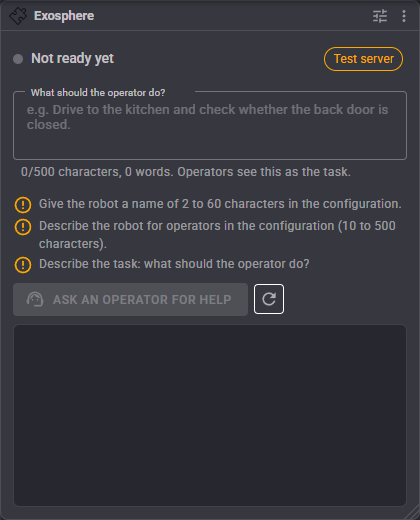
Until the robot can post a task, the window lists exactly what is missing - signing in, the robot's name and description, a running camera, a task description long enough for an operator to act on, an operator script with no script in it - and the button stays disabled. The list updates by itself as things change; the refresh button next to it checks straight away.
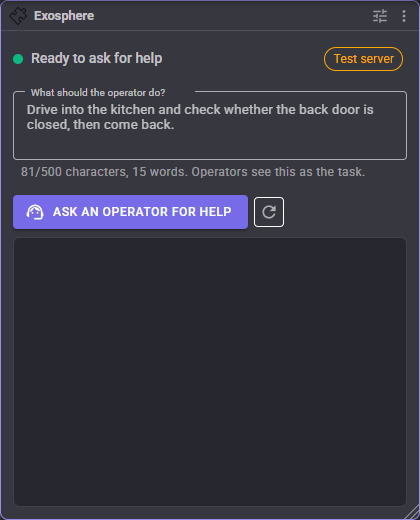
- What should the operator do? - the task, as operators will read it. Exosphere needs at least 20 characters and 5 words, and accepts up to 500. The counter underneath keeps track. The text is kept in the project, so the same request is there next time.
- Submit Task - posts the task. The first time, a notice asks you to stay near the robot while it is driven remotely; it can be turned off for good from the notice or in the configuration's Safety tab.
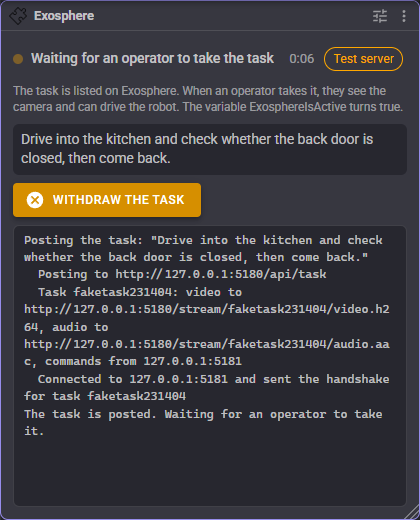
While the task waits, the window shows how long it has been listed. Withdraw the task takes it off Exosphere.
While an operator drives:
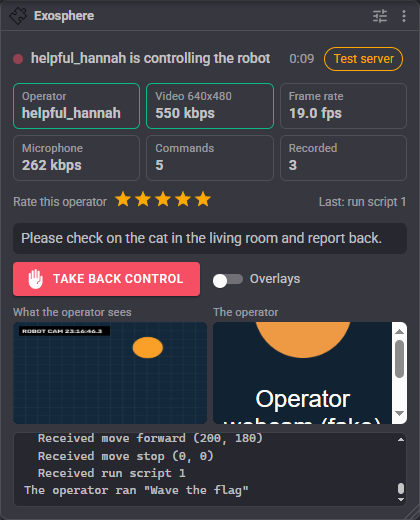
- Operator, Video, Frame rate, Microphone - who is driving, and what is being sent to them: the video's size, its bitrate and frames per second (the Video tile turns amber while the video connection is being made), and the microphone's bitrate.
- Commands - how many commands the operator has sent. The last command is shown underneath.
- Take back control - stops the robot and ends the task at once. The operator loses control before the server is even told.
- Overlays - send the camera image with what other robot skills draw on it (face boxes, glyphs, tracked colors) rather than the plain image.
- The operator - the operator's webcam, during a telepresence task when the configuration shows it in this window.
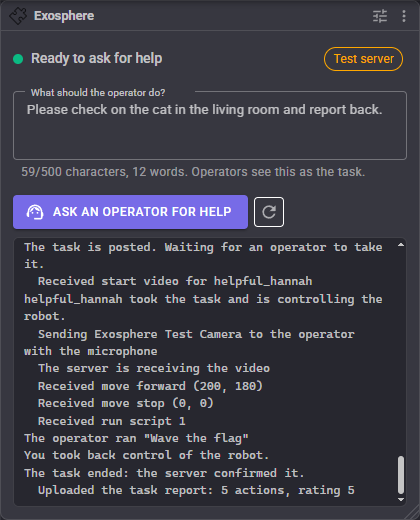
The log at the bottom says what happened and why a task ended. The Detailed log option in the configuration adds every command and each connection step, for tracking down a problem.
Safety
An operator cannot feel the robot, may be on a slow connection, and is somewhere else. These keep the robot safe:
- Take back control, the panic button in ARCx's top bar, and the CloseTask ControlCommand all stop the robot and end the task immediately.
- The maximum speed is enforced on the robot as well as on the operator's page.
- When the connection to the server drops, the robot stops.
- When the camera stops sending video for 10 seconds, the robot stops and the task ends, so nobody drives blind (on by default).
- A session can be limited to a number of minutes, and a task nobody takes can be withdrawn after a number of minutes.
- Only the operator scripts you list can be run remotely.
Configuration
The configuration cannot be opened while a task is active, because the operator was given those settings when the task was posted.
Robot
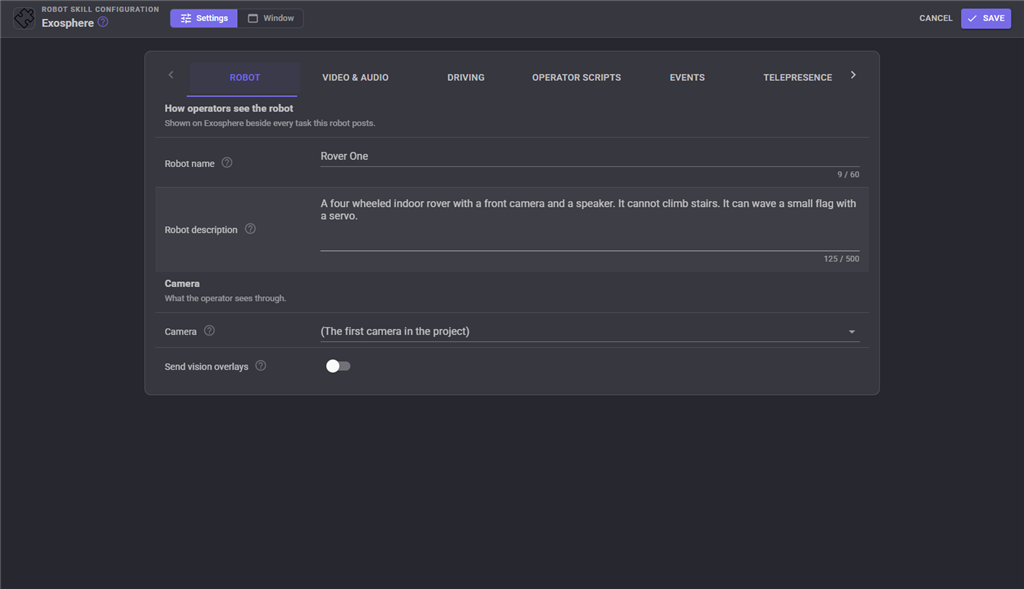
| Setting | What it does |
|---|---|
| Robot name | The robot's name on Exosphere, 2 to 60 characters. Leave it empty to use the name from the project's Robot Configuration. |
| Robot description | What the robot is and can do, 10 to 500 characters. Say what an operator must know: stairs it cannot use, an arm it can raise, a dock it can drive onto. |
| Camera | The camera robot skill whose video is sent. The first camera in the project is used when none is chosen. |
| Send vision overlays | Send the processed image, with other skills' drawings on it. Also switched in the window and by control commands during a task. |
The picture operators see beside the task is the project's picture, else the Robot Configuration picture. If neither is set, no picture is sent. The camera is never used for this picture, so nobody in front of the robot is published with the task.
Video and audio
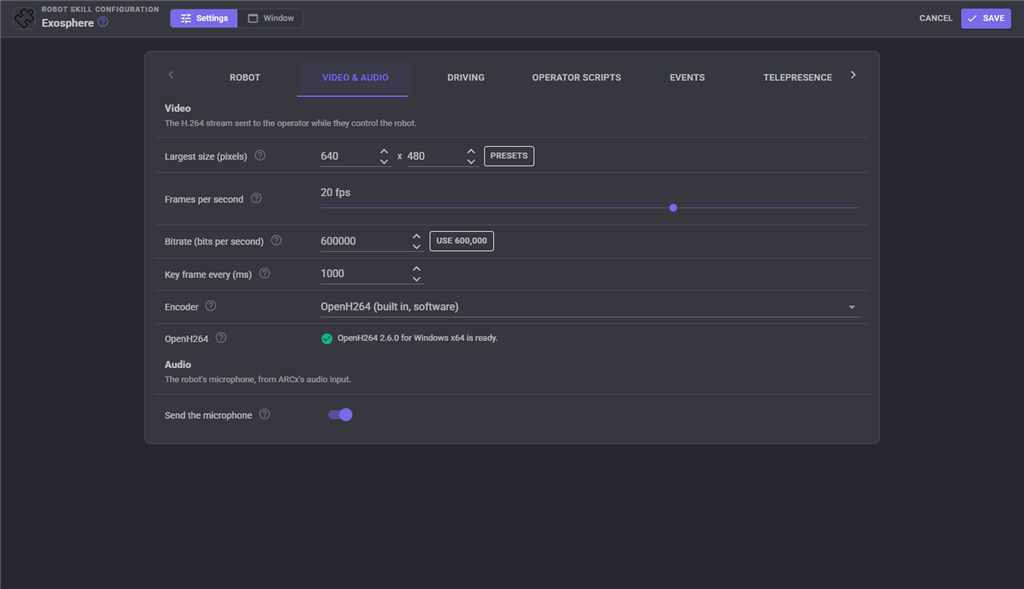
| Setting | What it does |
|---|---|
| Largest size | The video is scaled down to fit inside this size, keeping the camera's shape, and is never enlarged. The presets are 320 x 240 for slow connections, 640 x 480 and 1280 x 720. |
| Frames per second | The most frames sent each second. 15 to 20 is smooth enough to drive by. |
| Bitrate | How much network the video may use. The button suggests about 0.1 bits per pixel per frame for the size and frame rate above. |
| Key frame every | An operator's picture can only start, or recover after a network hiccup, at a key frame. Shorter recovers faster; longer saves bandwidth. |
| Encoder | OpenH264 or FFmpeg; see below. |
| Send the microphone | Let the operator hear the robot's surroundings. Always on during telepresence. The microphone is ARCx's audio input, chosen in Options, Preferences (or a browser that claimed the microphone). |
OpenH264 is Cisco's H.264 encoder, run inside ARCx. It works on every computer ARCx runs on - Windows, Linux and macOS, x64 and ARM64 - and needs nothing installed. Cisco pays the H.264 patent license for its own binaries when they are downloaded from Cisco, which is why the robot downloads it rather than shipping it.
FFmpeg uses an FFmpeg executable you installed, and can hand the encoding to a graphics card: NVIDIA (NVENC), AMD (AMF), Intel (Quick Sync), Apple (VideoToolbox) or a Raspberry Pi's hardware encoder. Leave the path empty to use the ffmpeg on the system PATH. Test finds the fastest H.264 encoder that actually works on this computer and says which it will use.
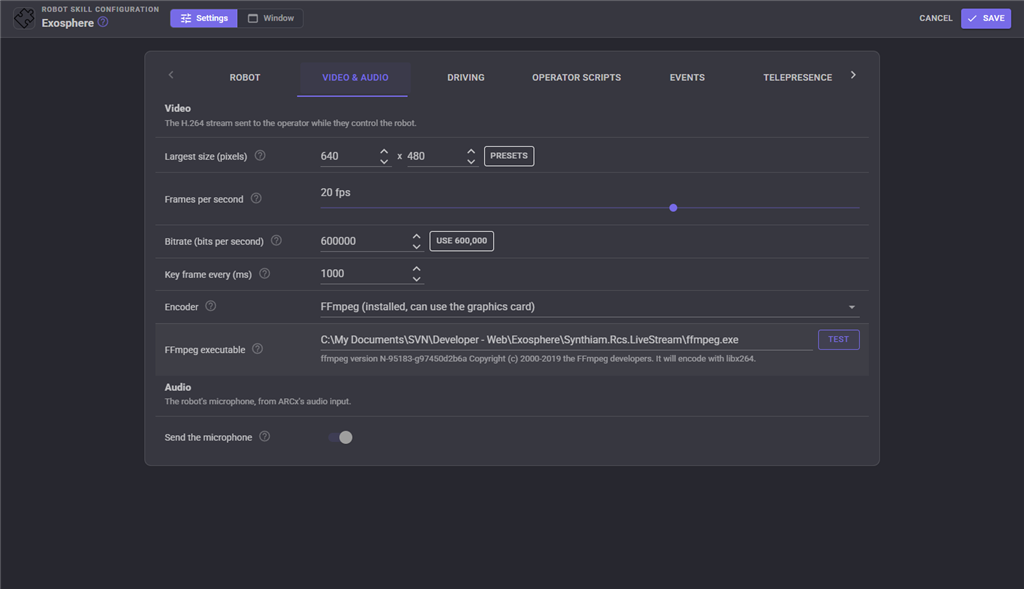
Either way, frames are encoded on a thread of their own and only the newest camera frame is taken. If the network cannot keep up, frames are left out before encoding rather than queued, so the operator's picture stays current instead of falling seconds behind. If the video connection drops, it reconnects and starts again from a key frame.
Driving
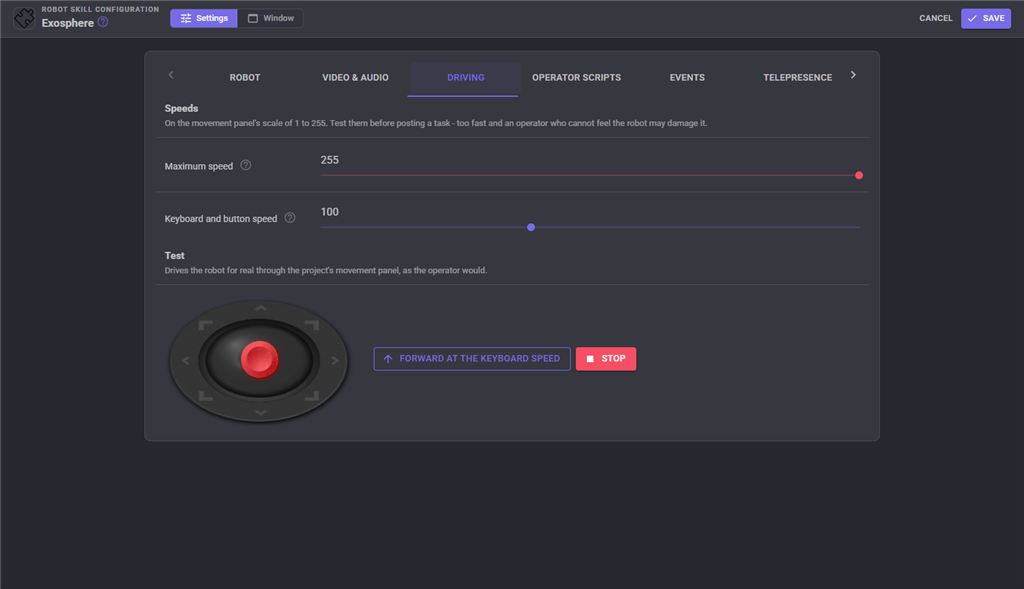
| Setting | What it does |
|---|---|
| Maximum speed | The fastest the operator may drive, on the movement panel's 1 to 255 scale. |
| Keyboard and button speed | The speed of the operator's arrow keys and direction buttons. It cannot be more than the maximum. |
Test the speeds before posting a task: the joystick and the Forward at the keyboard speed button drive the robot for real through the project's movement panel, exactly as the operator would. Stop stops it, and so does closing the configuration.
Operator scripts
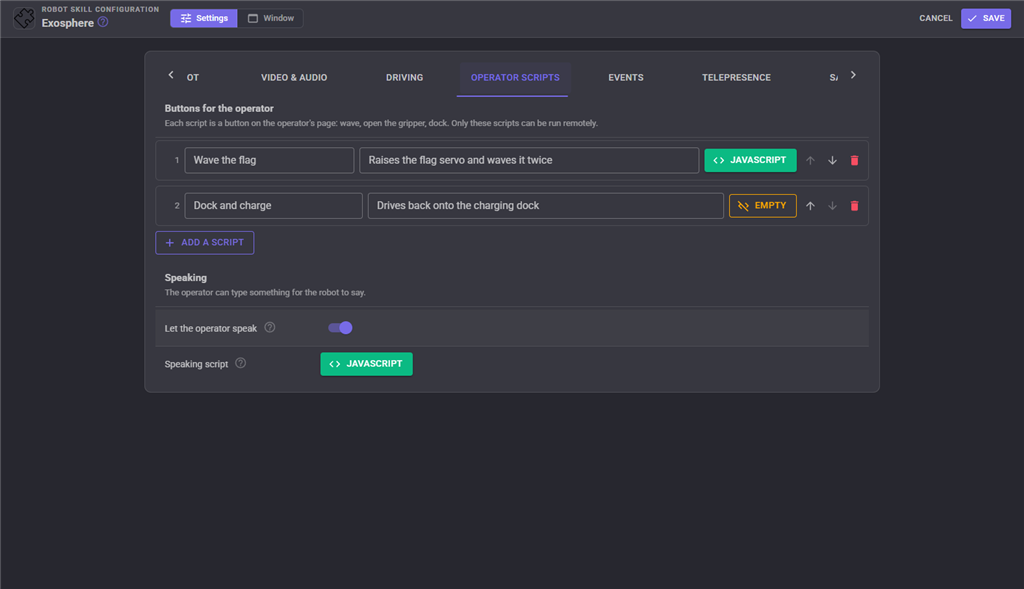
Each script becomes a button on the operator's page: wave, open the gripper, dock and charge. The title is the button's label (up to 60 characters are shown) and the optional description tells the operator what it does. The arrows change the order the buttons appear in. Only these scripts can be run remotely.
The operator's scripts run on their own script engine, so pressing one never stops an event script or the robot speaking. Pressing a second operator script while the first is still running stops the first.
Let the operator speak gives the operator a box for text the robot says. The Speaking script runs with the text in the ExosphereSpeakingText variable; the default says who sent it with the project's text to speech engine. Leave the script empty to just speak the text.
Operator servos
Each servo becomes a control on the operator's page, labelled with its title so they know what it moves, with the optional description underneath. Choose the kind of control:
- Horizontal slider - left to right, such as turning the head. Uses the horizontal servo.
- Vertical slider - down to up, such as tilting the head or lifting an arm. Uses the vertical servo.
- Two axis pad - a square the operator drags around to move two servos at once, such as a pan and tilt camera mount. Uses both.
The operator's full travel is the servo's minimum to maximum: far left and the bottom are the minimum, far right and the top the maximum. Turn on invert to swap them. Set the minimum and maximum to what is safe for the robot, because the operator can reach both ends. Dragging the minimum or maximum slider moves the servo so you can see the limit. Multiple servos adds servos that follow the first, such as two eyebrows.
The operator's control starts where the servo is when the task is posted, and double clicking it centers the servo. The arrows change the order the controls appear in. Only these servos can be moved remotely.
Events
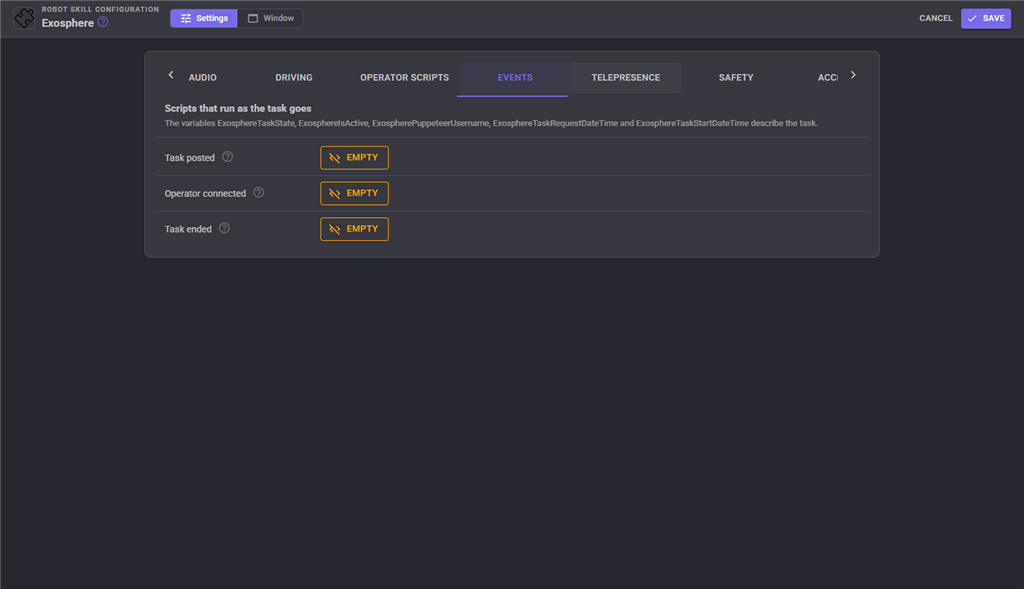
| Script | Runs when |
|---|---|
| Task posted | The task is listed on Exosphere and waiting for an operator. |
| Operator connected | An operator takes the task. ExospherePuppeteerUsername is their username. |
| Task ended | The task ends, however it ended. |
Telepresence
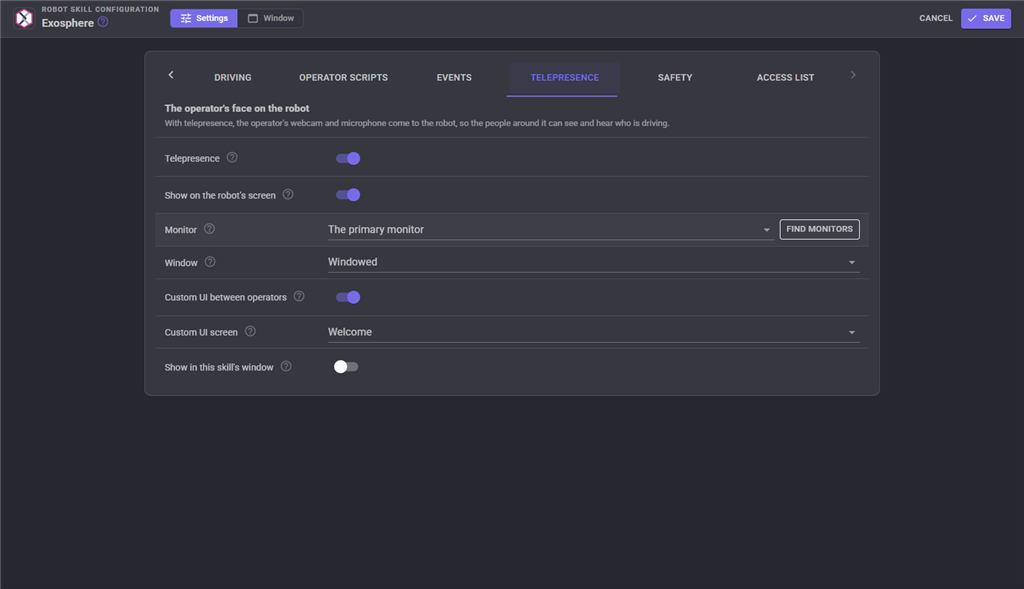
With telepresence on, operators are asked to share their webcam and microphone with the robot, and the robot's microphone is always sent, so it is a conversation.
| Setting | What it does |
|---|---|
| Telepresence | Ask operators for their webcam and microphone. |
| Show on the robot's screen | Open the operator's video in a browser window on a monitor plugged into the computer ARCx runs on, using ARCx's browser windows (Windows x64, Linux x64 and Linux ARM64). Its sound plays from that computer's speakers. The window closes by itself when the task ends, unless a Custom UI is shown between operators. |
| Monitor | Which monitor. Find monitors lists the ones attached. |
| Window | Windowed, fullscreen, or kiosk: fullscreen and locked, so nobody at the robot can close it or browse elsewhere. |
| Custom UI between operators | For a telepresence kiosk. While nobody is controlling the robot, its screen shows a Custom UI screen instead of nothing. When an operator connects, the same window switches to their video, and back to the Custom UI when they leave. Needs at least one screen in Project, Custom UI. |
| Custom UI screen | The screen shown between operators, or the project's home screen. Its buttons can move to other screens; every return from an operator starts on this one again. |
| Show in this skill's window | Also show the operator's video in the Exosphere window, in whichever browser is showing ARCx - handy when ARCx is viewed on a tablet mounted on the robot. |
A telepresence kiosk
Turn on Telepresence, Show on the robot's screen and Custom UI between operators, and set Window to Kiosk. The robot's screen then always shows something: your Custom UI while the robot waits (a welcome message, a button that posts a task with the Exosphere task widget, anything a Custom UI can hold), and the operator's face while someone is driving. The window opens when the project loads, so a robot that opens its project on start-up comes up as a kiosk with nobody touching it.
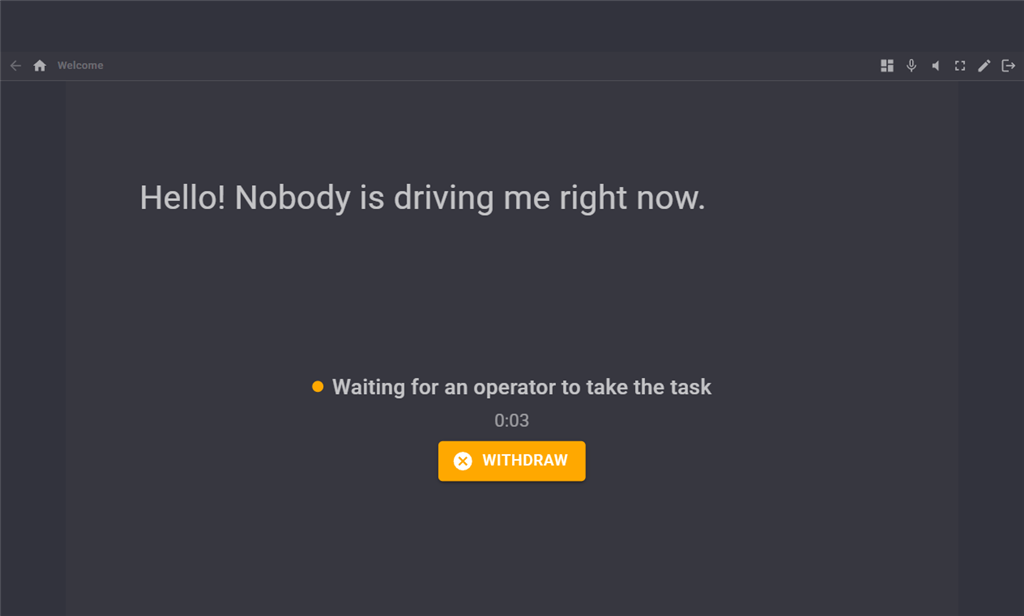
Custom UI navigation is shared by every viewer, so a browser elsewhere that is also on the Custom UI viewer moves to this screen when an operator leaves.
Safety
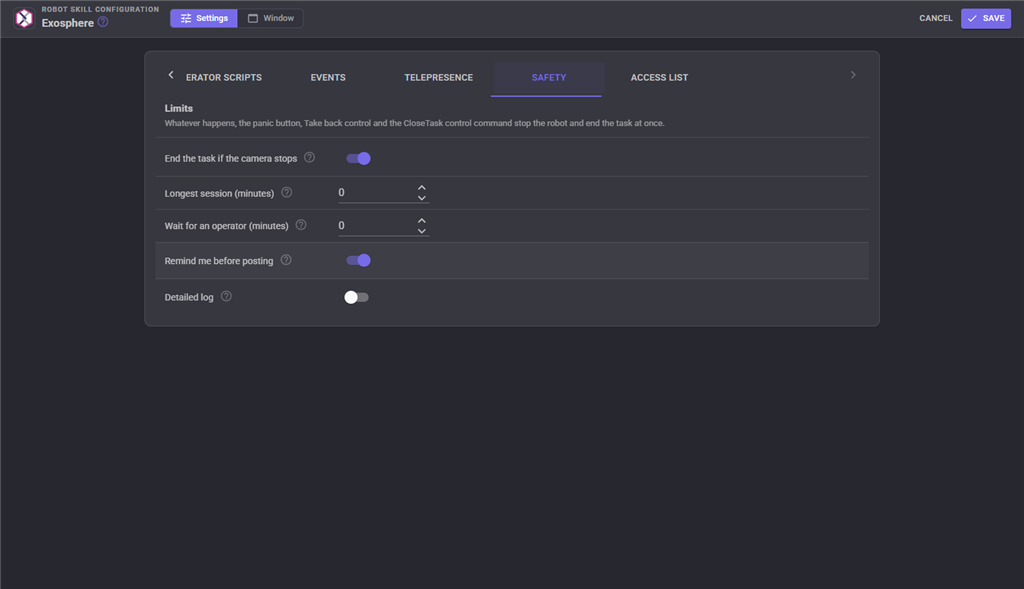
| Setting | What it does |
|---|---|
| End the task if the camera stops | Stop the robot and end the task when the camera sends nothing for 10 seconds. |
| Longest session | End the task after an operator has had the robot this many minutes. 0 is no limit. |
| Wait for an operator | Withdraw the task if nobody takes it within this many minutes. 0 waits until you withdraw it. |
| Remind me before posting | Show the "keep an eye on your robot" notice each time a task is posted from the window. This is kept with your Synthiam account, not the project. |
| Detailed log | Write every command, connection step and stream retry to the log. |
Access list
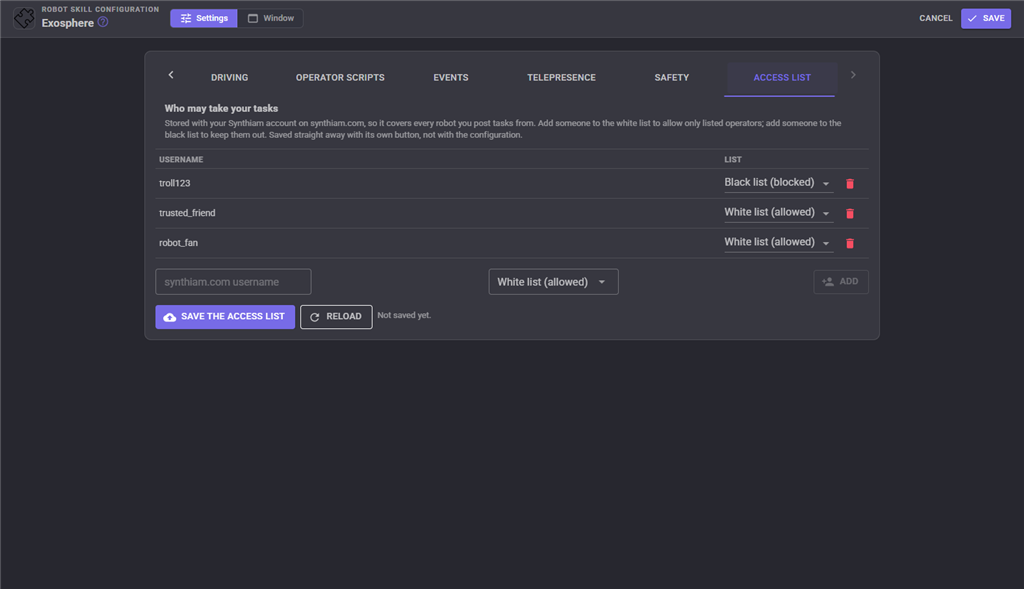
Who may take your tasks. The list is stored with your Synthiam account on synthiam.com, so it covers every robot you post tasks from. This is how you invite people: put someone on the white list and only white listed operators can take your tasks; put someone on the black list to keep them out. While the white list is empty, anyone signed in to Exosphere can take your tasks. To drive your own robot from anywhere, add your own username to the white list along with anyone you invite. Changes are saved straight away with Save the access list, separately from the configuration's Save button. Usernames synthiam.com does not know are left out, and the list reloads to show what was kept.
Variables
| Variable | Holds |
|---|---|
| ExosphereTaskState | NoTask, Starting, WaitingForPuppeteer, InProgressByPuppeteer or Closing |
| ExosphereIsActive | true while an operator is controlling the robot |
| ExospherePuppeteerUsername | the operator's username |
| ExosphereSpeakingText | the last text the operator sent for the robot to say |
| ExosphereTaskRequestDateTime | when the current task was posted |
| ExosphereTaskStartDateTime | when the operator took it |
The names are the ARC skill's without the leading $. ARCx ignores a leading $, so getVar("$ExosphereIsActive") in a script written for ARC still works.
Privacy
The robot's camera and microphone are sent only while an operator has the task, and only to that operator. The task's picture is the project or Robot Configuration picture, never a camera frame. Nothing is recorded: when a task ends, there is no rating of the operator and no record of what the robot did.
Custom UI widgets
Two widgets can be placed on your own Custom UI screens:
- Exosphere task - the task's state, who is driving and for how long, and one big button that submits the task, withdraws it or takes back control. The TaskDescription setting is the request the button posts (empty uses the description in the Exosphere window), and ButtonText is its label.
- Exosphere operator video - the operator's webcam during a telepresence task.
Coming from the ARC version
Projects do not carry over, but everything the ARC skill did is here, and the Exosphere server is the same one.
- Video is encoded in process with OpenH264 on every platform, or with an installed FFmpeg (ARC always shipped a 67 MB ffmpeg.exe and only ran on Windows). Frames are dropped before encoding when the network falls behind, and a dropped video connection is retried instead of ending the task.
- The telepresence window opens on the robot's own screen through ARCx's browser windows, can be put on a chosen monitor and locked as a kiosk, can show a Custom UI between operators, and can also be shown in the skill window or on a Custom UI screen.
- When the operator ended the task, ARC did not stop the robot. Every ending now goes through the same steps: stop the robot, stop the media and the operator's scripts, run the Task ended script.
- ARC's operator rating (always five stars) and action recording are gone.
- The panic button, a camera that stops, a session time limit and a waiting time limit all end the task.
- Operator scripts, event scripts and speech run on separate script engines, so one never stops another.
- The window says exactly what stops a task being posted, and checks the task description against Exosphere's own rules before sending it.
- ARC's session password and minimum rating settings were never sent to Exosphere and are gone.
- The control commands are ARC's, plus GetTaskStateName, IsActive, GetOperator, ShowTelepresence and HideTelepresence.
Troubleshooting
- The button stays disabled - read the list above it. Each line is one thing to fix.
- "The task could not be posted" - the log gives Exosphere's own reason. The task description is checked again on the server, which also removes words it does not allow.
- The operator's picture is jerky or late - lower the largest size or the frame rate, or raise the bitrate if the connection allows. The Frame rate tile shows what is actually being sent.
- The video tile stays amber - the robot cannot reach the Exosphere server's video address. Check a firewall or proxy allows outgoing HTTPS.
- OpenH264 did not download - the computer could not reach ciscobinary.openh264.org. Choose FFmpeg instead, or download it later from the Video and audio tab.
- The operator's video does not appear on the robot's screen - the Telepresence tab says when ARCx browser windows are not available on this computer. Use Show in this skill's window instead.
- The Custom UI does not appear between operators - the project needs at least one Custom UI screen, and Telepresence and Show on the robot's screen must both be on.
- The operator cannot hear anything - check ARCx's microphone in Options, Preferences; the Microphone tile shows whether audio is being sent.
Control Commands for the Exosphere robot skill
There are Control Commands available for this robot skill which allows the skill to be controlled programmatically from scripts or other robot skills. These commands enable you to automate actions, respond to sensor inputs, and integrate the robot skill with other systems or custom interfaces. If you're new to the concept of Control Commands, we have a comprehensive manual available here that explains how to use them, provides examples to get you started and make the most of this powerful feature.
Control Command ManualThis robot skill has 11 control commands, listed below. Send them from a JavaScript or Python script, from Blockly, or from another robot skill.
The first value is always the window title, which is the name in the title bar of the robot skill on your workspace. It starts out as Exosphere, which is what every example below uses. If you rename the robot skill, or add a second copy of it to the project, use the title as it appears on that window instead.
ControlCommand() can be shortened to CC(), and both spellings work in JavaScript and in Python. The examples are JavaScript; Python is the same call, except that true and false are written True and False.
CloseTask
End the current task: withdraws it while waiting for an operator, or takes the robot back from the operator. Stops the robot.
Syntax
ControlCommand("Exosphere", "CloseTask")
Returns: Boolean [true or false]
Example
var result = ControlCommand("Exosphere", "CloseTask");
CreateTask
Create a task on Exosphere for a remote operator to take, with the given description of what the operator should do (at least 20 characters and 5 words). The description is required. Fails if a task is already active or the robot is not ready.
Syntax
ControlCommand("Exosphere", "CreateTask", (String)description)
Parameters
| # | Name | Type | What to pass |
|---|---|---|---|
| 1 | description | Text | Your text, in quotes |
Returns: Boolean [true or false]
Example
var result = ControlCommand("Exosphere", "CreateTask", "description");
GetOperator
The username of the remote operator controlling the robot, or an empty string.
Syntax
ControlCommand("Exosphere", "GetOperator")
Returns: String
Example
var result = ControlCommand("Exosphere", "GetOperator");
GetTaskState
The task state as a number: NoTask = 0, Starting = 1, WaitingForPuppeteer = 2, InProgressByPuppeteer = 3, Closing = 4.
Syntax
ControlCommand("Exosphere", "GetTaskState")
Returns: Integer [-2,147,483,648 to 2,147,483,647]
Example
var result = ControlCommand("Exosphere", "GetTaskState");
GetTaskStateName
The task state by name: NoTask, Starting, WaitingForPuppeteer, InProgressByPuppeteer or Closing.
Syntax
ControlCommand("Exosphere", "GetTaskStateName")
Returns: String
Example
var result = ControlCommand("Exosphere", "GetTaskStateName");
HideTelepresence
Close the operator's video on the robot's screen, or go back to the idle Custom UI when one is set. The task carries on.
Syntax
ControlCommand("Exosphere", "HideTelepresence")
Returns: Boolean [true or false]
Example
var result = ControlCommand("Exosphere", "HideTelepresence");
IsActive
Whether a remote operator is controlling the robot right now.
Syntax
ControlCommand("Exosphere", "IsActive")
Returns: Boolean [true or false]
Example
var result = ControlCommand("Exosphere", "IsActive");
SetOutputOriginal
Send the plain camera image to the operator.
Syntax
ControlCommand("Exosphere", "SetOutputOriginal")
Returns: Boolean [true or false]
Example
var result = ControlCommand("Exosphere", "SetOutputOriginal");
SetOutputProcessed
Send the camera image with other robot skills' vision overlays drawn on it.
Syntax
ControlCommand("Exosphere", "SetOutputProcessed")
Returns: Boolean [true or false]
Example
var result = ControlCommand("Exosphere", "SetOutputProcessed");
ShowTelepresence
Open the operator's video on the robot's screen again, for a telepresence task in progress.
Syntax
ControlCommand("Exosphere", "ShowTelepresence")
Returns: Boolean [true or false]
Example
var result = ControlCommand("Exosphere", "ShowTelepresence");
ToggleOutput
Switch the video sent to the operator between the plain and the processed camera image. Returns true when the processed image is now being sent.
Syntax
ControlCommand("Exosphere", "ToggleOutput")
Returns: Boolean [true or false]
Example
var result = ControlCommand("Exosphere", "ToggleOutput");
This list is read out of the robot skill itself each time its package is uploaded, so it matches the published version (v13).




This robot skill has been updated to v1.
What has changed
initial release
This robot skill has been updated to v3.
What has changed
updated to use full screen mode etc
This robot skill has been updated to v4.
What has changed
no longer shows the "what teh operator sees" window
This robot skill has been updated to v5.
What has changed
custom ui can be displayed when there is no operator connected to the robot. for kiosk mode
This robot skill has been updated to v6.
What has changed
added new control commands
This robot skill has been updated to v8.
What has changed
uses latest protocol for exosphere
This robot skill has been updated to v9.
What has changed
updated with a few fixes for stability
This robot skill has been updated to v10.
What has changed
use the latest exosphere server which has geo located turn servers