

Real-time video compositor for camera overlays, text, graphics, effects, meters, templates, and scripted transitions.
 Windows
 ARM
ARM
 Linux
Linux
 MacOS
MacOS
How to add the Video Overlay robot skill
- Load the most recent release of ARCx on a compatible operating system (Get ARCx).
- Press the + Skills menu from the top menu bar in ARCx.
- Choose the Camera category tab.
- Press the Video Overlay icon to add the robot skill to your project.
Don't have a robot yet?
Follow the Getting Started Guide to build a robot and use the Video Overlay robot skill.
How to use the Video Overlay robot skill
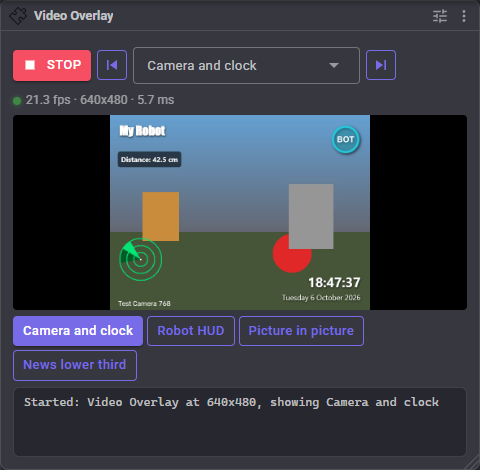
Design your own video. Video Overlay builds a new video source out of templates: layers of live camera video, pictures with transparency, animated GIFs, text that shows global variables, shapes, meters and effects, drawn on top of each other in real time. The result is a video source like any camera, so the Custom UI camera view, video recording, vision skills and even another Video Overlay can use it. Scripts switch between templates with a transition and change any layer on the fly: a "low battery" message, a speech caption, a picture in picture camera swap, a score on screen.
What it can do
- Video from any source, filling the screen or in a box anywhere: picture in picture, split screen, several cameras at once. Fit, crop, digital zoom, mirror, rounded corners, a border and a drop shadow, with or without the boxes vision skills draw.
- Pictures from the library: PNG with transparency, JPEG, WebP, BMP and animated GIF. They are saved inside the project, so a project copied to another computer or to a Raspberry Pi shows the same logo.
- Text in any font installed on the computer, or a TrueType or OpenType font uploaded to the library. Outlines, backgrounds, alignment, word wrap, shrink to fit and news ticker scrolling. Text shows global variables with
{VariableName}, formatted numbers with{VariableName:0.0}, and built in values such as the time and date. - Shapes: rectangles with gradients, circles, lines, arrows, triangles, crosshairs, viewfinder corners, grids, retro scanlines and vignettes.
- Meters that show a global variable as a bar, a dial, a battery or signal bars, with segments, a warning color and a smooth glide between readings.
- Effects on any layer: grayscale, sepia, night vision, thermal, invert, warm, cool, high contrast and faded photo, blur, opacity and blend modes (screen, multiply, add, overlay, difference).
- Behavior: layers that blink, and layers that only show while a global variable is true, equal to something, above or below a number.
- Templates switched from scripts, the window or a Custom UI screen, with a cut, cross fade, slide, wipe, zoom or iris transition.
- Messages that pop up over whatever template is showing, and snapshots of the video to a file.
The skill comes with four templates ready to use, and nine more to start from when you make a new one.
Requirements
- A video source in the project for video layers, such as Camera Source (usb) or Camera Source (ezb), with video running. Templates without video (text, pictures and shapes on a background color) work without one.
The skill window
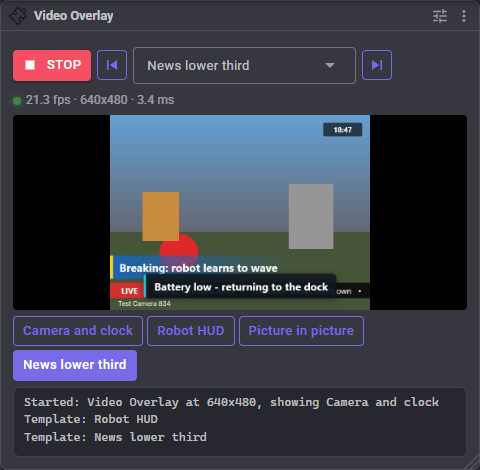
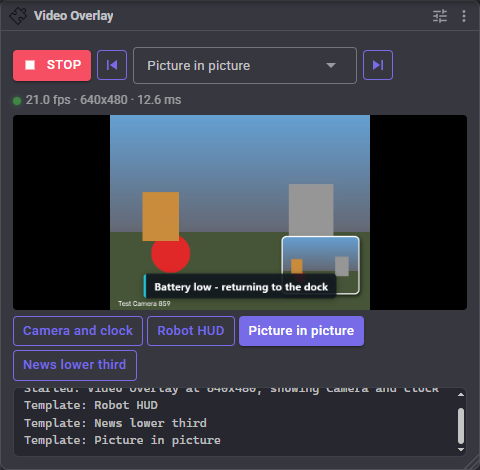
The window shows the video this skill makes, exactly as every other skill receives it.
| Control | What it does |
|---|---|
| Start / Stop | Starts or stops making video. Skills watching it keep the last frame while it is stopped |
| Template list | The template being shown. Choosing another switches to it with the transition set on the Output tab |
| Previous / Next | Steps through the templates in their order |
| Status line | The frames per second being delivered, the video size, and how long each frame takes to draw |
| Template buttons | One per template, for switching with a click. The one showing is filled in |
Below them, the log lists what happened: starts and stops, template changes, snapshots, and the video source being renamed.
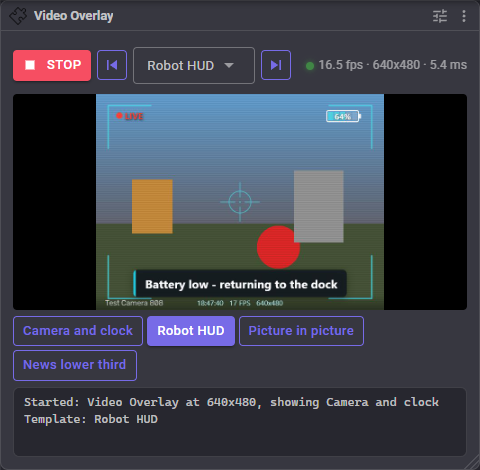
The video source is named after the window title, so Video Overlay makes a video source called Video Overlay. Rename the window (on the Window tab of the configuration) to rename the video source.
The designer
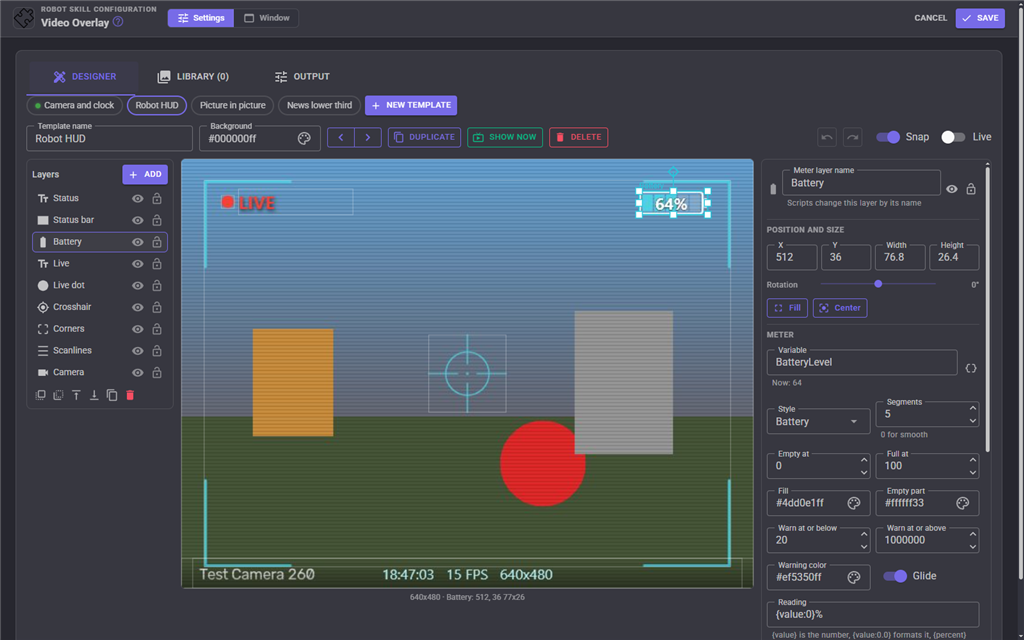
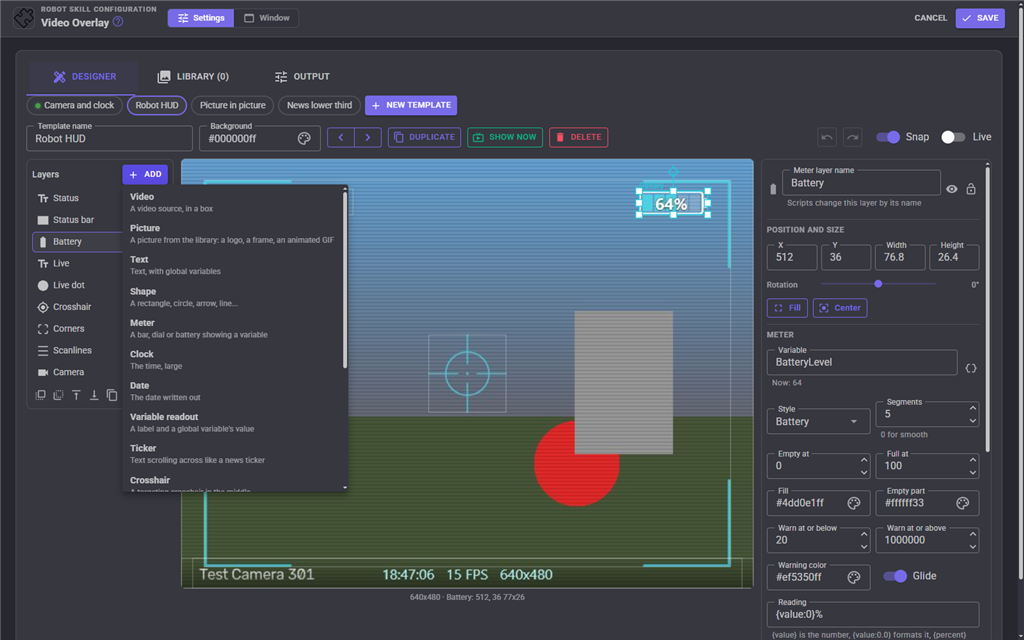
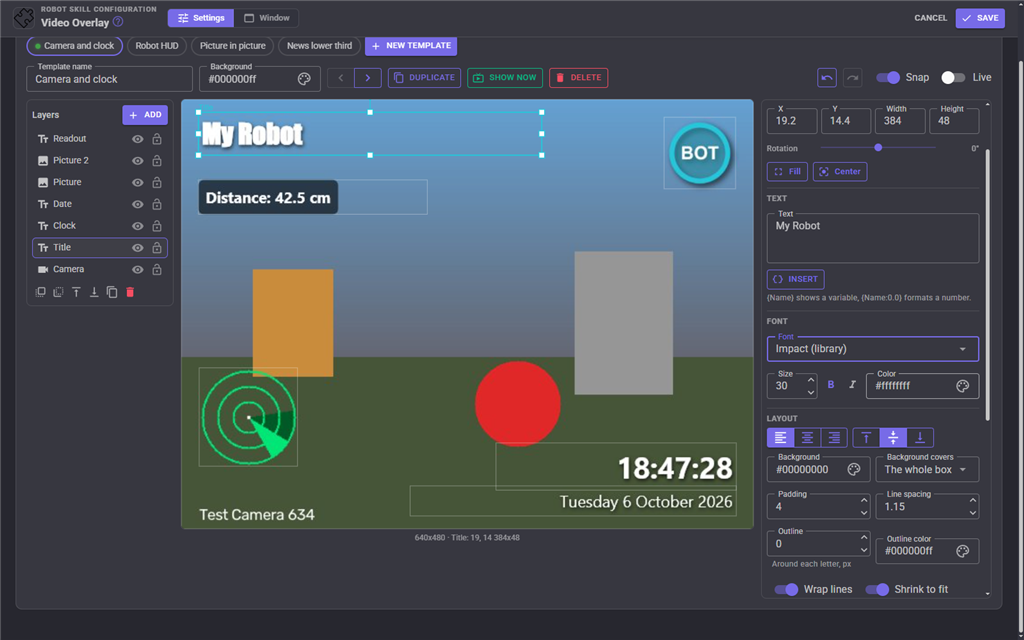
Templates are designed in the configuration, on the Designer tab. The middle shows a live preview drawn exactly as the real video will be, with your cameras moving in it. The left lists the template's layers and the right shows the selected layer's settings.
Templates
The row along the top has a tab for each template. The template showing on the video now has a green dot. Under it are the selected template's name and background color, buttons to move it earlier or later in the list (Next and Previous follow this order), Duplicate, Show Now to put it on the video straight away, and Delete.
New Template makes one from a preset:
| Preset | What it is |
|---|---|
| Blank | An empty template with a black background |
| Camera and clock | The camera with a title and the time and date |
| Robot HUD | Viewfinder corners, crosshair, battery meter, live indicator, status bar and scanlines |
| Picture in picture | One camera filling the screen and a second in the corner |
| Split screen | Two cameras side by side, labeled |
| News lower third | A title band and a scrolling ticker across the bottom, with a clock |
| Security camera | Black and white with a timestamp, a camera name and a blinking REC |
| Night vision | Green night vision with a vignette, scanlines and a crosshair |
| Thermal | A false color thermal look with a scale bar |
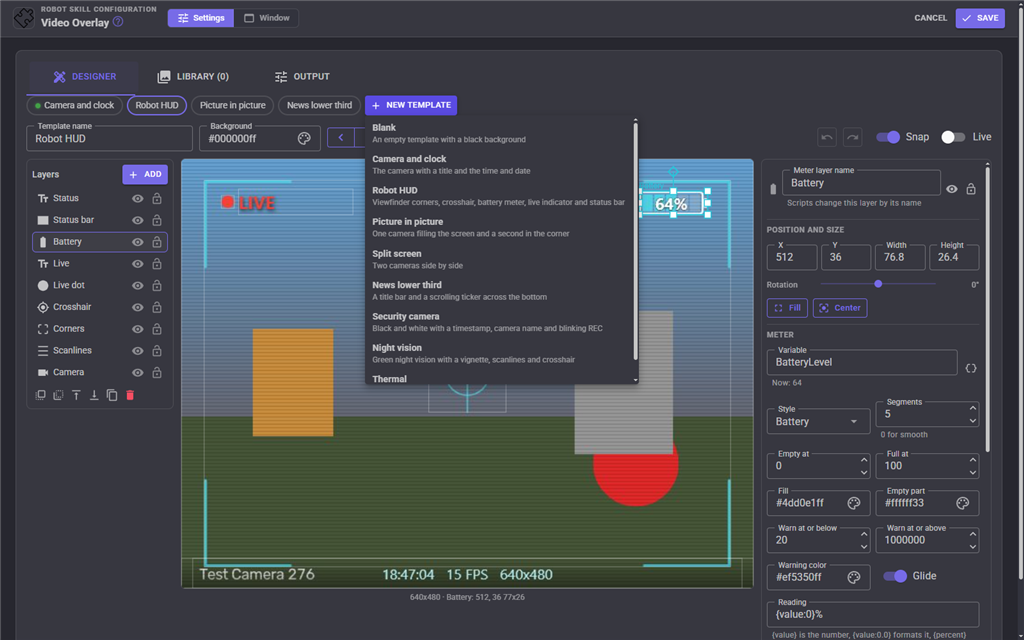
Video layers in the presets show the first camera in the project. Choose another camera in the layer's settings.
Layers
Layers are drawn back to front: the top of the list is in front of everything below it. The eye hides a layer and the lock stops it being picked or dragged on the canvas, which helps when a full screen video sits behind everything. The buttons under the list bring the selected layer forward or send it back, all the way to the front or back, duplicate it or delete it.
Add offers the five kinds of layer (Video, Picture, Text, Shape and Meter) and ready made ones: a clock, the date, a variable readout, a ticker, a crosshair, viewfinder corners, a battery meter, a live indicator, a vignette, scanlines and a rule of thirds grid.
Placing layers on the canvas
Click a layer to select it and drag to move it. The square handles resize it and the diamond above it turns it. While dragging, layers snap to the edges and middle of the video and to the edges and middles of other layers, with a pink line showing what they snapped to.
| Key or mouse | What it does |
|---|---|
| Shift while resizing a corner | Keeps the layer's shape |
| Shift while turning | Turns in 15 degree steps |
| Alt while dragging | No snapping |
| Arrow keys | Move the selected layer 1 pixel, or 10 with Shift |
| Delete | Deletes the selected layer |
| Ctrl+Z / Ctrl+Y | Undo and redo |
| Ctrl+D | Duplicates the selected layer |
| Ctrl+C / Ctrl+V | Copies and pastes a layer, also into another template |
| Page Up / Page Down | Brings the layer forward or sends it back |
| Escape | Selects nothing |
Click the preview once before using the keys. Undo and Redo in the toolbar cover every change to the templates made on this page.
Snap turns snapping off for good. Live shows the preview exactly as the video will look: layers blink, Show When conditions apply and changes made by scripts show. With Live off every layer is shown, so a layer that only appears now and then can still be placed, and a variable that does not exist yet shows as its {name} so you can see where it goes.
Layer settings
Every layer has a name, a position and size in video pixels, and a rotation. Fill stretches it over the whole video and Center puts it in the middle. For video and pictures, Match Shape makes the box the same shape as the picture.
The layer's name is what scripts use to change it. Layers in different templates may share a name, and a script changing that name changes all of them, so a Status text in every template stays the same when the template changes.
Video
| Setting | What it does |
|---|---|
| Video source | The camera or video source to show. "The first video source" follows whatever camera the project has |
| Show what vision skills draw | Shows the boxes and labels that face, color, glyph and object detection skills draw on the video. Off shows the camera picture as it is |
| No signal text | Shown over the last picture when the source stops sending. Empty keeps the last picture with no text |
Picture: choose a picture from the library, or upload one straight into it. Animated GIFs and WebPs play and loop.
Framing (video and pictures)
| Setting | What it does |
|---|---|
| Fit | Fill the box and crop the edges, show it all with bars at the sides, or stretch to the box |
| Zoom | Digital zoom, with Across and Down choosing the point zoomed into |
| Mirror / Upside down | Flips the picture |
Text
| Setting | What it does |
|---|---|
| Text | The text. A new line starts a new line. Insert adds a built in value or a global variable |
| Font, Size, Bold, Italic, Color | How the letters look. Fonts uploaded to the library are listed first |
| Alignment | Left, center or right, and top, middle or bottom in the box |
| Background | A color behind the text, covering the whole box or just the text |
| Padding, Line spacing | Space inside the box and between lines |
| Outline | An outline around each letter, which keeps white text readable over bright video |
| Wrap lines | Long lines continue on the next line |
| Shrink to fit | Text that does not fit the box gets smaller rather than being cut off |
| Scroll | Scrolls the text across the box like a news ticker, in pixels per second |
Text understands these values:
| Write | Shows |
|---|---|
{BatteryLevel} |
The global variable BatteryLevel. {$BatteryLevel} works too |
{BatteryLevel:0.0} |
The variable as a number with one decimal place. Any .NET number format works |
{@time} / {@time:hh:mm tt} |
The time, optionally in your own format |
{@date} / {@date:dddd d MMMM yyyy} |
The date, optionally in your own format |
{@datetime}, {@day} |
The date and time, the day of the week |
{@fps}, {@frame}, {@uptime} |
The frame rate, the frame number, how long the video has run |
{@template}, {@source}, {@width}, {@height} |
The template's name, this video source's name, the video size |
A variable that has not been set yet shows nothing. The designer lists the variables a text uses that are not set yet.
Shape
| Setting | What it does |
|---|---|
| Shape | Rectangle, ellipse, line, arrow, triangle, crosshair, viewfinder corners, grid, scanlines or vignette. Turn a line or an arrow with the rotation to point it any way |
| Fill, Gradient | The inside color, optionally blending into a second color at an angle |
| Line color, Line width, Dashed | The outline, and the lines of crosshairs, corners, grids and scanlines |
| Cells / Gap | The number of cells of a grid, or the pixels between scanlines |
Meter
| Setting | What it does |
|---|---|
| Variable | The global variable holding the number, such as a battery level or a distance |
| Style | Bar, vertical bar, dial, battery or signal bars |
| Segments | Splits the meter into separate blocks, like LEDs. 0 for smooth |
| Empty at / Full at | The values of an empty and a full meter |
| Fill, Empty part | The colors of the two parts |
| Warn at or below / above, Warning color | The fill turns the warning color when the value is outside this range |
| Glide | Moves smoothly to a new reading instead of jumping |
| Reading | The text on the meter. {value} is the number, {value:0.0} formats it, {percent} is how full it is |
Appearance (every layer)
| Setting | What it does |
|---|---|
| Opacity | How see-through the layer is |
| Blend | How the layer mixes with what is behind it. Screen brightens, multiply darkens, add glows, difference inverts |
| Color effect | Grayscale, sepia, invert, night vision, thermal, warm, cool, high contrast or faded photo |
| Rounded corners | Rounds video, pictures, rectangles and text backgrounds |
| Blur | Softens the layer |
| Border, Border color | A frame around video and pictures |
| Drop shadow | A soft shadow under the layer, with its color, softness and offset |
When it shows (every layer)
| Setting | What it does |
|---|---|
| Blink | Flashes the layer on and off, each half of the cycle lasting this many milliseconds |
| Show only when variable | The layer is drawn only while a global variable is true, false, equal to, not equal to, greater than, less than or containing a value, or set at all. The designer says whether it would show right now |
The library
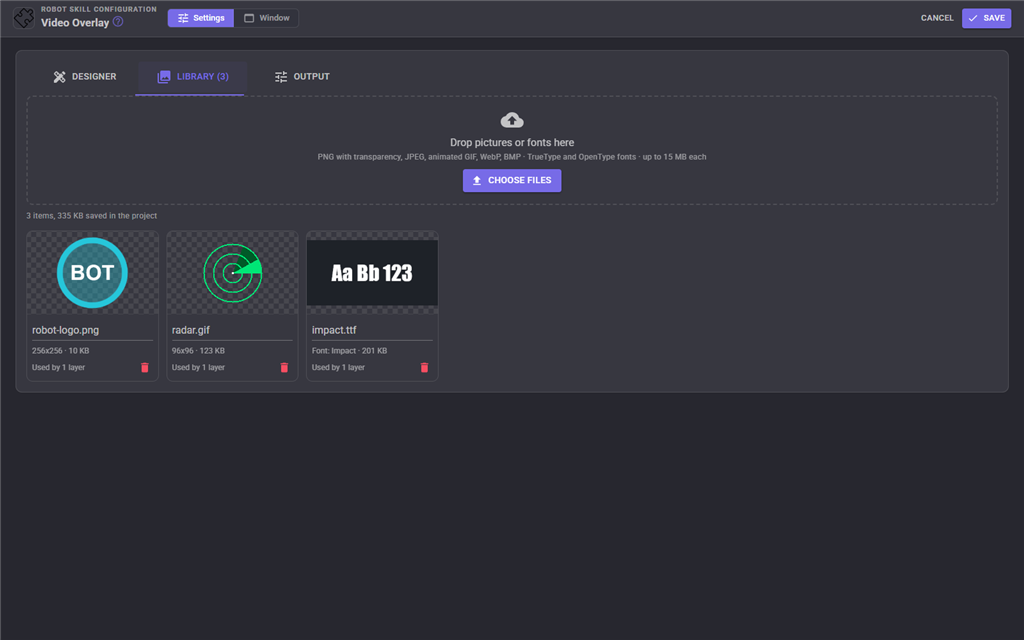
The Library tab holds the pictures and fonts the templates use. Drop files on it or press Choose Files. Pictures keep their transparency and animation; fonts appear in every text layer's font list. Each item shows its size and how many layers use it. The name of a picture is what the SetLayerImage ControlCommand looks for.
Everything in the library is saved inside the project file, which keeps the project working on any computer, but makes the file bigger. Use pictures no larger than they appear on the video. A library over 20 MB is flagged.
Output
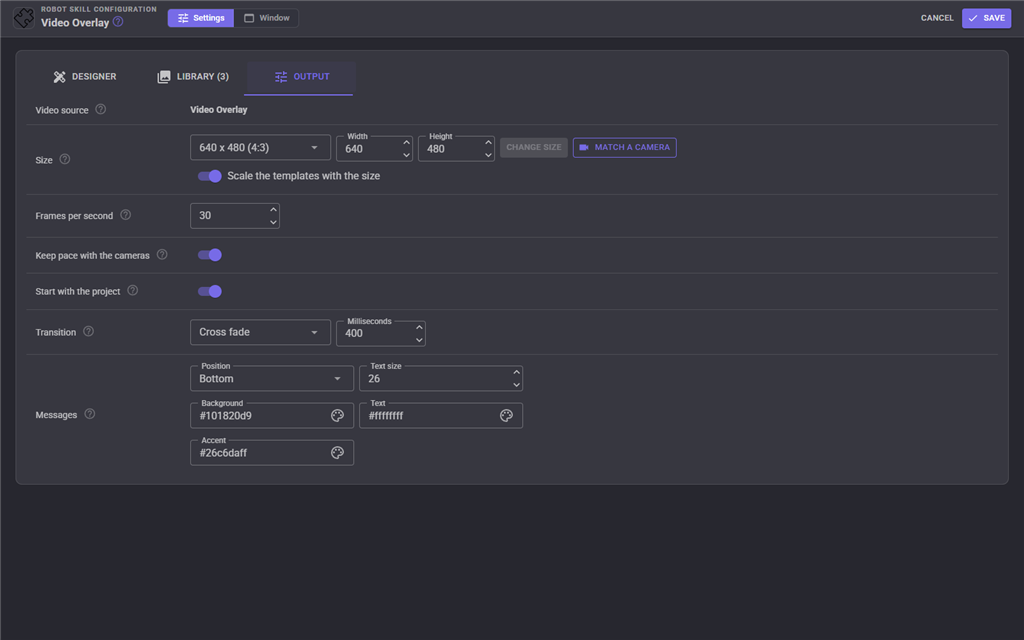
| Setting | What it does |
|---|---|
| Video source | The name the video is published under, which is the window title |
| Size | The width and height of the video. Choose a preset or type a size and press Change Size. With Scale the templates on, every layer is moved and resized to match, so a design made at 640x480 still fits at 1280x720. Match a Camera uses the size of the first camera's pictures |
| Frames per second | The most frames a second the video is made at. Lower uses less processor |
| Keep pace with the cameras | Makes a frame each time a camera in the template sends one, rather than on a clock, so the overlay never draws the same camera picture twice. When the cameras are quiet, frames still come five times a second so clocks and variables stay current, and tickers, animated pictures and transitions always get the full frame rate |
| Start with the project | Starts making video as soon as the project loads |
| Transition | How the video changes from one template to the next, and how long it takes |
| Messages | The position, text size and colors of the banner the ShowMessage ControlCommand shows |
The video keeps running while the configuration is open, like a camera does, so the skills watching it do not freeze. Changes reach the video when you press Save.
Scripts
Switch templates by name, or by number counting from 1:
controlCommand("Video Overlay", "SetTemplate", "Robot HUD");
controlCommand("Video Overlay", "SetTemplateWithTransition", "News lower third", "SlideLeft", 800);
controlCommand("Video Overlay", "NextTemplate");
Change layers by name while the video runs. These changes are not saved with the project; ResetLayers puts every layer back as it was designed:
// What the robot is saying, as a caption
controlCommand("Video Overlay", "SetLayerText", "Caption", "Hello, I am your robot");

// Swap the cameras of a picture in picture
controlCommand("Video Overlay", "SetLayerVideoSource", "Inset", "Camera Source (ezb)");

// Slide a logo in from the side, and fade it out later
controlCommand("Video Overlay", "SetLayerPosition", "Logo", -200, 20);
controlCommand("Video Overlay", "MoveLayer", "Logo", 20, 20, 800);
controlCommand("Video Overlay", "FadeLayer", "Logo", 0, 1500);

// A banner over whatever template is showing, for five seconds
controlCommand("Video Overlay", "ShowMessage", "Battery low - returning to the dock", 5000);

// Save the next frame
controlCommand("Video Overlay", "Snapshot", "C:\\Robot\\Pictures\\");
Layers that show global variables need no script at all: set the variable and the text, meter or Show When condition follows it on the next frame.
setVar("BatteryLevel", 18);
setVar("Mode", "Patrol");
Custom UI widgets
Two widgets put the overlay on your own control panel screens:
| Widget | What it shows |
|---|---|
| Template buttons | A button for each template, with previous and next. The Templates setting limits it to a comma separated list of names |
| Overlay video | The overlay video, with an optional strip of template buttons under it |
The Custom UI's own camera view widget can show the overlay too: choose this skill's video source in it.
Tips
- Put full screen effects (vignette, scanlines) just above the camera layer and below text, so the text stays crisp.
- A white text with an outline of 1 to 2 pixels, or a semi transparent dark background, reads over any video.
- A layer called the same in every template (a Caption, a Status) lets one script line update whichever template is showing.
- Another Video Overlay can use this one as a video source, so a finished design can be layered into another, such as a recording layout around a robot HUD.
- Video layers are drawn from the latest frame of their camera, so a slow camera does not slow the others in the same template.
Control Commands for the Video Overlay robot skill
There are Control Commands available for this robot skill which allows the skill to be controlled programmatically from scripts or other robot skills. These commands enable you to automate actions, respond to sensor inputs, and integrate the robot skill with other systems or custom interfaces. If you're new to the concept of Control Commands, we have a comprehensive manual available here that explains how to use them, provides examples to get you started and make the most of this powerful feature.
Control Command ManualThis robot skill has 26 control commands, listed below. Send them from a JavaScript or Python script, from Blockly, or from another robot skill.
The first value is always the window title, which is the name in the title bar of the robot skill on your workspace. It starts out as Video Overlay, which is what every example below uses. If you rename the robot skill, or add a second copy of it to the project, use the title as it appears on that window instead.
ControlCommand() can be shortened to CC(), and both spellings work in JavaScript and in Python. The examples are JavaScript; Python is the same call, except that true and false are written True and False.
ClearMessage
Fade out the message banner now.
Syntax
ControlCommand("Video Overlay", "ClearMessage")
Returns: Boolean [true or false]
Example
var result = ControlCommand("Video Overlay", "ClearMessage");
FadeLayer
Fade a layer to an opacity, 0 (invisible) to 100 (solid), over a number of milliseconds.
Syntax
ControlCommand("Video Overlay", "FadeLayer", (String)layer, (Number)opacity, (Number)durationMS)
Parameters
| # | Name | Type | What to pass |
|---|---|---|---|
| 1 | layer | Text | Your text, in quotes |
| 2 | opacity | Number | A number, without quotes |
| 3 | durationMS | Number | A number, without quotes |
Returns: Boolean [true or false]
Example
var result = ControlCommand("Video Overlay", "FadeLayer", "layer", 0, 0);
GetLayers
The names of the layers in the template being shown, back to front.
Syntax
ControlCommand("Video Overlay", "GetLayers")
Returns: Array of String
Example
var result = ControlCommand("Video Overlay", "GetLayers");
GetTemplate
The name of the template being shown.
Syntax
ControlCommand("Video Overlay", "GetTemplate")
Returns: String
Example
var result = ControlCommand("Video Overlay", "GetTemplate");
GetTemplates
The names of every template, in order.
Syntax
ControlCommand("Video Overlay", "GetTemplates")
Returns: Array of String
Example
var result = ControlCommand("Video Overlay", "GetTemplates");
HideLayer
Hide a layer, by name, in every template that has it.
Syntax
ControlCommand("Video Overlay", "HideLayer", (String)layer)
Parameters
| # | Name | Type | What to pass |
|---|---|---|---|
| 1 | layer | Text | Your text, in quotes |
Returns: Boolean [true or false]
Example
var result = ControlCommand("Video Overlay", "HideLayer", "layer");
IsRunning
Whether the overlay video source is running.
Syntax
ControlCommand("Video Overlay", "IsRunning")
Returns: Boolean [true or false]
Example
var result = ControlCommand("Video Overlay", "IsRunning");
MoveLayer
Glide a layer's top left corner to a position in video pixels over a number of milliseconds.
Syntax
ControlCommand("Video Overlay", "MoveLayer", (String)layer, (Number)x, (Number)y, (Number)durationMS)
Parameters
| # | Name | Type | What to pass |
|---|---|---|---|
| 1 | layer | Text | Your text, in quotes |
| 2 | x | Number | A number, without quotes |
| 3 | y | Number | A number, without quotes |
| 4 | durationMS | Number | A number, without quotes |
Returns: Boolean [true or false]
Example
var result = ControlCommand("Video Overlay", "MoveLayer", "layer", 0, 0, 0);
NextTemplate
Show the next template in the list, going back to the first after the last. Returns its name.
Syntax
ControlCommand("Video Overlay", "NextTemplate")
Returns: String
Example
var result = ControlCommand("Video Overlay", "NextTemplate");
PreviousTemplate
Show the previous template in the list, going to the last before the first. Returns its name.
Syntax
ControlCommand("Video Overlay", "PreviousTemplate")
Returns: String
Example
var result = ControlCommand("Video Overlay", "PreviousTemplate");
ResetLayer
Put a layer back as it was designed, undoing every change scripts made to it.
Syntax
ControlCommand("Video Overlay", "ResetLayer", (String)layer)
Parameters
| # | Name | Type | What to pass |
|---|---|---|---|
| 1 | layer | Text | Your text, in quotes |
Returns: Boolean [true or false]
Example
var result = ControlCommand("Video Overlay", "ResetLayer", "layer");
ResetLayers
Put every layer back as it was designed.
Syntax
ControlCommand("Video Overlay", "ResetLayers")
Returns: Boolean [true or false]
Example
var result = ControlCommand("Video Overlay", "ResetLayers");
SetLayerImage
Change the picture of a picture layer to another picture in the library, by its name.
Syntax
ControlCommand("Video Overlay", "SetLayerImage", (String)layer, (String)pictureName)
Parameters
| # | Name | Type | What to pass |
|---|---|---|---|
| 1 | layer | Text | Your text, in quotes |
| 2 | pictureName | Text | Your text, in quotes |
Returns: Boolean [true or false]
Example
var result = ControlCommand("Video Overlay", "SetLayerImage", "layer", "pictureName");
SetLayerOpacity
Change how opaque a layer is, 0 (invisible) to 100 (solid), at once.
Syntax
ControlCommand("Video Overlay", "SetLayerOpacity", (String)layer, (Number)opacity)
Parameters
| # | Name | Type | What to pass |
|---|---|---|---|
| 1 | layer | Text | Your text, in quotes |
| 2 | opacity | Number | A number, without quotes |
Returns: Boolean [true or false]
Example
var result = ControlCommand("Video Overlay", "SetLayerOpacity", "layer", 0);
SetLayerPosition
Move a layer's top left corner to a position in video pixels, at once.
Syntax
ControlCommand("Video Overlay", "SetLayerPosition", (String)layer, (Number)x, (Number)y)
Parameters
| # | Name | Type | What to pass |
|---|---|---|---|
| 1 | layer | Text | Your text, in quotes |
| 2 | x | Number | A number, without quotes |
| 3 | y | Number | A number, without quotes |
Returns: Boolean [true or false]
Example
var result = ControlCommand("Video Overlay", "SetLayerPosition", "layer", 0, 0);
SetLayerSize
Change a layer's width and height in video pixels.
Syntax
ControlCommand("Video Overlay", "SetLayerSize", (String)layer, (Number)width, (Number)height)
Parameters
| # | Name | Type | What to pass |
|---|---|---|---|
| 1 | layer | Text | Your text, in quotes |
| 2 | width | Number | A number, without quotes |
| 3 | height | Number | A number, without quotes |
Returns: Boolean [true or false]
Example
var result = ControlCommand("Video Overlay", "SetLayerSize", "layer", 0, 0);
SetLayerText
Change the text of a text layer. and {@time} work in it as they do in the designer.
Syntax
ControlCommand("Video Overlay", "SetLayerText", (String)layer, (String)text)
Parameters
| # | Name | Type | What to pass |
|---|---|---|---|
| 1 | layer | Text | Your text, in quotes |
| 2 | text | Text | Your text, in quotes |
Returns: Boolean [true or false]
Example
var result = ControlCommand("Video Overlay", "SetLayerText", "layer", "text");
SetLayerVideoSource
Change which video source a video layer shows, i.e. to swap the cameras of a picture in picture.
Syntax
ControlCommand("Video Overlay", "SetLayerVideoSource", (String)layer, (String)videoSource)
Parameters
| # | Name | Type | What to pass |
|---|---|---|---|
| 1 | layer | Text | Your text, in quotes |
| 2 | videoSource | Text | Your text, in quotes |
Returns: Boolean [true or false]
Example
var result = ControlCommand("Video Overlay", "SetLayerVideoSource", "layer", "videoSource");
SetTemplate
Show a template, by its name or its number in the list (1 is the first), with the transition chosen in the configuration. Returns false when there is no such template.
Syntax
ControlCommand("Video Overlay", "SetTemplate", (String)template)
Parameters
| # | Name | Type | What to pass |
|---|---|---|---|
| 1 | template | Text | Your text, in quotes |
Returns: Boolean [true or false]
Example
var result = ControlCommand("Video Overlay", "SetTemplate", "template");
SetTemplateWithTransition
Show a template with a particular transition: Cut, Fade, SlideLeft, SlideRight, SlideUp, SlideDown, Wipe, Zoom, Iris. The duration is in milliseconds.
Syntax
ControlCommand("Video Overlay", "SetTemplateWithTransition", (String)template, (String)transition, (Number)durationMS)
Parameters
| # | Name | Type | What to pass |
|---|---|---|---|
| 1 | template | Text | Your text, in quotes |
| 2 | transition | Text | Your text, in quotes |
| 3 | durationMS | Number | A number, without quotes |
Returns: Boolean [true or false]
Example
var result = ControlCommand("Video Overlay", "SetTemplateWithTransition", "template", "transition", 0);
ShowLayer
Show a layer, by name, in every template that has it.
Syntax
ControlCommand("Video Overlay", "ShowLayer", (String)layer)
Parameters
| # | Name | Type | What to pass |
|---|---|---|---|
| 1 | layer | Text | Your text, in quotes |
Returns: Boolean [true or false]
Example
var result = ControlCommand("Video Overlay", "ShowLayer", "layer");
ShowMessage
Show a message banner over the video for a number of milliseconds (4000 when left out), whichever template is showing. Its look is set in the configuration.
Syntax
ControlCommand("Video Overlay", "ShowMessage", (String)text, (Number)durationMS)
Parameters
| # | Name | Type | What to pass |
|---|---|---|---|
| 1 | text | Text | Your text, in quotes |
| 2 | durationMS | Number | A number, without quotes |
Returns: Boolean [true or false]
Example
var result = ControlCommand("Video Overlay", "ShowMessage", "text", 0);
Snapshot
Save the next frame of the overlay video to a picture file (.jpg or .png) and return the file's full path. A folder saves a file named with the date and time in it.
Syntax
ControlCommand("Video Overlay", "Snapshot", (String)filePath)
Parameters
| # | Name | Type | What to pass |
|---|---|---|---|
| 1 | filePath | Text | Your text, in quotes |
Returns: String
Example
var result = ControlCommand("Video Overlay", "Snapshot", "filePath");
Start
Start producing the overlay video source.
Syntax
ControlCommand("Video Overlay", "Start")
Returns: Boolean [true or false]
Example
var result = ControlCommand("Video Overlay", "Start");
Stop
Stop producing the overlay video source. Skills watching it see the last frame.
Syntax
ControlCommand("Video Overlay", "Stop")
Returns: Boolean [true or false]
Example
var result = ControlCommand("Video Overlay", "Stop");
ToggleLayer
Show a hidden layer or hide a shown one. Returns whether it is now shown.
Syntax
ControlCommand("Video Overlay", "ToggleLayer", (String)layer)
Parameters
| # | Name | Type | What to pass |
|---|---|---|---|
| 1 | layer | Text | Your text, in quotes |
Returns: Boolean [true or false]
Example
var result = ControlCommand("Video Overlay", "ToggleLayer", "layer");
This list is read out of the robot skill itself each time its package is uploaded, so it matches the published version (v5).



This robot skill has been updated to v1.
What has changed
initial release
This robot skill has been updated to v2.
What has changed
allows specifying max framerate
This robot skill has been updated to v3.
What has changed
performance improvement by caching items between frames that are reusable
This robot skill has been updated to v4.
What has changed
optimized main screen
This robot skill has been updated to v5.
What has changed
updated to use some new ARCx UI features for improved performance.