
Train textured objects from camera or images, detect them in video, run scripts, publish position, and draw bounding boxes.
 Windows
 ARM
ARM
 Linux
Linux
 MacOS
MacOS
How to add the Object Training And Tracking robot skill
- Load the most recent release of ARCx on a compatible operating system (Get ARCx).
- Press the + Skills menu from the top menu bar in ARCx.
- Choose the Camera category tab.
- Press the Object Training And Tracking icon to add the robot skill to your project.
Don't have a robot yet?
Follow the Getting Started Guide to build a robot and use the Object Training And Tracking robot skill.
How to use the Object Training And Tracking robot skill
Hold an object up to the camera (or give it a picture of the object), train it, and the robot recognizes it from then on - running a script when it sees it, publishing where it is in the frame, and drawing a box around it on the video.
Recognition is keypoint based (ORB or AKAZE), so it works on textured, printed or patterned objects: a cereal box, a book cover, a printed marker, a toy with a face. A plain coloured ball has no keypoints to learn and will not work.
Requirements
- A video source in the project - Camera Source (usb) or Camera Source (ezb) - with video running.
- Objects with visible detail.
Getting started
- Start the video in the camera skill.
- Press Train Objects.
- Hold the object inside the training box, type a name, press Train, and keep turning the object slowly while the countdown and the capture run.
- Close the training window and turn on the Object Detection switch.
Training well
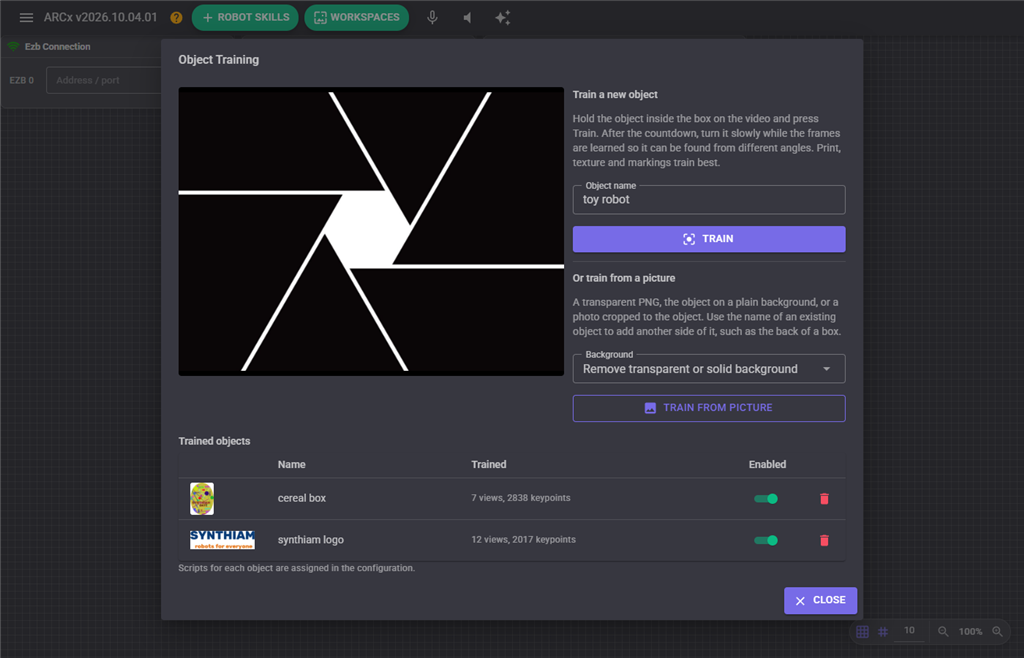
Training captures many frames while you turn the object, and keeps only the views that look meaningfully different from the ones it already has. That is what lets an object be recognized from more than one angle.
- Fill the training box with the object; get close.
- Turn it slowly for the whole capture - a few degrees at a time, both axes.
- Light it evenly. A shadow that only exists during training is a feature that will never be seen again.
- A frame with too little detail is skipped rather than learned, so a low keypoint count means the object itself is the problem.
- Train the same object twice, under the lighting you actually use, if recognition is marginal.
Training from a picture
Instead of holding the object up to the camera, type a name and press Train From Picture in the training window to learn it from a picture file (PNG, JPEG, BMP or WebP). No camera is needed to train this way. Good pictures are:
- A transparent PNG - a logo or a product cut-out. The transparent area is ignored.
- The object on a plain background - a product shot on white, or anything on a solid colour. The colour around the edge of the picture is found and removed, but only where it touches the edge, so the same colour inside the object is kept.
- A photo cropped tightly to the object - when there is no plain background, the whole picture is used.
The Background choice next to the button decides this. Remove transparent or solid background does the above automatically and falls back to the whole picture when the background is not clearly separate from the object (a box whose own artwork has a plain border, for example). Use the whole picture never removes anything.
A picture is one flat, square-on view, but the camera will see the real object smaller, tilted and a little blurred. So the picture is learned at two sizes and, with Simulate Angles on, tilted away from the camera at several angles. Each of those renderings goes through the same rule as camera training: it is kept as a view only when the views already kept do not recognise it, so a picture typically ends up as 3 to 15 views.
To add another side of an object, train a picture with the same name as an existing object - the front and back of a box become one object. Views the object already recognises are not added again, and the log says so.
Pictures train best when the object is at least a few hundred pixels across. A logo on its own has less detail than packaging, so expect it to be found at shorter distances. A bigger detection frame (Options Preferences Video) helps logos most.
The window
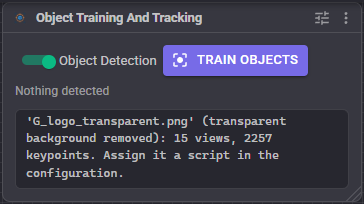
- Object Detection switch - start and stop detection.
- Train Objects - the training window, which holds the training box preview, the name field, Train / Cancel Training, Train From Picture with its background choice, and the list of trained objects with a thumbnail, a keypoint count, an enable switch and a delete button per object.
- Detected objects are outlined on the video, the primary one distinctly.
Configuration
Video
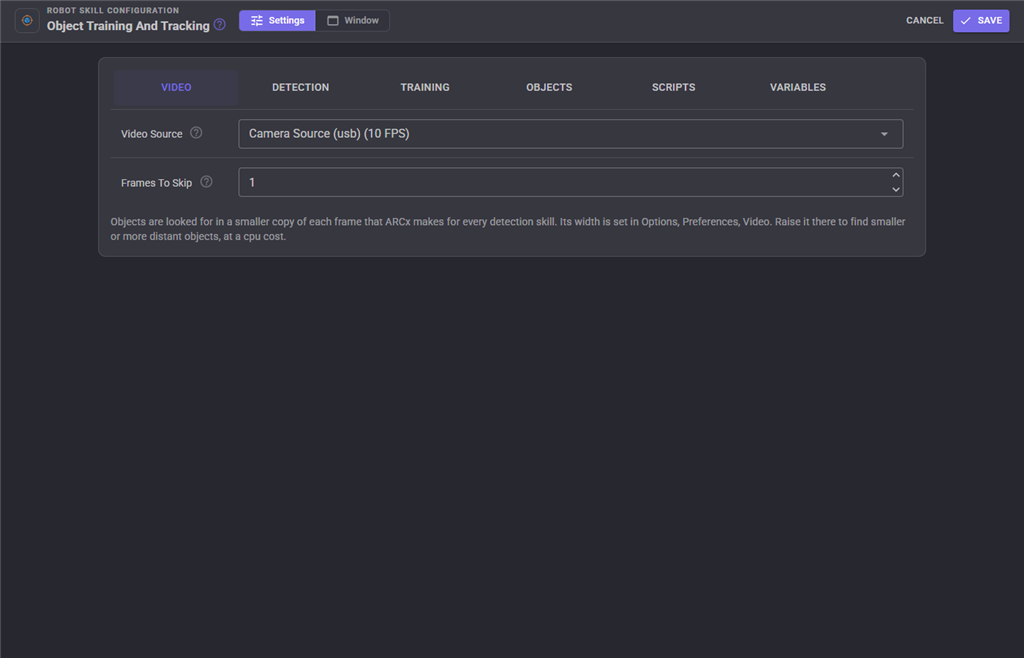
| Setting | Meaning | Default |
|---|---|---|
| Video Source | Which camera to watch. | first source |
| Frames To Skip | Frames ignored between each one analyzed, to save CPU. 0 analyzes every frame. |
1 |
Recognition
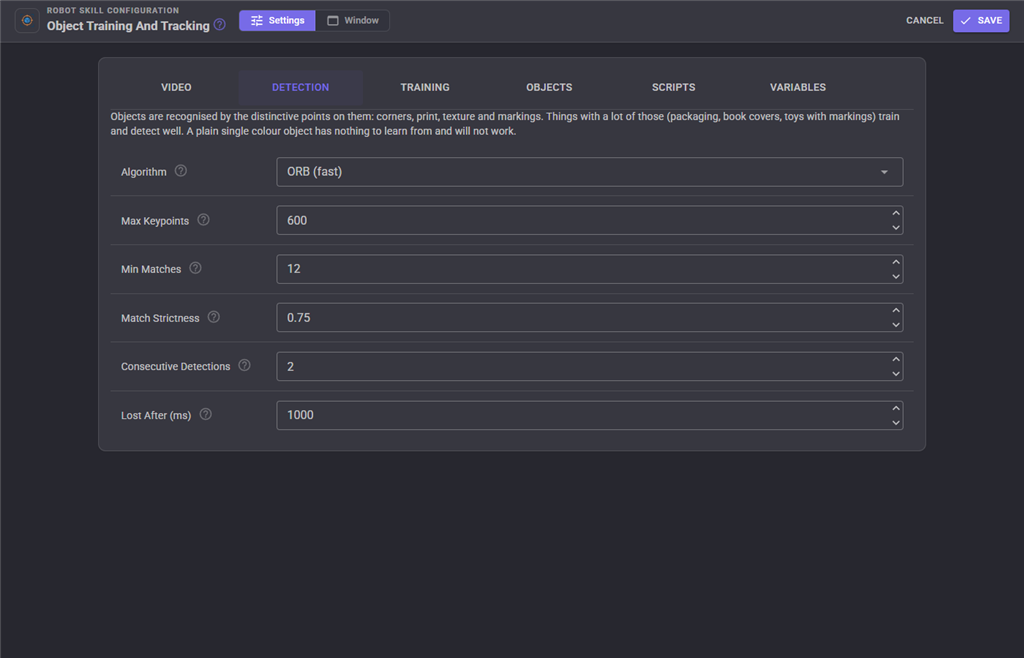
| Setting | Meaning | Default |
|---|---|---|
| Algorithm | ORB is fast and fine for most printed or textured objects. AKAZE is slower but copes better with blur, lighting and viewing angle. Every object remembers which algorithm trained it, because descriptors from one cannot be matched against the other. | ORB |
| Max features | The most keypoints found per frame and per training view (ORB only - AKAZE decides for itself). | 600 |
| Min matches | Keypoints that must agree on where the object is before it counts as found. Higher means fewer false detections but the object must be closer or clearer. | 12 |
| Match ratio | Lowe's ratio test - a keypoint match is kept only when it is this much better than the runner up. Lower is stricter. | 0.75 |
| Min consecutive detections | Analyzed frames in a row that must see the object before it is reported. Raising it removes flicker at the cost of a little lag. | 2 |
| Lost after (ms) | An object unseen for this long is reported as lost, and its scripts run again next time it is seen. | 1000 |
Training
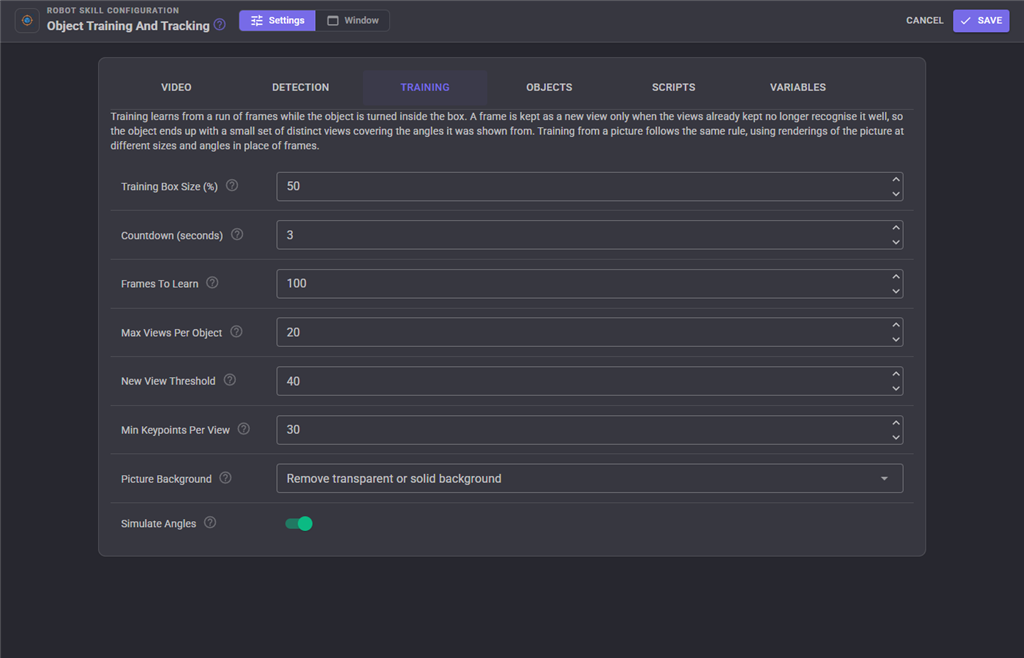
| Setting | Meaning | Default |
|---|---|---|
| Training box percent | Size of the training box as a percentage of the frame, centred. | 50 |
| Training countdown (seconds) | Warning before frames are learned, so you can get the object into the box. | 3 |
| Training frames | How many frames are learned from. Turn the object throughout. | 100 |
| Max views per object | The most views kept per object. Only frames that look different from the views already kept become new views, so this is a cap, not a target. | 20 |
| New view threshold | A training frame becomes a new view only when the kept views match it with fewer keypoints than this. Lower keeps fewer, more distinct views. | 40 |
| Min features per sample | A frame with fewer keypoints than this inside the box is not learned - too little detail. | 30 |
| Picture Background | When training from a picture: remove a transparent or solid background automatically, or use the whole picture. Also chosen in the training window. | Remove transparent or solid background |
| Simulate Angles | When training from a picture, also learn it tilted away from the camera at several angles, so the object is found when it is not held square on. | On |
Scripts
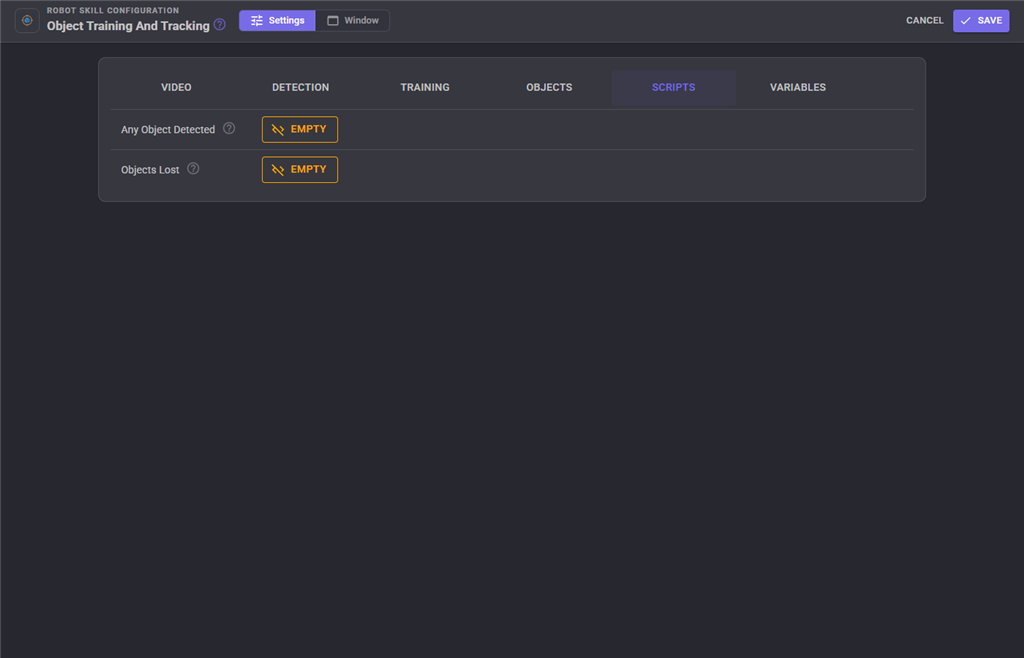
| Setting | Meaning |
|---|---|
| Any object detected | Runs when any object is detected, before that object's own script. |
| Objects lost | Runs when the last detected object has been lost. |
| Per object script | Each trained object has its own script, run after the global one. |
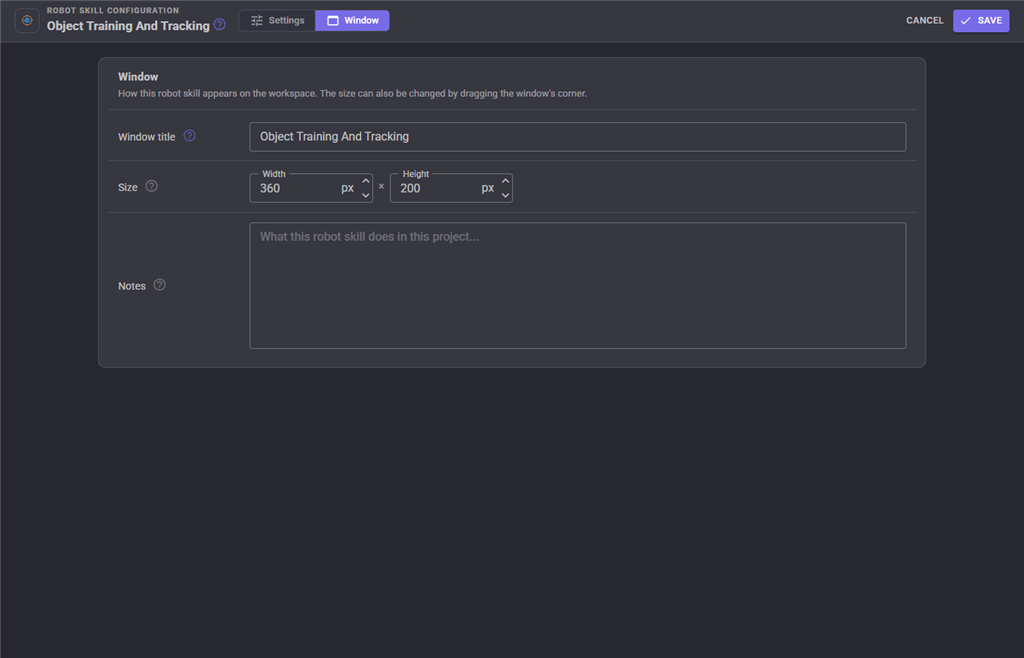
The Window tab sets the robot skill's window title, its size on the workspace and notes about what it does in this project.
Variables published
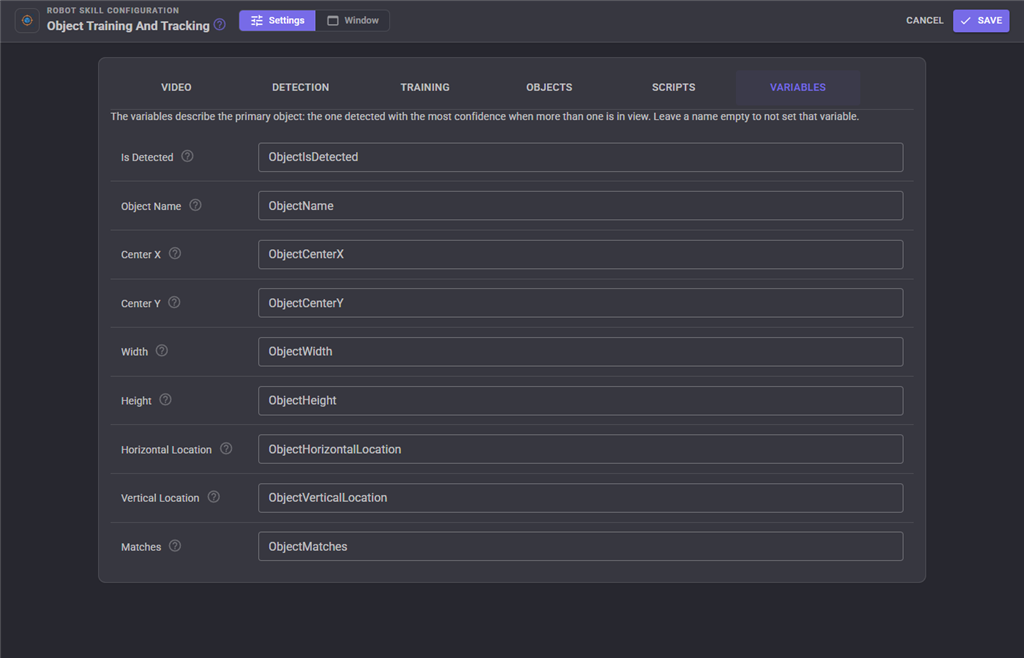
All of them describe the primary object - the one matched with the most confidence. Every name is configurable.
| Variable | Contents |
|---|---|
ObjectIsDetected |
True while an object is detected. |
ObjectName |
Name of the detected object. |
ObjectCenterX / ObjectCenterY |
Centre of the object in the frame, in pixels. |
ObjectWidth / ObjectHeight |
Size of the detected object, in pixels. |
ObjectHorizontalLocation |
Left, Center or Right. |
ObjectVerticalLocation |
Top, Middle or Bottom. |
ObjectMatches |
How many keypoints agreed - the match strength. |
The location variables are the easy way to write a tracking script without doing any arithmetic.
Enabling and disabling objects
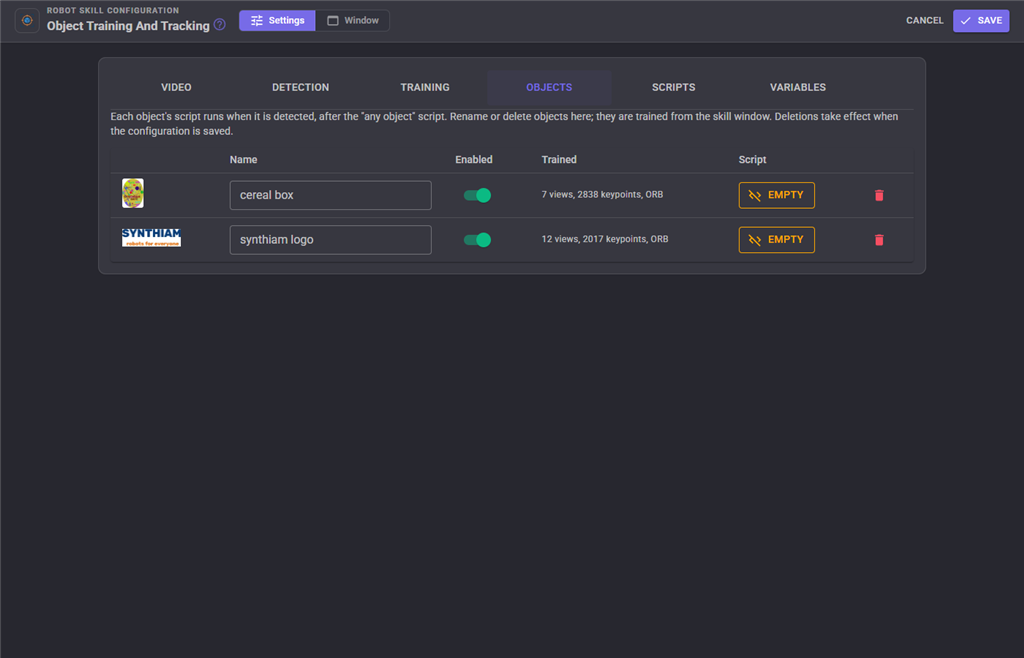
A disabled object stays trained but is not looked for. Disabling everything except what matters right now is the single biggest thing you can do for both speed and accuracy.
Performance
- Cost scales with the number of enabled objects and their views, not the number trained.
- Raise Frames To Skip on a slow machine.
- ORB is much cheaper than AKAZE.
- Detection runs on the shared, downscaled computer-vision frame whose width is set in Options Preferences Video.
Troubleshooting
| Symptom | Cause |
|---|---|
| Training reports too few keypoints | The object has too little detail, is too far away, or is badly lit. |
| The object is never recognized | Trained with a different algorithm than the one now selected; retrain, or switch back. |
| Recognized only at the exact training angle | Too few views. Turn the object more slowly during training, and raise New view threshold or Max views per object. |
| False detections | Raise Min matches, lower Match ratio, raise Min consecutive detections, and disable objects you are not looking for. |
| The detection flickers on and off | Raise Min consecutive detections and Lost after (ms). |
| High CPU | Fewer enabled objects, more Frames To Skip, ORB rather than AKAZE. |
| Scripts run over and over | The object is being lost and re-found; raise Lost after (ms). |
| A picture trains "not enough detail" | The picture is too small or too plain. Use a larger picture of the object with its print and markings. |
| A picture "added nothing new" | Its name matched an existing object that already recognises everything in it. Use a new name for a different object. |
| A picture-trained object is found only up close | Pictures have less to go on than camera training under real lighting. Add a picture of each side, train it from the camera as well, or raise the detection frame width. |
See also
- Face Tracking - faces specifically, with no training
- Camera Source (usb) / Camera Source (ezb) - the video sources
- Autonomous AI - can be told about what the robot is seeing
Control Commands for the Object Training And Tracking robot skill
There are Control Commands available for this robot skill which allows the skill to be controlled programmatically from scripts or other robot skills. These commands enable you to automate actions, respond to sensor inputs, and integrate the robot skill with other systems or custom interfaces. If you're new to the concept of Control Commands, we have a comprehensive manual available here that explains how to use them, provides examples to get you started and make the most of this powerful feature.
Control Command ManualThis robot skill has 13 control commands, listed below. Send them from a JavaScript or Python script, from Blockly, or from another robot skill.
The first value is always the window title, which is the name in the title bar of the robot skill on your workspace. It starts out as Object Training And Tracking, which is what every example below uses. If you rename the robot skill, or add a second copy of it to the project, use the title as it appears on that window instead.
ControlCommand() can be shortened to CC(), and both spellings work in JavaScript and in Python. The examples are JavaScript; Python is the same call, except that true and false are written True and False.
CancelTraining
Cancel a training in progress
Syntax
ControlCommand("Object Training And Tracking", "CancelTraining")
Returns: Boolean [true or false]
Example
var result = ControlCommand("Object Training And Tracking", "CancelTraining");
DeleteObject
Forget the named object
Syntax
ControlCommand("Object Training And Tracking", "DeleteObject", (String)name)
Parameters
| # | Name | Type | What to pass |
|---|---|---|---|
| 1 | name | Text | Your text, in quotes |
Returns: Boolean [true or false]
Example
var result = ControlCommand("Object Training And Tracking", "DeleteObject", "name");
DisableObject
Stop looking for the named object, without forgetting it
Syntax
ControlCommand("Object Training And Tracking", "DisableObject", (String)name)
Parameters
| # | Name | Type | What to pass |
|---|---|---|---|
| 1 | name | Text | Your text, in quotes |
Returns: Boolean [true or false]
Example
var result = ControlCommand("Object Training And Tracking", "DisableObject", "name");
EnableObject
Look for the named object
Syntax
ControlCommand("Object Training And Tracking", "EnableObject", (String)name)
Parameters
| # | Name | Type | What to pass |
|---|---|---|---|
| 1 | name | Text | Your text, in quotes |
Returns: Boolean [true or false]
Example
var result = ControlCommand("Object Training And Tracking", "EnableObject", "name");
GetDetectedObject
The name of the detected object, or an empty string
Syntax
ControlCommand("Object Training And Tracking", "GetDetectedObject")
Returns: String
Example
var result = ControlCommand("Object Training And Tracking", "GetDetectedObject");
GetObjectNames
The names of every trained object
Syntax
ControlCommand("Object Training And Tracking", "GetObjectNames")
Returns: Array of String
Example
var result = ControlCommand("Object Training And Tracking", "GetObjectNames");
IsDetected
Is an object detected right now?
Syntax
ControlCommand("Object Training And Tracking", "IsDetected")
Returns: Boolean [true or false]
Example
var result = ControlCommand("Object Training And Tracking", "IsDetected");
IsTracking
Is object detection running?
Syntax
ControlCommand("Object Training And Tracking", "IsTracking")
Returns: Boolean [true or false]
Example
var result = ControlCommand("Object Training And Tracking", "IsTracking");
IsTraining
Is a training in progress?
Syntax
ControlCommand("Object Training And Tracking", "IsTraining")
Returns: Boolean [true or false]
Example
var result = ControlCommand("Object Training And Tracking", "IsTraining");
Start
Start detecting trained objects
Syntax
ControlCommand("Object Training And Tracking", "Start")
Returns: Boolean [true or false]
Example
var result = ControlCommand("Object Training And Tracking", "Start");
Stop
Stop detecting objects
Syntax
ControlCommand("Object Training And Tracking", "Stop")
Returns: Boolean [true or false]
Example
var result = ControlCommand("Object Training And Tracking", "Stop");
Train
Train a new object with this name from whatever is held inside the training box. Returns once training has started, not when it finishes.
Syntax
ControlCommand("Object Training And Tracking", "Train", (String)name)
Parameters
| # | Name | Type | What to pass |
|---|---|---|---|
| 1 | name | Text | Your text, in quotes |
Returns: Boolean [true or false]
Example
var result = ControlCommand("Object Training And Tracking", "Train", "name");
TrainFromImage
Train an object from a picture file (a transparent PNG, an object on a plain background, or a photo cropped to the object). If the name already exists, the picture adds views to that object. Returns once the picture has been learned: true when views were added.
Syntax
ControlCommand("Object Training And Tracking", "TrainFromImage", (String)name, (String)filePath)
Parameters
| # | Name | Type | What to pass |
|---|---|---|---|
| 1 | name | Text | Your text, in quotes |
| 2 | filePath | Text | Your text, in quotes |
Returns: Boolean [true or false]
Example
var result = ControlCommand("Object Training And Tracking", "TrainFromImage", "name", "filePath");
This list is read out of the robot skill itself each time its package is uploaded, so it matches the published version (v5).



This robot skill has been updated to v1.
This robot skill has been updated to v2.
This robot skill has been updated to v3.
What has changed
compatible with the latest ARCx v2026.09.27.01
This robot skill has been updated to v4.
What has changed
allow training by a picture image
This robot skill has been updated to v5.
What has changed
uses latest ARCx object tracking framework