Puppeteer servos with a touch pad; smooth, record, loop, save poses, and control pan/tilt, eyes, necks, or shoulders.
 Windows
 ARM
ARM
 Linux
Linux
 MacOS
MacOS
How to add the Servo Pad robot skill
- Load the most recent release of ARCx on a compatible operating system (Get ARCx).
- Press the + Skills menu from the top menu bar in ARCx.
- Choose the Servo category tab.
- Press the Servo Pad icon to add the robot skill to your project.
Don't have a robot yet?
Follow the Getting Started Guide to build a robot and use the Servo Pad robot skill.
How to use the Servo Pad robot skill
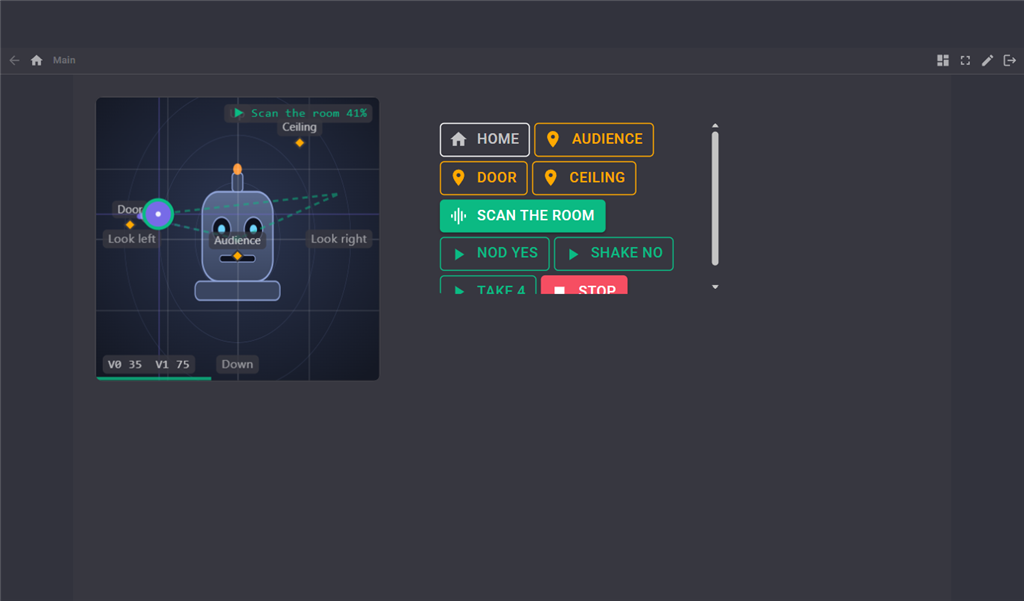
The Servo Pad robot skill turns a rectangle on the screen into a puppeteering surface. Drag a finger, pen or mouse across it and one set of servos follows left and right while another follows up and down, each through its own range. It is the quickest way to drive a pan/tilt head, a pair of eyes, a neck or a shoulder by hand.
It goes well beyond the original ARC servo Pad. Movement can be smoothed so a shaky hand looks organic, performances can be recorded as takes and played back from scripts, favourite positions can be saved as poses, and the pad can be put on a phone through the Custom UI. That makes it a tool for animators and puppeteers as much as for testing servos.
The Window
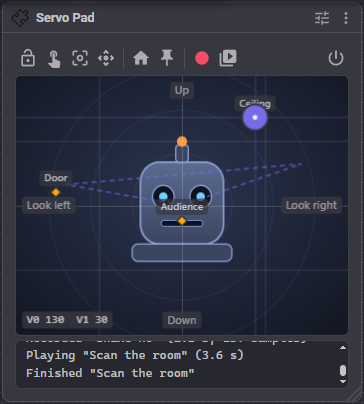
The window is a toolbar, the pad, and a short log.
- The pad - Press and drag. The left edge of the pad is each horizontal servo's minimum and the right edge its maximum; the top edge is each vertical servo's minimum and the bottom edge its maximum. Inverted servos run the other way. The servos move only while you drag, so a project loading never makes the robot jump.
- The puck - Shows where the pad is. Pressing on the puck picks it up where it is instead of jumping it to the centre of your finger. When smoothing is on, a ring shows where the servos actually are as they catch up with your finger.
- Readout - The master servo positions, bottom left.
- Tags - FINE, REL, X ONLY or Y ONLY, top left, when one of those modes is on.
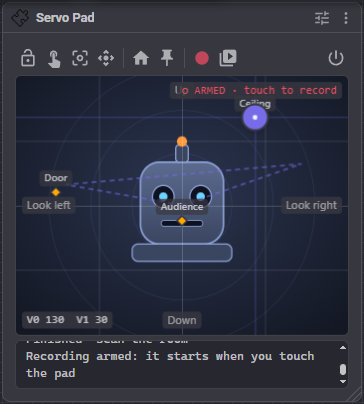
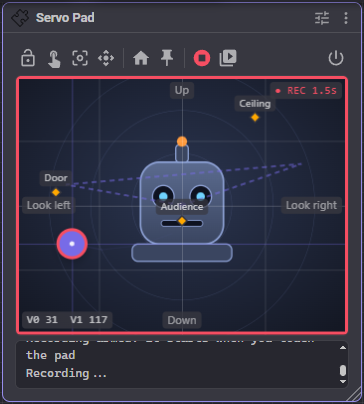
- Status - Top right: ARMED, REC with a timer, or the take playing with its progress.
Positions are not limited by the pad's size in pixels. The pad works in fractions, so a small window still reaches every servo position; a bigger window only makes it easier to be precise.
The toolbar
| Button | What it does |
|---|---|
| Lock | Ignores touches so a stray hand cannot move the robot. Poses, takes and scripts still work. |
| Absolute / Relative | Absolute sends the servos to wherever you touch. Relative works like a laptop trackpad: the servos move by how far your finger travels, so nothing ever jumps. |
| Fine | Scales every drag down (a quarter by default) for small precise adjustments. Holding Shift while dragging does the same, and can be pressed mid-drag. |
| Axes | Both axes, left and right only, or up and down only. Holding Ctrl while dragging locks to whichever way you move first. |
| Home | Glides to the home position. |
| Poses | Glides to a saved pose, or saves the current position as a new one. |
| Record | Arms a recording. It starts with your next touch on the pad, so there is no dead time at the start of the take. |
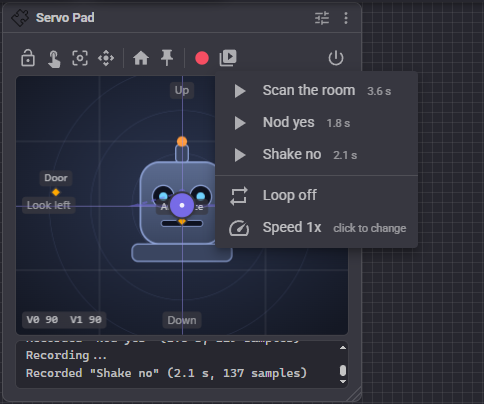
| Takes | Plays a take. Also turns looping on and off and steps the playback speed. |
| Stop | Appears while a take plays. |
| Release | Stops everything and releases the servos so they stop holding their position. |
Keyboard
Click the pad to give it focus. The arrow keys nudge the servos, Shift + arrow nudges in fine steps, Alt + arrow in big steps, Home glides home and Escape stops a take.
Poses
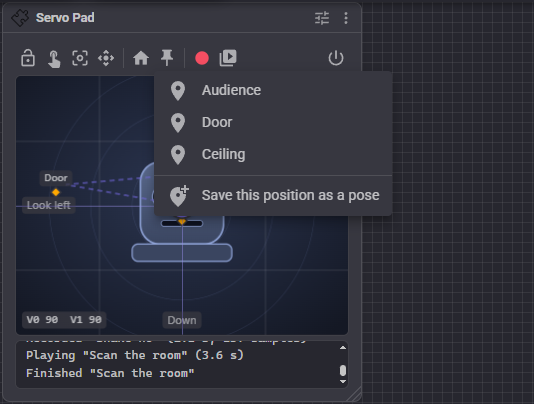
A pose is a named position: a look at the audience, a glance at the door. Save one from the Poses menu, then glide back to it from the menu, a Custom UI button or a script. Poses are drawn on the pad as small orange diamonds with their names.
Recording and playing takes
A take is a recorded performance. Press Record, then perform on the pad. By default the take ends when you lift your finger, so one gesture makes one take; turn that off in the configuration to record several gestures into one take and press Stop when done. Takes are named Take 1, Take 2 and so on; rename them in the configuration.
Play a take from the Takes menu. Before it starts, the servos glide from wherever they are to where the take begins, so playback never starts with a jump; a looping take also glides from its end back to its start. Touching the pad during playback stops the take and hands control back to you. The path of the take is drawn on the pad as a dashed line.
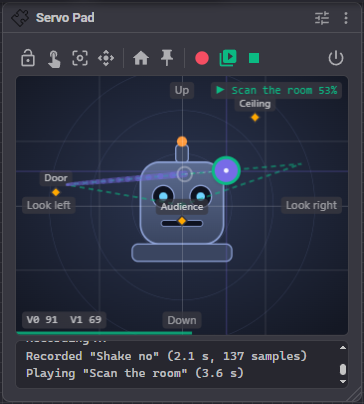
A take records what your finger did, not the smoothed servo motion, so it plays back through the same smoothing it was performed with. Change the smoothing and the same take plays back softer or snappier.
Scripts can record takes too. Everything that moves the pad while recording is captured, including glides and other control commands, so a script can build a take out of moves and then loop it. Scripts can also play a take and wait for it to end, which is how a show is strung together from takes.
Following other movement
When something else moves the servos (a script, Auto Position, another robot skill), the puck follows them so the pad always shows where the robot really is, and a relative drag continues from there instead of snapping back. Turn Follow servos moved elsewhere off if you do not want that.
Custom UI widgets
The servo Pad offers two widgets to the Custom UI, so the pad can go on a phone or a tablet in the puppeteer's hand.
- Pad - The pad itself. It shares the skill's servos, mode, smoothing, poses and takes, and every browser and widget shows the same position. Its settings can hide the grid, readout, trail, poses, edge labels or background picture.
- Poses and takes - A button for each pose and each take, plus Home and Stop. Its settings choose which appear, and whether takes loop.
Global variables
When Publish variables is on, the pad is published as global variables that any script, Custom UI label or robot skill can read. With the default prefix they are:
| Variable | Value |
|---|---|
| ServoPadX | The horizontal pad position, 0 (left) to 1 (right) |
| ServoPadY | The vertical pad position, 0 (top) to 1 (bottom) |
| ServoPadServoX | The position of the horizontal master servo |
| ServoPadServoY | The position of the vertical master servo |
| ServoPadIsPressed | True while a finger or mouse is on the pad |
Give each servo Pad in a project its own prefix, i.e. HeadPad and EyesPad.
Configuration
Servos
| Setting | Description |
|---|---|
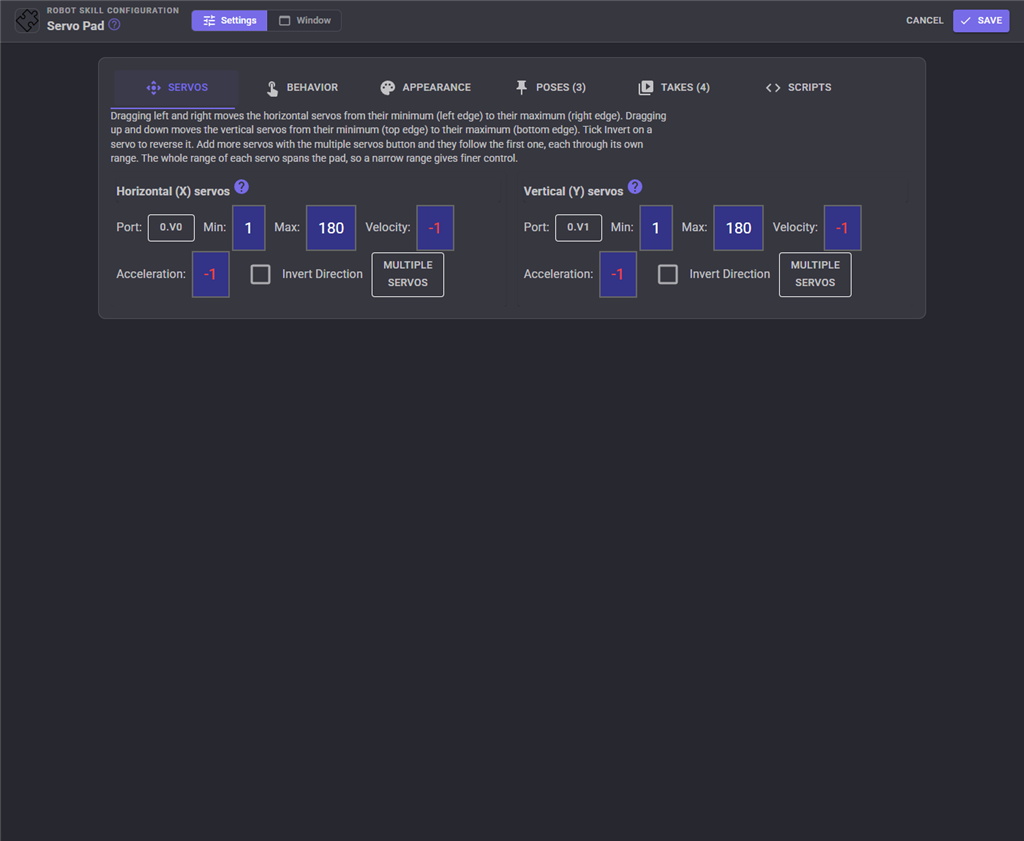
| Horizontal (X) servos | The servos moved by dragging left and right. Use the multiple servos button to add servos that follow the first, each with its own range, invert and multiplier. |
| Vertical (Y) servos | The servos moved by dragging up and down. |
A new servo Pad starts with the project's full servo range on both axes. A narrower range gives finer control, because the whole range always spans the pad.
Behavior
| Setting | Description |
|---|---|
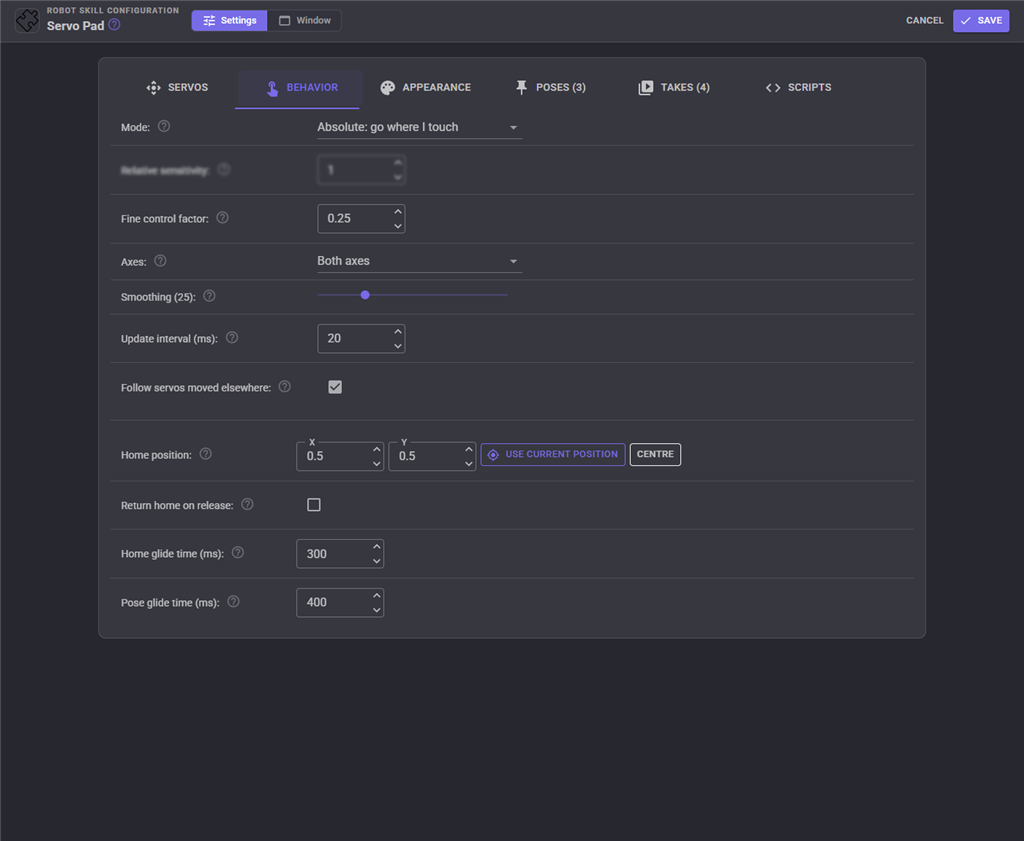
| Mode | Absolute (go where I touch) or Relative (drag like a trackpad). |
| Relative sensitivity | Relative mode: how far the servos travel for a drag across the whole pad. 1 is their full range. |
| Fine control factor | How much Fine and Shift scale movement down. |
| Axes | Both axes, left and right only, or up and down only. |
| Smoothing | 0 sends every position straight to the servos. Higher values ease the servos toward your finger for natural, organic movement, at the cost of some lag (100 is about half a second). |
| Update interval | The shortest time between servo updates while the pad moves. Raise it for a slow serial link or a busy bus of smart servos. |
| Follow servos moved elsewhere | The puck follows servos moved by scripts or other skills. |
| Home position | Where Home glides to, as fractions of the pad. Use current position takes it from the pad. |
| Return home on release | Glide home whenever your finger lets go, like a spring loaded joystick. |
| Home glide time | How long the glide home takes. 0 jumps. |
| Pose glide time | How long gliding to a pose takes. 0 jumps. |
Appearance
| Setting | Description |
|---|---|
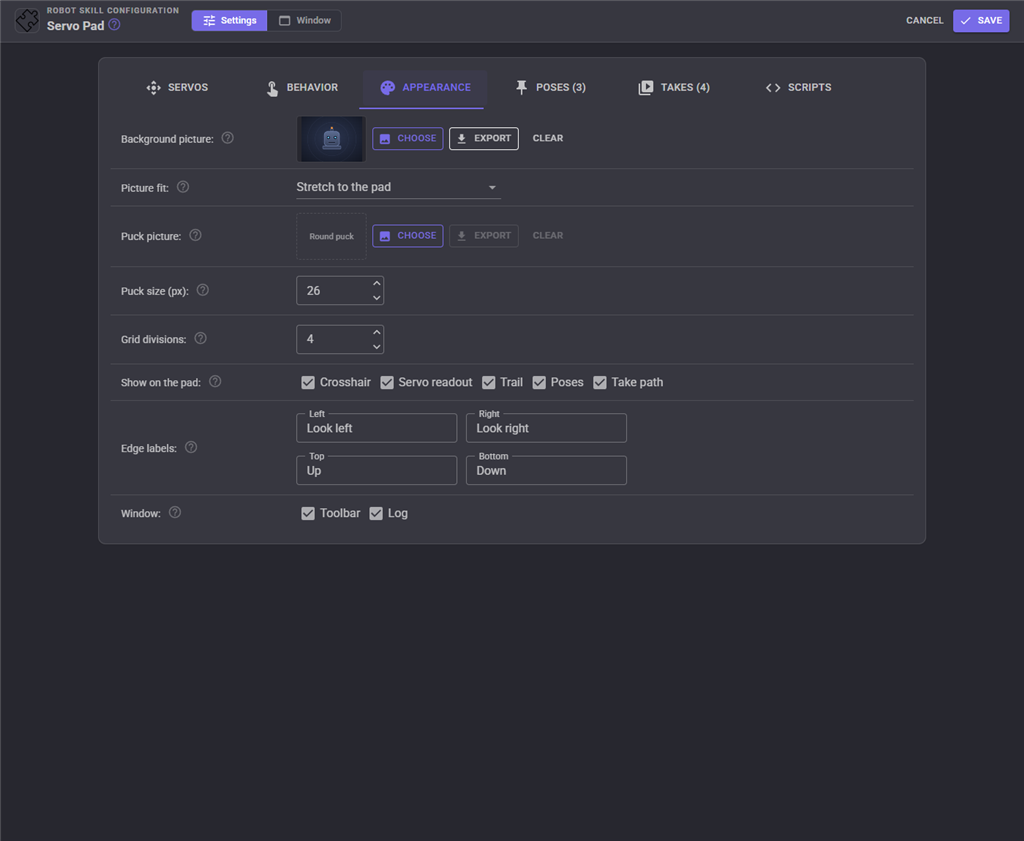
| Background picture | Drawn behind the pad. A photo of the robot's face, or arrows showing which way each servo moves, tells whoever picks up the pad what it does. PNG, JPEG, GIF, WebP or SVG up to 4 MB, saved inside the project. Export saves it back out. |
| Picture fit | Stretch, Contain (whole picture) or Cover (fill and crop). The pad's edges are always the servo limits. |
| Puck picture | Drawn under your finger instead of the round puck. |
| Puck size | The puck's diameter on screen. Bigger is easier to grab on a phone. |
| Grid divisions | How many divisions the grid has. With an even number the centre lines are stronger. 0 for none. |
| Show on the pad | Crosshair, servo readout, trail, poses and take path. |
| Edge labels | Short text at each edge saying what that direction does, i.e. Look left. |
| Window | Show or hide the toolbar and the log, for a window that is all pad. |
Poses
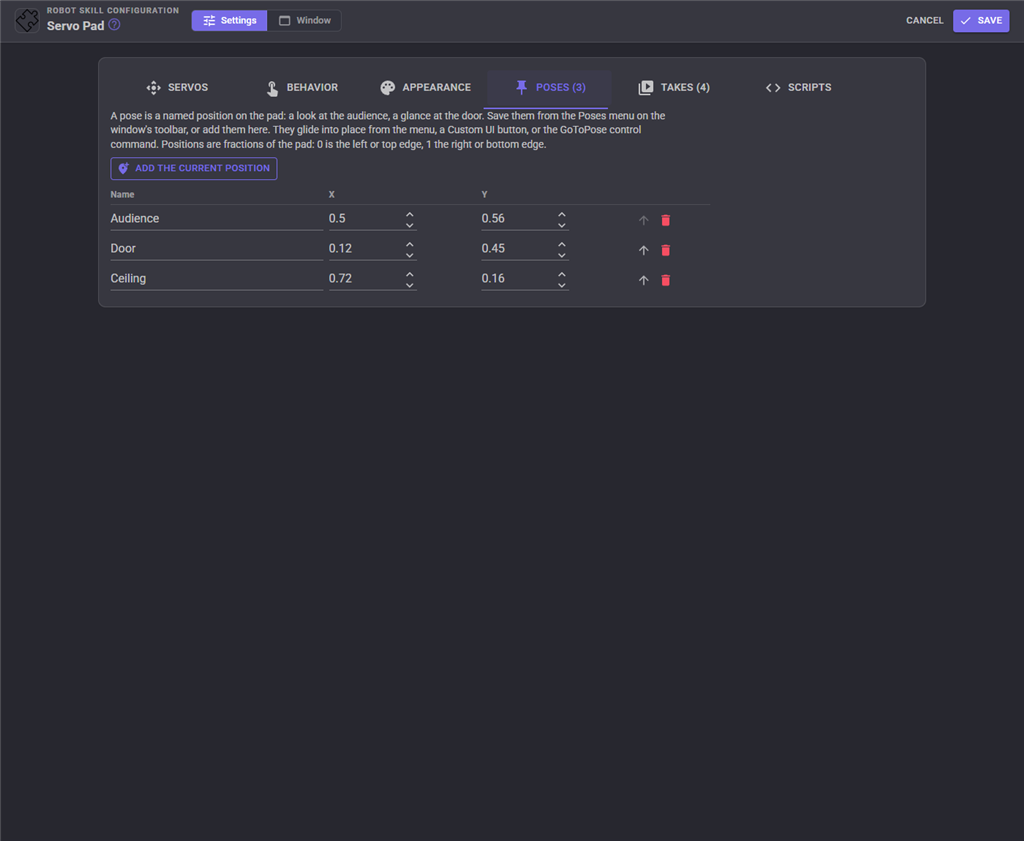
Rename, reposition, reorder and delete poses. Add the current position saves where the pad is now.
Takes
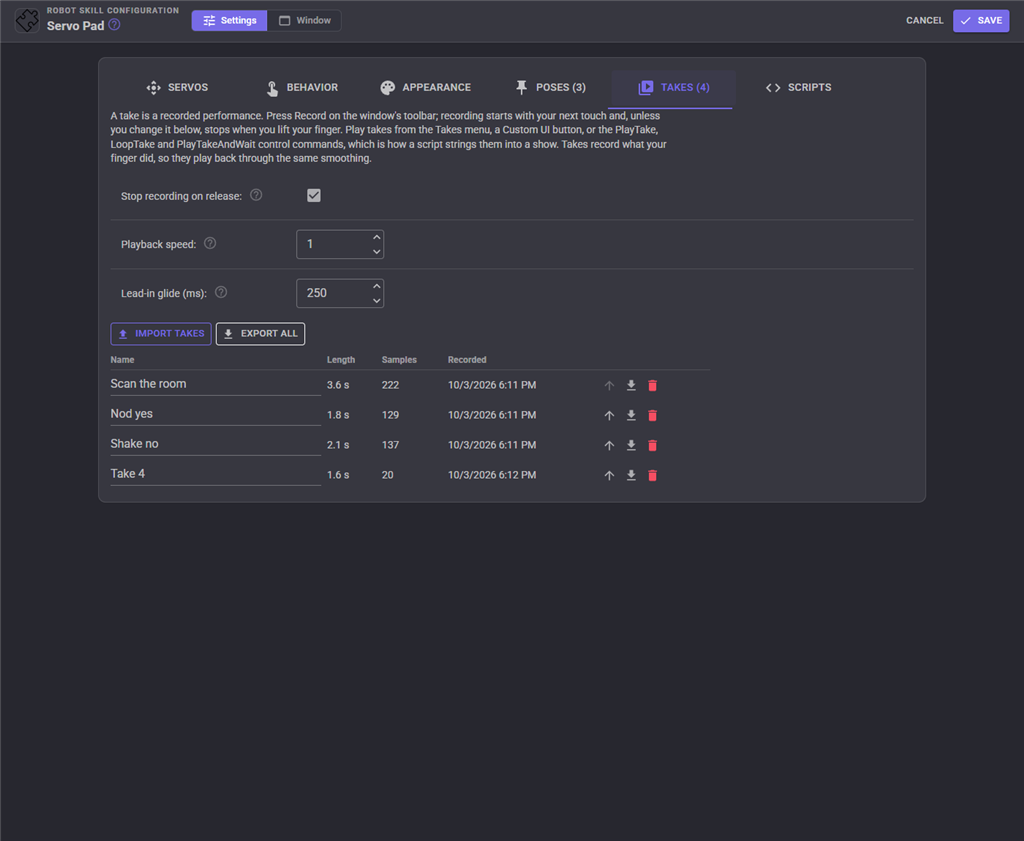
| Setting | Description |
|---|---|
| Stop recording on release | One gesture, one take. Turn off to record several gestures into one take. |
| Playback speed | 1 is real time, 0.5 half speed, 2 double speed. |
| Lead-in glide | How long the glide into a take's first position takes. 0 jumps. |
The table lists every take with its length and sample count. Rename, reorder or delete them, or export one or all of them to a file. Import takes reads a file exported from any servo Pad, so takes can be shared between projects and robots; a take whose name is already used gets a number added.
Scripts
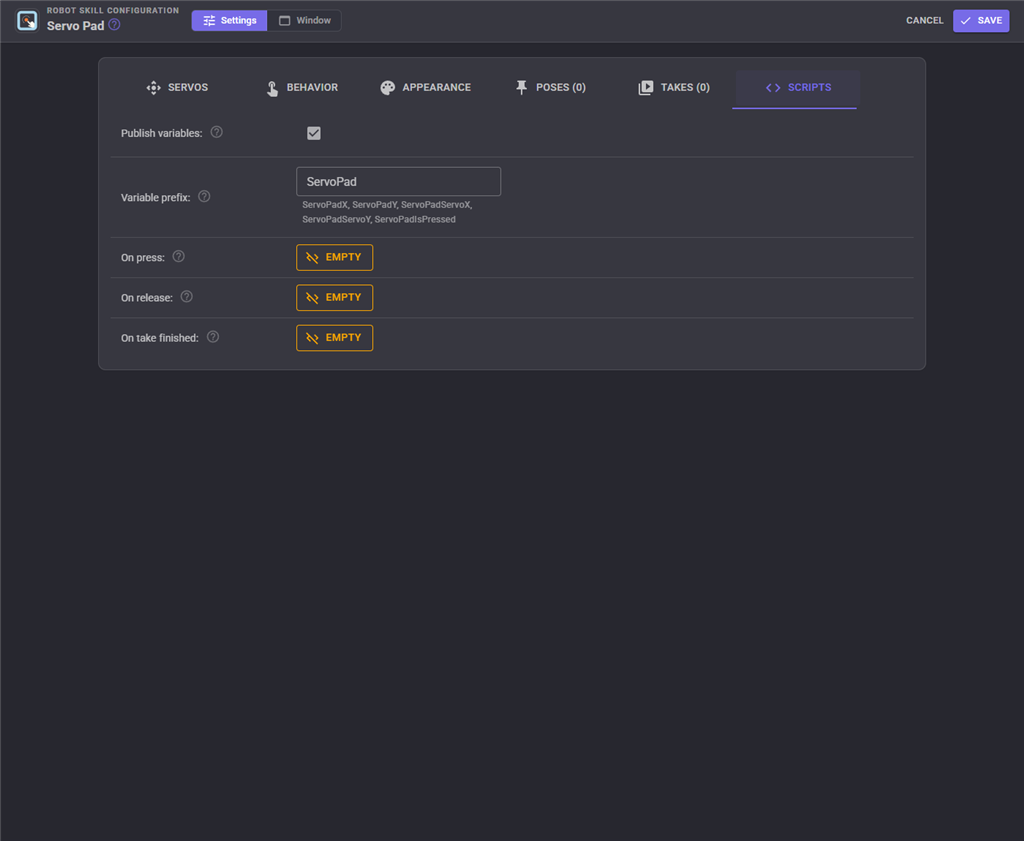
| Setting | Description |
|---|---|
| Publish variables | Publish the pad as global variables. |
| Variable prefix | The start of each variable name. |
| On press | Runs when a finger or mouse presses on the pad. |
| On release | Runs when it lets go. It stops an On press script that is still running. |
| On take finished | Runs when a take plays to its end on its own, not when it is stopped and not between rounds of a looping take. |
Tips
- For a camera pan/tilt, set a narrow range on each servo and turn on a little smoothing; the camera image steadies noticeably.
- For a performance, record short takes (a nod, a shake, a look around) and let a script play them in order with waits between.
- Put the pad full screen, or on a Custom UI screen on a tablet, for the most precise control.
Control Commands for the Servo Pad robot skill
There are Control Commands available for this robot skill which allows the skill to be controlled programmatically from scripts or other robot skills. These commands enable you to automate actions, respond to sensor inputs, and integrate the robot skill with other systems or custom interfaces. If you're new to the concept of Control Commands, we have a comprehensive manual available here that explains how to use them, provides examples to get you started and make the most of this powerful feature.
Control Command ManualThis robot skill has 29 control commands, listed below. Send them from a JavaScript or Python script, from Blockly, or from another robot skill.
The first value is always the window title, which is the name in the title bar of the robot skill on your workspace. It starts out as Servo Pad, which is what every example below uses. If you rename the robot skill, or add a second copy of it to the project, use the title as it appears on that window instead.
ControlCommand() can be shortened to CC(), and both spellings work in JavaScript and in Python. The examples are JavaScript; Python is the same call, except that true and false are written True and False.
GetPoses
The names of the saved poses
Syntax
ControlCommand("Servo Pad", "GetPoses")
Returns: Array of String
Example
var result = ControlCommand("Servo Pad", "GetPoses");
GetServoX
The position the horizontal master servo was last sent, or -1 before it has moved
Syntax
ControlCommand("Servo Pad", "GetServoX")
Returns: Integer [-2,147,483,648 to 2,147,483,647]
Example
var result = ControlCommand("Servo Pad", "GetServoX");
GetServoY
The position the vertical master servo was last sent, or -1 before it has moved
Syntax
ControlCommand("Servo Pad", "GetServoY")
Returns: Integer [-2,147,483,648 to 2,147,483,647]
Example
var result = ControlCommand("Servo Pad", "GetServoY");
GetTakes
The names of the recorded takes
Syntax
ControlCommand("Servo Pad", "GetTakes")
Returns: Array of String
Example
var result = ControlCommand("Servo Pad", "GetTakes");
GetX
The horizontal pad position, 0 (left) to 1 (right)
Syntax
ControlCommand("Servo Pad", "GetX")
Returns: Double [5.0e324 to 1.7e308]
Example
var result = ControlCommand("Servo Pad", "GetX");
GetY
The vertical pad position, 0 (top) to 1 (bottom)
Syntax
ControlCommand("Servo Pad", "GetY")
Returns: Double [5.0e324 to 1.7e308]
Example
var result = ControlCommand("Servo Pad", "GetY");
GlideTo
Glide smoothly to a position over a number of milliseconds, easing in and out. x and y run from 0 to 1. Returns straight away; the glide runs on its own
Syntax
ControlCommand("Servo Pad", "GlideTo", (Number)x, (Number)y, (Number)milliseconds)
Parameters
| # | Name | Type | What to pass |
|---|---|---|---|
| 1 | x | Number | A number, without quotes |
| 2 | y | Number | A number, without quotes |
| 3 | milliseconds | Number | A number, without quotes |
Returns: Boolean [true or false]
Example
var result = ControlCommand("Servo Pad", "GlideTo", 0, 0, 0);
GlideToPose
Glide to a saved pose over a number of milliseconds (0 jumps). Returns false when there is no pose of that name
Syntax
ControlCommand("Servo Pad", "GlideToPose", (String)name, (Number)milliseconds)
Parameters
| # | Name | Type | What to pass |
|---|---|---|---|
| 1 | name | Text | Your text, in quotes |
| 2 | milliseconds | Number | A number, without quotes |
Returns: Boolean [true or false]
Example
var result = ControlCommand("Servo Pad", "GlideToPose", "name", 0);
GoHome
Glide to the home position set in the configuration
Syntax
ControlCommand("Servo Pad", "GoHome")
Returns: Boolean [true or false]
Example
var result = ControlCommand("Servo Pad", "GoHome");
GoToPose
Glide to a saved pose over the pose glide time set in the configuration. Returns false when there is no pose of that name
Syntax
ControlCommand("Servo Pad", "GoToPose", (String)name)
Parameters
| # | Name | Type | What to pass |
|---|---|---|---|
| 1 | name | Text | Your text, in quotes |
Returns: Boolean [true or false]
Example
var result = ControlCommand("Servo Pad", "GoToPose", "name");
IsLocked
Whether the pad is locked
Syntax
ControlCommand("Servo Pad", "IsLocked")
Returns: Boolean [true or false]
Example
var result = ControlCommand("Servo Pad", "IsLocked");
IsPlaying
Whether a take is playing
Syntax
ControlCommand("Servo Pad", "IsPlaying")
Returns: Boolean [true or false]
Example
var result = ControlCommand("Servo Pad", "IsPlaying");
IsPressed
Whether a finger or mouse is pressed on the pad right now
Syntax
ControlCommand("Servo Pad", "IsPressed")
Returns: Boolean [true or false]
Example
var result = ControlCommand("Servo Pad", "IsPressed");
IsRecording
Whether a take is being recorded
Syntax
ControlCommand("Servo Pad", "IsRecording")
Returns: Boolean [true or false]
Example
var result = ControlCommand("Servo Pad", "IsRecording");
Lock
Lock the pad so touches are ignored. Control commands, poses and takes still work
Syntax
ControlCommand("Servo Pad", "Lock")
Returns: Boolean [true or false]
Example
var result = ControlCommand("Servo Pad", "Lock");
LoopTake
Play a recorded take over and over until StopPlayback, a touch on the pad, or another take. Returns false when there is no take of that name
Syntax
ControlCommand("Servo Pad", "LoopTake", (String)name)
Parameters
| # | Name | Type | What to pass |
|---|---|---|---|
| 1 | name | Text | Your text, in quotes |
Returns: Boolean [true or false]
Example
var result = ControlCommand("Servo Pad", "LoopTake", "name");
PlayTake
Play a recorded take once. Returns straight away; use PlayTakeAndWait to wait for the end. Returns false when there is no take of that name
Syntax
ControlCommand("Servo Pad", "PlayTake", (String)name)
Parameters
| # | Name | Type | What to pass |
|---|---|---|---|
| 1 | name | Text | Your text, in quotes |
Returns: Boolean [true or false]
Example
var result = ControlCommand("Servo Pad", "PlayTake", "name");
PlayTakeAndWait
Play a recorded take once and wait until it ends. Returns true when it played to the end, false when it was stopped or interrupted
Syntax
ControlCommand("Servo Pad", "PlayTakeAndWait", (String)name)
Parameters
| # | Name | Type | What to pass |
|---|---|---|---|
| 1 | name | Text | Your text, in quotes |
Returns: Boolean [true or false]
Example
var result = ControlCommand("Servo Pad", "PlayTakeAndWait", "name");
ReleaseServos
Stop any take or glide and release the pad's servos so they stop holding their position. The next move drives them again
Syntax
ControlCommand("Servo Pad", "ReleaseServos")
Returns: Boolean [true or false]
Example
var result = ControlCommand("Servo Pad", "ReleaseServos");
SavePose
Save the current position as a pose with this name, replacing a pose of the same name. Returns the name
Syntax
ControlCommand("Servo Pad", "SavePose", (String)name)
Parameters
| # | Name | Type | What to pass |
|---|---|---|---|
| 1 | name | Text | Your text, in quotes |
Returns: String
Example
var result = ControlCommand("Servo Pad", "SavePose", "name");
SetPlaybackSpeed
Set the playback speed of takes: 1 is real time, 0.5 half speed, 2 double speed (0.05 to 10). Applies to a take already playing. Returns the speed set
Syntax
ControlCommand("Servo Pad", "SetPlaybackSpeed", (Number)speed)
Parameters
| # | Name | Type | What to pass |
|---|---|---|---|
| 1 | speed | Number | A number, without quotes |
Returns: Double [5.0e324 to 1.7e308]
Example
var result = ControlCommand("Servo Pad", "SetPlaybackSpeed", 0);
SetPosition
Move the pad (and the servos) straight to a position. x and y run from 0 (left, top) to 1 (right, bottom). Stops a take or glide in progress
Syntax
ControlCommand("Servo Pad", "SetPosition", (Number)x, (Number)y)
Parameters
| # | Name | Type | What to pass |
|---|---|---|---|
| 1 | x | Number | A number, without quotes |
| 2 | y | Number | A number, without quotes |
Returns: Boolean [true or false]
Example
var result = ControlCommand("Servo Pad", "SetPosition", 0, 0);
SetSmoothing
Set the motion smoothing, 0 (none) to 100 (about half a second of easing). Returns the value set
Syntax
ControlCommand("Servo Pad", "SetSmoothing", (Number)smoothing)
Parameters
| # | Name | Type | What to pass |
|---|---|---|---|
| 1 | smoothing | Number | A number, without quotes |
Returns: Integer [-2,147,483,648 to 2,147,483,647]
Example
var result = ControlCommand("Servo Pad", "SetSmoothing", 0);
SetX
Move only the horizontal servos to a position, 0 (left) to 1 (right)
Syntax
ControlCommand("Servo Pad", "SetX", (Number)x)
Parameters
| # | Name | Type | What to pass |
|---|---|---|---|
| 1 | x | Number | A number, without quotes |
Returns: Boolean [true or false]
Example
var result = ControlCommand("Servo Pad", "SetX", 0);
SetY
Move only the vertical servos to a position, 0 (top) to 1 (bottom)
Syntax
ControlCommand("Servo Pad", "SetY", (Number)y)
Parameters
| # | Name | Type | What to pass |
|---|---|---|---|
| 1 | y | Number | A number, without quotes |
Returns: Boolean [true or false]
Example
var result = ControlCommand("Servo Pad", "SetY", 0);
StartRecording
Start recording a take now. Everything that moves the pad is recorded, including glides and other control commands. An empty name saves it as the next "Take N"; a name replaces the take of that name. Returns false when already recording or the configuration window is open
Syntax
ControlCommand("Servo Pad", "StartRecording", (String)name)
Parameters
| # | Name | Type | What to pass |
|---|---|---|---|
| 1 | name | Text | Your text, in quotes |
Returns: Boolean [true or false]
Example
var result = ControlCommand("Servo Pad", "StartRecording", "name");
StopPlayback
Stop the take playing. The servos stay where it left them. Returns false when nothing was playing
Syntax
ControlCommand("Servo Pad", "StopPlayback")
Returns: Boolean [true or false]
Example
var result = ControlCommand("Servo Pad", "StopPlayback");
StopRecording
Stop recording and save the take. Returns the take's name, or an empty string when nothing was recorded
Syntax
ControlCommand("Servo Pad", "StopRecording")
Returns: String
Example
var result = ControlCommand("Servo Pad", "StopRecording");
Unlock
Unlock the pad so it responds to touches again
Syntax
ControlCommand("Servo Pad", "Unlock")
Returns: Boolean [true or false]
Example
var result = ControlCommand("Servo Pad", "Unlock");
This list is read out of the robot skill itself each time its package is uploaded, so it matches the published version (v2).

This robot skill has been updated to v1.
What has changed
first release
This robot skill has been updated to v2.
What has changed
updated to use new threading features of ARCx v2026.10.04.01