
Tank-drive movement panel for Kangaroo x2/Sabertooth with encoder odometry, NMS position, and measured drive/turn commands.
 Windows
 ARM
ARM
 Linux
Linux
 MacOS
MacOS
How to add the Sabertooth Kangaroo robot skill
- Load the most recent release of ARCx on a compatible operating system (Get ARCx).
- Press the + Skills menu from the top menu bar in ARCx.
- Choose the Movement Panels category tab.
- Press the Sabertooth Kangaroo icon to add the robot skill to your project.
Don't have a robot yet?
Follow the Getting Started Guide to build a robot and use the Sabertooth Kangaroo robot skill.
How to use the Sabertooth Kangaroo robot skill
Drives a robot with a Dimension Engineering Kangaroo x2 motion controller and the Sabertooth motor driver it sits on. Kangaroo channel 1 drives one side of the robot and channel 2 the other, so the robot steers like a tank.
This is a movement panel: once it is in the project, everything in ARCx that moves the robot - the Movement Joystick, the Wiimote, Movement.Forward() in a script, the Autonomous AI skill, a ROS /cmd_vel binding - drives the Kangaroo. Only one Movement Panel can be in a project at a time.
What the Kangaroo adds over a Sabertooth on its own is a quadrature encoder on each drive wheel. ARCx tells the Kangaroo how fast each wheel should turn, and the Kangaroo holds it there by itself: up a ramp, over carpet, with a heavy load or a flat battery, both wheels turn at the speed they were told. The skill also reads both encoders back, works out where the robot is from how far each wheel turned (odometry), and can hand that position to the Navigation Messaging System (NMS) so navigation and mapping skills know where the robot is without a camera or lidar based position source.
Requirements
- A Kangaroo x2 mounted on a Sabertooth dual motor driver, with a quadrature encoder on each drive motor wired to the Kangaroo.
- The Kangaroo's DIP switches set for serial mode with independent channels (not mixed mode), and the Kangaroo tuned for this robot with its teach/tune button or Dimension Engineering's DEScribe software. Set the Sabertooth's own DIP switches the way the Kangaroo manual asks for your Sabertooth model.
- One of: an EZ-B v4 hardware UART, any EZB digital port, a serial port on the computer (a USB to TTL serial adapter), or a serial to network bridge on the robot (an ESP32 or ESP8266 running ESP-Link, or ser2net).
- A common ground between whatever sends the commands and the Kangaroo's 0V terminal.
Tune the Kangaroo before the first drive. It is what teaches the Kangaroo how its motors and encoders respond, and a Kangaroo that has not been tuned does not hold the wheels at their speed. The connection test and the wheel test below report a channel that is not ready.
Packet Serial
The skill speaks the Kangaroo's Packet Serial. Every command and every reply is a short binary packet ending in a CRC-14 checksum, so a byte that motor noise damages is thrown away instead of becoming a wrong speed, and a damaged position reply is ignored rather than added to the robot's position. The Kangaroo reports each wheel's position as a running total, so a reply that is lost costs nothing: the next reading includes the movement.
The Kangaroo's packet serial address is 128 and its baud rate 9600 unless they were changed with DEScribe. Both must match the configuration.
Wiring
| Connection | Wire to the Kangaroo's S1 | Wire the Kangaroo's S2 to | Odometry |
|---|---|---|---|
| EZB hardware UART | The UART's TX pin | The UART's RX pin | Yes |
| EZB software serial | Any EZB digital port's signal pin | Nothing | No |
| Serial port on this computer | The adapter's TX pin | The adapter's RX pin | Yes |
| Serial bridge over TCP | The bridge's TX pin | The bridge's RX pin | Yes |
Always connect ground: the EZB's (or adapter's) GND to the Kangaroo's 0V, even when the two run from different batteries. A missing ground is the most common reason a Kangaroo ignores everything it is sent.
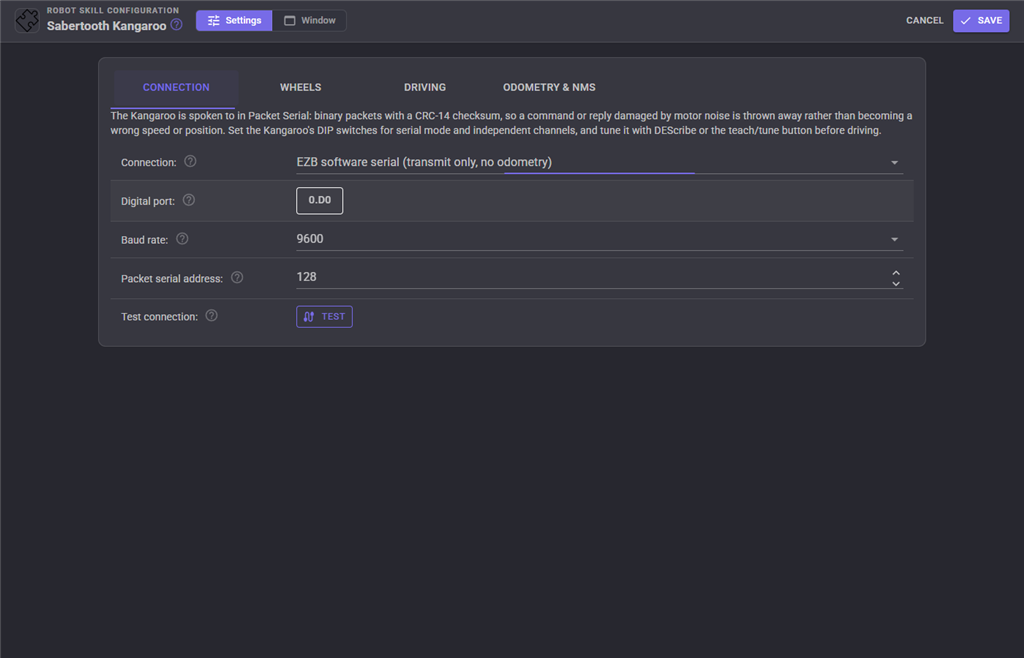
The EZB hardware UART is the most reliable way through an EZB, and it hears the Kangaroo's replies. EZB software serial can only transmit, so the robot drives (the Kangaroo still holds each wheel at its speed) but there is no odometry, no NMS position, no calibration and no measured drive or turn.
For a serial bridge over TCP, set the bridge's own baud rate to match the Kangaroo; the skill only sends and receives bytes over the network.
Nothing is sent to the Kangaroo until the skill has been configured or the robot is first told to move. Adding the skill to a project whose default UART is already wired to something else does not disturb it. A project that was saved with the skill starts the Kangaroo and begins reading its encoders as soon as it loads.
The window
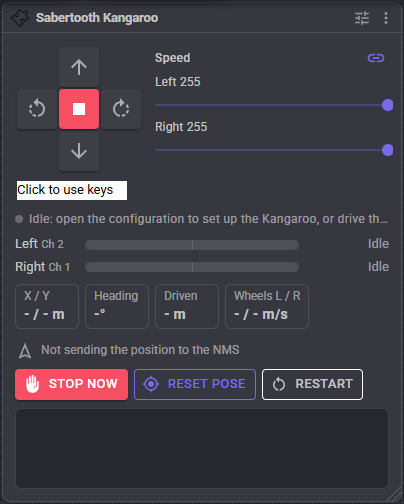
- Direction buttons - forward, reverse, spin left, spin right and stop. The highlighted button is the direction ARCx is moving in, whoever asked for it.
- Click to use keys - click it, then drive with the arrow keys. Releasing the key stops the robot.
- Speed - the left and right speeds, 0 to 255. These are ARCx's global movement speeds, so they also move when a script or another skill changes the speed. The link button beside the title makes both sliders move together; unlink it to set the sides separately and drive in an arc.
- Status - the green dot is lit while the link to the Kangaroo is open, with how it is connected and the packet serial address. Before the skill is set up it says it is idle. When the link cannot be opened it says why, and the skill keeps trying every two seconds.
- Left and Right - the Kangaroo channel each side is on, a bar that fills right for forward and left for reverse, and the speed being sent in percent of the maximum speed. With ramping turned on, this lags the speed above as the wheel speeds up and slows down.
- X / Y - where the robot is, in metres from where the position was last reset. X is ahead along the way the robot faced then, Y is to its left.
- Heading - which way the robot faces, in degrees. 0 is the way it faced when the position was reset; it increases as the robot turns left and decreases as it turns right.
- Driven - the total distance driven since the position was reset, forwards and backwards both counting.
- Wheels L / R - how fast each wheel is really turning, in metres per second, measured by its encoder.
- NMS - whether the position is being sent to the navigation messaging system, and how many updates have been sent.
- Stop Now - stops at once, skipping any ramp. It also cancels a measured drive or turn that a script started.
- Reset Pose - makes where the robot is now 0, 0, facing 0 degrees.
- Restart - stops the robot and sends start to both Kangaroo channels. Use it after a control error, or when the Kangaroo was switched on after ARCx connected to it.
- Log - what the skill has done: connections, lost links, Kangaroo errors, tests, calibration and auto stops.
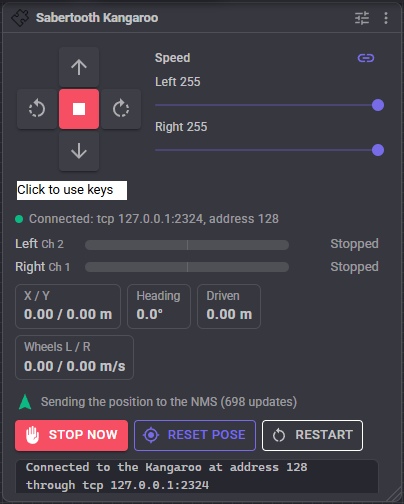
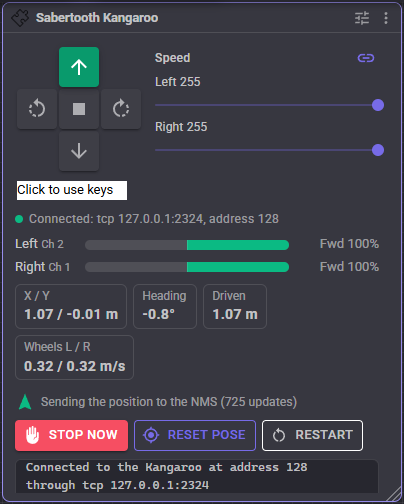
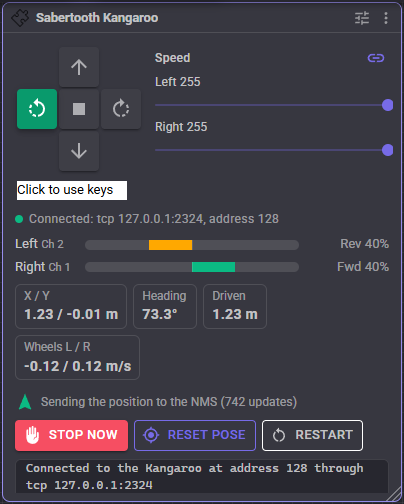
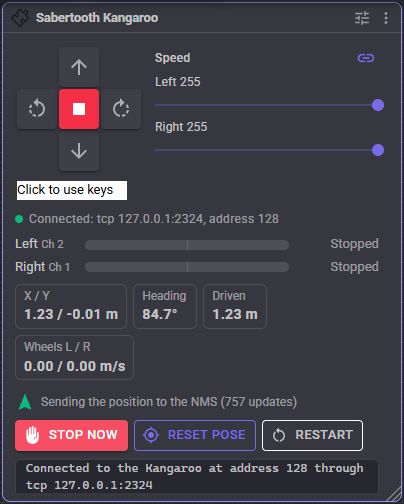
The position tiles are shown only when odometry is possible: on a connection that can receive, with an encoder reading interval above 0. A dash means nothing has been read yet. When the Kangaroo stops answering, the window says so under the tiles; when it reports an error, the error is shown there and written to the log once.
How direction works
Turning is done by driving one side forward and the other in reverse (a spin turn):
| Direction | Left wheel | Right wheel |
|---|---|---|
| Forward | forward | forward |
| Reverse | reverse | reverse |
| Left | reverse | forward |
| Right | forward | reverse |
| Stop | stopped | stopped |
Directions that mean nothing to two wheels on the ground (up, down, roll, take off, land, custom) are ignored and the wheels keep doing what they were doing. An emergency stop stops both wheels at once.
Different speeds per side (from the Movement Joystick, or a script that sets the left and right speeds separately) drive the robot in an arc.
Speed
The Kangaroo is told a wheel speed, not a motor power. Speeds are in the Kangaroo's units per second, which are encoder lines per second unless units were set in the Kangaroo with DEScribe. ARCx's movement speed of 0 to 255 becomes a wheel speed between the Minimum speed and the Maximum speed:
- A speed of 0 always stops the wheel.
- Speed 255 sends the maximum. 2048 is what the ARC version used. Lower it to cap the robot's top speed; a script can change it while the robot runs, for a gentle mode that is switched on when people are near.
- The slowest speed above zero sends the minimum. It is 0 by default, because the Kangaroo already pushes as hard as it needs to make a slow wheel turn.
As a guide, a wheel turns once per second at a speed equal to its counts per wheel revolution (see Odometry below).
Turn speed scales spin turns only. A robot that spins too fast to steer can turn at a fraction of its driving speed while still driving straight at full speed.
Speed trim scales one side's speed. The Kangaroo already holds each wheel at the speed it was told, so a robot with matching wheels drives straight without it; trim is only needed when the two wheels are different sizes.
Ramping
Ramping is off by default, so every speed change is sent at once and the acceleration is left to the Kangaroo's own tuning, as in the ARC version.
- Acceleration limits how fast a wheel speeds up, in percent of full speed per second. 200 takes half a second to go from stopped to full speed. It stops a heavy robot from popping a wheelie, spinning its wheels or tipping its load.
- Deceleration limits how fast a wheel slows down when it changes speed or reverses.
- Ramp when stopping makes a Stop slow down at the deceleration rate too. It is off by default because a stop that takes time is not what most people expect when they press Stop. Stop Now, an emergency stop, the panic button and a lost connection always stop at once.
A wheel that has to reverse slows to zero first at the deceleration rate, then speeds up the other way at the acceleration rate.
Odometry
Every Read encoders every milliseconds the skill asks both Kangaroo channels for their position. From how far each wheel turned since the last reading, it works out how far the robot moved and turned, and adds that up into a position and heading. It uses the same frame and units as ROS and the NMS: metres, X forward, Y to the left, and the heading (yaw) in radians counter-clockwise. Only the window converts the heading to degrees.
Three measurements turn encoder counts into metres:
- Wheel diameter - the drive wheel's diameter across the tyre.
- Wheel distance - the distance between the centres of the two drive wheels (the track width), measured where the tyres touch the floor. It decides how far the robot turns for a difference in wheel travel.
- Counts per wheel revolution - how much the Kangaroo's position changes when the wheel turns exactly once, including any gearing between the encoder and the wheel. The calibration below measures it.
At 9600 baud, reading every 100 ms is about as fast as leaves room for the drive commands. A faster baud rate allows a shorter interval.
Reset Pose in the window makes where the robot is now the origin. Changing the configuration or reconnecting keeps the position; only Reset Pose (or the matching script command) starts it again from 0, 0.
Calibrating
The calibration measures the counts per wheel revolution with the robot on the floor, so it includes the gearing, the tyre's real size under load, and any units set in the Kangaroo.
- Enter the Wheel diameter, and put the robot on the floor with a couple of metres clear in front of it. Mark where it starts.
- Press Drive. The robot drives straight forward on its own, at the Test speed from the Wheels tab, for Drive for seconds, and reports how many counts each wheel moved.
- Measure how far the robot really drove with a tape measure, and enter it in Distance it drove (cm).
- Press Apply. The counts per wheel revolution is worked out and put in its field. Save to keep it.
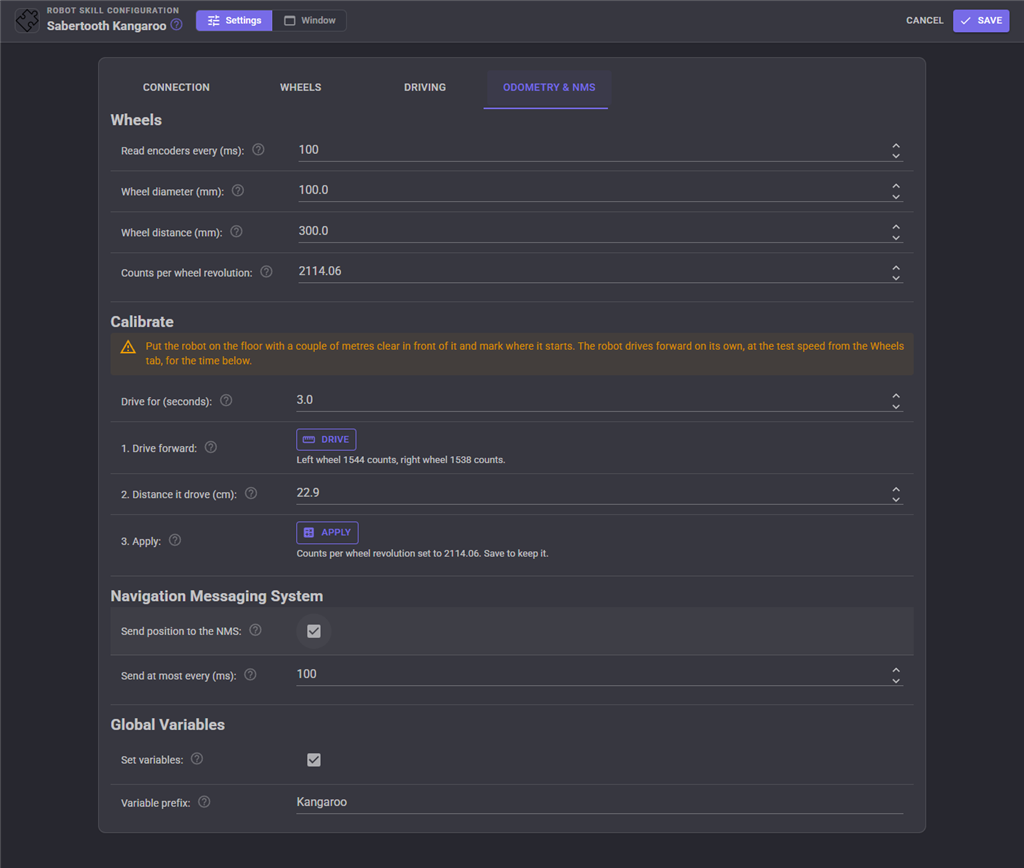
If the two wheels' counts differ by more than a few percent, the result says so: the robot probably curved, so check that it drove straight and that the wheels are the same size. Longer drives measure more accurately, as long as the robot has room.
The wheel distance is best checked by turning: spin the robot a few full turns in place and compare the heading in the window with what the robot really did. If the robot reports turning more than it did, raise the wheel distance; if it reports turning less, lower it.
Navigation messaging system
Tick Send position to the NMS and the robot's position and heading from the encoders are sent to the navigation messaging system, so navigator and mapping robot skills know where the robot is. A position is sent after every encoder reading, at most every Send at most every milliseconds, even while the robot stands still, because a navigator only accepts a lidar's scan when a position arrives with it.
Leave it off when another robot skill already reports the robot's position (a tracking camera, for example), because two position sources would fight. Wheel odometry drifts over time, especially in heading, so a navigator that corrects the position against a map works best with it.
Reset Pose is sent to the NMS straight away when sending is on, so only reset when the navigator expects it, such as when it starts a new map. When the window shows that NMS is on but the wheel measurements are missing, fill in the wheel diameter, wheel distance and counts per wheel revolution.
A script can switch sending on and off while the robot runs.
Driving by distance and angle
With odometry working, scripts can drive the robot a measured distance in metres (negative reverses) or turn it by a measured angle in radians, counter-clockwise as in ROS: positive turns left, negative turns right, and more than a full circle is allowed. Both wait until the robot gets there, slow down over the last stretch so it stops close to the mark, and return how far it really went. The speed is a percent of the configured speed range.
Any other movement command, Stop Now or the panic button cancels them. They give up with an error if the robot does not get there in a sensible time (it is probably stuck) or the Kangaroo stops reporting its wheel positions.
Global variables
With Set variables on, every encoder reading sets these for scripts. As in ROS, positions are in metres, the yaw in radians and speeds in metres per second.
| Variable | Meaning |
|---|---|
$KangarooPoseX |
X position from the origin, positive forward along the way the robot faced there |
$KangarooPoseY |
Y position from the origin, positive to the left |
$KangarooPoseYaw |
Heading, -pi to pi, 0 the way the robot faced at the origin, positive turned left |
$KangarooOdometryDistance |
Total distance driven since the origin was set |
$KangarooLeftPosition |
The left wheel's position as the Kangaroo reports it, positive forward |
$KangarooRightPosition |
The right wheel's position as the Kangaroo reports it, positive forward |
$KangarooLeftSpeed |
How fast the left wheel is turning, measured by its encoder |
$KangarooRightSpeed |
How fast the right wheel is turning, measured by its encoder |
The Variable prefix setting changes the Kangaroo part of each name.
Safety
- The panic button stops the robot at once.
- A lost EZB connection while driving stops the robot. Otherwise ARCx would still be "driving forward" and the robot would drive off on its own the moment the EZB reconnected. The UART is set up again, the Kangaroo started again and the speeds sent again when it reconnects.
- A lost link (an unplugged USB adapter, a TCP bridge that drops) is logged and retried every two seconds.
- A Kangaroo switched on late, or reset, reports that its channels are not started. On a connection that can receive, the skill notices on the next encoder reading and starts them again by itself. On EZB software serial, press Restart.
- Removing the skill or closing the project while the robot drives stops the wheels first.
- Opening the configuration stops the robot, so the wheels are never left turning while the connection is being changed.
- Resend every sends the current wheel speeds again on an interval even when nothing changed. Use it when a serial timeout is set on the Kangaroo with DEScribe, at less than half that timeout, so the Kangaroo only stops the robot when commands have really stopped arriving.
- Auto stop after stops the robot when it has kept driving this long with no change to its direction or speed. It is a safety net for remote control over a network that may drop. It is off by default because a script that says "drive forward, wait ten seconds" would otherwise be cut short.
Testing the wiring
All of the tests use the settings on the configuration page as they are, before they are saved, so the wiring can be checked and corrected in one go.
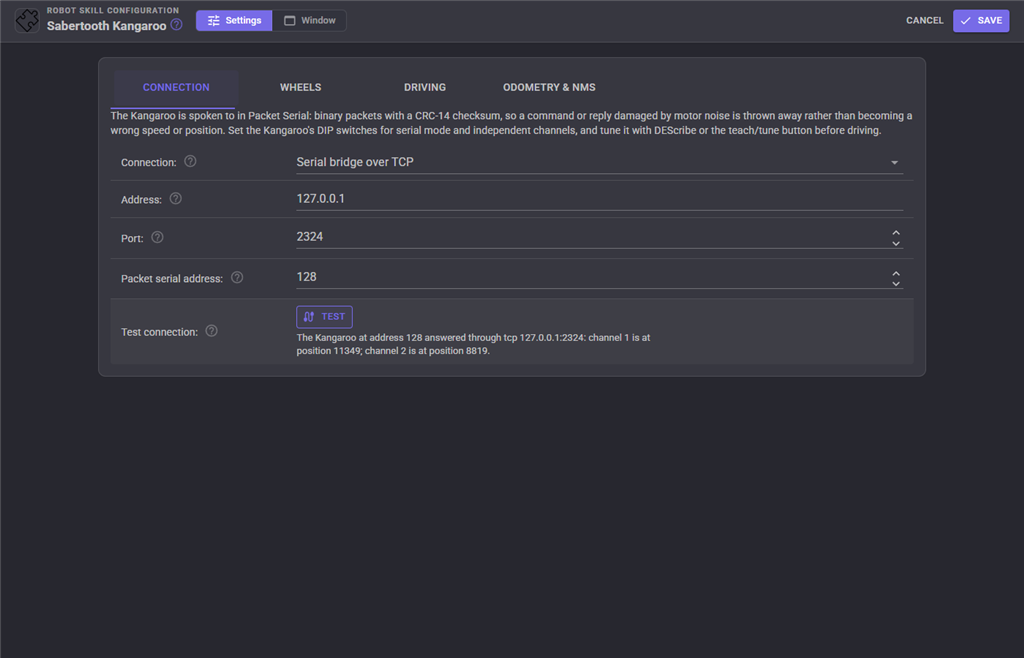
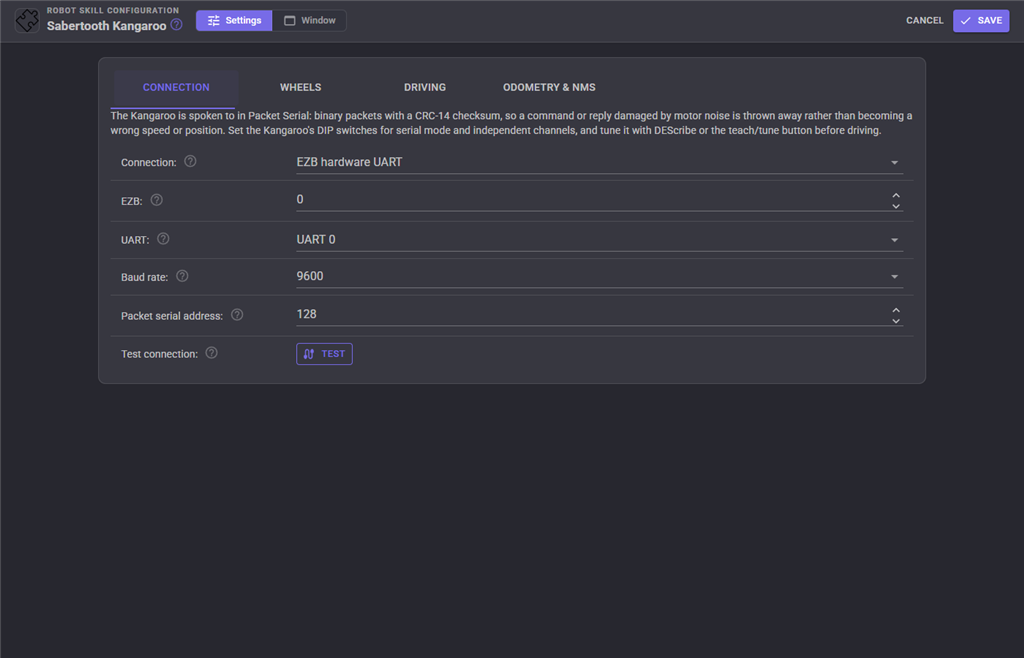
Test connection (Connection tab) opens the connection, starts both Kangaroo channels and asks each for its position. An answer from both proves both directions of the wiring, the baud rate and the address. A Kangaroo error, such as an untuned channel, is reported per channel. EZB software serial cannot hear the answer, so the test only says the link opened; use the wheel test to see the Kangaroo respond.
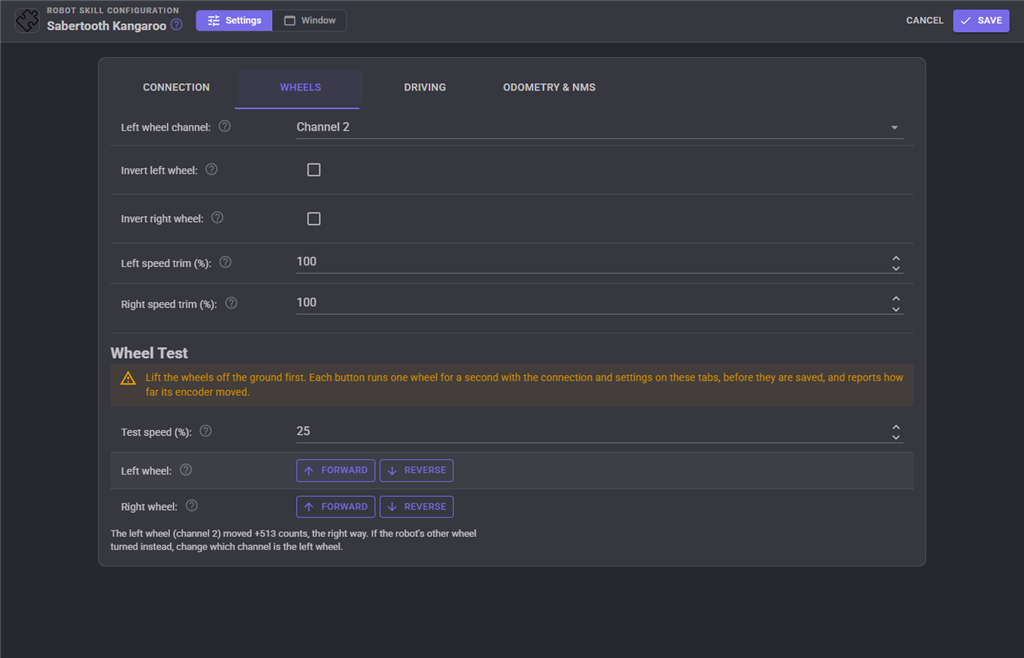
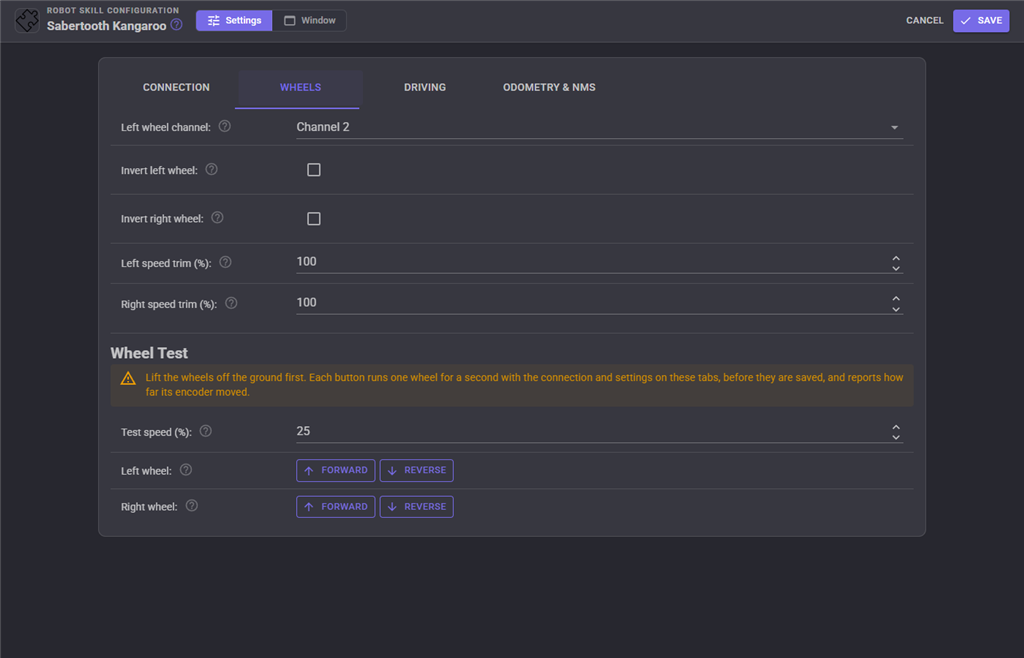
Wheel Test (Wheels tab) runs one wheel for one second, forward or reverse, at the Test speed, and reports how far its encoder moved and whether that was the right way. Lift the wheels off the ground first. Press Forward for each wheel. The wheel on that side should turn the way it would to drive the robot forward.
- If the other side's wheel turns, change the Left wheel channel.
- If the correct wheel turns but backwards, tick that side's Invert setting. Inverting turns both the speed sent and the position read round, so odometry stays correct.
- If it says the wheel did not move, the Sabertooth is not powered or the Kangaroo is not tuned.
Configuration
The configuration has four tabs.
Connection - how the Kangaroo is connected, the baud rate, the packet serial address and the connection test.
Wheels - which channel is the left wheel, which wheels are reversed, the speed trims and the wheel test.
Driving - the speed range, turn speed, ramping, resend interval and auto stop.
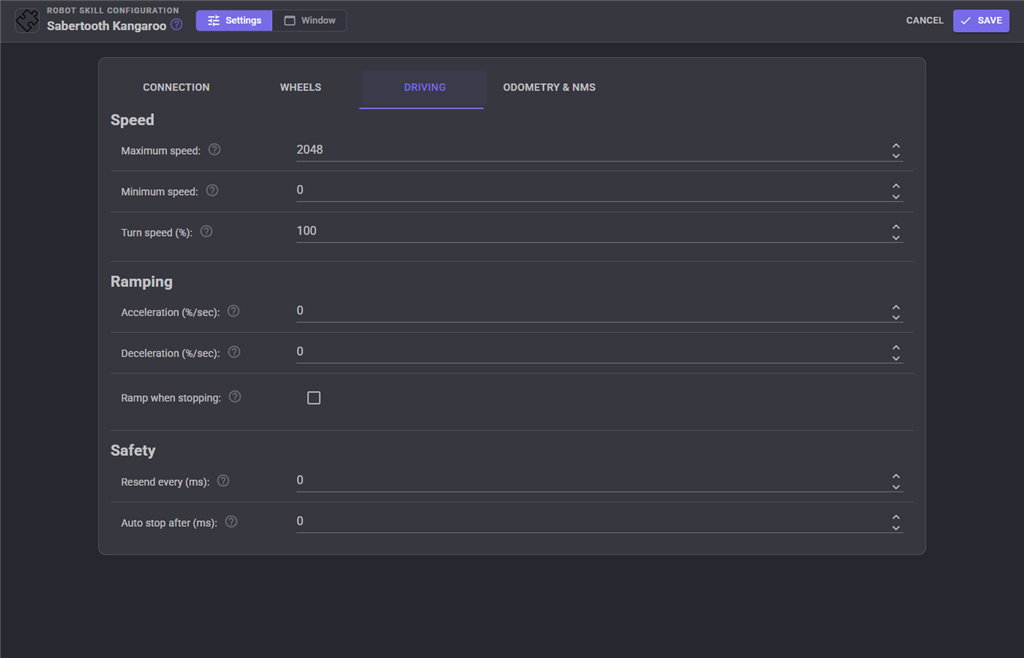
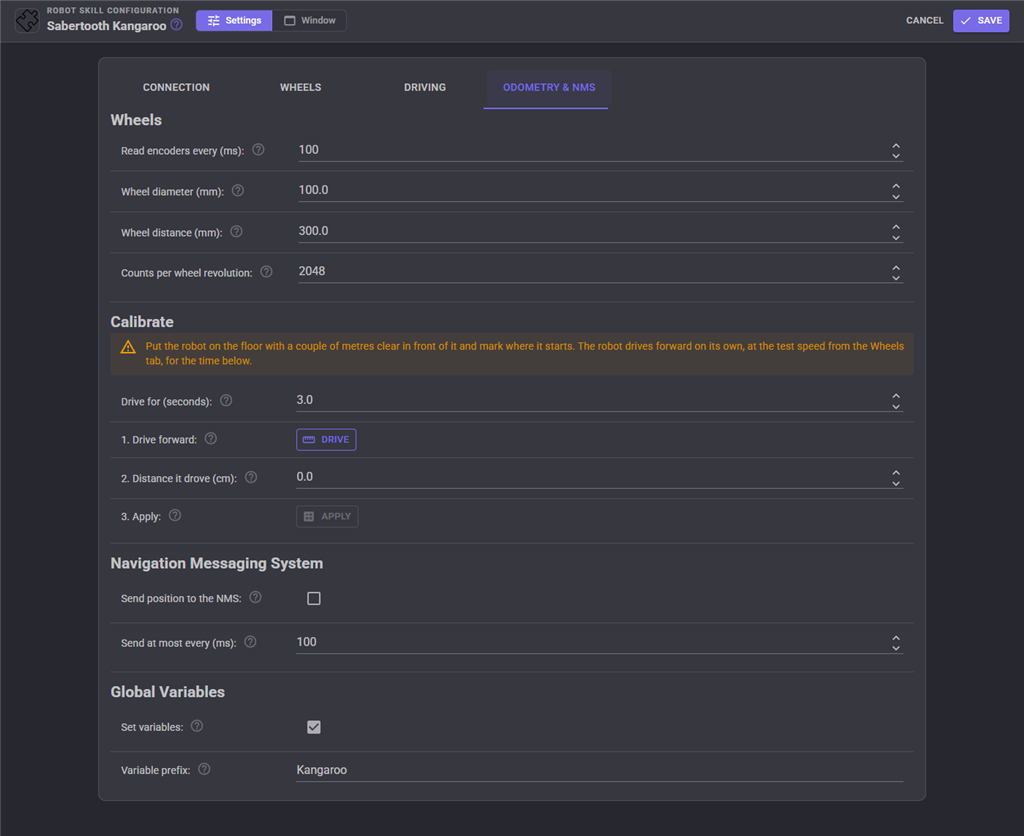
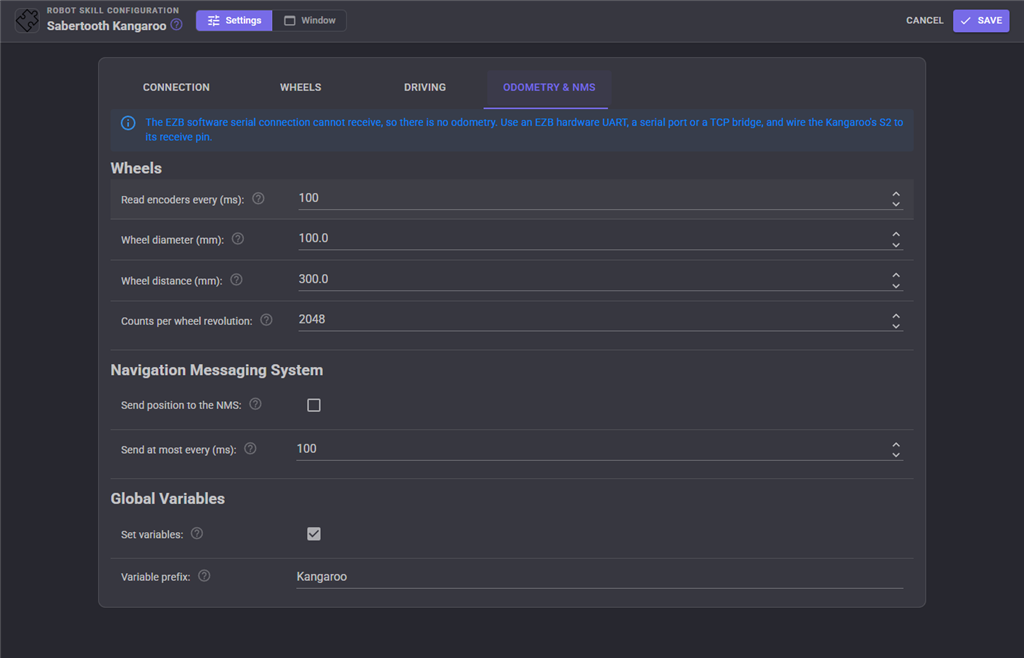
Odometry & NMS - the encoder reading interval, the wheel measurements and their calibration, sending the position to the NMS and the global variables. On a transmit-only connection it says that there is no odometry and leaves out the calibration.
| Setting | Meaning |
|---|---|
| Connection | EZB hardware UART, EZB software serial, a serial port on this computer, or a serial bridge over TCP. |
| EZB / UART | Which EZB (0 is the first) and which of its hardware UARTs (0, 1 or 2). |
| Serial port | The computer's port, i.e. COM3 or /dev/ttyUSB0. The refresh button looks again. |
| Digital port | The EZB port used for software serial. |
| Baud rate | Must match the Kangaroo. 9600 unless changed with DEScribe. |
| Address / Port | The TCP serial bridge's address and port. ESP-Link uses 23. |
| Packet serial address | The Kangaroo's address, 128 to 255. 128 unless changed with DEScribe. |
| Left wheel channel | The Kangaroo channel (1 or 2) of the left wheel. The other channel is the right wheel. The ARC version used channel 2. |
| Invert left / right wheel | Reverse that wheel, both the speed sent and the position read back. |
| Left / Right speed trim (%) | Scales that wheel's speed, 1 to 100. Only for wheels of different sizes. |
| Test speed (%) | How fast the wheel test and the calibration drive run. Not saved. |
| Maximum speed | The wheel speed sent for speed 255, in the Kangaroo's units per second. |
| Minimum speed | The wheel speed sent for the slowest speed above zero. Must be less than the maximum. |
| Turn speed (%) | Scales spin turns. |
| Acceleration / Deceleration (%/sec) | How fast a wheel may speed up and slow down. 0 is instant. |
| Ramp when stopping | Whether Stop also follows the deceleration rate. |
| Resend every (ms) | Send the wheel speeds again on this interval. 0 sends only on a change. |
| Auto stop after (ms) | Stop after this long without a change of direction or speed. 0 is off. |
| Read encoders every (ms) | How often the wheel positions are read. 0 turns odometry off. |
| Wheel diameter (mm) | The drive wheel's diameter across the tyre. |
| Wheel distance (mm) | The distance between the centres of the two drive wheels. |
| Counts per wheel revolution | The Kangaroo's position change for one turn of the wheel. Measured by the calibration. |
| Drive for (seconds) | How long the calibration drive lasts. Not saved. |
| Distance it drove (cm) | The distance measured after the calibration drive. Not saved. |
| Send position to the NMS | Send the odometry position to the navigation messaging system. |
| Send at most every (ms) | The least time between positions sent to the NMS. |
| Set variables | Publish the odometry as global variables. |
| Variable prefix | The start of the global variable names. |
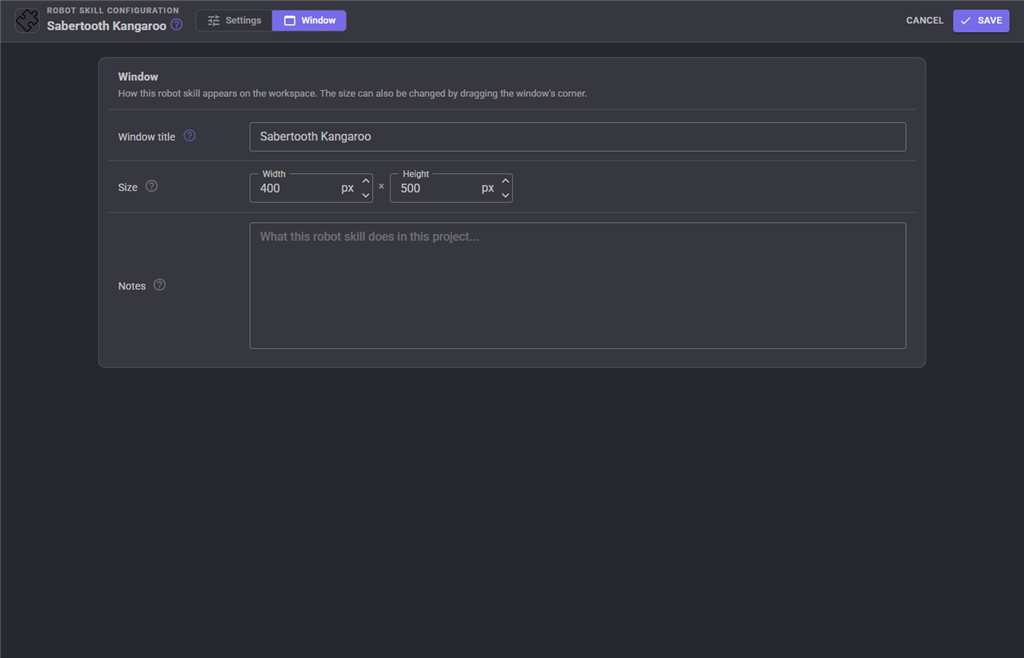
The Window tab sets the robot skill's window title, its size on the workspace and notes about what it does in this project.
Custom UI widget
The skill offers a Kangaroo Wheels widget for your own Custom UI screens: a bar per wheel showing the speed it is being sent (up is forward, down is reverse), the robot's position and heading from the encoders, and an optional Stop button that stops the robot at once. Put it beside a joystick widget on a phone screen to see what the wheels are doing and where the robot is while you drive.
| Widget setting | Meaning |
|---|---|
| Caption | The label above the wheels. |
| ShowPosition | true or false, whether the X, Y and heading are shown. |
| ShowStopButton | true or false, whether the Stop button is shown. |
Coming from the ARC version
The ARC version sent the Kangaroo's plain text Simplified Serial, with channel 2 as the left wheel and 2048 as the top speed. This one speaks the CRC checked Packet Serial instead, and with the new settings left at their defaults the wheels behave as they did in ARC: channel 2 is the left wheel, speed 255 sends 2048, and every speed change is sent at once.
What is new: reading the encoders back; odometry with a calibration tool; sending the position to the NMS; measured distance and turn commands for scripts; position and wheel speed global variables; the EZB hardware UART and TCP serial bridge connections; choosing the left wheel's channel and inverting wheels without rewiring; speed trims, a speed range and a turn speed; ramping; the connection and wheel tests; the live wheel readout, link status and Kangaroo error reporting; Stop Now, Reset Pose and Restart; the resend interval and auto stop; stopping on a lost connection or the panic button; and the Custom UI widget.
Troubleshooting
| Symptom | Cause |
|---|---|
| Nothing moves and the status says connected | The baud rate or packet serial address does not match the Kangaroo, ground is not connected, the TX/RX wires are swapped (ARCx's TX goes to S1), or the Kangaroo's DIP switches are not in serial mode. Run the connection test. |
| The connection test says the Kangaroo did not answer | S2 is not wired to the receive pin, or one of the causes above. On EZB software serial there can be no answer; use the wheel test. |
| The status says it cannot open the connection | The EZB is not connected, the serial port is in use by another program or unplugged, or the TCP bridge is not reachable. The skill keeps retrying every two seconds. |
| Kangaroo error E2, not homed | The Kangaroo is set up to need a home command before it moves, which this skill does not send. Check the Kangaroo's settings in DEScribe. |
| Kangaroo error E3, control error | The motor or encoder is wired wrong, a wheel is blocked, or the Kangaroo needs to be tuned again. Fix the cause, then press Restart. |
| Kangaroo error E4, wrong mode | The Kangaroo is in mixed mode. Set its DIP switches for independent channels. |
| Kangaroo error E6, serial timeout | Commands stopped reaching the Kangaroo within the serial timeout set in DEScribe. Set Resend every to less than half of that timeout. |
| The robot spins when told to drive forward | One wheel is reversed. Run the wheel test and tick Invert for the side that turns backwards. |
| Left and right are swapped | Change the Left wheel channel. |
| The distance driven is wrong | Run the calibration, or check the wheel diameter. |
| The heading drifts on turns | Adjust the Wheel distance: raise it when the robot reports turning more than it did, lower it when it reports turning less. |
| The window says odometry is off | The connection is EZB software serial, which cannot receive, or Read encoders every is 0. |
| The window says NMS is on but the wheel measurements are missing | Fill in the wheel diameter, wheel distance and counts per wheel revolution. |
| The robot stops by itself after a while | Auto stop after is set. Raise it or set it to 0. |
| The robot lurches or pops a wheelie | Set an Acceleration of 100 to 300, and some Deceleration. |
| Two movement panels in the project | Remove one; only one Movement Panel is supported. |
Control Commands for the Sabertooth Kangaroo robot skill
There are Control Commands available for this robot skill which allows the skill to be controlled programmatically from scripts or other robot skills. These commands enable you to automate actions, respond to sensor inputs, and integrate the robot skill with other systems or custom interfaces. If you're new to the concept of Control Commands, we have a comprehensive manual available here that explains how to use them, provides examples to get you started and make the most of this powerful feature.
Control Command ManualThis robot skill has 13 control commands, listed below. Send them from a JavaScript or Python script, from Blockly, or from another robot skill.
The first value is always the window title, which is the name in the title bar of the robot skill on your workspace. It starts out as Sabertooth Kangaroo, which is what every example below uses. If you rename the robot skill, or add a second copy of it to the project, use the title as it appears on that window instead.
ControlCommand() can be shortened to CC(), and both spellings work in JavaScript and in Python. The examples are JavaScript; Python is the same call, except that true and false are written True and False.
DriveDistance
Drive straight for a distance in metres (negative reverses), measured by the wheel encoders, then stop. Waits until the robot gets there and returns the distance actually driven in metres. speedPercent (1 to 100, default 50) is a percent of the configured speed range. Needs odometry and the wheel measurements in the configuration. Any other movement command, Stop Now or the panic button cancels it.
Syntax
ControlCommand("Sabertooth Kangaroo", "DriveDistance", (Number)metres, (Number)speedPercent)
Parameters
| # | Name | Type | What to pass |
|---|---|---|---|
| 1 | metres | Number | A number, without quotes |
| 2 | speedPercent | Number | A number, without quotes |
Returns: Double [5.0e324 to 1.7e308]
Example
var result = ControlCommand("Sabertooth Kangaroo", "DriveDistance", 0, 0);
GetEncoder
The position the Kangaroo last reported for one wheel, in its units (encoder lines unless units were set), positive being the robot's forward. 0 when nothing has been read yet.
Syntax
ControlCommand("Sabertooth Kangaroo", "GetEncoder", (String)wheel (Left or Right))
Parameters
| # | Name | Type | What to pass |
|---|---|---|---|
| 1 | wheel (Left or Right) | Text | Your text, in quotes |
Returns: Long [-9,223,372,036,854,775,808 to 9,223,372,036,854,775,807]
Example
var result = ControlCommand("Sabertooth Kangaroo", "GetEncoder", "wheel (Left or Right)");
GetOdometryDistance
The total distance the robot has driven since the origin was set, in metres, forwards and backwards both counting.
Syntax
ControlCommand("Sabertooth Kangaroo", "GetOdometryDistance")
Returns: Double [5.0e324 to 1.7e308]
Example
var result = ControlCommand("Sabertooth Kangaroo", "GetOdometryDistance");
GetOutput
The speed one wheel is being sent right now, in percent of the maximum speed: positive is forward, negative is reverse, 0 is stopped. It follows the ramp, so it can differ from the speed that was asked for.
Syntax
ControlCommand("Sabertooth Kangaroo", "GetOutput", (String)wheel (Left or Right))
Parameters
| # | Name | Type | What to pass |
|---|---|---|---|
| 1 | wheel (Left or Right) | Text | Your text, in quotes |
Returns: Double [5.0e324 to 1.7e308]
Example
var result = ControlCommand("Sabertooth Kangaroo", "GetOutput", "wheel (Left or Right)");
GetPose
The robot's position from the wheel encoders as [X, Y, yaw], in ROS's frame and units: X in metres forward and Y in metres to the left of where the origin was set, and the yaw in radians counter-clockwise from the way it faced then, -pi to pi (positive is turned left, negative right).
Syntax
ControlCommand("Sabertooth Kangaroo", "GetPose")
Returns: Array of Double
Example
var result = ControlCommand("Sabertooth Kangaroo", "GetPose");
GetWheelSpeed
How fast one wheel is actually turning, measured by its encoder, in metres per second. Positive is forward.
Syntax
ControlCommand("Sabertooth Kangaroo", "GetWheelSpeed", (String)wheel (Left or Right))
Parameters
| # | Name | Type | What to pass |
|---|---|---|---|
| 1 | wheel (Left or Right) | Text | Your text, in quotes |
Returns: Double [5.0e324 to 1.7e308]
Example
var result = ControlCommand("Sabertooth Kangaroo", "GetWheelSpeed", "wheel (Left or Right)");
IsConnected
Whether the serial link to the Kangaroo is open. With a connection that can receive, the odometry readout shows whether the Kangaroo is answering as well.
Syntax
ControlCommand("Sabertooth Kangaroo", "IsConnected")
Returns: Boolean [true or false]
Example
var result = ControlCommand("Sabertooth Kangaroo", "IsConnected");
ResetPose
Make where the robot is now the origin: X, Y and the yaw become 0. Also sent to the Navigation Messaging System when that is on, so only reset when the navigator expects it (when it starts a new map).
Syntax
ControlCommand("Sabertooth Kangaroo", "ResetPose")
Returns: nothing
Example
ControlCommand("Sabertooth Kangaroo", "ResetPose");
Restart
Stop the robot and send start to both Kangaroo channels, for after a control error or when the Kangaroo was powered up after ARCx connected to it.
Syntax
ControlCommand("Sabertooth Kangaroo", "Restart")
Returns: nothing
Example
ControlCommand("Sabertooth Kangaroo", "Restart");
SetMaximumSpeed
Change the top speed: the wheel speed, in the Kangaroo's units per second, sent for the fastest movement speed. Takes effect at once and is saved with the project. Returns the speed that was applied after clamping.
Syntax
ControlCommand("Sabertooth Kangaroo", "SetMaximumSpeed", (Number)speed)
Parameters
| # | Name | Type | What to pass |
|---|---|---|---|
| 1 | speed | Number | A number, without quotes |
Returns: Integer [-2,147,483,648 to 2,147,483,647]
Example
var result = ControlCommand("Sabertooth Kangaroo", "SetMaximumSpeed", 0);
SetPublishToNMS
Turn sending the robot's position to the Navigation Messaging System (NMS) on (true) or off (false). Saved with the project. Returns the new setting.
Syntax
ControlCommand("Sabertooth Kangaroo", "SetPublishToNMS", (Bool)enabled)
Parameters
| # | Name | Type | What to pass |
|---|---|---|---|
| 1 | enabled | True or false | true or false, without quotes |
Returns: Boolean [true or false]
Example
var result = ControlCommand("Sabertooth Kangaroo", "SetPublishToNMS", true);
StopNow
Stop the robot at once, skipping any ramp. Also cancels a DriveDistance or Turn in progress.
Syntax
ControlCommand("Sabertooth Kangaroo", "StopNow")
Returns: nothing
Example
ControlCommand("Sabertooth Kangaroo", "StopNow");
Turn
Spin in place by an angle in radians, counter-clockwise as in ROS (positive turns left, negative turns right; 1.5708 is a quarter turn left, and more than a full circle is allowed), measured by the wheel encoders, then stop. Waits until the robot gets there and returns the radians actually turned, with the same sign. speedPercent (1 to 100, default 30) is a percent of the configured speed range. Needs odometry and the wheel measurements in the configuration.
Syntax
ControlCommand("Sabertooth Kangaroo", "Turn", (Number)radians, (Number)speedPercent)
Parameters
| # | Name | Type | What to pass |
|---|---|---|---|
| 1 | radians | Number | A number, without quotes |
| 2 | speedPercent | Number | A number, without quotes |
Returns: Double [5.0e324 to 1.7e308]
Example
var result = ControlCommand("Sabertooth Kangaroo", "Turn", 0, 0);
This list is read out of the robot skill itself each time its package is uploaded, so it matches the published version (v2).


This robot skill has been updated to v1.
What has changed
first release
This robot skill has been updated to v2.
What has changed
updated to use some new ARCx UI features for improved performance.