
Import WAV/MP3 audio, store it in the project, and trigger robot scripts at exact timeline markers for synced sound and motion.
 Windows
 ARM
ARM
 Linux
Linux
 MacOS
MacOS
How to add the Sound Board robot skill
- Load the most recent release of ARCx on a compatible operating system (Get ARCx).
- Press the + Skills menu from the top menu bar in ARCx.
- Choose the Audio category tab.
- Press the Sound Board icon to add the robot skill to your project.
Don't have a robot yet?
Follow the Getting Started Guide to build a robot and use the Sound Board robot skill.
How to use the Sound Board robot skill
Plays audio files, and runs scripts at chosen moments inside the audio.
That timeline is what makes this more than a sound player: put a marker where the robot says "hello", attach a script that waves its arm, and the wave happens at exactly that point in the sound every time. It is how a robot is animated to a soundtrack.
Audio is imported into the project, so a project carries its sounds with it. Several instances are allowed - one board for phrases, another for sound effects - and each one plays and stops independently of the others.
Requirements
- WAV or MP3 files to import.
- Nothing else. The sound comes out of whatever the project's audio output is set to - this computer's speakers, or a robot's - which is a project setting, not one of this skill's.
Adding it to a project
- Add the skill (Audio category).
- Press + Add Audio (under the list) and choose one or more files. Each is converted and stored in the project, in the first empty slot or appended to the end.
- Press Play on a slot to hear it.
- To add a script to the timeline, press the slot's Edit button, move the cursor to the moment you want and press Add Script Here.
Up to 100 sounds per board, each no longer than 30 minutes.
The window
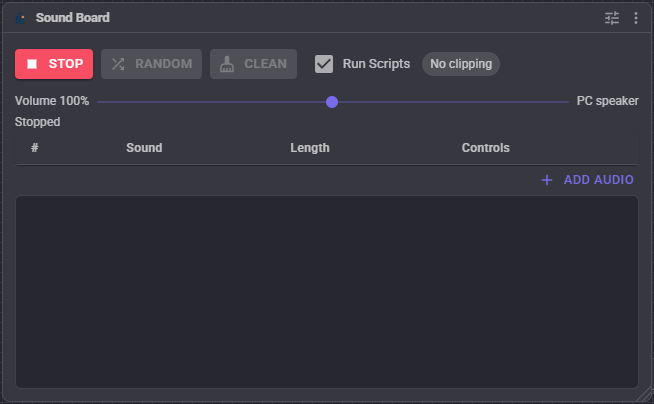
Along the top:
- Stop - stops the audio, this board's timeline scripts, and robot movement. It is the panic button for an animated sequence.
- Random - plays a random non-empty sound with its timeline scripts.
- Clean - removes the empty slots. The indexes of the remaining sounds change, so anything that plays a sound by number needs updating afterwards. Playing by name is unaffected. It asks first.
- Run Scripts - whether the timeline scripts run when a Play button in this window is pressed. Control commands carry their own setting and ignore this checkbox.
- Clipping - reads Clipping! when the volume amplified the sound past what the output accepts, which is heard as distortion. Turn the volume down.
Below that:
- The Volume slider, 1 to 200 for this board only, and the output this project plays through, shown at the right hand end.
- A status line: the sound that is playing and how far into it, or Stopped.
Then the list of slots, showing the index, name and length of each, with:
- Play - play this sound;
- Edit - open the timeline editor;
- Delete - remove the sound but leave the slot in place, so the other indexes do not shift;
- Load / Replace - import a WAV or MP3 into the slot. Replacing an existing sound discards its timeline scripts, and asks first.
Under the list, + Add Audio adds one or more WAV or MP3 files at once. The log at the bottom shows what was added and any errors.
The timeline editor
- Sound name - what control commands look the sound up by. Name sounds for what they are, not
track1.mp3. - The waveform, with the script markers in yellow, the cursor in red, and the play position in green while the sound plays. Clicking a marker moves the cursor to it.
- The cursor slider beneath it, and the cursor's time.
- Add Script Here - put a script marker at the cursor.
- Play - play the whole sound.
- Play From Here - play from the cursor, which is how you check a marker without listening to the whole thing.
- Stop.
- The marker table: the time each script starts, its exact sample position, the script itself, and a bin to remove it.
- Save / Cancel.
The editor always runs the timeline scripts when you press its Play buttons, whatever the Run Scripts checkbox says, so that a marker can be tested.
Each marker holds a sample position and a script. When playback reaches that position, the script starts. Two markers cannot share a position, and the sound needs a name, or Save will say so.
Configuration
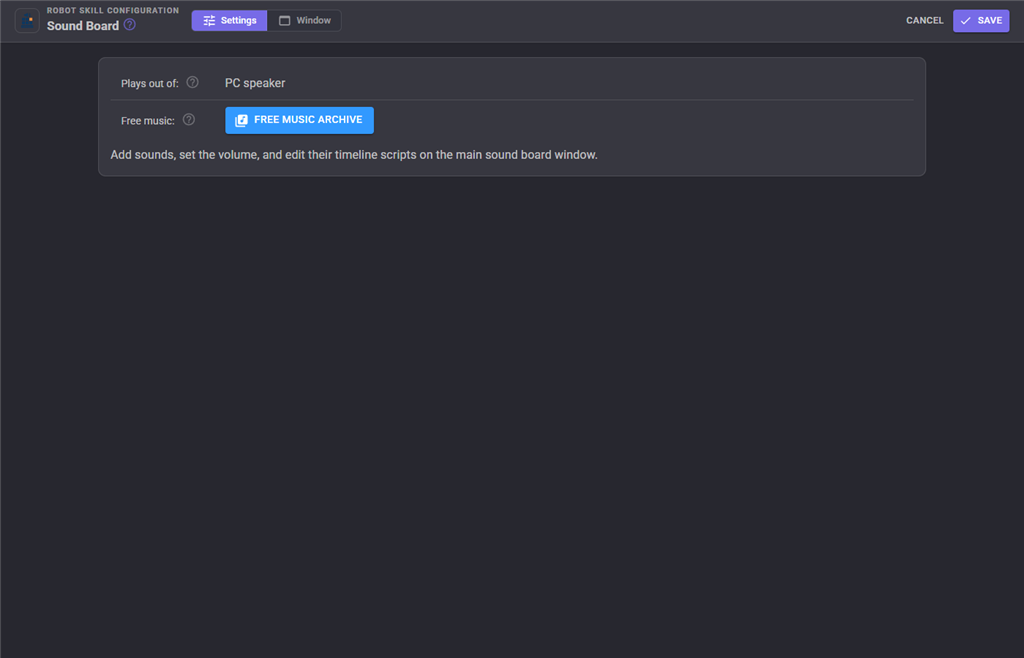
Almost nothing lives in the configuration dialog: sounds, volume and timelines are all edited on the main window. The dialog shows where the project plays audio, and links to the Free Music Archive for royalty free files.
What is saved with the project:
| Setting | Meaning | Default |
|---|---|---|
| Volume | This board's volume, 1 to 200, where 100 leaves the sound as it was recorded. | 100 |
| Run Scripts | State of the checkbox in the window. | on |
| Sounds | The numbered slots, their audio and their timeline scripts. | empty |
The volume applies to this sound board alone - another sound board, or speech, is unaffected. It is applied to the samples as they are queued, so a change takes effect on the next sound rather than the one already playing. The master volume for everything ARCx plays is in Options, Preferences.
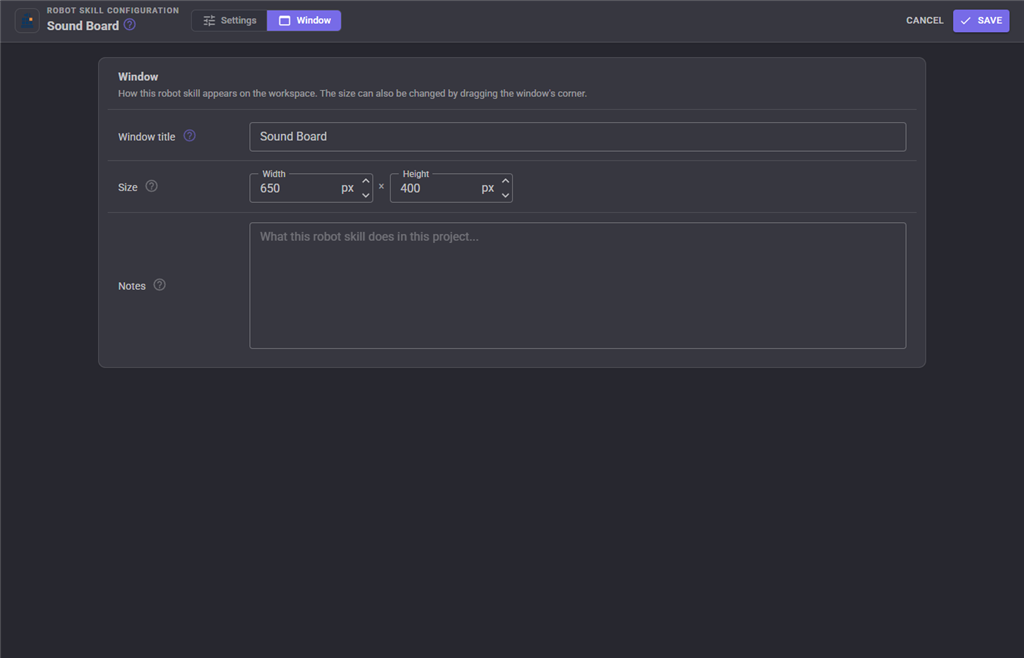
The Window tab sets the robot skill's window title, its size on the workspace and notes about what it does in this project.
Where the sound comes out
Every robot skill plays through the same output, chosen for the project on the Ezb Connection robot skill, or for this computer in Options, Preferences. This sound board has nothing to say about it: it hands the audio to ARCx's audio service and the service plays it out of the PC speaker or a robot's speaker as the project is set. The current setting is shown on the main window and in the configuration dialog.
When the output is a robot's speaker, the board itself holds most of a second of audio behind what ARCx has played, so timeline scripts run slightly early - the servo moves a fraction before the word is heard. Nudge the marker later if it matters.
How the audio is stored
Imported files are mixed to mono, resampled to 22,050 Hz, converted to 16 bit PCM, gzip compressed, and saved inside the project. That is about 44 KB per second before compression, so long or numerous sounds make for a big project file. MP3 and WAV are decoded with managed code, so importing works the same on Windows, Linux and ARM.
Sound names are sanitized the way ARC did it, because the name is used as a ControlCommand argument: spaces become underscores, and anything that is not a letter, digit, period, dash or underscore is dropped.
Slots, indexes and names
A deleted sound leaves an empty slot behind on purpose, so that the index of every other sound stays the same and scripts that play by number keep working. Clean compacts the list and breaks exactly that.
Playing by name is the robust choice; playing by index is faster to type. Indexes are zero-based, and are shown in the first column.
Every sound is also offered to Blockly as a ready-made Play block, and another robot skill can drop audio straight into a slot - Microphone Playback does this to record your voice into a board.
Troubleshooting
| Symptom | Cause |
|---|---|
| Nothing is heard | Check the output shown on the window. A project set to a robot's speaker with no connected board falls back to the PC speaker and says so. |
| The sound is distorted | The volume is above 100 on an already loud sound; the Clipping! chip confirms it. |
| Changing the volume did nothing | It applies to the next sound played, not the one already playing. |
| The log says a sound "is not playing out of the ..." | The audio queue stopped draining for five seconds - usually no working output device - so the board gave up on that sound. |
| "Add a sound first" | Random was pressed on a board whose slots are all empty. |
| "This robot skill only supports up to 100 audio files" | Delete or replace a sound. |
| "Each sound must be no longer than 30 minutes" | Trim the file before importing it. |
| "Unsupported audio file type" | Only WAV and MP3 are imported. |
| Timeline scripts do not run | Run Scripts is off, or the ControlCommand was called with its scripts argument set to false. |
| Timeline scripts fire a moment early | The project is playing out of a robot's speaker; see above. |
| "A script marker already exists at this position" | Move the cursor a little and try again - one marker per sample position. |
| Sounds play at the wrong index after tidying up | Clean renumbered them. Use names instead. |
| The project file is very large | The audio lives in the project. Shorten sounds, or use fewer. |
| "The stored audio for '...' is incomplete" | The saved audio was truncated. Load the file into that slot again. |
See also
- Microphone Playback (ezb) - record your own voice into slots instead of importing files
- Auto Position (movement panel) - servo animations to trigger from the timeline
- Ezb Connection - choosing which speaker the project plays out of
Control Commands for the Sound Board robot skill
There are Control Commands available for this robot skill which allows the skill to be controlled programmatically from scripts or other robot skills. These commands enable you to automate actions, respond to sensor inputs, and integrate the robot skill with other systems or custom interfaces. If you're new to the concept of Control Commands, we have a comprehensive manual available here that explains how to use them, provides examples to get you started and make the most of this powerful feature.
Control Command ManualThis robot skill has 7 control commands, listed below. Send them from a JavaScript or Python script, from Blockly, or from another robot skill.
The first value is always the window title, which is the name in the title bar of the robot skill on your workspace. It starts out as Sound Board, which is what every example below uses. If you rename the robot skill, or add a second copy of it to the project, use the title as it appears on that window instead.
ControlCommand() can be shortened to CC(), and both spellings work in JavaScript and in Python. The examples are JavaScript; Python is the same call, except that true and false are written True and False.
Count
Returns the number of sound slots in this soundboard, including empty slots.
Syntax
ControlCommand("Sound Board", "Count")
Returns: Integer [-2,147,483,648 to 2,147,483,647]
Example
var result = ControlCommand("Sound Board", "Count");
IsPlaying
True while this soundboard is playing a sound. Play returns as soon as the sound starts, so loop on this to wait for it to finish.
Syntax
ControlCommand("Sound Board", "IsPlaying")
Returns: Boolean [true or false]
Example
var result = ControlCommand("Sound Board", "IsPlaying");
Play
Play an audio file by name. The second parameter is whether to execute scripts embedded in the audio timeline.
Syntax
ControlCommand("Sound Board", "Play", (String)Name of the audio file, (Bool)Execute scripts embedded in audio timeline)
Parameters
| # | Name | Type | What to pass |
|---|---|---|---|
| 1 | Name of the audio file | Text | Your text, in quotes |
| 2 | Execute scripts embedded in audio timeline | True or false | true or false, without quotes |
Returns: Boolean [true or false]
Example
var result = ControlCommand("Sound Board", "Play", "Name of the audio file", true);
Play
Play an audio file by its zero-based index number in the list, with its timeline scripts.
Syntax
ControlCommand("Sound Board", "Play", (Number)Index number of the audio file in the list)
Parameters
| # | Name | Type | What to pass |
|---|---|---|---|
| 1 | Index number of the audio file in the list | Number | A number, without quotes |
Returns: Boolean [true or false]
Example
var result = ControlCommand("Sound Board", "Play", 0);
SetVolume
Set this soundboard's volume, 1 to 200, where 100 leaves the sound as it was recorded. Takes effect on the next sound played.
Syntax
ControlCommand("Sound Board", "SetVolume", (Number)Volume between 1 and 200)
Parameters
| # | Name | Type | What to pass |
|---|---|---|---|
| 1 | Volume between 1 and 200 | Number | A number, without quotes |
Returns: Integer [-2,147,483,648 to 2,147,483,647]
Example
var result = ControlCommand("Sound Board", "SetVolume", 0);
Stop
Stop the current soundboard audio from playing. Also stops timeline scripts and movement.
Syntax
ControlCommand("Sound Board", "Stop")
Returns: Boolean [true or false]
Example
var result = ControlCommand("Sound Board", "Stop");
Track_Random
Play a random audio file within this soundboard, with its timeline scripts.
Syntax
ControlCommand("Sound Board", "Track_Random")
Returns: Boolean [true or false]
Example
var result = ControlCommand("Sound Board", "Track_Random");
This list is read out of the robot skill itself each time its package is uploaded, so it matches the published version (v13).


This robot skill has been updated to v1.
This robot skill has been updated to v3.
This robot skill has been updated to v5.
This robot skill has been updated to v6.
This robot skill has been updated to v7.
This robot skill has been updated to v8.
What has changed
Uses the latest UI framework for client refresh to avoid flooding connectiion channel.
This robot skill has been updated to v9.
What has changed
compatible with the latest ARCx v2026.09.27.01
This robot skill has been updated to v10.
What has changed
updated to support latest audio service of ARCx 2026.09.28.02