

Display web pages on robot screens with window, fullscreen, or kiosk modes and two-way page messaging for dashboards, calls, and kiosks.
 Windows
 ARM
ARM
 Linux
Linux
 MacOS
MacOS
How to add the Web Display robot skill
- Load the most recent release of ARCx on a compatible operating system (Get ARCx).
- Press the + Skills menu from the top menu bar in ARCx.
- Choose the Display category tab.
- Press the Web Display icon to add the robot skill to your project.
Don't have a robot yet?
Follow the Getting Started Guide to build a robot and use the Web Display robot skill.
How to use the Web Display robot skill
Shows a web page on a monitor plugged into the robot's computer: a robot face, a dashboard, a video call, or a locked-down kiosk screen. It works on Windows and Linux, including a Raspberry Pi, and on Linux it does not need a desktop - a bare X server is enough (see INSTALL, Browser windows).
Pages can talk back. A button on a touch screen can set global variables and run a script, so a visitor pressing "Wave" makes the robot wave.
This is the screen on the robot itself. The ARCx interface you are using now can be on any computer or phone on the network; the Web Display page appears on the monitors attached to the computer that runs ARCx.
Many instances are allowed: one per screen, or one per page you switch between.
Adding it to a project
- Add the skill (Display category).
- Open its configuration, enter the Web Page address, and pick the Display Mode and Monitor.
- Save. With Open On Project Load on, the page opens now and every time the project loads.
The window
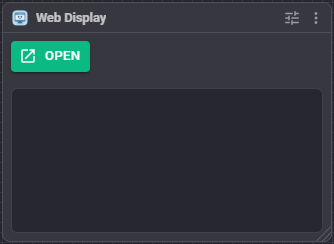
- Open / Close - show or close the page.
- Reload, Home - reload the page, or go back to the configured address after a visitor has navigated away.
- Display mode - switch between Windowed, Fullscreen and Kiosk without opening the configuration.
- The page's title and address, and a log of what happened: loads, failures, messages from the page.
If browser windows cannot open on this computer the window says why. Views, Browser Windows has the details and the monitor list; the Diagnostics page explains problems such as a missing X server on Linux.
Configuration
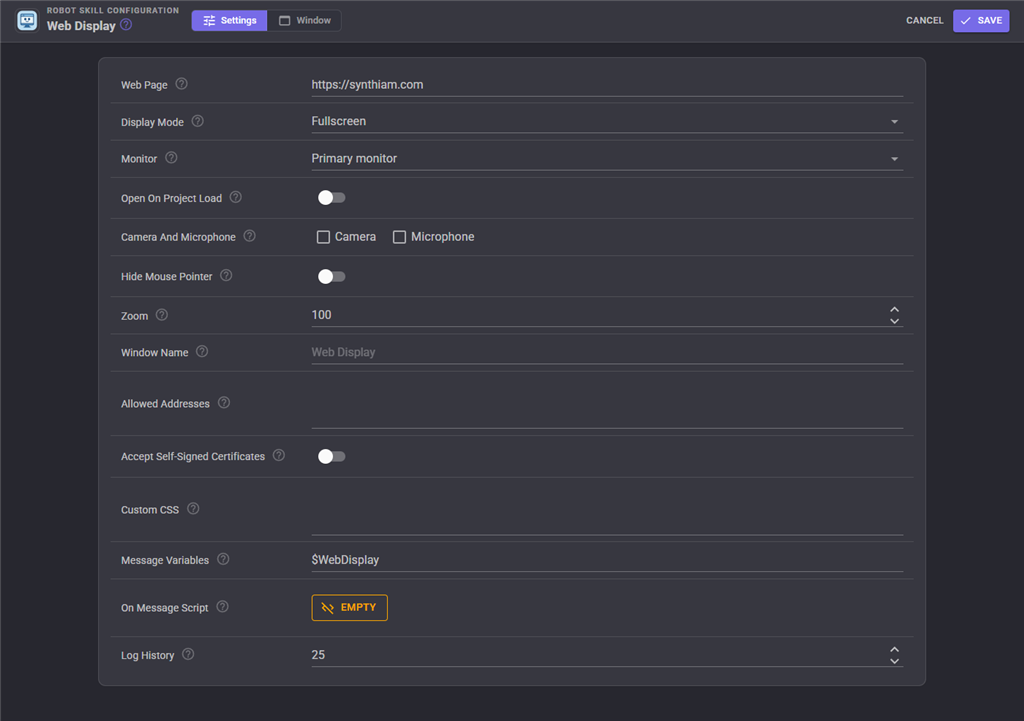
| Setting | Meaning | Default |
|---|---|---|
| Web Page | The address to show. https://, http://, or a file path. example.com is enough. |
https://synthiam.com |
| Display Mode | Windowed: an ordinary window. Fullscreen: covers the monitor. Kiosk: fullscreen and locked down - no menus or keyboard shortcuts, always on top, reopens if closed, shows a retry page while offline, and keeps the screen awake. | Fullscreen |
| Monitor | Which monitor, numbered as Views, Browser Windows lists them. Primary monitor is -1. | Primary |
| Open On Project Load | Show the page when the project loads. | On |
| Camera And Microphone | Let the page use them, for video calls. There is no prompt on the robot's screen - these switches decide. | Off |
| Hide Mouse Pointer | For touch screens. | Off |
| Zoom | Page zoom in percent, 25 to 500. | 100 |
| Window Name | The name scripts use with the Browser commands. Empty uses this skill's title. | empty |
| Allowed Addresses | Keep the page on these addresses, one per line, * matching anything. Empty allows all. |
empty |
| Accept Self-Signed Certificates | For a device on your own network with a self-signed HTTPS certificate. | Off |
| Custom CSS | Added to every page, for example to hide a site's header. | empty |
| Message Variables | Prefix of the variables a page message sets. | $WebDisplay |
| On Message Script | Runs every time the page sends a message. | empty |
| Log History | Lines kept in the log. | 25 |
Changing the configuration while the page is open applies it straight away.
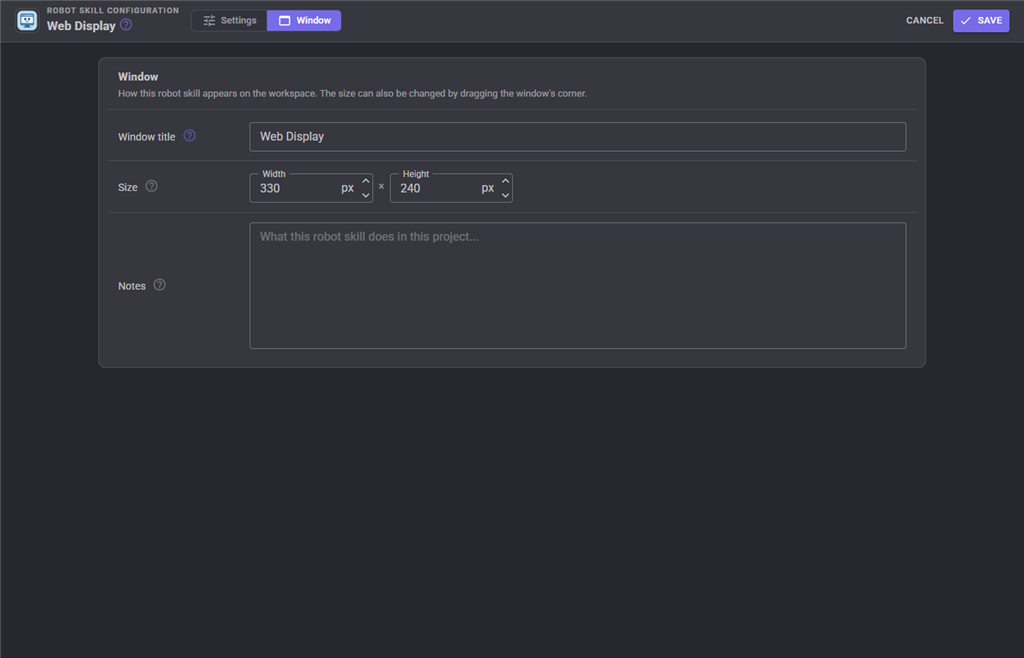
The Window tab sets the robot skill's window title, its size on the workspace and notes about what it does in this project.
Messages from the page
A page shown by this skill has a window.ARCx object. When it calls
window.ARCx.send('command', 'wave');
the skill sets $WebDisplayTopic to command and $WebDisplayData to wave, then runs the On Message Script, which can look at the variables and act:
if (getVar("$WebDisplayTopic") == "command" && getVar("$WebDisplayData") == "wave")
  controlCommand("Auto Position", "AutoPositionAction", "Wave");
Objects work too: ARCx.send('move', { direction: 'left' }) stores the JSON text {"direction":"left"} in the data variable.
Going the other way, the SendMessage ControlCommand (or Browser.sendMessage() in a script) delivers a message to the page, which listens with window.ARCx.on('mood', function (data) { ... }).
A page made for a normal browser as well should check if (window.ARCx) first, because the object only exists in an ARCx browser window.
Tips
- A kiosk that is closed with the Close button or ControlCommand stays closed. Closed any other way, it comes back by itself.
- If the page is black or blank on Linux, turn off GPU acceleration in Views, Browser Windows.
- Removing the skill closes its page.
Control Commands for the Web Display robot skill
There are Control Commands available for this robot skill which allows the skill to be controlled programmatically from scripts or other robot skills. These commands enable you to automate actions, respond to sensor inputs, and integrate the robot skill with other systems or custom interfaces. If you're new to the concept of Control Commands, we have a comprehensive manual available here that explains how to use them, provides examples to get you started and make the most of this powerful feature.
Control Command ManualThis robot skill has 11 control commands, listed below. Send them from a JavaScript or Python script, from Blockly, or from another robot skill.
The first value is always the window title, which is the name in the title bar of the robot skill on your workspace. It starts out as Web Display, which is what every example below uses. If you rename the robot skill, or add a second copy of it to the project, use the title as it appears on that window instead.
ControlCommand() can be shortened to CC(), and both spellings work in JavaScript and in Python. The examples are JavaScript; Python is the same call, except that true and false are written True and False.
Close
Close the window
Syntax
ControlCommand("Web Display", "Close")
Returns: nothing
Example
ControlCommand("Web Display", "Close");
Evaluate
Run a JavaScript expression in the page and return its value as text
Syntax
ControlCommand("Web Display", "Evaluate", (String)expression)
Parameters
| # | Name | Type | What to pass |
|---|---|---|---|
| 1 | expression | Text | Your text, in quotes |
Returns: String
Example
var result = ControlCommand("Web Display", "Evaluate", "expression");
GetUrl
The address the window is showing, or empty when it is closed
Syntax
ControlCommand("Web Display", "GetUrl")
Returns: String
Example
var result = ControlCommand("Web Display", "GetUrl");
Home
Go back to the page the window was opened with
Syntax
ControlCommand("Web Display", "Home")
Returns: nothing
Example
ControlCommand("Web Display", "Home");
IsOpen
Is the window open?
Syntax
ControlCommand("Web Display", "IsOpen")
Returns: Boolean [true or false]
Example
var result = ControlCommand("Web Display", "IsOpen");
MoveToMonitor
Move the window to another monitor, numbered from 0. -1 is the primary monitor
Syntax
ControlCommand("Web Display", "MoveToMonitor", (Number)monitor)
Parameters
| # | Name | Type | What to pass |
|---|---|---|---|
| 1 | monitor | Number | A number, without quotes |
Returns: nothing
Example
ControlCommand("Web Display", "MoveToMonitor", 0);
Open
Show the configured page. Re-points the window if it is already open
Syntax
ControlCommand("Web Display", "Open")
Returns: nothing
Example
ControlCommand("Web Display", "Open");
OpenUrl
Show another page in this skill's window, opening it if needed
Syntax
ControlCommand("Web Display", "OpenUrl", (String)url)
Parameters
| # | Name | Type | What to pass |
|---|---|---|---|
| 1 | url | Text | Your text, in quotes |
Returns: nothing
Example
ControlCommand("Web Display", "OpenUrl", "url");
Reload
Reload the page
Syntax
ControlCommand("Web Display", "Reload")
Returns: nothing
Example
ControlCommand("Web Display", "Reload");
SendMessage
Send a message to the page's window.ARCx.on(topic, handler)
Syntax
ControlCommand("Web Display", "SendMessage", (String)topic, (String)data)
Parameters
| # | Name | Type | What to pass |
|---|---|---|---|
| 1 | topic | Text | Your text, in quotes |
| 2 | data | Text | Your text, in quotes |
Returns: nothing
Example
ControlCommand("Web Display", "SendMessage", "topic", "data");
SetDisplayMode
Switch the window to Windowed, Fullscreen or Kiosk
Syntax
ControlCommand("Web Display", "SetDisplayMode", "Fullscreen")
Parameters
| # | Name | Type | What to pass |
|---|---|---|---|
| 1 | "Fullscreen" |
Text | The fixed value "Fullscreen". Leave it as it is. |
Returns: nothing
Example
ControlCommand("Web Display", "SetDisplayMode", "Fullscreen");
This list is read out of the robot skill itself each time its package is uploaded, so it matches the published version (v3).




This robot skill has been updated to v1.
What has changed
First release
This robot skill has been updated to v2.
What has changed
Does not load the browser on default configuration
This robot skill has been updated to v3.
What has changed
spelling fix correction