
Run JavaScript or Python scripts in ARCx to automate sequences, react to events, and control other skills via commands.
 Windows
 ARM
ARM
 Linux
Linux
 MacOS
MacOS
How to add the Script robot skill
- Load the most recent release of ARCx on a compatible operating system (Get ARCx).
- Press the + Skills menu from the top menu bar in ARCx.
- Choose the Scripting category tab.
- Press the Script icon to add the robot skill to your project.
Don't have a robot yet?
Follow the Getting Started Guide to build a robot and use the Script robot skill.
How to use the Script robot skill
Holds one JavaScript or Python script and runs it - from a button in its window, from another script, or from anything else in the project. It is the glue skill: use it to automate a sequence, to react to something, and to drive every other robot skill through their control commands.
Many instances are allowed, and that is the intended use. A project typically has several Script skills, each named after what it does - "Wake Up", "Patrol", "Shut Down".
Adding it to a project
- Add the skill (Scripting category).
- Open its configuration and press the script edit button to open the script editor.
- Choose the language (JavaScript or Python), write the script, and close the editor.
- Rename the skill's window title to describe what the script does - the title is how other scripts address it in a
ControlCommand()call. - Save, then press Run.
The window
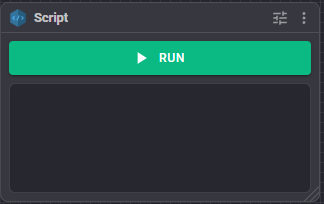
- Run (green) - starts the script in the background. While it is starting the button says Starting.
- Stop (red) - the same button while the script is running. Pressing it stops the script; while stopping it says Stopping.
- Log - everything the script printed, its results, and any error. The number of lines kept is configurable.
Configuration
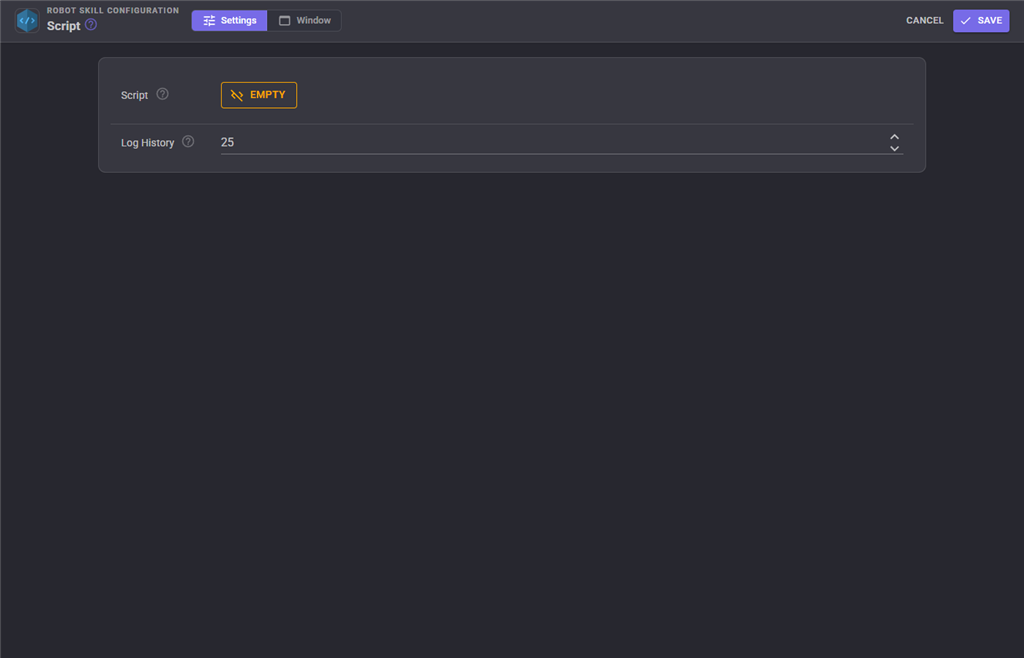
| Setting | Meaning | Default |
|---|---|---|
| Script | The script itself, edited in ARCx's script editor. The editor is where the language (JavaScript or Python) is chosen. | empty |
| Log History | How many lines of output to keep in the window, 1-9999. | 25 |
The configuration dialog will not open while the script is running - stop it first.
Changing the configuration recreates the script executor, so the next run uses the new script.
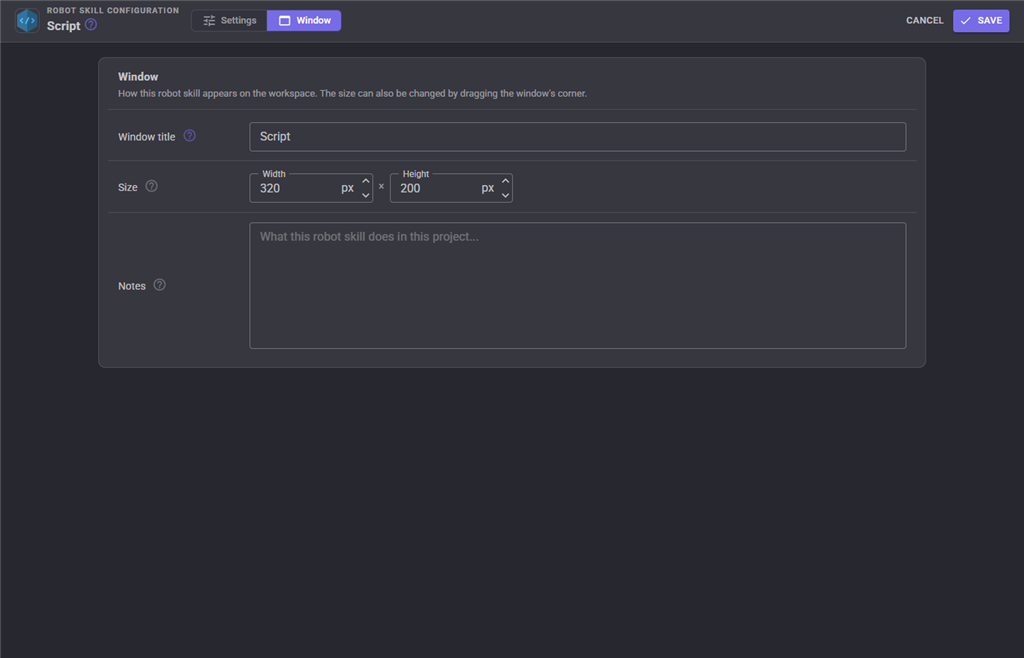
The Window tab sets the robot skill's window title, its size on the workspace and notes about what it does in this project.
Writing the script
Everything in ARCx's scripting API is available: Servo, Movement, Audio, Digital, ADC, PWM, I2C, UART, Com, Ping, Navigation, Kinematics, File, Net, UI, Utility, variables (setVar, setVarObject, getVar, varExists, deleteVar), sleep(), print(), halt() and ControlCommand().
Global variable names are plain words such as Awake or Distance and ignore case. getVar("Name", default) returns the default instead of failing when the variable does not exist, and setVar("Name", value, "what it is for") can describe a variable once - the description stays when later calls leave it out.
// Wake the robot up
Servo.SetPosition(D0, 90);

Audio.SayWait("Good morning");

ControlCommand("Auto Position", "AutoPositionAction", "Wave");

setVar("Awake", true, "true once the Wake Up script has run");
The script's name in the log and in the script manager is the skill's window title, so renaming the skill renames its executor.
Stopping and threads
- Run starts the script on its own thread; the window stays usable.
- A script started with the
StartWaitControlCommand runs on the caller's thread and the caller blocks until it finishes. Stopping the calling script also stops this one - the cancellation is passed through. halt()inside the script stops it.- Removing the skill disposes its executor and stops the script.
Troubleshooting
| Symptom | Cause |
|---|---|
| "Script is empty" in the log | Nothing has been written in the script editor. |
| Configuration will not open | The script is running. Press Stop first. |
A ControlCommand() call fails |
The target skill's window title does not match the first argument exactly, or that skill does not support that command. |
| The script will not stop | It is blocked inside a long-running call; stopping takes effect when that call returns or is cancelled. |
| Output scrolls away | Raise Log History. |
See also
- The ControlCommand Cheat Sheet in ARCx, which lists every command in the project ready to paste into a script
Control Commands for the Script robot skill
There are Control Commands available for this robot skill which allows the skill to be controlled programmatically from scripts or other robot skills. These commands enable you to automate actions, respond to sensor inputs, and integrate the robot skill with other systems or custom interfaces. If you're new to the concept of Control Commands, we have a comprehensive manual available here that explains how to use them, provides examples to get you started and make the most of this powerful feature.
Control Command ManualThis robot skill has 4 control commands, listed below. Send them from a JavaScript or Python script, from Blockly, or from another robot skill.
The first value is always the window title, which is the name in the title bar of the robot skill on your workspace. It starts out as Script, which is what every example below uses. If you rename the robot skill, or add a second copy of it to the project, use the title as it appears on that window instead.
ControlCommand() can be shortened to CC(), and both spellings work in JavaScript and in Python. The examples are JavaScript; Python is the same call, except that true and false are written True and False.
IsRunning
Is the script currently running?
Syntax
ControlCommand("Script", "IsRunning")
Returns: Boolean [true or false]
Example
var result = ControlCommand("Script", "IsRunning");
Start
Start the script in the background as a new thread
Syntax
ControlCommand("Script", "Start")
Returns: Boolean [true or false]
Example
var result = ControlCommand("Script", "Start");
StartWait
Start the script in the current thread and wait for it to finish
Syntax
ControlCommand("Script", "StartWait")
Returns: Boolean [true or false]
Example
var result = ControlCommand("Script", "StartWait");
Stop
Stop the script if it is running
Syntax
ControlCommand("Script", "Stop")
Returns: Boolean [true or false]
Example
var result = ControlCommand("Script", "Stop");
This list is read out of the robot skill itself each time its package is uploaded, so it matches the published version (v5).




This robot skill has been updated to v1.
This robot skill has been updated to v2.
This robot skill has been updated to v3.
This robot skill has been updated to v4.
This robot skill has been updated to v5.
What has changed
compatible with the latest ARCx v2026.09.27.01