

Bridge ARCx and ROS 2 via rosbridge: bind topics, publish Robot Bus data, and expose ARCx services without ROS installed.
 Windows
 ARM
ARM
 Linux
Linux
 MacOS
MacOS
How to add the ROS 2 Connector robot skill
- Load the most recent release of ARCx on a compatible operating system (Get ARCx).
- Press the + Skills menu from the top menu bar in ARCx.
- Choose the Communication category tab.
- Press the ROS 2 Connector icon to add the robot skill to your project.
Don't have a robot yet?
Follow the Getting Started Guide to build a robot and use the ROS 2 Connector robot skill.
How to use the ROS 2 Connector robot skill
Bridges ARCx and ROS 2 over rosbridge, so ROS nodes can drive the robot and ARCx can consume what ROS publishes.
ARCx does not need ROS installed. Run rosbridge_server on the ROS machine and point this skill at it; everything travels as WebSocket JSON.
The skill is deliberately open-ended. Rather than a fixed set of features, it is a list of bindings - each one wires a part of ARCx to a ROS topic, in one direction or the other - plus services ARCx advertises for nodes to call, plus script commands for anything not covered.
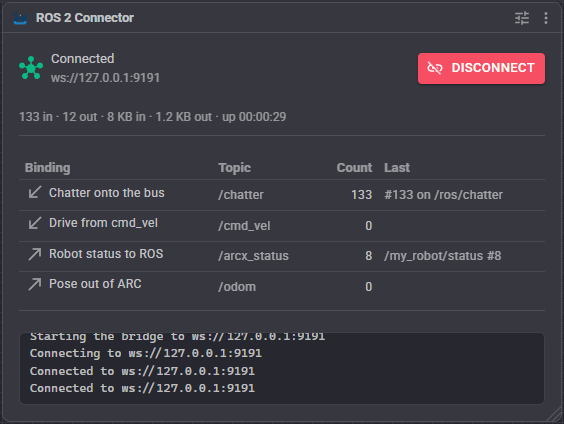
Requirements
A ROS 2 machine running
rosbridge_server(fromrosbridge_suite), typically on port 9090:ros2 launch rosbridge_server rosbridge_websocket_launch.xmlNetwork reachability between that machine and ARCx.
For
ListTopics,ListServicesandListNodes, the rosapi node thatrosbridge_suiteruns alongside the server.
Adding it to a project
- Start
rosbridge_serveron the ROS machine. - Add the skill (Communication category).
- On the Connection tab set the host and port, and press Connect in the skill's window.
- On the Bindings tab add the wiring you need - see below.
- Turn on Auto connect once it works, so the robot comes up on its own.
Bindings
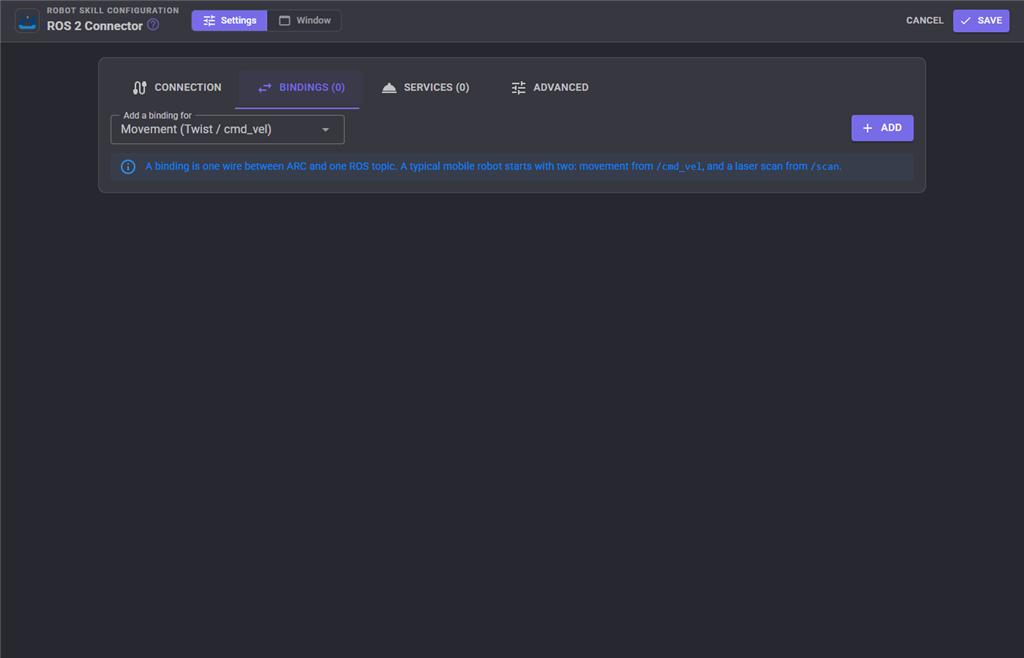
A binding has a name, a direction, a topic and a kind. Direction is either:
- RosToArc - subscribe to a topic and apply what arrives to ARCx;
- ArcToRos - watch something in ARCx and publish it.
| Kind | What it wires | Notes |
|---|---|---|
| Movement | The movement panel, as geometry_msgs/Twist. |
Subscribing to /cmd_vel is what lets a ROS 2 navigation stack drive the robot. Publishing reports what ARCx is commanding. Default /cmd_vel, RosToArc. |
| Servo | Servo positions, either one value per topic or a whole sensor_msgs/JointState. |
Default /joint_states, RosToArc, JointState mode. |
| Digital | A digital IO port. | Default /arc/digital/d0, RosToArc. |
| ADC | An analog to digital converter port. | Default /arc/adc/adc0, ArcToRos, 200 ms. |
| PWM | A PWM port duty cycle. | Default /arc/pwm/d0, RosToArc. |
| Sonar | An ultrasonic distance sensor as sensor_msgs/Range. |
Publish only - a distance sensor is read, not told. Default /arc/range, 200 ms. |
| Battery | EZB battery voltage and CPU temperature as sensor_msgs/BatteryState. |
Publish only. Default /arc/battery, 5 s. |
| LaserScan | Scan data through ARCx's navigation messaging, as sensor_msgs/LaserScan. |
Subscribing feeds a ROS lidar into ARCx's mapping skills; publishing hands ARCx's scan data to ROS. Default /scan, RosToArc, 360 field of view, throttled to 100 ms. |
| Odometry | Robot pose through ARCx's navigation messaging, as nav_msgs/Odometry or a stamped pose. |
Default /odom, ArcToRos. |
| NavigationStatus | Navigating, paused or stopped, as a string. | Default /arc/navigation_status, ArcToRos. |
| Variable | An ARCx global variable. The general purpose escape hatch: anything a script can compute can be published, and anything ROS publishes can land in a variable. | Default /arc/variable, ArcToRos. |
| ControlCommand | Runs a ControlCommand on another robot skill when a message arrives. | Subscribe only. Default /arc/command. |
| Script | Runs a script when a message arrives, with the message in ROSMessage and the topic in ROSSource. |
Subscribe only. Default /arc/script. |
| Camera | A camera image as sensor_msgs/CompressedImage. |
Publish only. Default /arc/camera/compressed. |
| Custom | A message built from a JSON template with ARCx variables substituted in, or an incoming message picked apart into ARCx variables. | For message types this skill has never heard of, including your own. Default /arc/custom, ArcToRos. |
| RobotBus | A topic on the ARCx Robot Bus, carried whole: any ROS message type, in either direction, with no ARCx variable in between. | See The Robot Bus below. Default /scan, RosToArc, published on the bus as /ros/scan. |
Per-binding options include the publish interval, a throttle for incoming messages, and publish on change only, which keeps a topic quiet while nothing is happening.
ARCx's navigation messaging uses ROS's frame and units: metres, x forward, y left, with yaw and scan angles in radians growing counter-clockwise from -pi to pi. The LaserScan and Odometry bindings therefore pass poses and scans straight across in both directions with no conversion.
Services ARCx advertises
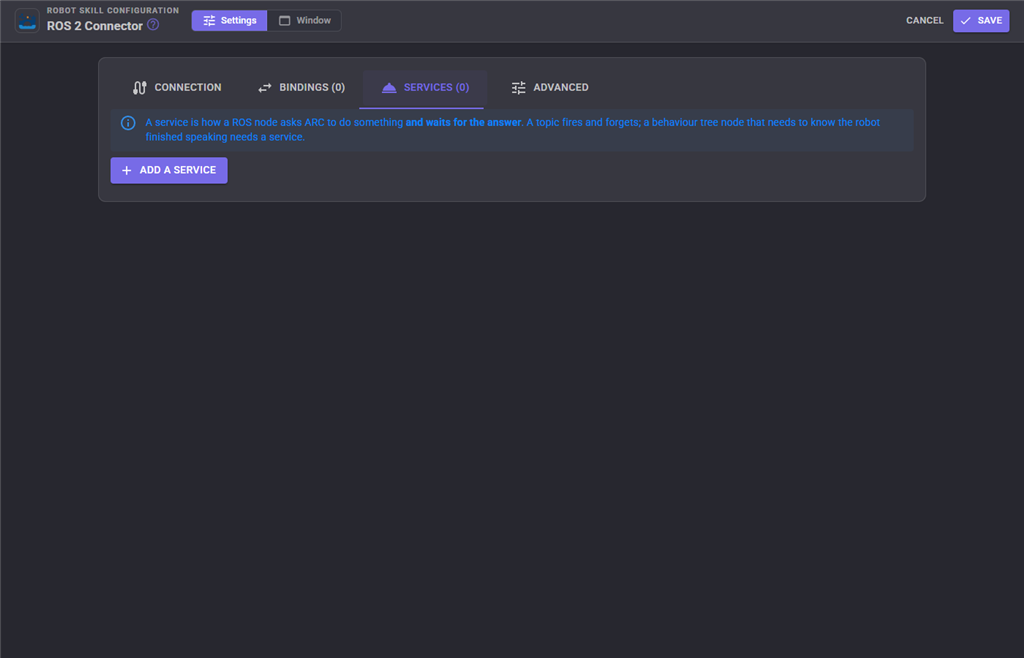
A topic is fire-and-forget. A service lets a ROS node ask ARCx to do something and wait for the answer - a behaviour tree node calling /arc/say and waiting for the robot to finish speaking needs a service, not a topic.
Each service export has a name (default /arc/trigger), a type (default std_srvs/srv/Trigger, which takes no request fields and answers with success and message), and an action:
| Action | What the node's call does |
|---|---|
| ControlCommand | Runs a ControlCommand on a chosen robot skill and returns what it gave back. Request fields are mapped to the command's parameters with JSON paths - a comma separated path per parameter, in order; a path of . means the whole request as JSON text. |
| Script | Runs a script and returns its result. |
| SetVariable | Sets an ARCx global variable from the request. |
| GetVariable | Returns the current value of an ARCx global variable. |
The response is a JSON template. $Result is replaced by whatever the action returned, and any other $VariableName by that ARCx variable - so $Distance in a template is the value of the variable Distance. The default matches std_srvs/srv/Trigger.
Any service type works, as long as the response template names the fields that type declares.
The Robot Bus
The Robot Bus is where the parts of an ARCx robot share what they know: robot skills and scripts publish topics, offer services and place frames, and with Options, Preferences, Robot Bus turned on, programs outside ARCx (Python, JavaScript, anything that speaks HTTP or WebSocket) join in. This robot skill puts your ROS graph on it, so every robot skill, script, recording and external program can use ROS without knowing that ROS is there. Views, Robot Bus shows it all live.
RobotBus bindings
A RobotBus binding joins one ROS topic to one Robot Bus topic.
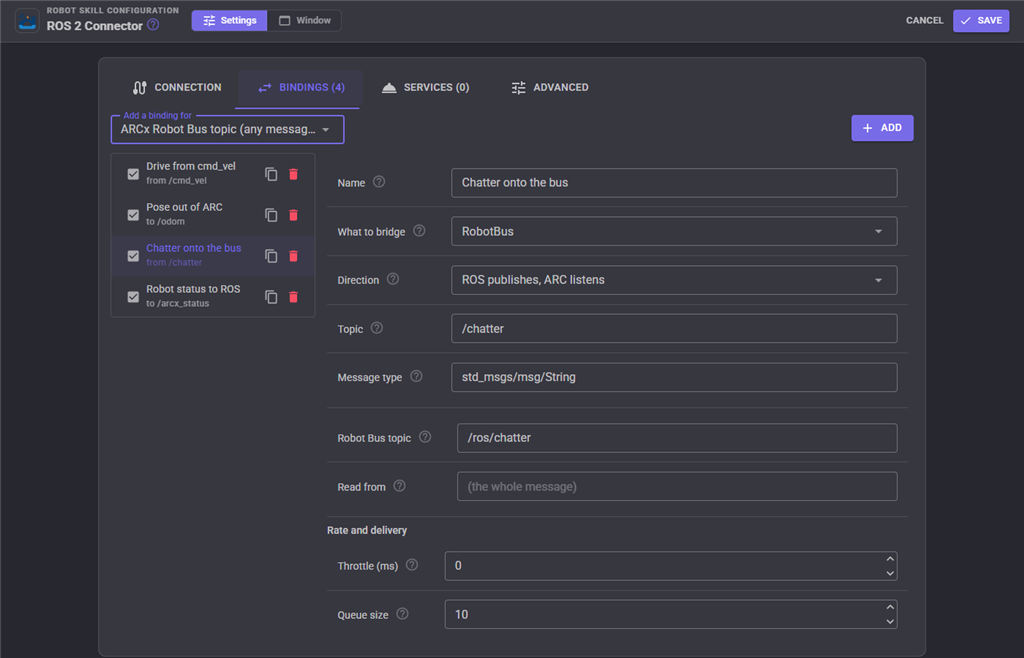
- RosToArc subscribes to the ROS topic and publishes every message, whole and in its own shape, on the bus topic. The bus message's type is the ROS message type. Leave Robot Bus topic blank to use
/rosfollowed by the ROS topic, so/scanlands on/ros/scanand/odomon/ros/odom. Read from carries a single field instead of the whole message. - ArcToRos subscribes to the bus topic and publishes what arrives on the ROS topic with the binding's message type. The bus topic may be a pattern:
*matches one level and**any number. An object is sent as the ROS message, so its fields must match the type; text, a number or a flag is sent as{"data": value}, which is what thestd_msgstypes expect. Send picks one field, and Throttle keeps only the newest message when the bus is faster than you want ROS to be. A message this robot skill put on the bus itself is never sent back, so one bus topic can be bridged in both directions.
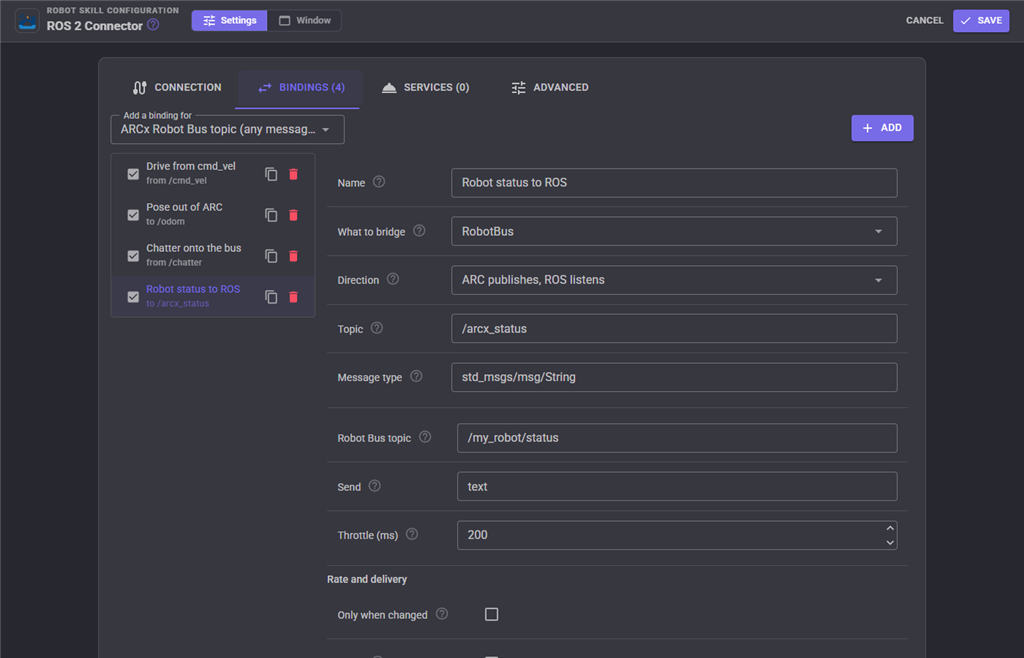
Because the whole message travels, a recording made with the Robot Bus recorder captures ROS data exactly, and playing it back publishes it on the bus again for the bindings and skills that listen.
Services on the bus
While connected, this robot skill offers open ended services on the bus, named after its window title (/ros_connector/... for a skill titled ROS Connector). A script calls them with Bus.call(), an external program through the Robot Bus API, an AI through the MCP bus_call_service tool.
/ros_connector/call_servicecalls any ROS service:service,type(optional when rosbridge can look it up),argsandtimeoutMs. It returns the response values, or fails with ROS's reason./ros_connector/publishpublishes one message:topic,type(needed the first time a topic is published) andmsg./ros_connector/subscribemirrors a ROS topic onto the bus until/ros_connector/unsubscribe:topic,type,busTopic(default/rosfollowed by the topic) andthrottleMs. This is how a program puts a ROS topic on the bus without anyone editing this robot skill's bindings./ros_connector/topics,/ros_connector/servicesand/ros_connector/nodeslist the ROS graph through rosapi./ros_connector/statusreports the connection, the running bindings and the mirrored topics.
For example, from JavaScript:
Bus.call("/ros_connector/subscribe", { topic: "/odom" });
var odom = Bus.waitForMessage("/ros/odom", 2000);
print(odom.pose.pose.position.x);

Bus.call("/ros_connector/call_service", { service: "/reset_odometry", type: "std_srvs/srv/Trigger" });
The services are removed when the connection drops and offered again when it returns.
Connection settings
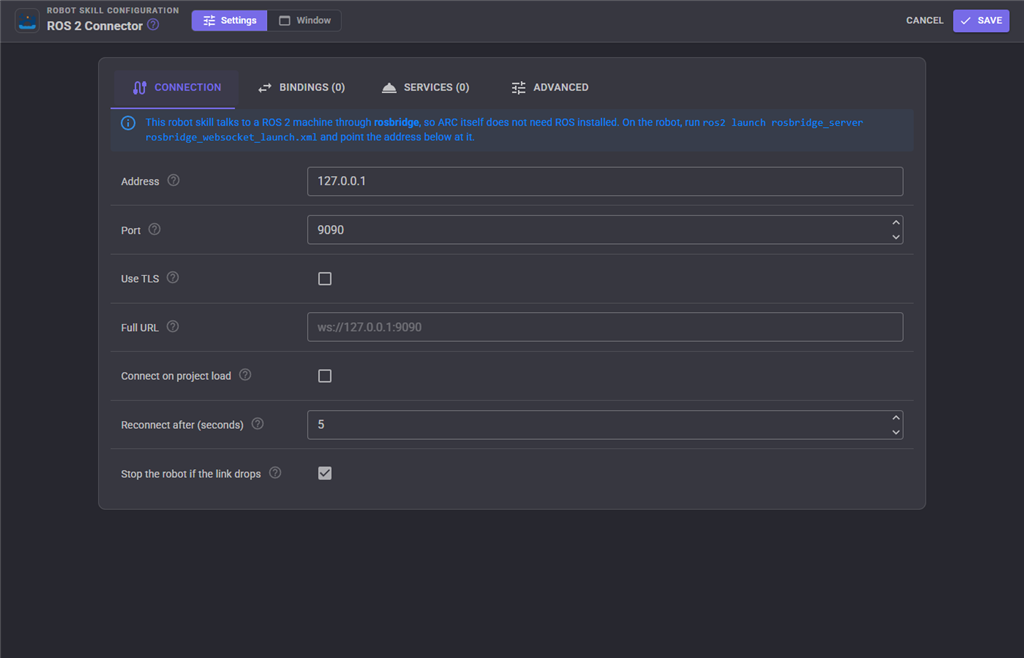
| Setting | Meaning | Default |
|---|---|---|
| Host / Port | Where rosbridge is. | 127.0.0.1 / 9090 |
| Use SSL | wss:// rather than ws://. Only needed when rosbridge is behind a TLS proxy - rosbridge itself speaks plain WebSocket. |
off |
| Ignore certificate errors | For a self-signed proxy certificate. | off |
| URL override | A complete URL that overrides host, port and SSL, for a rosbridge reached through a proxy on a path, such as wss://myrobot.example.com/rosbridge. |
empty |
| Auto connect | Connect as soon as the project finishes loading. On for a robot meant to come up on its own. | off |
| Reconnect seconds | How long to wait before retrying a dropped link. | 5 |
| ROS 1 compatibility | Name time fields secs/nsecs and default message types to the short package/Type form, for a rosbridge running on ROS 1. Off means ROS 2, which is what this skill is for. |
off |
| Queue size | How many messages may be waiting in either direction before the oldest are dropped. A stalled link must cost bounded memory, and stale robot data is not worth keeping. | 512 |
| Service call timeout (ms) | How long CallService waits. |
5000 |
Frames
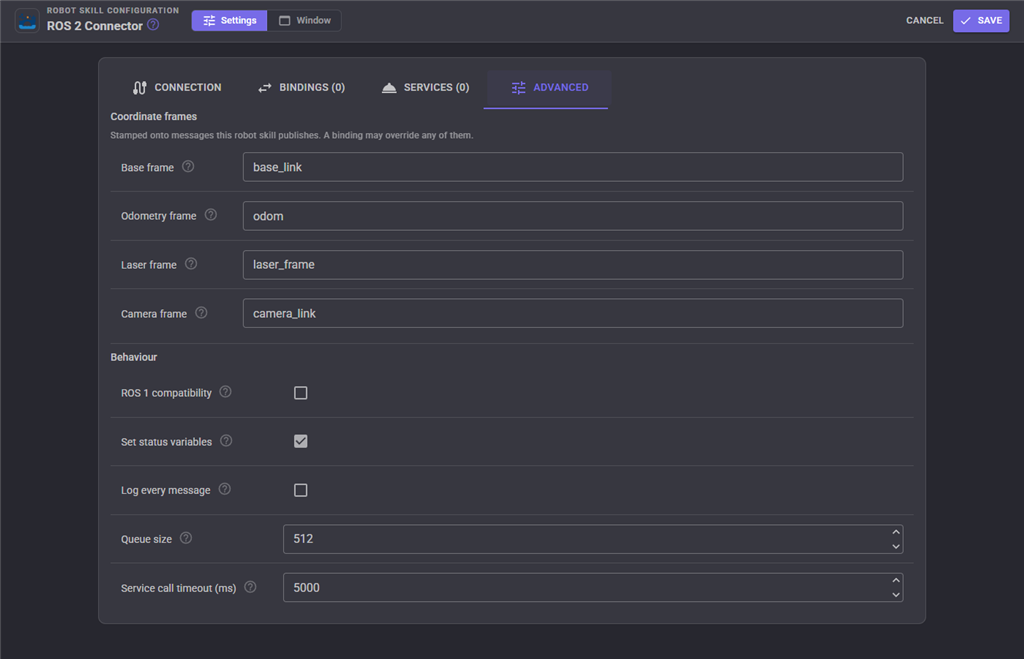
| Setting | Default |
|---|---|
| Base frame id | base_link |
| Odom frame id | odom |
| Laser frame id | laser_frame |
| Camera frame id | camera_link |
Behaviour
| Setting | Meaning | Default |
|---|---|---|
| Verbose logging | Write every message to the skill's log. Useful while wiring a node up, far too noisy to leave on. | off |
| Publish status variables | Keep the ROS... variables up to date, so a script can react to the link dropping. |
on |
| Stop movement on disconnect | Stop the Movement Panel when the connection is lost. For a robot driven from ROS, a dropped link must not leave it driving into a wall. | on |
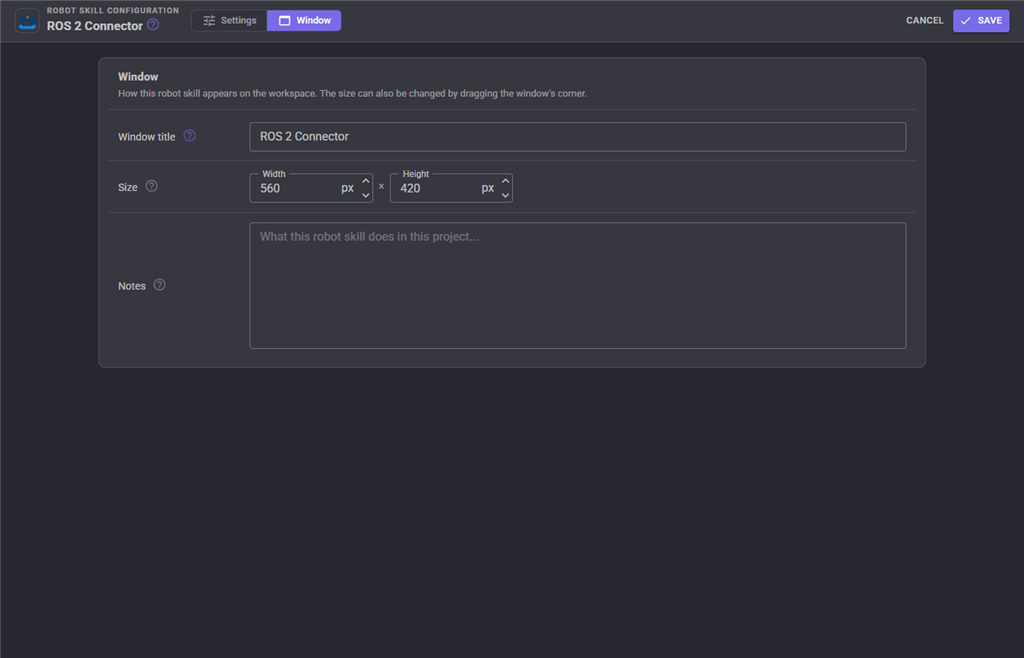
The Window tab sets the robot skill's window title, its size on the workspace and notes about what it does in this project.
Variables published
| Variable | Contents |
|---|---|
ROSConnected |
Whether the link is up. |
ROSStatus |
The connection status text. |
ROSUrl |
The URL in use. |
ROSLastTopic |
The topic of the most recent message. |
ROSLastMessage |
That message, as JSON. |
Inside a Script binding, the arriving message is in ROSMessage and the topic in ROSSource - read them with getVar("ROSMessage").
Numbers on the wire
rosbridge carries JSON, and JSON has no way to write infinity or NaN. A binding that would produce one - a laser scan with no return, for example - has to use the range maximum instead. Keep that in mind when interpreting ARCx data on the ROS side.
Troubleshooting
| Symptom | Cause |
|---|---|
| Never connects | rosbridge_server is not running, the port is wrong, or a firewall is in the way. Try ws://host:9090 from a browser console on the same machine as ARCx. |
| Connects, but nothing arrives | The topic name is wrong, or the publisher is on a different ROS domain. Use ListTopics to see the graph. |
ListTopics returns nothing |
The rosapi node is not running; it comes with rosbridge_suite. |
| Messages arrive but nothing happens in ARCx | The binding is disabled, its direction is the wrong way round, or the message type does not match. Turn on verbose logging. |
| The robot keeps driving after ROS goes away | Turn on Stop movement on disconnect. |
| The link saturates with lidar data | Raise the throttle on the LaserScan binding. |
| Time fields are rejected | ROS 1 uses secs/nsecs; turn on ROS 1 compatibility. |
| Messages are dropped under load | Raise Queue size, or publish less often. |
See also
- Camera Source (usb) / Camera Source (ezb) - what a Camera binding publishes
- Auto Position / Continuous Rotation Movement Panel - what a Movement binding drives
Control Commands for the ROS 2 Connector robot skill
There are Control Commands available for this robot skill which allows the skill to be controlled programmatically from scripts or other robot skills. These commands enable you to automate actions, respond to sensor inputs, and integrate the robot skill with other systems or custom interfaces. If you're new to the concept of Control Commands, we have a comprehensive manual available here that explains how to use them, provides examples to get you started and make the most of this powerful feature.
Control Command ManualThis robot skill has 19 control commands, listed below. Send them from a JavaScript or Python script, from Blockly, or from another robot skill.
The first value is always the window title, which is the name in the title bar of the robot skill on your workspace. It starts out as ROS 2 Connector, which is what every example below uses. If you rename the robot skill, or add a second copy of it to the project, use the title as it appears on that window instead.
ControlCommand() can be shortened to CC(), and both spellings work in JavaScript and in Python. The examples are JavaScript; Python is the same call, except that true and false are written True and False.
Advertise
Advertise a topic so it appears in ROS before its first message. Publishing advertises for you, so this is only needed to make an empty topic visible.
Syntax
ControlCommand("ROS 2 Connector", "Advertise", (String)topic, (String)messageType)
Parameters
| # | Name | Type | What to pass |
|---|---|---|---|
| 1 | topic | Text | Your text, in quotes |
| 2 | messageType | Text | Your text, in quotes |
Returns: Boolean [true or false]
Example
var result = ControlCommand("ROS 2 Connector", "Advertise", "topic", "messageType");
CallService
Call a ROS service and wait for it. Returns the response values as JSON. Arguments are a JSON object, or blank for a service that takes none.
Syntax
ControlCommand("ROS 2 Connector", "CallService", (String)service, (String)serviceType, (String)argumentsJson)
Parameters
| # | Name | Type | What to pass |
|---|---|---|---|
| 1 | service | Text | Your text, in quotes |
| 2 | serviceType | Text | Your text, in quotes |
| 3 | argumentsJson | Text | Your text, in quotes |
Returns: String
Example
var result = ControlCommand("ROS 2 Connector", "CallService", "service", "serviceType", "argumentsJson");
Connect
Connect to the rosbridge server and start every binding.
Syntax
ControlCommand("ROS 2 Connector", "Connect")
Returns: Boolean [true or false]
Example
var result = ControlCommand("ROS 2 Connector", "Connect");
Disconnect
Disconnect from the rosbridge server and stop every binding.
Syntax
ControlCommand("ROS 2 Connector", "Disconnect")
Returns: Boolean [true or false]
Example
var result = ControlCommand("ROS 2 Connector", "Disconnect");
GetLastMessage
The most recent message seen on a topic subscribed to with Subscribe, as JSON. Empty when none has arrived.
Syntax
ControlCommand("ROS 2 Connector", "GetLastMessage", (String)topic)
Parameters
| # | Name | Type | What to pass |
|---|---|---|---|
| 1 | topic | Text | Your text, in quotes |
Returns: String
Example
var result = ControlCommand("ROS 2 Connector", "GetLastMessage", "topic");
GetStats
Connection counters (messages and bytes each way, drops, uptime) as JSON.
Syntax
ControlCommand("ROS 2 Connector", "GetStats")
Returns: String
Example
var result = ControlCommand("ROS 2 Connector", "GetStats");
IsConnected
Is the connection to the rosbridge server up right now?
Syntax
ControlCommand("ROS 2 Connector", "IsConnected")
Returns: Boolean [true or false]
Example
var result = ControlCommand("ROS 2 Connector", "IsConnected");
ListNodes
Every node on the ROS graph, as JSON. Needs the rosapi node.
Syntax
ControlCommand("ROS 2 Connector", "ListNodes")
Returns: String
Example
var result = ControlCommand("ROS 2 Connector", "ListNodes");
ListServices
Every service on the ROS graph, as JSON. Needs the rosapi node.
Syntax
ControlCommand("ROS 2 Connector", "ListServices")
Returns: String
Example
var result = ControlCommand("ROS 2 Connector", "ListServices");
ListTopics
Every topic on the ROS graph, as JSON. Asks the rosapi node that rosbridge_suite runs alongside rosbridge_server.
Syntax
ControlCommand("ROS 2 Connector", "ListTopics")
Returns: String
Example
var result = ControlCommand("ROS 2 Connector", "ListTopics");
Publish
Publish a message given as JSON. The message type is needed so rosbridge knows what the topic carries.
Syntax
ControlCommand("ROS 2 Connector", "Publish", (String)topic, (String)messageType, (String)messageJson)
Parameters
| # | Name | Type | What to pass |
|---|---|---|---|
| 1 | topic | Text | Your text, in quotes |
| 2 | messageType | Text | Your text, in quotes |
| 3 | messageJson | Text | Your text, in quotes |
Returns: Boolean [true or false]
Example
var result = ControlCommand("ROS 2 Connector", "Publish", "topic", "messageType", "messageJson");
PublishBool
Publish true or false to a topic as a std_msgs/Bool.
Syntax
ControlCommand("ROS 2 Connector", "PublishBool", (String)topic, (Bool)value)
Parameters
| # | Name | Type | What to pass |
|---|---|---|---|
| 1 | topic | Text | Your text, in quotes |
| 2 | value | True or false | true or false, without quotes |
Returns: Boolean [true or false]
Example
var result = ControlCommand("ROS 2 Connector", "PublishBool", "topic", true);
PublishNumber
Publish a number to a topic as a std_msgs/Float64.
Syntax
ControlCommand("ROS 2 Connector", "PublishNumber", (String)topic, (Number)value)
Parameters
| # | Name | Type | What to pass |
|---|---|---|---|
| 1 | topic | Text | Your text, in quotes |
| 2 | value | Number | A number, without quotes |
Returns: Boolean [true or false]
Example
var result = ControlCommand("ROS 2 Connector", "PublishNumber", "topic", 0);
PublishString
Publish text to a topic as a std_msgs/String.
Syntax
ControlCommand("ROS 2 Connector", "PublishString", (String)topic, (String)text)
Parameters
| # | Name | Type | What to pass |
|---|---|---|---|
| 1 | topic | Text | Your text, in quotes |
| 2 | text | Text | Your text, in quotes |
Returns: Boolean [true or false]
Example
var result = ControlCommand("ROS 2 Connector", "PublishString", "topic", "text");
Restart
Reconnect and rebuild every binding from the current configuration.
Syntax
ControlCommand("ROS 2 Connector", "Restart")
Returns: Boolean [true or false]
Example
var result = ControlCommand("ROS 2 Connector", "Restart");
SetBindingEnabled
Turn one configured binding on or off by its name, then rebuild the bridge.
Syntax
ControlCommand("ROS 2 Connector", "SetBindingEnabled", (String)bindingName, (Bool)enabled)
Parameters
| # | Name | Type | What to pass |
|---|---|---|---|
| 1 | bindingName | Text | Your text, in quotes |
| 2 | enabled | True or false | true or false, without quotes |
Returns: Boolean [true or false]
Example
var result = ControlCommand("ROS 2 Connector", "SetBindingEnabled", "bindingName", true);
Subscribe
Subscribe to a topic at runtime and store each message, as JSON, in the given ARC variable. The message type may be left blank for a topic that already exists in ROS.
Syntax
ControlCommand("ROS 2 Connector", "Subscribe", (String)topic, (String)messageType, (String)variableName)
Parameters
| # | Name | Type | What to pass |
|---|---|---|---|
| 1 | topic | Text | Your text, in quotes |
| 2 | messageType | Text | Your text, in quotes |
| 3 | variableName | Text | Your text, in quotes |
Returns: Boolean [true or false]
Example
var result = ControlCommand("ROS 2 Connector", "Subscribe", "topic", "messageType", "variableName");
Unadvertise
Stop advertising a topic.
Syntax
ControlCommand("ROS 2 Connector", "Unadvertise", (String)topic)
Parameters
| # | Name | Type | What to pass |
|---|---|---|---|
| 1 | topic | Text | Your text, in quotes |
Returns: Boolean [true or false]
Example
var result = ControlCommand("ROS 2 Connector", "Unadvertise", "topic");
Unsubscribe
Drop a runtime subscription created by Subscribe. A topic that a configured binding also uses stays subscribed.
Syntax
ControlCommand("ROS 2 Connector", "Unsubscribe", (String)topic)
Parameters
| # | Name | Type | What to pass |
|---|---|---|---|
| 1 | topic | Text | Your text, in quotes |
Returns: Boolean [true or false]
Example
var result = ControlCommand("ROS 2 Connector", "Unsubscribe", "topic");
This list is read out of the robot skill itself each time its package is uploaded, so it matches the published version (v6).




This robot skill has been updated to v1.
This robot skill has been updated to v2.
This robot skill has been updated to v3.
What has changed
compatible with the latest ARCx v2026.09.27.01
This robot skill has been updated to v4.
What has changed
spelling fix correction
This robot skill has been updated to v5.
What has changed
updated to work with latest ARCx NMS
This robot skill has been updated to v6.
What has changed
support added for arcx's latest robot bus