
Runs real CPython in ARCx with VS Code-style editor, pip packages, ARCx API access, and bidirectional ControlCommand integration
 Windows
 ARM
ARM
 Linux
Linux
 MacOS
MacOS
How to add the Python Native robot skill
- Load the most recent release of ARCx on a compatible operating system (Get ARCx).
- Press the + Skills menu from the top menu bar in ARCx.
- Choose the Scripting category tab.
- Press the Python Native icon to add the robot skill to your project.
Don't have a robot yet?
Follow the Getting Started Guide to build a robot and use the Python Native robot skill.
How to use the Python Native robot skill
Run real CPython inside ARCx, with a full screen code editor built in.
This is not a Python-like scripting language. It is the same CPython you would run from a command prompt, in its own process beside ARCx, so everything that makes Python useful works: any package pip can install (numpy, opencv-python, torch, mediapipe, requests, pyserial, ultralytics...), native modules, threads, virtual environments and the whole standard library.
Your Python talks to ARCx through the arcx package. It has the same script API as ARCx's built-in Python (Servo, Audio, Movement, Digital, ADC, Kinematics, UI and the rest), plus global variables, control commands, cameras, and direct access to ARCx's own .NET objects, services and robot skills. It works the other way too: a Python function can be published as a ControlCommand that Blockly, JavaScript, the AI and every other robot skill can call.
Because the interpreter runs in its own process, a crash in a native package takes down Python, not ARCx, and the robot skill starts it again. The Stop button always works, and several Python Native robot skills can run side by side.
Python must be installed
This robot skill does not contain Python itself: it runs a Python that is installed on the computer ARCx runs on. It needs Python 3.8 or newer, 64-bit recommended.
- Windows: install Python from python.org, and tick Add python.exe to PATH in the installer. Do not rely on the "python" that opens the Microsoft Store; it is only a shortcut to the Store, not an interpreter.
- Linux (a Raspberry Pi too): most distributions include
python3. Installpython3-venvas well (sudo apt install python3-venv), so the robot skill can make a virtual environment for its packages. - macOS: install Python from python.org or with Homebrew (
brew install python).
The robot skill finds it by itself: in the registry, the py launcher, PATH, conda, pyenv, Homebrew and the usual Linux folders. When several are installed, it picks the newest 64-bit one, unless you choose another in the editor's Interpreter view.
If no Python is found, the window says so. Its Download Python button fetches a private copy of CPython with pip, for your user only, as an alternative to installing one yourself. Nothing is installed system wide and PATH is not changed.
The window
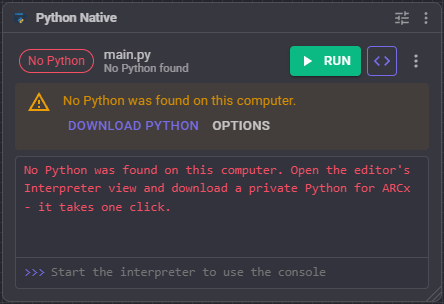
The robot skill window is kept small on purpose:
- The state: Not started, Starting, Ready, Running, Resident, Stopping, Failed or No Python. Hover over it to see why the interpreter is not running, when it isn't.
- The status line: what the script last set with
arcx.status(), otherwise the file that is running. Under it are the Python version and how many commands the script has published. - Run / Stop for the main file.
- <> opens the editor.
- The console: the script's output, with a
>>>prompt under it that runs Python in the script's own namespace.
Everything else is in the **** menu: open the editor, run, stop, restart or shut down the interpreter, the Packages and Interpreter views, published commands, output images, the ARCx API reference, Download the code (.zip), clear the console, and help.
A new robot skill comes with an example script that prints the Python version, lists the robot skills in the project, and publishes a Greet command, so the first press of Run does something.
The editor
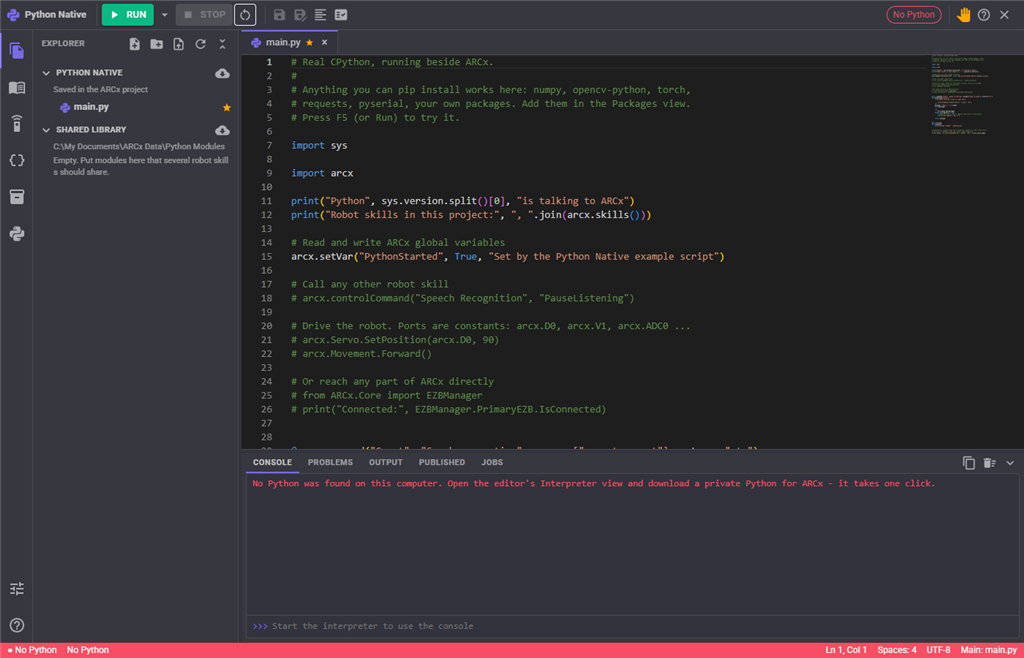
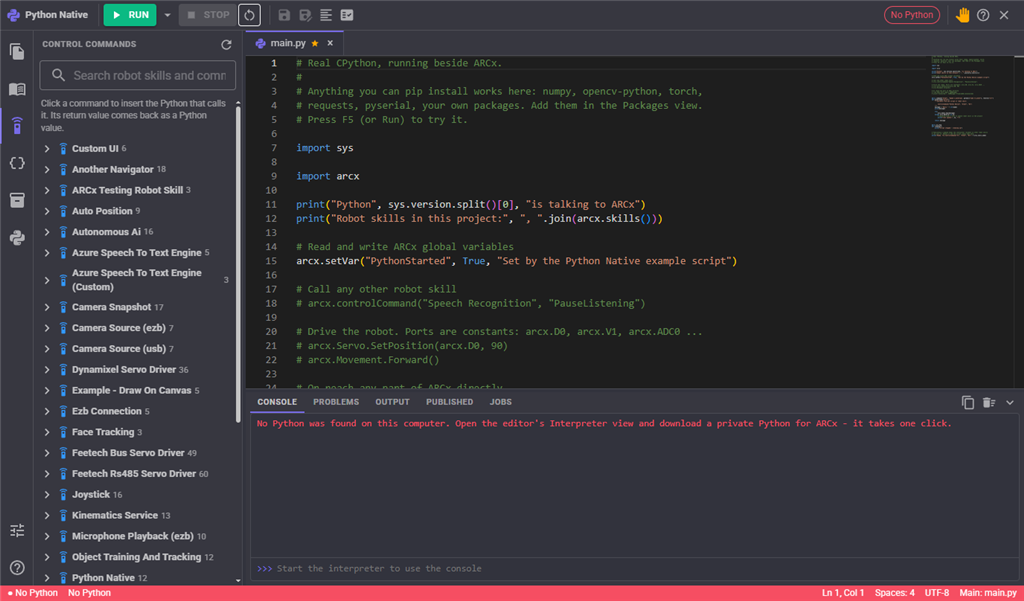
The editor fills the screen and is laid out like VS Code. The code editor itself is Monaco, the editor inside VS Code.
- Toolbar: Run (with a menu for Run this file and Run selection), Stop, Restart the interpreter, Save, Save all, Format, Check for problems, the script's state and status, Panic, Help and Close.
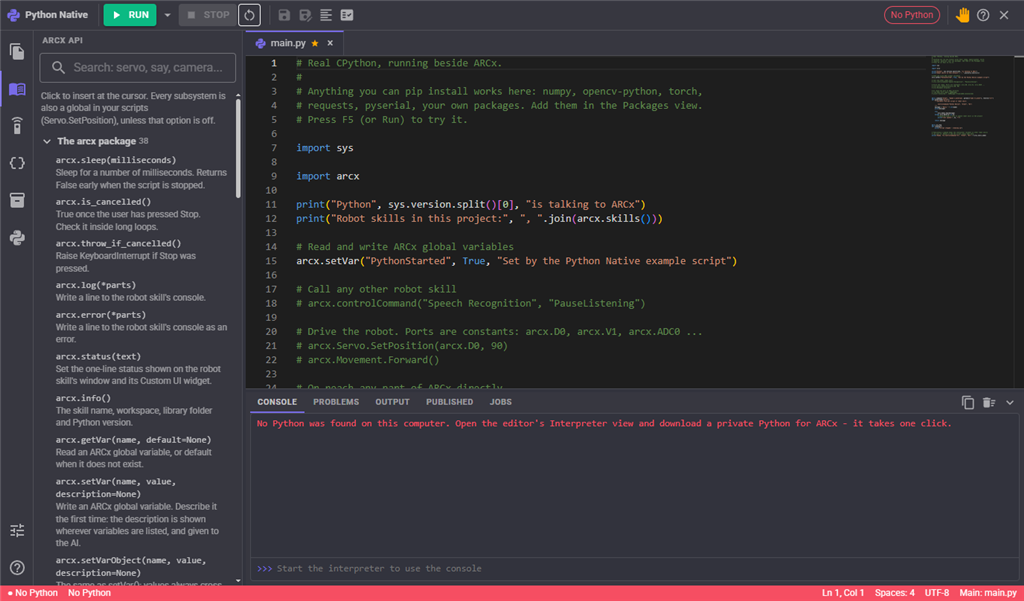
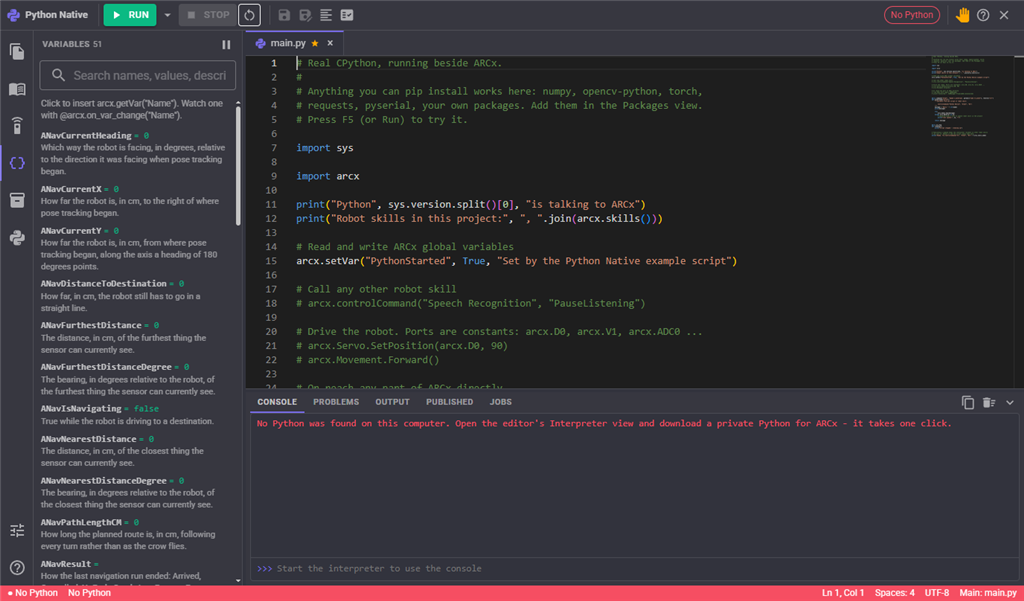
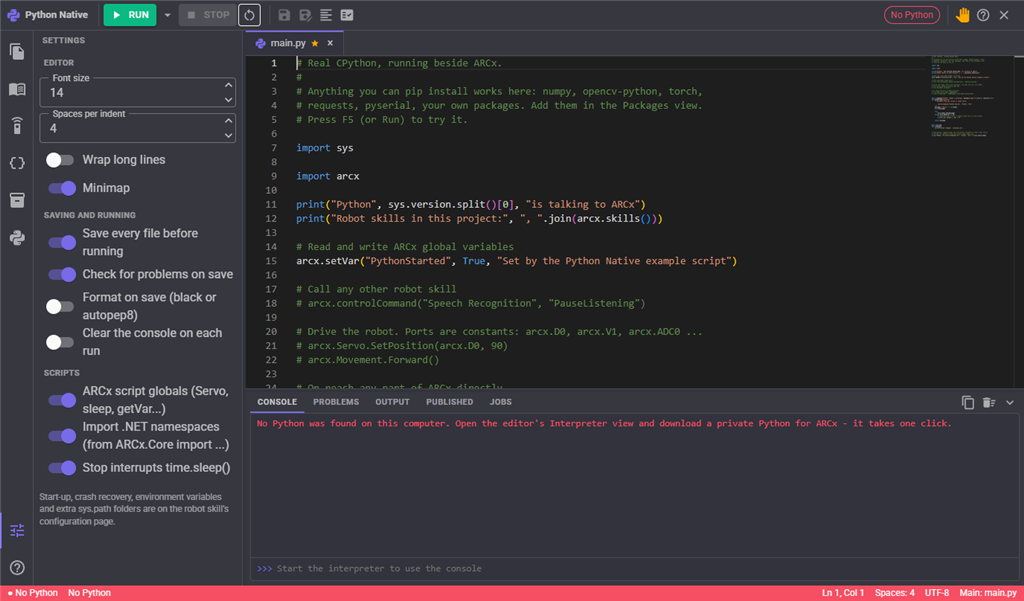
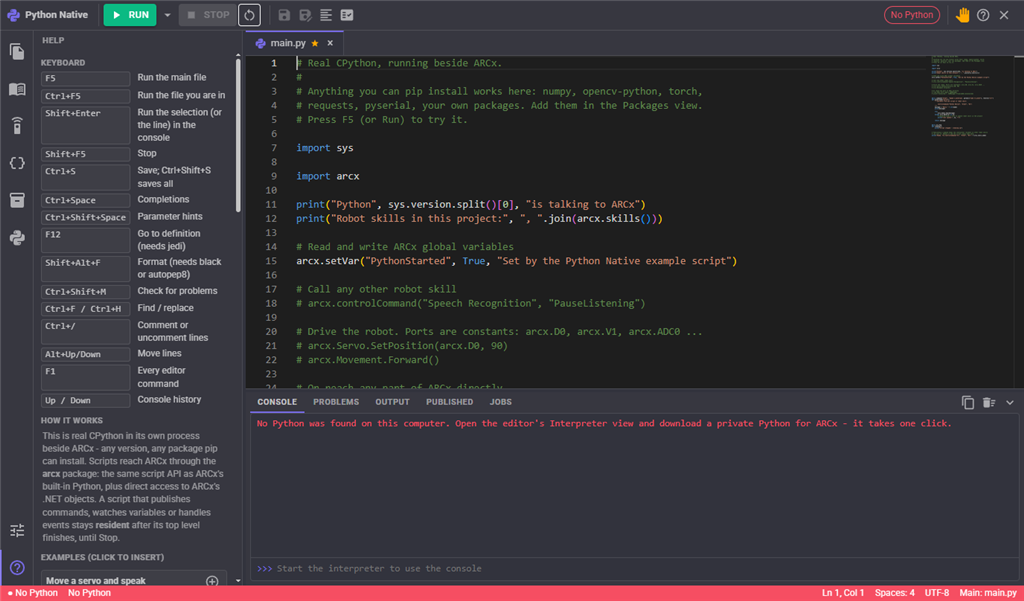
- Activity bar on the left: switches the sidebar between Explorer, ARCx API, Control commands, Variables, Packages, Interpreter, Settings and Help. Clicking the active view's icon folds the sidebar away.
- Tabs: every open file keeps its own undo history, cursor and scroll position. A dot means unsaved changes. Middle-click closes a tab. The main file is marked with a star.
- Bottom panel (drag its edge to resize, like the sidebar):
- Console: output and the
>>>REPL. - Problems: syntax errors, pyflakes warnings, and the line where the last run failed. Click one to go to it.
- Output: images shown with
arcx.show(). Click one to enlarge it. - Published: the commands the script published. Copy the ControlCommand call, or call it now the way another robot skill would.
- Jobs: the output of pip, Python downloads and virtual environments.
- Console: output and the
- Status bar: the state and run time, the Python version, cursor position, problem count and the main file.
Keyboard
| Keys | Does |
|---|---|
| F5 | Run the main file |
| Ctrl+F5 | Run the file you are in |
| Shift+Enter or Ctrl+Enter | Run the selection, or the current line, in the console |
| Shift+F5 | Stop |
| Ctrl+S / Ctrl+Shift+S | Save / Save all |
| Ctrl+Space | Completions |
| F12 | Go to definition |
| Shift+Alt+F | Format the file |
| Ctrl+Shift+M | Check the file for problems |
| Ctrl+F / Ctrl+H | Find / replace |
| Ctrl+/ | Comment or uncomment lines |
| F1 | Every editor command |
| Up / Down in the console | Command history |
Completions and checking
The editor completes the whole arcx API on its own, with every method's parameters and documentation, the moment the robot skill is added. For everything else (the standard library, installed packages, your own modules), install jedi from the Packages view. You then get completions, hover documentation, parameter hints and go to definition, into installed packages as well.
Files are checked for syntax errors when they are saved, and marked in the editor. Install pyflakes to catch undefined names and unused imports too. Install black (or autopep8) to format with Shift+Alt+F, or on every save if you turn that on in Settings.
The explorer
The explorer shows two sets of files:
- This robot skill's files. Folders are allowed:
tools/calibrate.pyimports astools.calibratefrom the other files, with an__init__.pyor without one. - The shared library: a folder of modules every Python Native robot skill in every project can import. It is ARCx's own Python Modules folder, so modules there are also visible to ARCx's built-in Python.
Select a file or folder to get its actions on its row: run, make it the main file, duplicate, download, rename (a path moves it), delete, or a new file or folder inside it. The toolbar adds new file, new folder, upload from your computer, refresh from disk and collapse all. Each set of files can be downloaded as a zip.
Text files open in the editor. Other files (images, models, data) can be uploaded, downloaded and opened by your scripts, up to 5 MB each.
The other views
- ARCx API: every function of the arcx package and every method of every script subsystem, read from the ARCx you are running, with its documentation, plus the ARCx services, .NET examples and snippets. Click an entry to insert it at the cursor.
- Control commands: every ControlCommand of every robot skill in the project, as the Python that calls it.
- Variables: ARCx's global variables, live, with their descriptions. Click one to insert
arcx.getVar("Name"). - Packages, Interpreter: see below.
- Settings: font size, indent, word wrap, minimap, save before run, check on save, format on save, and the script options.
- Help: shortcuts and examples you can insert.
Talking to ARCx from Python
import arcx
The script API
Every subsystem of ARCx's built-in Python is an attribute of arcx, with the same method names:
arcx.Servo.SetPosition(arcx.D0, 90)
arcx.Servo.SetVelocity(arcx.D0, 3)
arcx.Audio.SayWait("Hello")
arcx.Digital.Set(arcx.D5, True)
distance = arcx.Ping.Get(arcx.D1, arcx.D2)
light = arcx.ADC.Get(arcx.ADC0)
arcx.Kinematics.MoveTo("Left Arm", 150, 0, 100)
arcx.UI.ShowCustomUI("Main screen")
The subsystems are ADC, Audio, COM, Console, Digital, EZB, File, I2C, Kinematics, Log, Movement, Navigation, Net, PWM, Ping, Servo, UART, UI and Utility. The list, and every method on it, is read from the ARCx you are running each time the interpreter starts, so it never falls behind ARCx. Every method also has a snake_case name (arcx.Servo.set_position).
Ports are constants: arcx.D0 to arcx.D255, arcx.V0 to arcx.V255 for virtual servo ports, arcx.ADC0 to arcx.ADC255, and arcx.NA. help(arcx.Servo.SetPosition) and dir(arcx.Servo) work as usual.
Scripts from ARCx's built-in Python run unchanged
By default, every script also gets the names ARCx's built-in Python gives its scripts: Servo.SetPosition(d0, 90), sleep(500), getVar("Name"), setVar(...), ControlCommand(...), halt(), printHex(), showControl(), the lower case ports d0, adc0, and so on. They follow the built-in engine's rules: sleep() takes milliseconds, and getVar() without a default raises an error when the variable does not exist. Turn this off in the configuration if you would rather keep your scripts' namespace to yourself. from arcx.compat import * gives the same names to a module of your own.
Scripts written for ARC's Python robot skill can keep import arc: it is another name for arcx.
Global variables
arcx.setVar("Distance", 42, "Front distance in cm")   # describe it the first time
arcx.getVar("Distance")                   # 42
arcx.getVar("Missing", 0)                 # 0 when it does not exist
arcx.varExists("Distance")
arcx.deleteVar("Distance")

arcx.vars["Speed"] = 100                  # dictionary style
print(arcx.vars.all())                    # every variable
print(arcx.vars.describe())               # with types and descriptions
arcx.wait_for_var("Ready", True, timeout_ms=5000)
A description is shown wherever variables are listed, and given to the AI. Lists become ARCx arrays and dictionaries stay dictionaries.
To run code when a variable changes:
@arcx.on_var_change("Direction")
def moved(name, value):
    print(name, "is now", value)
Pass several names, or none to watch every variable. arcx.watch_var(names, func) and arcx.unwatch_var(func) do the same without a decorator. Handlers run on a background thread, in order.
Other robot skills
arcx.controlCommand("Auto Position", "AutoPositionAction", "Wave")
fps = arcx.controlCommand("Camera", "GetFPS")        # arguments and results keep their types

for command in arcx.list_commands():                # every command in the project
    print(command["code"])                          # ready-to-paste Python

print(arcx.skills())                                 # every robot skill's window title
ControlCommand and cc are other names for controlCommand.
Camera
import cv2

frame = arcx.camera.get_frame()                 # the next frame, a BGR numpy array
gray = cv2.cvtColor(frame, cv2.COLOR_BGR2GRAY)
arcx.show(gray, "gray")                         # into the editor's Output panel
| Call | Does |
|---|---|
arcx.camera.list() |
The names of the video sources in the project |
arcx.camera.get_frame(name=None, processed=False) |
The next frame as an OpenCV-style BGR numpy array. processed=True includes other robot skills' overlays. Uses cv2 when it is installed, otherwise Pillow |
arcx.camera.get_jpeg(...) |
The next frame as JPEG bytes (needs neither numpy nor OpenCV) |
arcx.camera.get_pil(...) |
The next frame as a PIL image |
arcx.camera.publish(image, name=None) |
Your own frames into ARCx as a video source of their own. Camera views, the Custom UI and vision robot skills can then use them like any camera |
arcx.camera.unpublish(name=None) |
Removes a published source |
Leave out the name to use the first video source. publish() names its source after this robot skill unless you give it a name. Published sources are removed when the script stops.
Showing images
arcx.show(image, title=None) puts an image in the editor's Output panel, and in the "Python output image" Custom UI widget. It takes a numpy array (BGR, like OpenCV, unless you pass bgr=False), a PIL image, a matplotlib figure, encoded image bytes, or the path of an image file. With no argument, it shows matplotlib's current figure:
import matplotlib
matplotlib.use("Agg")
import matplotlib.pyplot as plt

plt.plot([1, 4, 2, 5])
arcx.show()
Console, status and input
print()goes to the console. Anything written to stderr is shown in red.arcx.log(...)andarcx.error(...)write to the console directly.arcx.status("Tracking")sets the status line on the robot skill window and its widget.input("Your name? ")works: the console's prompt becomes an answer box until you press Enter, in every browser showing the console, the robot skill window's included.
Stopping cleanly
while not arcx.is_cancelled():
    arcx.Servo.Increment(arcx.D0, 5)
    arcx.sleep(100)            # returns early when Stop is pressed

@arcx.on_stop
def cleanup():
    arcx.Servo.ReleaseAll()
time.sleep() on the script's own thread also hears the Stop button (you can turn that off). When Stop is pressed, the robot skill asks the script to stop, then interrupts it, and as a last resort restarts the interpreter. A script stuck inside a native library can never hang ARCx. Waits inside the script API, such as Servo.WaitForMove or Audio.SayWait, are abandoned when the script stops.
arcx.panic() does what ARCx's panic button does: releases every servo and stops movement.
Reaching into ARCx directly (.NET)
The script API covers what scripts usually need. For everything else, Python can reach any public part of ARCx, the robot skills in the project, and the .NET framework itself, as live objects.
from ARCx.Core import EZBManager                 # .NET namespaces import like packages

ezb = EZBManager.PrimaryEZB
print(ezb.IsConnected, ezb.ConnectedEndPointAddress)

movement = arcx.service("MovementManagerService")  # an ARCx service
movement.GoForward(200)

camera = arcx.skill("Camera")                     # another robot skill's worker object
print(dir(camera))
Properties, fields, methods (with overloads, optional and keyword arguments), indexers (
obj[key]),len(),in, iteration andwith(which callsDispose) all work.Call a type to construct one:
StringBuilder(). Generic types by name:arcx.dotnet.get_type("System.Collections.Generic.List1[System.Int32]")()`.Enums are ints that remember their name:
Servo.ServoPortEnum.D0.A method returning a Task is waited on, and you get its result.
outandrefparameters come back as a list: the result, then each of their values.A Python function passed where .NET expects a delegate becomes one:
numbers.ForEach(lambda n: print(n))..NET events call Python functions:
def moved(direction, left, right):
    print(direction, left, right)

movement.OnMovement2 += moved        # -= to unsubscribe
Handlers run on a background thread, in order. Use
movement.OnMovement2.subscribe(func, sync=True)when .NET must wait for your handler (to read a value it sets on the event arguments). Subscriptions end when the script stops.
arcx.services() lists the services, and arcx.dotnet.find_types("Kinematic") finds type names. arcx.dotnet.to_python(obj) copies a .NET object into plain dicts and lists.
Numbers, strings, booleans, bytes and arrays of simple values cross between Python and ARCx as values. Everything else is a handle to the live object, released when Python stops using it.
Talking to Python from ARCx
Publish a Python function as a ControlCommand:
@arcx.command("Detect", "Look for an object in the camera", params=["object name"], returns="bool")
def detect(target):
    frame = arcx.camera.get_frame()
    return target in run_your_model(frame)
Any script, Blockly, the AI or another robot skill can now call it, and gets the return value:
var found = ControlCommand("Python Native", "Detect", "person");
params names each argument, optionally with its type: [("distance", "number")], with types string, number or bool. returns is bool, int, float, str or list. The command appears in ARCx's ControlCommand lists like any other.
Resident scripts
Once a script's top level finishes, it would normally end. It stays loaded instead (the state says Resident) when it has published commands, watches variables, handles .NET events, or calls arcx.stay_resident(). Its background threads keep running and its commands stay available, until you press Stop or run a script again. Either way, its on_stop handlers run and everything it hooked into ARCx is removed.
Packages
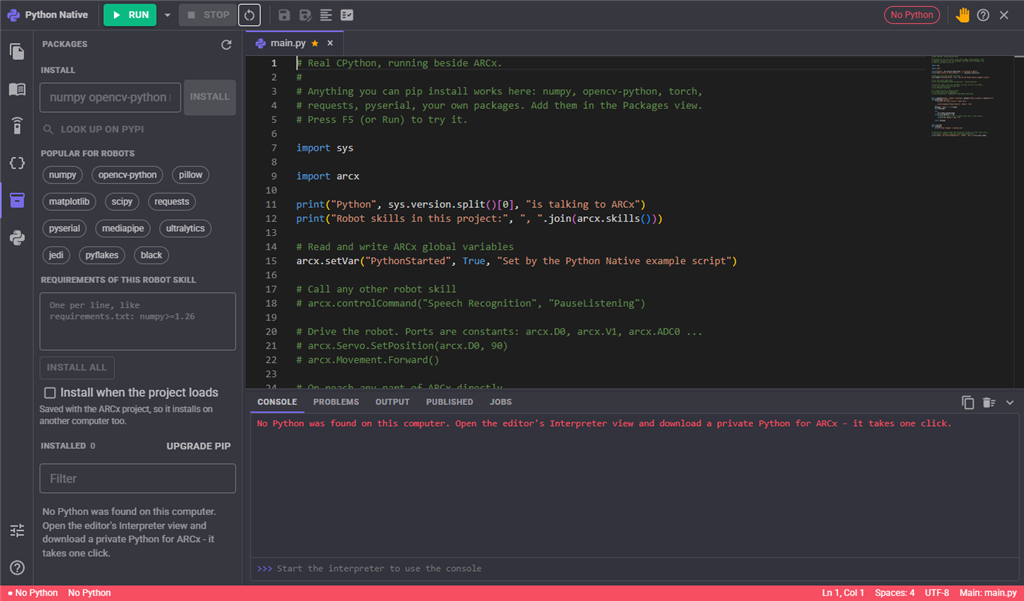
The editor's Packages view is pip:
- Install one or more packages by name, or look one up on PyPI first.
- Popular for robots: one click installs numpy, opencv-python, pillow, matplotlib, scipy, requests, pyserial, mediapipe, ultralytics, and the editor's helpers jedi, pyflakes and black.
- Installed: every package with its version. Select one to upgrade or uninstall it.
- Requirements of this robot skill: one requirement per line, as in requirements.txt. They are saved with the project, so Install all (or Install when the project loads) sets up another computer too. After you install a package, the editor offers to add it here.
A script that is already loaded only sees a new package after Restart.
The interpreter
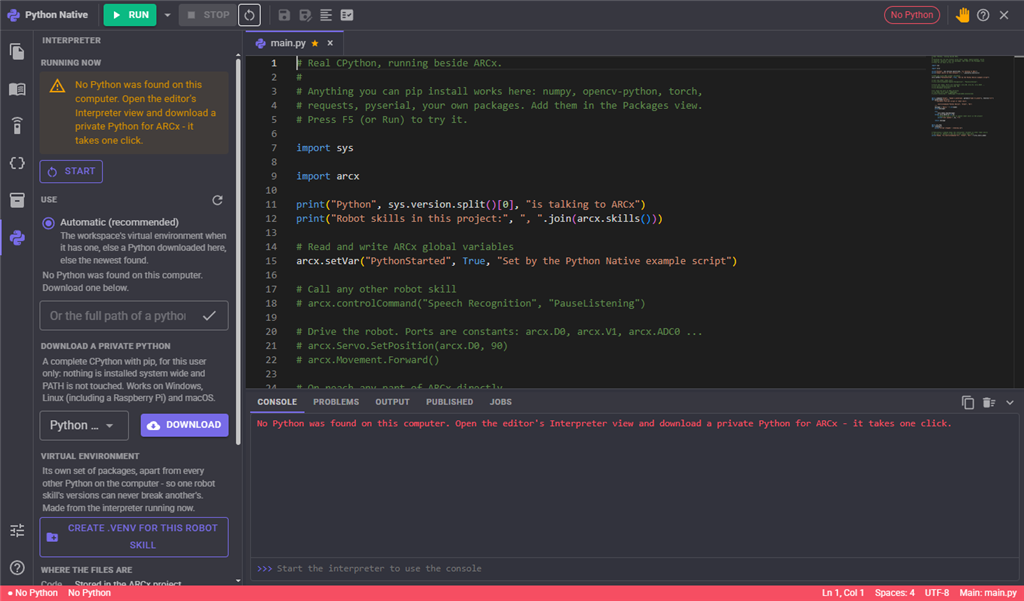
The Interpreter view shows the Python running now, which of jedi, pyflakes, black, numpy and cv2 it has, and its sys.path. From there you can:
- Use a specific Python: every Python found on the computer (the registry, the py launcher, PATH, conda, pyenv, Homebrew, the usual Linux folders) is listed, or give the path of any python executable. Automatic picks, in order: a virtual environment in the workspace, a Python this robot skill downloaded, the newest Python found.
- Download a private Python: 3.12, 3.13 or 3.11.
- Create .venv for this robot skill: a virtual environment of its own, so its packages never clash with another robot skill's. It is used automatically once it exists. It starts empty, so install your packages again.
Python 3.8 or newer is required.
Where the files are
By default, the code is stored in the project: sharing the project shares the code. Before each run the files are written to this robot skill's workspace folder (under ARCx Data\Python Native\Workspaces), so imports between them work. Files your script creates there, such as logs and captures, are left alone.
To edit the files with another editor such as VS Code as well, choose Keep the files in a folder in the Interpreter view. The files are copied to the folder you choose, and from then on the folder is what runs. Store the files in the project copies them back.
Each time the interpreter starts, a type stub for the whole arcx API is written to typings/arcx in the workspace. Open the workspace in VS Code and Pylance picks it up, with completions for every ARCx method.
Downloaded Pythons are kept in %LOCALAPPDATA%\ARCx\Python Native\runtime on Windows, and ~/.local/share/ARCx/Python Native/runtime on Linux.
Configuration
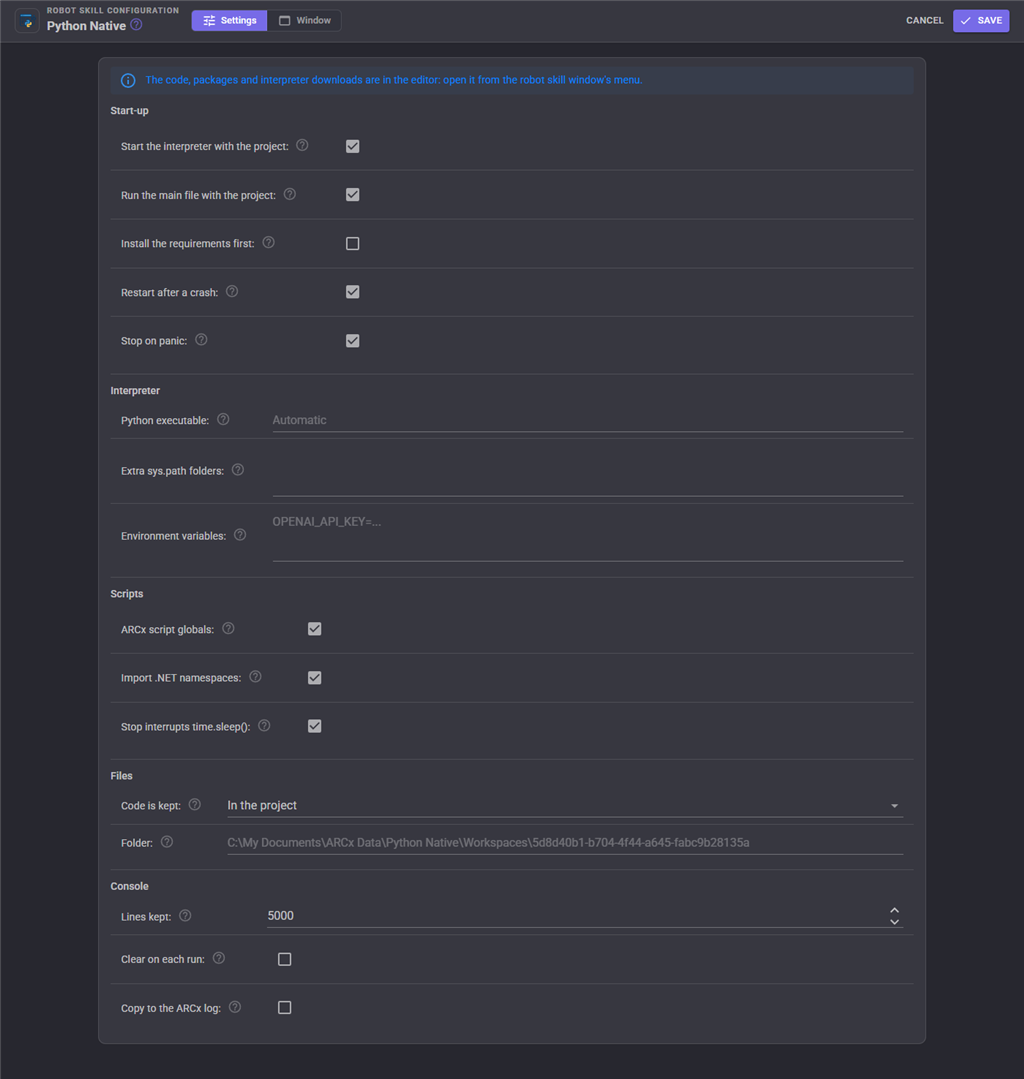
The code, packages and interpreter downloads are in the editor. The configuration page holds the rest:
| Setting | Meaning | Default |
|---|---|---|
| Start the interpreter with the project | Start Python as soon as the project loads | on |
| Run the main file with the project | Run the main file once the interpreter has started. Scripts that publish commands need this, or their commands do not exist until someone presses Run | on |
| Install the requirements first | pip install the requirements before the interpreter starts | off |
| Restart after a crash | Start the interpreter again if its process dies, at most three times a minute | on |
| Stop on panic | Stop the script when ARCx's panic button is pressed | on |
| Python executable | The python to run. Empty picks one automatically | empty |
| Extra sys.path folders | More folders to import from, one per line | empty |
| Environment variables | Given to Python, one NAME=value per line. For API keys and package settings | empty |
| ARCx script globals | Give scripts the names of ARCx's built-in Python | on |
| Import .NET namespaces | Allow from ARCx.Core import EZBManager |
on |
| Stop interrupts time.sleep() | Let Stop cut a time.sleep() short on the script's own thread |
on |
| Code is kept | In the project, or in a folder | In the project |
| Folder | The workspace folder. Required when the code is kept in a folder | empty |
| Lines kept | Console lines kept before the oldest are dropped | 5000 |
| Clear on each run | Empty the console every time a script is run | off |
| Copy to the ARCx log | Also write the console to ARCx's log. Every line goes to disk, so leave it off for chatty scripts | off |
Most settings are applied when the interpreter starts. Saving the configuration restarts an idle interpreter straight away; a running script is not interrupted.
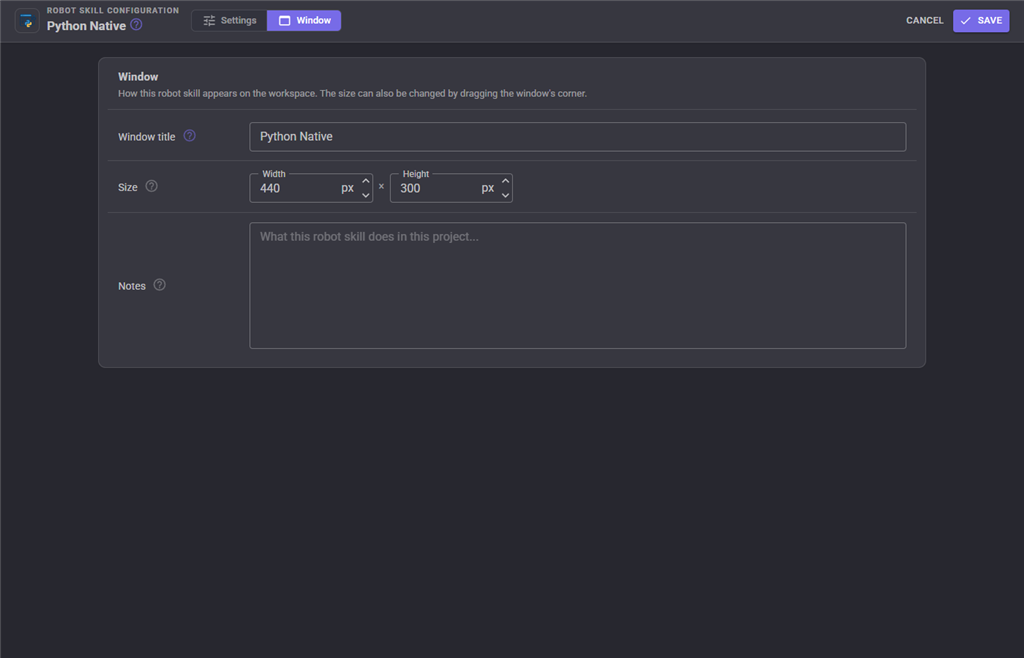
The Window tab sets the robot skill's window title, its size on the workspace and notes about what it does in this project.
Custom UI widgets
| Widget | Shows |
|---|---|
| Run / Stop | The script's state and status line, and a Run / Stop button. Settings: Caption, ShowStatus |
| Python command button | A button that calls a command the script published. Settings: Caption, Command, Argument |
| Python output image | The newest image the script showed with arcx.show() |
The whole robot skill window can also be placed on a Custom UI screen.
Troubleshooting
No Python was found. Install Python (see "Python must be installed" at the top), then press Restart in the robot skill's menu. On Windows, make sure the installer's Add python.exe to PATH was ticked, or pick the interpreter in the editor's Interpreter view. The window's Download Python button is the alternative.
A package installed, but the script cannot import it. Press Restart. A loaded interpreter does not see packages installed after it started.
pip says "externally-managed-environment" (Linux). That Python belongs to the operating system and refuses pip installs. Create a virtual environment in the Interpreter view, or download a private Python there.
Completions only cover ARCx. Install jedi from the Packages view, then Restart.
Red lines that are not errors. Some packages write progress and warnings to stderr, and native libraries that print directly are routed there too so they cannot upset the connection to ARCx. Red does not always mean something failed.
The interpreter will not start. Add ARCX_PY_DEBUG_LOG=C:\Temp\python.log (any writable path) to the Environment variables in the configuration and restart. The Python side then records its conversation with ARCx, including why it stopped. That file is what to attach to a support post.
Very deep folders on Windows. Windows Python cannot open paths longer than 260 characters. Keep the workspace folder short if a package with deeply nested files fails to import.
Notes
- One script at a time per robot skill. Each Python Native robot skill has its own interpreter, its own process and its own workspace. For two scripts running at once, add a second Python Native robot skill, or use Python's threading module inside one.
- Edited modules are reloaded. The interpreter stays loaded between runs, but your own modules (in the workspace or the shared library) are imported afresh on every run, so edits always take effect. Installed packages are not reloaded.
- Values cross by copy, objects by handle. A variable set in ARCx is a copy of the Python value. A .NET object is a live handle, not a copy.
Control Commands for the Python Native robot skill
There are Control Commands available for this robot skill which allows the skill to be controlled programmatically from scripts or other robot skills. These commands enable you to automate actions, respond to sensor inputs, and integrate the robot skill with other systems or custom interfaces. If you're new to the concept of Control Commands, we have a comprehensive manual available here that explains how to use them, provides examples to get you started and make the most of this powerful feature.
Control Command ManualThis robot skill has 12 control commands, listed below. Send them from a JavaScript or Python script, from Blockly, or from another robot skill.
The first value is always the window title, which is the name in the title bar of the robot skill on your workspace. It starts out as Python Native, which is what every example below uses. If you rename the robot skill, or add a second copy of it to the project, use the title as it appears on that window instead.
ControlCommand() can be shortened to CC(), and both spellings work in JavaScript and in Python. The examples are JavaScript; Python is the same call, except that true and false are written True and False.
Eval
Evaluate a Python expression in the script's namespace and return its value.
Syntax
ControlCommand("Python Native", "Eval", (String)expression)
Parameters
| # | Name | Type | What to pass |
|---|---|---|---|
| 1 | expression | Text | Your text, in quotes |
Example
ControlCommand("Python Native", "Eval", "expression");
Exec
Execute Python statements in the script's namespace, as if typed at the console.
Syntax
ControlCommand("Python Native", "Exec", (String)code)
Parameters
| # | Name | Type | What to pass |
|---|---|---|---|
| 1 | code | Text | Your text, in quotes |
Returns: Boolean [true or false]
Example
var result = ControlCommand("Python Native", "Exec", "code");
GetFileContents
The contents of one of this robot skill's files.
Syntax
ControlCommand("Python Native", "GetFileContents", (String)file path)
Parameters
| # | Name | Type | What to pass |
|---|---|---|---|
| 1 | file path | Text | Your text, in quotes |
Returns: String
Example
var result = ControlCommand("Python Native", "GetFileContents", "file path");
GetState
The interpreter's state: NotStarted, NoInterpreter, Starting, Idle, Running, Resident, Stopping or Failed.
Syntax
ControlCommand("Python Native", "GetState")
Returns: String
Example
var result = ControlCommand("Python Native", "GetState");
InstallPackage
pip install a package into this robot skill's interpreter, and wait for it to finish. Returns true on success.
Syntax
ControlCommand("Python Native", "InstallPackage", (String)requirement)
Parameters
| # | Name | Type | What to pass |
|---|---|---|---|
| 1 | requirement | Text | Your text, in quotes |
Returns: Boolean [true or false]
Example
var result = ControlCommand("Python Native", "InstallPackage", "requirement");
IsRunning
Is a Python script running right now? False once its top level has finished, even when it stays resident.
Syntax
ControlCommand("Python Native", "IsRunning")
Returns: Boolean [true or false]
Example
var result = ControlCommand("Python Native", "IsRunning");
RestartInterpreter
Stop and restart the Python interpreter. Use it after installing packages.
Syntax
ControlCommand("Python Native", "RestartInterpreter")
Returns: Boolean [true or false]
Example
var result = ControlCommand("Python Native", "RestartInterpreter");
Run
Run the main Python file. Starts the interpreter first if it is not running.
Syntax
ControlCommand("Python Native", "Run")
Returns: Boolean [true or false]
Example
var result = ControlCommand("Python Native", "Run");
RunFile
Run one of this robot skill's Python files by its path, i.e. main.py or tools/calibrate.py.
Syntax
ControlCommand("Python Native", "RunFile", (String)file path)
Parameters
| # | Name | Type | What to pass |
|---|---|---|---|
| 1 | file path | Text | Your text, in quotes |
Returns: Boolean [true or false]
Example
var result = ControlCommand("Python Native", "RunFile", "file path");
SetFileContents
Replace the contents of one of this robot skill's files (creating it if needed). Does not run it.
Syntax
ControlCommand("Python Native", "SetFileContents", (String)file path, (String)contents)
Parameters
| # | Name | Type | What to pass |
|---|---|---|---|
| 1 | file path | Text | Your text, in quotes |
| 2 | contents | Text | Your text, in quotes |
Returns: Boolean [true or false]
Example
var result = ControlCommand("Python Native", "SetFileContents", "file path", "contents");
StartInterpreter
Start the Python interpreter without running a script. Does nothing when it is already running.
Syntax
ControlCommand("Python Native", "StartInterpreter")
Returns: Boolean [true or false]
Example
var result = ControlCommand("Python Native", "StartInterpreter");
Stop
Stop the running (or resident) Python script.
Syntax
ControlCommand("Python Native", "Stop")
Returns: Boolean [true or false]
Example
var result = ControlCommand("Python Native", "Stop");
This list is read out of the robot skill itself each time its package is uploaded, so it matches the published version (v3).


This robot skill has been updated to v1.
This robot skill has been updated to v2.
What has changed
compatible with the latest ARCx v2026.09.27.01
This robot skill has been updated to v3.
What has changed
updated to use new threading features of ARCx v2026.10.04.01