
Records microphone audio into named slots and plays it through an EZB speaker, with recordings stored in the project.
 Windows
 ARM
ARM
 Linux
Linux
 MacOS
MacOS
How to add the Microphone Playback (Ezb) robot skill
- Load the most recent release of ARCx on a compatible operating system (Get ARCx).
- Press the + Skills menu from the top menu bar in ARCx.
- Choose the Audio category tab.
- Press the Microphone Playback (Ezb) icon to add the robot skill to your project.
Don't have a robot yet?
Follow the Getting Started Guide to build a robot and use the Microphone Playback (Ezb) robot skill.
How to use the Microphone Playback (Ezb) robot skill
Records the computer's microphone into numbered slots and plays those recordings out of an EZB's speaker - the robot's own voice, in your voice.
The recordings are stored inside the project, so a project carries its sounds with it. Press Rec, say something, press Stop, and the robot can say it back from a button, from a script, or from anything else that can issue a control command.
Requirements
- A microphone selected as ARCx's audio input.
- For playback, an EZB at the configured index that is connected and whose firmware supports EZB audio streaming. Recording works without one.
Adding it to a project
- Connect the EZB.
- Add the skill (Audio category).
- Press Rec on a slot, speak, and press Stop.
- Press Play to hear it out of the robot.
- Open the configuration to rename the slots - names are much easier to use from a script than numbers.
The window
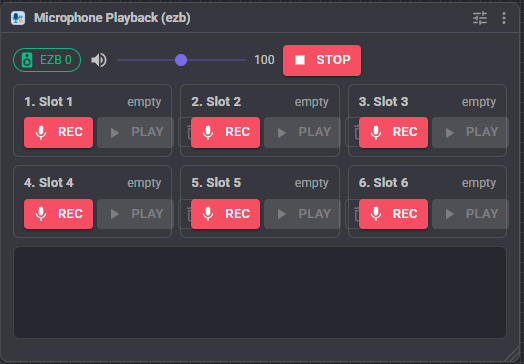
- EZB chip - green with the board index when playback is available, amber when there is no connected controller at that index. Recording still works either way.
- Volume slider - 1 to 200, applied to the EZB on playback and saved with the project.
- Stop - stops the EZB speaker.
- Slot grid - one tile per slot, showing its number, name and length:
- Rec - record into that slot, overwriting whatever was there. Only one slot can record at a time.
- Play - play it out of the EZB.
- Bin - erase the recording.
- The tile is outlined red while recording into it and green while playing it.
- While recording, a live input level meter and a progress bar towards the maximum length are shown.
- A short log at the bottom.
Configuration
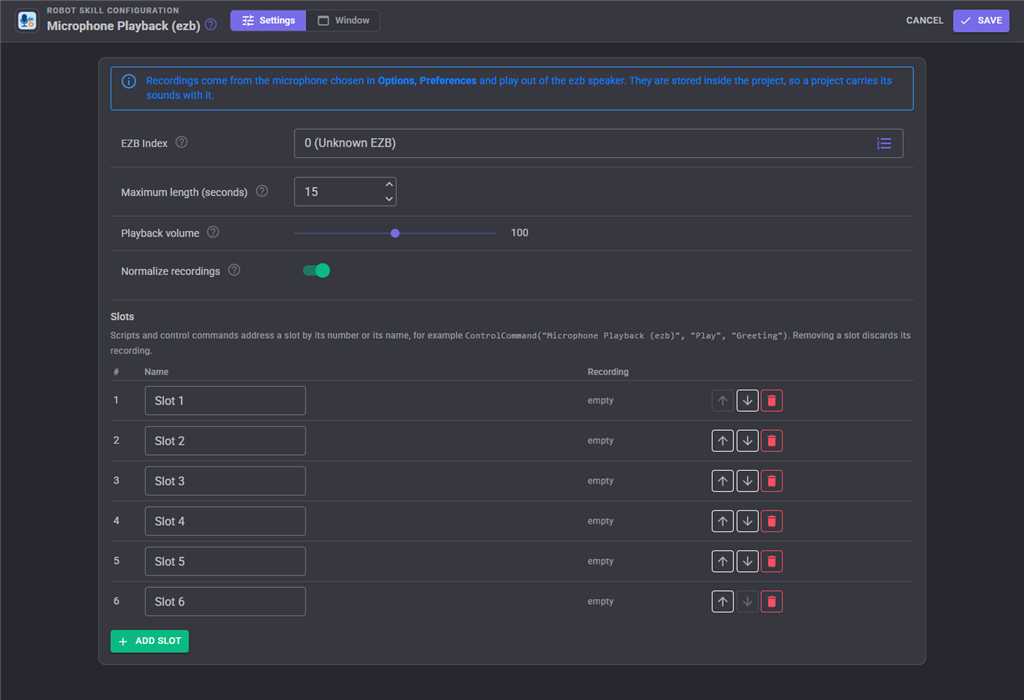
| Setting | Meaning | Default |
|---|---|---|
| EZB Index | Which controller's speaker plays the recordings. It must support EZB audio streaming. | 0 |
| Maximum length (seconds) | A recording stops on its own after this long, so a forgotten Record button cannot fill the project with room noise. Longer recordings make bigger project files - roughly 15 KB per second before compression. | 15 |
| Playback volume | Volume handed to the EZB, 1 to 200. Above 100 amplifies and may clip a loud recording. Also on the main window. | 100 |
| Normalize recordings | Scales each recording so its loudest moment uses the full range before it is stored. Microphones are quiet and the EZB speaker is small, so leave this on unless you are recording something already loud. | on |
| Slots | The slot table: rename, reorder with the arrows, delete with the bin, and Add Slot for more. At least one slot always exists. | 6 slots |
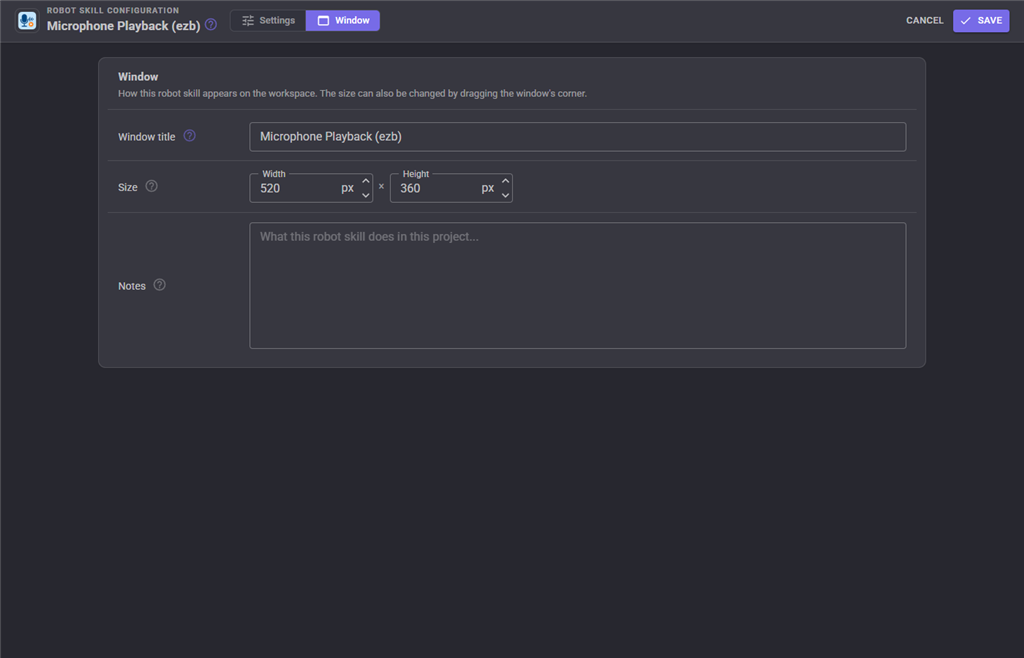
The Window tab sets the robot skill's window title, its size on the workspace and notes about what it does in this project.
How the audio is stored
Recordings are converted to 8 bit mono PCM at the EZB's sample rate - exactly what the board plays - then gzip compressed and written into the project file as base64. Speech and silence compress well, but recordings are still the biggest thing in a project that uses this skill, so keep the maximum length sensible.
Naming slots
Scripts address a slot by number (1-based) or by name, so give each slot a name that describes it:
ControlCommand("Microphone Playback (ezb)", "Play", "Greeting");
ControlCommand("Microphone Playback (ezb)", "Play", 1);
Names are matched case-insensitively. If the name does not exist, the error lists every slot, so a typo is easy to spot.
Troubleshooting
| Symptom | Cause |
|---|---|
| Amber "No EZB at index n" chip | No connected controller at that index. Connect it, or change EZB Index. |
| Recording is silent | The wrong microphone is selected as ARCx's audio input; watch the level meter while you speak. |
| Playback is quiet | Turn on Normalize, raise the Volume, and re-record - normalization is applied when the recording is stored, not on playback. |
| Playback is distorted | Volume above 100 on an already loud recording. Lower it. |
| Recordings cut off | They hit the Maximum length. Raise it. |
| The project file is huge | Too many long recordings. Shorten them or delete unused slots. |
| "There is no slot named ..." | The slot name in the script does not match; the error message lists the slots. |
See also
- Sound Board (ezb) - play audio files, with scripts scheduled on a timeline
- Ezb Connection - connecting the controller whose speaker is used
Control Commands for the Microphone Playback (Ezb) robot skill
There are Control Commands available for this robot skill which allows the skill to be controlled programmatically from scripts or other robot skills. These commands enable you to automate actions, respond to sensor inputs, and integrate the robot skill with other systems or custom interfaces. If you're new to the concept of Control Commands, we have a comprehensive manual available here that explains how to use them, provides examples to get you started and make the most of this powerful feature.
Control Command ManualThis robot skill has 10 control commands, listed below. Send them from a JavaScript or Python script, from Blockly, or from another robot skill.
The first value is always the window title, which is the name in the title bar of the robot skill on your workspace. It starts out as Microphone Playback (ezb), which is what every example below uses. If you rename the robot skill, or add a second copy of it to the project, use the title as it appears on that window instead.
ControlCommand() can be shortened to CC(), and both spellings work in JavaScript and in Python. The examples are JavaScript; Python is the same call, except that true and false are written True and False.
Clear
Erase a slot's recording
Syntax
ControlCommand("Microphone Playback (ezb)", "Clear", (String)slot)
Parameters
| # | Name | Type | What to pass |
|---|---|---|---|
| 1 | slot | Text | Your text, in quotes |
Returns: Boolean [true or false]
Example
var result = ControlCommand("Microphone Playback (ezb)", "Clear", "slot");
GetLength
Length of a slot's recording in seconds, 0 when empty
Syntax
ControlCommand("Microphone Playback (ezb)", "GetLength", (String)slot)
Parameters
| # | Name | Type | What to pass |
|---|---|---|---|
| 1 | slot | Text | Your text, in quotes |
Returns: Double [5.0e324 to 1.7e308]
Example
var result = ControlCommand("Microphone Playback (ezb)", "GetLength", "slot");
IsPlaying
Is one of this skill's slots playing?
Syntax
ControlCommand("Microphone Playback (ezb)", "IsPlaying")
Returns: Boolean [true or false]
Example
var result = ControlCommand("Microphone Playback (ezb)", "IsPlaying");
IsRecording
Is a recording in progress?
Syntax
ControlCommand("Microphone Playback (ezb)", "IsRecording")
Returns: Boolean [true or false]
Example
var result = ControlCommand("Microphone Playback (ezb)", "IsRecording");
Play
Play a slot out of the ezb speaker and return immediately
Syntax
ControlCommand("Microphone Playback (ezb)", "Play", (String)slot)
Parameters
| # | Name | Type | What to pass |
|---|---|---|---|
| 1 | slot | Text | Your text, in quotes |
Returns: Boolean [true or false]
Example
var result = ControlCommand("Microphone Playback (ezb)", "Play", "slot");
PlayWait
Play a slot out of the ezb speaker and return when it has finished
Syntax
ControlCommand("Microphone Playback (ezb)", "PlayWait", (String)slot)
Parameters
| # | Name | Type | What to pass |
|---|---|---|---|
| 1 | slot | Text | Your text, in quotes |
Returns: Boolean [true or false]
Example
var result = ControlCommand("Microphone Playback (ezb)", "PlayWait", "slot");
Record
Start recording the PC microphone into a slot. The slot is its number (1 based) or its name. Recording stops with StopRecording or at the configured maximum length.
Syntax
ControlCommand("Microphone Playback (ezb)", "Record", (String)slot)
Parameters
| # | Name | Type | What to pass |
|---|---|---|---|
| 1 | slot | Text | Your text, in quotes |
Returns: Boolean [true or false]
Example
var result = ControlCommand("Microphone Playback (ezb)", "Record", "slot");
SetVolume
Set the ezb playback volume, 1 to 200
Syntax
ControlCommand("Microphone Playback (ezb)", "SetVolume", (Number)volume)
Parameters
| # | Name | Type | What to pass |
|---|---|---|---|
| 1 | volume | Number | A number, without quotes |
Returns: Integer [-2,147,483,648 to 2,147,483,647]
Example
var result = ControlCommand("Microphone Playback (ezb)", "SetVolume", 0);
Stop
Stop the ezb speaker
Syntax
ControlCommand("Microphone Playback (ezb)", "Stop")
Returns: Boolean [true or false]
Example
var result = ControlCommand("Microphone Playback (ezb)", "Stop");
StopRecording
Finish the recording in progress and store it in its slot. Returns the length in seconds, or 0 when nothing was recording.
Syntax
ControlCommand("Microphone Playback (ezb)", "StopRecording")
Returns: Double [5.0e324 to 1.7e308]
Example
var result = ControlCommand("Microphone Playback (ezb)", "StopRecording");
This list is read out of the robot skill itself each time its package is uploaded, so it matches the published version (v4).


This robot skill has been updated to v1.
This robot skill has been updated to v2.
What has changed
compatible with the latest ARCx v2026.09.27.01
This robot skill has been updated to v3.
What has changed
updated to support latest audio service of ARCx 2026.09.28.02
This robot skill has been updated to v4.
What has changed
updated to use some new ARCx UI features for improved performance.