
Detects faces in camera video, marks them, and tracks the largest face for servo tracking and presence detection
 Windows
 ARM
 Linux
 MacOS
How to add the Face Tracking robot skill
- Load the most recent release of ARCx on a compatible operating system (Get ARCx).
- Press the + Skills menu from the top menu bar in ARCx.
- Choose the Camera category tab.
- Press the Face Tracking icon to add the robot skill to your project.
Don't have a robot yet?
Follow the Getting Started Guide to build a robot and use the Face Tracking robot skill.
How to use the Face Tracking robot skill
Finds human faces in a video source and marks them on the video. The largest face - the one closest to the camera - is flagged as the tracked object, so anything that follows a detected object (camera servo tracking, Autonomous AI's sense of whether a person is present, your own scripts) follows that face.
Detection is a Haar cascade running on the shared computer-vision copy of each frame, so adding this skill does not change the camera's resolution or frame rate.
Requirements
- A video source in the project - Camera Source (usb) or Camera Source (ezb) - with video running.
- Nothing else. Several instances are allowed, for example one per camera.
Adding it to a project
- Add a camera skill and start the video.
- Add Face Tracking (Camera category).
- Turn the Face Tracking switch off, open the configuration (it refuses to open while tracking is on), choose the Video Source, and save.
- Turn the switch back on. Faces are outlined on the video.
If no video source has been chosen when the project finishes loading, the first video source in the project is selected automatically.
The window
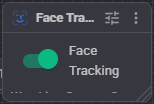
- Face Tracking switch - turns detection on and off. Off costs no CPU.
- A caption underneath saying which video source is being watched, or telling you to open the configuration if none is selected.
What you see on the video
| Marking | Meaning |
|---|---|
| Thick yellow box, green "Face" label | The primary face - the largest one, and the only one reported as the tracked object. |
| Thin blue box | Another face that was found but is not being tracked. |
Configuration
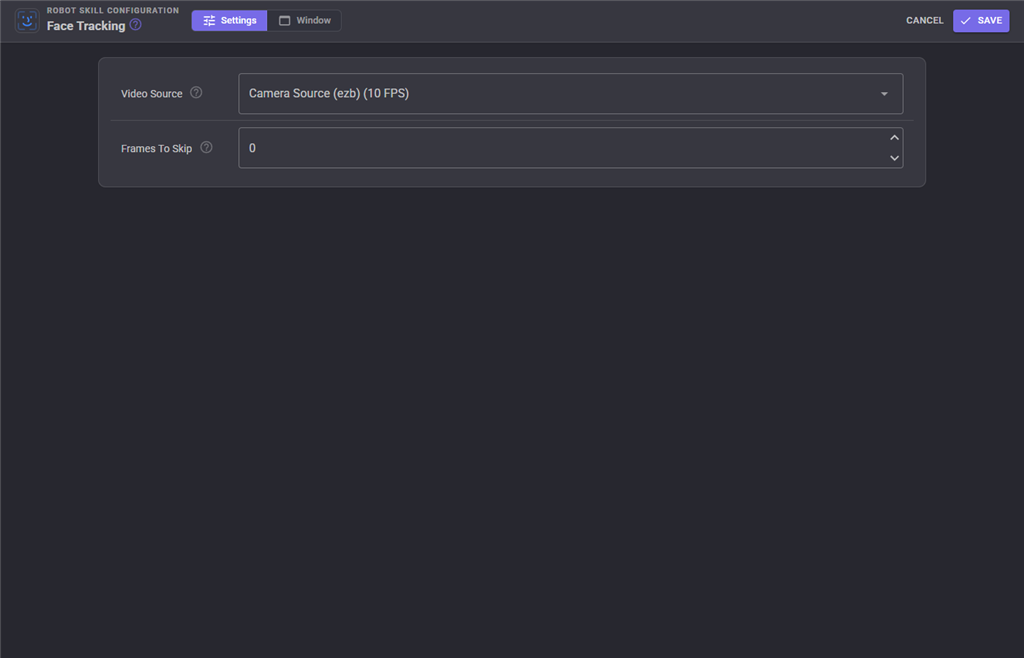
| Setting | Meaning |
|---|---|
| Video Source | Which camera to watch. The list shows each source with its current frame rate. |
| Frames To Skip | How many frames to ignore between detections, 0-100. 0 scans every frame (most responsive, most CPU). 2 scans one frame in three. Raise this on a slow computer or when running several detectors at once. |
The configuration dialog cannot be opened while tracking is running - switch tracking off first.
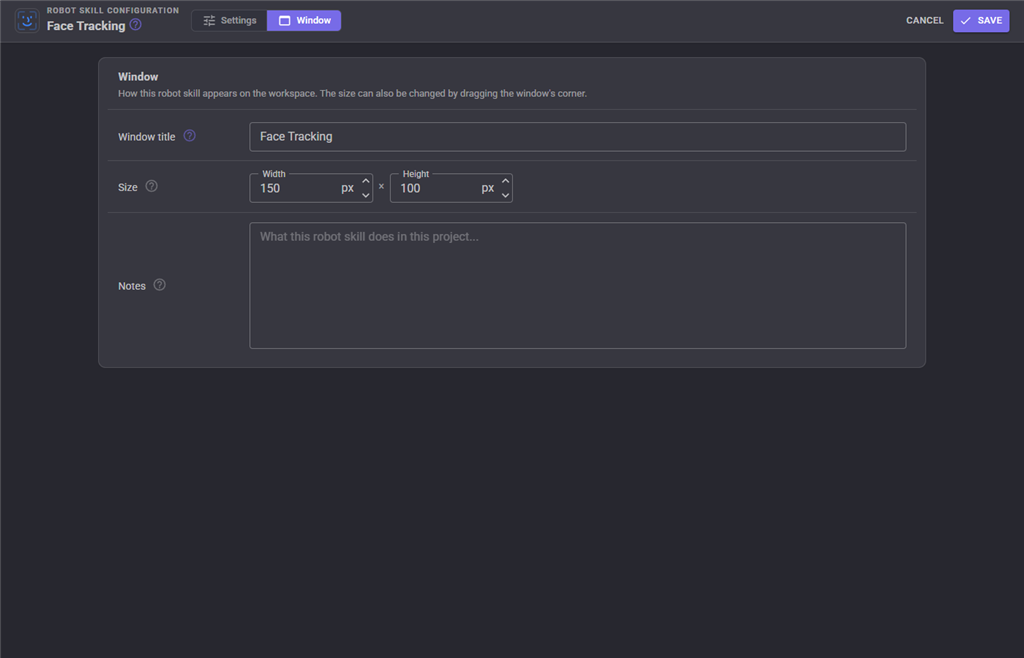
The Window tab sets the robot skill's window title, its size on the workspace and notes about what it does in this project.
Tuning and limitations
- A Haar cascade finds front-facing faces. A face in profile, strongly backlit, or tilted more than a little will not be found.
- Faces are found between roughly 60 and 300 pixels wide, measured at a reference computer-vision width of 320 pixels. Someone far away is simply too small to detect - raise the computer vision width in Options Preferences Video if you need more range, at the cost of CPU.
- The largest face wins. Where two people are in frame, whoever is closest is the one that gets tracked.
- The skill pauses when ARCx pauses all workers.
Troubleshooting
| Symptom | Cause |
|---|---|
| No boxes at all | Tracking switch off, wrong video source, or the video is not running. |
| Configuration will not open | Tracking is on. Turn the switch off. |
| High CPU | Raise Frames To Skip, or lower the computer vision width in Preferences. |
| Faces found only when very close | Faces are below the minimum detection size - increase the computer vision width. |
| False positives on patterned backgrounds | Normal for a Haar cascade; consider Object Training And Tracking for a specific object instead. |
See also
- Camera Source (usb) / Camera Source (ezb) - the video sources
- Object Training And Tracking - train and follow specific objects
Control Commands for the Face Tracking robot skill
There are Control Commands available for this robot skill which allows the skill to be controlled programmatically from scripts or other robot skills. These commands enable you to automate actions, respond to sensor inputs, and integrate the robot skill with other systems or custom interfaces. If you're new to the concept of Control Commands, we have a comprehensive manual available here that explains how to use them, provides examples to get you started and make the most of this powerful feature.
Control Command ManualThis robot skill has 3 control commands, listed below. Send them from a JavaScript or Python script, from Blockly, or from another robot skill.
The first value is always the window title, which is the name in the title bar of the robot skill on your workspace. It starts out as Face Tracking, which is what every example below uses. If you rename the robot skill, or add a second copy of it to the project, use the title as it appears on that window instead.
ControlCommand() can be shortened to CC(), and both spellings work in JavaScript and in Python. The examples are JavaScript; Python is the same call, except that true and false are written True and False.
IsTracking
Returns true or false if currently face tracking
Syntax
ControlCommand("Face Tracking", "IsTracking")
Returns: Boolean [true or false]
Example
var result = ControlCommand("Face Tracking", "IsTracking");
Start
Start face tracking
Syntax
ControlCommand("Face Tracking", "Start")
Returns: Boolean [true or false]
Example
var result = ControlCommand("Face Tracking", "Start");
Stop
Stop face tracking
Syntax
ControlCommand("Face Tracking", "Stop")
Returns: Boolean [true or false]
Example
var result = ControlCommand("Face Tracking", "Stop");
This list is read out of the robot skill itself each time its package is uploaded, so it matches the published version (v7).



This robot skill has been updated to v1.
This robot skill has been updated to v2.
This robot skill has been updated to v3.
This robot skill has been updated to v4.
This robot skill has been updated to v5.
What has changed
compatible with the latest ARCx v2026.09.27.01
This robot skill has been updated to v6.
What has changed
spelling fix correction
This robot skill has been updated to v7.
What has changed
fix to resize frame internally