Azure-powered multilingual speech-to-text for ARCx with language detection, wake words, phrase recognition, and script listening.
 Windows
 ARM
ARM
 Linux
Linux
 MacOS
MacOS
How to add the Azure Speech To Text Engine (Custom) robot skill
- Load the most recent release of ARCx on a compatible operating system (Get ARCx).
- Press the + Skills menu from the top menu bar in ARCx.
- Choose the Audio category tab.
- Press the Azure Speech To Text Engine (Custom) icon to add the robot skill to your project.
Don't have a robot yet?
Follow the Getting Started Guide to build a robot and use the Azure Speech To Text Engine (Custom) robot skill.
How to use the Azure Speech To Text Engine (Custom) robot skill
Speech recognition through Microsoft Azure Cognitive Services, billed to your own Azure key. It recognizes many languages, can detect which of several languages is being spoken, and works on any platform ARCx runs on.
This skill is a speech to text engine: it does not do anything by itself, it provides recognition to whatever in the project wants to listen - the Speech Phrase Recognition skill, the Listen option in Autonomous AI, wake word detection, and the Audio.WaitForSpeech() script command.
It does not do text to speech. Pair it with Basic or Advanced Speech Synthesis if the robot should also talk.
Requirements
- An Azure Speech Services resource in your own Azure subscription, giving you an API key and a region (location) such as
eastusorwesteurope. Azure charges you for usage. - An internet connection.
- A microphone. By default this is the audio input ARCx is using, which may be a robot's microphone rather than one attached to this computer. The log says which input it is using each time recognition starts.
- Only one instance per project.
Adding it to a project
- Create a Speech resource in the Azure portal and copy its Key and Location.
- Add the skill to the project (Audio category) and open its configuration.
- Paste the API Key and the API Location.
- Enter the Language(s) you want recognized - one, such as
en-US, or a comma separated list, such asen-US, fr-CA, and Azure detects which is being spoken. - Save. The key and location are refused if empty.
- Add whatever is going to listen - the Speech Phrase Recognition skill, for example.
The window
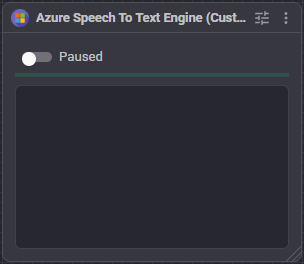
- Paused stops recognition without ending the Azure session, so a wake word engine can be silenced for a moment and resume instantly. It is not saved with the project.
- The level bar is what is reaching this skill from the ARCx audio input. If it never moves while you speak, the problem is the microphone or the input selected in ARCx, not Azure. It stays still while Use the OS default microphone is on, because the audio does not come through ARCx in that case.
- The log holds the last 25 lines: session start and stop, each recognized phrase with its confidence, and any cancellation reason from Azure - which is where an invalid key or an unreachable region shows up.
Configuration
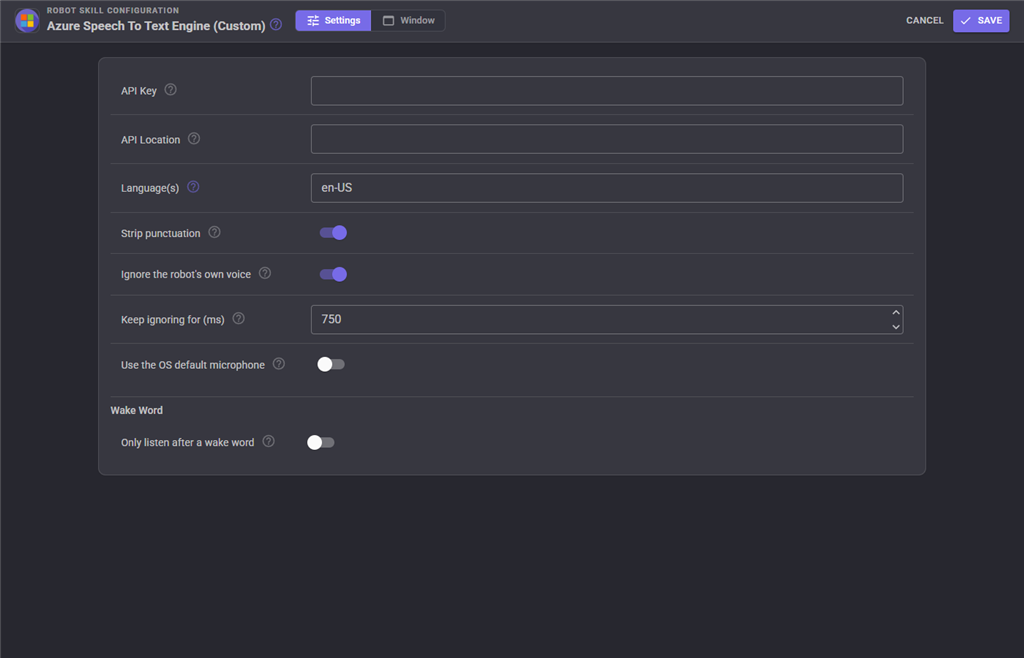
| Setting | Meaning |
|---|---|
| API Key | Your Azure Speech resource key. Stored on this computer, not in the project file, so the project can be shared without leaking the key. Required. |
| API Location | The Azure region of that resource, for example eastus. Required. |
| Language(s) | One language code or a comma separated list. With more than one, Azure auto-detects which is spoken. The list of codes is at https://learn.microsoft.com/en-us/azure/ai-services/speech-service/language-support?tabs=stt. Required. Default en-US. |
| Strip punctuation | Remove commas, periods, exclamation marks and question marks from the result. Phrase lists are written without punctuation, so leaving this on is what makes "Turn left." match the phrase turn left. Default on. |
| Ignore the robot's own voice | Stop listening while the robot is talking, so its own text to speech is not recognized as something that was said to it. Default on. Has no effect when the Azure SDK owns the microphone. |
| Keep ignoring for (ms) | The tail after the robot stops talking. The audio queue empties before the sound has actually been heard - a connected EZB has most of a second of its own buffering behind it - so without a tail the end of every sentence is heard by the microphone. Default 750. |
| Use the OS default microphone | Let the Azure SDK open the computer's default microphone itself rather than listening to the ARCx audio input. Default off. Turn it on to get the SDK's own echo cancellation, at the cost of not being able to hear a robot's microphone. |
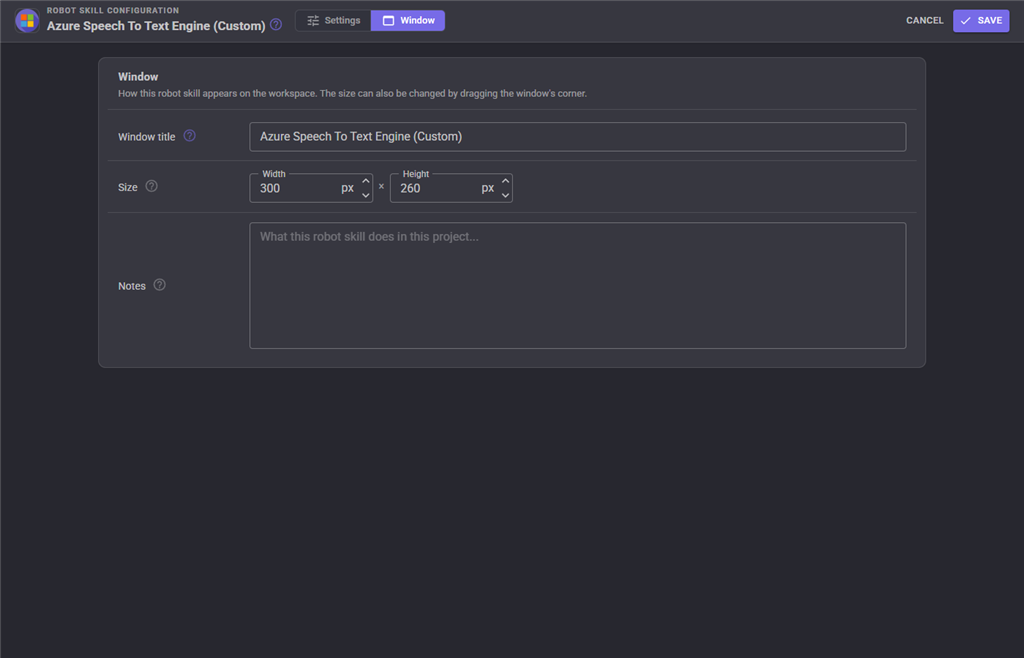
The Window tab sets the robot skill's window title, its size on the workspace and notes about what it does in this project.
Wake word
Azure bills you for the audio it listens to, so an engine left running all day costs money even when nobody is talking to the robot. The Wake Word section of the configuration holds it quiet until it is wanted: pick another speech engine in the project that can listen continuously - the Windows Speech Engine is free and local, which is exactly what this wants - type the phrase, and set how long this engine keeps listening afterwards.
| Setting | Meaning | Default |
|---|---|---|
| Only listen after a wake word | Turn the wake word on. | off |
| Wake Word Engine | The engine that listens for the phrase all day. Only engines that can listen continuously are offered. | first found |
| Wake Phrases | What wakes this engine. Several, separated by commas; any one of them wakes it. | hey robot |
| Stay Awake (ms) | How long it keeps listening after the wake phrase. Every phrase it hears starts the clock again. | 8000 |
ARCx does the rest, for whichever robot skill happens to be using this engine. It does not apply when something asks for a single phrase - the Wait For Speech popup, an Audio.WaitForSpeech() script - because asking outright is itself the trigger.
How recognition behaves
- Continuous and Wake Word recognition keep listening while a consumer has them started. Single recognizes one utterance and stops on its own.
- Audio comes from the ARCx audio input, which already runs at the 16000hz Azure accepts, and is pushed to the service as it arrives.
- When the consumer supplied a phrase list, those phrases are given to Azure as hints and, on the way back, any result that does not start with one of them is discarded. When the consumer asked for free dictation, everything is passed through.
- The text is lowercased before being handed on, so
"Turn left"arrives asturn left. - Each result carries the confidence Azure reported for it, so the minimum-confidence setting in a consuming skill works as it does with any other engine. A result the service returns without a confidence is reported at 1.0 rather than 0, so it is not rejected.
- The engine reports speech, silence and stopped as it hears them, which is what draws the listening indicator in the Wait For Speech popup.
- A failure - bad key, unreachable region, exhausted quota, nothing recognized - is reported back to whatever is listening as a failed result rather than being left to time out.
- Opening the configuration dialog stops every running engine and restarts them with the same phrase lists when the dialog closes.
Troubleshooting
| Symptom | Cause |
|---|---|
| "API Key cannot be empty" | Enter the key and location in the configuration. |
Log shows Canceled ... with error details |
Wrong key, wrong region, no internet, or an exhausted Azure quota. The detail text comes from Azure. |
| The level bar never moves | Nothing is reaching the ARCx audio input. Check the input device in Options, Preferences, or the robot's microphone. |
| Level bar moves but nothing is recognized | Check the language list matches what you are speaking, and that the log is not showing a cancellation from Azure. |
| Log says "Robot is talking, ignoring the microphone" too often | Lower Keep ignoring for (ms), or turn Ignore the robot's own voice off. |
| Phrases are heard but ignored | A phrase list is active and what you said does not begin with one of the phrases. |
| Wrong language recognized | Reduce the language list to just the language you speak. |
See also
- Speech Phrase Recognition - run scripts when phrases are heard
- Windows Speech Engine - offline recognition and synthesis, Windows only
Control Commands for the Azure Speech To Text Engine (Custom) robot skill
There are Control Commands available for this robot skill which allows the skill to be controlled programmatically from scripts or other robot skills. These commands enable you to automate actions, respond to sensor inputs, and integrate the robot skill with other systems or custom interfaces. If you're new to the concept of Control Commands, we have a comprehensive manual available here that explains how to use them, provides examples to get you started and make the most of this powerful feature.
Control Command ManualThis robot skill has 3 control commands, listed below. Send them from a JavaScript or Python script, from Blockly, or from another robot skill.
The first value is always the window title, which is the name in the title bar of the robot skill on your workspace. It starts out as Azure Speech To Text Engine (Custom), which is what every example below uses. If you rename the robot skill, or add a second copy of it to the project, use the title as it appears on that window instead.
ControlCommand() can be shortened to CC(), and both spellings work in JavaScript and in Python. The examples are JavaScript; Python is the same call, except that true and false are written True and False.
GetPause
Is listening currently paused? Returns true|false
Syntax
ControlCommand("Azure Speech To Text Engine (Custom)", "GetPause")
Returns: Boolean [true or false]
Example
var result = ControlCommand("Azure Speech To Text Engine (Custom)", "GetPause");
PauseListening
Stop listening without ending the session, so nothing spoken is recognized. Returns true.
Syntax
ControlCommand("Azure Speech To Text Engine (Custom)", "PauseListening")
Returns: Boolean [true or false]
Example
var result = ControlCommand("Azure Speech To Text Engine (Custom)", "PauseListening");
UnpauseListening
Resume listening after PauseListening. Returns true.
Syntax
ControlCommand("Azure Speech To Text Engine (Custom)", "UnpauseListening")
Returns: Boolean [true or false]
Example
var result = ControlCommand("Azure Speech To Text Engine (Custom)", "UnpauseListening");
This list is read out of the robot skill itself each time its package is uploaded, so it matches the published version (v13).

This robot skill has been updated to v2.
This robot skill has been updated to v3.
This robot skill has been updated to v4.
This robot skill has been updated to v6.
This robot skill has been updated to v7.
This robot skill has been updated to v8.
This robot skill has been updated to v9.
This robot skill has been updated to v10.