Control robots with a Wii Remote: D-Pad drives movement, buttons run scripts, and tilt can position servos. Windows, Linux, and macOS support.
 Windows
 ARM
ARM
 Linux
Linux
 MacOS
MacOS
How to add the Wiimote robot skill
- Load the most recent release of ARCx on a compatible operating system (Get ARCx).
- Press the + Skills menu from the top menu bar in ARCx.
- Choose the Remote Control category tab.
- Press the Wiimote icon to add the robot skill to your project.
Don't have a robot yet?
Follow the Getting Started Guide to build a robot and use the Wiimote robot skill.
How to use the Wiimote robot skill
Control a robot with a Nintendo Wii Remote. The D-Pad drives the robot, the buttons run scripts, and tilting the remote moves servos - so a camera head or an arm follows your hand.
The remote is reached as a Bluetooth HID device, with no native binaries, so this one build works on Windows, Linux and macOS.
Requirements
- A Wii Remote already paired with the computer in the operating system's Bluetooth settings. Pairing is the operating system's job; this skill only lists remotes that are paired and connected.
- For the D-Pad to drive the robot, a movement panel in the project.
- For tilt control, two servos.
Several instances are allowed, one per remote - set a different Remote Number on each so the player LEDs tell them apart.
Adding it to a project
- Pair the remote with the computer.
- Add the skill (Remote Control category).
- Pick the remote in the list and press Connect. The log reports the battery level and any extension.
- Press Home on the remote to start tracking.
The window
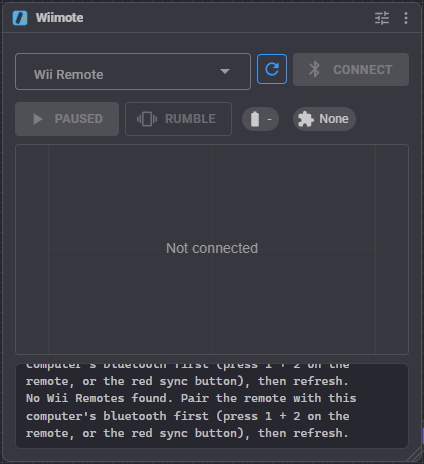
- Wii Remote list and a refresh button - the paired, connected remotes.
- Connect / Disconnect.
- Tracking / Paused button - the same as pressing Home on the remote.
- Rumble - buzz the remote for a moment, useful for checking the connection.
- Battery and Extension chips (Nunchuk, Classic Controller, MotionPlus, or none).
- A live view of the remote's tilt, with a second dot for the Nunchuk joystick when one is attached.
What the controls do
| Control | Action |
|---|---|
| D-Pad | Drives the project's Movement Panel - up is forward, down is reverse, left and right turn. Releasing the D-Pad stops the robot. With Control Movement Panel turned off, each direction runs its own script instead, plus a Stop script when the D-Pad is released. |
| A, B, -, +, 1, 2 | Each runs its own script when pressed. |
| Home | Toggles tracking. |
| Accelerometer | While tracking is on, tilting the remote positions the X and Y servos, or runs the accelerometer script. The values are always available in variables whether tracking is on or not. |
Tracking
"Tracking" means the accelerometer is live. It exists so you can put the remote down without the robot's head following it around the room. Turn it on with Home or the button in the window; the Tracking Started and Tracking Stopped scripts run each time it changes.
Configuration
Remote
| Setting | Meaning | Default |
|---|---|---|
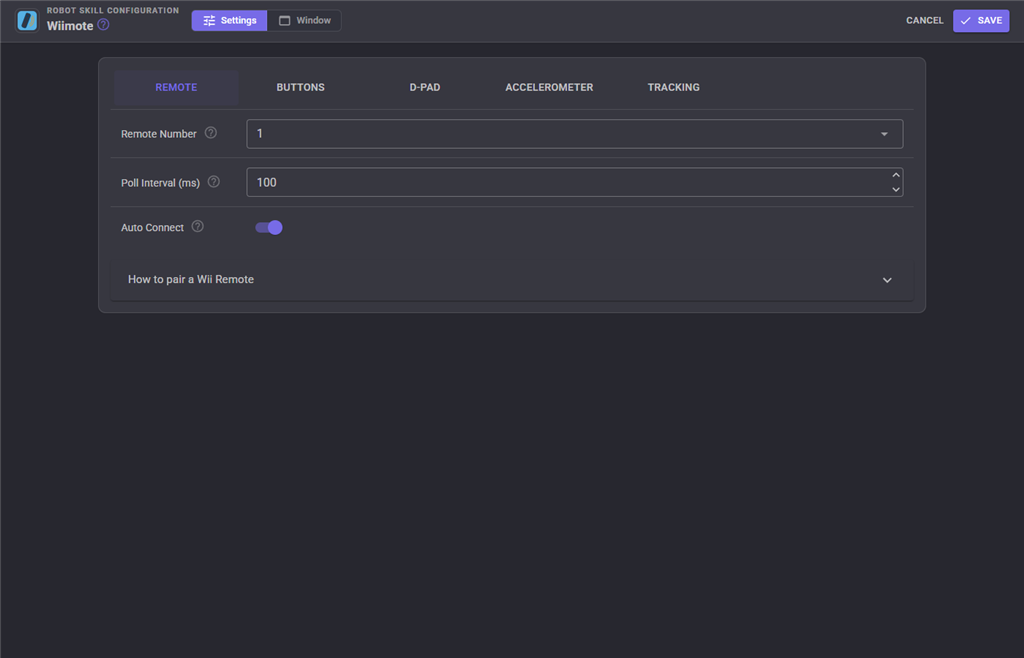
| Remote Number | Which of the four player LEDs lights up. Cosmetic, but it is how you tell two remotes apart. | 1 |
| Poll Interval (ms) | How often the remote's state is read for buttons and tilt. Lower is more responsive and more CPU. | 100 |
| Auto Connect | Reconnect to the last used remote when the project loads. If that one is not found and exactly one remote is paired, that one is used instead. | on |
Buttons
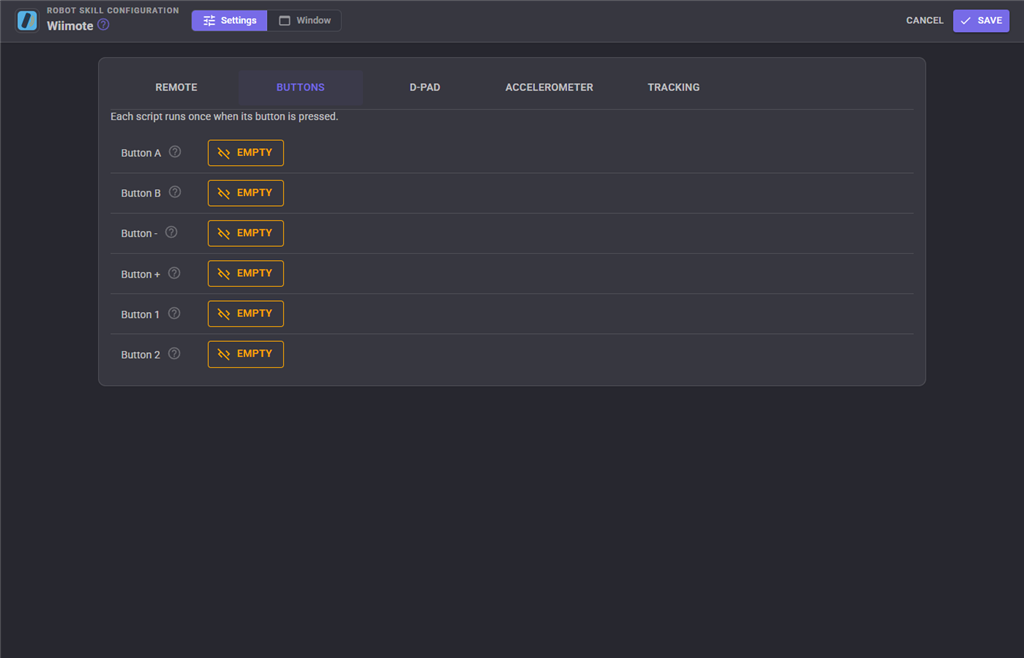
A script per button: A, B (the trigger), -, +, 1 and 2. Each runs on the press, not on the release.
D-Pad
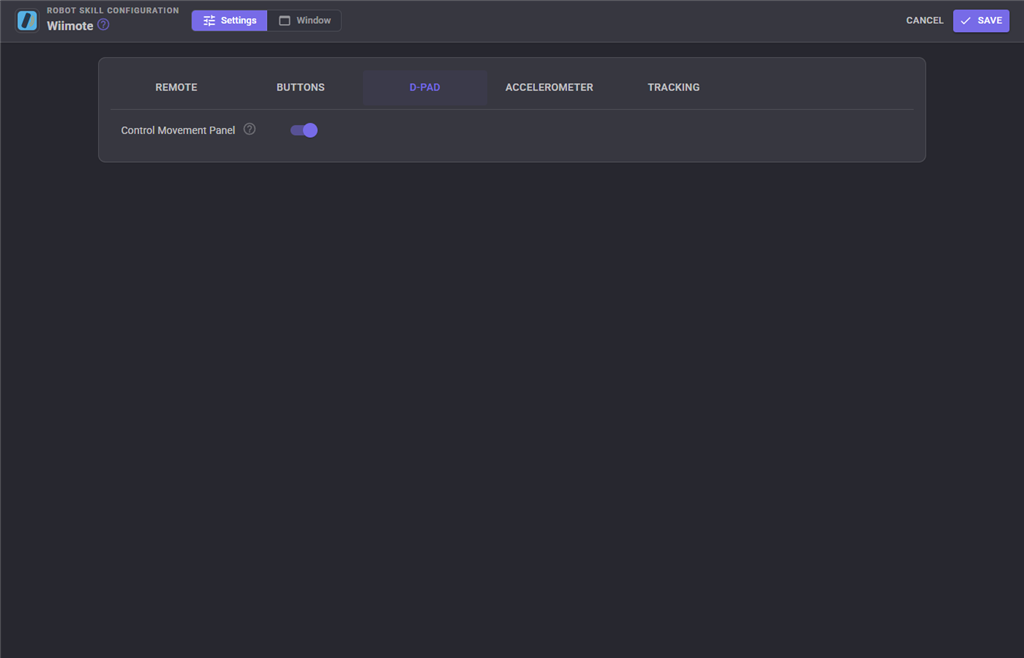
| Setting | Meaning | Default |
|---|---|---|
| Control Movement Panel | On: the D-Pad drives the project's movement panel. Off: Up, Down, Left, Right and Stop each run their own script. | on |
Accelerometer
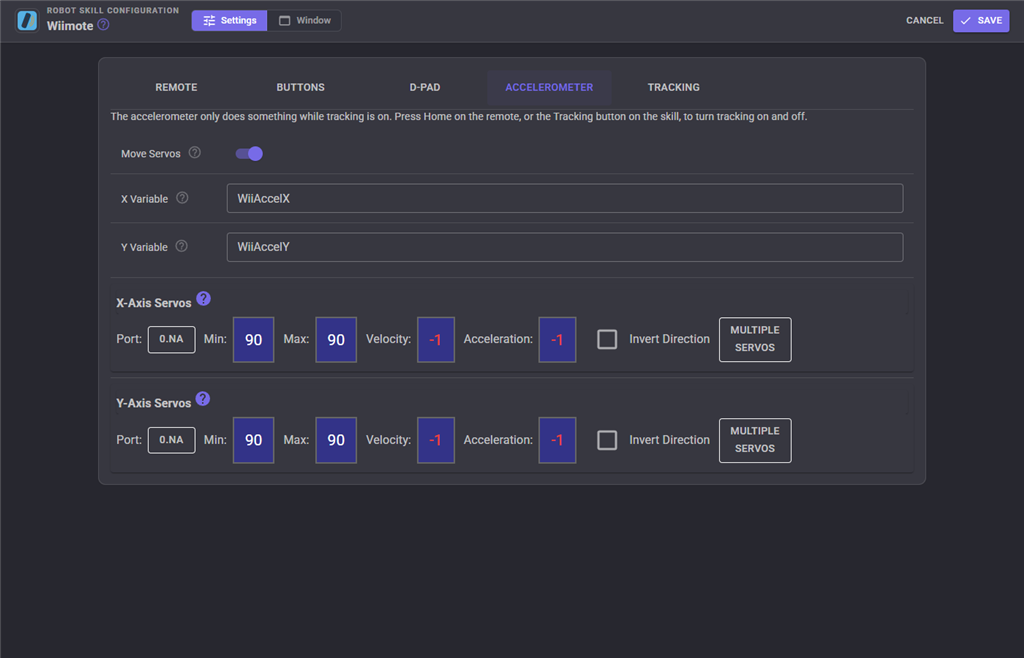
| Setting | Meaning | Default |
|---|---|---|
| Move Servos | On: the X and Y axes position servos. Off: the axes are written to variables and the accelerometer script runs when they move. | on |
| X-Axis Servos / Y-Axis Servos | The servos each axis drives, with their limits. | none |
| Sensitivity | How far, in g, an axis must move from the value that last ran the script before it runs again. Raise it if the script is running constantly from hand tremor. | 0.1 |
| X Variable / Y Variable | Where the axis values are published. | WiiAccelX, WiiAccelY |
| Accelerometer Script | Runs when an axis has moved by more than the sensitivity, with Move Servos off. | empty |
Tracking
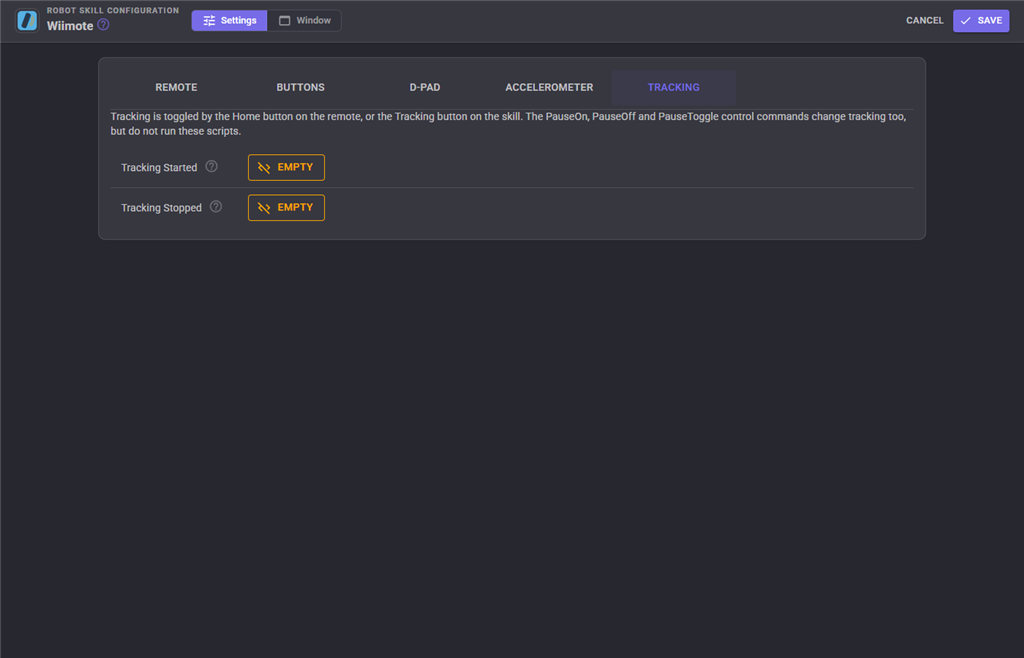
| Setting | Meaning |
|---|---|
| Tracking Started | Runs when tracking is turned on. |
| Tracking Stopped | Runs when tracking is turned off. |
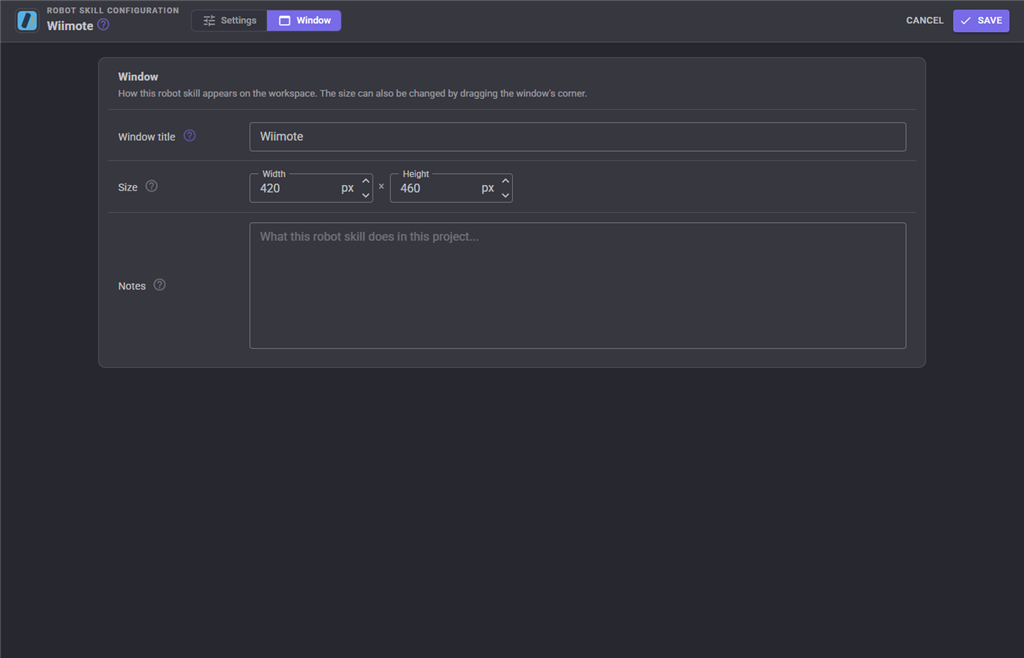
The Window tab sets the robot skill's window title, its size on the workspace and notes about what it does in this project.
Variables published
| Variable | Contents |
|---|---|
WiiAccelX |
Accelerometer X, in g. |
WiiAccelY |
Accelerometer Y, in g. |
Both are updated whenever the remote is polled, whether tracking is on or not.
Troubleshooting
| Symptom | Cause |
|---|---|
| The remote is not in the list | It is not paired, or the Bluetooth connection has dropped. Pair it in the operating system, then press refresh. |
| It connects and immediately drops | Wii Remote Bluetooth is famously fussy; re-pair, and keep it close to the adapter. |
| Nothing happens when buttons are pressed | Not connected, or nothing has been assigned to that button. |
| The D-Pad does not drive the robot | No Movement Panel in the project, or Control Movement Panel is off. |
| Servos do not follow the tilt | Tracking is off - press Home - or Move Servos is off, or no servos are selected. |
| The servos jitter | Raise Sensitivity, or widen the servo limits so small tilts map to smaller moves. |
| Response is laggy | Lower Poll Interval. |
| The battery reads low very quickly | Wii Remote batteries sag under Bluetooth load; the number comes straight from the remote. |
See also
- Movement Joystick - an on-screen alternative
- Continuous Rotation Movement Panel, Auto Position - the movement panels the D-Pad drives
Control Commands for the Wiimote robot skill
There are Control Commands available for this robot skill which allows the skill to be controlled programmatically from scripts or other robot skills. These commands enable you to automate actions, respond to sensor inputs, and integrate the robot skill with other systems or custom interfaces. If you're new to the concept of Control Commands, we have a comprehensive manual available here that explains how to use them, provides examples to get you started and make the most of this powerful feature.
Control Command ManualThis robot skill has 11 control commands, listed below. Send them from a JavaScript or Python script, from Blockly, or from another robot skill.
The first value is always the window title, which is the name in the title bar of the robot skill on your workspace. It starts out as Wiimote, which is what every example below uses. If you rename the robot skill, or add a second copy of it to the project, use the title as it appears on that window instead.
ControlCommand() can be shortened to CC(), and both spellings work in JavaScript and in Python. The examples are JavaScript; Python is the same call, except that true and false are written True and False.
Connect
Connect to the Wii Remote selected in the skill, or to the remote used last time.
Syntax
ControlCommand("Wiimote", "Connect")
Returns: Boolean [true or false]
Example
var result = ControlCommand("Wiimote", "Connect");
Disconnect
Disconnect from the Wii Remote.
Syntax
ControlCommand("Wiimote", "Disconnect")
Returns: Boolean [true or false]
Example
var result = ControlCommand("Wiimote", "Disconnect");
GetBattery
The remote's battery level, 0 to 100.
Syntax
ControlCommand("Wiimote", "GetBattery")
Returns: Integer [-2,147,483,648 to 2,147,483,647]
Example
var result = ControlCommand("Wiimote", "GetBattery");
IsConnected
Is a Wii Remote connected?
Syntax
ControlCommand("Wiimote", "IsConnected")
Returns: Boolean [true or false]
Example
var result = ControlCommand("Wiimote", "IsConnected");
IsTracking
Is tracking on?
Syntax
ControlCommand("Wiimote", "IsTracking")
Returns: Boolean [true or false]
Example
var result = ControlCommand("Wiimote", "IsTracking");
PauseOff
Start tracking. The accelerometer moves servos or runs the accelerometer script.
Syntax
ControlCommand("Wiimote", "PauseOff")
Returns: Boolean [true or false]
Example
var result = ControlCommand("Wiimote", "PauseOff");
PauseOn
Stop tracking. The accelerometer no longer moves servos or runs the accelerometer script.
Syntax
ControlCommand("Wiimote", "PauseOn")
Returns: Boolean [true or false]
Example
var result = ControlCommand("Wiimote", "PauseOn");
PauseToggle
Toggle tracking on or off, the same as pressing Home on the remote.
Syntax
ControlCommand("Wiimote", "PauseToggle")
Returns: Boolean [true or false]
Example
var result = ControlCommand("Wiimote", "PauseToggle");
WiiRumbleAlert
Rumble for the number of milliseconds (150 if not specified), then stop.
Syntax
ControlCommand("Wiimote", "WiiRumbleAlert", (Number)milliseconds)
Parameters
| # | Name | Type | What to pass |
|---|---|---|---|
| 1 | milliseconds | Number | A number, without quotes |
Returns: Boolean [true or false]
Example
var result = ControlCommand("Wiimote", "WiiRumbleAlert", 0);
WiiRumbleOff
Turn the rumble motor off.
Syntax
ControlCommand("Wiimote", "WiiRumbleOff")
Returns: Boolean [true or false]
Example
var result = ControlCommand("Wiimote", "WiiRumbleOff");
WiiRumbleOn
Turn the rumble motor on.
Syntax
ControlCommand("Wiimote", "WiiRumbleOn")
Returns: Boolean [true or false]
Example
var result = ControlCommand("Wiimote", "WiiRumbleOn");
This list is read out of the robot skill itself each time its package is uploaded, so it matches the published version (v4).



This robot skill has been updated to v1.
This robot skill has been updated to v2.
This robot skill has been updated to v3.
What has changed
compatible with the latest ARCx v2026.09.27.01
This robot skill has been updated to v4.
What has changed
spelling fix correction