
Movement panel for two continuous rotation servos or ESCs, controlling robot drive from ARC movement skills, scripts, Wiimote, and ROS cmd_vel.
 Windows
 ARM
ARM
 Linux
Linux
 MacOS
MacOS
How to add the Continuous Rotation Movement Panel robot skill
- Load the most recent release of ARCx on a compatible operating system (Get ARCx).
- Press the + Skills menu from the top menu bar in ARCx.
- Choose the Movement Panels category tab.
- Press the Continuous Rotation Movement Panel icon to add the robot skill to your project.
Don't have a robot yet?
Follow the Getting Started Guide to build a robot and use the Continuous Rotation Movement Panel robot skill.
How to use the Continuous Rotation Movement Panel robot skill
Turns two continuous rotation servos (or two RC electronic speed controllers, which take the same PWM signal) into the robot's drive system.
This is a movement panel: once it is in the project, everything in ARCx that moves the robot - the Movement Joystick, the Wiimote, Movement.Forward() in a script, the Autonomous AI skill, a ROS /cmd_vel binding - drives these two wheels. Only one Movement Panel can be in a project at a time.
Requirements
- A connected EZB.
- Two continuous rotation servos, or two ESCs, one per side.
- Both wheels driven by servo ports (they can be on different boards).
Adding it to a project
- Connect to the EZB.
- Add the skill (Movement Panels category).
- Open the configuration. For each wheel choose the servo port, then set its Max Speed Forward Value, Stop Value and Max Speed Reverse Value.
- Save and press the arrow buttons in the skill's window.
Opening the configuration stops the robot first.
Setting the three values per wheel
A continuous rotation servo does not take a position, it takes a speed: one end of the servo range is full speed one way, the middle is stop, the other end is full speed the other way.
Because the two wheels face opposite directions on the robot, their forward values are at opposite ends of the range. That is why the defaults are:
| Forward | Stop | Reverse | |
|---|---|---|---|
| Left wheel | servo maximum | servo centre | servo minimum |
| Right wheel | servo minimum | servo centre | servo maximum |
To calibrate:
- Set both wheels' values to the defaults and press Forward.
- If a wheel turns the wrong way, swap that wheel's forward and reverse values.
- If a wheel creeps when stopped, adjust that wheel's Stop Value a little either side of centre until it is still. Many continuous rotation servos need this trim.
The window
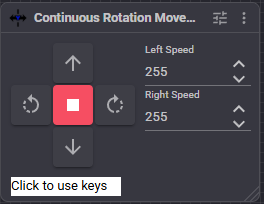
- Movement buttons - forward, reverse, left, right and stop.
- Left Speed and Right Speed - the current speed for each side, 0-255. These are ARCx's global movement speeds, so changing them here changes what every other skill commands as well.
How speed works
The speed, 0-255, is scaled between the wheel's Stop Value and its forward or reverse value. Speed 255 sends the full forward (or reverse) value; half speed sends halfway between stop and that value. Each wheel uses its own speed, so a script can set the two sides differently to drive in an arc.
Turning is done by driving one wheel forward and the other in reverse (a spin turn):
| Direction | Left wheel | Right wheel |
|---|---|---|
| Forward | forward | forward |
| Reverse | reverse | reverse |
| Left | reverse | forward |
| Right | forward | reverse |
Configuration
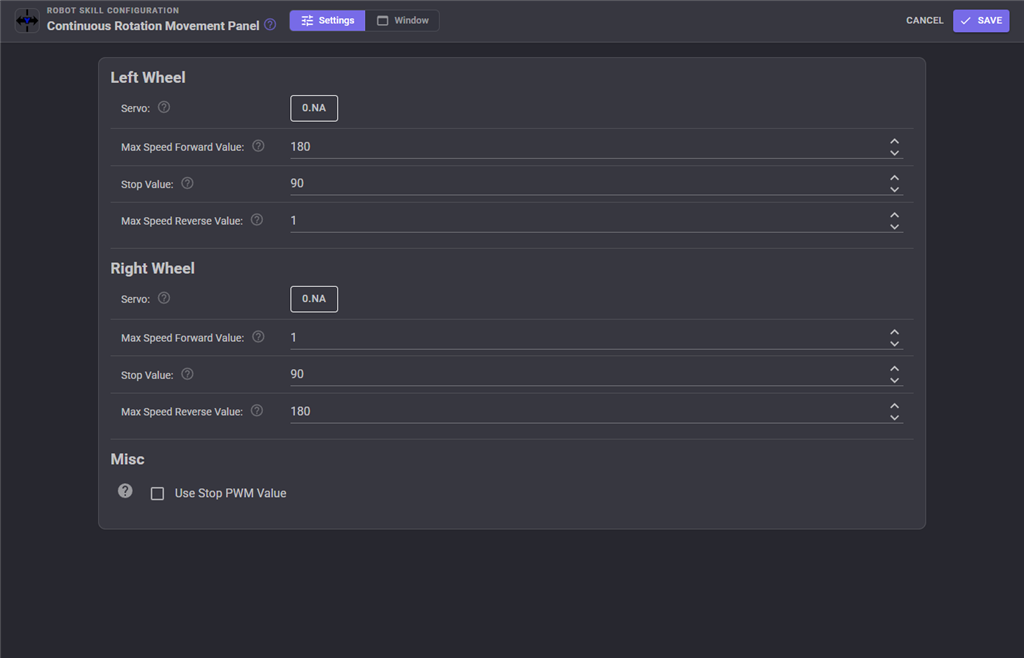
| Setting | Meaning |
|---|---|
| Left Wheel Servo | The board and port for the left wheel. |
| Left Wheel Max Speed Forward Value | Servo value that drives the left wheel forward at full speed. |
| Left Wheel Stop Value | Servo value at which the left wheel is stopped - usually the centre. |
| Left Wheel Max Speed Reverse Value | Servo value that drives the left wheel in reverse at full speed. |
| Right Wheel ... | The same four settings for the right wheel. |
| Use Stop PWM Value | When on, stopping sends the Stop Value to both servos, so a PWM signal is always present. When off, stopping releases both servos and no signal is sent at all. Some ESCs and RC controllers need a continuous signal and must have this on; plain hobby servos are quieter and cooler with it off. |
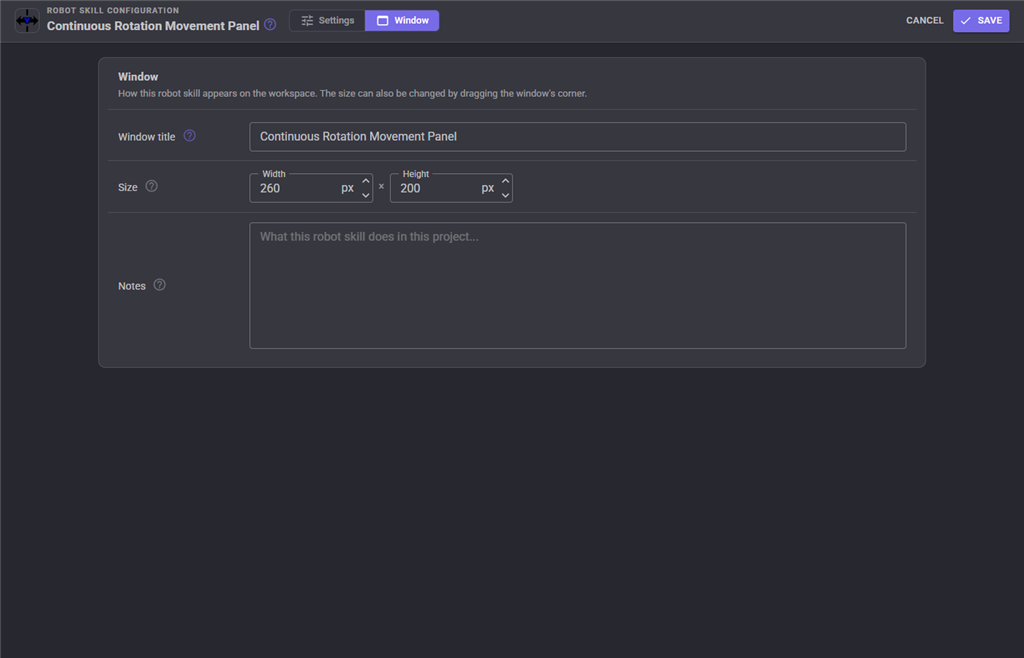
The Window tab sets the robot skill's window title, its size on the workspace and notes about what it does in this project.
Troubleshooting
| Symptom | Cause |
|---|---|
| One wheel turns the wrong way | Swap that wheel's forward and reverse values. |
| A wheel creeps when stopped | Trim that wheel's Stop Value. |
| The robot twitches or an ESC beeps when stopped | Turn on Use Stop PWM Value. |
| Nothing moves | Not connected, wrong port, or the wrong board index on a multi-board project. |
| One side ignores its speed | Check that each wheel is configured with its own board index - each wheel is commanded on its own board. |
| Two movement panels in the project | Remove one; only one Movement Panel is supported. |
See also
- Movement Joystick - an on-screen pad that drives this panel
- Wiimote - a Wii Remote that drives this panel
- Auto Position (movement panel) - the alternative panel for legged robots
Control Commands for the Continuous Rotation Movement Panel robot skill
There are Control Commands available for this robot skill which allows the skill to be controlled programmatically from scripts or other robot skills. These commands enable you to automate actions, respond to sensor inputs, and integrate the robot skill with other systems or custom interfaces. If you're new to the concept of Control Commands, we have a comprehensive manual available here that explains how to use them, provides examples to get you started and make the most of this powerful feature.
Control Command ManualThis skill has no control commands of its own.
It is a movement panel. It is driven through ARCx's movement system, which means the
Movement object in a script, not a ControlCommand() call.
Driving from a script
| Script command | What it does |
|---|---|
Movement.Forward() |
Drive forward at the current speed. |
Movement.Forward(speed) |
Drive forward at a speed of 0-255. |
Movement.Forward(speed, timeOutMs) |
Drive forward for that many milliseconds, then stop. |
Movement.Reverse() / Movement.Reverse(speed) / Movement.Reverse(speed, timeOutMs) |
Drive backwards. |
Movement.Left() / Movement.Left(speed) / Movement.Left(speed, timeOutMs) |
Spin left. |
Movement.Right() / Movement.Right(speed) / Movement.Right(speed, timeOutMs) |
Spin right. |
Movement.Stop() |
Stop - releases both servos, or sends the stop value if Use Stop PWM Value is on. |
Movement.SetSpeed(speed) |
Set both sides' speed, 0-255. |
Movement.SetSpeed(left, right) |
Set each side separately - drive in an arc. |
Movement.SetSpeedLeft(speed) / Movement.SetSpeedRight(speed) |
Set one side. |
Movement.GetSpeed() / GetSpeedLeft() / GetSpeedRight() |
Read the current speeds. |
Movement.FromString("forward") |
Move by name; also accepts a speed, or a left and a right speed. |
Movement.WaitForForward(), WaitForStop(), WaitForLeft(), WaitForRight() |
Block until the robot is moving that way. |
Examples
Drive a square:
Movement.SetSpeed(180);

for (var i = 0; i < 4; i++) {

  Movement.Forward(180, 2000);
  Movement.Right(180, 800);
}

Movement.Stop();
Drive in an ARC by giving each wheel its own speed:
Movement.SetSpeed(200, 120);
Movement.Forward();
sleep(3000);
Movement.Stop();
Moving the wheel servos directly
The wheels are ordinary servo ports, so Servo.SetPosition(port, value) will move them -
but doing that behind the movement panel's back leaves ARCx thinking the robot is
stopped. Use Movement unless you have a reason not to.


This robot skill has been updated to v1.
This robot skill has been updated to v2.
This robot skill has been updated to v3.
This robot skill has been updated to v4.
What has changed
compatible with the latest ARCx v2026.09.27.01