
ARCx testing scaffold showcasing skill lifecycle, config JSON, control commands, UI, timer, and static assets for developer reference
 Windows
 ARM
ARM
 Linux
Linux
 MacOS
MacOS
How to add the Arcx Testing Robot Skill robot skill
- Load the most recent release of ARCx on a compatible operating system (Get ARCx).
- Press the + Skills menu from the top menu bar in ARCx.
- Choose the Examples category tab.
- Press the Arcx Testing Robot Skill icon to add the robot skill to your project.
Don't have a robot yet?
Follow the Getting Started Guide to build a robot and use the Arcx Testing Robot Skill robot skill.
How to use the Arcx Testing Robot Skill robot skill
ARCx Testing Robot Skill
A scaffold and playground robot skill. This is not a real robot skill - it controls nothing and is not useful in a robot project. It exists so that a developer writing a new ARCx skill has a working example of every part of the skill lifecycle in one small file, and so that ARCx itself has something to test the skill host against.
If you are looking for a skill to use, this is not it. If you are writing one, start here.
What it demonstrates
| Part of a skill | Where to look |
|---|---|
Worker lifecycle - constructor, Setup(), Initialize(), DisposeOverride() and why each one exists |
RobotSkillWorker.cs, top to bottom; every method carries a comment explaining what belongs in it |
| Window size, height and allowing multiple instances | Setup() |
| Saving and loading configuration as JSON in the project | OnSetConfiguration() and GetConfigOnProjectSave() |
| Declaring the configuration type so the AI agent gets a JSON Schema for it | GetConfigurationType() |
| Running a timer and refreshing the window from it | the _timer field and its tick handler |
| Control commands - declaring them and handling them | GetSupportedControlCommands() and ControlCommand() |
| A main window with buttons, a progress bar, an image and a log | RobotSkillUIMain.razor |
| A configuration dialog with text, numeric and servo selector fields | RobotSkillUIConfig.razor |
| Shipping a static asset with a skill | the capture.jpg image referenced from the main window |
The window
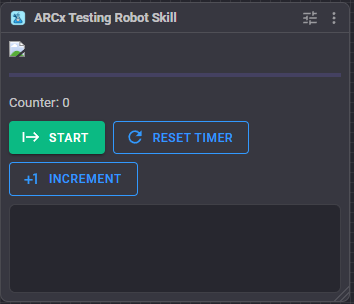
- An image, purely to show that a skill can ship and display one.
- A progress bar that animates while the timer is running.
- Counter - a number the timer increments.
- Start / Stop - run or stop the timer. The button's text, colour and icon come from the worker, which is the pattern to copy for any window that reflects worker state.
- Reset Timer - set the counter back to zero.
- Increment - add one by hand.
- A log.
Configuration
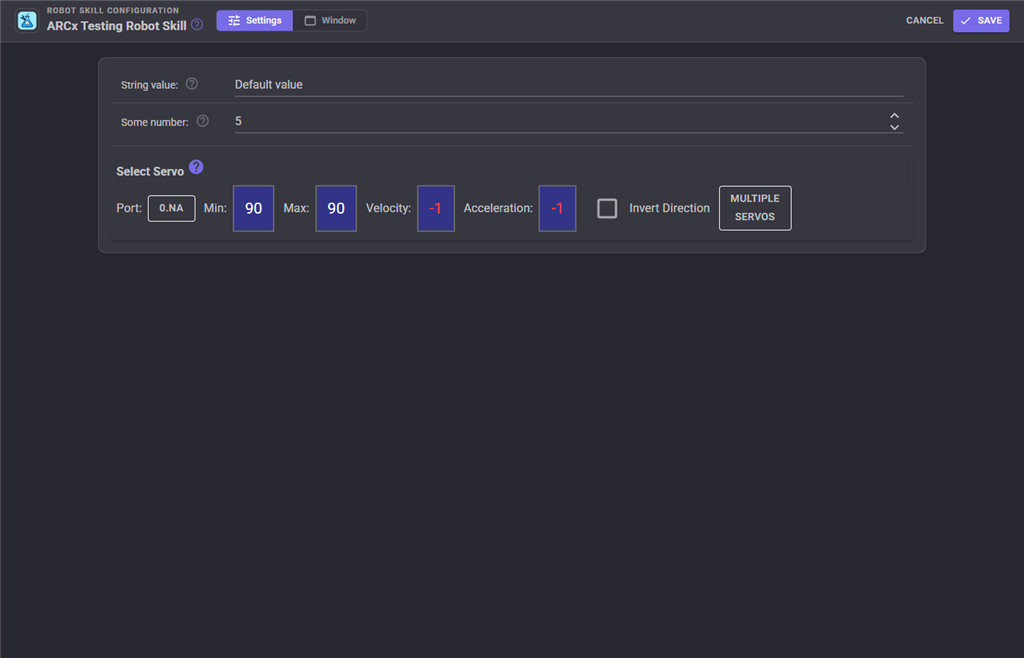
Three fields, each present to demonstrate a control type rather than to do anything:
| Setting | Meaning |
|---|---|
| String value | A text field. Default Default value. |
| Some number | A numeric field limited to -50..50. Default 5. |
| Select Servo | The standard ARCx servo selector, showing how to put one in a configuration dialog. |
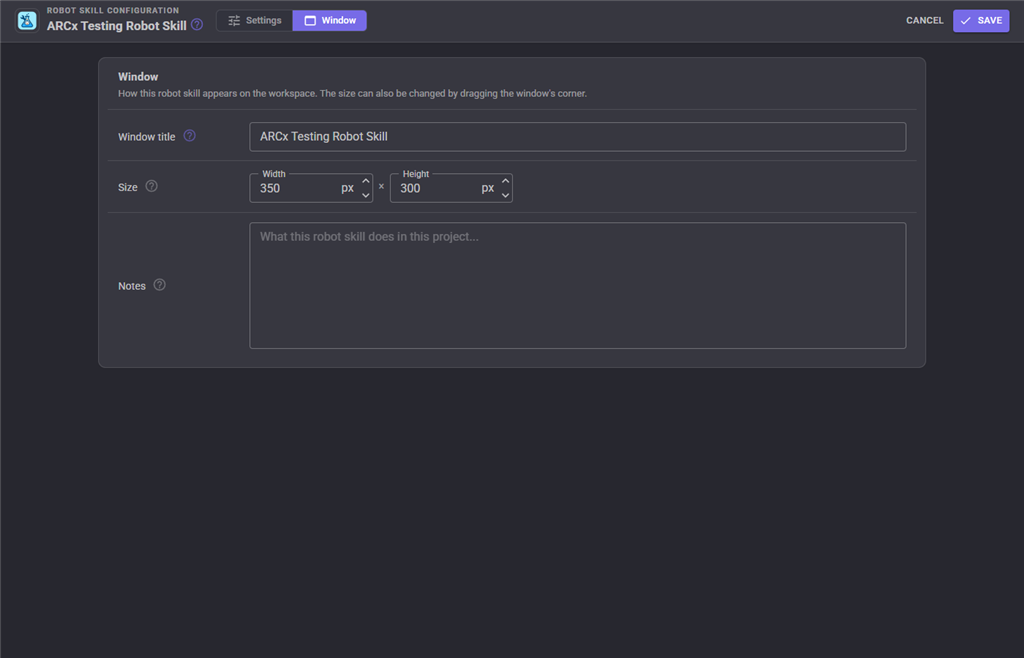
The Window tab sets the robot skill's window title, its size on the workspace and notes about what it does in this project.
Using it as a starting point
- Copy the folder and rename the project, the namespace and the assembly.
- Give
plugin.jsona new GUID, your own name and description, and a real category. - Strip out the parts you do not need - the timer, the image, the example configuration fields - and keep the lifecycle overrides.
- Replace
title.pngwith your own icon.
Note that the version number in plugin.json is high (28) because this skill is rebuilt constantly during ARCx development; that is not a model to copy.
See also
- Example - Draw On Canvas - the other example skill, for live graphics
Manuals/RobotSkill-Services-And-Core.mdandManuals/RobotSkill-UI-Components.mdin the ARCx source
Control Commands for the Arcx Testing Robot Skill robot skill
There are Control Commands available for this robot skill which allows the skill to be controlled programmatically from scripts or other robot skills. These commands enable you to automate actions, respond to sensor inputs, and integrate the robot skill with other systems or custom interfaces. If you're new to the concept of Control Commands, we have a comprehensive manual available here that explains how to use them, provides examples to get you started and make the most of this powerful feature.
Control Command ManualThis robot skill has 3 control commands, listed below. Send them from a JavaScript or Python script, from Blockly, or from another robot skill.
The first value is always the window title, which is the name in the title bar of the robot skill on your workspace. It starts out as ARCx Testing Robot Skill, which is what every example below uses. If you rename the robot skill, or add a second copy of it to the project, use the title as it appears on that window instead.
ControlCommand() can be shortened to CC(), and both spellings work in JavaScript and in Python. The examples are JavaScript; Python is the same call, except that true and false are written True and False.
IsRunning
Is the current timer running? Returns true|false if running
Syntax
ControlCommand("ARCx Testing Robot Skill", "IsRunning")
Returns: Boolean [true or false]
Example
var result = ControlCommand("ARCx Testing Robot Skill", "IsRunning");
Start
This will start the counter
Syntax
ControlCommand("ARCx Testing Robot Skill", "Start")
Returns: Boolean [true or false]
Example
var result = ControlCommand("ARCx Testing Robot Skill", "Start");
Stop
This will stop the counter
Syntax
ControlCommand("ARCx Testing Robot Skill", "Stop")
Returns: Boolean [true or false]
Example
var result = ControlCommand("ARCx Testing Robot Skill", "Stop");
This list is read out of the robot skill itself each time its package is uploaded, so it matches the published version (v30).

This robot skill has been updated to v12.
This robot skill has been updated to v13.
This robot skill has been updated to v14.
This robot skill has been updated to v15.
This robot skill has been updated to v16.
This robot skill has been updated to v17.
This robot skill has been updated to v18.
This robot skill has been updated to v19.