
How To
Speech recognition lets a robot act on what it hears: "robot move forward", "go to sleep", "what time is it". This page explains how to set it up and what happens between someone speaking and a script running.
In ARCx this is never one robot skill. It is three pieces, and each one does a single job:
 Microphone  ──►  Speech to text engine  ──►  Speech Phrase Recognition  ──►  your scripts
 (Preferences)    (turns sound into text)     (matches text to phrases)       (do something)
- The microphone is chosen once for the whole of ARCx, in Options → Preferences. It can be a sound card, a USB microphone, or the microphone of a web browser.
- A speech to text engine robot skill turns that sound into text. Engines have no scripts of their own. On its own an engine only fills its log.
- Speech Phrase Recognition watches the text that the engine produces. When the text matches a phrase in its list, it runs that phrase's script.
Contents
- Quick start
- Step 1: Choose the microphone
- Step 2: Add a speech to text engine
- Step 3: Add Speech Phrase Recognition
- When the robot listens
- How it works
- Listening from a script
- Example setups
- Troubleshooting
Quick start
For a robot that responds to spoken commands, with nothing to sign up for:
- Options → Preferences → Audio → Microphone: leave it on System default, or pick your microphone.
- Add a robot skill → Audio → SherpaOnnx Speech To Text (any platform), or Windows Speech Engine (Windows only).
- Add a robot skill → Audio → Speech Phrase Recognition. It selects the engine by itself.
- Open the configuration of Speech Phrase Recognition. Edit the phrase table so each row is something you will say and the script to run. Save.
- Say one of the phrases. It appears in the log of Speech Phrase Recognition and its script runs.
The rest of this page explains each step and the choices in it.
Step 1: Choose the microphone
ARCx has one microphone for the whole project. Every robot skill that listens gets its sound from the same place: speech engines, Voice Activity Detection, recorders. Robot skills do not choose their own microphone. You choose it once, here:
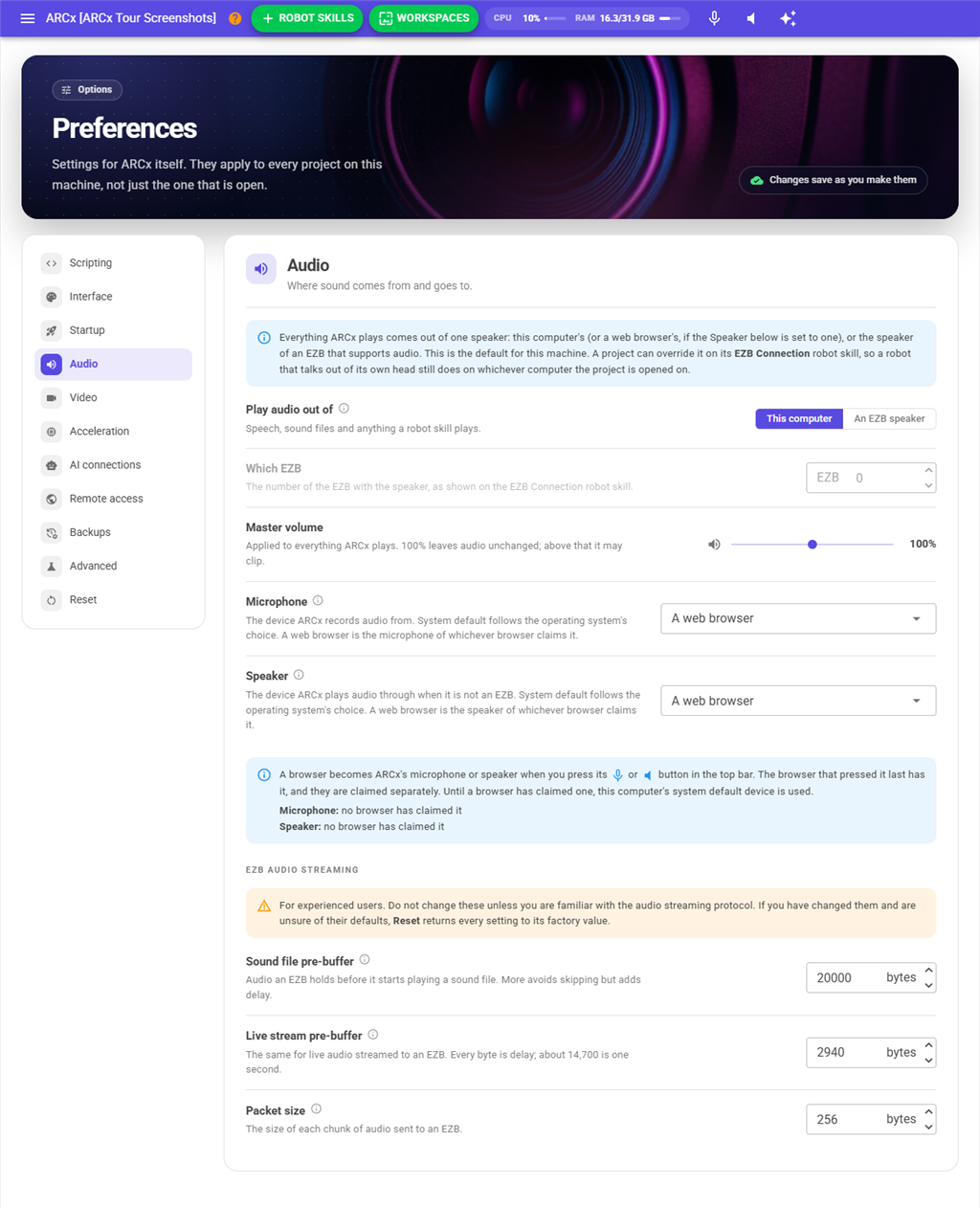
Options → Preferences → Audio → Microphone
| Choice | What it means |
|---|---|
| System default | The microphone the operating system is set to use on the computer ARCx runs on. If you change the default in Windows or Linux, ARCx follows it. |
| A web browser | The microphone of a browser you are using to control ARCx, such as a phone or a laptop. See below. |
| A named device | A specific sound card, USB microphone or microphone array on the computer ARCx runs on. |
A named device is saved by its name, not its position in the list, so the choice still works after other devices are plugged in or removed. If the device is unplugged, it stays selected and is marked (not available). ARCx uses the next best microphone until the device comes back.
A microphone on the computer ARCx runs on
This is a sound card input, a USB microphone or a microphone array plugged into the computer that runs ARCx. On a robot, that computer is usually the robot itself. Choose System default or the device by name.
Speech engines work best with a microphone close to the speaker. A USB microphone array, of the kind sold for conference calls, works much better across a room than a laptop's built in microphone.
A web browser's microphone
ARCx is controlled from a web browser, and that browser can be ARCx's microphone. For example, you can hold up a phone and talk to the robot from across the house. Any number of browsers can have ARCx open, so you choose which one by pressing a button in that browser:

- Set Microphone to A web browser in Preferences.
- A microphone button appears in the top bar of every browser that has ARCx open. In the browser you want to talk into, press it. The browser asks for permission to use its microphone; allow it.
- The button turns green. That browser is now ARCx's microphone.
Points to know:
-
The last browser to press the button has the microphone. If another browser presses it, that browser takes over and the first one lets go.
-
Press the button again to release the microphone. Until a browser has claimed it, or after it is released, ARCx uses the system default microphone of its own computer.
-
The browser only records while something in ARCx is listening, so the browser's recording indicator is not on all the time.
-
Browsers only allow the microphone over HTTPS, or when the browser runs on the same computer as ARCx. To use the microphone of a phone or another computer, start ARCx on an
https://address with a certificate:ARCx -b https://0.0.0.0:5001 --cert robot.pfx --cert-password secretSee the command line manual for certificates. Preferences shows a warning when the page you are looking at cannot use its microphone for this reason.
The microphone button in the top bar chooses which microphone ARCx uses. It is not a button that makes the robot listen. For that, see When the robot listens.
Checking that sound arrives
Every speech engine has a level bar in its window that shows the sound reaching it. If the bar moves when you speak, the microphone is working, and any remaining problem is in the engine or the phrases. If the bar never moves, the problem is the microphone choice above.
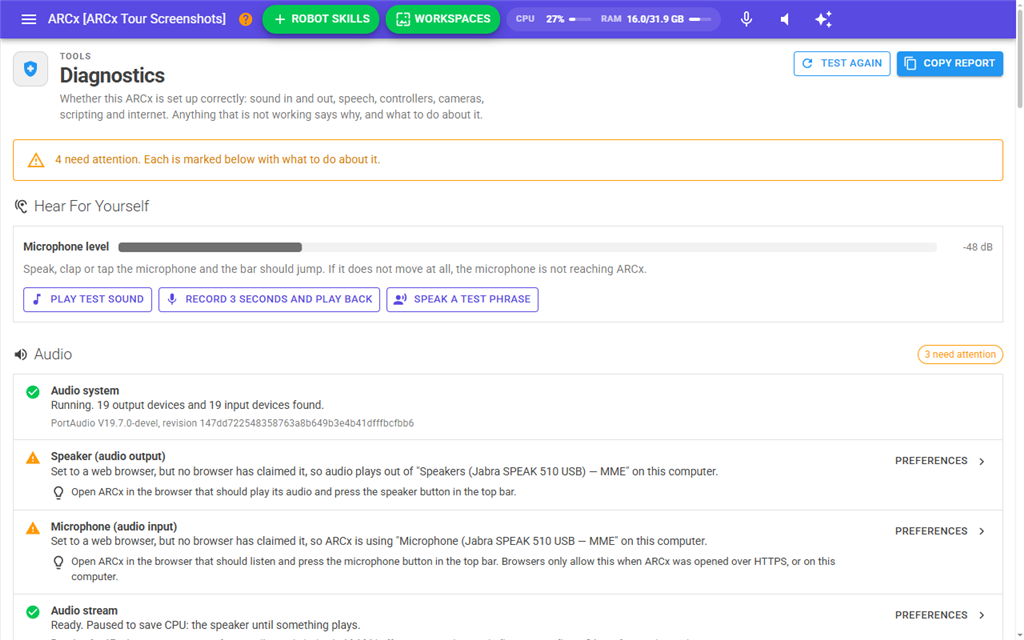
Tools → Diagnostics also checks sound in and speech, and says what to do about anything that is not working.
Step 2: Add a speech to text engine
A speech to text engine turns sound into text and does nothing else. It has no scripts and no phrase list of its own. It provides recognition to whatever in the project asks for it:
- the Speech Phrase Recognition robot skill (Step 3),
- the listen option of an AI robot skill such as Autonomous AI,
- the
Audio.WaitForSpeech()script command and the Wait For Speech popup, - the wake word of another engine.
Add one from Add a robot skill → Audio. Choose by where ARCx runs and what you are willing to pay:
| Engine | Runs on | Cost | Internet | Strengths |
|---|---|---|---|---|
| SherpaOnnx Speech To Text | Windows, Linux (including Raspberry Pi), macOS on Apple silicon | Free | Only to download the model the first time | Offline neural models in many languages. Good to leave listening all day. |
| Windows Speech Engine | Windows only | Free | No | Built into Windows. Uses the phrase list as a strict grammar, which is very reliable for commands. Also provides a text to speech voice. |
| Azure Speech To Text Engine | Any | Your Synthiam account, with a daily limit on requests | Yes | Accurate cloud recognition, with no Azure key to set up. Records one phrase per request and never listens on its own (see below). |
| Azure Speech To Text Engine (Custom) | Any | Billed to your own Azure key | Yes | Listens continuously, can detect which of several languages is spoken. |
Each engine's own manual covers its settings in detail.
You may add more than one engine to a project. The usual reason is a wake word: a free engine listens all day for "hey robot", and only then does a cloud engine record what follows. Each engine can only be added once per project.
Engines that only listen when triggered
Azure Speech To Text Engine costs a request from a daily allowance every time it records. To avoid spending that allowance on an empty room, it never listens just because something asked it to listen continuously. It records only when:
- its wake word is heard (set in its own configuration),
- its Listen button or Custom UI microphone widget is pressed,
- a script asks for one phrase (
GetTextcontrol command,Audio.WaitForSpeech()), - Speech Phrase Recognition is sent its Wake control command.
If you pair it with Speech Phrase Recognition and set none of these, nothing is ever heard. The log says so.
Step 3: Add Speech Phrase Recognition
Speech Phrase Recognition is the robot skill that turns recognized speech into actions. It has a table of phrases, each with a script. It asks the engine to listen for those phrases, and runs a phrase's script when the phrase is heard.
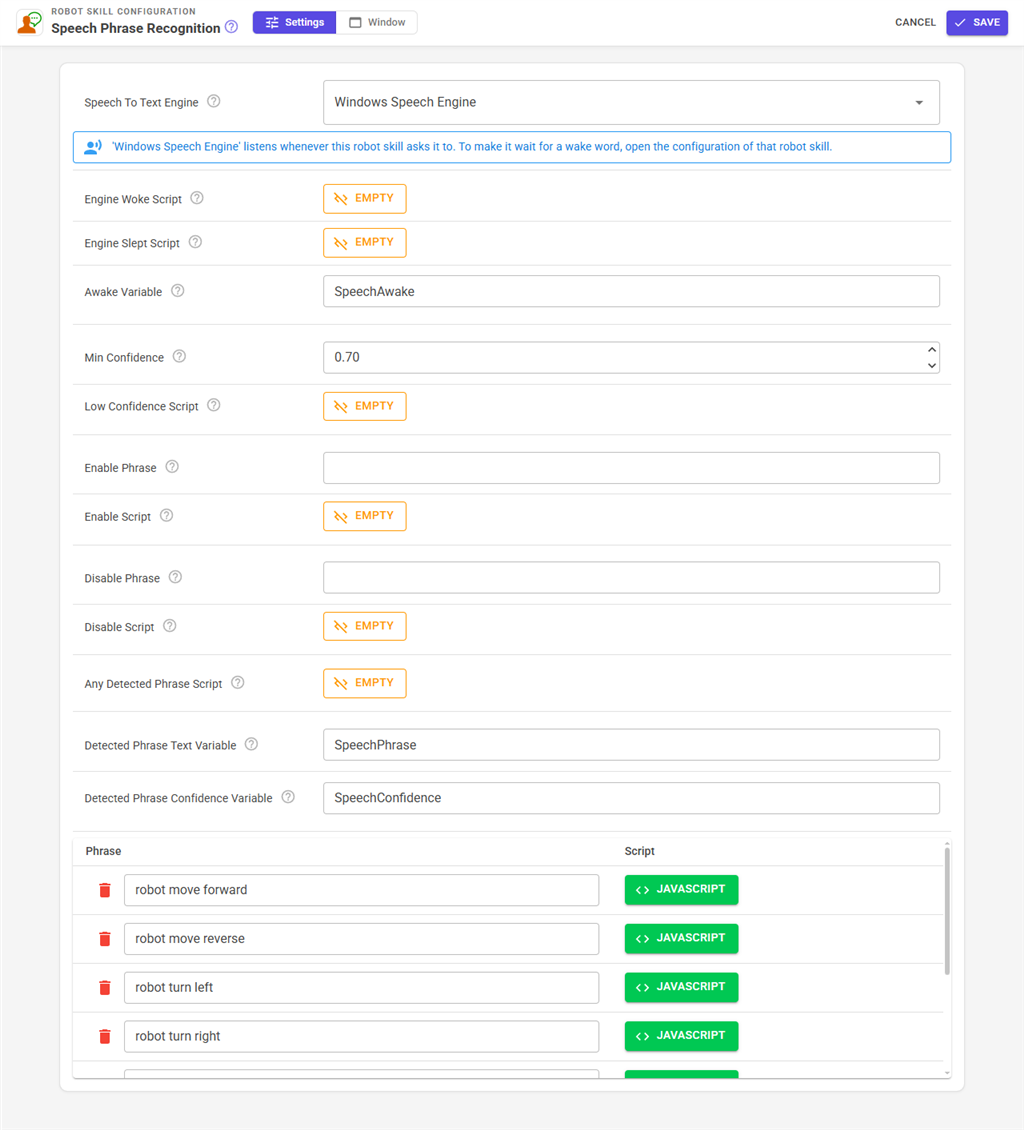
- Add a robot skill → Audio → Speech Phrase Recognition. Only one is allowed per project.
- Open its configuration. Speech To Text Engine is already set to the first engine in the project. Change it if you have more than one, for example to choose the cloud engine instead of the wake word engine.
- Edit the phrase table at the bottom. Each row is one phrase and the script that runs when it is heard. Add rows with + and remove them with the bin icon. The skill ships with movement commands as examples.
- Save. Listening starts immediately.
A phrase row's script can do anything a script can do:
// Phrase: "robot move forward"
Audio.Say("Moving forward");
Movement.forward();
Writing good phrases
- Short, distinct, multi-word phrases work best. "robot stop" is better than "stop".
- Avoid phrases that sound alike. "robot move forward" and "robot move backward" differ by one word, and that is the usual cause of the wrong script running.
- Start every command with the robot's name. This makes ordinary conversation in the room much less likely to trigger a command.
- Matching ignores case and surrounding spaces, and compares the whole phrase.
Other settings worth knowing
| Setting | Use it for |
|---|---|
| Min Confidence | Rejects phrases the engine is unsure of. Default 0.70. Lower it for a poor microphone, raise it if commands trigger by mistake. |
| Low Confidence Script | Runs when something was heard but rejected. A good place for Audio.Say("Sorry, say that again?"). |
| Any Detected Phrase Script | Runs before every matched phrase's own script, and is waited for. Use it for a common acknowledgement such as a beep. |
| Enable Phrase / Disable Phrase | Spoken phrases that switch acting on commands on and off. They work even while the skill is disabled, so you can switch it back on by voice. |
| Engine Woke Script / Engine Slept Script | Run when the engine wakes on its wake word and when it goes back to sleep. For example, light an LED while the robot is listening. |
It also sets three global variables that any script can read:
| Variable | Contents |
|---|---|
SpeechPhrase |
The text of the last phrase heard. |
SpeechConfidence |
How sure the engine was, 0 to 1. |
SpeechAwake |
true while the engine is listening, false while it waits for a wake word. |
The Speech Phrase Recognition manual describes every setting.
When the robot listens
A robot that listens all the time is easy to set up, but it can be triggered by a television, and it can spend a cloud engine's allowance. ARCx gives you four ways to decide when the robot listens. All of them are set on the engine, or sent to Speech Phrase Recognition from a script. None needs a different microphone.
Always listening
With SherpaOnnx Speech To Text, Windows Speech Engine or Azure Speech To Text Engine (Custom), Speech Phrase Recognition listens continuously from the moment the project opens. Nothing more to set up. Use the Paused switch in the engine's window to stop it for a while, or the Enable Phrase / Disable Phrase to stop acting on commands by voice.
After a wake word
The engine stays asleep until a phrase such as "hey robot" is heard, then listens for a while.
- Open the configuration of the engine that Speech Phrase Recognition uses, and find Wake Word.
- Turn on Only listen after a wake word.
- Choose the Wake Word Engine: the engine that listens all day for the phrase. Choose a free, local one, such as SherpaOnnx or Windows Speech Engine. It may be the same engine.
- Enter the Wake Phrases, separated by commas.
- Set Stay Awake (ms): how long the robot keeps listening after the wake phrase. Every phrase heard restarts this timer. 0 means one phrase per wake.
The wake word is a setting of the engine, not of Speech Phrase Recognition. ARCx does the waking, so any robot skill that uses the engine gets the same behaviour. Speech Phrase Recognition runs its Engine Woke Script and Engine Slept Script when this happens.
When anybody talks
Add the Voice Activity Detection robot skill and choose it as the Wake Word Engine in step 3 above. It detects that someone is talking without recognizing words, so there is no phrase to enter. The engine wakes as soon as anybody speaks. This is a good fit for a cloud engine, as long as the room is not noisy. Set its sensitivity first. Its manual explains how.
When a button is pressed (push to talk)
Have a script tell the engine to listen. This works from anything that can run a script: a button on a Custom UI screen, a joystick or gamepad button, or another robot skill.
// Listen for one command
ControlCommand("Speech Phrase Recognition", "Wake");
Wake starts the engine listening as if its wake word had been heard. It only works for an engine that sleeps: one with a wake word configured, or one that only listens when triggered, such as Azure Speech To Text Engine. An engine that is always listening is never asleep, so Wake does nothing for it. Sleep puts the engine back to sleep early, and IsAwake returns whether it is listening.
Azure Speech To Text Engine, with no wake word set, is the most natural push to talk engine. Each Wake records exactly one phrase and costs exactly one request. Its own Listen button, and the Listen microphone widget it offers for Custom UI screens, also record one phrase. That phrase only goes to the log, though, which makes them a way to test the engine rather than to run commands.
How it works
From someone speaking to a script running:
- The microphone. ARCx records the selected microphone (or the browser that claimed it) as mono sound at 16,000 samples per second, 64 milliseconds at a time, and hands it to every robot skill that is listening. The microphone only records while something is listening. When nothing is, it is switched off.
- The request. When the project opens, Speech Phrase Recognition asks ARCx's speech recognition system to listen continuously on its chosen engine, and gives it the phrase list.
- The engine. The engine converts the sound into text. How the phrase list is used depends on the engine:
- Windows Speech Engine uses the list as a grammar. It only tries to hear those phrases, which is why it is so reliable for commands.
- SherpaOnnx and Azure (Custom) recognize everything, then compare it with the list. Small mistakes are forgiven, and how close the match was is reported as the confidence.
- Azure Speech To Text Engine recognizes free text. Speech Phrase Recognition does the matching itself.
- The speech recognition system sits between engines and the skills that use them. It does three things so that neither side has to:
- Restarting. An engine that records one phrase at a time, such as Azure Speech To Text Engine, is started again after each phrase. Speech Phrase Recognition sees a continuous stream of phrases either way.
- Wake words. It keeps a sleeping engine quiet while the wake word engine listens, wakes it when the phrase is heard, and puts it back to sleep when the awake time runs out.
- Sharing. There is one microphone. When a script calls
Audio.WaitForSpeech()on the engine that Speech Phrase Recognition uses, the phrase skill is paused, the script gets its answer, and the phrase skill resumes.
- The robot's own voice. Engines stop listening while the robot is talking (and for a short time after), so the robot does not hear its own text to speech and react to it. This is the Ignore the robot's own voice setting in each engine.
- The result. The engine reports the text and a confidence. Speech Phrase Recognition then, in this order:
- sets
SpeechPhraseandSpeechConfidence, - runs the Low Confidence Script and stops, if the confidence is below Min Confidence,
- handles the Enable Phrase and Disable Phrase,
- stops, if it is disabled,
- if the text matches a row, runs the Any Detected Phrase Script and waits for it to finish, then starts that row's script in the background.
- sets
Only one robot skill can listen continuously through an engine at a time. If an AI skill and Speech Phrase Recognition both want the same engine continuously, one of them reports "Could not listen through ...". Give each its own engine.
Listening from a script
A script can also ask for one phrase and wait for the answer. It does not need Speech Phrase Recognition for this:
Audio.Say("Should I move forward?");
var answer = Audio.WaitForSpeech(10, "yes", "no");   // wait up to 10 seconds for yes or no

if (answer == "yes")
  Movement.forward();
The engine used for this is set in Project → Properties → Wait For Speech To Text Engine. Leave it empty to use any engine in the project. Engines that only listen when triggered, such as Azure Speech To Text Engine, record straight away for this, because the request is itself the trigger.
Example setups
Offline voice commands on a Raspberry Pi. System default microphone (a USB microphone array) → SherpaOnnx Speech To Text with the default streaming model → Speech Phrase Recognition. Free, no internet after the first download, always listening.
A Windows robot with a strict command list. System default microphone → Windows Speech Engine → Speech Phrase Recognition. Install the speech language pack for your language in Windows Settings first.
Cloud accuracy without spending requests on an empty room. SherpaOnnx Speech To Text (free, always listening) as the Wake Word Engine in the configuration of Azure Speech To Text Engine, with the wake phrase hey robot → Speech Phrase Recognition set to use Azure Speech To Text Engine. A request is only made after the robot hears its name.
Talk to the robot from your phone. ARCx started on https:// with a certificate → Microphone set to A web browser → press the microphone button in the phone's browser → any engine → Speech Phrase Recognition.
Push to talk. Azure Speech To Text Engine with no wake word → Speech Phrase Recognition set to use it → a Custom UI button whose script is ControlCommand("Speech Phrase Recognition", "Wake");. One press, one phrase, one request.
Troubleshooting
The level bar in the engine's window never moves. No sound is reaching ARCx. Check Options → Preferences → Audio → Microphone. If it is set to A web browser, check that a browser has claimed it (its top bar button is green). If no browser has claimed it, check the computer's own microphone. Tools → Diagnostics reports the microphone's state.
The browser asks for no permission, or Preferences warns that this browser cannot use its microphone. The page was opened over plain http:// from another computer. Start ARCx on an https:// address with a certificate.
"There is no default speech to text engine selected." There is no speech to text engine in the project. Add one (Step 2).
The level bar moves, but Speech Phrase Recognition logs nothing. The engine is asleep waiting for its wake word, or it is an engine that only listens when triggered and nothing has triggered it. The log of Speech Phrase Recognition says which. Say the wake word, set one, or send Wake.
Phrases are logged as low confidence. Lower Min Confidence, move the microphone closer, or speak more clearly.
The wrong script runs. Two phrases sound too alike. Make them more different, or start each with the robot's name.
A phrase is heard but no script runs. Speech Phrase Recognition is disabled (its Enabled switch is off, or the disable phrase was heard). Phrases are still logged while it is disabled.
The robot reacts to its own voice. Turn on Ignore the robot's own voice in the engine's configuration, and raise Keep ignoring for (ms) until the end of each sentence is no longer heard. A robot that speaks through an EZB needs most of a second.
"Could not listen through ..." in the log. Another robot skill, such as an AI skill, is already listening continuously through that engine. Give one of them a different engine.
Commands trigger from the television or conversation. Start every phrase with the robot's name, raise Min Confidence, or use a wake word so the robot only listens when called.
Each engine's own manual has a troubleshooting section for problems specific to it: models that will not download, language packs, Azure accounts and keys.