
How To
Camera vision lets a robot see something and act on it: keep a face in the middle of the picture with pan and tilt servos, drive up to a docking marker, or say hello when it recognizes a toy. This page explains how to set it up and what happens between the camera taking a picture and the robot moving.
In ARCx this is never one robot skill. It is three pieces, and each one does a single job:
 Camera source  ──►  Detection skills          ──►  Vision Detection           ──►  servos, movement,
 (USB or EZB)        (find faces, glyphs,           Tracking Script                scripts, variables
                      objects... and mark them)      (decides what to do
                                                     about what was found)
- A camera source robot skill turns a camera into a named video source.
- Detection skills search each frame for what they know about (faces, glyphs, trained objects) and mark what they find. Detection skills only detect. They do not move servos or drive the robot, and they set no tracking variables.
- Vision Detection Tracking Script watches everything the detection skills find on one camera. It turns that into servo tracking, movement tracking, scripts, variables and control commands, in the same way for every kind of detection.
Keeping detection separate from tracking means you set up tracking once. If you add Face Tracking and Glyph Recognition to the same camera, one Vision Detection Tracking Script can follow faces with the servos, run a script when a glyph appears, and count both.
Contents
- Quick start
- Step 1: Choose a video source
- Step 2: Add detection skills
- Step 3: Add Vision Detection Tracking Script
- How it works
- Example setups
- Performance
- Troubleshooting
Quick start
To have a pan/tilt camera follow a face:
- Add a robot skill → Camera → Camera Source (usb) (or Camera Source (ezb)). Choose the camera and press Start.
- Add a robot skill → Camera → Face Tracking. It picks the camera by itself. Turn on its Face Tracking switch. Faces are now outlined on the video.
- Add a robot skill → Camera → Vision Detection Tracking Script. Open its configuration, choose the same camera on the Detections tab, and choose the pan and tilt servos on the Servos tab. Save.
- Turn on Servos in the Vision Detection Tracking Script window. Look at the camera and move. The camera follows you.
The rest of this page explains each step and the choices in it.
Step 1: Choose a video source
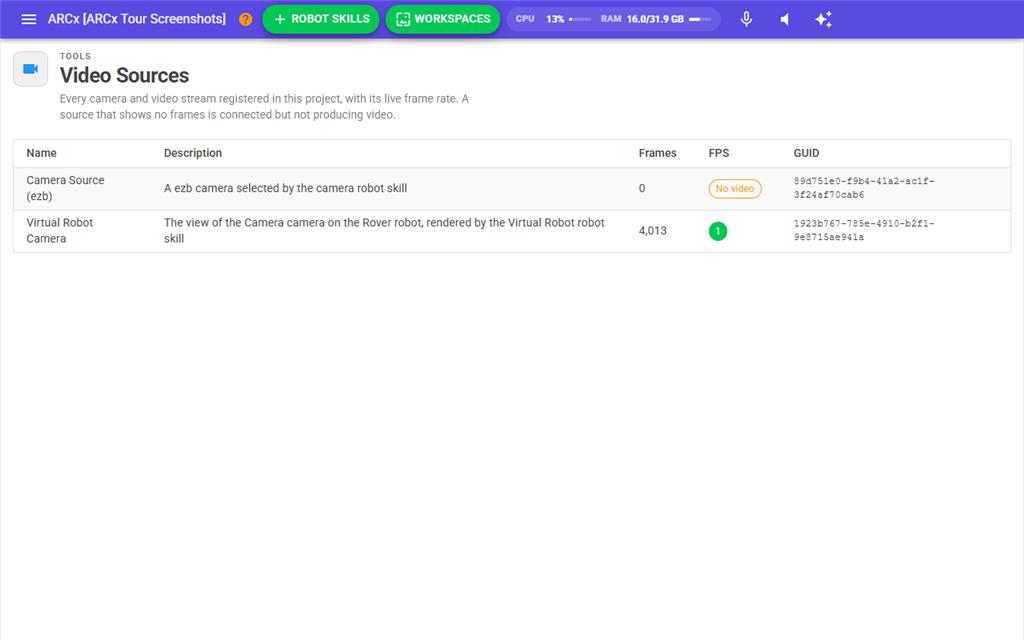
Every camera in ARCx is a video source: a robot skill that captures frames and publishes them under its window title. Detection skills, Vision Detection Tracking Script, Video Recorder and Autonomous AI all find a camera by that title.
| Robot skill | Use it for |
|---|---|
| Camera Source (usb) | Any camera the operating system recognizes: a USB webcam, a capture card, a laptop's built in camera. Pick the Video Device and a Resolution in its configuration. |
| Camera Source (ezb) | The camera on an EZB, such as the EZ-B v4 camera. Pick the camera's address in the box at the top of its window. It connects directly to the camera over the network. |
Add it from Add a robot skill → Camera, then press Start. The button shows the frame rate while the camera runs.
Points to know:
- Give the camera a meaningful window title such as "Head Camera", and do it before adding the skills that use it. Other skills refer to the camera by title. If you rename it later, update them.
- Several cameras are allowed, one camera source skill each. Each detection skill and each Vision Detection Tracking Script watches one camera, chosen in its configuration.
- Pick a modest resolution. Detection runs on a smaller copy of each frame (see Performance), so a high camera resolution makes the video sharper but does not make detection better. 320x240 or 640x480 is plenty for tracking.
- Show Processed in the camera window switches between the picture straight from the camera and the processed picture, which has the boxes and labels that the detection skills draw. Turn it on while setting up, so you can see what is being detected.
Step 2: Add detection skills
A detection skill searches each frame for one kind of thing and marks what it finds on the video. Add one for each kind of thing your robot needs to see:

| Detection skill | Finds | Kind | Name | Good for |
|---|---|---|---|---|
| Face Tracking | Front facing human faces. No training needed. | face |
face |
Looking at people, noticing someone is there. |
| Glyph Recognition | Printed square glyph markers. The skill prints them. | glyph |
The glyph's name, such as Glyph 1 or Dock |
Docking stations, room markers, robot courses. Also reports which way up the glyph is and how far away it is. |
| Object Training And Tracking | Objects you train by showing them to the camera, or from a picture. | object |
The name you trained it with | Toys, boxes, book covers: anything with printed or textured detail. |
Any other detection skill works the same way. Each one reports its own kind, for example color for a colour detector.
To add one:
- Add a robot skill → Camera → the detection skill.
- Open its configuration and choose the Video Source. If you do not, the first camera in the project is used.
- Turn on its detection switch. What it finds is outlined on the processed video.
You may add several detection skills to the same camera, and Vision Detection Tracking Script sees what all of them find. Every one you add costs processor time on every frame, so add only the ones the robot needs.
What a detection is
Every detection skill reports what it finds in the same form. This is what Vision Detection Tracking Script works with:
| Detail | Example |
|---|---|
| Kind | face, glyph, object, color |
| Name | Glyph 1, Teddy. A detection with no name of its own, such as an unrecognized face, uses its kind as its name. |
| Position and size | In camera pixels. |
| Confidence | How sure the detector is, 0 to 1, when it has a measure of that. |
| Primary | The detector's main detection, usually its largest. |
| Details | Anything only that kind has, such as a glyph's Rotation or a distance the detector measured. |
What detection skills still do themselves
Some detection skills keep features that only make sense for them. For example, Glyph Recognition can run a script per glyph and draw an overlay picture on it. Object Training And Tracking still has its own scripts and variables for the object it is most sure of.
For anything that moves the robot, use Vision Detection Tracking Script. If you use the variables of Object Training And Tracking and Vision Detection Tracking Script, note that both default to the same names (ObjectIsDetected, ObjectName and so on). Give one of them different names in its configuration, or they overwrite each other.
Step 3: Add Vision Detection Tracking Script
Vision Detection Tracking Script does not detect anything itself. It watches what the detection skills report for one camera and decides what to do about it.
- Add a robot skill → Camera → Vision Detection Tracking Script.
- Open its configuration. On the Detections tab, choose the Video Source: the same camera as the detection skills.
- Optionally narrow what it reacts to with Kinds (for example
face) and Names (for exampleDock, Glyph 1). Leave them empty to react to everything. The kinds and names already seen on that camera are listed below each field. Click one to add it. - Set up the reactions you need, described below, and save.
- Show the camera something. It appears on the map in the skill window, with the target outlined in yellow.
The target
Several things can be in view at once. Vision Detection Tracking Script chooses one of them as the target: the one the servos and the robot follow, and the one the variables describe. Choose By decides which: largest, closest to the centre, most confident, the detector's primary, leftmost, rightmost, or longest in view. Target Names gives preferred names in order: Dock, Glyph 1 follows the dock when it is in view, and Glyph 1 otherwise. Sticky stays with the current target while it is in view, so the servos do not jump between two people.
Servo tracking
Choose a pan and a tilt servo on the Servos tab, and turn on Servos in the window. The servos turn to keep the target in the middle of the picture. If a servo turns the camera away from the target, tick Invert Direction for that servo. When the target is lost, the camera can scan from side to side looking for it, or centre itself.
Movement tracking
Turn on Drive in the window. The robot turns toward the target using the project's movement panel. With Drive Forward on, it also drives toward the target until it fills Stop At Size percent of the picture, or until it is Stop At Distance away when the distance is known. Back Up When Close and Search When Lost make a robot that keeps its distance from a person and follows them.
The robot stops when the target is lost, when the skill stops, and while any configuration window is open. The panic button turns servo and movement tracking off.
Scripts
| Script | Runs |
|---|---|
| Object Detected | When anything comes into view. |
| All Lost | When the last thing in view has gone. |
| Triggers | Your own list: each trigger matches kinds and names, and has a script for when a match comes into view and another for when it goes. |
// Trigger: kind "face", script when it comes into view
Audio.Say("Hello there");
A detector that misses the odd frame would make an object flicker in and out of view, and its scripts would run over and over. Consecutive Frames (how many frames in a row before something counts as in view) and Lost After (how long it must be gone) prevent that.
Variables and control commands
The target is described by global variables that any script can read: ObjectIsDetected, ObjectName, ObjectType, ObjectCenterX, ObjectHorizontalLocation, ObjectHorizontalAngle, ObjectDistance, ObjectCount and more. Angles are in radians (positive is left and up), and distances are in metres, like every other position a script sees in ARCx.
if (getVar("ObjectIsDetected", false))
  print("I can see " + getVar("ObjectName") + " on the " + getVar("ObjectHorizontalLocation"));
To ask about anything in view, not only the target, use its control commands:
// Drive forward until the dock glyph is seen, or 10 seconds pass
Movement.forward();
ControlCommand("Vision Detection Tracking Script", "WaitForObject", "Dock", 10000);
Movement.stop();
The Vision Detection Tracking Script manual lists every setting, variable and control command.
More than one
You can use one Vision Detection Tracking Script per job. On the same camera, one can follow faces with the pan/tilt servos (Kinds face) while another runs scripts for glyphs (Kinds glyph). Give each a different window title, because control commands find a skill by its title.
How it works
For every frame:
- The camera source captures a frame and hands it to ARCx's video routing.
- ARCx makes a computer vision copy: a smaller version of the frame, at the width set in Options → Preferences → Video → Computer vision image width. Detection skills share this copy, so adding a detection skill does not change the camera's resolution or frame rate, and the copy is only made once however many skills use it.
- Each detection skill watching that camera searches the frame (or skips it, according to its Frames To Skip) and adds what it found: kind, name, position, confidence and details.
- ARCx collects every detection on the frame from every detection skill on that camera, and hands the whole list to each Vision Detection Tracking Script watching it. This happens before anything is drawn, so a detection that only lasts one frame is never missed.
- ARCx draws the boxes and labels on the processed picture, which the camera window shows when Show Processed is on.
- Vision Detection Tracking Script, for that list:
- filters it to the kinds, names, confidence, size and region you asked for,
- keeps track of what is in view: something counts as in view after Consecutive Frames frames in a row, and as lost after Lost After milliseconds unseen,
- chooses the target, smooths its position, and works out its angle and distance from the Camera Field Of View,
- moves the servos and the robot, if tracking is on and the target is outside the Dead Zone in the middle of the picture,
- runs scripts for things that have just come into view or gone, and updates the variables.
Objects are told apart by kind and name only. Detectors do not give each object an identity, so two people are both face: both are counted, but they come into and go out of view together.
Example setups
A head that looks at people. Camera Source (usb) → Face Tracking → Vision Detection Tracking Script with Kinds face, pan and tilt servos, Servos on, Scan When Lost on. Add a trigger for face that says hello, with a Cooldown so it does not greet the same person every few seconds.
Drive to a charging dock. Camera Source (ezb) → Glyph Recognition, with a glyph named Dock printed and stuck on the dock → Vision Detection Tracking Script with Names Dock, Drive and Drive Forward on, and Stop At Distance set to the distance where the robot should stop. Glyph Recognition measures the distance itself, so it is accurate.
React to toys. Camera Source (usb) → Object Training And Tracking, with each toy trained under its own name → Vision Detection Tracking Script with Kinds object and one trigger per toy name, each with its own script.
One camera, two jobs. Face Tracking and Glyph Recognition on the same camera. One Vision Detection Tracking Script with Kinds face keeps the head pointed at people. A second, with Kinds glyph and its own title, runs a script whenever a room marker comes into view.
Follow a person around the room. A detector that finds people or faces → Vision Detection Tracking Script with Drive, Drive Forward, Back Up When Close and Search When Lost on. The robot follows when the person walks away and backs off when they come closer.
Performance
Vision is the most processor-hungry thing most robots do. In order of how much difference each makes:
- Only add the detection skills you need, and turn detection off when it is not needed. A detection skill that is switched off costs nothing.
- Frames To Skip in each detection skill.
0searches every frame.2searches one frame in three. Movement and servos seldom need more than ten detections a second. - Computer vision image width in Options → Preferences → Video. Smaller is faster. Larger finds smaller and more distant things.
- Camera resolution matters least for detection, because detection uses the smaller copy. It still costs processor time to capture and display, so keep it modest.
- Object Training And Tracking gets slower with every enabled object. Disable the objects you are not looking for right now.
Troubleshooting
Nothing is outlined on the video. Turn on Show Processed in the camera window. Check that the detection skill's switch is on and that its Video Source is this camera. Check that the camera is running.
Things are outlined, but Vision Detection Tracking Script shows nothing. Its Video Source is a different camera, or its Kinds, Names, Min Confidence, Min Size or Region filters exclude what is detected. Clear the filters, then add them back one at a time. The Details window lists exactly what is being reported.
The servos turn the wrong way. Tick Invert Direction for that servo on the Servos tab.
The servos twitch or overshoot. Raise Smoothing, lower Max Step, or widen the Dead Zone.
The target jumps between two objects. Turn on Sticky, or name the one you want in Target Names.
Scripts run over and over. The object flickers in and out of view. Raise Lost After in Vision Detection Tracking Script, or Consecutive Frames, before lowering the detector's own thresholds. A trigger's Cooldown also helps.
The robot does not drive. Drive is off, there is no movement panel in the project, or a configuration window is open (the robot stops while one is open).
The distance is wrong or -1. Distance is only known when the detector measures it (Glyph Recognition does) or when Object Width is set in Vision Detection Tracking Script. Set Camera Field Of View to your camera's field of view: most webcams are 55 to 78 degrees, and the EZ-B camera is about 60.
Another skill cannot find the camera. Skills find a camera by its window title. If you renamed the camera skill, choose it again in each skill's configuration.
Variables change unexpectedly. Object Training And Tracking and Vision Detection Tracking Script both use ObjectName and the other Object... variables by default. Rename one set.
Everything is slow. See Performance.
Each skill's own manual has a troubleshooting section for problems specific to it: glyphs that are not read, objects that will not train, cameras that will not start.