HC-SR04 ultrasonic distance sensor skill with filtering, alarms, obstacle guard, navigation support, and shared distance variables
 Windows
 ARM
ARM
 Linux
Linux
 MacOS
MacOS
How to add the Ping Sensor robot skill
- Load the most recent release of ARCx on a compatible operating system (Get ARCx).
- Press the + Skills menu from the top menu bar in ARCx.
- Choose any of these category tabs, the robot skill appears in each of them: Digital, Navigation, Ultrasonic Distance.
- Press the Ping Sensor icon to add the robot skill to your project.
Don't have a robot yet?
Follow the Getting Started Guide to build a robot and use the Ping Sensor robot skill.
How to use the Ping Sensor robot skill
The Ping Sensor robot skill reads an HC-SR04 style ultrasonic distance sensor wired to two digital ports of an EZB, and publishes the distance as a global variable that every script in the project can read. It is the ARCx version of ARC's Ping robot skill, with filtering, units, statistics, alarms, an obstacle guard that stops the robot before it drives into something, and navigation (NMS) support.
An ultrasonic sensor sends a short chirp from one transducer and listens for the echo with the other. The EZB times the echo and reports a number from 0 to 255; this robot skill turns that into centimetres (or inches), cleans up the noise that ultrasonic sensors are known for, and tells the rest of the robot what it sees.
Wiring
Connect the sensor's TRIG pin to one digital port and its ECHO pin to another digital port on the same EZB, plus power and ground. On an EZ-B v4 the default is TRIG on D0 and ECHO on D1. Choose the ports on the Sensor tab of the configuration; both ports must be on the same EZB.
Use the variable, not ping commands
Once the sensor is read by this robot skill, read its global variable in your scripts instead of asking the sensor yourself. Every ping is a request over the EZB's connection that is shared with servos, the camera, audio and every other robot skill. The variable already holds the latest filtered distance, so reading it costs the controller nothing.
// Stop when something is closer than 30 cm
if (getVar("$PingDistance") < 30)
  Movement.stop();
if getVar("$PingDistance") < 30:
  Movement.stop()
The window
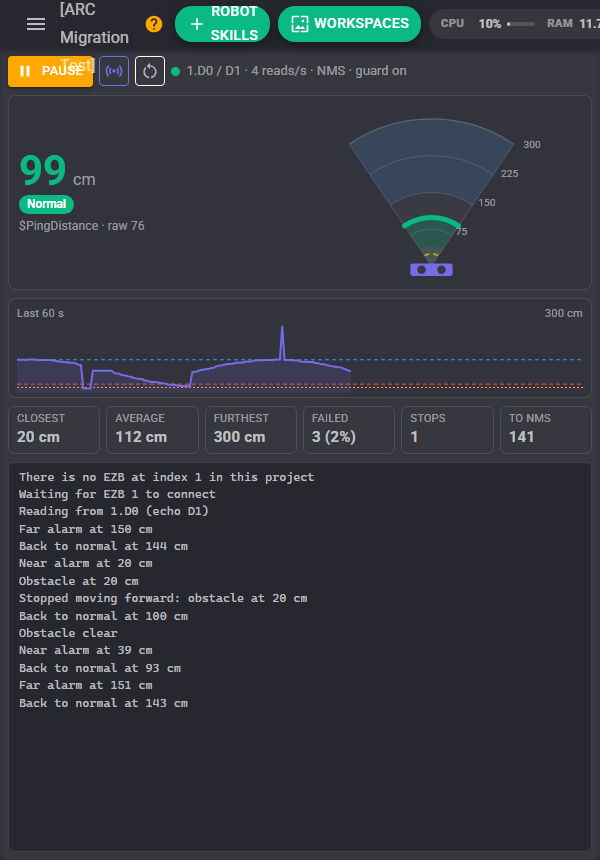
- Pause/Resume stops and starts reading the sensor. The paused state is saved with the project, as it was in ARC. The variable keeps its last value while paused.
- Read now (the sensor button) reads the sensor once straight away, even while paused, and writes the result to the log.
- Reset (the circular arrow) forgets the closest, average and furthest distances, the counters and the graph.
- Status shows a green dot and the ports, reads per second and what is switched on (NMS, guard) while the sensor is read. An amber dot means paused or on hold while a configuration window is open; a red dot means there is a problem, and the text says what it is (no EZB at that index, the EZB is not connected, the read failed).
- Distance is the latest filtered distance as a big number. It is green normally, red at the Near alarm or when the obstacle guard sees an obstacle, and blue at the Far alarm. Chips under it show the alarm state, Obstacle, Nothing in range (the reading was beyond the maximum valid distance) and Paused. The line under the chips names the global variable and shows the raw reading from the EZB.
- Sonar view draws the sensor's beam from the sensor at the bottom to the full scale at the top, with range rings labelled in your unit. The echo is the coloured ARC at the measured distance. The Near zone is shaded red, the Far zone blue, and the obstacle guard distance is a dashed amber line.
- Graph shows the recent distances, oldest on the left, with the Near, Far and guard levels as dashed lines. How much history it holds is set by Graph history on the Display tab.
- Statistics are the closest, average and furthest distances since the last reset, the failed pings (count and share of all readings), and, when they are on, the number of times the obstacle guard stopped the robot and the number of readings sent to the NMS.
- Log lists what happened: alarms, obstacles, stops, problems and recoveries.
Filtering and failed pings
Ultrasonic sensors are noisy. A soft or angled surface may not echo at all, and a stray echo from the side can read wildly wrong. Three things keep the published distance trustworthy.
- Median filter (the default) publishes the middle value of the latest few readings, so a single wild echo is ignored completely. Average smooths small jitter but is pulled by a wild echo. None publishes every reading as it is. More samples is smoother but slower to follow a change: the value lags by about half the number of samples times the interval.
- Failed pings: a reading closer than the Minimum valid distance (2 cm by default, which includes a reading of 0) is dropped, and the variable keeps its last value. The window counts them, so a high share points at wiring or a target the sensor cannot see.
- Nothing in range: a reading beyond the Maximum valid distance (300 cm by default) means there is nothing in front of the sensor within range, and it is published as that maximum distance. The maximum is also the full scale of the sonar view and the graph.
Turn Limit range off to use every reading as it is, as ARC did.
Alarms
A Near alarm is raised when the distance is at or closer than its level, and a Far alarm when it is at or further than its level. Each alarm clears only once the distance has moved back past its level by the Hysteresis, so a reading wobbling on the level does not flicker. While either alarm is enabled, the variable $PingDistance_Alarm (your variable name followed by _Alarm) holds Normal, Near or Far, and a script can run when each alarm is raised and when the distance is back to normal.
Obstacle guard
The obstacle guard keeps the robot from driving into something. While it is on, anything at or closer than the Guard distance is an obstacle, and it clears at the guard distance plus the hysteresis.
- When an obstacle appears while the robot is moving toward it, the guard stops the robot. If the robot is told to move toward the obstacle while it is still there, from a script, a joystick or any other robot skill, the guard stops it again straight away. Movements away from the obstacle (reversing from a wall in front, or turning) are allowed, so the robot can get itself out.
- Sensor faces tells the guard which movement drives into the obstacle: Forward for a sensor on the front, Backward for a sensor on the back, or Any to stop every movement.
- Pause navigation pauses a navigation in progress (the NMS navigation status that navigator robot skills follow) while there is an obstacle, and lets it carry on once it clears. If reading is paused while navigation is paused, it stays paused.
- The variable
$PingDistance_Obstacleis true while there is an obstacle, and a script can run each time the guard stops the robot, for example to back away and turn.
// The guard script: back away and turn
Movement.reverse();
sleep(600);
Movement.right();
sleep(500);
Movement.stop();
Navigation (NMS)
With Send to the NMS on, every reading inside the NMS range is sent to the Navigation Messaging System as a single beam scan point, so a navigator or mapping robot skill can mark what the sensor sees. Set Sensor direction to the way the sensor faces on the robot, in degrees counter-clockwise from straight ahead (0 is the front, 90 the left side, -90 the right side, 180 the back), and use the Offset on the Sensor tab for the distance from the sensor to the centre of the robot. Readings closer than the Lowest reading or further than the Highest reading are not sent, which keeps false close echoes and weak far echoes off the map. Navigators release scan points when the robot's position is reported, so a positioning robot skill (wheel encoders, a tracking camera) should also be in the project.
Configuration
Sensor
| Setting | What it does |
|---|---|
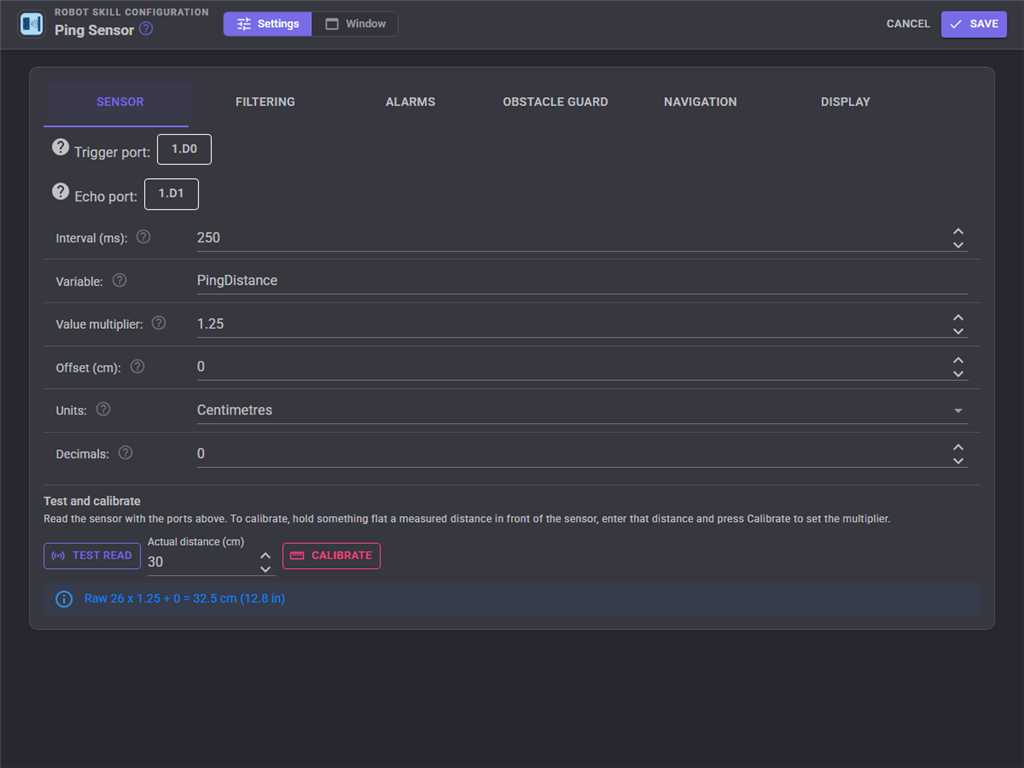
| Trigger port | The EZB and digital port wired to the sensor's TRIG pin. |
| Echo port | The digital port wired to the sensor's ECHO pin, on the same EZB. |
| Interval (ms) | How often the sensor is read, 200 to 60000. 200 ms is the fastest: the EZB repeats its previous reading for anything quicker. |
| Variable | The global variable the distance is published to. $PingDistance by default, as in ARC. |
| Value multiplier | Multiplies the raw reading (0 to 255) into centimetres. 1.25 suits the HC-SR04 on an EZ-B. |
| Offset (cm) | Added to every reading: the distance from the sensor to the robot's centre, or negative to measure from the bumper. |
| Units | Centimetres or inches, for the variable, the control commands and the display. The settings stay in centimetres. |
| Decimals | Decimal places of the published distance. 0 publishes a whole number, as ARC did. |
Test read reads the sensor with the ports chosen on the page and shows the raw reading and the distance it becomes. To calibrate, hold something flat a measured distance in front of the sensor, type that distance into Actual distance and press Calibrate: the multiplier is worked out for you.
Filtering
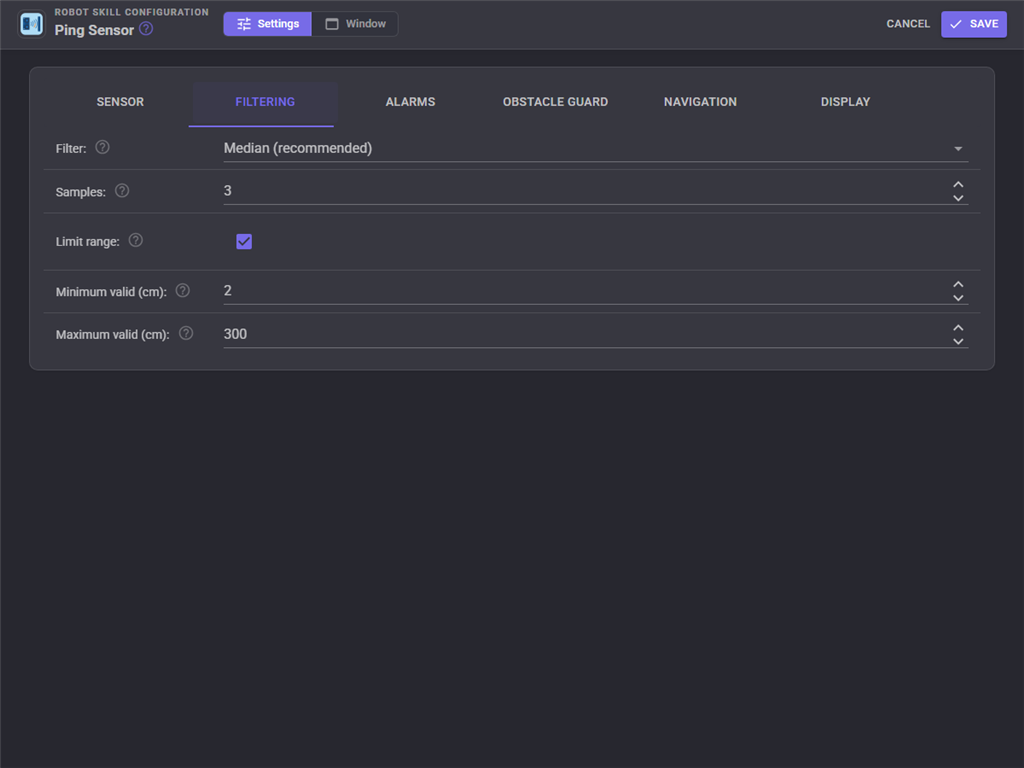
| Setting | What it does |
|---|---|
| Filter | Median (recommended), Average or None. |
| Samples | How many of the latest readings the filter uses, 1 to 15. |
| Limit range | Apply the minimum and maximum valid distances. |
| Minimum valid (cm) | Closer readings are dropped as failed pings. |
| Maximum valid (cm) | Further readings mean nothing is in range and are published as this distance. Also the full scale of the display. |
Alarms
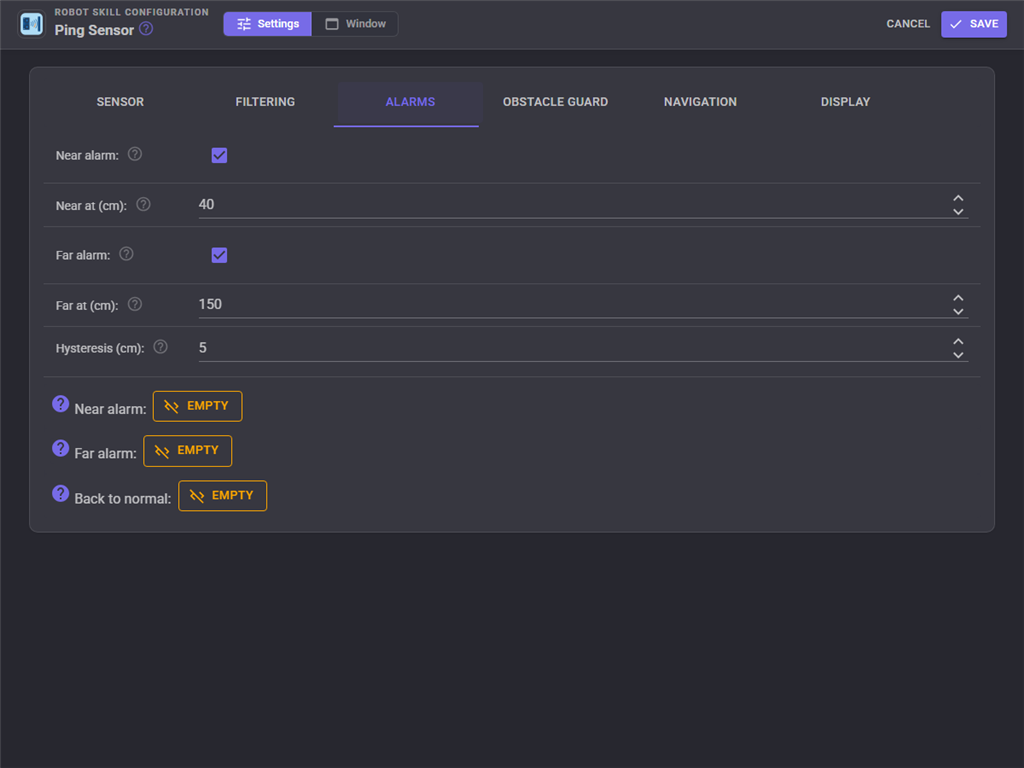
| Setting | What it does |
|---|---|
| Near alarm / Near at (cm) | Raise the Near alarm at this distance or closer. |
| Far alarm / Far at (cm) | Raise the Far alarm at this distance or further. |
| Hysteresis (cm) | How far the distance must move back past a level before the alarm, or the obstacle guard, clears. |
| Near alarm, Far alarm, Back to normal | Scripts run when each alarm is raised and when it clears. |
Obstacle guard
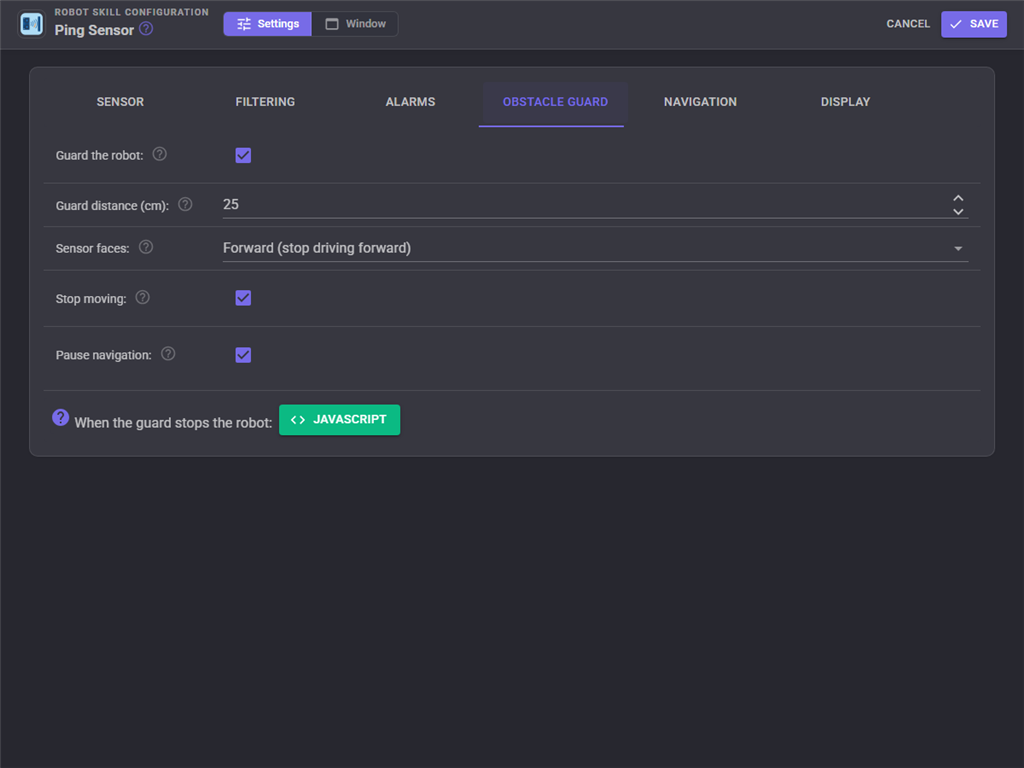
| Setting | What it does |
|---|---|
| Guard the robot | Turn the obstacle guard on. |
| Guard distance (cm) | Anything this close or closer is an obstacle. |
| Sensor faces | Forward, Backward or Any: which movement is stopped. |
| Stop moving | Stop the robot moving toward an obstacle, and again if it is told to while the obstacle is there. |
| Pause navigation | Pause a navigation in progress while there is an obstacle. |
| When the guard stops the robot | A script run each time the guard stops the robot. |
Navigation
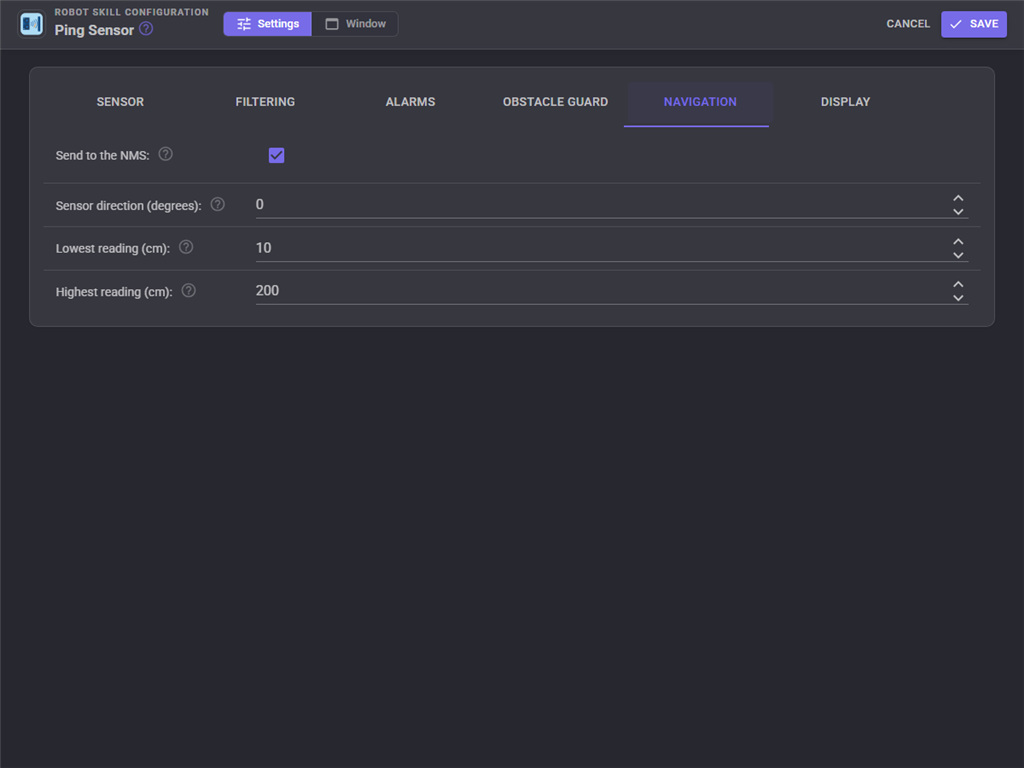
| Setting | What it does |
|---|---|
| Send to the NMS | Send each reading to the Navigation Messaging System as a scan point. |
| Sensor direction (degrees) | Which way the sensor faces, counter-clockwise from straight ahead. |
| Lowest reading (cm) | Closer readings are not sent. |
| Highest reading (cm) | Further readings are not sent. |
Display
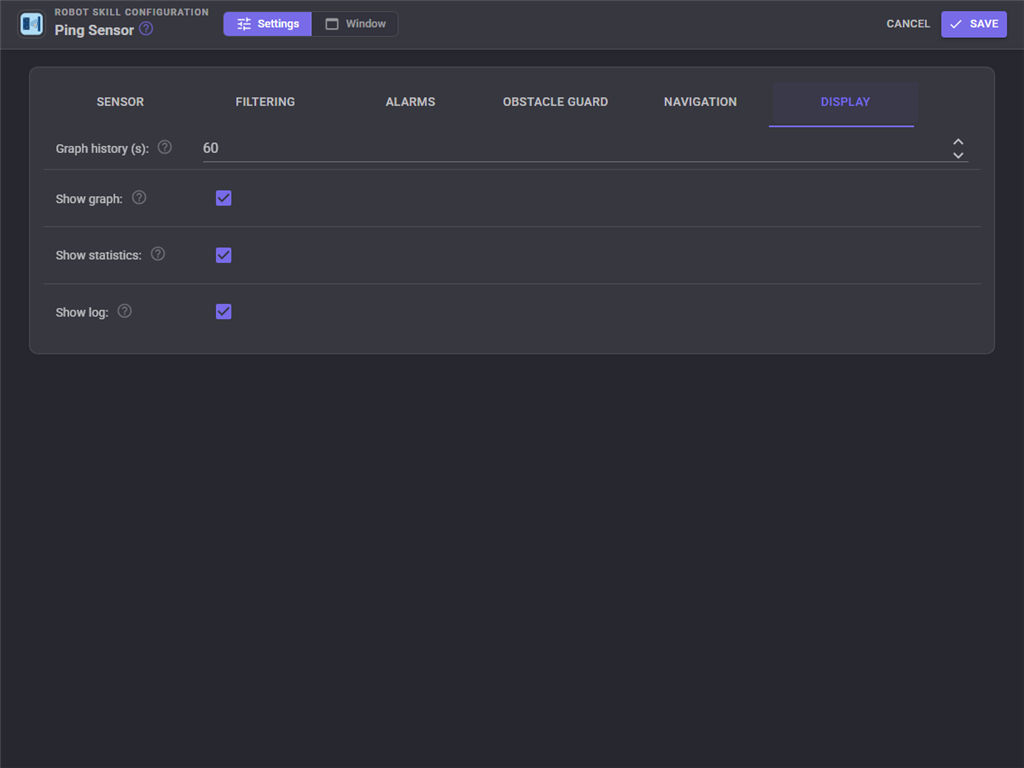
| Setting | What it does |
|---|---|
| Graph history (s) | How many seconds of distances the graph shows. |
| Show graph | Show the history graph in the window. |
| Show statistics | Show the statistics in the window. |
| Show log | Show the log in the window. |
Variables
| Variable | Value |
|---|---|
$PingDistance |
The filtered distance in your unit. Created as 0 when the robot skill starts, so a script can always read it. |
$PingDistance_Alarm |
Normal, Near or Far, while an alarm is enabled. |
$PingDistance_Obstacle |
True while the obstacle guard sees an obstacle, while the guard is on. |
The names follow the Variable setting, so a second sensor called $PingRear publishes $PingRear_Alarm and $PingRear_Obstacle.
Custom UI widgets
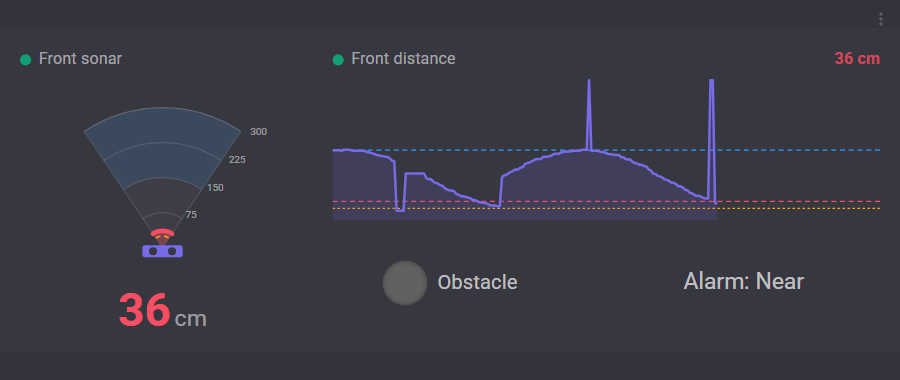
Two widgets put the sensor on your own Custom UI screens:
- Ping sonar: the sonar view with the distance under it. Settings: Caption (empty hides it) and ShowScale (label the range rings).
- Ping graph: the history graph with the current distance beside the caption. Setting: Caption.
More than one sensor
Add one Ping Sensor robot skill for each sensor on the robot, and give each its own variable name, for example $PingFront and $PingRear. A rear sensor's obstacle guard set to Backward stops the robot reversing into something while the front sensor's guard watches forward.
AI assistants
An AI assistant connected to ARCx can read the sensor with the get_distance tool, which returns the distance in your unit and in metres, the raw reading, its age, the statistics, the alarm and obstacle state and whether the sensor is reading. Asking for a fresh reading reads the sensor first. The get_history tool returns the recent distances.
Control Commands for the Ping Sensor robot skill
There are Control Commands available for this robot skill which allows the skill to be controlled programmatically from scripts or other robot skills. These commands enable you to automate actions, respond to sensor inputs, and integrate the robot skill with other systems or custom interfaces. If you're new to the concept of Control Commands, we have a comprehensive manual available here that explains how to use them, provides examples to get you started and make the most of this powerful feature.
Control Command ManualThis robot skill has 16 control commands, listed below. Send them from a JavaScript or Python script, from Blockly, or from another robot skill.
The first value is always the window title, which is the name in the title bar of the robot skill on your workspace. It starts out as Ping Sensor, which is what every example below uses. If you rename the robot skill, or add a second copy of it to the project, use the title as it appears on that window instead.
ControlCommand() can be shortened to CC(), and both spellings work in JavaScript and in Python. The examples are JavaScript; Python is the same call, except that true and false are written True and False.
DisableObstacleGuard
Turn the obstacle guard off. Saved with the project.
Syntax
ControlCommand("Ping Sensor", "DisableObstacleGuard")
Returns: Boolean [true or false]
Example
var result = ControlCommand("Ping Sensor", "DisableObstacleGuard");
EnableObstacleGuard
Turn the obstacle guard on: stop the robot moving toward anything closer than the guard distance. Saved with the project.
Syntax
ControlCommand("Ping Sensor", "EnableObstacleGuard")
Returns: Boolean [true or false]
Example
var result = ControlCommand("Ping Sensor", "EnableObstacleGuard");
GetAlarm
The alarm state: "Normal", "Near" or "Far".
Syntax
ControlCommand("Ping Sensor", "GetAlarm")
Returns: String
Example
var result = ControlCommand("Ping Sensor", "GetAlarm");
GetAverage
The average distance since the statistics were last reset, in the configured unit.
Syntax
ControlCommand("Ping Sensor", "GetAverage")
Returns: Double [5.0e324 to 1.7e308]
Example
var result = ControlCommand("Ping Sensor", "GetAverage");
GetDistance
The latest distance in the configured unit (centimetres or inches), after the filter: the same number as the distance variable.
Syntax
ControlCommand("Ping Sensor", "GetDistance")
Returns: Double [5.0e324 to 1.7e308]
Example
var result = ControlCommand("Ping Sensor", "GetDistance");
GetDistanceMetres
The latest distance in metres, after the filter, whatever unit the variable uses.
Syntax
ControlCommand("Ping Sensor", "GetDistanceMetres")
Returns: Double [5.0e324 to 1.7e308]
Example
var result = ControlCommand("Ping Sensor", "GetDistanceMetres");
GetMax
The furthest distance since the statistics were last reset, in the configured unit.
Syntax
ControlCommand("Ping Sensor", "GetMax")
Returns: Double [5.0e324 to 1.7e308]
Example
var result = ControlCommand("Ping Sensor", "GetMax");
GetMin
The closest distance since the statistics were last reset, in the configured unit.
Syntax
ControlCommand("Ping Sensor", "GetMin")
Returns: Double [5.0e324 to 1.7e308]
Example
var result = ControlCommand("Ping Sensor", "GetMin");
GetRawValue
The latest raw reading from the EZB, 0 to 255, before the multiplier, offset and filter.
Syntax
ControlCommand("Ping Sensor", "GetRawValue")
Returns: Integer [-2,147,483,648 to 2,147,483,647]
Example
var result = ControlCommand("Ping Sensor", "GetRawValue");
IsObstacle
Whether the obstacle guard sees an obstacle within its guard distance. Always false while the guard is off.
Syntax
ControlCommand("Ping Sensor", "IsObstacle")
Returns: Boolean [true or false]
Example
var result = ControlCommand("Ping Sensor", "IsObstacle");
IsPaused
Whether reading is paused.
Syntax
ControlCommand("Ping Sensor", "IsPaused")
Returns: Boolean [true or false]
Example
var result = ControlCommand("Ping Sensor", "IsPaused");
Pause
Stop reading the sensor. The distance variable keeps its last value. Saved with the project.
Syntax
ControlCommand("Ping Sensor", "Pause")
Returns: Boolean [true or false]
Example
var result = ControlCommand("Ping Sensor", "Pause");
ReadNow
Read the sensor now, even while paused, and return the distance in the configured unit. Fails with the reason when the sensor cannot be read.
Syntax
ControlCommand("Ping Sensor", "ReadNow")
Returns: Double [5.0e324 to 1.7e308]
Example
var result = ControlCommand("Ping Sensor", "ReadNow");
ResetStatistics
Forget the closest, furthest and average distances, the counters and the graph.
Syntax
ControlCommand("Ping Sensor", "ResetStatistics")
Returns: Boolean [true or false]
Example
var result = ControlCommand("Ping Sensor", "ResetStatistics");
Resume
Start reading the sensor again after Pause.
Syntax
ControlCommand("Ping Sensor", "Resume")
Returns: Boolean [true or false]
Example
var result = ControlCommand("Ping Sensor", "Resume");
SetInterval
Change how often the sensor is read, in milliseconds (200 to 60000). Saved with the project. Returns the interval used.
Syntax
ControlCommand("Ping Sensor", "SetInterval", (Number)intervalMs)
Parameters
| # | Name | Type | What to pass |
|---|---|---|---|
| 1 | intervalMs | Number | A number, without quotes |
Returns: Integer [-2,147,483,648 to 2,147,483,647]
Example
var result = ControlCommand("Ping Sensor", "SetInterval", 0);
This list is read out of the robot skill itself each time its package is uploaded, so it matches the published version (v1).

This robot skill has been updated to v1.
What has changed
initial release