

Drives up to 16 servos per PCA9685 over I2C from ARC virtual ports with per-channel mapping, ramping, trim, and calibration.
 Windows
 ARM
ARM
 Linux
Linux
 MacOS
MacOS
How to add the Pca9685 Servo Driver robot skill
- Load the most recent release of ARCx on a compatible operating system (Get ARCx).
- Press the + Skills menu from the top menu bar in ARCx.
- Choose any of these category tabs, the robot skill appears in each of them: I2C, Servo.
- Press the Pca9685 Servo Driver icon to add the robot skill to your project.
Don't have a robot yet?
Follow the Getting Started Guide to build a robot and use the Pca9685 Servo Driver robot skill.
How to use the Pca9685 Servo Driver robot skill
The PCA9685 servo Driver robot skill drives up to 16 hobby servos per NXP PCA9685 board from ARCx virtual servo ports. The PCA9685 is the 16 channel, 12 bit PWM chip on the Adafruit 16-Channel servo Driver and on the many low cost clones of it. It talks I2C, so it plugs into the I2C port of an EZB and adds 16 hardware timed servo outputs without using any of the EZB's own ports. Every robot skill that moves servos (Auto Position, joysticks, scripts, servo Animation, kinematics) moves a virtual port such as V7, and this robot skill turns that move into a pulse width and writes it to the chip.
Unlike the ARC PCA9685 skill, which bound a fixed window of 16 ports (V0 to V15, V16 to V31...) onto channels 0 to 15, any virtual port can be mapped to any PCA9685 channel. V7 can drive channel 12, one port can drive two channels for a mirrored pair, and each channel has its own pulse range, trim, direction and speed. The PCA9685 has no speed control of its own, so this robot skill ramps the pulse itself, which makes ARCx servo velocities work on it.
Requirements
- A PCA9685 board with a servo power supply on its V+ terminal sized for the servos. Never power servos from the EZB's logic supply.
- The board's SDA, SCL, VCC and GND wired to the EZB's I2C port. The ground must be shared.
- One robot skill per board. Several boards share one I2C bus as long as each has a different address, set with its A0 to A5 solder jumpers.
- Or, when ARCx runs on Linux (a single board computer with Ubuntu, a Jetson), the board can sit on the computer's own I2C bus (
/dev/i2c-1on most 40 pin headers) with no EZB in between. The user running ARCx must be in thei2cgroup.
Even on a Linux bus, the robot skill listens to the virtual ports of one EZB in the project (EZB #0 unless you change it), because that is where ARCx keeps virtual servo positions. That EZB does not have to be connected for a Linux bus board to work.
The window
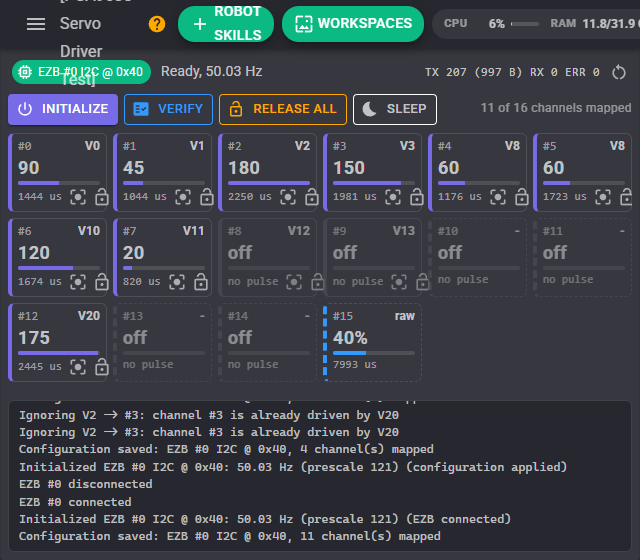
- Bus chip - the bus and address, such as EZB #0 I2C @ 0x40. Green when the chip is initialized and the last write worked, amber when it is not initialized or a write failed, grey when the bus is not there (EZB not connected).
- Status - Ready with the real PWM frequency, Asleep, or the reason the last write failed.
- TX / RX / ERR - I2C writes (and bytes) sent, register reads and errors since the counters were reset with the button beside them.
- Initialize - runs the PCA9685 start up now: sets the frequency, wakes the chip and turns every output off until the next move. It also happens by itself when the EZB connects, when the project loads, when a board setting changes, and on the first move.
- Verify - reads the chip's mode and prescale registers back, which proves it answers at the configured address and is set up. Some EZB firmware locks up reading an I2C address nothing answers at, so check the wiring and the address before pressing it.
- Release all - releases every mapped port and turns its channel off, so the servos go limp and can be moved by hand.
- Sleep / Wake - puts the chip into low power mode (oscillator stopped, every output off) and back. The channel settings are kept, so Wake resumes every servo where it was.
- Channel tiles - one tile per PCA9685 channel, laid out like the board's headers: the channel number, the virtual port driving it, the position, a bar showing where the servo sits in its range, and the pulse width. The left edge is blue while a servo holds its position, amber while it ramps toward a new one, and light blue for a raw pulse or duty cycle set by a control command. Dashed tiles are channels no port is mapped to. The buttons on a mapped tile move the port to the centre position or release it, through ARCx, the same as any other robot skill would.
- Log - what the robot skill did. With Debug logging on, every I2C transaction in hex.
Configuration: Board
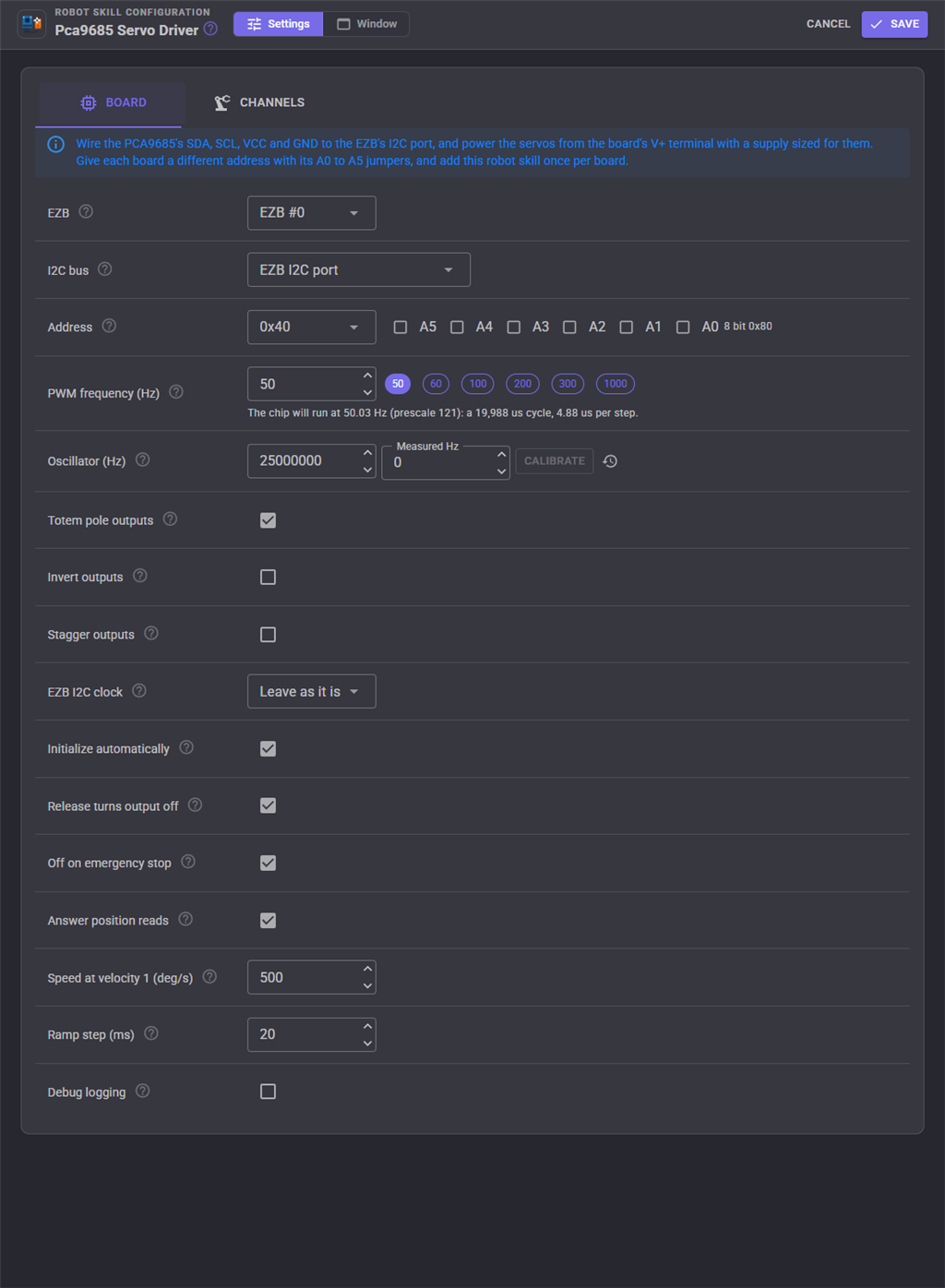
| Setting | Meaning |
|---|---|
| EZB | The EZB whose virtual servo ports (V0 to V255) this robot skill answers to. With the EZB I2C bus it is also the EZB the PCA9685 is wired to. |
| I2C bus | The EZB's I2C port, or a Linux I2C bus of the computer running ARCx. |
| Linux bus number | The N of /dev/i2c-N, shown for the Linux bus. i2cdetect -l lists the buses. |
| Address | The board's 7 bit address. Tick the A0 to A5 jumpers bridged on the board, or pick the address. A board with no jumpers bridged is 0x40, which ARC showed as the 8 bit address 0x80. Avoid 0x70, the All Call address every PCA9685 answers to. |
| PWM frequency | 50 Hz for analog hobby servos. Many digital servos take up to 300 for a stiffer hold; LEDs look best at 200 or more. The chip makes the nearest frequency its prescaler allows, shown underneath with the cycle length and the pulse resolution. |
| Oscillator | The chip's internal clock. See Calibrating the oscillator below. |
| Totem pole outputs | On for servos (and the datasheet default). Off is open drain, for LED circuits that sink current through the pin. |
| Invert outputs | Inverts every output's logic, for LED circuits wired to need it. Servos need it off. |
| Stagger outputs | Starts each channel's pulse at a different point of the cycle, so 16 servos do not all draw their current spike at the same instant. Pulse widths are unchanged. |
| EZB I2C clock | Sets the EZB's I2C clock when the board initializes: 100 kHz, 400 kHz or 1 MHz. It is shared with every other I2C device on that EZB. |
| Initialize automatically | Initializes the chip as soon as the EZB connects (or the project loads, for a Linux bus), and on the first move if it has not been. |
| Release turns output off | When ARCx releases a port, its channels stop pulsing and the servos go limp. Off leaves them holding their last position, which is what the ARC PCA9685 skill did. |
| Off on emergency stop | Turns every mapped channel off when ARCx's emergency stop (release all servos) is pressed. |
| Answer position reads | When a script or robot skill asks for a mapped port's real position (Servo.getPositionRealtime), answers with where the speed ramp has the servo right now. No I2C traffic is involved. |
| Speed at velocity 1 | How ARCx servo velocities become ramp speeds, in positions (degrees) per second. Velocity 1 moves at this speed and higher velocities are slower: with 500, velocity 10 is 50 degrees per second. Velocity 0 uses each channel's own speed. |
| Ramp step | How often a ramp writes a new pulse, in milliseconds. 20 matches a 50 Hz servo; a WiFi EZB with many servos ramping at once may prefer 30 to 40. |
| Debug logging | Writes every I2C transaction to the robot skill log. Useful while wiring up the board, noisy once it works. |
Calibrating the oscillator
The PCA9685's internal oscillator is nominally 25 MHz, but a real chip runs anywhere from about 23 to 27 MHz, which makes every pulse a few percent long or short and every servo a few degrees off. To correct it, measure the PWM frequency on any active output with an oscilloscope or a multimeter with a frequency range, type the reading into Measured Hz, and press Calibrate. The robot skill works out the real oscillator frequency and every pulse is right from then on. The button beside it goes back to 25,000,000.
Configuration: Channels
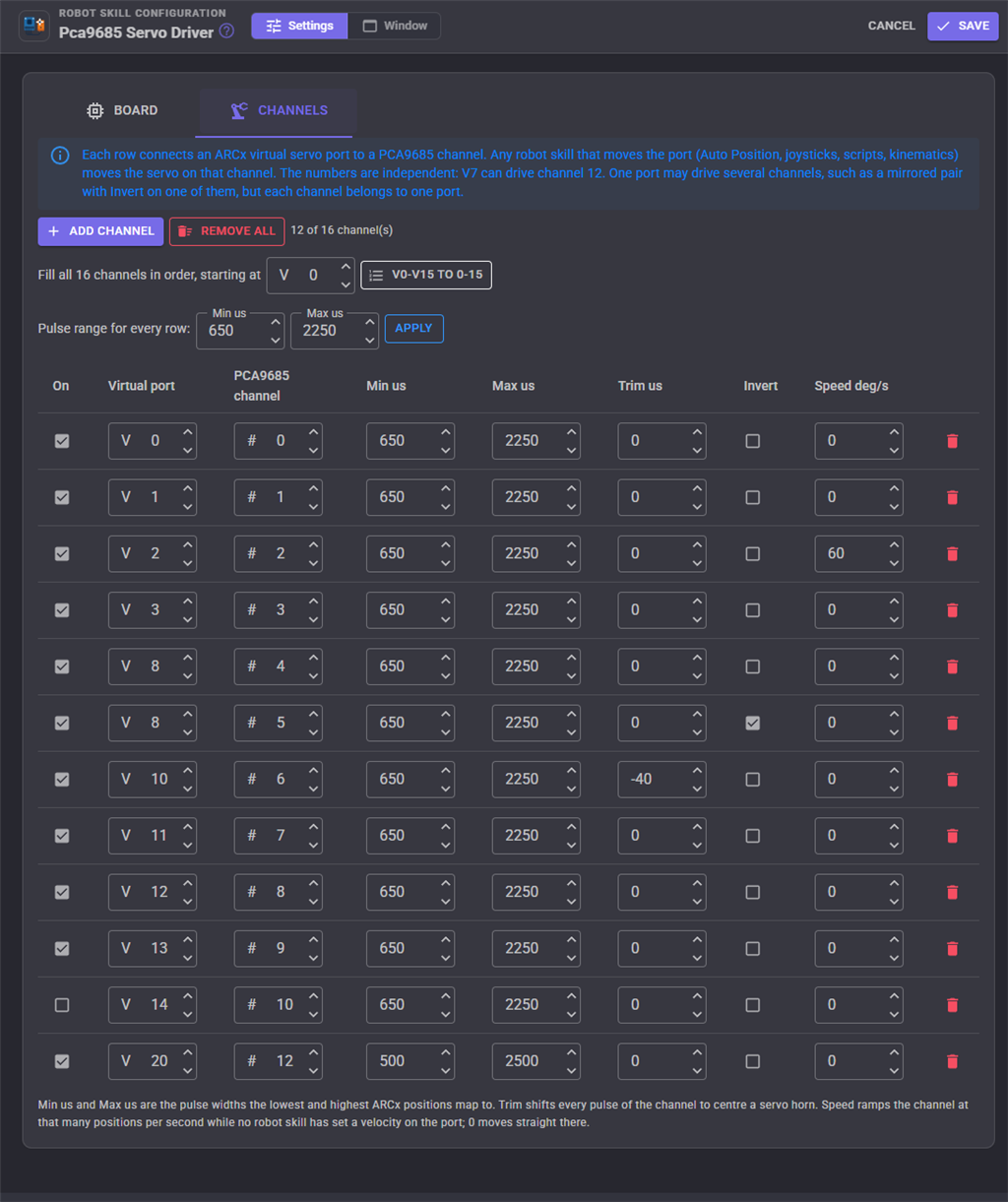
Each row connects one ARCx virtual servo port to one PCA9685 channel.
| Column | Meaning |
|---|---|
| On | An unticked row is kept but ignored, so a channel can be parked without losing its settings. |
| Virtual port | The port (V0 to V255) other robot skills move to drive this channel. |
| PCA9685 channel | The channel (0 to 15) the servo is plugged into: the number printed beside the header on the board. |
| Min us / Max us | The pulse widths the lowest and highest ARCx positions map to. The defaults, 650 and 2250, are the ARC skill's. |
| Trim us | Microseconds added to every pulse of the channel, to centre a servo whose horn sits a spline tooth off without changing its range. |
| Invert | Reverses the direction, for a servo mounted mirrored. |
| Speed deg/s | The channel's ramp speed in positions per second, used while no robot skill has set a velocity on the port. 0 moves straight to each new position. |
Add channel adds a row on the lowest free channel. Fill all 16 channels replaces the map with 16 ports in order starting at the chosen one (V0 to V15 on channels 0 to 15, or V16 to V31 for a second board, the ARC skill's layout). Pulse range for every row sets Min us and Max us on every row at once. Warnings above the table point out a channel mapped twice, a range with Min and Max the same, and a range that does not fit in the cycle at the chosen frequency.
One port, several channels
A port can drive more than one channel, which is how a mirrored pair of servos (two shoulder servos on either side of a joint) is moved together: map the port to both channels and tick Invert on one of them. Both channels change in the same I2C transaction. A channel can only belong to one port; a second row for the same channel is ignored and the configuration page says so.
Finding the pulse range
Start with the defaults and move the port from one end to the other slowly. If the servo buzzes or strains at an end, it is being asked to go further than it can: bring Min us up or Max us down. If it stops short of its travel, widen the range a little at a time. 500 to 2500 is the widest most servos accept.
Several boards
Add the robot skill once per board and give each a different address with the board's jumpers. Each one has its own channel map, so the boards can drive any ports at all, for example:
| Robot skill | Address | Ports |
|---|---|---|
| PCA9685 servo Driver | 0x40 | V0 to V15 (legs) |
| PCA9685 servo Driver 2 | 0x41 | V16 to V25 (arms), V40 (head pan) |
How moves reach the PCA9685
- Every move on mapped ports that needs no ramp goes to the chip as one I2C transaction using the chip's register auto increment, so an Auto Position frame moving ten servos is one write, not ten.
- ARCx's servo fine tune is applied before the pulse width is worked out, so fine tuning a port in ARCx fine tunes the PCA9685 channel.
- A velocity set on the port (from a script, Auto Position or another robot skill), or the channel's own speed, ramps the servo there in small steps, all ramping channels together in one transaction per step. Acceleration is ignored.
- A released servo, or one that has not moved since the board initialized, goes straight to its first position whatever its speed, because the robot skill cannot know where it is.
- Ports that are not mapped are ignored, so this robot skill can share an EZB's virtual ports with other servo drivers (SSC-32, Dynamixel, Feetech) as long as they use different ports.
Using it from scripts
Move servos with the normal servo commands on the mapped virtual ports. The robot skill's control commands add what the servo commands cannot do: raw pulses and duty cycles on any channel, the frequency, sleep, and the chip's registers.
// Move V7 to 120 degrees at a gentle speed: velocity 10 is 50 degrees per second
Servo.setVelocity(v7, 10);
Servo.setPosition(v7, 120);

// Wait until every ramp has arrived
while (controlCommand("Pca9685 servo Driver", "IsMoving"))
  sleep(50);

// An LED on channel 15 at 40% brightness, and a raw 1500 us pulse on channel 14
controlCommand("Pca9685 servo Driver", "SetChannelDutyCycle", 15, 40);
controlCommand("Pca9685 servo Driver", "SetChannelPulse", 14, 1500);
# Digital servos rated for it hold stiffer at a higher frequency
actual = controlCommand("Pca9685 servo Driver", "SetFrequency", 300)
print("Running at " + str(actual) + " Hz")
A raw pulse or duty cycle goes straight to the chip, so ARCx's own idea of the servo position does not change; the next move of a mapped port takes its channel back. Use the servo commands for anything other robot skills need to know about.
Custom UI widget
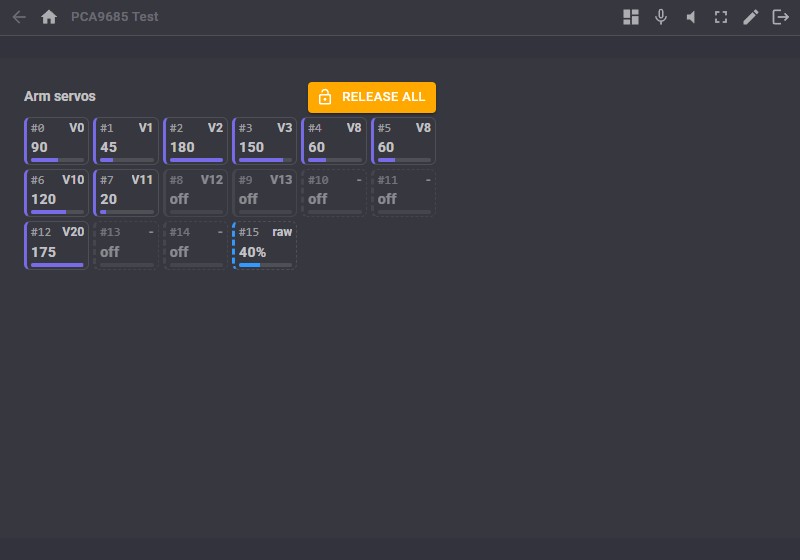
The PCA9685 channels widget puts the 16 channel tiles on a Custom UI screen, live, with a Release all button for making every servo go limp from a phone. Its settings are Caption (the label above the tiles, empty for none) and ShowRelease (true or false).
Notes
- The tiles show what was written to the chip, not what the servo did. If the board loses power while ARCx keeps running, the servos are limp while the tiles still show positions; press Initialize once power is back.
- When the EZB disconnects the board is treated as uninitialized, because it may have been power cycled with the EZB. It initializes again by itself when the EZB reconnects, with every output off until the next move.
- Changing the frequency, oscillator, output settings or stagger re-initializes a running board with every servo held where it is. Changing the bus or address starts from an uninitialized chip.
- At frequencies above 50 Hz the pulse still means the same thing to a servo, but analog servos can overheat. Only use them with digital servos rated for it.
Troubleshooting
| Symptom | Cause |
|---|---|
| The status says EZB #0 is not connected | The board is on an EZB's I2C port and that EZB is not connected. Connect it. |
| Nothing moves, the status is Ready | The port that moved is not mapped or its row is unticked, the address does not match the board's jumpers, or the servo power supply on V+ is off. Turn on Debug logging and check the writes in the log name the channels you expect. |
| Verify says every register read back as 0 | Nothing answers at that address: wrong jumpers, SDA and SCL swapped, no common ground, or no power on VCC. |
| The EZB locks up (EZ-B v4 solid red LED) | An I2C wiring fault. Fix the wiring, then power cycle the EZB. |
| Servos jitter or reset when several move | The servo supply cannot deliver the current. Use a bigger supply on V+, and try Stagger outputs. |
| Every servo is a few degrees off | The chip's oscillator is not exactly 25 MHz. Calibrate it (see Calibrating the oscillator). |
| A servo moves the wrong way | Tick Invert on its row. |
| A servo buzzes at one end of its travel | Its pulse range goes past what it can reach. Bring Min us or Max us in. |
| Release does not make a servo go limp | Release turns output off is off. |
| Linux bus: could not open /dev/i2c-1 | I2C is not enabled, the bus number is wrong, or the user running ARCx is not in the i2c group. |
Control Commands for the Pca9685 Servo Driver robot skill
There are Control Commands available for this robot skill which allows the skill to be controlled programmatically from scripts or other robot skills. These commands enable you to automate actions, respond to sensor inputs, and integrate the robot skill with other systems or custom interfaces. If you're new to the concept of Control Commands, we have a comprehensive manual available here that explains how to use them, provides examples to get you started and make the most of this powerful feature.
Control Command ManualThis robot skill has 16 control commands, listed below. Send them from a JavaScript or Python script, from Blockly, or from another robot skill.
The first value is always the window title, which is the name in the title bar of the robot skill on your workspace. It starts out as Pca9685 servo Driver, which is what every example below uses. If you rename the robot skill, or add a second copy of it to the project, use the title as it appears on that window instead.
ControlCommand() can be shortened to CC(), and both spellings work in JavaScript and in Python. The examples are JavaScript; Python is the same call, except that true and false are written True and False.
GetChannelMap
The enabled virtual port to channel mappings, one "V3 -> #12" entry per channel.
Syntax
ControlCommand("Pca9685 servo Driver", "GetChannelMap")
Returns: Array of String
Example
var result = ControlCommand("Pca9685 servo Driver", "GetChannelMap");
GetChannelPulse
The pulse width in microseconds a PCA9685 channel (0 to 15) is putting out right now, part way through a speed ramp included. 0 means the channel is off.
Syntax
ControlCommand("Pca9685 servo Driver", "GetChannelPulse", (Number)channel)
Parameters
| # | Name | Type | What to pass |
|---|---|---|---|
| 1 | channel | Number | A number, without quotes |
Returns: Integer [-2,147,483,648 to 2,147,483,647]
Example
var result = ControlCommand("Pca9685 servo Driver", "GetChannelPulse", 0);
GetFrequency
The PWM frequency the PCA9685 really runs at, in hertz.
Syntax
ControlCommand("Pca9685 servo Driver", "GetFrequency")
Returns: Double [5.0e324 to 1.7e308]
Example
var result = ControlCommand("Pca9685 servo Driver", "GetFrequency");
GetStatus
The bus, address and status, such as "EZB #0 I2C @ 0x40: Ready, 50.03 Hz".
Syntax
ControlCommand("Pca9685 servo Driver", "GetStatus")
Returns: String
Example
var result = ControlCommand("Pca9685 servo Driver", "GetStatus");
Initialize
Run the PCA9685 start up now: set the PWM frequency, wake the chip and turn every output off until the next move. Returns true when it worked.
Syntax
ControlCommand("Pca9685 servo Driver", "Initialize")
Returns: Boolean [true or false]
Example
var result = ControlCommand("Pca9685 servo Driver", "Initialize");
IsMoving
True while any mapped servo is still ramping toward its position at a speed, false once all have arrived.
Syntax
ControlCommand("Pca9685 servo Driver", "IsMoving")
Returns: Boolean [true or false]
Example
var result = ControlCommand("Pca9685 servo Driver", "IsMoving");
ReadRegister
Read one PCA9685 register (0 to 255) over I2C, for diagnostics. MODE1 is 0, MODE2 is 1, PRE_SCALE is 254. Returns 0 to 255.
Syntax
ControlCommand("Pca9685 servo Driver", "ReadRegister", (Number)register)
Parameters
| # | Name | Type | What to pass |
|---|---|---|---|
| 1 | register | Number | A number, without quotes |
Returns: Integer [-2,147,483,648 to 2,147,483,647]
Example
var result = ControlCommand("Pca9685 servo Driver", "ReadRegister", 0);
ReleaseAll
Release every mapped virtual port and turn its PCA9685 channels off, so the servos go limp.
Syntax
ControlCommand("Pca9685 servo Driver", "ReleaseAll")
Returns: Boolean [true or false]
Example
var result = ControlCommand("Pca9685 servo Driver", "ReleaseAll");
ReleaseChannel
Turn one PCA9685 channel (0 to 15) fully off so its servo goes limp, bypassing the virtual port map.
Syntax
ControlCommand("Pca9685 servo Driver", "ReleaseChannel", (Number)channel)
Parameters
| # | Name | Type | What to pass |
|---|---|---|---|
| 1 | channel | Number | A number, without quotes |
Returns: Boolean [true or false]
Example
var result = ControlCommand("Pca9685 servo Driver", "ReleaseChannel", 0);
SetChannelDutyCycle
Set a PCA9685 channel (0 to 15) to a duty cycle from 0 to 100 percent, for an LED or a motor driver input: 0 is fully off and 100 fully on. Bypasses the virtual port map. Returns the duty cycle set.
Syntax
ControlCommand("Pca9685 servo Driver", "SetChannelDutyCycle", (Number)channel, (Number)percent)
Parameters
| # | Name | Type | What to pass |
|---|---|---|---|
| 1 | channel | Number | A number, without quotes |
| 2 | percent | Number | A number, without quotes |
Returns: Double [5.0e324 to 1.7e308]
Example
var result = ControlCommand("Pca9685 servo Driver", "SetChannelDutyCycle", 0, 0);
SetChannelPulse
Send a raw pulse width in microseconds to a PCA9685 channel (0 to 15), bypassing the virtual port map and ARCx's servo state. 0 turns the channel off. Returns the pulse sent, rounded to the chip's resolution.
Syntax
ControlCommand("Pca9685 servo Driver", "SetChannelPulse", (Number)channel, (Number)microseconds)
Parameters
| # | Name | Type | What to pass |
|---|---|---|---|
| 1 | channel | Number | A number, without quotes |
| 2 | microseconds | Number | A number, without quotes |
Returns: Integer [-2,147,483,648 to 2,147,483,647]
Example
var result = ControlCommand("Pca9685 servo Driver", "SetChannelPulse", 0, 0);
SetFrequency
Change the PWM frequency (24 to 1526 Hz; 50 for analog servos) and keep it in the configuration. A running board is re-initialized with its servos held in place. Returns the frequency the chip really runs at.
Syntax
ControlCommand("Pca9685 servo Driver", "SetFrequency", (Number)hertz)
Parameters
| # | Name | Type | What to pass |
|---|---|---|---|
| 1 | hertz | Number | A number, without quotes |
Returns: Double [5.0e324 to 1.7e308]
Example
var result = ControlCommand("Pca9685 servo Driver", "SetFrequency", 0);
Sleep
Put the PCA9685 to sleep: its oscillator stops and every output goes off (servos go limp) while the channel settings are kept. Wake resumes them.
Syntax
ControlCommand("Pca9685 servo Driver", "Sleep")
Returns: Boolean [true or false]
Example
var result = ControlCommand("Pca9685 servo Driver", "Sleep");
Verify
Read the PCA9685's mode and prescale registers back to prove the chip answers at the configured address and is set up. Returns a description; it starts with "PCA9685 found" when everything matches.
Syntax
ControlCommand("Pca9685 servo Driver", "Verify")
Returns: String
Example
var result = ControlCommand("Pca9685 servo Driver", "Verify");
Wake
Wake the PCA9685 from Sleep, resuming every output where it was.
Syntax
ControlCommand("Pca9685 servo Driver", "Wake")
Returns: Boolean [true or false]
Example
var result = ControlCommand("Pca9685 servo Driver", "Wake");
WriteRegister
Write one byte (0 to 255) to a PCA9685 register (0 to 255) as it is, for advanced use. This robot skill does not track the change, so writing the channel or mode registers can confuse it until the next Initialize.
Syntax
ControlCommand("Pca9685 servo Driver", "WriteRegister", (Number)register, (Number)value)
Parameters
| # | Name | Type | What to pass |
|---|---|---|---|
| 1 | register | Number | A number, without quotes |
| 2 | value | Number | A number, without quotes |
Returns: Boolean [true or false]
Example
var result = ControlCommand("Pca9685 servo Driver", "WriteRegister", 0, 0);
This list is read out of the robot skill itself each time its package is uploaded, so it matches the published version (v2).




This robot skill has been updated to v2.
What has changed
initial release