ARCx control for Mebo 2 Wi‑Fi robot: drive wheels, move arm/claw, stream camera, lights, battery, speak, and use AI tools-no cloud needed
 Windows
 ARM
ARM
 Linux
Linux
 MacOS
MacOS
How to add the Mebo Movement Panel robot skill
- Load the most recent release of ARCx on a compatible operating system (Get ARCx).
- Press the + Skills menu from the top menu bar in ARCx.
- Choose any of these category tabs, the robot skill appears in each of them: Camera, Movement Panels, Servo.
- Press the Mebo Movement Panel icon to add the robot skill to your project.
Don't have a robot yet?
Follow the Getting Started Guide to build a robot and use the Mebo Movement Panel robot skill.
How to use the Mebo Movement Panel robot skill
Drives a Mebo 2, the Wi-Fi robot with a claw arm by Skyrocket Toys, from ARCx. The skill talks to the robot over its own Wi-Fi the same way the Mebo phone app does, so no app, account or cloud is needed: the computer joins the Mebo's Wi-Fi network (or the Mebo joins yours) and the robot becomes an ARCx robot.
This is a movement panel: once it is in the project, everything in ARCx that moves the robot - the Movement Joystick, Movement.forward() in a script, the Autonomous AI skill, a navigator, an AI connected through MCP - drives the Mebo. Only one Movement Panel can be in a project at a time.
Besides the wheels, the skill turns the arm, the wrist and the claw into ARCx servos, plays arm moves such as Wave and Grab, switches the claw and eye lights, reads the battery, shows the Mebo's camera as an ARCx video source and can speak through the Mebo's own speaker.
Requirements
- A Mebo 2 (the model with the claw on a jointed arm, controlled by the "Mebo" app). The original Mebo 1 uses a different command set and is not supported.
- The computer running ARCx on the same network as the robot. Out of the box a Mebo 2 makes its own Wi-Fi network, named after the robot; join it and the robot answers at 192.168.99.1, which is the skill's default address. If the Mebo app was used to put the robot on a home router, enter the address the router gave it instead.
Close the Mebo app on your phone while ARCx drives the robot; two controllers sending at once fight each other.
The window
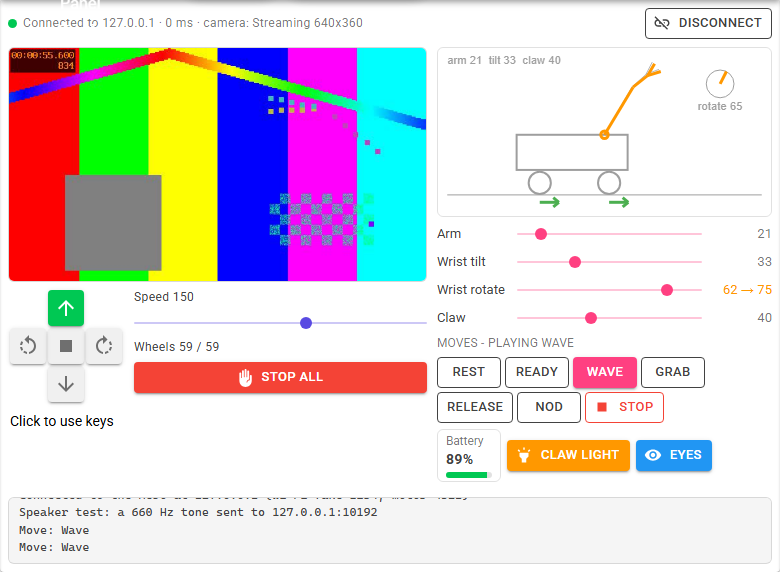
- Status and Connect - the connection's state, how long the robot took to answer the last request, the camera's state, and the Connect / Disconnect button. A green dot is connected, amber is connecting, red is a lost link that is being retried.
- Camera - the Mebo's camera, once it streams. It starts by itself when the robot connects (it can be turned off on the Camera tab), or with Start camera.
- Direction buttons - forward, turn left, stop, turn right and reverse. Click Click to use keys to drive with the arrow keys.
- Speed - the movement manager's speed, shared with every other skill and script.
- Wheels - the speeds last sent to the left and right wheels.
- Stop all - stops the wheels at once (no ramp), every joint and any move.
- The robot drawing - a live side view of the Mebo: the arm, the wrist tilt and the claw drawn from the robot's own position readings (in orange), the targets they are heading for (in grey), the wrist rotation as a dial, and green or red arrows under the wheels while they drive.
- Arm, Wrist tilt, Wrist rotate, Claw - a slider per joint that sends it to a position, with where the robot says it is now. The number turns amber while the joint moves and red if it did not get there in time.
- Moves - a button per arm move. The one playing is highlighted, with a Stop button beside it.
- Battery, Claw light, Eyes - the battery charge (red below the low battery level), and buttons that switch the claw light and the eye light.
- The log, which says what the skill is doing and anything that went wrong.
Connecting
Press Connect. The skill asks the robot for its firmware versions (any answer means it is there), sends the motor board's start-up sequence, reads the lights, the joints and the battery, and starts the camera. That takes a fraction of a second. Tick Connect when the project loads to connect without pressing anything.
If the robot stops answering for Link lost after (2 seconds by default), the wheels and joints are stopped, the Movement Panel shows Stop, the Disconnected script runs and, with Reconnect automatically on, the skill tries again every 3 seconds. When the robot is back it reconnects with everything stopped; it never carries on driving by itself. The Mebo's web server is known to stop answering now and then; the skill knocks on the robot's video port when that happens, which brings it back.
Driving
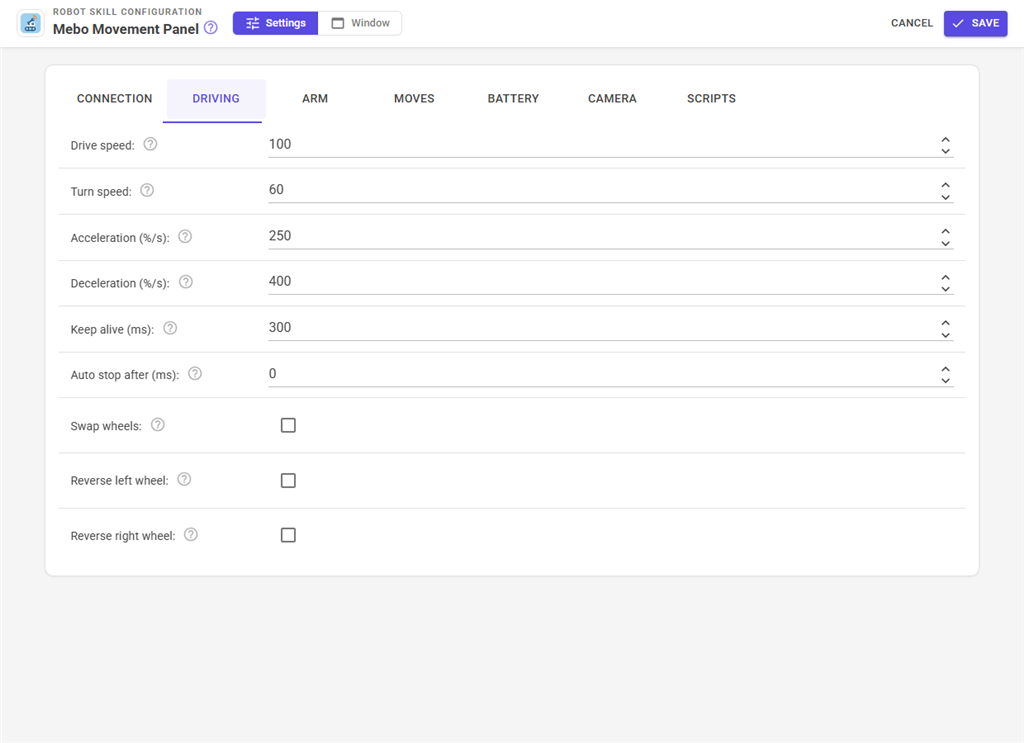
The movement panel's directions become a speed for each wheel. Drive speed is what the wheels get going forward or back at the top speed (255), and Turn speed what each wheel gets turning on the spot; lower speeds scale down from them. The official app drives between 10 and 100, so 100 and 60 are the defaults.
The wheels ramp: they speed up at Acceleration and slow down at Deceleration (in percent of the drive speed per second), so the robot does not jerk or tip its arm when it starts and stops. Stop all, the panic button and a lost link stop at once.
While the wheels turn, their speeds are sent again every Keep alive milliseconds. The Mebo stops a wheel that stops hearing from its controller, so if ARCx closes, crashes or loses Wi-Fi, the robot stops by itself shortly afterwards. Auto stop after adds a safety net in ARCx itself for a script that starts the robot and never says stop.
The arm, wrist and claw
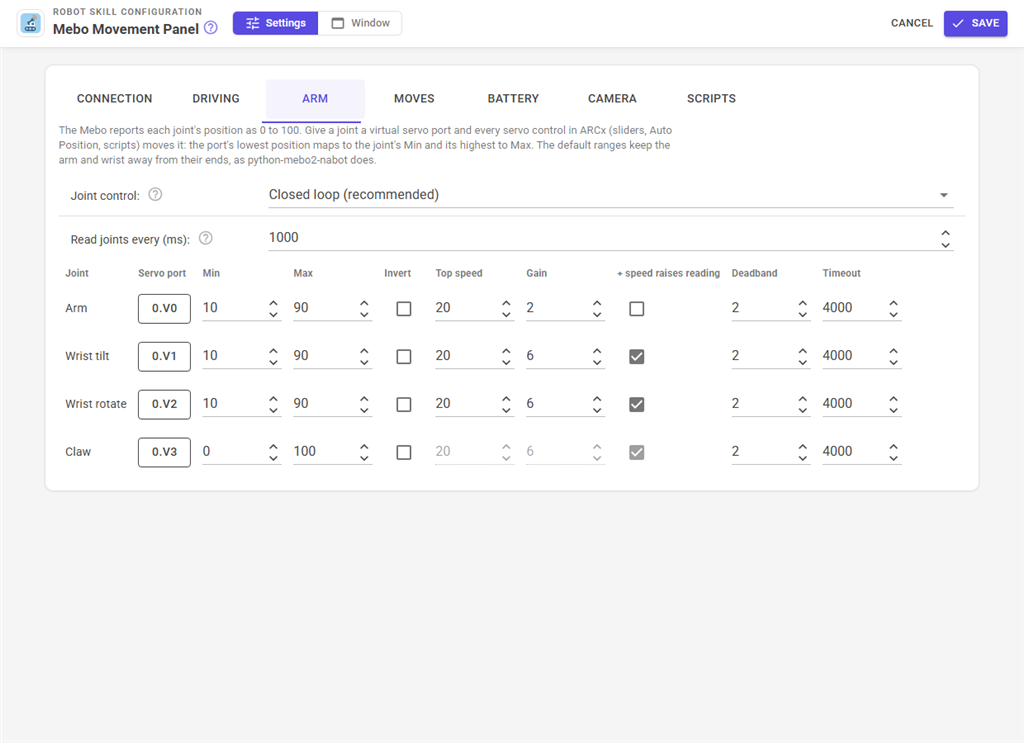
The Mebo reports each joint's position as a number from 0 to 100. Moving a slider, a servo port, a move or a script command sets a target; the skill then reads the joint ten times a second and drives it towards the target with a speed that shrinks as it gets close, stopping once it is within the Deadband. This is how the python-mebo2-nabot library moves real Mebo 2 robots, and it is the default. The claw takes a position directly and stops on whatever it holds.
Give a joint a Servo port (V0 to V3 by default) and every servo control in ARCx moves it: a servo slider, Auto Position frames, servo Pad, a script's Servo.setPosition(v0, 90), an AI. The port's lowest position maps to the joint's Min and its highest to Max, so the default ranges (10 to 90 for the arm and wrist) keep the joints off their end stops. Invert reverses the port. Reading a port's real position (Servo.getPositionRealtime(v0)) returns the robot's own reading.
| Setting | What it does |
|---|---|
| Joint control | Closed loop (recommended) or the motor board's own position commands from the official app (experimental: not known to work on every firmware). |
| Read joints every | How often the joints are read while nothing moves. |
| Top speed | The fastest speed used to move the joint. python-mebo2-nabot uses 20. |
| Gain | How hard the joint is pushed towards its target per unit of distance. |
| + speed raises reading | Which way a positive speed moves the joint's reading. The defaults come from python-mebo2-nabot: off for the arm, on for the wrist. If a joint runs away from its target instead of settling, flip it. |
| Deadband | How close counts as arrived. |
| Timeout | A joint that has not arrived after this long is stopped and the log says so. |
Calibrate (a control command) makes the robot find a joint's end stops, or all of them, which is worth doing if the readings drift.
Moves
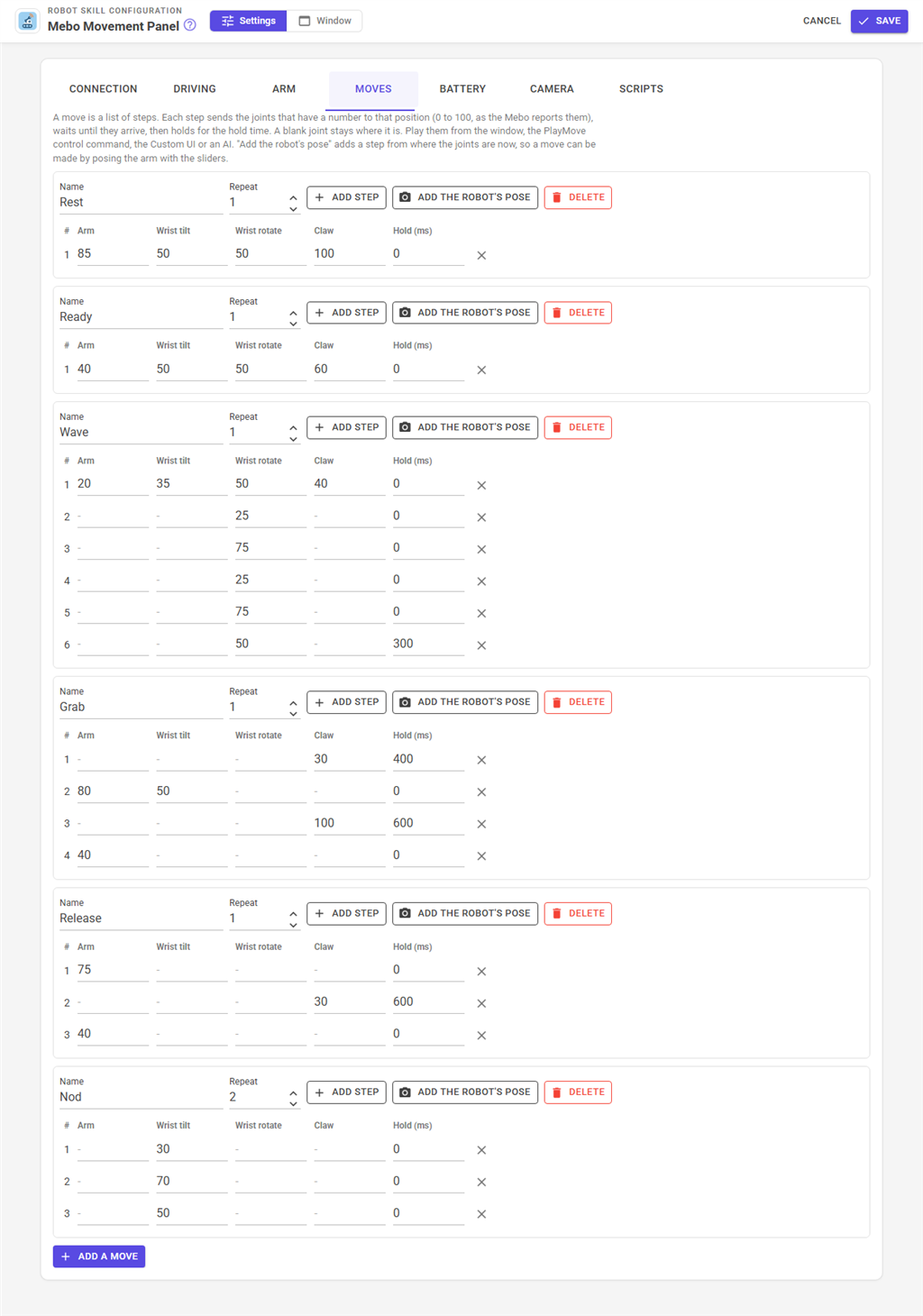
A move is a list of steps. Each step sends the joints that have a number to that position, waits until they arrive, then holds for the hold time; a blank joint stays where it is. Repeat plays the steps more than once. The skill starts with Rest, Ready, Wave, Grab, Release and Nod; they were worked out from the libraries' limits rather than measured on a robot, so tune them on yours.
To make a new move, add a move, pose the arm with the window's sliders and press Add the robot's pose for each step.
Moves play from the window's buttons, the Mebo Arm Custom UI widget, the PlayMove and PlayMoveWait control commands, and the play_move MCP tool.
Battery and lights
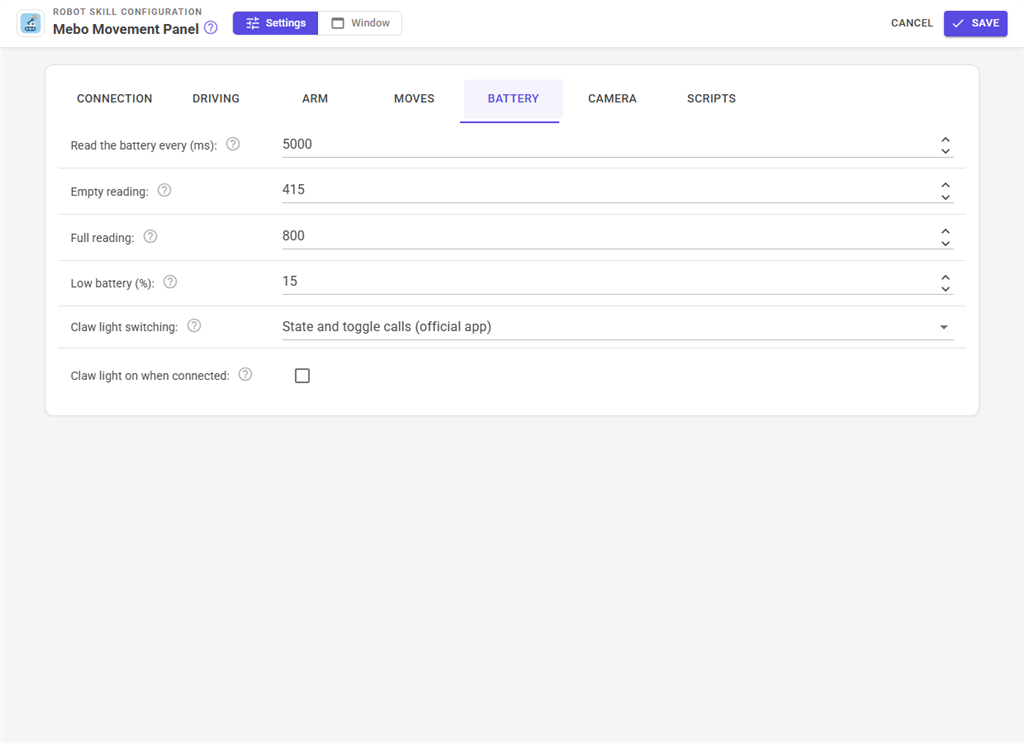
The battery reading (the robot's raw number after BAT=) becomes a charge in percent between Empty reading and Full reading, taken as the middle of the last five readings so a motor's load does not make it jump. The defaults, 415 and 800, are what python-mebo2-nabot measured. Below Low battery the Low Battery script runs once.
The claw light is switched the way the official app does (read its state, then toggle it) or, if that does not work on a robot, with the R motor command python-mebo2-nabot uses. The eye light is switched with the app's eye light calls.
Camera
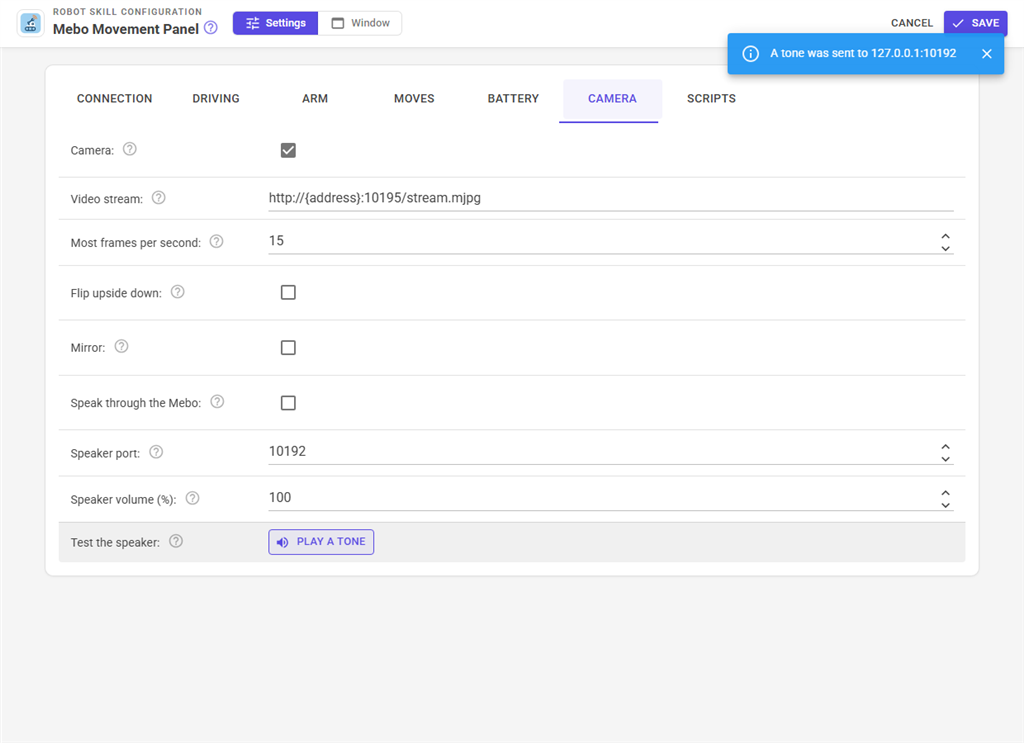
The Mebo 2 streams its camera over RTSP at rtsp://192.168.99.1/media/stream2. The skill opens it with the FFmpeg reader built into ARCx and shows it as a video source named after the skill's window, so every camera skill (Face Tracking, Color Tracking, Camera Snapshot, video recording, Custom UI camera views) can use the Mebo's eyes. Most frames per second drops frames before they are decoded, which saves processor time. The picture can be flipped or mirrored.
Speaking through the Mebo
Tick Speak through the Mebo and everything ARCx says - a Say from any script, robot skill or AI - also comes out of the Mebo's own speaker, held back so it starts together with the computer's speaker. The Say ControlCommand does it for one sentence even when the box is not ticked. The audio goes to the robot the way the python-mebo2-nabot library sends it: 8 kHz A-law over UDP to port 8828. Play a tone on the Camera tab sends a short beep to check it. The project needs a text to speech robot skill for speech.
Custom UI widgets
Two widgets are offered to the Custom UI:
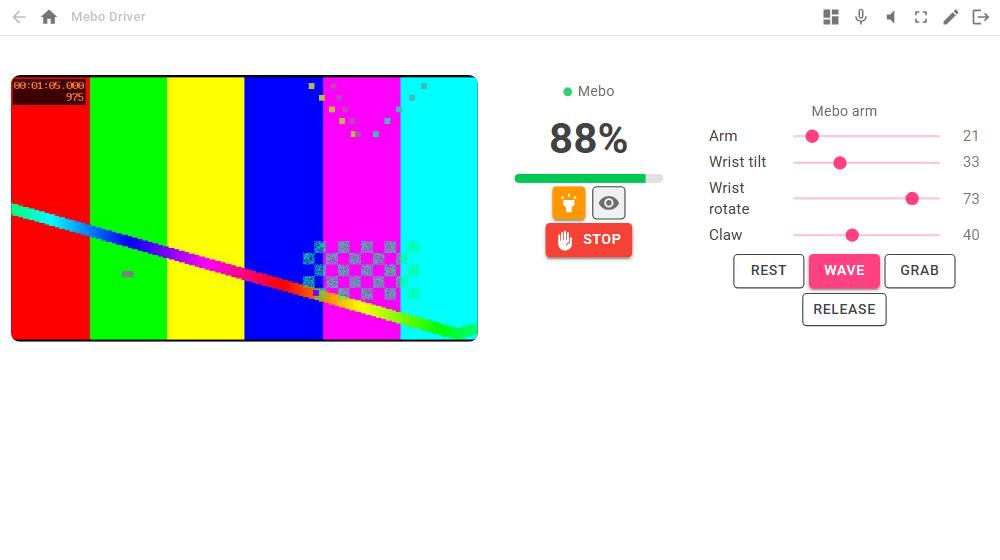
- Mebo Status - the battery as a big number, the connection, claw and eye light buttons, and a Stop button.
- Mebo Arm - a slider per joint with its live position, and buttons for the moves you list in its settings.
Put them beside a camera widget showing the Mebo's video source and a joystick, and a phone becomes a Mebo controller.
Variables
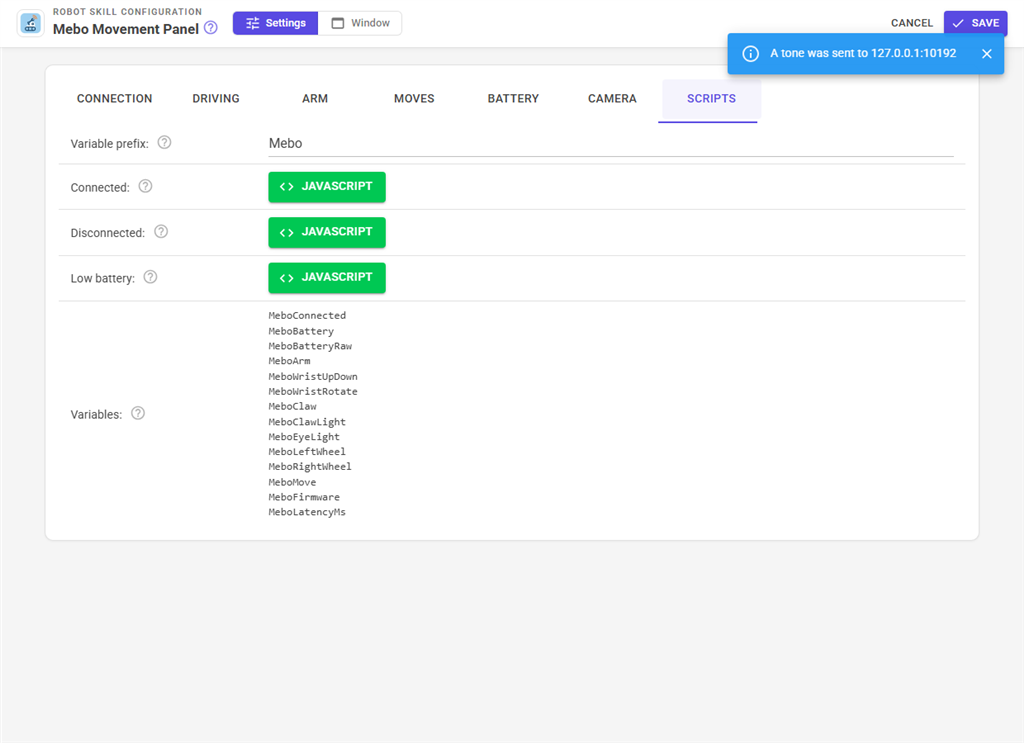
The skill keeps these global variables up to date (the prefix, Mebo, can be changed on the Scripts tab when a project has two Mebos):
| Variable | Meaning |
|---|---|
| MeboConnected | True while the robot answers. |
| MeboBattery, MeboBatteryRaw | The charge in percent (-1 until read) and the raw reading. |
| MeboArm, MeboWristUpDown, MeboWristRotate, MeboClaw | Each joint's position as the robot reports it, 0 to 100. |
| MeboClawLight, MeboEyeLight | Whether the lights are on. |
| MeboLeftWheel, MeboRightWheel | The speeds last sent to the wheels. |
| MeboMove | The move playing, empty when none. |
| MeboFirmware | The Wi-Fi board's revision and the motor board's version. |
| MeboLatencyMs | How long the robot took to answer the last request. |
Scripts
| Script | Runs |
|---|---|
| Connected | Each time the robot connects, or reconnects after the link was lost. |
| Disconnected | When the link is lost or Disconnect is pressed. |
| Low battery | Once when the charge drops below the low battery level. |
AI agents (MCP)
An AI connected to ARCx through MCP gets tools of its own for the Mebo: get_status, drive (a direction, a speed and a duration, after which it stops by itself), move_arm, play_move, set_lights, look (the next camera frame as a picture) and say. Every ControlCommand is also available to it.
Configuration
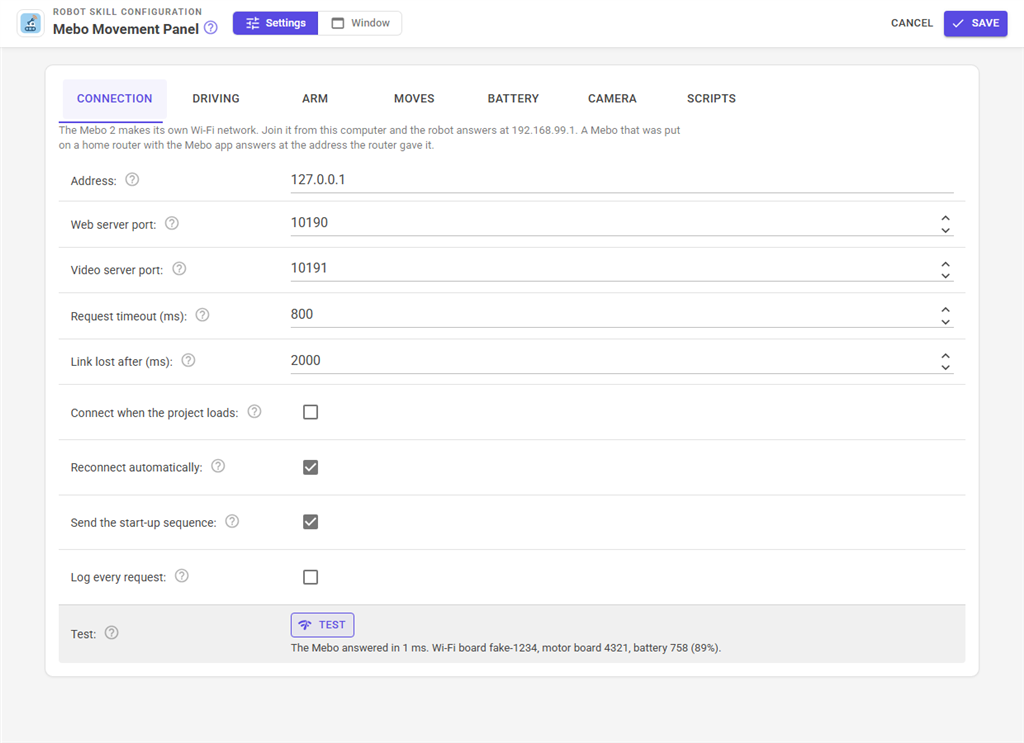
| Setting | What it does |
|---|---|
| Address | The robot's address: 192.168.99.1 on its own Wi-Fi network. |
| Web server port | 80. Only changed for a simulator. |
| Video server port | 554, the RTSP port. Used for the camera and to wake the web server. |
| Request timeout | How long one request may take. |
| Link lost after | How long the robot may be silent before everything is stopped. |
| Connect when the project loads | Connect without pressing Connect. |
| Reconnect automatically | Keep trying every 3 seconds after the link is lost. |
| Send the start-up sequence | Send the motor board start-up messages python-mebo2-nabot sends on every connect. |
| Log every request | Write every request and answer to the log, for diagnosing. |
| Test | Ask the address for its versions and battery without connecting. |
Good to know
- The protocol comes from the Mebo app's own code and from python-mebo2-nabot, a library tested on real Mebo 2 robots. The skill was tested end to end against a simulated Mebo, not a real one; if a joint moves the wrong way, flip its + speed raises reading box, and if the claw light does not switch, try the other Claw light switching method.
- Joints are read about ten times a second while they move, which is a little Wi-Fi traffic; that is normal.
- A robot that drives the wrong way can be fixed with Swap wheels and Reverse left / right wheel on the Driving tab.
Control Commands for the Mebo Movement Panel robot skill
There are Control Commands available for this robot skill which allows the skill to be controlled programmatically from scripts or other robot skills. These commands enable you to automate actions, respond to sensor inputs, and integrate the robot skill with other systems or custom interfaces. If you're new to the concept of Control Commands, we have a comprehensive manual available here that explains how to use them, provides examples to get you started and make the most of this powerful feature.
Control Command ManualThis robot skill has 32 control commands, listed below. Send them from a JavaScript or Python script, from Blockly, or from another robot skill.
The first value is always the window title, which is the name in the title bar of the robot skill on your workspace. It starts out as Mebo Movement Panel, which is what every example below uses. If you rename the robot skill, or add a second copy of it to the project, use the title as it appears on that window instead.
ControlCommand() can be shortened to CC(), and both spellings work in JavaScript and in Python. The examples are JavaScript; Python is the same call, except that true and false are written True and False.
Calibrate
Calibrate a joint: Arm, WristUpDown, WristRotate, Claw or All. The joints move to their ends to find them.
Syntax
ControlCommand("Mebo Movement Panel", "Calibrate", "All")
Parameters
| # | Name | Type | What to pass |
|---|---|---|---|
| 1 | "All" |
Text | The fixed value "All". Leave it as it is. |
Returns: nothing
Example
ControlCommand("Mebo Movement Panel", "Calibrate", "All");
CameraStart
Start the Mebo's camera as an ARCx video source (it also starts by itself on connect when enabled).
Syntax
ControlCommand("Mebo Movement Panel", "CameraStart")
Returns: nothing
Example
ControlCommand("Mebo Movement Panel", "CameraStart");
CameraStop
Stop the Mebo's camera.
Syntax
ControlCommand("Mebo Movement Panel", "CameraStop")
Returns: nothing
Example
ControlCommand("Mebo Movement Panel", "CameraStop");
ClawLightOff
Turn the claw light off. Returns the light's state.
Syntax
ControlCommand("Mebo Movement Panel", "ClawLightOff")
Returns: Boolean [true or false]
Example
var result = ControlCommand("Mebo Movement Panel", "ClawLightOff");
ClawLightOn
Turn the claw light on. Returns the light's state.
Syntax
ControlCommand("Mebo Movement Panel", "ClawLightOn")
Returns: Boolean [true or false]
Example
var result = ControlCommand("Mebo Movement Panel", "ClawLightOn");
CloseClaw
Close the claw as far as its range allows (it stops on whatever it holds).
Syntax
ControlCommand("Mebo Movement Panel", "CloseClaw")
Returns: nothing
Example
ControlCommand("Mebo Movement Panel", "CloseClaw");
Connect
Connect to the Mebo at the configured address. With auto reconnect on, keeps trying until it answers.
Syntax
ControlCommand("Mebo Movement Panel", "Connect")
Returns: nothing
Example
ControlCommand("Mebo Movement Panel", "Connect");
Disconnect
Stop the wheels and joints and stop talking to the Mebo.
Syntax
ControlCommand("Mebo Movement Panel", "Disconnect")
Returns: nothing
Example
ControlCommand("Mebo Movement Panel", "Disconnect");
EyeLightOff
Turn the eye light off. Returns the light's state.
Syntax
ControlCommand("Mebo Movement Panel", "EyeLightOff")
Returns: Boolean [true or false]
Example
var result = ControlCommand("Mebo Movement Panel", "EyeLightOff");
EyeLightOn
Turn the eye light on. Returns the light's state.
Syntax
ControlCommand("Mebo Movement Panel", "EyeLightOn")
Returns: Boolean [true or false]
Example
var result = ControlCommand("Mebo Movement Panel", "EyeLightOn");
GetArm
The arm's position as the Mebo last reported it, 0 to 100, or -1 when not read yet.
Syntax
ControlCommand("Mebo Movement Panel", "GetArm")
Returns: Integer [-2,147,483,648 to 2,147,483,647]
Example
var result = ControlCommand("Mebo Movement Panel", "GetArm");
GetBattery
The battery charge in percent, or -1 when not read yet.
Syntax
ControlCommand("Mebo Movement Panel", "GetBattery")
Returns: Integer [-2,147,483,648 to 2,147,483,647]
Example
var result = ControlCommand("Mebo Movement Panel", "GetBattery");
GetClaw
The claw's position as last reported, 0 (open) to 100 (closed), or -1.
Syntax
ControlCommand("Mebo Movement Panel", "GetClaw")
Returns: Integer [-2,147,483,648 to 2,147,483,647]
Example
var result = ControlCommand("Mebo Movement Panel", "GetClaw");
GetMoves
The names of the arm moves.
Syntax
ControlCommand("Mebo Movement Panel", "GetMoves")
Returns: Array of String
Example
var result = ControlCommand("Mebo Movement Panel", "GetMoves");
GetWristRotate
The wrist rotation's position as last reported, 0 to 100, or -1.
Syntax
ControlCommand("Mebo Movement Panel", "GetWristRotate")
Returns: Integer [-2,147,483,648 to 2,147,483,647]
Example
var result = ControlCommand("Mebo Movement Panel", "GetWristRotate");
GetWristUpDown
The wrist tilt's position as last reported, 0 to 100, or -1.
Syntax
ControlCommand("Mebo Movement Panel", "GetWristUpDown")
Returns: Integer [-2,147,483,648 to 2,147,483,647]
Example
var result = ControlCommand("Mebo Movement Panel", "GetWristUpDown");
IsConnected
Whether the Mebo is connected and answering.
Syntax
ControlCommand("Mebo Movement Panel", "IsConnected")
Returns: Boolean [true or false]
Example
var result = ControlCommand("Mebo Movement Panel", "IsConnected");
OpenClaw
Open the claw as far as its range allows.
Syntax
ControlCommand("Mebo Movement Panel", "OpenClaw")
Returns: nothing
Example
ControlCommand("Mebo Movement Panel", "OpenClaw");
PlayMove
Start playing an arm move by name (Rest, Ready, Wave, Grab, Release, Nod or your own) and return at once. False when the move is unknown or the Mebo is not connected.
Syntax
ControlCommand("Mebo Movement Panel", "PlayMove", (String)name)
Parameters
| # | Name | Type | What to pass |
|---|---|---|---|
| 1 | name | Text | Your text, in quotes |
Returns: Boolean [true or false]
Example
var result = ControlCommand("Mebo Movement Panel", "PlayMove", "name");
PlayMoveWait
Play an arm move by name and return when it ends: "done", "stopped" or why it could not finish.
Syntax
ControlCommand("Mebo Movement Panel", "PlayMoveWait", (String)name)
Parameters
| # | Name | Type | What to pass |
|---|---|---|---|
| 1 | name | Text | Your text, in quotes |
Returns: String
Example
var result = ControlCommand("Mebo Movement Panel", "PlayMoveWait", "name");
RebootRobot
Restart the Mebo's Wi-Fi board. The link drops for about a minute.
Syntax
ControlCommand("Mebo Movement Panel", "RebootRobot")
Returns: nothing
Example
ControlCommand("Mebo Movement Panel", "RebootRobot");
Say
Speak with the project's text to speech robot skill and send the speech to the Mebo's own speaker too.
Syntax
ControlCommand("Mebo Movement Panel", "Say", (String)text)
Parameters
| # | Name | Type | What to pass |
|---|---|---|---|
| 1 | text | Text | Your text, in quotes |
Returns: nothing
Example
ControlCommand("Mebo Movement Panel", "Say", "text");
SendRaw
Advanced: send a message to the Mebo's motor board (such as BAT=? or a !-message; it is wrapped in mebolink_message_send), or a call such as claw_led_state() as it is. Returns the robot's answer.
Syntax
ControlCommand("Mebo Movement Panel", "SendRaw", (String)message)
Parameters
| # | Name | Type | What to pass |
|---|---|---|---|
| 1 | message | Text | Your text, in quotes |
Returns: String
Example
var result = ControlCommand("Mebo Movement Panel", "SendRaw", "message");
SetArm
Move the arm to a position, 0 to 100 as the Mebo reports it (limited to the arm's configured range). Returns the target used; does not wait.
Syntax
ControlCommand("Mebo Movement Panel", "SetArm", (Number)position)
Parameters
| # | Name | Type | What to pass |
|---|---|---|---|
| 1 | position | Number | A number, without quotes |
Returns: Integer [-2,147,483,648 to 2,147,483,647]
Example
var result = ControlCommand("Mebo Movement Panel", "SetArm", 0);
SetClaw
Move the claw to a position, 0 (open) to 100 (closed). Returns the target used; does not wait.
Syntax
ControlCommand("Mebo Movement Panel", "SetClaw", (Number)position)
Parameters
| # | Name | Type | What to pass |
|---|---|---|---|
| 1 | position | Number | A number, without quotes |
Returns: Integer [-2,147,483,648 to 2,147,483,647]
Example
var result = ControlCommand("Mebo Movement Panel", "SetClaw", 0);
SetWristRotate
Rotate the wrist to a position, 0 to 100 (50 is the middle). Returns the target used; does not wait.
Syntax
ControlCommand("Mebo Movement Panel", "SetWristRotate", (Number)position)
Parameters
| # | Name | Type | What to pass |
|---|---|---|---|
| 1 | position | Number | A number, without quotes |
Returns: Integer [-2,147,483,648 to 2,147,483,647]
Example
var result = ControlCommand("Mebo Movement Panel", "SetWristRotate", 0);
SetWristUpDown
Tilt the wrist to a position, 0 to 100. Returns the target used; does not wait.
Syntax
ControlCommand("Mebo Movement Panel", "SetWristUpDown", (Number)position)
Parameters
| # | Name | Type | What to pass |
|---|---|---|---|
| 1 | position | Number | A number, without quotes |
Returns: Integer [-2,147,483,648 to 2,147,483,647]
Example
var result = ControlCommand("Mebo Movement Panel", "SetWristUpDown", 0);
StopAll
Stop the wheels at once (no ramp), every joint and any move.
Syntax
ControlCommand("Mebo Movement Panel", "StopAll")
Returns: nothing
Example
ControlCommand("Mebo Movement Panel", "StopAll");
StopMove
Stop the move playing, leaving the joints where they are.
Syntax
ControlCommand("Mebo Movement Panel", "StopMove")
Returns: nothing
Example
ControlCommand("Mebo Movement Panel", "StopMove");
ToggleClawLight
Switch the claw light over. Returns its new state.
Syntax
ControlCommand("Mebo Movement Panel", "ToggleClawLight")
Returns: Boolean [true or false]
Example
var result = ControlCommand("Mebo Movement Panel", "ToggleClawLight");
ToggleEyeLight
Switch the eye light over. Returns its new state.
Syntax
ControlCommand("Mebo Movement Panel", "ToggleEyeLight")
Returns: Boolean [true or false]
Example
var result = ControlCommand("Mebo Movement Panel", "ToggleEyeLight");
WaitForJoints
Wait until no joint is still moving to a position, or the timeout in milliseconds passes. True when they all finished.
Syntax
ControlCommand("Mebo Movement Panel", "WaitForJoints", (Number)timeoutMs)
Parameters
| # | Name | Type | What to pass |
|---|---|---|---|
| 1 | timeoutMs | Number | A number, without quotes |
Returns: Boolean [true or false]
Example
var result = ControlCommand("Mebo Movement Panel", "WaitForJoints", 0);
This list is read out of the robot skill itself each time its package is uploaded, so it matches the published version (v1).

This robot skill has been updated to v1.
What has changed
initial release