

Autonomous AI robot brain for vision, speech, driving, scripts, memory, goals, and tool use with any LLM provider.
 Windows
 ARM
ARM
 Linux
Linux
 MacOS
MacOS
How to add the Autonomous Ai robot skill
- Load the most recent release of ARCx on a compatible operating system (Get ARCx).
- Press the + Skills menu from the top menu bar in ARCx.
- Choose the Artificial Intelligence category tab.
- Press the Autonomous Ai icon to add the robot skill to your project.
Don't have a robot yet?
Follow the Getting Started Guide to build a robot and use the Autonomous Ai robot skill.
How to use the Autonomous Ai robot skill
The Autonomous AI robot skill gives your robot a mind of its own. A large language model of your choice becomes the robot's brain: it sees through the camera, listens through a speech engine, speaks, drives, runs scripts, operates every other robot skill in the project, follows your instructions, and when nobody is talking to it, acts on its own personality and drives.
It works with any provider. Pick a preset for OpenAI, Anthropic, Google Gemini, Groq, OpenRouter, xAI, Mistral, DeepSeek, Azure OpenAI, or a local model through Ollama or LM Studio, or point it at any custom endpoint that speaks one of the three common API kinds.
What makes it different
- The robot acts through tools, not by writing code you have to parse. The model calls speak, move, look, take_picture, run_script, control_command, remember, set_goal and the rest as native function calls. Every action is checked and bounded by ARCx before it happens. For models without function calling, a JSON action format is used automatically.
- It knows your project. Every robot skill's window title, description, control commands, and the names inside its configuration (animation actions, LED patterns, sound tracks, phrases) are described to the model, so "do your happy dance" works when an Auto Position action called Happy Dance exists.
- It has a personality and an inner life. Name, body type, character traits, interests and a backstory shape how it talks. Four drives (curiosity, boredom, sociability, caution) and a mood rise and fall with what happens, and steer what it chooses to do when left alone.
- It remembers. Notes it chooses to keep, a long-term memory it writes itself, and the recent conversation are all saved with the project.
- It pursues goals. "Go find the red ball" becomes a goal with a success condition. The robot works at it across turns, takes pictures to check progress, and reports when it is done or gives up.
- It is safe to leave running. Movement has a watchdog, scripts have a time limit, each turn has a tool-call budget, hidden skills stay hidden, and one switch pauses all autonomy. An Interrupt button and ControlCommand stop everything immediately.
Getting started
- Add a camera robot skill (Camera Source usb or ezb) and make sure video is showing. The robot cannot see without it.
- Add a movement panel if the robot can drive, and any Auto Position, RGB animator, sound board or other skills you want the robot to use. Give their actions descriptive names.
- Add Autonomous AI. Open its configuration.
- On the Mind tab pick a provider, paste your API key, choose a model, and press Test connection. The key is stored encrypted on this computer, not in the project.
- On the Personality tab give the robot a name, a body type and a few traits.
- Save. The robot introduces itself the first time it is left alone, or as soon as you type to it.
Optional: add a text to speech engine skill so it has a voice, and a speech to text engine skill and turn on Listen on the Senses tab so it hears you.
Main window
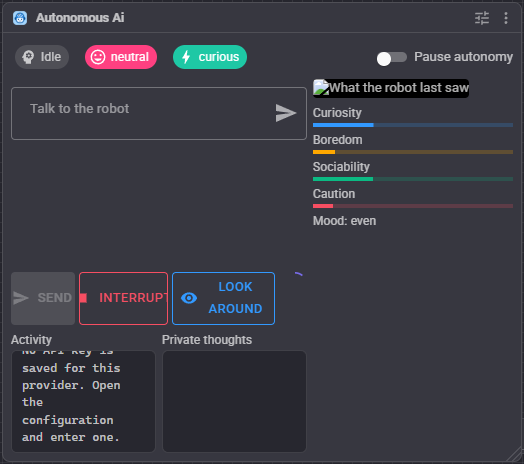
- Talk to the robot: type and press Enter. What you type is treated as something a person said to the robot.
- Interrupt: stops the current turn, movement, scripts and speech.
- Look around: asks the robot to take a good look at its surroundings.
- Pause autonomy: suspends idle behavior, reactions to people and scene changes, and goal continuation. The robot still answers when spoken to.
- Status chips: what the robot is doing, its emotion, its dominant drive, and who it thinks is present.
- Activity log: what it heard, said and did, and any errors.
- Private thoughts: the model's reasoning, never spoken.
- Preview: the last image the model was shown. When the recent-moments grid is on, this is a 2x2 grid with the newest frame top-left.
- Drive meters and the idle countdown ring.
Configuration
Mind
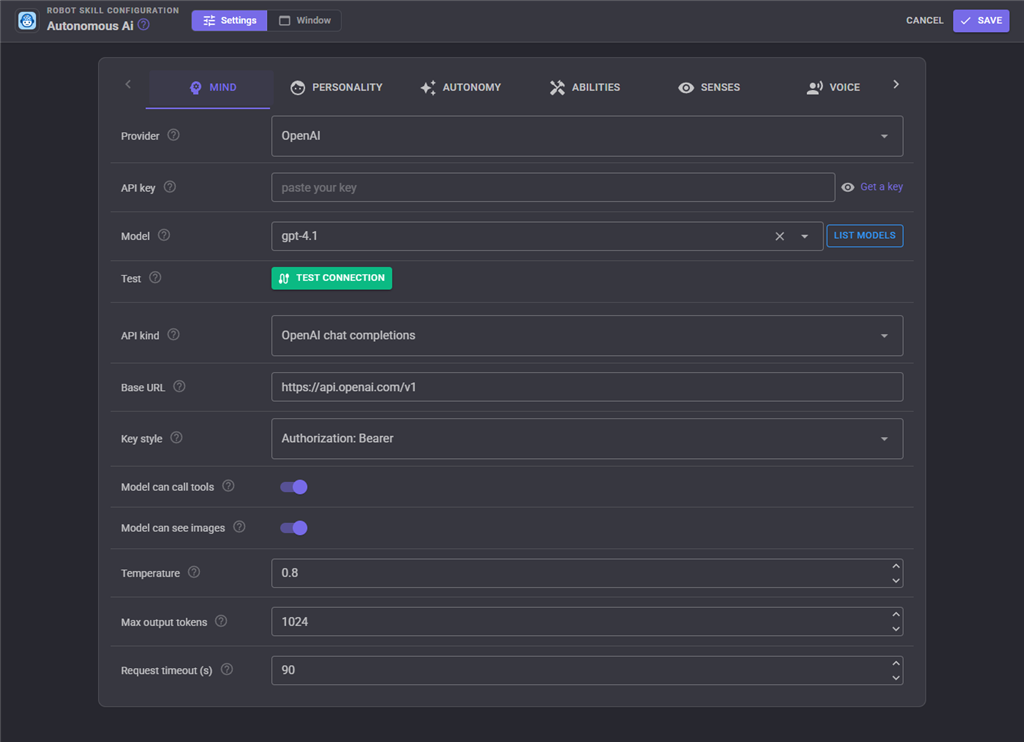
Provider, API key, model, and the connection details behind them. List models asks the endpoint for its models. Test connection sends a hello. The switches for tool calling and vision tell the robot what the model can do; presets set them correctly for the well-known providers. Temperature, max output tokens and request timeout are the usual knobs.
For Ollama or LM Studio, start the local server, pick the preset, and choose a vision-capable model. No key is needed.
For Azure OpenAI, edit the base URL with your resource and deployment names; the api-version is added for you.
Personality
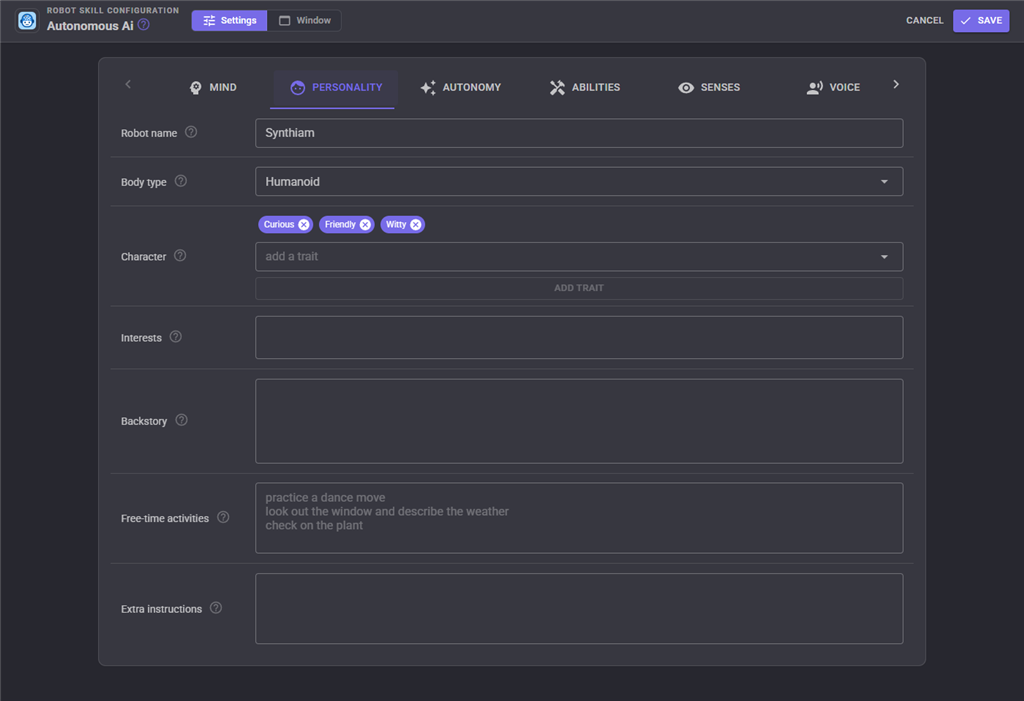
Robot name, body type, character traits (pick from the list or type your own), interests, and a free-text backstory. Free-time activities are things the robot may choose to do when left alone, one per line. Extra instructions are appended to the robot's instructions verbatim.
Autonomy
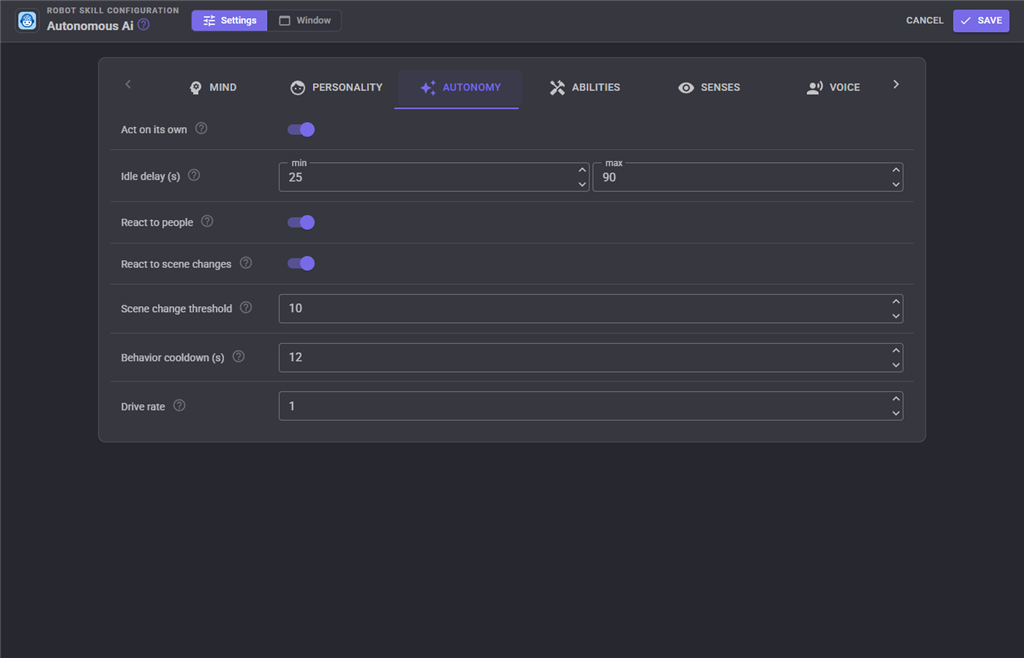
Whether the robot acts on its own, the random idle delay range, whether it reacts to people arriving and leaving and to scene changes, how sensitive scene change detection is, the cooldown between similar autonomous decisions, and the drive rate (how fast its drives build up).
Abilities
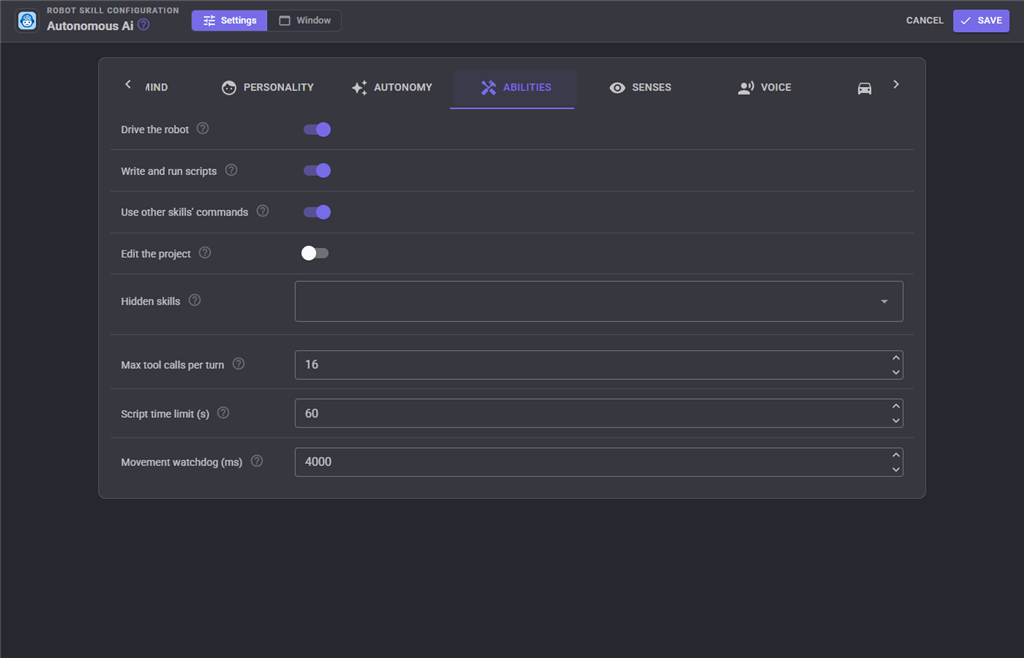
What the model may do: drive the robot, write and run scripts, use other skills' control commands, and (off by default) edit the project itself with the same tools the Athena assistant has. Hidden skills are never described to the model and cannot be commanded. The limits: tool calls per turn, script time limit, and the movement watchdog.
Senses
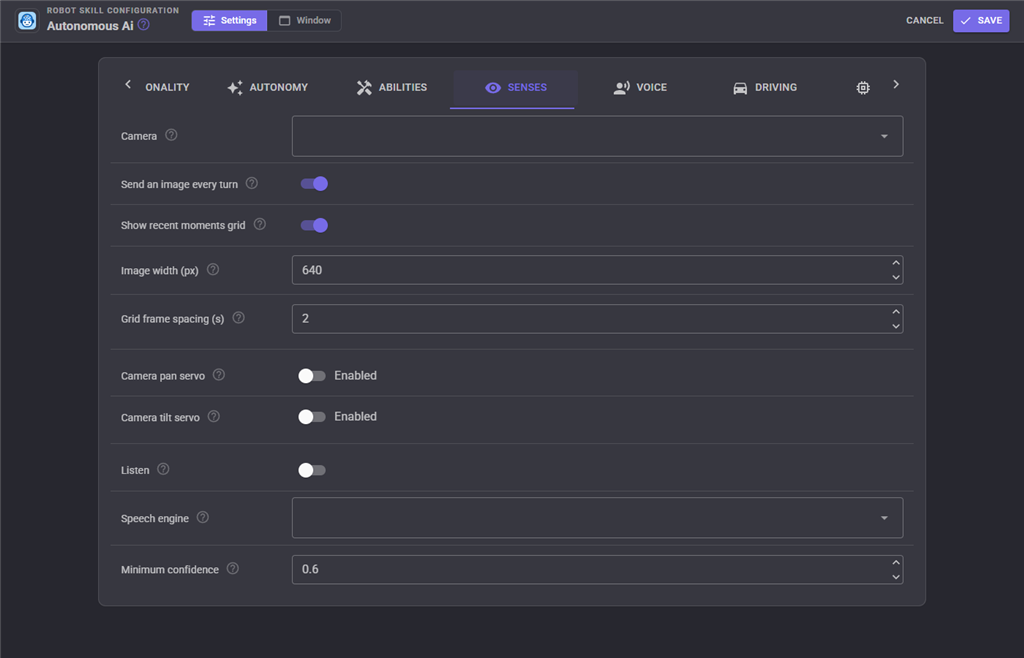
The camera to see through, whether to send an image every turn, the 2x2 recent-moments grid, image width, and optional pan and tilt servos for a camera gimbal so the robot can look around and keep people in frame. Changing a gimbal position moves the servo so you can find the right value. Listen selects a speech to text engine and a minimum confidence.
Voice
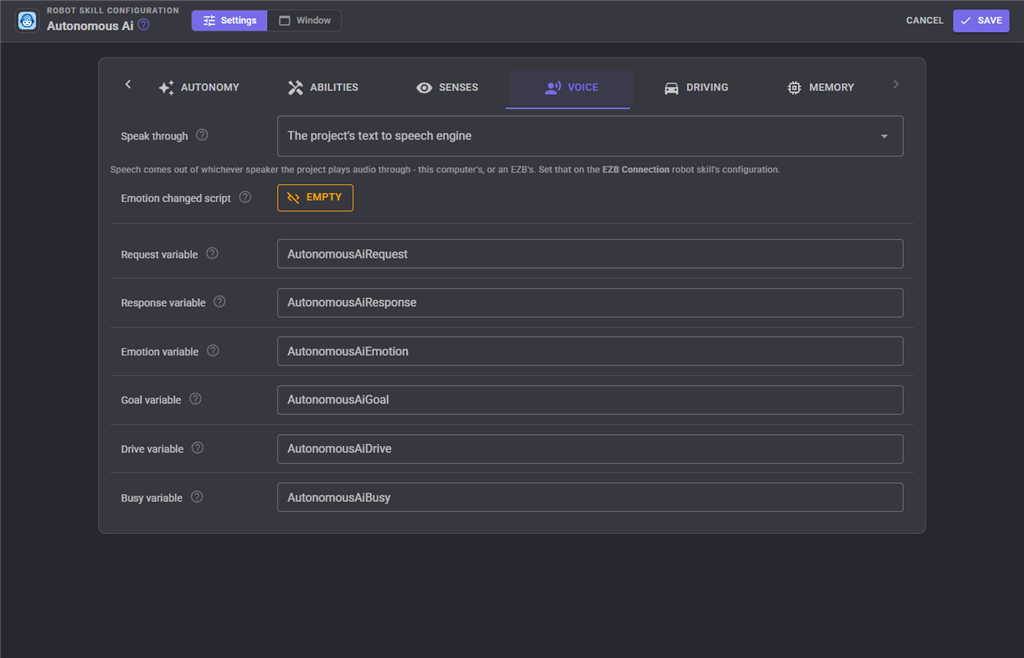
How spoken lines are voiced: PC speaker through the project's text to speech engine, an EZB speaker, a custom script (the text is in the response variable), or silent. A script can also run whenever the robot's emotion changes, to drive LEDs or a face. The variable names the skill publishes are here too.
Driving
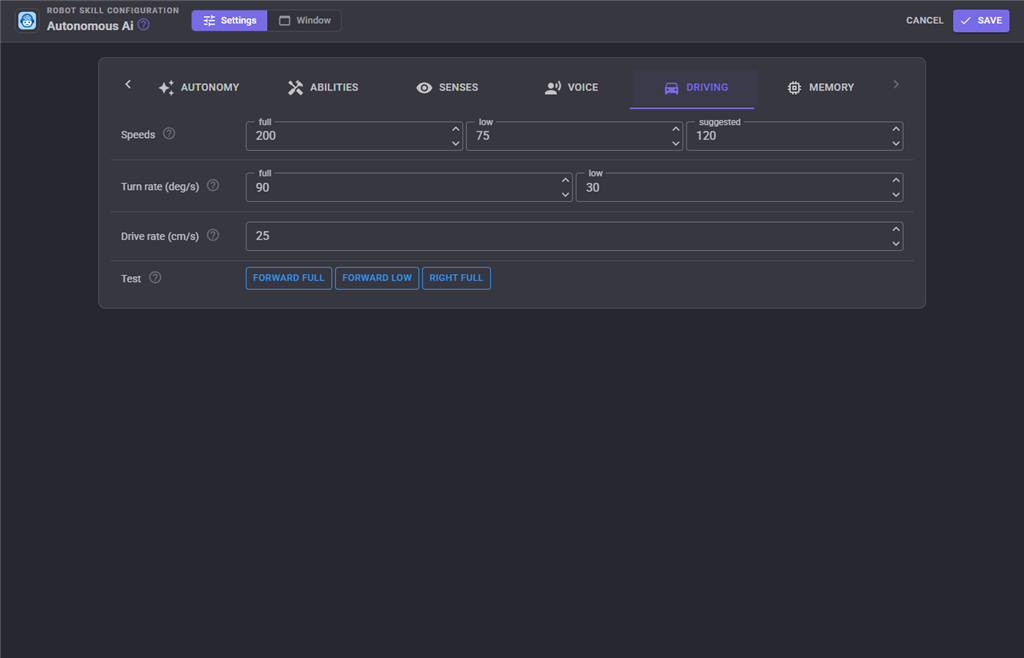
Speed values and calibration: degrees per second at full and low speed, centimetres per second. The robot uses these to turn "turn around" into a duration. Test buttons drive for one second.
Memory
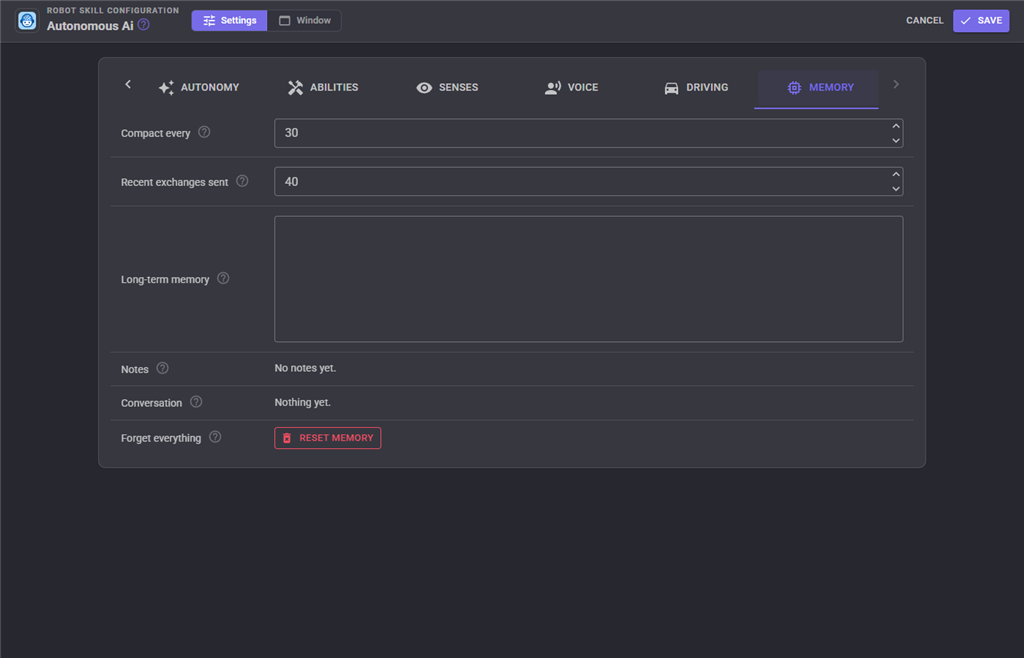
How often the conversation is compacted into long-term memory, how many recent exchanges accompany each request, the long-term memory text (edit it to teach the robot facts), the notes it kept, the recent conversation, and a reset.
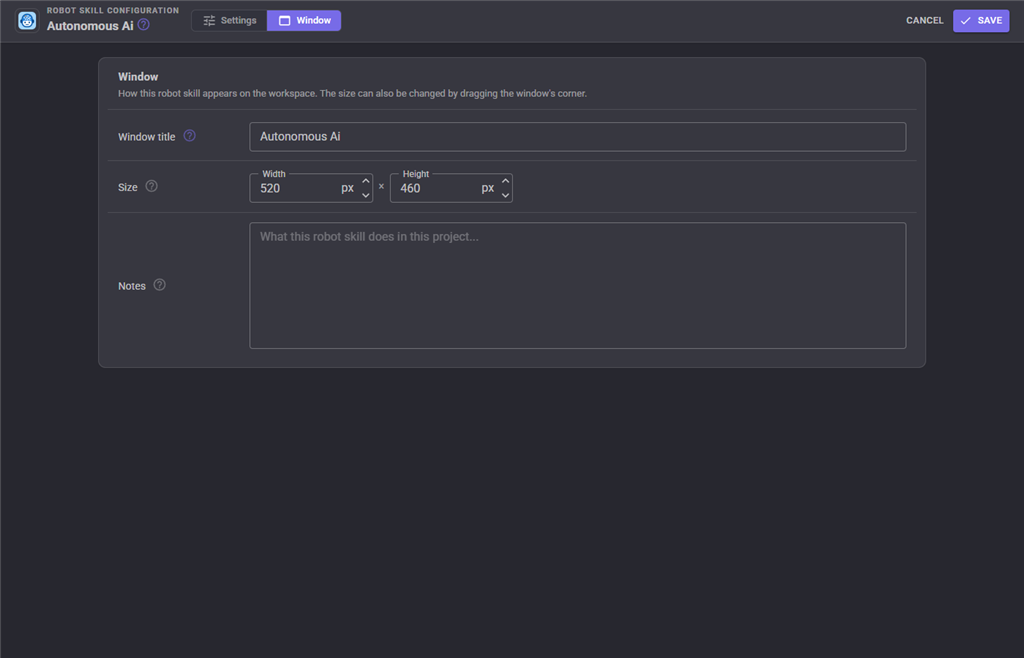
The Window tab sets the robot skill's window title, its size on the workspace and notes about what it does in this project.
Variables
AutonomousAiRequest (last thing said to it), AutonomousAiResponse (last thing it said), AutonomousAiEmotion, AutonomousAiGoal, AutonomousAiDrive and AutonomousAiBusy. All names can be changed on the Voice tab.
How a turn works
- Something happens: a person types or speaks, or the behavior loop decides the robot has been quiet long enough, someone arrived or left, the scene changed, or a goal needs continuing.
- The skill gathers the situation: personality, drives, mood, goal, memory, what the camera shows (as an image), the gimbal aim, the dead-reckoned position, recent scene notes, live variables, and the full catalog of skills and commands.
- The model answers with tool calls. Each is executed in order: words are spoken, movement runs with a watchdog, scripts run with a time limit, control commands are checked against the catalog, pictures are taken and sent back. The loop continues until the model stops calling tools or the per-turn budget is reached.
- What was said and done goes into the conversation history. Every so often the history is summarized into long-term memory by the model itself.
Tips
- Descriptive names everywhere. The robot can only use what it can understand: name actions "Wave hello" not "Action 3", and write descriptions on scripts.
- Give it a success condition it can see. "Drive forward until the door is in view" beats "explore".
- Start with autonomy on and the idle delay around a minute. Lower it for a chatty robot, raise it for a calm one.
- Turn off the recent-moments grid to save tokens if the robot mostly talks; turn it on if it moves.
- Cheaper models handle conversation well; use a stronger model when the robot has to plan multi-step tasks or write scripts.
- Keep an emergency stop within reach. The robot decides for itself, and that is the point.
Control Commands for the Autonomous Ai robot skill
There are Control Commands available for this robot skill which allows the skill to be controlled programmatically from scripts or other robot skills. These commands enable you to automate actions, respond to sensor inputs, and integrate the robot skill with other systems or custom interfaces. If you're new to the concept of Control Commands, we have a comprehensive manual available here that explains how to use them, provides examples to get you started and make the most of this powerful feature.
Control Command ManualThis robot skill has 16 control commands, listed below. Send them from a JavaScript or Python script, from Blockly, or from another robot skill.
The first value is always the window title, which is the name in the title bar of the robot skill on your workspace. It starts out as Autonomous Ai, which is what every example below uses. If you rename the robot skill, or add a second copy of it to the project, use the title as it appears on that window instead.
ControlCommand() can be shortened to CC(), and both spellings work in JavaScript and in Python. The examples are JavaScript; Python is the same call, except that true and false are written True and False.
GetDiagnostics
A summary of recent turns: durations, model calls, tokens and errors.
Syntax
ControlCommand("Autonomous Ai", "GetDiagnostics")
Returns: String
Example
var result = ControlCommand("Autonomous Ai", "GetDiagnostics");
GetDrive
The robot's dominant drive: content, curious, bored, social or cautious.
Syntax
ControlCommand("Autonomous Ai", "GetDrive")
Returns: String
Example
var result = ControlCommand("Autonomous Ai", "GetDrive");
GetEmotion
The robot's current emotion, one word.
Syntax
ControlCommand("Autonomous Ai", "GetEmotion")
Returns: String
Example
var result = ControlCommand("Autonomous Ai", "GetEmotion");
GetGoal
The robot's current goal, or an empty string.
Syntax
ControlCommand("Autonomous Ai", "GetGoal")
Returns: String
Example
var result = ControlCommand("Autonomous Ai", "GetGoal");
GetPause
Whether autonomous behavior is paused.
Syntax
ControlCommand("Autonomous Ai", "GetPause")
Returns: Boolean [true or false]
Example
var result = ControlCommand("Autonomous Ai", "GetPause");
GetPose
The dead-reckoned position and heading relative to where the robot started, as a sentence.
Syntax
ControlCommand("Autonomous Ai", "GetPose")
Returns: String
Example
var result = ControlCommand("Autonomous Ai", "GetPose");
GetSecondsSinceLastRequest
Seconds since a person last spoke to the robot.
Syntax
ControlCommand("Autonomous Ai", "GetSecondsSinceLastRequest")
Returns: Integer [-2,147,483,648 to 2,147,483,647]
Example
var result = ControlCommand("Autonomous Ai", "GetSecondsSinceLastRequest");
Interrupt
Stop whatever the robot is thinking or doing right now: cancels the current turn, stops movement, scripts and speech.
Syntax
ControlCommand("Autonomous Ai", "Interrupt")
Returns: Boolean [true or false]
Example
var result = ControlCommand("Autonomous Ai", "Interrupt");
IsBusy
True while the robot is thinking or acting on a request.
Syntax
ControlCommand("Autonomous Ai", "IsBusy")
Returns: Boolean [true or false]
Example
var result = ControlCommand("Autonomous Ai", "IsBusy");
Remember
Add a note to the robot's long-term notes, for example a fact another skill learned.
Syntax
ControlCommand("Autonomous Ai", "Remember", (String)note)
Parameters
| # | Name | Type | What to pass |
|---|---|---|---|
| 1 | note | Text | Your text, in quotes |
Returns: Boolean [true or false]
Example
var result = ControlCommand("Autonomous Ai", "Remember", "note");
ResetMemory
Forget the conversation, the long-term memory and the notes.
Syntax
ControlCommand("Autonomous Ai", "ResetMemory")
Returns: Boolean [true or false]
Example
var result = ControlCommand("Autonomous Ai", "ResetMemory");
ResetPose
Make the current position the new origin of the dead-reckoned pose.
Syntax
ControlCommand("Autonomous Ai", "ResetPose")
Returns: Boolean [true or false]
Example
var result = ControlCommand("Autonomous Ai", "ResetPose");
Send
Tell the robot something, as if a person said it. Returns immediately; the robot answers when it has thought about it.
Syntax
ControlCommand("Autonomous Ai", "Send", (String)text)
Parameters
| # | Name | Type | What to pass |
|---|---|---|---|
| 1 | text | Text | Your text, in quotes |
Returns: Boolean [true or false]
Example
var result = ControlCommand("Autonomous Ai", "Send", "text");
SendWait
Tell the robot something and wait until it has finished responding and acting.
Syntax
ControlCommand("Autonomous Ai", "SendWait", (String)text)
Parameters
| # | Name | Type | What to pass |
|---|---|---|---|
| 1 | text | Text | Your text, in quotes |
Returns: Boolean [true or false]
Example
var result = ControlCommand("Autonomous Ai", "SendWait", "text");
SetGoal
Give the robot a goal to pursue across turns, with a description of how it will know it is done.
Syntax
ControlCommand("Autonomous Ai", "SetGoal", (String)goal, (String)successCondition)
Parameters
| # | Name | Type | What to pass |
|---|---|---|---|
| 1 | goal | Text | Your text, in quotes |
| 2 | successCondition | Text | Your text, in quotes |
Returns: Boolean [true or false]
Example
var result = ControlCommand("Autonomous Ai", "SetGoal", "goal", "successCondition");
SetPause
Pause (true) or resume (false) all autonomous behavior. While paused the robot still answers when spoken to.
Syntax
ControlCommand("Autonomous Ai", "SetPause", (Bool)paused)
Parameters
| # | Name | Type | What to pass |
|---|---|---|---|
| 1 | paused | True or false | true or false, without quotes |
Returns: Boolean [true or false]
Example
var result = ControlCommand("Autonomous Ai", "SetPause", true);
This list is read out of the robot skill itself each time its package is uploaded, so it matches the published version (v9).




This robot skill has been updated to v1.
This robot skill has been updated to v2.
This robot skill has been updated to v3.
This robot skill has been updated to v4.
This robot skill has been updated to v5.
This robot skill has been updated to v6.
What has changed
compatible with latest ARCx v2026.09.27.01
This robot skill has been updated to v7.
What has changed
updated to work with latest ARCx NMS
This robot skill has been updated to v8.
What has changed
integration support for MCP server