ARCx interface for Webots robots: drive, control joints, vision, lidar mapping, sensors, and move projects to real robots.
 Windows
 ARM
ARM
 Linux
Linux
 MacOS
MacOS
How to add the Webots Simulator robot skill
- Load the most recent release of ARCx on a compatible operating system (Get ARCx).
- Press the + Skills menu from the top menu bar in ARCx.
- Choose any of these category tabs, the robot skill appears in each of them: Communication, Movement Panels, Servo.
- Press the Webots Simulator icon to add the robot skill to your project.
Don't have a robot yet?
Follow the Getting Started Guide to build a robot and use the Webots Simulator robot skill.
How to use the Webots Simulator robot skill
Makes ARCx the user interface for a robot in Webots, the open-source robot simulator from Cyberbotics. Build and test an ARCx project on a simulated robot: drive it with the movement panel, move its joints with servo robot skills, run the vision skills on its cameras and map a world with its lidar. Then move the project to the real robot.
An alternative and more advanced option is to use the Virtual Robot robot skill.
A small Webots controller, arcx_bridge.py, runs inside Webots as the robot's controller. It connects to this robot skill over TCP, reports every device the robot has, streams the readings, camera images and lidar scans, and moves the motors ARCx asks for. The simulation never waits for ARCx: when ARCx is not there, the robot keeps running and the bridge keeps trying to connect.
What the robot's devices become in ARCx:
| In Webots | In ARCx |
|---|---|
| Wheel motors (left and right) | The project's movement panel. Joysticks, movement scripts, camera tracking, navigators and the Movement Manager drive the robot as a differential drive. |
| Rotational and linear motors (joints) | A virtual servo port each (V0 to V255). Any servo robot skill (Servo, Auto Position, servo Pad, servo Animation, tracking...) moves the joint, and reading the port's real position reads the joint's position sensor. |
| Camera | An ARCx video source, so face, colour, glyph, object and AI vision robot skills work on what the simulated robot sees. |
| Range finder (depth camera) | A video source coloured by distance. |
| Lidar | Scans for the navigation messaging system (NMS) with the robot's position, so a navigator robot skill can map and navigate the simulated world. |
| Distance, position, touch and light sensors, GPS, inertial unit, compass, gyro, accelerometer | Global variables, updated 20 times a simulated second. |
| LED | Set with a ControlCommand or the On and Off buttons. |
| A supervisor robot | Scripts and the window can reset the world, stop its physics, reload it, and run it in real time or fast. |
Requirements
- Webots R2023b or newer, on this computer or another one on the network.
- Python 3 for Webots to run the bridge. Webots on Linux and macOS normally finds it; on Windows install Python from python.org and, if Webots does not find it, set the Python command in Webots under Tools, Preferences.
Setting up the robot in Webots
There are two ways to run the bridge. Choose one on the Connection tab of the configuration.
Webots starts it (the default)
- Copy the bridge into your Webots project as
controllers/arcx_bridge/arcx_bridge.py. The Install bridge in project button on the Connection tab does that when Webots is on this computer: enter the project folder (the one that holds theworldsfolder) and press it. Otherwise press Download arcx_bridge.py and copy the file there yourself. - In Webots, select the robot in the scene tree and set its controller field to
arcx_bridge. - Save the world and run the simulation. The robot's devices appear in the robot skill's window.
The bridge connects to 127.0.0.1 port 8740. To use another port, or a Webots on another computer, give the robot's controllerArgs field the address of the ARCx computer and the port, and tick Accept other computers on the Connection tab:
controller "arcx_bridge"
controllerArgs [ "--host=192.168.1.20" "--port=8740" ]
Webots restarts the bridge on every simulation reset, revert and world reload, and it connects again on its own.
ARCx starts it (extern controller)
Set the robot's controller field to <extern> and choose ARCx starts it on the Connection tab. While the robot skill is listening, ARCx runs the bridge itself with Python and the controller library of the Webots installation on this computer, and starts it again whenever it ends (a world reload, Webots being closed and opened again). Nothing is copied into the Webots project.
The Webots folder is found from the WEBOTS_HOME environment variable or the usual install folders; set it on the Connection tab if Webots is somewhere else. When the world has more than one extern robot, enter the robot's name. This mode needs Webots on the same computer as ARCx.
The window
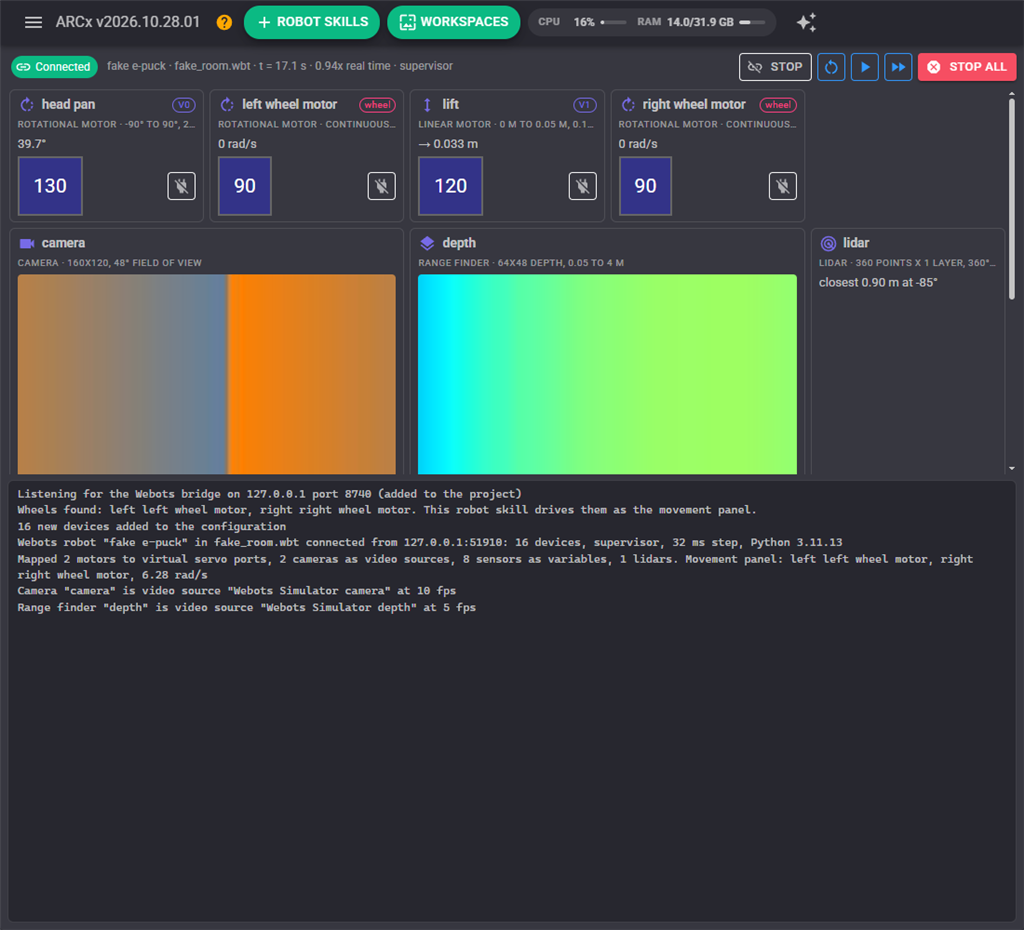
The strip at the top shows the link (the robot, the world file, the simulation time and how fast the simulation runs compared with real time) with Start and Stop for listening, Reset, Run and Fast for a supervisor robot, and Stop all, which stops every turning motor.
Below it is a card per device. A motor shows where it is, the virtual port it answers to (or that it is a wheel), a slider that moves it through its port, and a release button that lets it go limp. A camera or range finder shows its picture. A sensor shows its reading. An LED has On and Off buttons. The line under the cards says what the Movement Panel drives and where the robot is in the navigation frame.
The log at the bottom says what the skill is doing: which robot connected, what was mapped, and what went wrong and why.
Configuration
Connection
| Setting | Meaning |
|---|---|
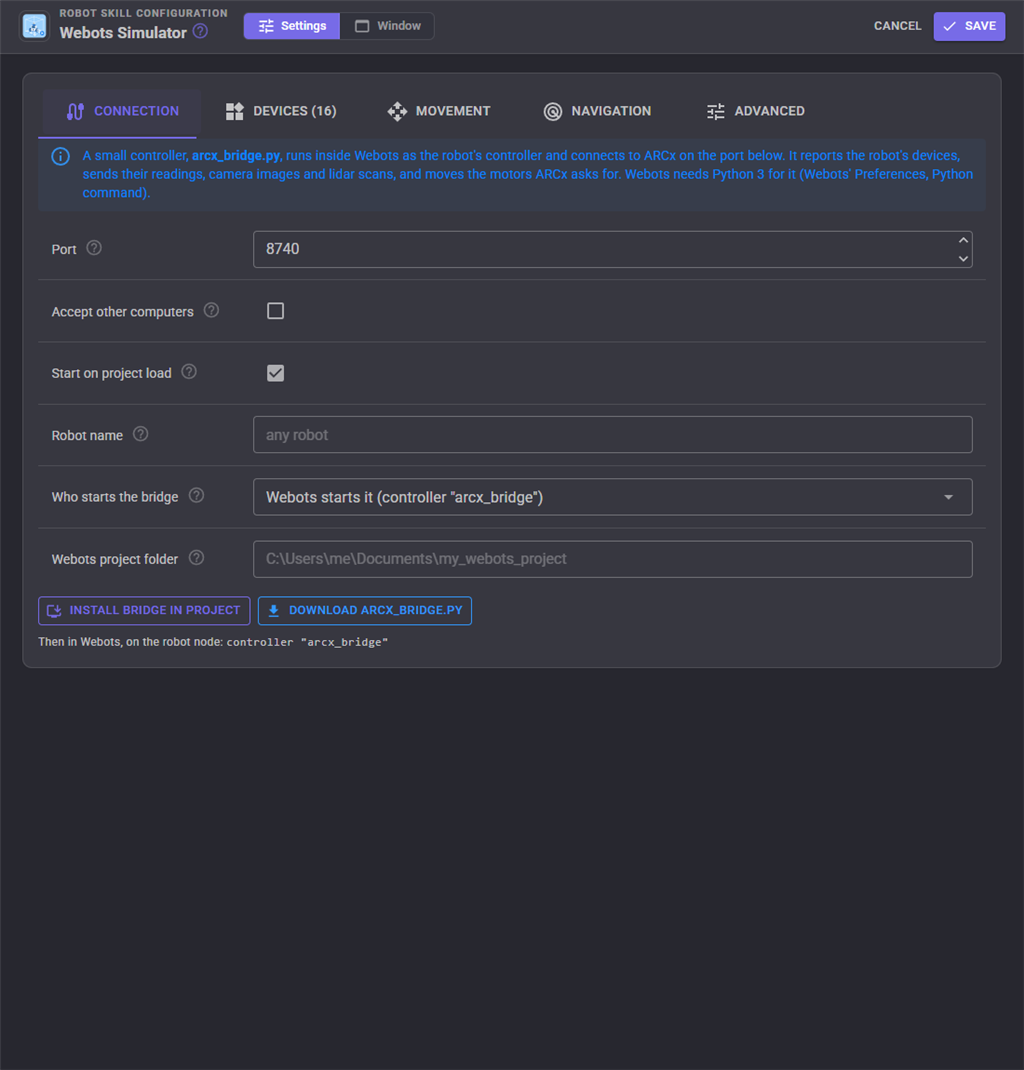
| Port | The TCP port ARCx listens on for the bridge. 8740 unless changed; the bridge's --port must match. |
| Accept other computers | Accept a bridge from a Webots on another computer. Off accepts only this computer. |
| Start on project load | Listen as soon as the project loads (and as soon as the robot skill is added). |
| Robot name | Accept only the robot with this name. Blank accepts the first robot that connects. |
| Who starts the bridge | Webots (controller arcx_bridge) or ARCx (controller <extern>). |
| Webots project folder | Where Install bridge in project copies the bridge. |
| Webots folder, Python program, Extern robot name, Webots port | For ARCx starts it: where Webots is, which Python runs the bridge, which extern robot to connect to, and the Webots instance's port (1234 by default). |
Devices
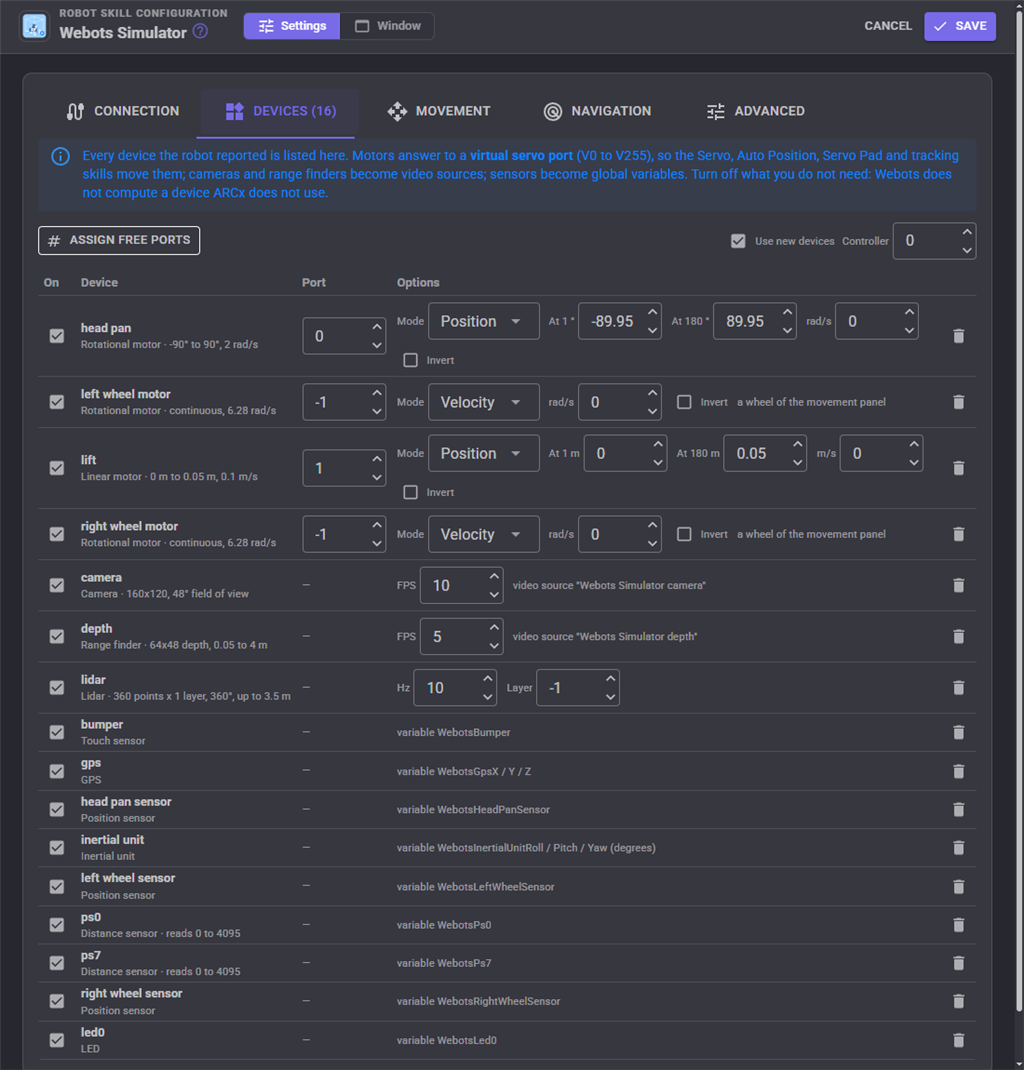
Every device the robot reported is listed, with how ARCx uses it. New devices are added when the robot first connects: joints get the next free virtual port, and motors named left and right wheel become the movement panel's wheels. Turn off a device you do not need; Webots does not compute a sensor or camera that ARCx does not use, which keeps the simulation fast.
| Column | Meaning |
|---|---|
| On | Whether ARCx uses the device. |
| Port | The virtual servo port a motor answers to, -1 for none. |
| Mode | Position: the servo range maps onto the joint's travel, from At 1 to At 180 (degrees for a rotational motor, metres for a linear one). The joint's limits are filled in from the Webots world. Velocity: the port is a speed, like a continuous rotation servo; the centre stops the motor. |
| rad/s, m/s | The speed of position moves, or the top speed in Velocity mode. 0 uses the motor's maxVelocity. |
| Invert | Reverse the direction. |
| FPS, Hz | How many camera frames or lidar scans a second Webots sends. |
| Layer | For a multi-layer lidar, which layer is the 2D scan. |
The Controller number is the EZB connection whose virtual ports the skill answers to. A real controller does not have to be connected; virtual ports work without one.
Movement
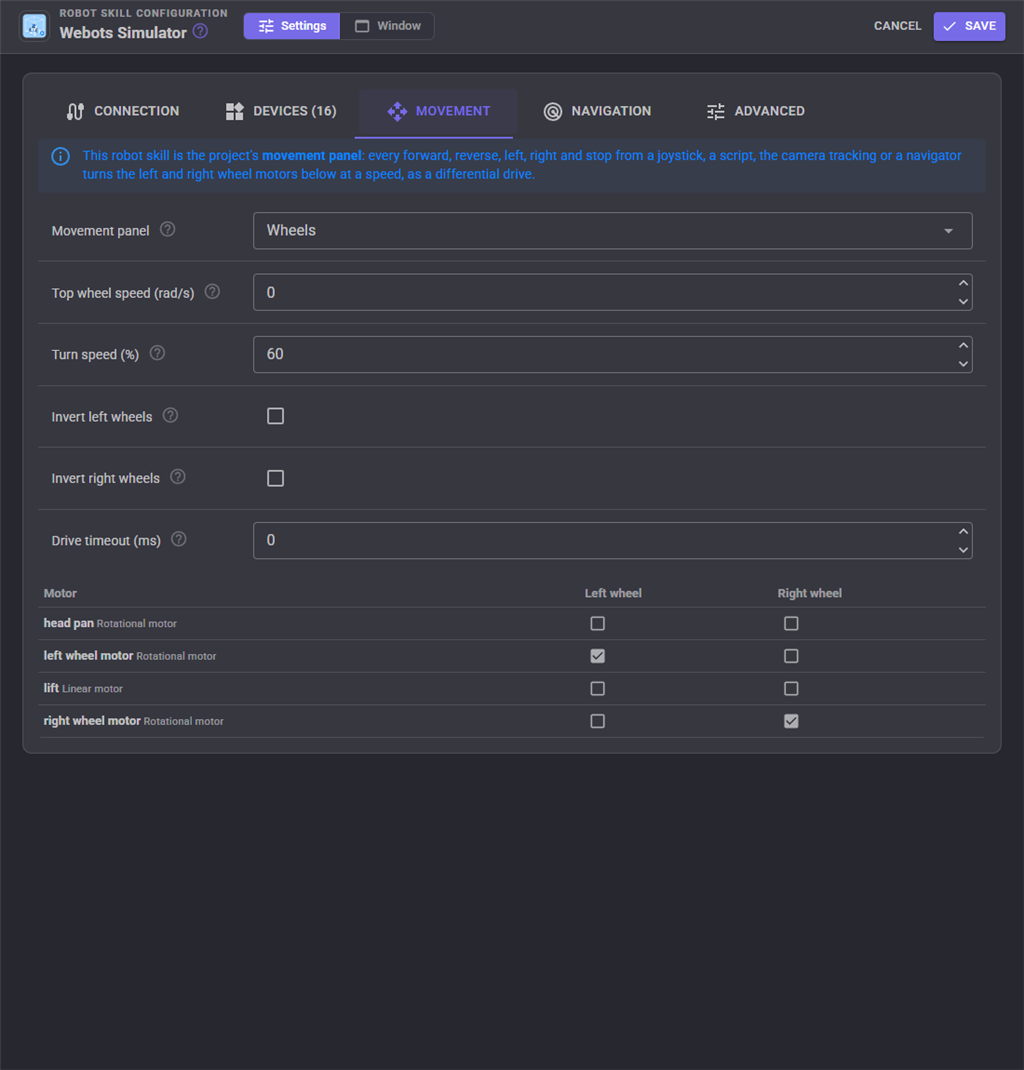
Tick which motors are the left and right wheels. The Movement Panel turns them at a speed: Top wheel speed at the ARCx movement speed of 255 (0 uses the slowest wheel's maxVelocity), Turn speed scales left and right turns, Invert fixes a side that turns backwards, and Drive timeout stops the robot when no drive command has arrived for that long.
Navigation
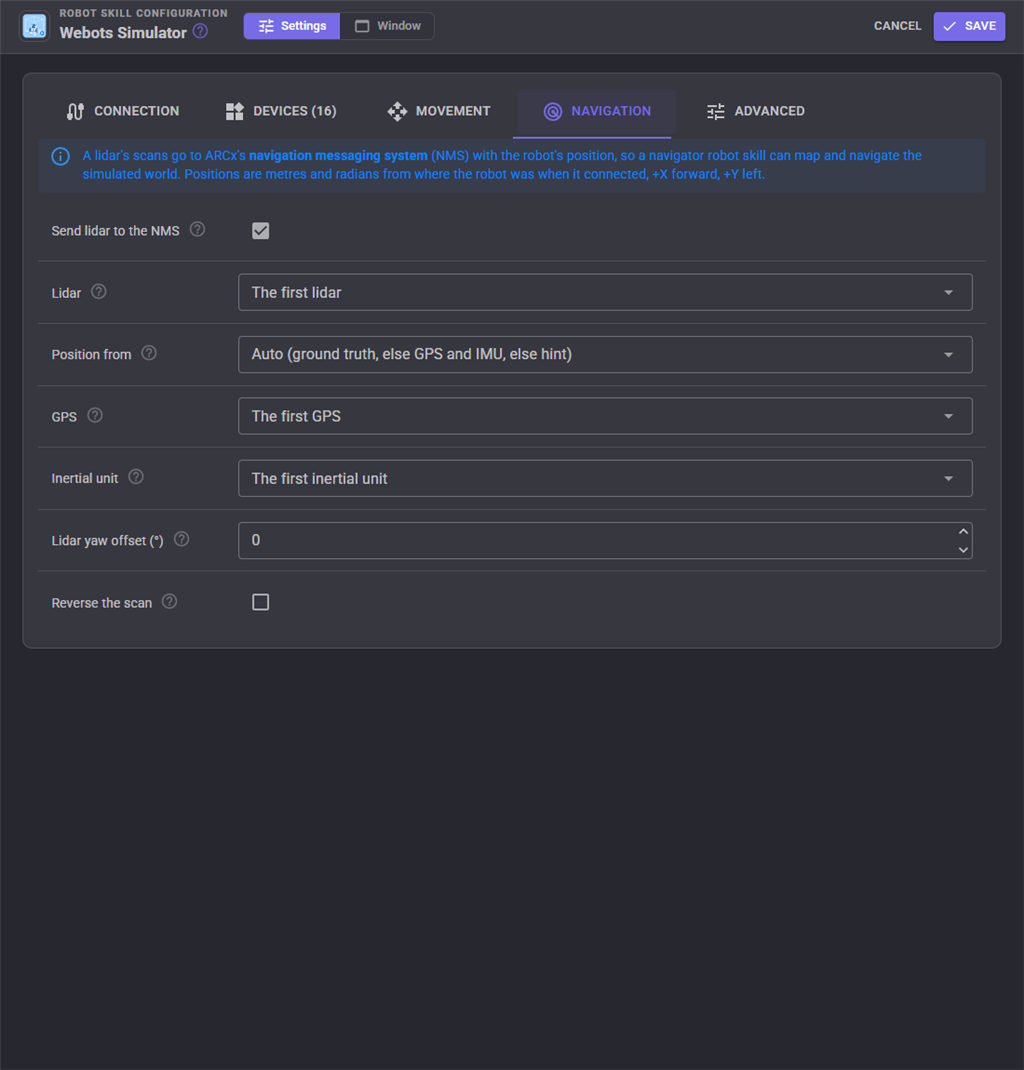
A lidar's scans go to the Navigation Messaging System with the robot's position, measured in metres and radians from where the robot was when it connected (+X forward, +Y left, counter-clockwise yaw, as in ROS). A simulation reset starts the position again from zero.
| Position from | Meaning |
|---|---|
| Auto | Ground truth for a supervisor robot, otherwise GPS and inertial unit when the robot has both, otherwise Hint. |
| Ground truth | The robot's true position in the world, perfect odometry. Needs the robot's supervisor field TRUE in Webots. |
| GPS and inertial unit | The GPS for the position, the inertial unit for the heading. |
| Hint | Repeats the last position after each scan, for a navigator that works out its own position from the scans, and stays quiet while another robot skill reports positions. |
| None | Scans only. |
Lidar yaw offset turns every scan for a lidar mounted turned on the robot, and Reverse the scan is for one mounted upside down.
Advanced
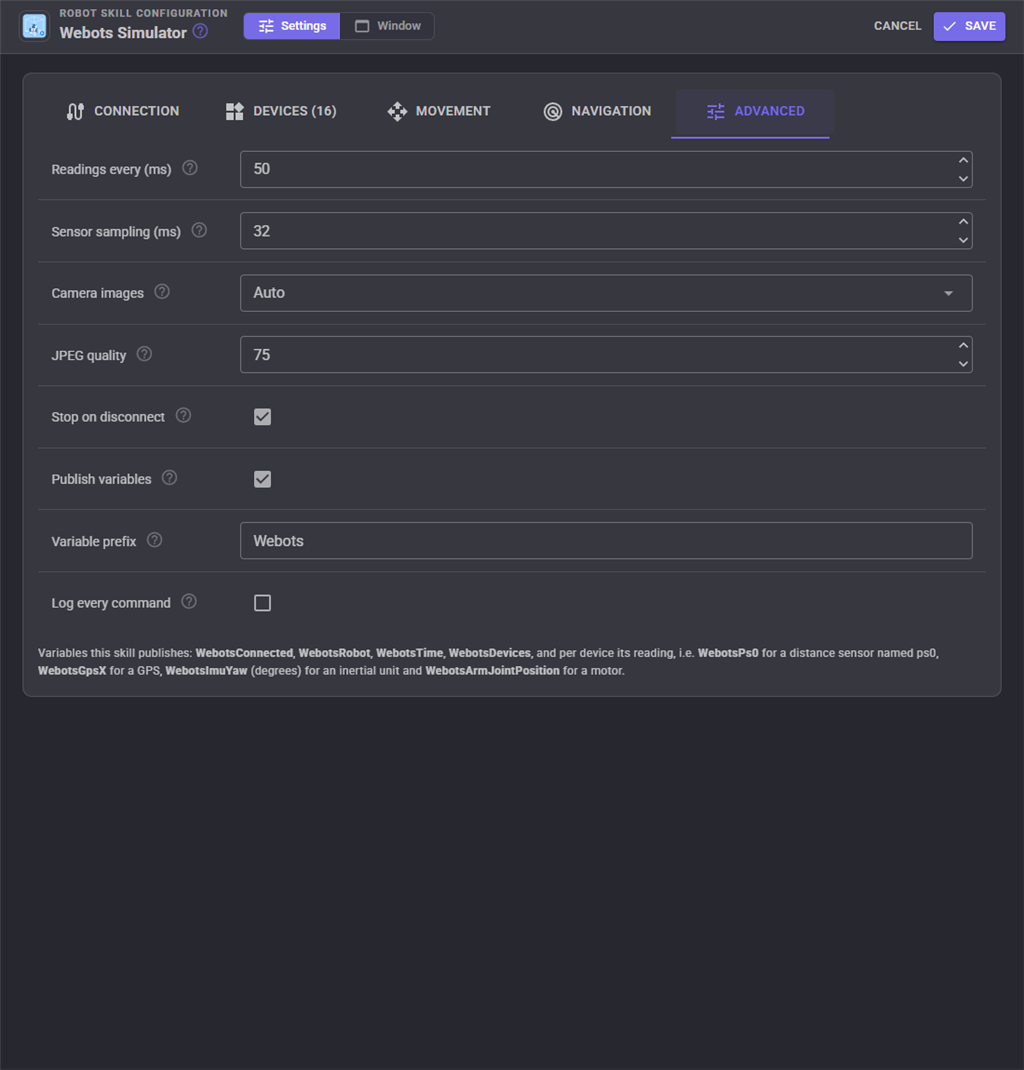
| Setting | Meaning |
|---|---|
| Readings every | How often, in simulation time, the readings and joint positions are sent. |
| Sensor sampling | The sampling period the sensors are enabled with in Webots. |
| Camera images | Raw pixels on the same computer, JPEG (written by Webots) for a Webots on another computer, or Auto to choose by where the bridge connects from. |
| JPEG quality | 10 to 100. |
| Stop on disconnect | When ARCx goes away, the bridge stops the wheels so the robot does not drive off on its own. |
| Publish variables, Variable prefix | The global variables and the start of their names. Change the prefix when two simulated robots are in one project. |
| Log every command | Write every command sent to Webots, and every line of an extern bridge, to the log. |
Variables
With the default prefix the robot skill publishes $WebotsConnected, $WebotsRobot, $WebotsTime (simulation seconds) and $WebotsDevices, and for each device:
| Device | Variables |
|---|---|
Motor named head pan |
$WebotsHeadPanPosition (radians or metres) and $WebotsHeadPanServo (the ARCx servo position) |
Distance, position, touch or light sensor named ps0 |
$WebotsPs0 |
GPS named gps |
$WebotsGpsX, $WebotsGpsY, $WebotsGpsZ (metres) |
Inertial unit named inertial unit |
$WebotsInertialUnitRoll, $WebotsInertialUnitPitch, $WebotsInertialUnitYaw (degrees) |
| Compass, gyro, accelerometer | X, Y and Z variables |
Lidar named lidar |
$WebotsLidarClosest (metres) and $WebotsLidarClosestAngle (degrees, 0 ahead, positive to the left) |
Scripts
Scripts reach the robot through the robot skill's control commands, which are listed in the script editor. Motor positions are in Webots' units: radians for rotational motors, metres for linear ones.
// Turn the head and read a distance sensor
controlCommand("Webots Simulator", "SetMotorPositionDegrees", "head pan", 30);
print(getVar("$WebotsPs0"));

// Drive through the  Movement Panel like any robot
Movement.forward();
sleep(2000);
Movement.stop();

// Start every run from the same place (supervisor robots)
controlCommand("Webots Simulator", "SimulationReset");
More than one robot
Add one Webots Simulator robot skill per simulated robot, each on its own port and with its own variable prefix, and give each robot's bridge its port in controllerArgs ("--port=8741"). Set Robot name so each robot skill only accepts its own robot.
Good to know
- Pausing the simulation from ARCx pauses the bridge with it, so a paused simulation is resumed from Webots. The window shows the simulation as paused when no readings arrive.
- Webots' controller library ends its process when Webots quits, so the bridge always runs as a separate process and never inside ARCx.
- Worlds made before Webots R2022a use a different axis convention (y up). Lidar angles and the GPS position assume the current one (z up, x forward).
Control Commands for the Webots Simulator robot skill
There are Control Commands available for this robot skill which allows the skill to be controlled programmatically from scripts or other robot skills. These commands enable you to automate actions, respond to sensor inputs, and integrate the robot skill with other systems or custom interfaces. If you're new to the concept of Control Commands, we have a comprehensive manual available here that explains how to use them, provides examples to get you started and make the most of this powerful feature.
Control Command ManualThis robot skill has 20 control commands, listed below. Send them from a JavaScript or Python script, from Blockly, or from another robot skill.
The first value is always the window title, which is the name in the title bar of the robot skill on your workspace. It starts out as Webots Simulator, which is what every example below uses. If you rename the robot skill, or add a second copy of it to the project, use the title as it appears on that window instead.
ControlCommand() can be shortened to CC(), and both spellings work in JavaScript and in Python. The examples are JavaScript; Python is the same call, except that true and false are written True and False.
GetDevices
The names of the connected robot's devices, optionally only those of one Webots type (RotationalMotor, LinearMotor, Camera, DistanceSensor, Lidar, GPS, InertialUnit, PositionSensor, TouchSensor, LED...)
Syntax
ControlCommand("Webots Simulator", "GetDevices", (String)type (optional))
Parameters
| # | Name | Type | What to pass |
|---|---|---|---|
| 1 | type (optional) | Text | Your text, in quotes |
Returns: Array of String
Example
var result = ControlCommand("Webots Simulator", "GetDevices", "type (optional)");
GetMotorPosition
Where a Webots motor is, from its position sensor (or its target when it has none): radians or metres
Syntax
ControlCommand("Webots Simulator", "GetMotorPosition", (String)motor)
Parameters
| # | Name | Type | What to pass |
|---|---|---|---|
| 1 | motor | Text | Your text, in quotes |
Returns: Double [5.0e324 to 1.7e308]
Example
var result = ControlCommand("Webots Simulator", "GetMotorPosition", "motor");
GetRobotName
The name of the connected Webots robot, blank when none is
Syntax
ControlCommand("Webots Simulator", "GetRobotName")
Returns: String
Example
var result = ControlCommand("Webots Simulator", "GetRobotName");
GetSensor
The latest reading of a Webots sensor by name. A number for distance, position, touch and light sensors; an array of 3 numbers for GPS (x, y, z metres), inertial unit (roll, pitch, yaw radians), compass, gyro and accelerometer; the closest range in metres for a lidar
Syntax
ControlCommand("Webots Simulator", "GetSensor", (String)sensor)
Parameters
| # | Name | Type | What to pass |
|---|---|---|---|
| 1 | sensor | Text | Your text, in quotes |
Returns: Object
Example
var result = ControlCommand("Webots Simulator", "GetSensor", "sensor");
GetSimulationTime
The simulation time of the connected robot, in seconds
Syntax
ControlCommand("Webots Simulator", "GetSimulationTime")
Returns: Double [5.0e324 to 1.7e308]
Example
var result = ControlCommand("Webots Simulator", "GetSimulationTime");
IsConnected
Whether a Webots robot is connected
Syntax
ControlCommand("Webots Simulator", "IsConnected")
Returns: Boolean [true or false]
Example
var result = ControlCommand("Webots Simulator", "IsConnected");
ReleaseMotor
Let a Webots motor go limp (no torque) until it is moved again
Syntax
ControlCommand("Webots Simulator", "ReleaseMotor", (String)motor)
Parameters
| # | Name | Type | What to pass |
|---|---|---|---|
| 1 | motor | Text | Your text, in quotes |
Returns: nothing
Example
ControlCommand("Webots Simulator", "ReleaseMotor", "motor");
SetLed
Set a Webots LED: 0 turns it off; 1 or more turns it on (for an LED with several colours, the colour index)
Syntax
ControlCommand("Webots Simulator", "SetLed", (String)led, (Number)value)
Parameters
| # | Name | Type | What to pass |
|---|---|---|---|
| 1 | led | Text | Your text, in quotes |
| 2 | value | Number | A number, without quotes |
Returns: nothing
Example
ControlCommand("Webots Simulator", "SetLed", "led", 0);
SetMotorPosition
Move a Webots motor to a position: radians for a rotational motor, metres for a linear motor. Clamped to the joint's limits
Syntax
ControlCommand("Webots Simulator", "SetMotorPosition", (String)motor, (Number)position)
Parameters
| # | Name | Type | What to pass |
|---|---|---|---|
| 1 | motor | Text | Your text, in quotes |
| 2 | position | Number | A number, without quotes |
Returns: nothing
Example
ControlCommand("Webots Simulator", "SetMotorPosition", "motor", 0);
SetMotorPositionDegrees
Move a Webots rotational motor to a position in degrees
Syntax
ControlCommand("Webots Simulator", "SetMotorPositionDegrees", (String)motor, (Number)degrees)
Parameters
| # | Name | Type | What to pass |
|---|---|---|---|
| 1 | motor | Text | Your text, in quotes |
| 2 | degrees | Number | A number, without quotes |
Returns: nothing
Example
ControlCommand("Webots Simulator", "SetMotorPositionDegrees", "motor", 0);
SetMotorVelocity
Turn a Webots motor continuously at a speed: radians per second (rotational) or metres per second (linear); negative reverses, 0 stops. Limited to the motor's maxVelocity
Syntax
ControlCommand("Webots Simulator", "SetMotorVelocity", (String)motor, (Number)velocity)
Parameters
| # | Name | Type | What to pass |
|---|---|---|---|
| 1 | motor | Text | Your text, in quotes |
| 2 | velocity | Number | A number, without quotes |
Returns: nothing
Example
ControlCommand("Webots Simulator", "SetMotorVelocity", "motor", 0);
SimulationFast
Run the simulation as fast as the computer can. Supervisor robots only
Syntax
ControlCommand("Webots Simulator", "SimulationFast")
Returns: nothing
Example
ControlCommand("Webots Simulator", "SimulationFast");
SimulationPause
Pause the simulation. While it is paused the bridge is paused with it, so it can only be run again from Webots. Supervisor robots only
Syntax
ControlCommand("Webots Simulator", "SimulationPause")
Returns: nothing
Example
ControlCommand("Webots Simulator", "SimulationPause");
SimulationRealTime
Run the simulation at real time speed. Supervisor robots only
Syntax
ControlCommand("Webots Simulator", "SimulationRealTime")
Returns: nothing
Example
ControlCommand("Webots Simulator", "SimulationRealTime");
SimulationReload
Reload the world file in Webots. The bridge restarts and connects again a moment later. Supervisor robots only
Syntax
ControlCommand("Webots Simulator", "SimulationReload")
Returns: nothing
Example
ControlCommand("Webots Simulator", "SimulationReload");
SimulationReset
Put the whole simulated world back to how it was when the world loaded. The robot's supervisor field must be TRUE
Syntax
ControlCommand("Webots Simulator", "SimulationReset")
Returns: nothing
Example
ControlCommand("Webots Simulator", "SimulationReset");
SimulationResetPhysics
Stop everything moving in the simulated world (velocities to zero) without moving anything back. Supervisor robots only
Syntax
ControlCommand("Webots Simulator", "SimulationResetPhysics")
Returns: nothing
Example
ControlCommand("Webots Simulator", "SimulationResetPhysics");
StartListening
Start accepting the Webots bridge controller on the configured port (and start the extern bridge when ARCx starts it)
Syntax
ControlCommand("Webots Simulator", "StartListening")
Returns: nothing
Example
ControlCommand("Webots Simulator", "StartListening");
StopAll
Stop every turning motor (the wheels) and tell the Movement Manager the robot stopped. Joints hold where they are
Syntax
ControlCommand("Webots Simulator", "StopAll")
Returns: nothing
Example
ControlCommand("Webots Simulator", "StopAll");
StopListening
Disconnect the Webots robot and stop accepting the bridge until StartListening
Syntax
ControlCommand("Webots Simulator", "StopListening")
Returns: nothing
Example
ControlCommand("Webots Simulator", "StopListening");
This list is read out of the robot skill itself each time its package is uploaded, so it matches the published version (v2).


This robot skill has been updated to v2.
What has changed
initial release