
Detects human speech from microphone energy, ignoring noise and robot speech, to trigger scripts or wake speech recognition.
 Windows
 ARM
ARM
 Linux
Linux
 MacOS
MacOS
How to add the Voice Activity Detection robot skill
- Load the most recent release of ARCx on a compatible operating system (Get ARCx).
- Press the + Skills menu from the top menu bar in ARCx.
- Choose the Audio category tab.
- Press the Voice Activity Detection icon to add the robot skill to your project.
Don't have a robot yet?
Follow the Getting Started Guide to build a robot and use the Voice Activity Detection robot skill.
How to use the Voice Activity Detection robot skill
Runs a script when somebody starts talking, and another when they stop. It does this from nothing but the microphone: no recognition, no cloud service, no account, no wake word. It measures how much energy there is in the speech band of the spectrum, 300 to 3400Hz by default, which is enough to know there is a voice in the room and nothing like enough to know what it said.
This is the ARCx version of ARC's Voice Activity Detection plugin.
Two things make it more than a noise gate:
- A sound has to last at least the minimum speech duration before it counts, so a door closing, a knock or a cup being put down is ignored.
- The room has to go quiet for the silence duration before speech is declared over, so the pauses in a sentence do not end it.
It also ignores the microphone while the robot itself is talking, so its own text to speech is never taken for somebody talking to it.
What it is for
- Have the robot react to being spoken to - look up, stop moving, put its ears on - before anything has been recognized.
- Start and stop another robot skill around somebody talking, with the two scripts.
- Wake a speech recognition engine on any voice instead of a wake word. See Waking a speech engine; that needs no scripts at all.
It cannot tell you what was said, or who said it. For words, add a speech recognition engine robot skill.
Requirements
- A microphone. This is the audio input ARCx is using, chosen in Options, Preferences, which may be a robot's microphone rather than one attached to this computer.
- Only one instance per project. There is one microphone, so a second detector would be a second opinion about the same audio with two sets of scripts firing at once.
The window
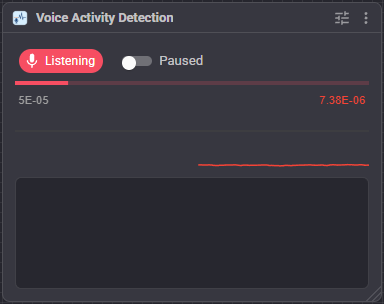
| What | Means |
|---|---|
| Listening (red) | Watching the microphone, no voice at the moment |
| Speech (green) | Somebody is talking. The speech start script has run |
| Robot is talking (yellow) | The microphone is being ignored because the robot's own speech is being heard |
| Paused (grey) | Not watching the microphone at all |
| Waking an engine | A speech recognition engine in this project is armed to be woken by this detector. Only shown when that is actually the case |
| The bar | How much energy is in the speech band, as a fraction of the sensitivity threshold. Full means the threshold has been reached |
| The graph | The last thirteen seconds or so of measured energy. The grey line across the middle is the sensitivity threshold; the number on the left is that threshold and the one on the right is what is being measured right now |
| Paused switch | Stops detection. Speech in progress ends immediately, and the speech end script runs |
The pause switch is not saved with the project. Start paused in the configuration is what decides how the skill begins.
Setting the sensitivity
This is the only setting that cannot be guessed for you, because it depends on the microphone, on how far away people stand, and on how noisy the room is. The graph is there to make it a two-minute job:
- Add the skill and leave the window open. Say nothing.
- Watch the trace with the room quiet. That is the noise floor - what the fans, the traffic and the microphone itself read.
- Talk normally from where you would normally talk. The trace should jump well above the line.
- Open the configuration and set Sensitivity between the two: comfortably above the quiet room, comfortably below your voice. The number on the right of the graph is the one to compare against.
The default is 0.00005, which suits a typical desk microphone in a quiet room.
Then:
| Problem | Fix |
|---|---|
| Nothing is detected when you talk | Lower the sensitivity. If the trace never moves at all, the microphone is the problem, not this setting - check the input device in Options, Preferences |
| Background noise keeps triggering it | Raise the sensitivity to just above what the quiet room reads, and raise the minimum speech duration to 200-300ms |
| A knock or a cough triggers it | Raise the minimum speech duration |
| Speech ends during a sentence | Raise the silence duration to 800-1500ms |
| Speech takes too long to end | Lower the silence duration to around 300ms |
| The robot detects its own voice | Leave ignore the robot talking on, and raise the holdoff if the tail of a sentence still gets through |
A script can also set the threshold while the project is running - see the SetSensitivity ControlCommand - which is how a robot calibrates itself against the room at start-up.
Scripts
Both are set in the configuration.
| Script | When |
|---|---|
| Speech start | Once, when energy has been above the threshold for the minimum speech duration |
| Speech end | Once, when the room has been quiet for the silence duration. Also runs if the robot starts talking, or if detection is paused, while somebody was being heard |
They are started asynchronously, so a script that takes a while does not cost any microphone. Each event starts the script again whether or not the last run has finished, so a script that must not overlap has to say so itself.
// Speech start: stop moving and listen
ControlCommand("Movement Panel", "Stop");
ControlCommand("My Speech Engine", "StartListening");
Waking a speech engine
This robot skill is also a speech to text engine - a detector, which is an engine that knows somebody is talking but not what they said. So ARCx keeps it out of the lists of engines that produce text, and offers it in the trigger source list of every other speech engine in the project.
That gives you the thing a wake word cannot do: an engine that starts listening the moment anybody talks, with no phrase to say first.
To wire it up:
- Add this skill and set its sensitivity as above.
- Open the configuration of the speech engine you want woken - Azure Speech To Text Engine, for instance - and find its wake word settings.
- Choose Voice Activity Detection as the trigger source.
- There is no phrase to enter. ARCx knows a detector has no words to match and wakes on any voice.
- Set how long that engine stays awake per wake. Zero means one utterance per wake, which is what an engine with a daily allowance wants.
Nothing else is needed, and no script is involved. The window shows Waking an engine while this is armed, and the log says when the speech recognition system starts and stops listening to the detector.
The offer to speech recognition setting turns this off. The scripts carry on working; the speech recognition system is simply told nothing. If something is still relying on the detector as a trigger source, the log says so rather than leaving you to wonder why the robot never wakes.
The variable
With publish a variable on, the detected state is written to a global variable - by default VoiceActivityDetected - which is true while somebody is talking. That is usually easier than a control command:
if (getVar("VoiceActivityDetected", false))
  print("somebody is talking");
Configuration
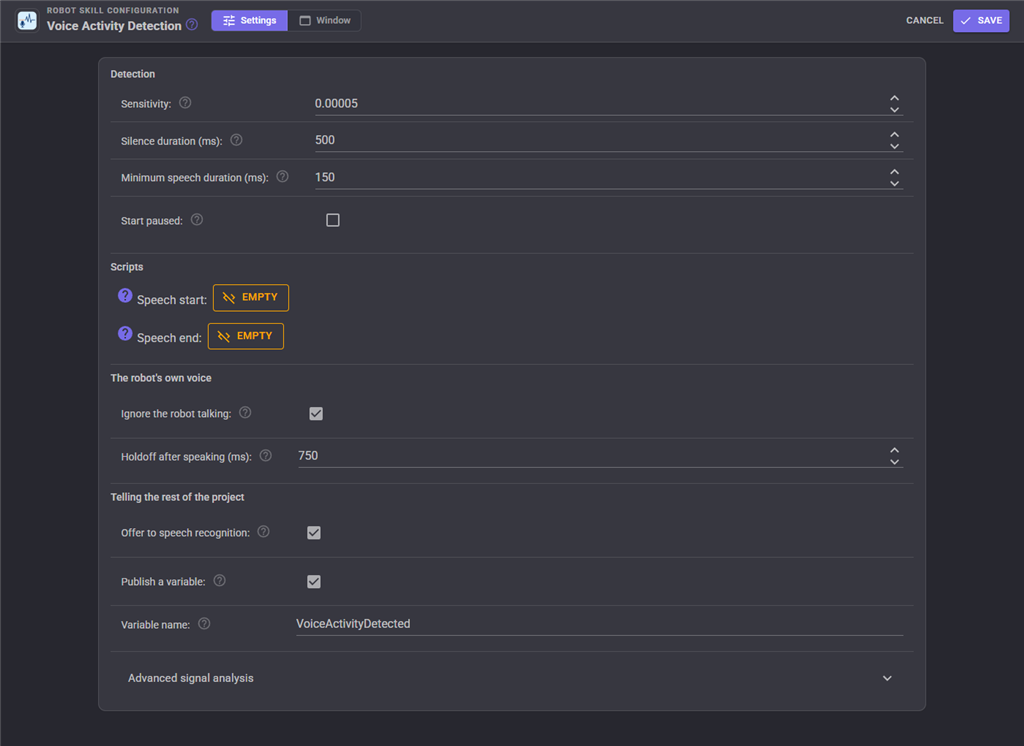
Detection
| Setting | Default | What it does |
|---|---|---|
| Sensitivity | 0.00005 | The energy threshold speech is decided by. Smaller is more sensitive |
| Silence duration | 500ms | How long the room stays quiet before speech ends |
| Minimum speech duration | 150ms | How long a sound must last before it counts as speech |
| Start paused | off | Begin with detection off, until something resumes it |
The robot's own voice
| Setting | Default | What it does |
|---|---|---|
| Ignore the robot talking | on | Ignore the microphone while the robot's own speech is being heard |
| Holdoff after speaking | 750ms | How long to keep ignoring it afterwards. The audio queue empties before the sound has been heard - a connected EZB has most of a second of buffering behind it - so without a tail the end of every sentence is still detected |
Telling the rest of the project
| Setting | Default | What it does |
|---|---|---|
| Offer to speech recognition | on | Appear as a trigger source, so another engine can be woken by any voice |
| Publish a variable | on | Write the detected state to a global variable |
| Variable name | VoiceActivityDetected | The name of that variable |
Advanced signal analysis
These are the values the ARC plugin used and they suit a human voice in a normal room. Change them for an unusual microphone, or a room the ordinary settings cannot cope with.
| Setting | Default | What it does |
|---|---|---|
| Speech band, from | 300Hz | The bottom of the band that is measured. Being above the rumble of a room is most of why this works. Raise it against traffic, fans and footsteps |
| Speech band, to | 3400Hz | The top of the band. Above it there is little voice and plenty of hiss. Cannot exceed 8000Hz, half the ARCx microphone rate |
| High pass filter | 300Hz | Removes low frequency rumble before the analysis. 0 for no filter |
| Smoothing | 0.3 | How much the energy is smoothed between measurements. Higher reacts faster and jitters more |
| Samples per measurement | 1024 | How many samples are analysed at a time. At 16kHz, 1024 is a measurement every 64ms |
While the configuration is open this skill stops measuring, and picks up again with everything reset when it closes - so a new sensitivity is never compared against energy that was smoothed under the old one.
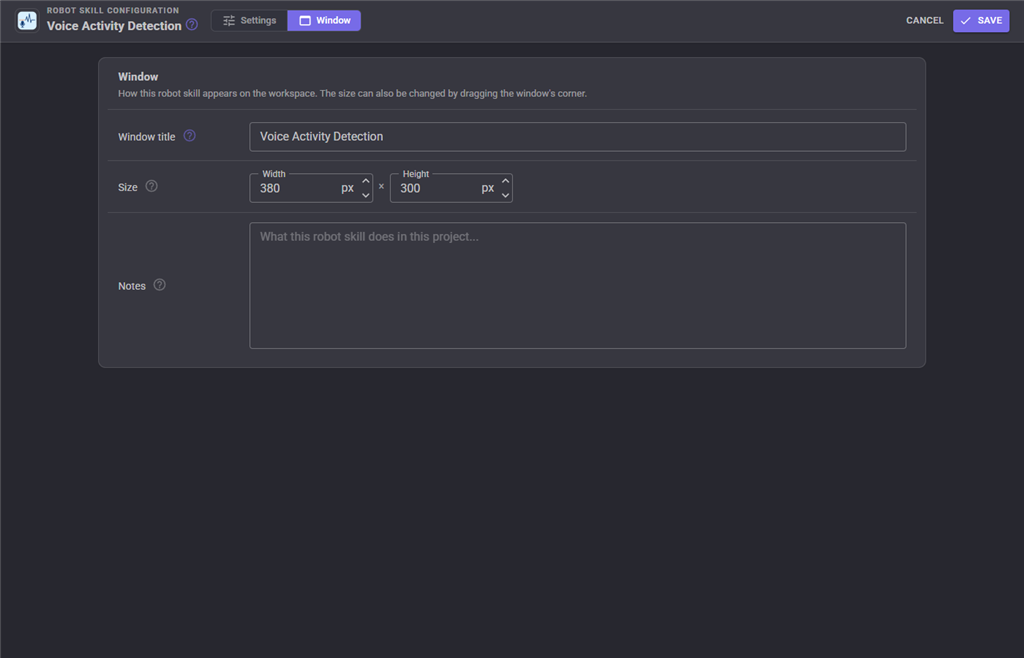
The Window tab sets the robot skill's window title, its size on the workspace and notes about what it does in this project.
Custom UI
The skill offers one widget for your own control panel screens: the status, the microphone level and a pause button. Its settings are Caption, ShowLevel and ShowPause. The whole window, graph and all, can also be put on a screen with the built in Robot skill window widget - useful while tuning, less so afterwards.
How it works
- ARCx hands every robot skill the microphone as mono floating point samples at 16kHz, 64 milliseconds at a time. This skill takes them from
AudioService.OnAudioInput, so there is one audio device for the whole project and it is the one chosen in the ARCx preferences. - Each sample is passed through a high pass BiQuad filter to remove low frequency rumble.
- Samples are collected into a buffer of the configured size. When it is full a Hamming window is applied and an FFT is computed.
- The average magnitude of the bins inside the speech band is the energy of that measurement.
- That is exponentially smoothed against the previous measurements, which is what stops the detector flickering between syllables.
- Above the threshold for the minimum speech duration raises speech start; below it for the silence duration raises speech end.
The graph is drawn with UCSkillCanvas, which sends drawing commands rather than a picture, so it costs almost nothing at any window size and nothing at all when no browser is watching.
Troubleshooting
The graph never moves. Nothing is reaching ARCx from the microphone. Check the input device in Options, Preferences; the ARCx log says which device was selected at start-up, and says so plainly when there was none to select.
It detects everything. The sensitivity is below the noise floor of the room. Read the trace with nobody talking and set the threshold above it.
It detects nothing, but the graph moves. The trace is not reaching the line. Lower the sensitivity, or raise the microphone level in your operating system.
It hears the robot. Check that ignore the robot talking is on. If the tail of a sentence still gets through, raise the holdoff - a connected EZB speaker is most of a second behind the audio queue.
The engine it should wake never wakes. Check that offer to speech recognition is on, and that the other engine names this skill as its trigger source. The log of this skill says when the speech recognition system starts listening to it, and says so explicitly if something is waiting on a detector that has been told not to publish.
Control Commands for the Voice Activity Detection robot skill
There are Control Commands available for this robot skill which allows the skill to be controlled programmatically from scripts or other robot skills. These commands enable you to automate actions, respond to sensor inputs, and integrate the robot skill with other systems or custom interfaces. If you're new to the concept of Control Commands, we have a comprehensive manual available here that explains how to use them, provides examples to get you started and make the most of this powerful feature.
Control Command ManualThis robot skill has 6 control commands, listed below. Send them from a JavaScript or Python script, from Blockly, or from another robot skill.
The first value is always the window title, which is the name in the title bar of the robot skill on your workspace. It starts out as Voice Activity Detection, which is what every example below uses. If you rename the robot skill, or add a second copy of it to the project, use the title as it appears on that window instead.
ControlCommand() can be shortened to CC(), and both spellings work in JavaScript and in Python. The examples are JavaScript; Python is the same call, except that true and false are written True and False.
GetEnergy
The energy measured in the speech band of the microphone right now. Compare it against the sensitivity setting: above it is speech, below it is not. This is what a calibration script reads.
Syntax
ControlCommand("Voice Activity Detection", "GetEnergy")
Returns: Double [5.0e324 to 1.7e308]
Example
var result = ControlCommand("Voice Activity Detection", "GetEnergy");
GetPause
Is detection currently paused?
Syntax
ControlCommand("Voice Activity Detection", "GetPause")
Returns: Boolean [true or false]
Example
var result = ControlCommand("Voice Activity Detection", "GetPause");
IsSpeechDetected
Is somebody talking right now? The same thing the global variable holds, for a script that would rather ask than read a variable.
Syntax
ControlCommand("Voice Activity Detection", "IsSpeechDetected")
Returns: Boolean [true or false]
Example
var result = ControlCommand("Voice Activity Detection", "IsSpeechDetected");
Pause
Stop watching the microphone. No script runs until Resume, and speech in progress ends now. Returns true.
Syntax
ControlCommand("Voice Activity Detection", "Pause")
Returns: Boolean [true or false]
Example
var result = ControlCommand("Voice Activity Detection", "Pause");
Resume
Start watching the microphone again after Pause. Returns true.
Syntax
ControlCommand("Voice Activity Detection", "Resume")
Returns: Boolean [true or false]
Example
var result = ControlCommand("Voice Activity Detection", "Resume");
SetSensitivity
Set the sensitivity threshold that speech is decided by, without opening the configuration. For a script that calibrates against the room at start-up; the value is kept when the project is saved. Returns the value that was applied.
Syntax
ControlCommand("Voice Activity Detection", "SetSensitivity", (Number)sensitivity)
Parameters
| # | Name | Type | What to pass |
|---|---|---|---|
| 1 | sensitivity | Number | A number, without quotes |
Returns: Double [5.0e324 to 1.7e308]
Example
var result = ControlCommand("Voice Activity Detection", "SetSensitivity", 0);
This list is read out of the robot skill itself each time its package is uploaded, so it matches the published version (v6).


This robot skill has been updated to v1.
This robot skill has been updated to v2.
This robot skill has been updated to v3.
This robot skill has been updated to v4.
What has changed
compatible with the latest ARCx v2026.09.27.01
This robot skill has been updated to v5.
What has changed
updated to support latest audio service of ARCx 2026.09.28.02
This robot skill has been updated to v6.
What has changed
updated to use some new ARCx UI features for improved performance.