Moves mouth or jaw servos to sync with TTS speech, using audio level or text timing for lifelike talking heads.
 Windows
 ARM
ARM
 Linux
Linux
 MacOS
MacOS
How to add the Talk Servo robot skill
- Load the most recent release of ARCx on a compatible operating system (Get ARCx).
- Press the + Skills menu from the top menu bar in ARCx.
- Choose any of these category tabs, the robot skill appears in each of them: Audio, Servo.
- Press the Talk Servo icon to add the robot skill to your project.
Don't have a robot yet?
Follow the Getting Started Guide to build a robot and use the Talk Servo robot skill.
How to use the Talk Servo robot skill
The Talk Servo robot skill moves a mouth or jaw servo while your robot speaks, so a humanoid head looks like it is talking. It follows everything said through the project's text to speech robot skill - from scripts, Blockly, conversation and AI skills, or the Athena agent - with no scripting at all.
By default the mouth follows the loudness of the voice itself, so it opens on the loud syllables and closes in the gaps between words, in any language and at any speaking speed. It stays in step with the sound however long the voice took to generate, whatever else is queued to say, and whether the speech comes out of the computer or an EZB. The classic ARC behaviour, where the mouth reads the text and opens for each vowel, is still there as Text timing.
The Window
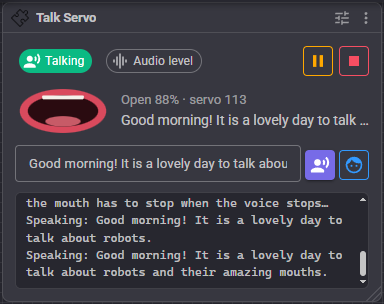
- Status - Listening for speech, Talking, or Paused.
- Mode - Audio level or Text timing, the setting on the Motion tab.
- Pause - The mouth closes and ignores speech until you resume it. Saved with the project.
- Stop - Stops moving the mouth for what is being said now and anything queued, and closes it. The speech itself carries on.
- Mouth - A drawing of the mouth, open as far as the servo is being told, with the opening as a percentage and the servo position. The drawing redraws a few times a second; the servo itself is updated much more often.
- Text box - Type a sentence and press Enter or the speaking button to say it through the project's text to speech skill, and watch the mouth follow. The face button moves the mouth to the text without speaking it.
- Log - What was said, and anything that went wrong.
A warning appears when no mouth servo is chosen, or when its Minimum and Maximum are the same (a newly chosen servo starts that way, so it has no room to move). An information line appears when the project has no text to speech robot skill: add one, and the mouth follows everything the robot says.
Configuration
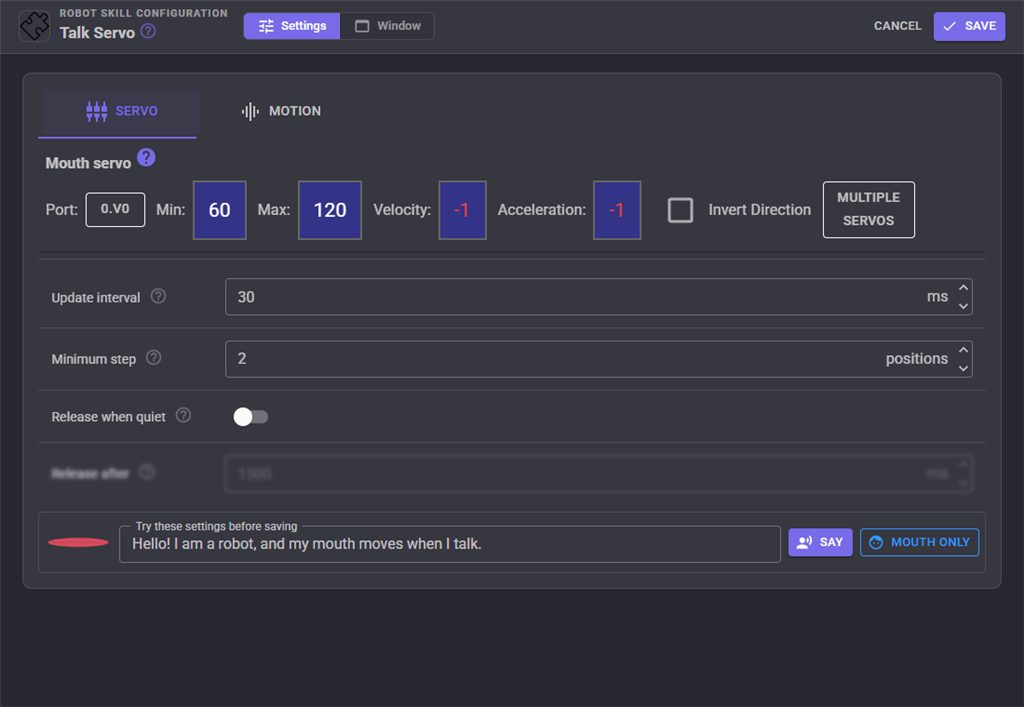
Under both tabs is a test strip. Type a sentence and press Say to hear it and watch the mouth move with the settings on the page, before you save them, or Mouth only to move the mouth to the text without speaking. Change a setting and try again until the mouth looks right.
Servo
| Setting | What it does |
|---|---|
| Mouth servo | The servo that opens the jaw. Minimum is the closed mouth and Maximum the fully open mouth. Tick Invert Direction if your servo turns the other way. Press Multiple Servos to move more than one together, i.e. a jaw servo on each side of the head: the first is the master and the others follow with their own multiplier. Servos on virtual ports (Dynamixel, Feetech and the other servo drivers) work too. |
| Update interval | Milliseconds between servo updates while talking. Lower is smoother but sends more commands to the robot. 25 to 50 suits most servos and WiFi connections. |
| Minimum step | The smallest change in position worth sending. Smaller movements are skipped, which stops the jaw twitching and keeps the connection free. Closing the mouth fully is always sent. |
| Release when quiet | Lets go of the mouth servos once the robot has been quiet for Release after milliseconds. Saves power and stops a jaw servo humming, but the jaw may sag if gravity or a spring pulls on it. |
Motion
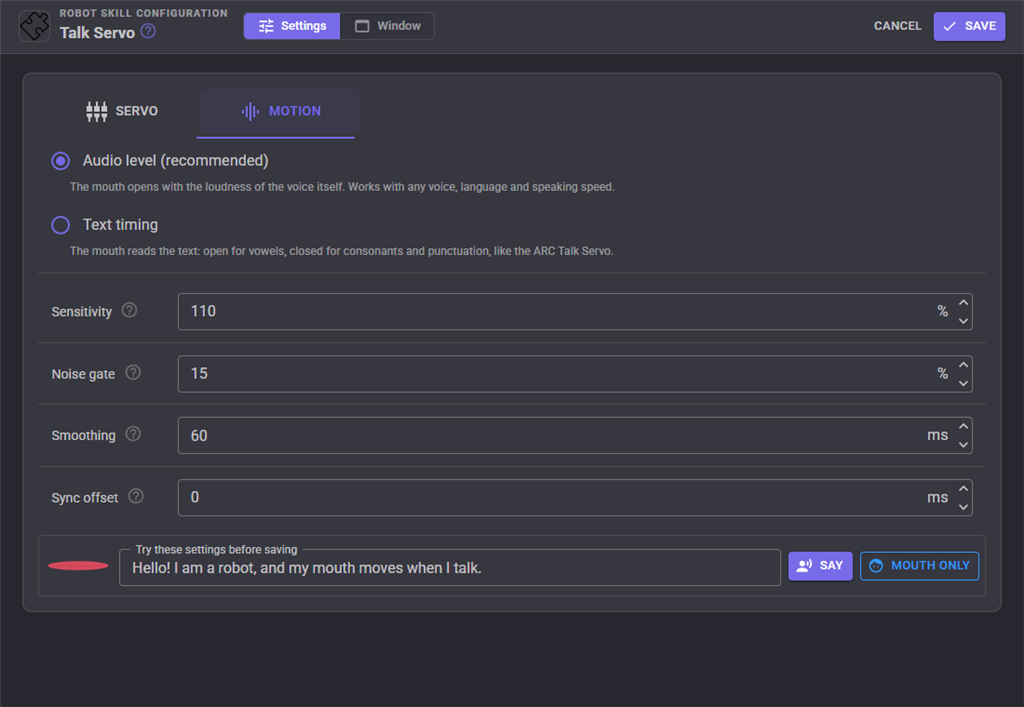
Audio level (recommended) opens the mouth with the loudness of the voice. Each sentence is levelled on its own, so a quiet voice moves the mouth as much as a loud one, and turning the volume down does not close the mouth.
| Setting | What it does |
|---|---|
| Sensitivity | How wide the mouth opens. 100% opens it fully on the loud parts of each sentence; higher opens it wide more often, lower keeps it more closed. |
| Noise gate | Sound quieter than this share of the sentence's loud level keeps the mouth shut, so breaths and the gaps between words close it instead of leaving it slightly open. |
| Smoothing | How long the mouth takes to settle, which smooths out flutter. Opening is three times quicker than closing so syllables still start crisply. 0 follows the sound exactly and can make a servo buzz. |
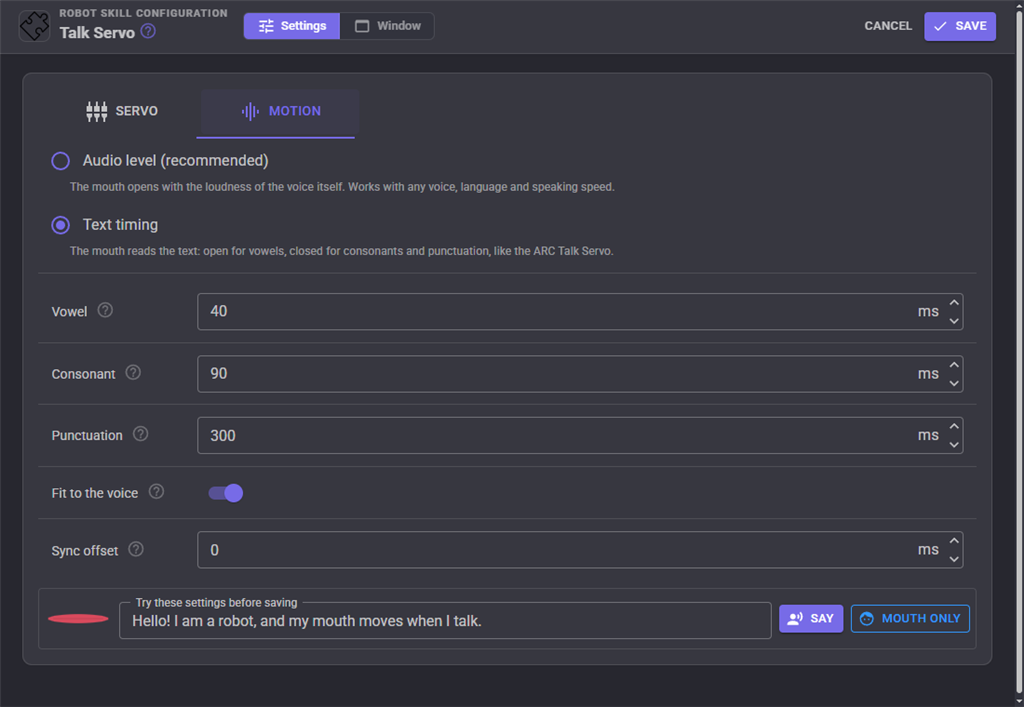
Text timing reads the text instead: the mouth opens for each vowel and closes for each consonant and punctuation mark. Open vowels like a and o open it fully, closed ones like i and u about half way. Numbers are read as words, so "42" moves the mouth like "forty two".
| Setting | What it does |
|---|---|
| Vowel | How long the mouth is held open for each vowel. |
| Consonant | How long the mouth is held closed for each consonant. |
| Punctuation | How long the mouth is held closed for a period, comma, question mark or exclamation mark. |
| Fit to the voice | Stretches or squeezes the timing above so the mouth starts when the voice starts and stops when it stops, whatever the speed of the voice. Turn it off to use the timing exactly as set. |
Both modes share one more setting:
| Setting | What it does |
|---|---|
| Sync offset | Shifts the mouth against the sound. Positive moves the mouth later, for audio that is heard a little after it is played - an EZB speaker buffers some audio, so try 100 to 300 ms there. Negative moves it earlier, to make up for a slow servo or a heavy jaw. |
Moving the mouth without speech
The Speak ControlCommand moves the mouth to text without speaking it, by its vowels and consonants, using the Text timing settings. Use it for sound that does not come from the text to speech skill, such as a recording played by a sound board: start the sound and send the words it says. SpeakWait does the same and returns once the mouth has finished, so a script can wait for it.
Several mouths
More than one Talk servo can be in a project, and each follows the voice with its own settings. A jaw, a pair of lips and a set of eyebrows can each move their own way to the same speech, i.e. the jaw in Audio level mode and the lips in Text timing with a smaller range.
Custom UI
The Talking Mouth widget puts the mouth drawing on your own Custom UI screens, scaled to the box you draw, with an optional pause button. It makes a simple face for a robot with a screen. Its settings are Caption (a label above the mouth, empty for none) and ShowPause (true or false).
Tips
- Set Minimum and Maximum with the servo connected: move the Minimum box until the jaw is just closed, and the Maximum box until it is as open as looks natural. A small range usually looks better than a wide one.
- If the mouth flutters, raise Smoothing or Minimum step. If it looks lazy, lower Smoothing or raise Sensitivity.
- If the mouth moves before the voice is heard, raise Sync offset. If it trails the voice, lower it, below zero if needed.
- The panic button releases every servo. The mouth stops and stays released until the robot speaks again.
Control Commands for the Talk Servo robot skill
There are Control Commands available for this robot skill which allows the skill to be controlled programmatically from scripts or other robot skills. These commands enable you to automate actions, respond to sensor inputs, and integrate the robot skill with other systems or custom interfaces. If you're new to the concept of Control Commands, we have a comprehensive manual available here that explains how to use them, provides examples to get you started and make the most of this powerful feature.
Control Command ManualThis robot skill has 8 control commands, listed below. Send them from a JavaScript or Python script, from Blockly, or from another robot skill.
The first value is always the window title, which is the name in the title bar of the robot skill on your workspace. It starts out as Talk Servo, which is what every example below uses. If you rename the robot skill, or add a second copy of it to the project, use the title as it appears on that window instead.
ControlCommand() can be shortened to CC(), and both spellings work in JavaScript and in Python. The examples are JavaScript; Python is the same call, except that true and false are written True and False.
IsPaused
Whether the mouth is paused.
Syntax
ControlCommand("Talk Servo", "IsPaused")
Returns: Boolean [true or false]
Example
var result = ControlCommand("Talk Servo", "IsPaused");
IsTalking
Whether the mouth is moving to speech or Speak text right now.
Syntax
ControlCommand("Talk Servo", "IsTalking")
Returns: Boolean [true or false]
Example
var result = ControlCommand("Talk Servo", "IsTalking");
PauseOff
Resume moving the mouth when the robot speaks.
Syntax
ControlCommand("Talk Servo", "PauseOff")
Returns: nothing
Example
ControlCommand("Talk Servo", "PauseOff");
PauseOn
Pause the mouth. It closes and ignores speech until PauseOff. Saved with the project.
Syntax
ControlCommand("Talk Servo", "PauseOn")
Returns: nothing
Example
ControlCommand("Talk Servo", "PauseOn");
PauseToggle
Pause the mouth if it is following speech, or resume it if it is paused. Returns true when it is now paused.
Syntax
ControlCommand("Talk Servo", "PauseToggle")
Returns: Boolean [true or false]
Example
var result = ControlCommand("Talk Servo", "PauseToggle");
Speak
Move the mouth to the text, by its vowels and consonants, without speaking it. For sound that does not come from the text to speech engine, such as a recording played by another skill. Returns straight away.
Syntax
ControlCommand("Talk Servo", "Speak", (String)text)
Parameters
| # | Name | Type | What to pass |
|---|---|---|---|
| 1 | text | Text | Your text, in quotes |
Returns: nothing
Example
ControlCommand("Talk Servo", "Speak", "text");
SpeakWait
Same as Speak, but returns once the mouth has finished moving to the text.
Syntax
ControlCommand("Talk Servo", "SpeakWait", (String)text)
Parameters
| # | Name | Type | What to pass |
|---|---|---|---|
| 1 | text | Text | Your text, in quotes |
Returns: nothing
Example
ControlCommand("Talk Servo", "SpeakWait", "text");
Stop
Stop moving the mouth for what is being said and anything queued, and close it. The speech itself carries on.
Syntax
ControlCommand("Talk Servo", "Stop")
Returns: nothing
Example
ControlCommand("Talk Servo", "Stop");
This list is read out of the robot skill itself each time its package is uploaded, so it matches the published version (v3).

This robot skill has been updated to v1.
What has changed
first release
This robot skill has been updated to v2.
What has changed
updated to use new threading features of ARCx v2026.10.04.01
This robot skill has been updated to v3.
What has changed
updated to use some new ARCx UI features for improved performance.