
Connect ARCx to Modbus, OPC UA, EtherNet/IP or Siemens S7 PLCs with shared tags, events, scripts, UI widgets and simulator support
 Windows
 ARM
ARM
 Linux
Linux
 MacOS
MacOS
How to add the Industrial Plc Controller robot skill
- Load the most recent release of ARCx on a compatible operating system (Get ARCx).
- Press the + Skills menu from the top menu bar in ARCx.
- Choose any of these category tabs, the robot skill appears in each of them: Communication, General, Scripting.
- Press the Industrial Plc Controller icon to add the robot skill to your project.
Don't have a robot yet?
Follow the Getting Started Guide to build a robot and use the Industrial Plc Controller robot skill.
How to use the Industrial Plc Controller robot skill
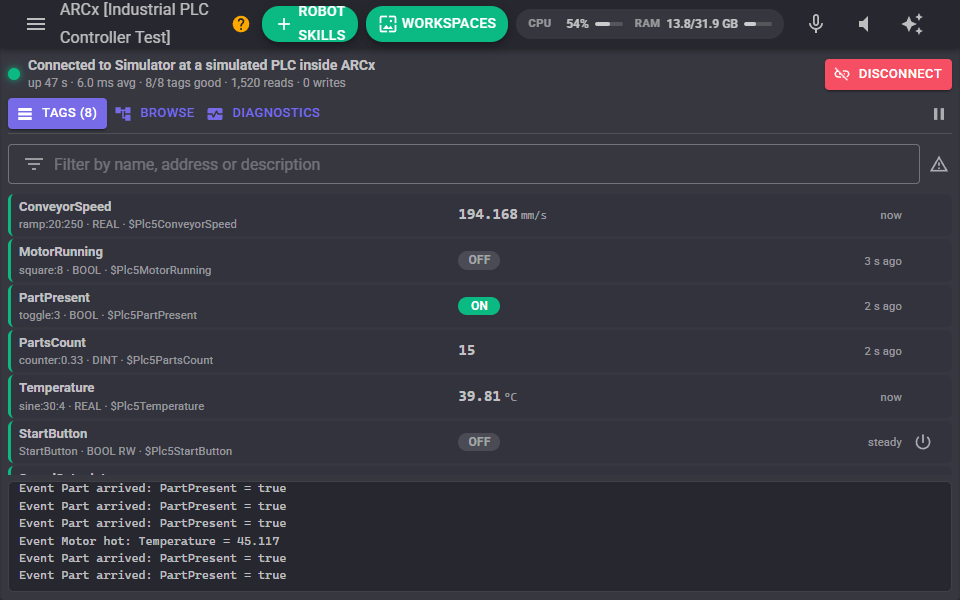
The Industrial PLC Controller connects ARCx to the programmable logic controllers that run factories, machines and production cells. One robot skill speaks to Modbus devices, OPC UA servers, Allen-Bradley and Omron controllers over EtherNet/IP, and Siemens S7 PLCs, and whichever driver is in use the tags, scripts, global variables, events, widgets and AI tools work the same way. A script written against one PLC keeps working when the cell moves to another brand.
That makes ARCx a partner for the machines around a robot: a vision skill that inspects parts can tell the PLC to reject one, a robot arm can wait for the conveyor's part ready signal and answer with cycle complete, a dashboard can show a line's speeds and alarms, and a script can run whenever a sensor, a counter or a pressure changes. A built in simulator lets you learn the skill, build scripts and design Custom UI screens with no PLC at all.
| Driver | For | Tags are |
|---|---|---|
| Modbus | Almost any PLC, drive, power meter, temperature controller and I/O module. Modbus TCP over Ethernet, RTU or ASCII on an RS-485 or RS-232 serial port, RTU over TCP through a serial gateway, or UDP. | Register addresses: 40001, 30001, 10001, 1, or HR0, IR0, DI0, C0 |
| OPC UA | The open industrial standard: Siemens S7-1500, Beckhoff, B&R, CODESYS controllers, Kepware, Ignition and most modern SCADA servers. Signed and encrypted, with user login. | Node ids, such as ns=2;s=Machine.Speed, found with the tag browser |
| EtherNet/IP | Rockwell Allen-Bradley ControlLogix, CompactLogix, Micro800, MicroLogix, SLC 500 and PLC-5, and Omron NJ/NX. | The PLC's own tag names, such as Conveyor_Speed or Program:MainProgram.Count |
| Siemens S7 | S7-200, S7-300, S7-400, S7-1200, S7-1500 and LOGO!, talking S7 communication directly. | Absolute addresses: DB1.DBD4, M0.0, IW64, Q0.1 |
| Simulator | A pretend PLC inside ARCx, for learning and demonstrating. | sine, ramp, square, toggle, random, counter, clock, or any name for a memory cell |
The skill runs on every computer ARCx runs on: Windows, Linux (including ARM single board computers) and macOS.
The window
The top of the window shows the connection: a green light when connected, amber while connecting or waiting to reconnect, grey when disconnected. Under it are how long the connection has been up, the average time the PLC takes to answer, how many tags read well, and the read and write counts. The Connect button connects; while connected it becomes Disconnect. The pause button on the right stops polling (writes still work) and starts it again.
When something goes wrong the reason is shown in plain words, such as "the device has no holding register 1500", "the server's certificate is not trusted yet" or "Check DB2 exists and has Optimized block access turned off". An OPC UA server that ARCx has not trusted yet shows a Trust this server button; one press trusts it and connects.
The window has three views.
Tags
Every tag, with its live value and units, its address, type and global variable. The coloured edge tells how far the value can be trusted: green when the PLC vouches for it, amber when it is uncertain or the PLC is offline (the last value is kept), red when the PLC refuses it (the reason replaces the value), blue for a write only tag. The right hand column says how long ago the value last changed.
Tags that may be written have a button: a Bool gets an on/off button that flips it, anything else a pencil that opens a box to type the new value in (a number, true or false, text, or [1, 2, 3] for an array) and write it with Enter or Write.
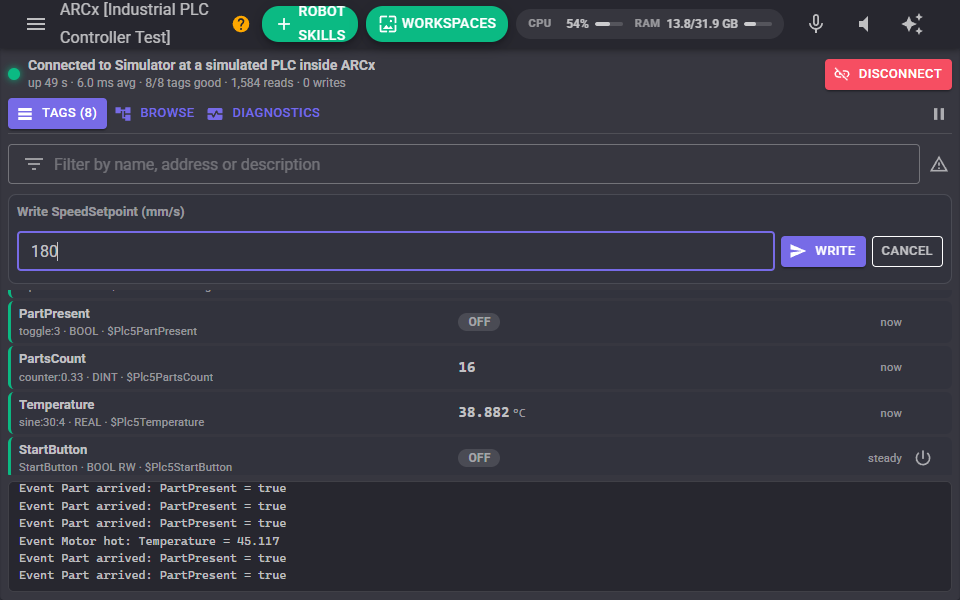
The filter finds tags by name, address or description, and the warning button shows only tags with a problem.
Browse
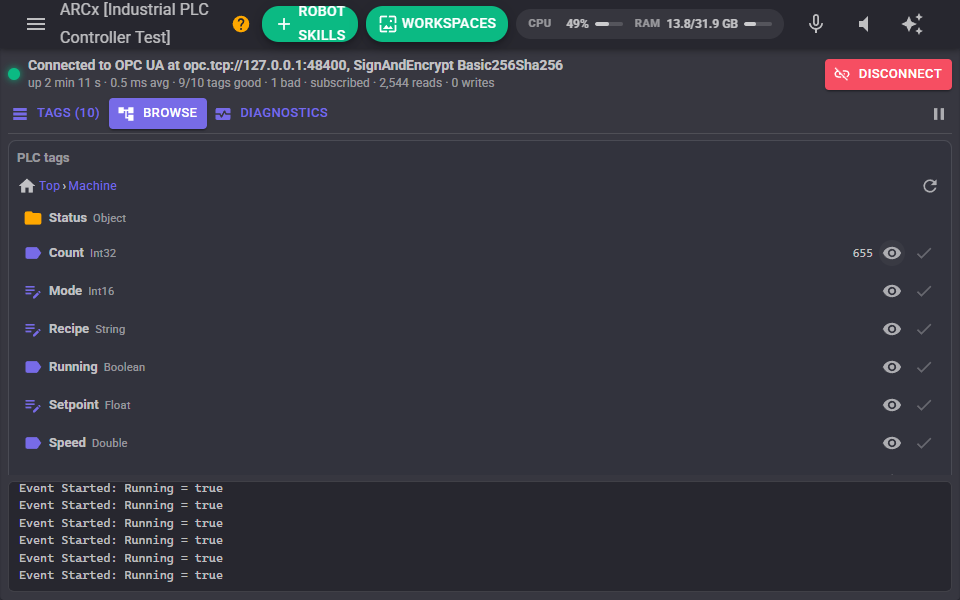
OPC UA servers, Logix controllers and the simulator can list their own tags. Open folders by clicking them, read any variable with the eye button, and add it as a tag with the plus button. Tags added here start read only; make them writable in the configuration.
Modbus devices and S7 PLCs cannot list their contents, so the bottom of this view is an address tester for every driver: type an address, choose the type, and Read it, Write a value to it (after a confirmation), or Add it as a tag once it reads correctly. This is the quickest way to find out whether a 32-bit value needs a different byte order or which data block a value lives in.
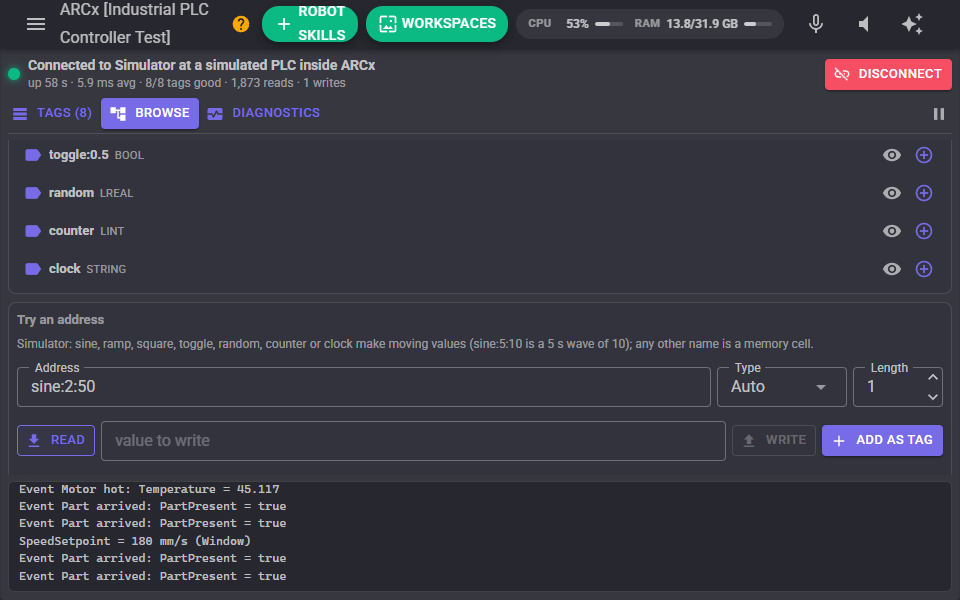
Diagnostics
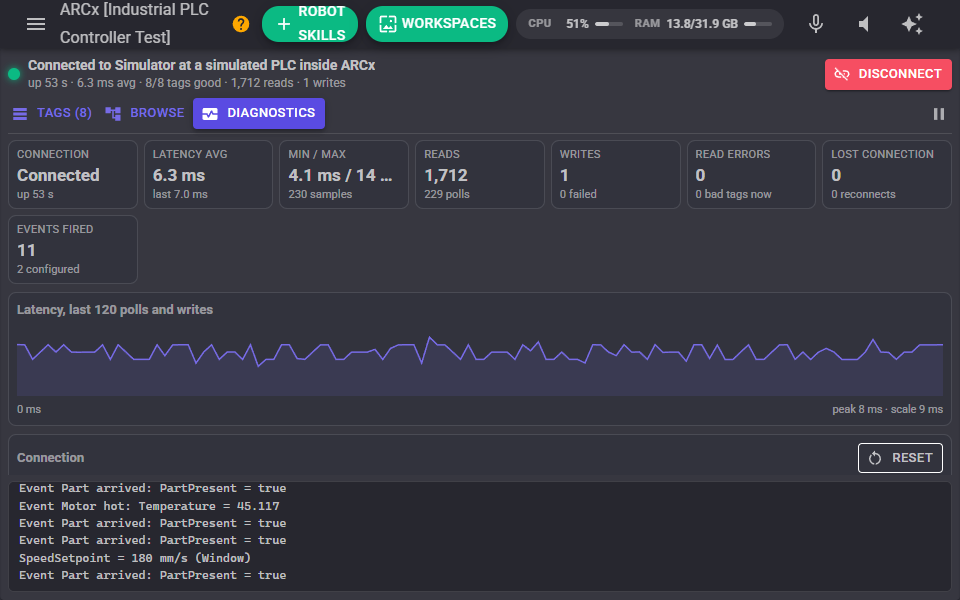
Tiles for the connection state and how long it has been up, the latency (average, last, minimum and maximum), reads and polls, writes and failed writes, read errors and the number of tags in trouble right now, connections lost and reconnects, and events fired. A graph shows the latency of the last 120 polls and writes, so slow answers and spikes stand out. Below are the recent problems and the recent events with their times. Reset zeroes everything.
Configuration
Connection
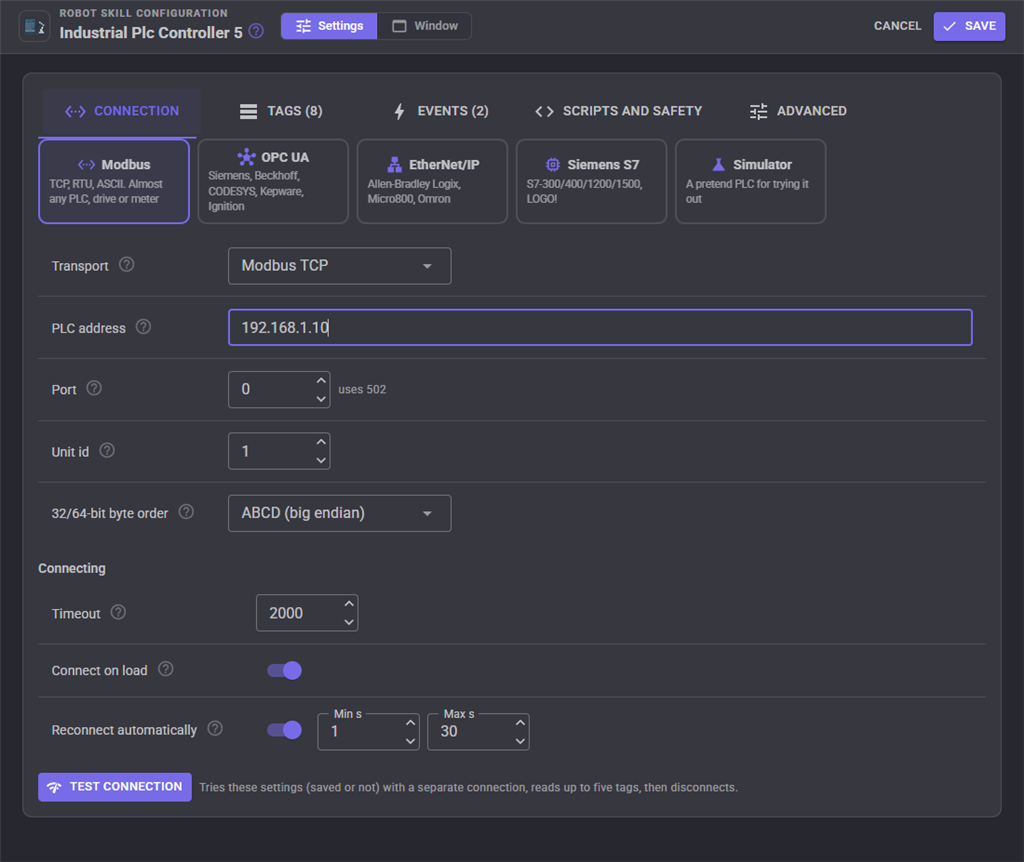
Choose the driver at the top, fill in its settings, and press Test connection: it connects with the settings on the page (saved or not), reads up to five of the tags and disconnects, without touching the live connection.
Modbus
| Setting | What it does |
|---|---|
| Transport | Modbus TCP, Modbus RTU on a serial port, RTU over TCP for a serial-to-Ethernet gateway in transparent mode, Modbus ASCII, or Modbus UDP. |
| PLC address and port | The device's IP address; port 0 uses 502. |
| Serial port, baud rate and framing | For RTU and ASCII: the RS-485 adapter's port, its speed, parity, data bits and stop bits. They must match the device. On Linux the port is driven directly, so a fast poll costs a single board computer almost nothing. |
| Unit id | The device's Modbus address. A tag can name another unit, such as 3:40001, so one connection reaches every device on an RS-485 bus or behind a gateway. |
| 32/64-bit byte order | How the device stores values longer than one register: ABCD (the standard), CDAB (word swapped, common on meters and many PLCs), BADC or DCBA. A tag can override it. |
Modbus addresses can be written the way the device's manual writes them: 40001 is holding register 1 (protocol address 0), 30001 an input register, 10001 a discrete input, 1 a coil, and the six digit forms 400001 work too. HR0, IR0, DI0 and C0 name the protocol address directly. Add .3 for bit 3 of a register (HR10.3 or 40011.3) as a Bool. Tags close together are read with one request and split up again, and when the device refuses a group because one address does not exist, the tags are read one at a time so only the bad one is marked.
OPC UA
| Setting | What it does |
|---|---|
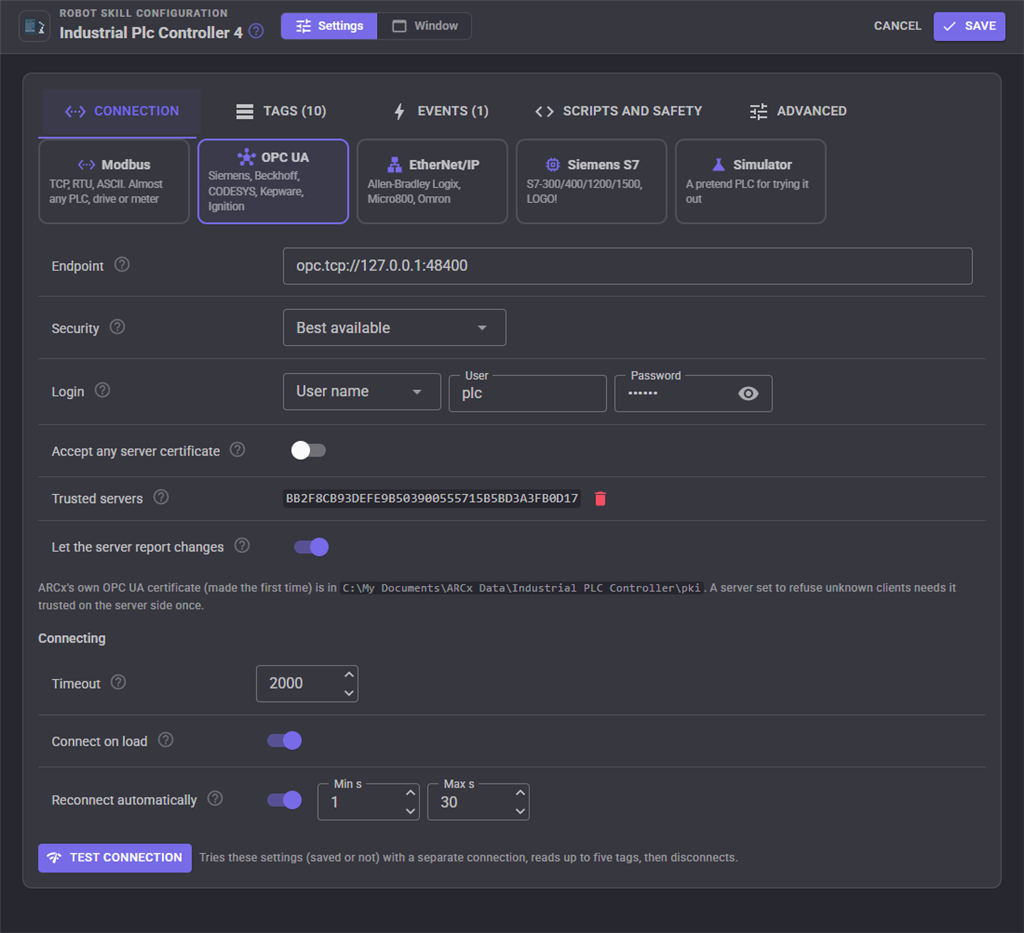
| Endpoint | The server's address, such as opc.tcp://192.168.1.20:4840. |
| Security | Best picks the most secure endpoint the server offers; Sign and encrypt, Sign or None choose one. |
| Login | Anonymous, or a user name and password. |
| Accept any server certificate | Trusts every server without asking. Handy on a bench; on a plant network leave it off and trust each server once with the Trust button, so nothing can pose as the PLC. |
| Trusted servers | The servers trusted so far, by certificate thumbprint. Remove one to stop trusting it. |
| Let the server report changes | Uses an OPC UA subscription: the server sends a value only when it changes, sampled at the tag's scan rate. Faster and lighter than polling. |
ARCx makes its own OPC UA application certificate the first time and keeps it in the ARCx data folder under Industrial PLC Controller\pki. A server that refuses unknown clients needs that certificate trusted once on the server side. Leave the tag type on Auto: the server says what each node holds, and writes are converted to the exact type the node expects.
EtherNet/IP
| Setting | What it does |
|---|---|
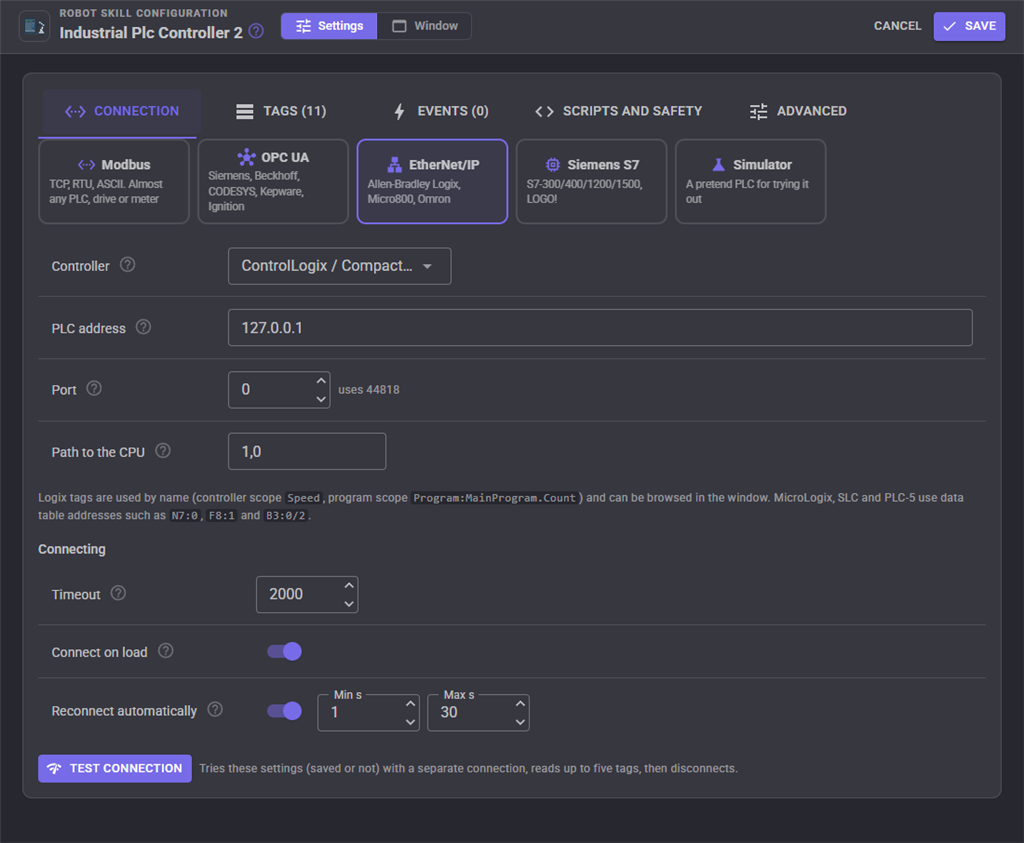
| Controller | ControlLogix / CompactLogix, Micro800, MicroLogix, SLC 500, PLC-5, PLC-5/SLC through a Logix bridge, or Omron NJ/NX. |
| PLC address and port | The controller's IP address; port 0 uses 44818. |
| Path to the CPU | For Logix: the backplane port and CPU slot, usually 1,0. Through other modules it grows, such as 1,2,2,192.168.2.5,1,0. |
Logix tags are used by name, controller scoped (Speed) or program scoped (Program:MainProgram.Count), with array elements (Recipe[2]) and members (Station.Count), and MyDint.5 is one bit of a DINT. With the type on Auto the controller says what each tag is. MicroLogix, SLC and PLC-5 use data table addresses such as N7:0, F8:1 and B3:0/2; give those tags a type.
Siemens S7
| Setting | What it does |
|---|---|
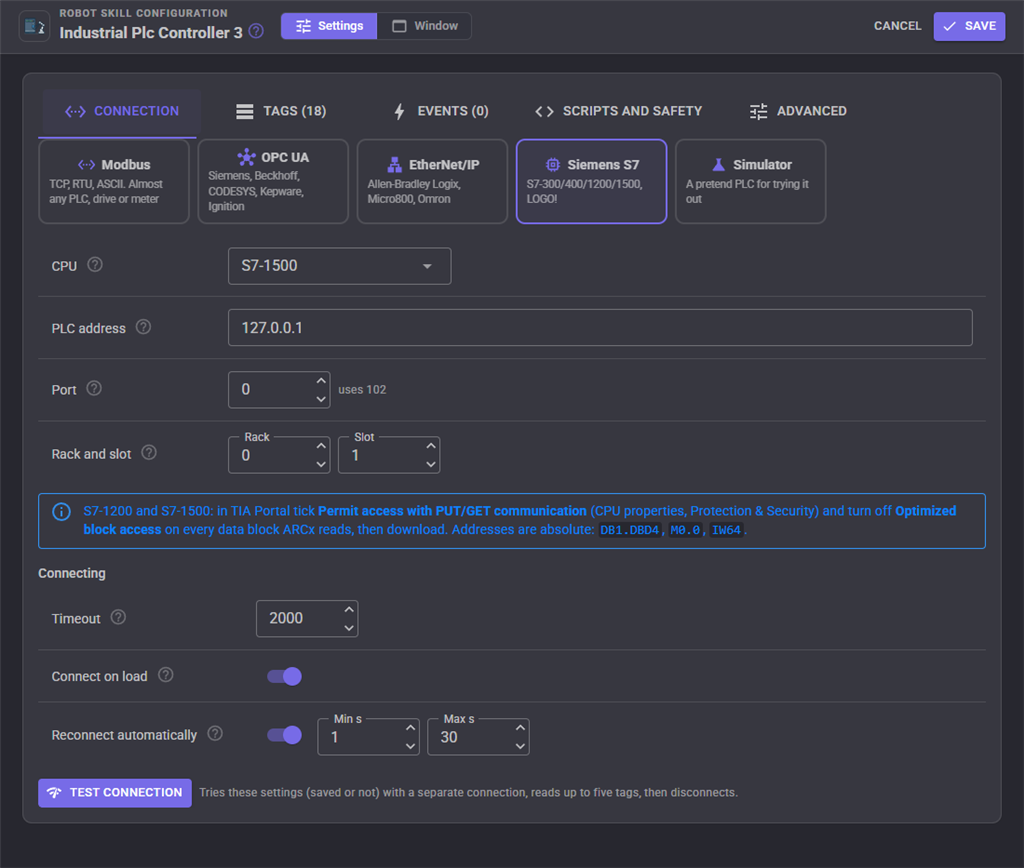
| CPU | S7-1500, S7-1200, S7-300, S7-400, S7-200, S7-200 SMART or LOGO!. |
| PLC address and port | The CPU's IP address; port 0 uses 102. |
| Rack and slot | Where the CPU sits: rack 0 slot 1 for S7-1200 and S7-1500, rack 0 slot 2 for S7-300. |
S7-1200 and S7-1500 only answer when Permit access with PUT/GET communication is ticked in the CPU's Protection & Security settings, and only read data blocks that have Optimized block access turned off. Addresses are absolute: DB1.DBX0.0 (a bit), DB1.DBB0 (byte), DB1.DBW2 (word), DB1.DBD4 (double word), M0.0, MW10, MD20, I0.0 (or E0.0), IW64, Q0.1 (or A0.1) and QW2. The type decides how the bytes are read, so a REAL in a DBD needs Float32 and an INT in a DBW Int16. A STRING tag uses the S7 STRING layout with Length as its maximum characters.
Simulator
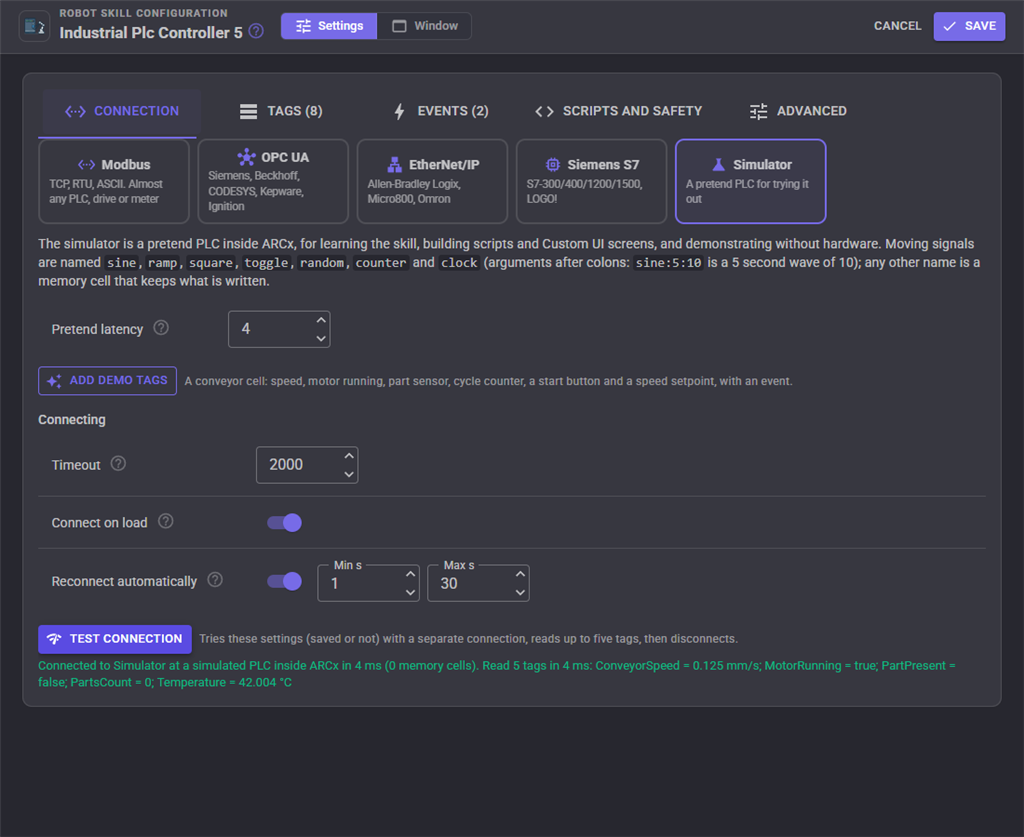
Signals named sine, ramp, square, toggle, random, counter and clock move by themselves; arguments after colons change them, so sine:5:10 is a sine wave of 10 with a 5 second period and toggle:0.5 flips every half second. Any other name is a memory cell that keeps what is written to it, perfect for setpoints and handshake bits. Add demo tags fills in a small conveyor cell with an event, so every part of the skill has something to show. The pretend latency gives the diagnostics something to measure.
Connecting
| Setting | What it does |
|---|---|
| Timeout | How long to wait for the PLC to answer one request. |
| Connect on load | Connect as soon as the project has loaded. |
| Reconnect automatically | Keep trying when the connection is lost or an attempt fails, waiting the minimum time first and doubling it after each failure up to the maximum. |
Tags
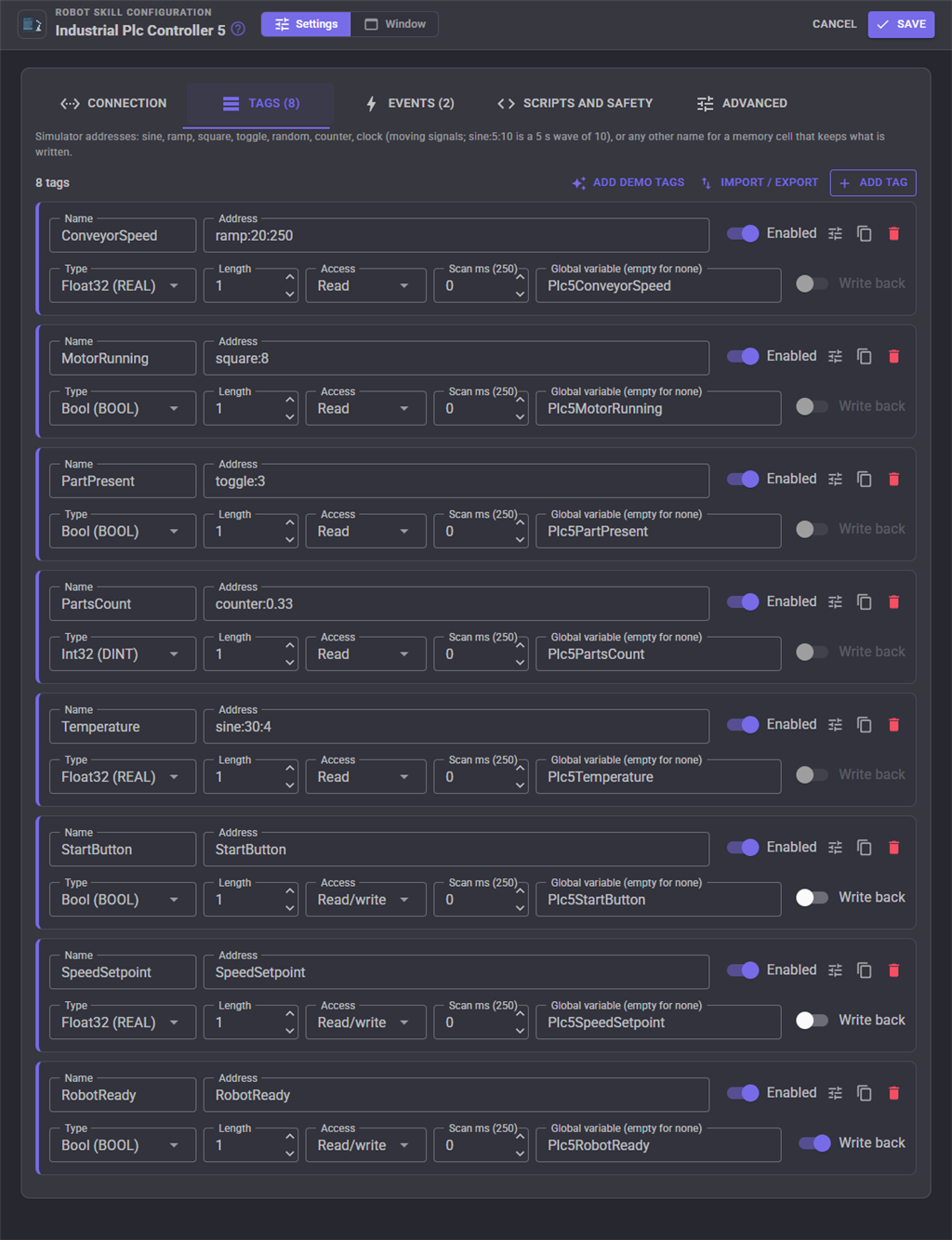
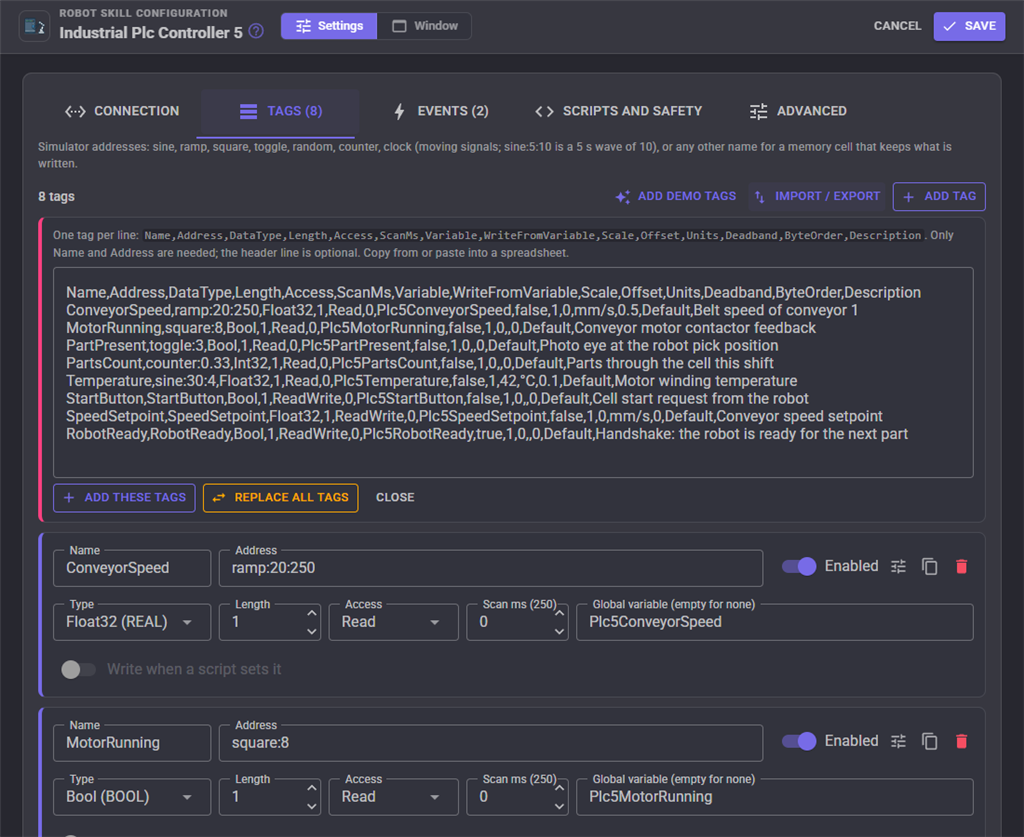
Each tag is one PLC value. Scripts, widgets, events and the AI use it by its name.
| Setting | What it does |
|---|---|
| Name | The name scripts use, such as ConveyorSpeed. Unique in this robot skill. |
| Address | Where the value is, in the driver's form. A red message under it says what is wrong with an address before you save. |
| Type | Auto, Bool, SByte, Byte, Int16, UInt16, Int32, UInt32, Int64, UInt64, Float32, Float64 or String; the IEC names (BOOL, INT, DINT, REAL, LREAL...) are shown beside them. |
| Length | 1 for a single value, more for an array (the variable becomes an array). For a String, the most characters. |
| Access | Read (polled, cannot be written), Read/write, or Write only (never polled; the window shows what was last written). Tags start read only, so nothing changes a machine by accident. |
| Scan ms | How often the tag is read; 0 uses the default scan rate. A fast signal can be read every 50 ms while a recipe name is read every 5 seconds. |
| Global variable | The variable that mirrors the value, such as PlcConveyorSpeed. Empty for none. |
| Write back | When a script (or anything else) sets the global variable, write the new value to the PLC. A handshake bit becomes as simple as setVar("PlcRobotReady", true). |
| Scale and Offset | Engineering units: the PLC's raw number times Scale plus Offset. A 0 to 27648 analog input becomes 0 to 100 % with Scale 0.0036169. Writes do the reverse. |
| Units | Shown after the value, such as mm/s, C or bar. |
| Deadband | A change smaller than this is ignored, so a noisy analog input does not flood events. |
| Byte order | For Modbus: overrides the connection's byte order for this tag. |
| Description | What the tag is, shown in the window and given to the AI. |
The tune button opens the less common settings, the copy button duplicates a tag, and Import / export moves the whole list to and from a spreadsheet as CSV (tab separated text pasted from a spreadsheet works too). Only Name and Address are required in an import; a tag with the same name is updated.
Events
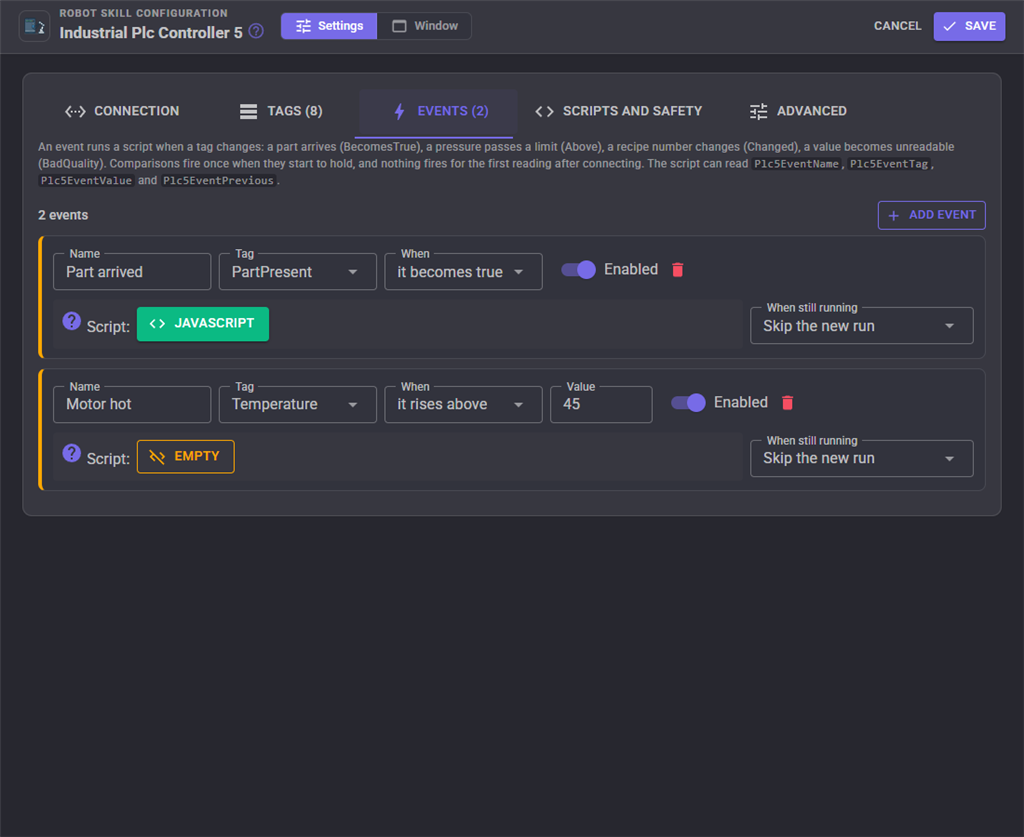
An event runs a script when a tag changes: it changes at all, becomes true (a rising edge, such as a part arriving at a photo eye), becomes false, becomes equal to a value, stops being equal to it, rises above a value, falls below it (alarm limits), or cannot be read. Comparisons fire once when they start to hold, not on every poll while they do, and nothing fires for the first reading after connecting, so starting a project never sets off every event at once. The script reads PlcEventName, PlcEventTag, PlcEventValue and PlcEventPrevious (with the configured prefix). When an event fires again while its script is still running, it either skips the new run or restarts the script.
Scripts and safety
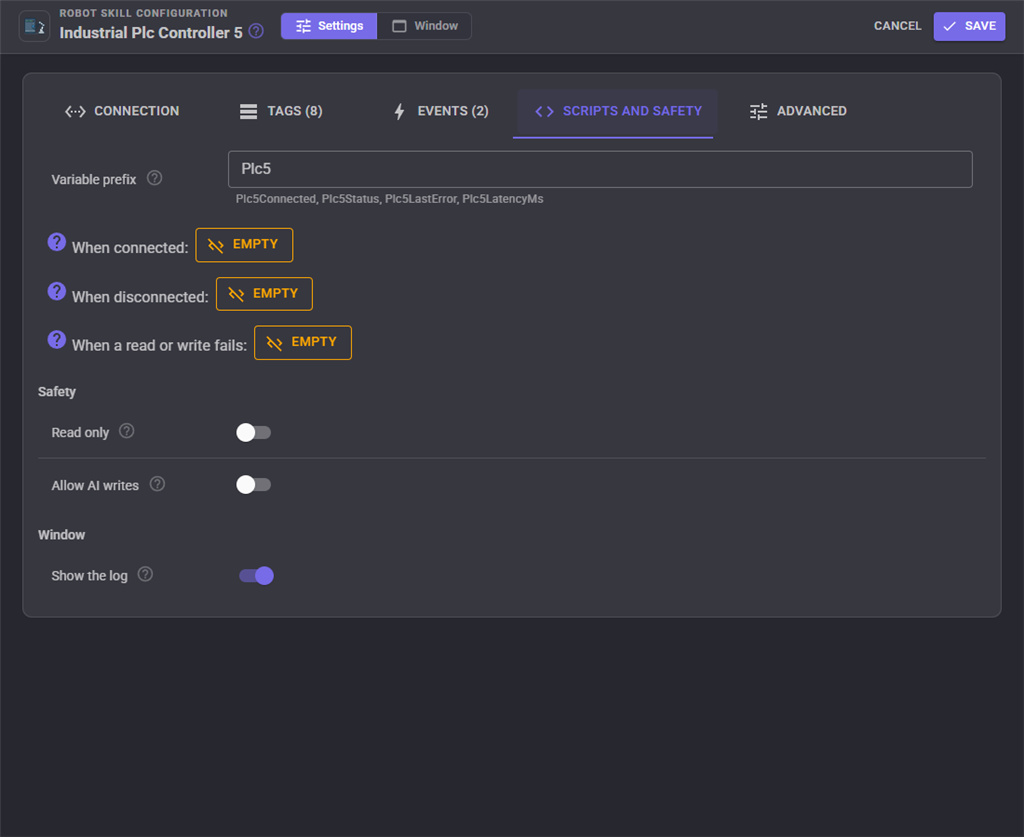
| Setting | What it does |
|---|---|
| Variable prefix | The start of the variables the skill sets about itself: PlcConnected, PlcStatus, PlcLastError and PlcLatencyMs. A second PLC Controller in a project starts with its own prefix (Plc2), so two PLCs never overwrite each other. |
| When connected | A script run each time the connection opens, for instance to set a heartbeat or announce the robot. |
| When disconnected | A script run when the connection is lost or closed, for instance to stop the robot when the PLC goes away. |
| When a read or write fails | A script run when the PLC refuses a tag while connected. PlcLastError says which and why. |
| Read only | Nothing is ever written to the PLC, from anywhere. For monitoring a machine ARCx must not change. |
| Allow AI writes | Lets AI assistants connected to ARCx write tags and addresses. Off, they can read, browse and wait but cannot change the machine. |
Advanced
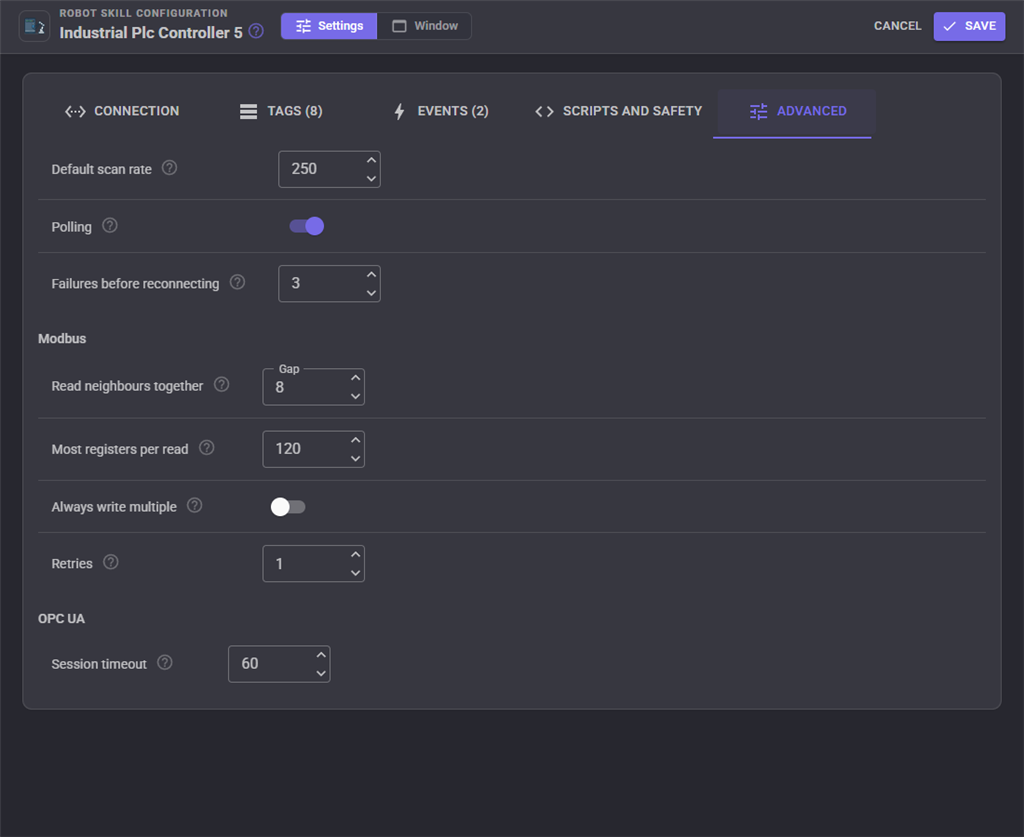
The default scan rate, polling on or off at start, how many failed polls in a row count as a lost connection, Modbus tuning (how far apart tags may be and still be read together, the most registers per request, always using the write multiple functions, retries), and the OPC UA session timeout.
Scripting
Scripts use the tags by name with the robot skill's control commands, the same for every driver. A robot cell handshake, for example:
// Wait for the conveyor PLC to say a part is in position
if (controlCommand("Industrial Plc Controller", "WaitForValue", "PartReady", true, 30000)) {

  // ... pick the part with the robot arm ...

  // Tell the PLC the cycle is done with a half second pulse, and count it
  controlCommand("Industrial Plc Controller", "Pulse", "CycleComplete", 500);
  controlCommand("Industrial Plc Controller", "Write", "PartsPicked", getVar("PlcPartsPicked") + 1);
}
Every tag with a variable can also be read with getVar("PlcConveyorSpeed"), and a tag with Write back on is written by setVar. ReadAddress and WriteAddress reach any address without a tag, such as ReadAddress("40010", "REAL"), which is handy for values read once in a while. The connection itself is in PlcConnected, PlcStatus, PlcLastError and PlcLatencyMs.
Custom UI widgets
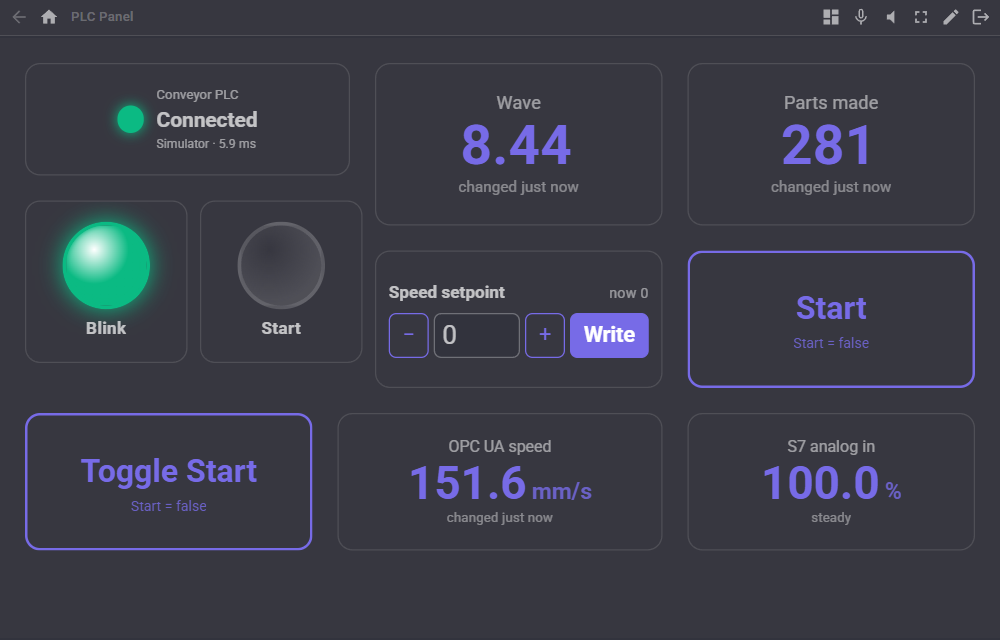
Five widgets put the PLC on a Custom UI screen, a phone or a kiosk display:
| Widget | What it shows |
|---|---|
| PLC status | The connection light and latency. Pressing it connects and disconnects. |
| PLC tag value | One tag's value, large like a panel meter, with its units, how fresh it is, and its quality as the colour. |
| PLC indicator lamp | A pilot light for a Bool tag (or a number, lit when not 0) in the colour you choose, optionally blinking. |
| PLC button | Writes a tag: Momentary (true while held, for jogging), Toggle, Pulse (true for a set time, for Start or Reset) or Set (a fixed value). |
| PLC setpoint | A number box with step buttons and Write, under the value the PLC holds now. |
AI assistants
AI assistants connected to ARCx can read the connection and every tag with its value and description, read tags live, browse the PLC, try any address, add and remove tags, wait for a value, and read the diagnostics to explain a problem. Writing tags or addresses and pulsing buttons is refused unless Allow AI writes is on, because these commands move real machines.
Several PLCs
Add one Industrial PLC Controller per PLC. Each keeps its own connection, tags and events, and a new one gets its own variable prefix. A single Modbus connection can still reach several devices by giving tags a unit, such as 2:40001 and 3:40001.
Notes
- Polling pauses while any robot skill's configuration page is open, as every ARCx robot skill does; OPC UA subscriptions keep reporting.
- Bit writes to a Modbus holding register (HR10.3) read the register, change the bit and write it back; the PLC program should not change the same register at the same moment.
- The OPC UA libraries are shared by every PLC Controller in ARCx, so updating this robot skill takes effect after ARCx restarts.
Control Commands for the Industrial Plc Controller robot skill
There are Control Commands available for this robot skill which allows the skill to be controlled programmatically from scripts or other robot skills. These commands enable you to automate actions, respond to sensor inputs, and integrate the robot skill with other systems or custom interfaces. If you're new to the concept of Control Commands, we have a comprehensive manual available here that explains how to use them, provides examples to get you started and make the most of this powerful feature.
Control Command ManualThis robot skill has 22 control commands, listed below. Send them from a JavaScript or Python script, from Blockly, or from another robot skill.
The first value is always the window title, which is the name in the title bar of the robot skill on your workspace. It starts out as Industrial Plc Controller, which is what every example below uses. If you rename the robot skill, or add a second copy of it to the project, use the title as it appears on that window instead.
ControlCommand() can be shortened to CC(), and both spellings work in JavaScript and in Python. The examples are JavaScript; Python is the same call, except that true and false are written True and False.
Browse
List what is under a path in the PLC (OPC UA servers, Logix controllers and the simulator), as JSON: name, address, type, and whether it has children. Empty for the top.
Syntax
ControlCommand("Industrial Plc Controller", "Browse", (String)path)
Parameters
| # | Name | Type | What to pass |
|---|---|---|---|
| 1 | path | Text | Your text, in quotes |
Returns: String
Example
var result = ControlCommand("Industrial Plc Controller", "Browse", "path");
Connect
Connect to the PLC and wait until connected (or the attempt fails). Keeps the connection up and reconnects by itself when Reconnect automatically is on. Returns true when connected.
Syntax
ControlCommand("Industrial Plc Controller", "Connect")
Returns: Boolean [true or false]
Example
var result = ControlCommand("Industrial Plc Controller", "Connect");
Disconnect
Close the connection to the PLC on purpose and stop reconnecting.
Syntax
ControlCommand("Industrial Plc Controller", "Disconnect")
Returns: nothing
Example
ControlCommand("Industrial Plc Controller", "Disconnect");
GetDiagnostics
The communication diagnostics as JSON: connection state, latency (last, average, minimum, maximum in ms), reads, writes, errors, communication failures, reconnects, uptime and the last error.
Syntax
ControlCommand("Industrial Plc Controller", "GetDiagnostics")
Returns: String
Example
var result = ControlCommand("Industrial Plc Controller", "GetDiagnostics");
GetQuality
How far a tag's value can be trusted: Good, Uncertain, Bad (the PLC refused it), Offline (not connected), Unknown (not read yet) or WriteOnly.
Syntax
ControlCommand("Industrial Plc Controller", "GetQuality", (String)tag)
Parameters
| # | Name | Type | What to pass |
|---|---|---|---|
| 1 | tag | Text | Your text, in quotes |
Returns: String
Example
var result = ControlCommand("Industrial Plc Controller", "GetQuality", "tag");
GetStatus
One line about the connection, such as "Connected to Modbus TCP at 192.168.1.10:502, unit 1" or "Reconnecting to 192.168.1.10 in 4 s (attempt 3)".
Syntax
ControlCommand("Industrial Plc Controller", "GetStatus")
Returns: String
Example
var result = ControlCommand("Industrial Plc Controller", "GetStatus");
GetTagInfo
Everything about a tag as JSON: address, type, access, value, units, quality, error, when it last changed and its variable.
Syntax
ControlCommand("Industrial Plc Controller", "GetTagInfo", (String)tag)
Parameters
| # | Name | Type | What to pass |
|---|---|---|---|
| 1 | tag | Text | Your text, in quotes |
Returns: String
Example
var result = ControlCommand("Industrial Plc Controller", "GetTagInfo", "tag");
GetTags
The names of every tag.
Syntax
ControlCommand("Industrial Plc Controller", "GetTags")
Returns: Array of String
Example
var result = ControlCommand("Industrial Plc Controller", "GetTags");
GetValue
The tag's last polled value, without asking the PLC: instant, and what the tag's global variable holds.
Syntax
ControlCommand("Industrial Plc Controller", "GetValue", (String)tag)
Parameters
| # | Name | Type | What to pass |
|---|---|---|---|
| 1 | tag | Text | Your text, in quotes |
Returns: Object
Example
var result = ControlCommand("Industrial Plc Controller", "GetValue", "tag");
IsConnected
Whether the robot skill is connected to the PLC right now.
Syntax
ControlCommand("Industrial Plc Controller", "IsConnected")
Returns: Boolean [true or false]
Example
var result = ControlCommand("Industrial Plc Controller", "IsConnected");
PausePolling
Stop reading tags until ResumePolling (writes still work). Not saved with the project.
Syntax
ControlCommand("Industrial Plc Controller", "PausePolling")
Returns: nothing
Example
ControlCommand("Industrial Plc Controller", "PausePolling");
Pulse
Write true to a Bool tag, wait, then write false: a momentary push button for a PLC input such as Start, Reset or Cycle complete. The wait is in milliseconds (default 500).
Syntax
ControlCommand("Industrial Plc Controller", "Pulse", (String)tag, (Number)milliseconds)
Parameters
| # | Name | Type | What to pass |
|---|---|---|---|
| 1 | tag | Text | Your text, in quotes |
| 2 | milliseconds | Number | A number, without quotes |
Returns: Boolean [true or false]
Example
var result = ControlCommand("Industrial Plc Controller", "Pulse", "tag", 0);
Read
Read a tag from the PLC now (a round trip, rather than the last polled value) and return its value in engineering units: a number, true or false, text, or an array.
Syntax
ControlCommand("Industrial Plc Controller", "Read", (String)tag)
Parameters
| # | Name | Type | What to pass |
|---|---|---|---|
| 1 | tag | Text | Your text, in quotes |
Returns: Object
Example
var result = ControlCommand("Industrial Plc Controller", "Read", "tag");
ReadAddress
Read any PLC address once without a tag, such as ReadAddress("40010", "Float32") for Modbus, ReadAddress("DB1.DBW2", "Int16") for S7 or ReadAddress("ns=2;s=Speed") for OPC UA. The type is optional (Bool, Int16, UInt16, Int32, UInt32, Float32, Float64, String or the IEC names INT, DINT, REAL...); the length makes an array.
Syntax
ControlCommand("Industrial Plc Controller", "ReadAddress", (String)address, (String)type, (Number)length)
Parameters
| # | Name | Type | What to pass |
|---|---|---|---|
| 1 | address | Text | Your text, in quotes |
| 2 | type | Text | Your text, in quotes |
| 3 | length | Number | A number, without quotes |
Returns: Object
Example
var result = ControlCommand("Industrial Plc Controller", "ReadAddress", "address", "type", 0);
Reconnect
Close the connection and connect again straight away. Returns true when connected again.
Syntax
ControlCommand("Industrial Plc Controller", "Reconnect")
Returns: Boolean [true or false]
Example
var result = ControlCommand("Industrial Plc Controller", "Reconnect");
ResetDiagnostics
Zero the diagnostics counters, latency and error list.
Syntax
ControlCommand("Industrial Plc Controller", "ResetDiagnostics")
Returns: nothing
Example
ControlCommand("Industrial Plc Controller", "ResetDiagnostics");
ResumePolling
Start reading tags again after PausePolling.
Syntax
ControlCommand("Industrial Plc Controller", "ResumePolling")
Returns: nothing
Example
ControlCommand("Industrial Plc Controller", "ResumePolling");
Toggle
Flip a Bool tag: true becomes false and false becomes true. Returns the new value.
Syntax
ControlCommand("Industrial Plc Controller", "Toggle", (String)tag)
Parameters
| # | Name | Type | What to pass |
|---|---|---|---|
| 1 | tag | Text | Your text, in quotes |
Returns: Boolean [true or false]
Example
var result = ControlCommand("Industrial Plc Controller", "Toggle", "tag");
WaitForChange
Wait until a tag's value changes. The timeout is in milliseconds (default 10000). Returns true when it changed, false on timeout.
Syntax
ControlCommand("Industrial Plc Controller", "WaitForChange", (String)tag, (Number)timeout ms)
Parameters
| # | Name | Type | What to pass |
|---|---|---|---|
| 1 | tag | Text | Your text, in quotes |
| 2 | timeout ms | Number | A number, without quotes |
Returns: Boolean [true or false]
Example
var result = ControlCommand("Industrial Plc Controller", "WaitForChange", "tag", 0);
WaitForValue
Wait until a tag holds a value, such as WaitForValue("PartReady", true, 30000) for a robot cell handshake. Numbers compare by value and true matches 1. The timeout is in milliseconds (default 10000). Returns true when the value arrived, false on timeout.
Syntax
ControlCommand("Industrial Plc Controller", "WaitForValue", (String)tag, (String)value, (Number)timeout ms)
Parameters
| # | Name | Type | What to pass |
|---|---|---|---|
| 1 | tag | Text | Your text, in quotes |
| 2 | value | Text | Your text, in quotes |
| 3 | timeout ms | Number | A number, without quotes |
Returns: Boolean [true or false]
Example
var result = ControlCommand("Industrial Plc Controller", "WaitForValue", "tag", "value", 0);
Write
Write a value to a tag (its Access must be ReadWrite or Write). The value is in engineering units and is converted to the PLC's type, so Write("Speed", 12.5) works for a REAL and Write("Run", true) for a BOOL. Returns the value written.
Syntax
ControlCommand("Industrial Plc Controller", "Write", (String)tag, (String)value)
Parameters
| # | Name | Type | What to pass |
|---|---|---|---|
| 1 | tag | Text | Your text, in quotes |
| 2 | value | Text | Your text, in quotes |
Returns: Object
Example
var result = ControlCommand("Industrial Plc Controller", "Write", "tag", "value");
WriteAddress
Write any PLC address once without a tag, such as WriteAddress("40010", "Int16", 250). Refused when the robot skill is read only. Returns the value written.
Syntax
ControlCommand("Industrial Plc Controller", "WriteAddress", (String)address, (String)type, (String)value)
Parameters
| # | Name | Type | What to pass |
|---|---|---|---|
| 1 | address | Text | Your text, in quotes |
| 2 | type | Text | Your text, in quotes |
| 3 | value | Text | Your text, in quotes |
Returns: Object
Example
var result = ControlCommand("Industrial Plc Controller", "WriteAddress", "address", "type", "value");
This list is read out of the robot skill itself each time its package is uploaded, so it matches the published version (v2).




This robot skill has been updated to v1.
What has changed
initial release
This robot skill has been updated to v2.
What has changed
updated to use some new ARCx UI features for improved performance.