
Turns an Arduino into an ARCx servo controller with virtual-port mapping, speed, release, sync, and position reads.
 Windows
 ARM
ARM
 Linux
Linux
 MacOS
MacOS
How to add the Custom Servo Controller robot skill
- Load the most recent release of ARCx on a compatible operating system (Get ARCx).
- Press the + Skills menu from the top menu bar in ARCx.
- Choose the Servo category tab.
- Press the Custom Servo Controller icon to add the robot skill to your project.
Don't have a robot yet?
Follow the Getting Started Guide to build a robot and use the Custom Servo Controller robot skill.
How to use the Custom Servo Controller robot skill
The Custom servo Controller robot skill turns an Arduino into a servo controller for ARCx. Every robot skill that moves servos (Auto Position, joysticks, scripts, servo Animation, kinematics) moves a virtual port such as V1, and this robot skill sends that move to the Arduino, which drives the servo on the pin the firmware maps to that port. Speed, release and position reads work the same way.
The Arduino runs the firmware that comes with this robot skill. The Firmware tab of the configuration downloads it with the servo table already filled in from the configuration: which virtual port drives which pin, each servo's pulse range, and where it starts. An Uno or Nano drives up to 12 servos and a Mega up to 48.
This robot skill is the ARCx version of the ARC Custom servo Controller skill. It speaks the same protocol, so an Arduino already running the ARC firmware (version 20261002) works with it as it is, and the firmware this robot skill downloads also works with the ARC skill.
Requirements
- An Arduino (Uno, Nano, Mega and others with the Arduino servo library) running the firmware from the Firmware tab.
- A power supply for the servos. The Arduino's 5V pin cannot power more than one small servo; connect the supply's ground to the Arduino's GND.
- One way for ARCx to reach the Arduino:
- USB: its USB cable plugged into the computer running ARCx. No EZB is needed.
- EZB hardware UART: the Arduino's RX and TX wired to UART 0, 1 or 2 of an EZ-B v4, with a common ground.
- TCP serial bridge: a bridge such as ser2net on a Raspberry Pi or an ESP-Link that passes a TCP connection through to the Arduino's serial port.
Even when the Arduino is on USB, the robot skill listens to the virtual ports of one EZB in the project (EZB #0 unless you change it), because that is where ARCx keeps virtual servo positions. That EZB does not have to be connected.
How it works
Each servo in the configuration hands one ARCx virtual port (V0 to V255) to the controller. When anything moves that port, the robot skill sends the position to the Arduino; several servos moved together go out in one write, so they start at the same time. The firmware looks up the port in its servo table and turns the position into a pulse width between the servo's Min us and Max us.
Speed is the port's ARCx velocity, 0 (fastest) to 20 (slowest). The firmware ramps a servo with a speed toward its target, at 600 positions per second divided by the speed (speed 10 is 60 per second). Releasing a port stops its pulse so the servo goes limp; a released servo that is moved again jumps straight to its new position, because its real position is unknown.
Positions on the Arduino are always 1 to 180. A project whose Max servo Position is not 180 is scaled onto that range, the same way ARCx does for an EZB's servos.
The window
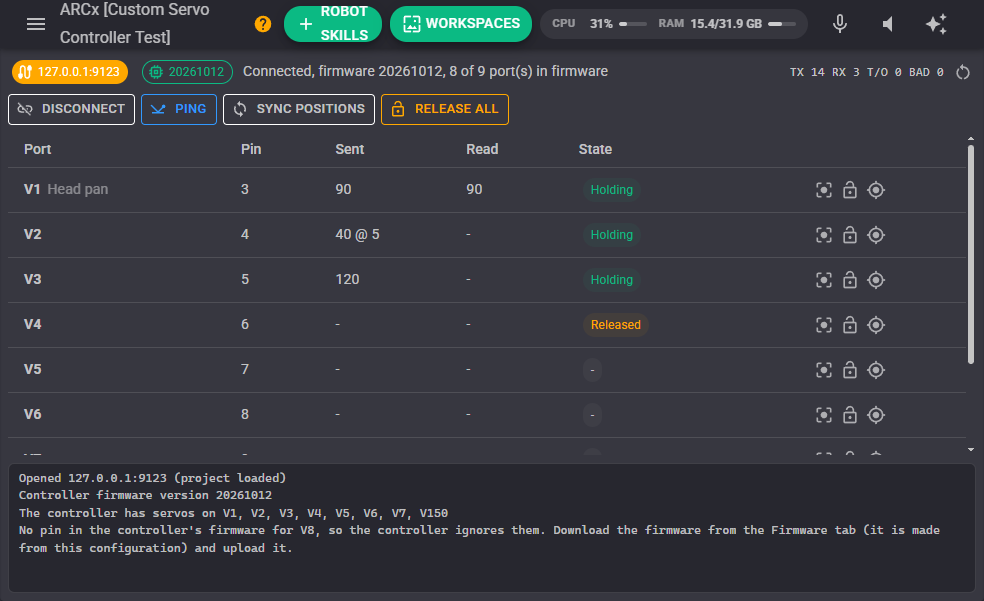
- Link chip - the connection: the COM port and baud rate, the EZB UART, or the bridge's address. Green when the controller has a pin for every mapped port, amber when something is wrong, grey when the link is not open.
- Firmware chip - the firmware version the controller reported. Hover it for the ports its firmware has. Amber for firmware that works but is older than the one in the Firmware tab, red for firmware too old to report positions, release servos or use speeds.
- Status - what happened when the link last opened, such as "Connected, firmware 20261012, 8 of 8 port(s) in firmware", or why it failed.
- TX / RX / T/O / BAD - packets sent, replies received, questions that timed out, and unexpected bytes received since the counters were reset with the button beside them.
- Connect / Disconnect - Connect opens (or reopens) the link, pings the controller and reads which virtual ports its firmware has. This also happens by itself when the project loads (or the EZB connects, for a UART), and on the first servo move. Disconnect closes the port and keeps it closed, and servo moves are ignored, until Connect: press it before uploading new firmware from the Arduino IDE.
- Ping - asks the controller for its firmware version and its ports again. The quickest check of the wiring and the baud rate.
- Sync positions - sends ARCx's position and speed of every mapped port that is not released, so a controller that was reset puts its servos back where ARCx thinks they are.
- Release all - releases every mapped port, so the servos go limp.
- Table - one row per mapped port: its name, the pin it is configured for, the position last sent (with its speed when it has one), the position the controller last reported, and its state: Holding, Released, or Not in firmware when the controller's firmware has no pin for the port. The buttons on each row move the port to the centre position, release it, and ask the controller where the servo is.
- Log - what the robot skill did. With Debug logging on, every packet sent and every reply, in hex.
Configuration: Connection
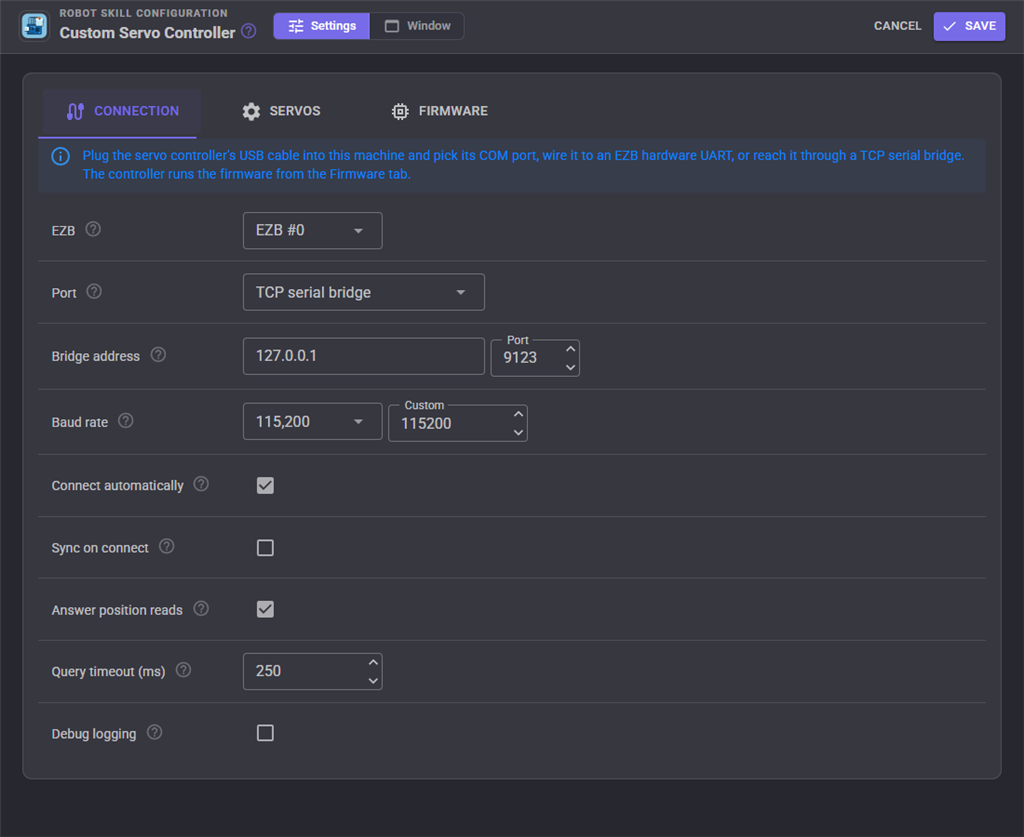
| Setting | Meaning |
|---|---|
| EZB | The EZB whose virtual servo ports (V0 to V255) this robot skill answers to. For a UART connection it is also the EZB the Arduino is wired to. |
| Port | Where the Arduino is connected: a COM port on this computer (USB), EZB hardware UART 0, 1 or 2, or a TCP serial bridge. |
| COM port | The Arduino's port (COM5, /dev/ttyUSB0, /dev/ttyACM0). Press refresh after plugging it in. Close the Arduino IDE's serial monitor first; only one program can have the port. |
| DTR (resets an Uno) | Raise DTR when the port opens. An Uno, Nano or Mega resets when DTR rises, so its servos go limp (or to their start positions) until they are moved, and boards with native USB need it on to send anything. Leave it on unless the Arduino must keep its servos where they are when ARCx reconnects. |
| Start-up delay (ms) | How long to wait after opening the port with DTR on, while the reset Arduino starts. About 2000 for an Uno or Mega. |
| Bridge address | The host name or IP address and TCP port of the serial bridge. The bridge sets the serial speed itself. |
| Baud rate | The serial speed. It must match BAUD_RATE in the firmware (115200 unless it was changed); the downloaded firmware is made with this rate. |
| Connect automatically | Open the link and check the controller when the project loads (or the EZB connects, for a UART). Off waits for the first servo move or the Connect button. |
| Sync on connect | After connecting, send ARCx's position and speed of every mapped servo that is not released, so a controller that was reset by DTR or a power cycle puts its servos back. |
| Answer position reads | When a script or robot skill asks for a mapped port's real position (for example Servo.getPositionRealtime(v1)), ask the controller where the servo is right now, part way through a speed limited move. Off answers with the last position ARCx sent. |
| Query timeout (ms) | How long a ping or position read waits for the controller's answer. 250 suits a USB cable; a WiFi EZB or a network bridge may need 500 or more. |
| Debug logging | Write every packet sent and every reply to the log, in hex. Useful while wiring up the controller, noisy once it works. |
Configuration: Servos
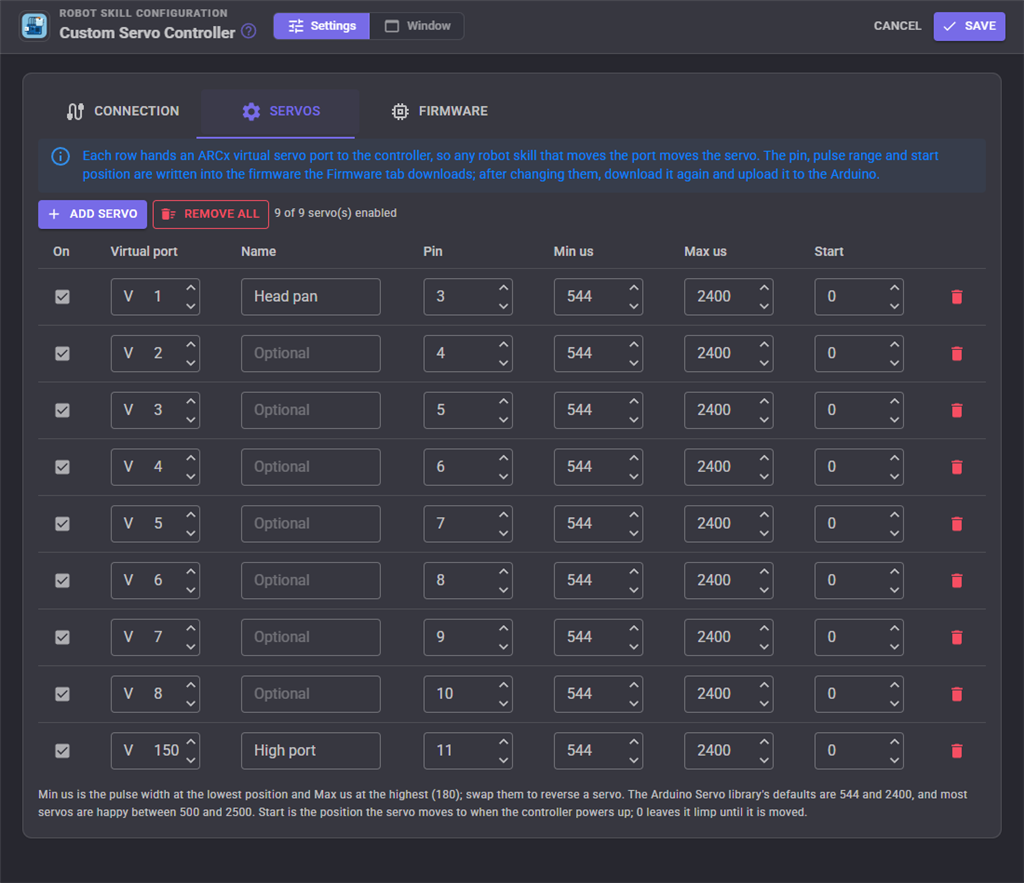
Each row hands one virtual port to the controller. A new robot skill starts with V1 to V8 on pins 3 to 10, the same as the firmware's own default table. Add servo adds a row on the next free port and pin; the bin removes one.
| Column | Meaning |
|---|---|
| On | An unticked row is kept but ignored, and left out of the downloaded firmware. |
| Virtual port | The ARCx port (V0 to V255) that moves this servo. Each port belongs to one row. |
| Name | Optional. Shown in the window and written as a comment beside the servo's row in the firmware. |
| Pin | The Arduino pin the servo's signal wire is connected to. Avoid pins 0 and 1, which are the USB serial port on an Uno, Nano and Mega. |
| Min us / Max us | The pulse width in microseconds at the lowest and the highest position. The Arduino servo library's defaults are 544 and 2400; most servos are happy between 500 and 2500. Swap the two to reverse a servo. |
| Start | The position the servo moves to when the Arduino powers up, before ARCx moves it. 0 leaves it limp until it is moved. |
Pin, Min us, Max us and Start live in the firmware, not in the robot skill. After changing them, download the firmware again and upload it. The warnings above the table point out a port or pin used twice, a servo on pin 0 or 1, and more servos than a Mega can drive.
Configuration: Firmware
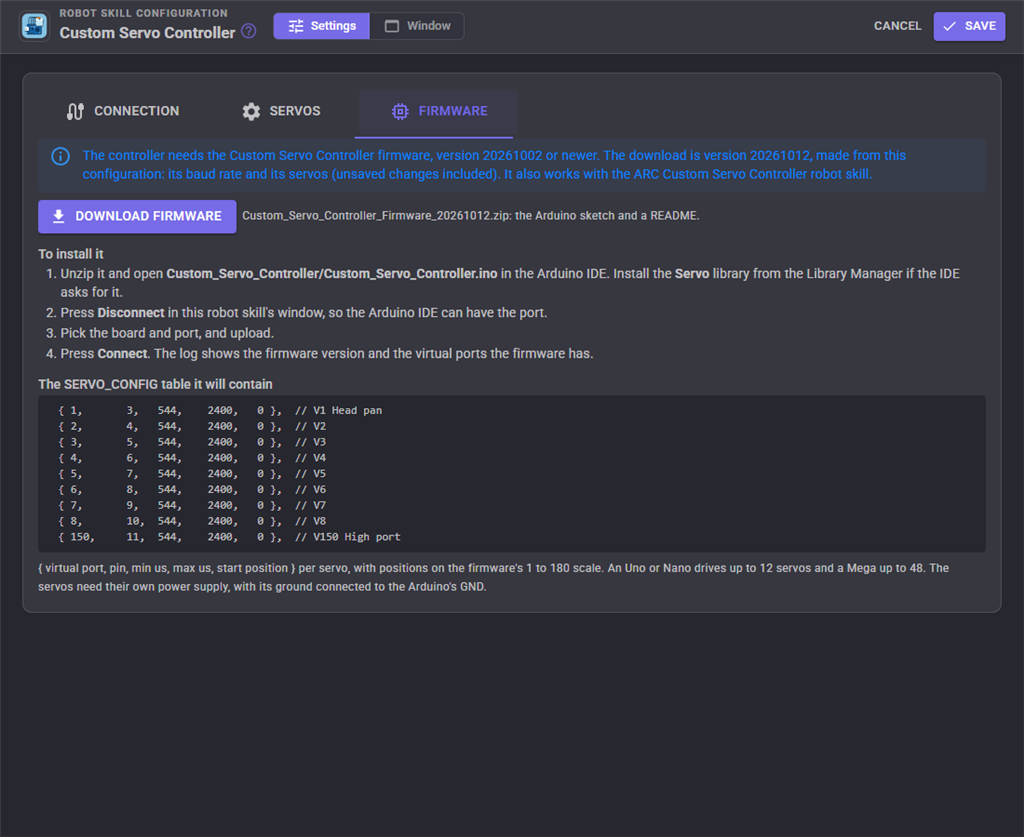
Download firmware saves a zip with the Arduino sketch and a README. The sketch's BAUD_RATE and SERVO_CONFIG table are filled in from this configuration, unsaved changes included, and the tab shows the table it will contain.
To install it:
- Unzip it and open
Custom_Servo_Controller/Custom_Servo_Controller.inoin the Arduino IDE. Install the Servo library from the Library Manager if the IDE asks for it. - Press Disconnect in the robot skill window, so the Arduino IDE can have the port.
- Pick the board and port, and upload.
- Press Connect. The log shows the firmware version and the ports the firmware has, and warns about any mapped port the firmware has no pin for.
The GetFirmwareSketch ControlCommand returns the same sketch as text.
Scripts
Move the servos the same way as any other servo, on their virtual ports:
Servo.setVelocity(v2, 10);
Servo.setPosition(v1, 90);
Servo.setPosition(v2, 150);

// Where V2 really is while it moves at speed 10
print(Servo.getPositionRealtime(v2));

Servo.release(v1);
The robot skill's own control commands (connect, ping, sync, read a position, list the firmware's ports, and more) are listed in the Control Commands section of this page and in the script editor.
Troubleshooting
- "The controller did not answer a ping" - the baud rate does not match the firmware, the firmware is not uploaded, or (with DTR on) the start-up delay is too short for the Arduino to finish resetting. On a UART, check that the Arduino's TX is wired to the EZB's RX.
- A port shows "Not in firmware" - the firmware on the Arduino has no row for that port. Download the firmware from the Firmware tab and upload it.
- Servos jump to a position or go limp when ARCx connects - DTR resets an Uno or Mega. Turn on Sync on connect to send the servos back to ARCx's positions, or turn off DTR if the board does not need it.
- Servos twitch or the Arduino resets when they move - the servos are powered from the Arduino. Give them their own supply with a common ground.
- The COM port cannot be opened - another program has it, usually the Arduino IDE's serial monitor. Close it, or press Disconnect here while uploading.
Control Commands for the Custom Servo Controller robot skill
There are Control Commands available for this robot skill which allows the skill to be controlled programmatically from scripts or other robot skills. These commands enable you to automate actions, respond to sensor inputs, and integrate the robot skill with other systems or custom interfaces. If you're new to the concept of Control Commands, we have a comprehensive manual available here that explains how to use them, provides examples to get you started and make the most of this powerful feature.
Control Command ManualThis robot skill has 11 control commands, listed below. Send them from a JavaScript or Python script, from Blockly, or from another robot skill.
The first value is always the window title, which is the name in the title bar of the robot skill on your workspace. It starts out as Custom servo Controller, which is what every example below uses. If you rename the robot skill, or add a second copy of it to the project, use the title as it appears on that window instead.
ControlCommand() can be shortened to CC(), and both spellings work in JavaScript and in Python. The examples are JavaScript; Python is the same call, except that true and false are written True and False.
Connect
Open (or reopen) the link to the servo controller, ping it and read which virtual ports its firmware has. With Sync on connect set, also sends ARCx's servo positions. Returns true when the port opened.
Syntax
ControlCommand("Custom servo Controller", "Connect")
Returns: Boolean [true or false]
Example
var result = ControlCommand("Custom servo Controller", "Connect");
Disconnect
Close the link to the servo controller and keep it closed (servo moves are ignored) until Connect, so another program such as the Arduino IDE can use the port.
Syntax
ControlCommand("Custom servo Controller", "Disconnect")
Returns: Boolean [true or false]
Example
var result = ControlCommand("Custom servo Controller", "Disconnect");
GetFirmwarePorts
The virtual ports the controller's firmware has servo pins for, such as ["V1", "V2"], as read when it last connected or was pinged. Empty when not read yet.
Syntax
ControlCommand("Custom servo Controller", "GetFirmwarePorts")
Returns: Array of String
Example
var result = ControlCommand("Custom servo Controller", "GetFirmwarePorts");
GetFirmwareSketch
The Arduino sketch (Custom_Servo_Controller.ino) made from this configuration: the firmware with its BAUD_RATE and SERVO_CONFIG table filled in, the same text the Firmware tab of the configuration downloads.
Syntax
ControlCommand("Custom servo Controller", "GetFirmwareSketch")
Returns: String
Example
var result = ControlCommand("Custom servo Controller", "GetFirmwareSketch");
GetPortMap
The mapped virtual ports with the Arduino pin each is configured for, one "V1 -> pin 3" entry per servo.
Syntax
ControlCommand("Custom servo Controller", "GetPortMap")
Returns: Array of String
Example
var result = ControlCommand("Custom servo Controller", "GetPortMap");
GetStatus
The link and its status, such as "COM5 @ 115,200 bps: Connected, firmware 20261012, 8 of 8 port(s) in firmware".
Syntax
ControlCommand("Custom servo Controller", "GetStatus")
Returns: String
Example
var result = ControlCommand("Custom servo Controller", "GetStatus");
IsConnected
True while the link to the servo controller is open.
Syntax
ControlCommand("Custom servo Controller", "IsConnected")
Returns: Boolean [true or false]
Example
var result = ControlCommand("Custom servo Controller", "IsConnected");
Ping
Ping the servo controller, write the result to the log, and return its firmware version, or 0 when it does not answer.
Syntax
ControlCommand("Custom servo Controller", "Ping")
Returns: Integer [-2,147,483,648 to 2,147,483,647]
Example
var result = ControlCommand("Custom servo Controller", "Ping");
ReadPosition
Ask the controller where the servo on a virtual port (such as v1) is right now, part way through a speed limited move. Returns the position, or 0 when the controller has no position for it yet.
Syntax
ControlCommand("Custom servo Controller", "ReadPosition", (String)port)
Parameters
| # | Name | Type | What to pass |
|---|---|---|---|
| 1 | port | Text | Your text, in quotes |
Returns: Integer [-2,147,483,648 to 2,147,483,647]
Example
var result = ControlCommand("Custom servo Controller", "ReadPosition", "port");
ReleaseAll
Release every mapped virtual port, so the servos stop holding and go limp.
Syntax
ControlCommand("Custom servo Controller", "ReleaseAll")
Returns: Boolean [true or false]
Example
var result = ControlCommand("Custom servo Controller", "ReleaseAll");
SyncPositions
Send ARCx's current position and speed of every mapped virtual port that is not released to the controller, for example after the controller was reset. Returns how many servos were sent.
Syntax
ControlCommand("Custom servo Controller", "SyncPositions")
Returns: Integer [-2,147,483,648 to 2,147,483,647]
Example
var result = ControlCommand("Custom servo Controller", "SyncPositions");
This list is read out of the robot skill itself each time its package is uploaded, so it matches the published version (v1).



This robot skill has been updated to v1.
What has changed
initial release