

Offline AIML chatbot for ARCx with built-in editor, memory, speech, scripts, quick replies, and robot control commands
 Windows
 ARM
ARM
 Linux
Linux
 MacOS
MacOS
How to add the Aimlbot robot skill
- Load the most recent release of ARCx on a compatible operating system (Get ARCx).
- Press the + Skills menu from the top menu bar in ARCx.
- Choose any of these category tabs, the robot skill appears in each of them: Artificial Intelligence, Audio.
- Press the Aimlbot icon to add the robot skill to your project.
Don't have a robot yet?
Follow the Getting Started Guide to build a robot and use the Aimlbot robot skill.
How to use the Aimlbot robot skill
Aimlbot gives your robot a personality that runs entirely on the computer, with no internet connection and no fees. It is an AIML chatbot: it answers from thousands of hand-written question and answer pairs called categories, remembers what each person tells it, and can move the robot, run scripts and send control commands from inside its answers. A full screen AIML editor is built in, so you can read, change and test your robot's knowledge without leaving ARCx.
It comes with a large base knowledge of general conversation (about 41,000 categories, the classic A.L.I.C.E. set), and a starter file of robot categories you can build on: moving, telling the time, setting global variables, learning new answers and quick reply buttons.
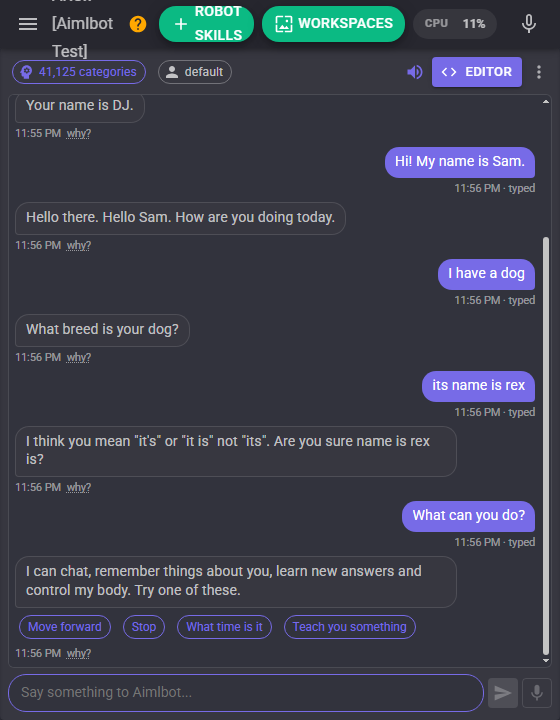
The window
The window is a chat. Type in the box at the bottom and press Enter, press a quick reply button under an answer, or press the microphone button to say one thing out loud (this needs a speech to text robot skill in the project). Each answer has a small why? link that shows which category answered, with its file and line; click the file name to open the editor right at that category.
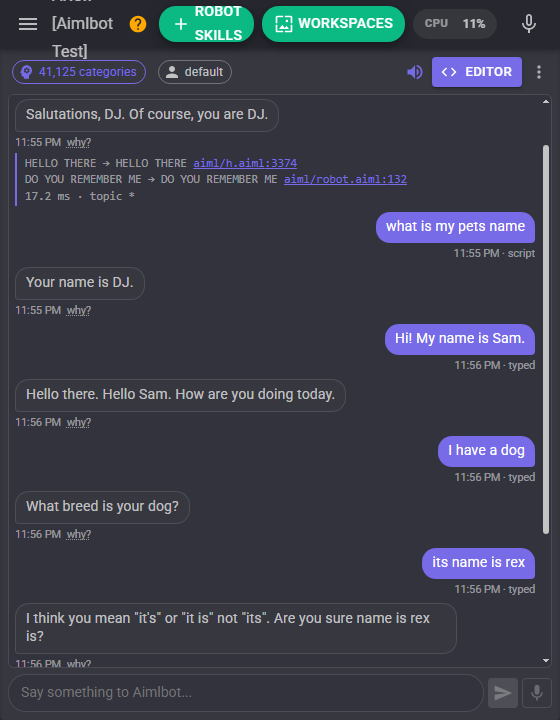
The toolbar along the top shows:
| Item | What it does |
|---|---|
| Categories | How many categories the brain holds. It shows Loading while the brain loads and Brain error if it could not be built. |
| User | Who the bot is talking to. Click it to switch to someone it knows, add someone new, or see what it remembers. |
| Ear | Listen continuously and answer everything that is said. Shown when the project has a speech to text robot skill. |
| Speaker | Speak the answers through the project's text to speech robot skill, or stay quiet. |
| Editor | Opens the AIML editor. |
| Menu | Reload the brain, clear the conversation, search the categories, the AIML reference, show the log, and show why under every answer. |
How the bot thinks
Everything said to the bot is cleaned up first: contractions and common misspellings are expanded (config/substitutions.txt), the text is split into sentences, and punctuation is removed. Each sentence is then matched against the patterns of every category. A pattern is upper case words with wildcards:
| Wildcard | Matches |
|---|---|
* |
One or more words. |
_ |
One or more words, and wins over exact words. |
^ |
Zero or more words. |
# |
Zero or more words, and wins over exact words. |
$WORD |
That exact word, winning over every wildcard. |
<set>name</set> |
Any phrase listed in sets/name.txt. |
A category can also require the bot's previous sentence (<that>) or a topic, which is how follow-up answers such as YES or ITS NAME IS work. The answer, the template, can remember things about the user, redirect to another category with <srai>, pick a random reply, choose by condition, and much more. Open the editor's Reference view for every tag with an explanation and an Insert button.
Robot tags
Templates can make the robot do things. These are the most useful:
| Tag | What it does |
|---|---|
<script>Movement.forward()</script> |
Runs ARCx JavaScript (add lang="python" for Python). The value of the last expression is said, so <script>getVar("Battery")</script> says a value; wrap it in <think> to only act. |
<controlcommand skill="Auto Position" command="AutoPositionAction">Wave</controlcommand> |
Sends a ControlCommand to another robot skill. Use <arg> children for more than one parameter. |
<getvar name="Mood"/> |
Says the value of a global variable. |
<setvar name="Mood">happy</setvar> |
Sets a global variable. |
<button>Yes</button> |
Shows a quick reply button under the answer. |
<learnf> |
Teaches the bot a new category while chatting, saved in aiml/learned.aiml in the project. |
<sraix> |
Asks something outside the bot through the Sraix script, for example another AI robot skill. |
Text in square brackets in an answer is also run as a line of JavaScript and left out of what is said, the way the ARC version of this skill worked: Hello [controlCommand("Auto Position", "AutoPositionAction", "Wave")].
Memory and users
The bot keeps predicates for each user: what they told it, such as their name, age or favorite color, and the topic of the conversation. Each user has their own, so a face recognition script can tell the bot who is in front of it with the SetUser ControlCommand and the bot remembers that person. With Remember users on, the predicates are saved in the project, so the bot still knows everyone after the project is opened again. The editor's Memory view shows every user and lets you change or forget what the bot knows.
The AIML editor
The editor opens full screen and works like a code editor:
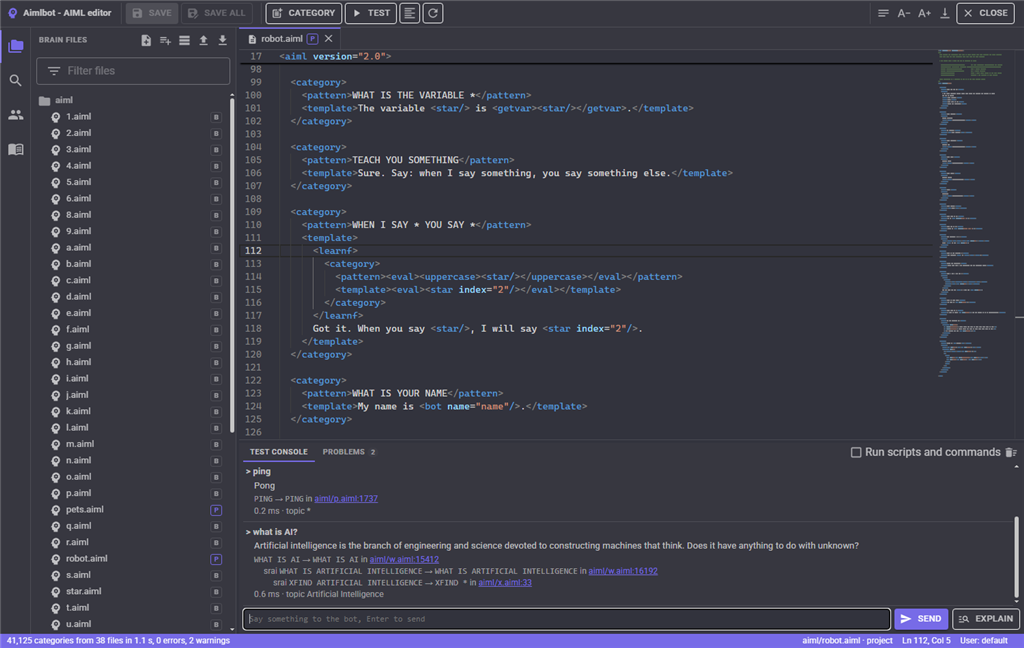
- Brain files lists every file the brain is built from. B marks base knowledge (read-only), F a file from the brain folder, P a file saved in the project. Double-click to open a file. Select a file for its actions: copy base knowledge to the project to change it (your copy replaces the original), rename, delete, revert to the original, or turn a file off so it is not loaded. The buttons along the top create AIML files, sets and maps, import .aiml, .txt or a .zip of a brain, and download the project's files as a .zip.
- Search finds categories by pattern words, and optionally by text in their templates. Click a result to open it.
- Memory lists the users and their predicates.
- Reference explains every tag, grouped by purpose, with a button that inserts it at the cursor.
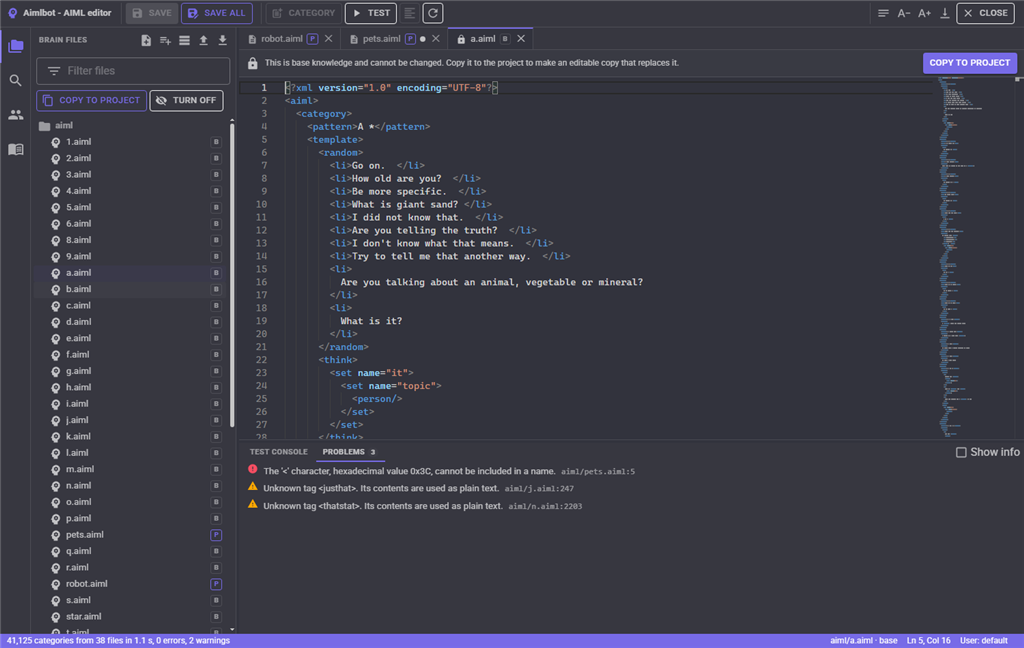
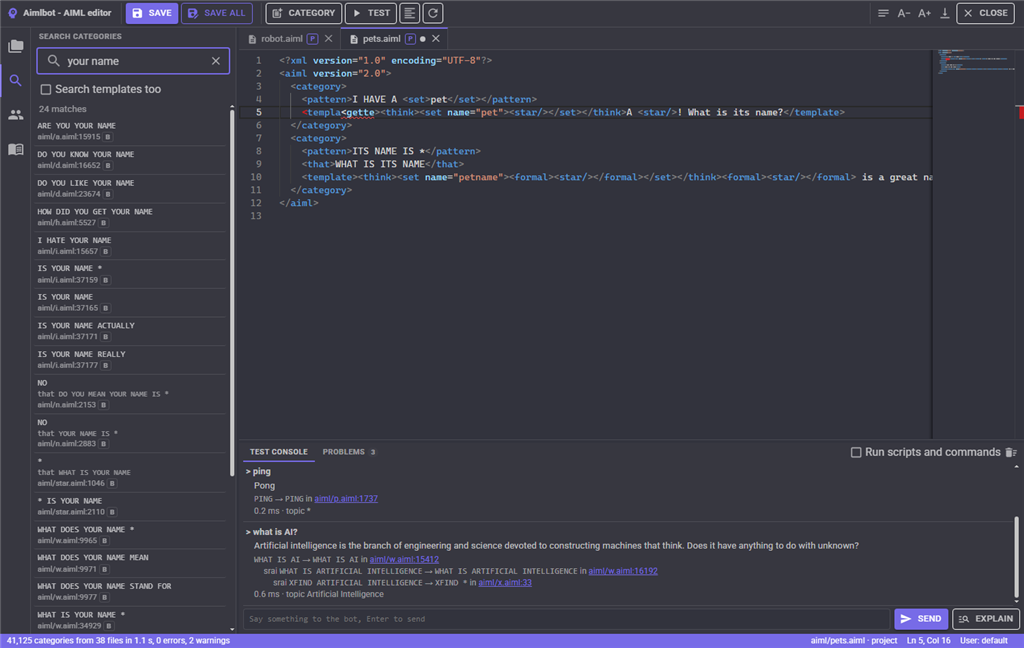
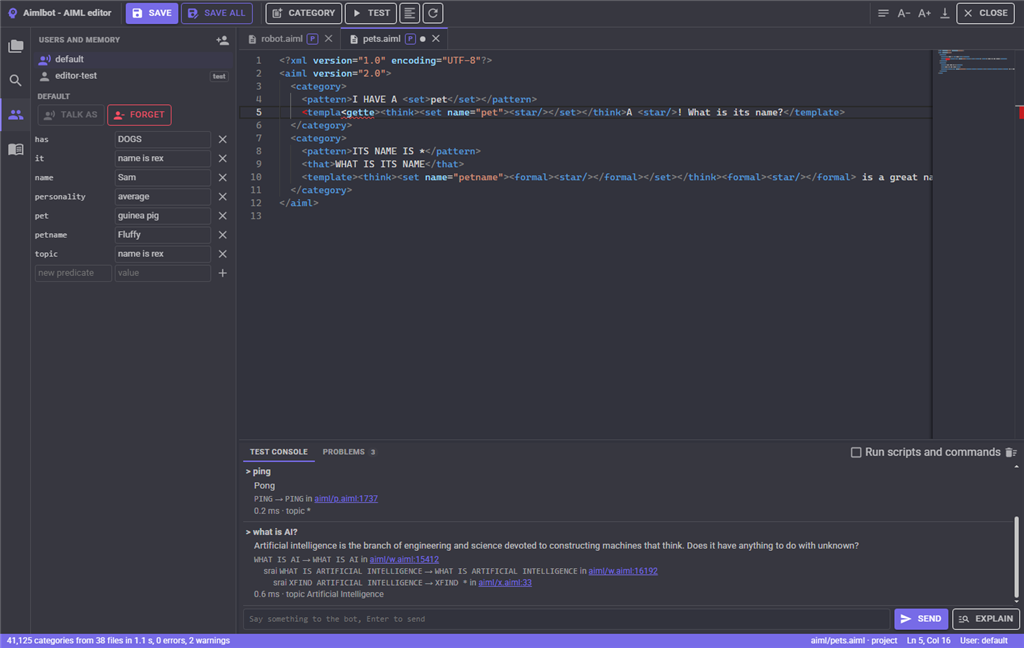
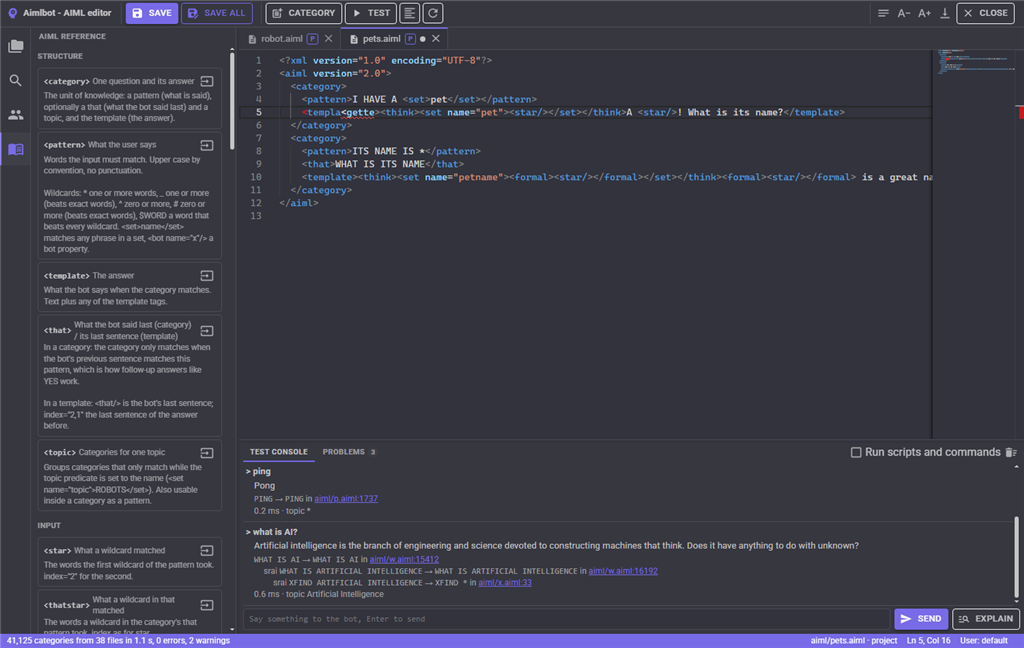
While typing, < offers every tag with its help, a name attribute offers the predicates, bot properties, sets, maps and global variables that exist, and problems are underlined as you type. Ctrl+S saves the file and reloads the brain in the background; the bot keeps answering from the old brain until the new one is ready.
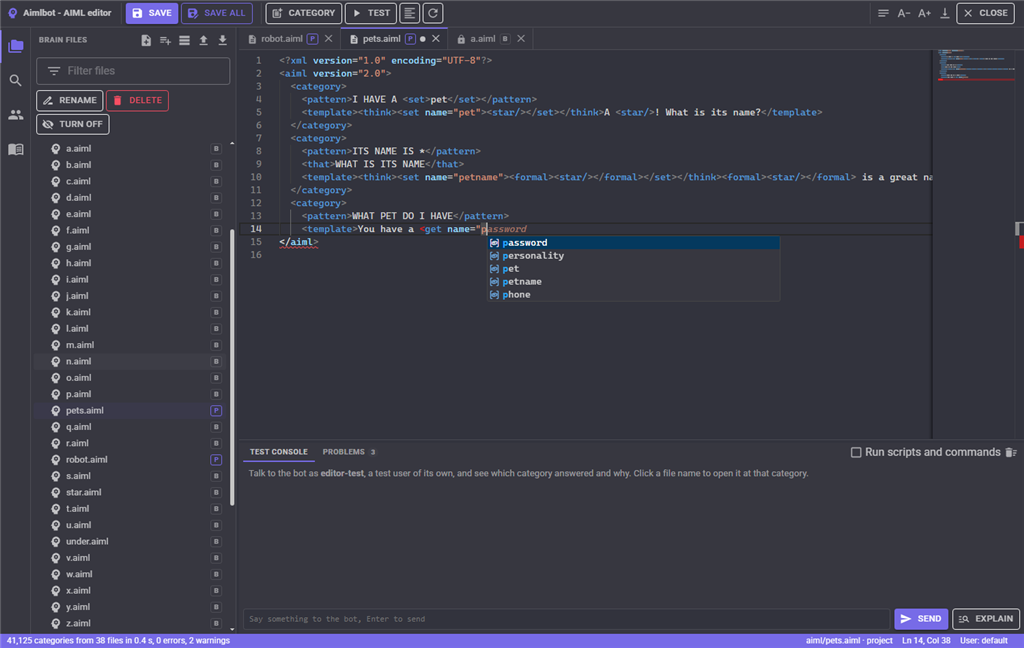
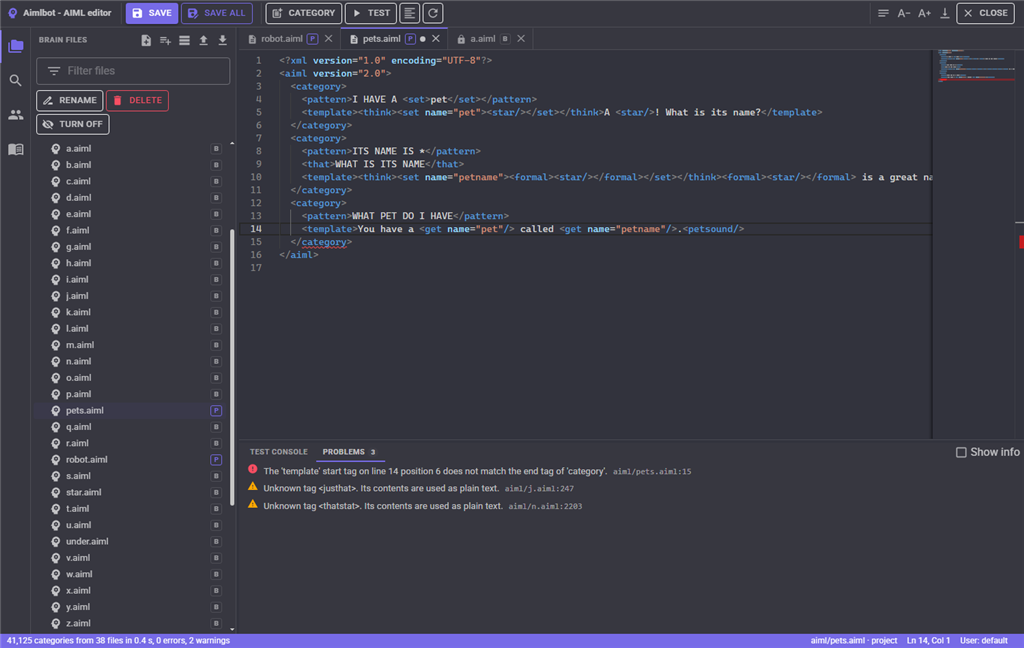
The test console at the bottom talks to the bot as a separate test user and shows, for every sentence, the category that answered, the srai chain it followed, what each wildcard took, any warnings and the time taken. Click a file name to jump to that category. Ctrl+Enter in a file tests the category at the cursor. Run scripts and commands is off by default, so testing never moves the robot. Explain shows which category would answer without answering. The Problems tab lists every error and warning in the brain.
Configuration
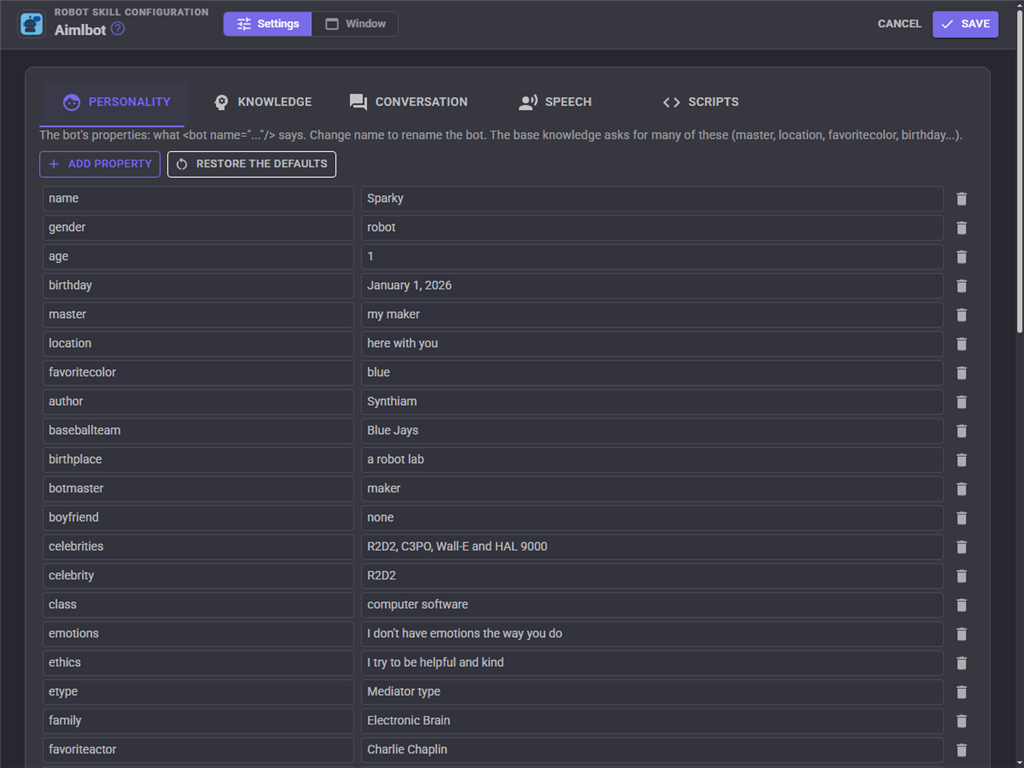
Personality
The bot's properties, which the <bot> tag says. Change name to rename the bot. The base knowledge asks for many of them, such as master, location, gender, birthday and favoritecolor.
Knowledge
| Setting | Description |
|---|---|
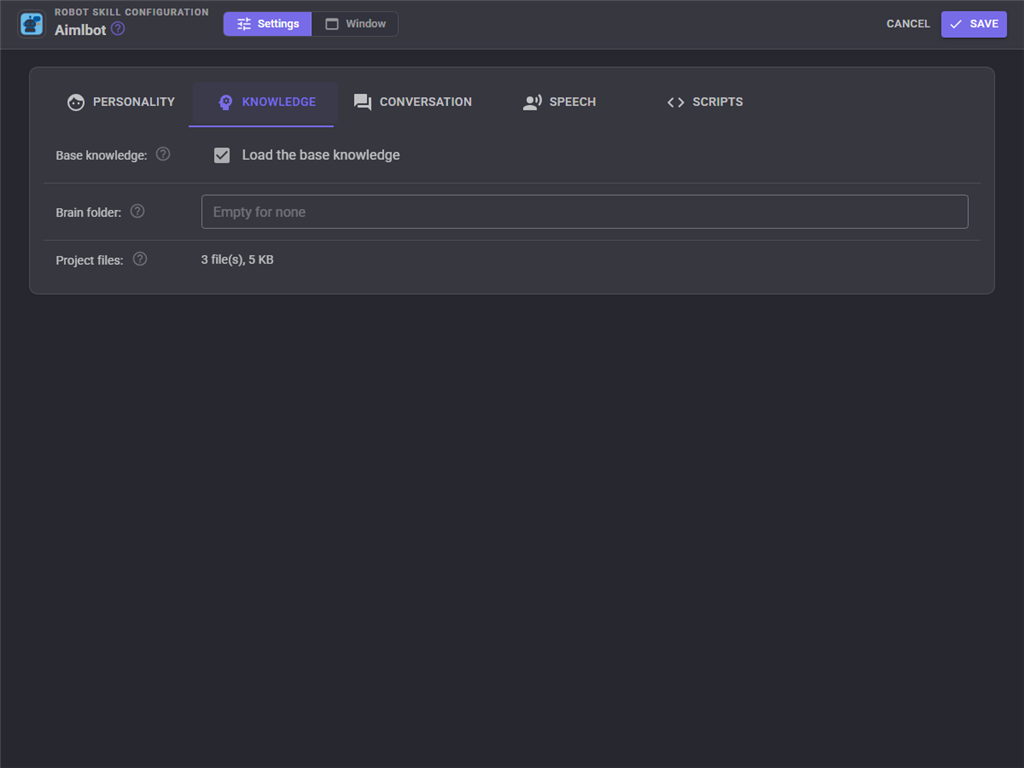
| Base knowledge | Load the 41,000 categories of general conversation shipped with the skill. Turn it off to build a bot from your own files only. |
| Brain folder | An optional folder of more AIML (.aiml anywhere inside), sets/.txt, maps/.txt and config/*.txt. Its files replace base knowledge files of the same path; project files replace both. An existing AIML set, such as the ARC version's aiml folder, can be used from here. |
| Project files | How many files are saved in the project. |
Conversation
| Setting | Description |
|---|---|
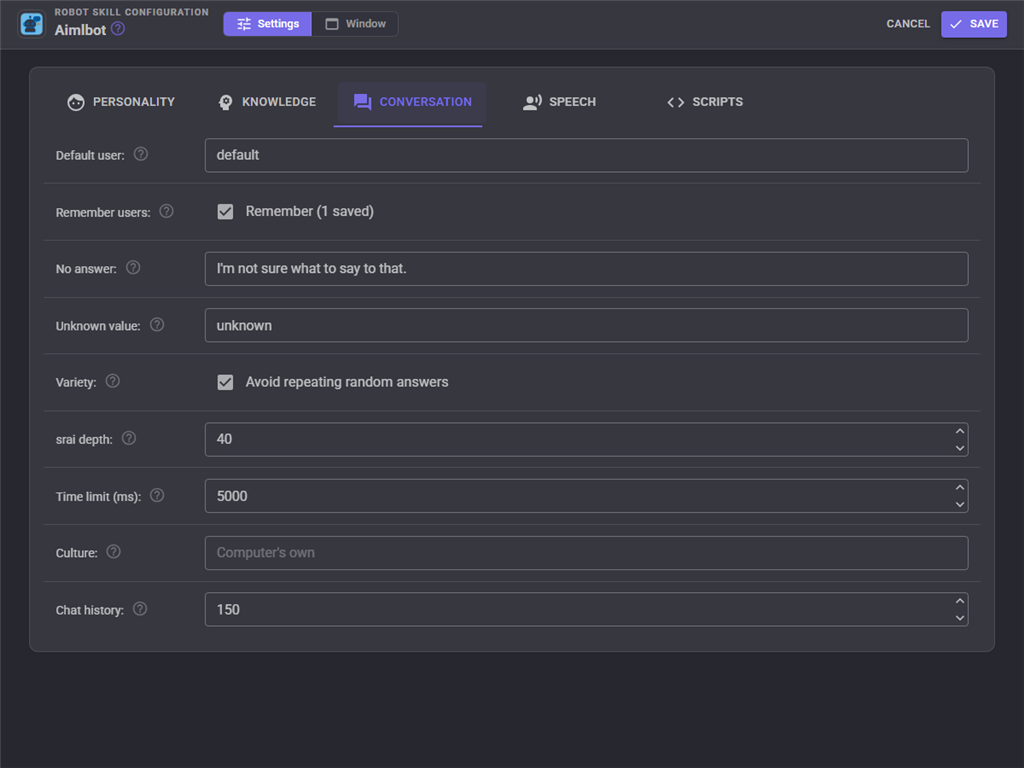
| Default user | Who the bot talks to when the project starts. |
| Remember users | Save what each user told the bot with the project. |
| No answer | Said when no category answers at all. |
| Unknown value | What the bot says for something it was never told. |
| Variety | Never pick the same random answer twice in a row. |
| srai depth | How many redirections one answer may use, which stops a category that redirects to itself. |
| Time limit | The longest one answer may take, scripts included. |
| Culture | For dates and upper and lower case, such as en-US. Empty uses the computer's. |
| Chat history | How many messages the window keeps. |
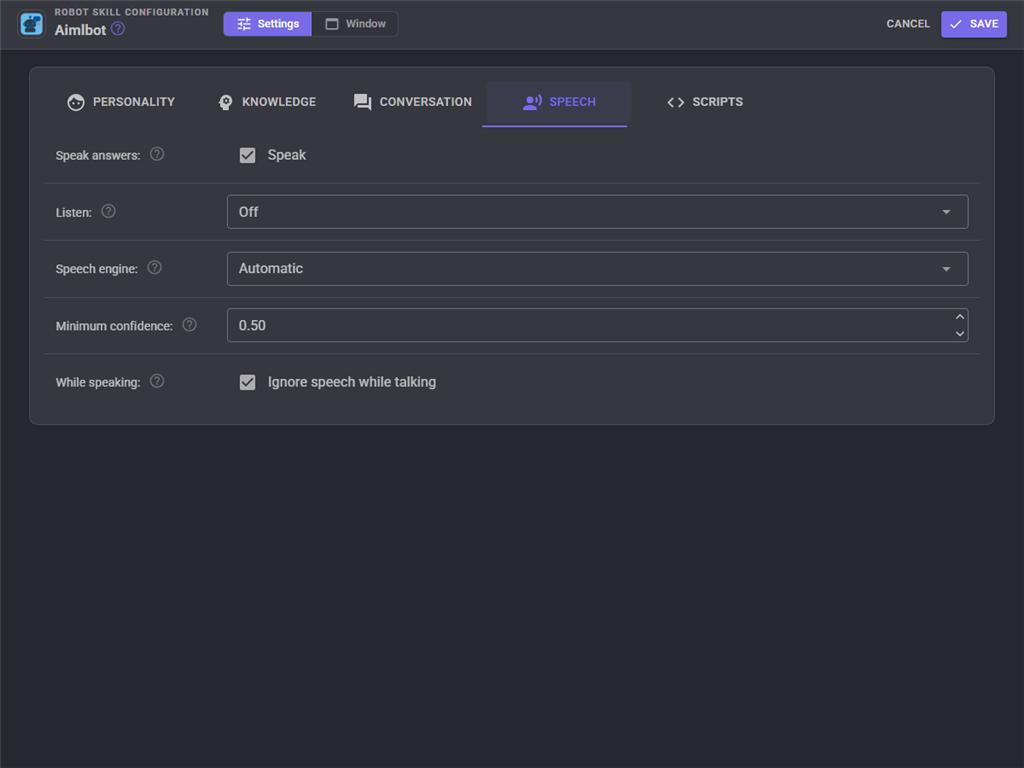
Speech
| Setting | Description |
|---|---|
| Speak answers | Say every answer through the project's text to speech robot skill. |
| Listen | Off answers only typed text, scripts and the microphone button. Listen continuously keeps a listening session open on the speech engine and answers everything heard, after its wake word if it has one. Every recognized phrase answers whatever any speech recognition in the project hears. |
| Speech engine | The speech to text robot skill to listen through. Automatic uses the project's Wait For Speech engine. |
| Minimum confidence | Speech recognized with less confidence than this is ignored. |
| While speaking | Ignore what is heard while the robot is talking, so it does not answer itself. |
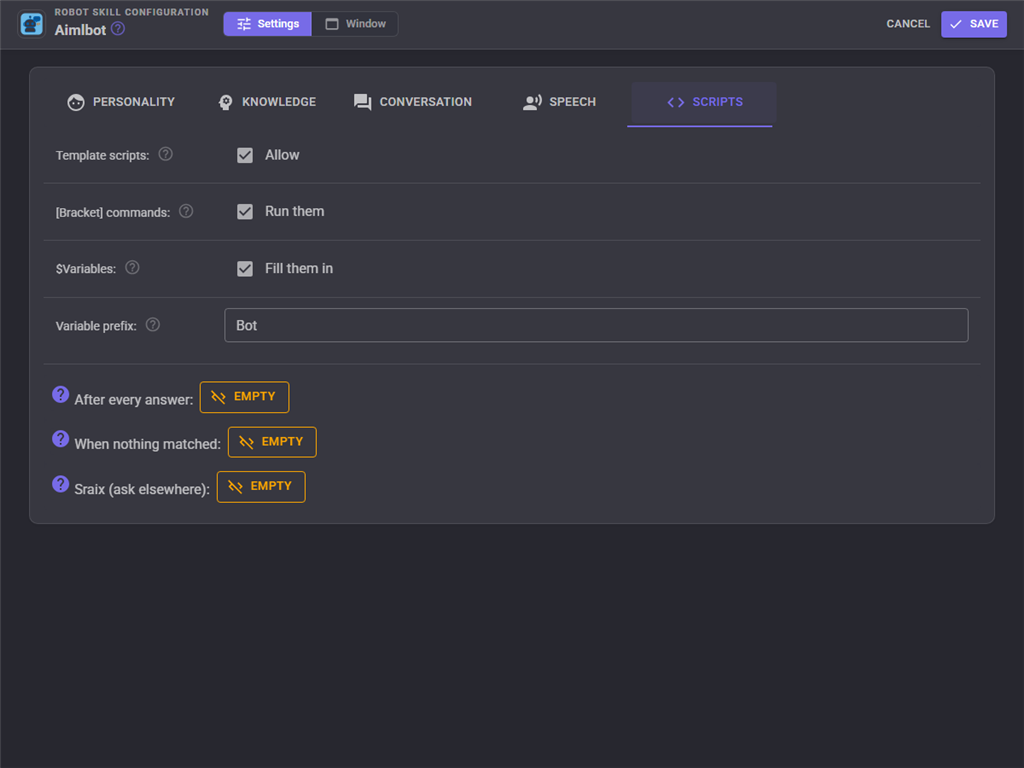
Scripts
| Setting | Description |
|---|---|
| Template scripts | Let answers run scripts and send control commands. |
| Bracket commands | Run [text in brackets] as JavaScript, as the ARC version did. |
| $Variables | Replace $Name in an answer with the global variable Name. |
| Variable prefix | The start of the global variables the skill sets. Give each bot in a project its own. |
| After every answer | A script that runs after each answer. |
| When nothing matched | A script that runs when only a catch-all category answered, a chance to hand the question to another AI. |
| Sraix | A script that answers the sraix tag: read the question from SraixInput, set SraixResponse to the answer. |
Global variables
With the default prefix Bot, the skill sets these after every answer:
| Variable | Value |
|---|---|
| BotResponse | What the bot said. |
| BotInput | What was said to it. |
| BotPattern | The pattern of the category that answered the first sentence. |
| BotThat | The last sentence the bot said. |
| BotTopic | The current topic. |
| BotUser | Who the bot is talking to. |
| BotOob | Out-of-band data from the answer's <oob> tags. |
| BotNoMatch | True when only a catch-all category answered. |
| BotSource | Where the input came from: typed, speech, script, button or mcp. |
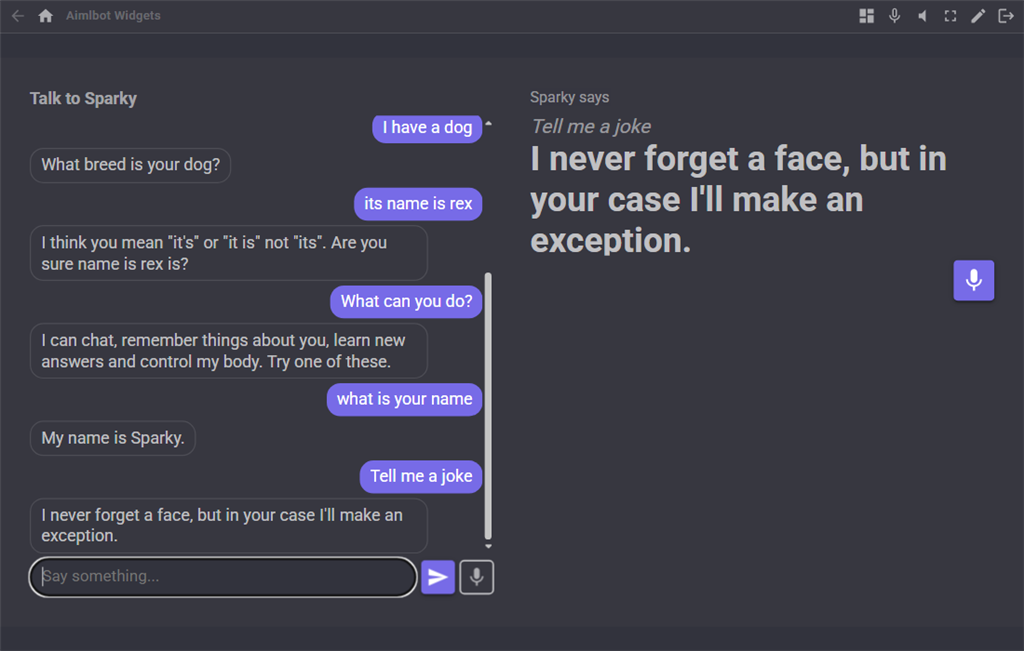
Custom UI widgets
Two widgets can be placed on Custom UI screens. Chat is the conversation with a box to type in, quick reply buttons and a microphone button. Last response shows what the robot said last in large text, for a screen people read from across the room, with optional microphone button and the question it answered.
AI assistants
An AI assistant connected to ARCx can talk to the bot, see which category answers a sentence, search the categories, read and write brain files (AIML is checked before it is saved), and read or change what the bot remembers about the user. That makes it possible to ask an assistant to write new knowledge for the robot and test it straight away.
Base knowledge
The base knowledge is the A.L.I.C.E. AIML set by Dr. Richard Wallace and the A.L.I.C.E. AI Foundation, as shipped with the ARC version of this skill, converted to UTF-8. It is read-only; copy a file to the project to change it. Robot specific answers belong in your own files, which always win over the base knowledge.
Control Commands for the Aimlbot robot skill
There are Control Commands available for this robot skill which allows the skill to be controlled programmatically from scripts or other robot skills. These commands enable you to automate actions, respond to sensor inputs, and integrate the robot skill with other systems or custom interfaces. If you're new to the concept of Control Commands, we have a comprehensive manual available here that explains how to use them, provides examples to get you started and make the most of this powerful feature.
Control Command ManualThis robot skill has 26 control commands, listed below. Send them from a JavaScript or Python script, from Blockly, or from another robot skill.
The first value is always the window title, which is the name in the title bar of the robot skill on your workspace. It starts out as Aimlbot, which is what every example below uses. If you rename the robot skill, or add a second copy of it to the project, use the title as it appears on that window instead.
ControlCommand() can be shortened to CC(), and both spellings work in JavaScript and in Python. The examples are JavaScript; Python is the same call, except that true and false are written True and False.
Chat
Say something to the bot as the current user. It answers (and speaks the answer when Speak responses is on), and the answer is returned.
Syntax
ControlCommand("Aimlbot", "Chat", (String)text)
Parameters
| # | Name | Type | What to pass |
|---|---|---|---|
| 1 | text | Text | Your text, in quotes |
Returns: String
Example
var result = ControlCommand("Aimlbot", "Chat", "text");
ChatSilent
Say something to the bot and get the answer back without it being spoken.
Syntax
ControlCommand("Aimlbot", "ChatSilent", (String)text)
Parameters
| # | Name | Type | What to pass |
|---|---|---|---|
| 1 | text | Text | Your text, in quotes |
Returns: String
Example
var result = ControlCommand("Aimlbot", "ChatSilent", "text");
ClearConversation
Clear the chat window and the current user's conversation history (not their predicates).
Syntax
ControlCommand("Aimlbot", "ClearConversation")
Returns: nothing
Example
ControlCommand("Aimlbot", "ClearConversation");
Explain
Which AIML category would answer a sentence, without answering it: pattern, file and line for each sentence.
Syntax
ControlCommand("Aimlbot", "Explain", (String)text)
Parameters
| # | Name | Type | What to pass |
|---|---|---|---|
| 1 | text | Text | Your text, in quotes |
Returns: String
Example
var result = ControlCommand("Aimlbot", "Explain", "text");
ForgetUser
Forget everything about a user (their predicates and conversation). Leave the id empty for the current user.
Syntax
ControlCommand("Aimlbot", "ForgetUser", (String)userId)
Parameters
| # | Name | Type | What to pass |
|---|---|---|---|
| 1 | userId | Text | Your text, in quotes |
Returns: nothing
Example
ControlCommand("Aimlbot", "ForgetUser", "userId");
GetBotProperty
A bot property, such as name or age (what <bot name="..."/> reads).
Syntax
ControlCommand("Aimlbot", "GetBotProperty", (String)name)
Parameters
| # | Name | Type | What to pass |
|---|---|---|---|
| 1 | name | Text | Your text, in quotes |
Returns: String
Example
var result = ControlCommand("Aimlbot", "GetBotProperty", "name");
GetCategoryCount
How many categories the brain has.
Syntax
ControlCommand("Aimlbot", "GetCategoryCount")
Returns: Integer [-2,147,483,648 to 2,147,483,647]
Example
var result = ControlCommand("Aimlbot", "GetCategoryCount");
GetResponse
The last thing the bot said.
Syntax
ControlCommand("Aimlbot", "GetResponse")
Returns: String
Example
var result = ControlCommand("Aimlbot", "GetResponse");
GetTopic
The AIML topic of the current user's conversation.
Syntax
ControlCommand("Aimlbot", "GetTopic")
Returns: String
Example
var result = ControlCommand("Aimlbot", "GetTopic");
GetUser
The user the bot is talking to.
Syntax
ControlCommand("Aimlbot", "GetUser")
Returns: String
Example
var result = ControlCommand("Aimlbot", "GetUser");
GetUsers
Every user the bot knows.
Syntax
ControlCommand("Aimlbot", "GetUsers")
Returns: Array of String
Example
var result = ControlCommand("Aimlbot", "GetUsers");
GetValue
A predicate of the current user, such as name, or the default value when it was never set.
Syntax
ControlCommand("Aimlbot", "GetValue", (String)name)
Parameters
| # | Name | Type | What to pass |
|---|---|---|---|
| 1 | name | Text | Your text, in quotes |
Returns: String
Example
var result = ControlCommand("Aimlbot", "GetValue", "name");
IsListening
Whether the bot is listening continuously.
Syntax
ControlCommand("Aimlbot", "IsListening")
Returns: Boolean [true or false]
Example
var result = ControlCommand("Aimlbot", "IsListening");
IsReady
Whether the brain has finished loading.
Syntax
ControlCommand("Aimlbot", "IsReady")
Returns: Boolean [true or false]
Example
var result = ControlCommand("Aimlbot", "IsReady");
Learn
Teach the bot a category: when the pattern is said, answer with the template (AIML allowed). Saved in aiml/learned.aiml in the project.
Syntax
ControlCommand("Aimlbot", "Learn", (String)pattern, (String)template)
Parameters
| # | Name | Type | What to pass |
|---|---|---|---|
| 1 | pattern | Text | Your text, in quotes |
| 2 | template | Text | Your text, in quotes |
Returns: Boolean [true or false]
Example
var result = ControlCommand("Aimlbot", "Learn", "pattern", "template");
ListenOnce
Listen for one phrase and answer it, like the window's microphone button.
Syntax
ControlCommand("Aimlbot", "ListenOnce")
Returns: Boolean [true or false]
Example
var result = ControlCommand("Aimlbot", "ListenOnce");
Reload
Load the brain again from its files.
Syntax
ControlCommand("Aimlbot", "Reload")
Returns: Boolean [true or false]
Example
var result = ControlCommand("Aimlbot", "Reload");
ReloadConfig
The ARC name for Reload: load the brain again.
Syntax
ControlCommand("Aimlbot", "ReloadConfig")
Returns: Boolean [true or false]
Example
var result = ControlCommand("Aimlbot", "ReloadConfig");
SetBotProperty
Change a bot property, such as name. Saved with the project.
Syntax
ControlCommand("Aimlbot", "SetBotProperty", (String)name, (String)value)
Parameters
| # | Name | Type | What to pass |
|---|---|---|---|
| 1 | name | Text | Your text, in quotes |
| 2 | value | Text | Your text, in quotes |
Returns: nothing
Example
ControlCommand("Aimlbot", "SetBotProperty", "name", "value");
SetPhrase
The ARC name for Chat: say something to the bot. Returns the answer.
Syntax
ControlCommand("Aimlbot", "SetPhrase", (String)phrase)
Parameters
| # | Name | Type | What to pass |
|---|---|---|---|
| 1 | phrase | Text | Your text, in quotes |
Returns: String
Example
var result = ControlCommand("Aimlbot", "SetPhrase", "phrase");
SetSpeakResponses
Turn speaking the answers on or off.
Syntax
ControlCommand("Aimlbot", "SetSpeakResponses", (Bool)speak)
Parameters
| # | Name | Type | What to pass |
|---|---|---|---|
| 1 | speak | True or false | true or false, without quotes |
Returns: nothing
Example
ControlCommand("Aimlbot", "SetSpeakResponses", true);
SetTopic
Set the AIML topic of the current user's conversation.
Syntax
ControlCommand("Aimlbot", "SetTopic", (String)topic)
Parameters
| # | Name | Type | What to pass |
|---|---|---|---|
| 1 | topic | Text | Your text, in quotes |
Returns: nothing
Example
ControlCommand("Aimlbot", "SetTopic", "topic");
SetUser
Talk to someone else from now on, for example the name face recognition reported. Each user has their own predicates and conversation.
Syntax
ControlCommand("Aimlbot", "SetUser", (String)userId)
Parameters
| # | Name | Type | What to pass |
|---|---|---|---|
| 1 | userId | Text | Your text, in quotes |
Returns: nothing
Example
ControlCommand("Aimlbot", "SetUser", "userId");
SetValue
Set a predicate of the current user, such as name or age (what <get name="..."/> reads).
Syntax
ControlCommand("Aimlbot", "SetValue", (String)name, (String)value)
Parameters
| # | Name | Type | What to pass |
|---|---|---|---|
| 1 | name | Text | Your text, in quotes |
| 2 | value | Text | Your text, in quotes |
Returns: nothing
Example
ControlCommand("Aimlbot", "SetValue", "name", "value");
StartListening
Keep listening through the speech to text engine and answer everything heard.
Syntax
ControlCommand("Aimlbot", "StartListening")
Returns: Boolean [true or false]
Example
var result = ControlCommand("Aimlbot", "StartListening");
StopListening
Stop listening.
Syntax
ControlCommand("Aimlbot", "StopListening")
Returns: nothing
Example
ControlCommand("Aimlbot", "StopListening");
This list is read out of the robot skill itself each time its package is uploaded, so it matches the published version (v1).

This robot skill has been updated to v1.
What has changed
initial release