Detect printed glyphs, identify rotation, distance and position, and trigger scripts for each marker in view.
 Windows
 ARM
ARM
 Linux
Linux
 MacOS
MacOS
How to add the Glyph Recognition robot skill
- Load the most recent release of ARCx on a compatible operating system (Get ARCx).
- Press the + Skills menu from the top menu bar in ARCx.
- Choose the Camera category tab.
- Press the Glyph Recognition icon to add the robot skill to your project.
Don't have a robot yet?
Follow the Getting Started Guide to build a robot and use the Glyph Recognition robot skill.
How to use the Glyph Recognition robot skill
Print a glyph, show it to the camera, and the robot knows which glyph it is, which way up it is, how far away it is and where it is in the picture. Glyphs are square black-bordered markers with a 3x3 pattern inside, so they are found reliably at a glance where colours and faces are not: on a docking station, a door, a room's wall, a toy, or the floor of a robot course.
Each glyph can run its own script when it comes into view. To keep a glyph in the middle of the picture with pan/tilt servos, drive the robot to it, or read where it is from variables, add the Vision Detection Tracking Script skill. It follows what any detection skill finds, glyphs included.
Requirements
- A video source in the project, such as Camera Source (usb) or Camera Source (ezb), with video running.
- Printed glyphs. The skill prints them for you at the right size (see below).
Getting started
- Start the video in the camera skill.
- Press Glyphs in the skill window, then Print All, and print the page at 100% scale.
- Hold a glyph up to the camera. It lights up in the skill window, and its name, rotation and distance appear in the status line.
Glyphs
A glyph is a 5x5 grid of square cells. The outer ring is always black; the 3x3 cells inside are the pattern. A white margin around the black square lets the camera find its edge, so always leave the paper around it.
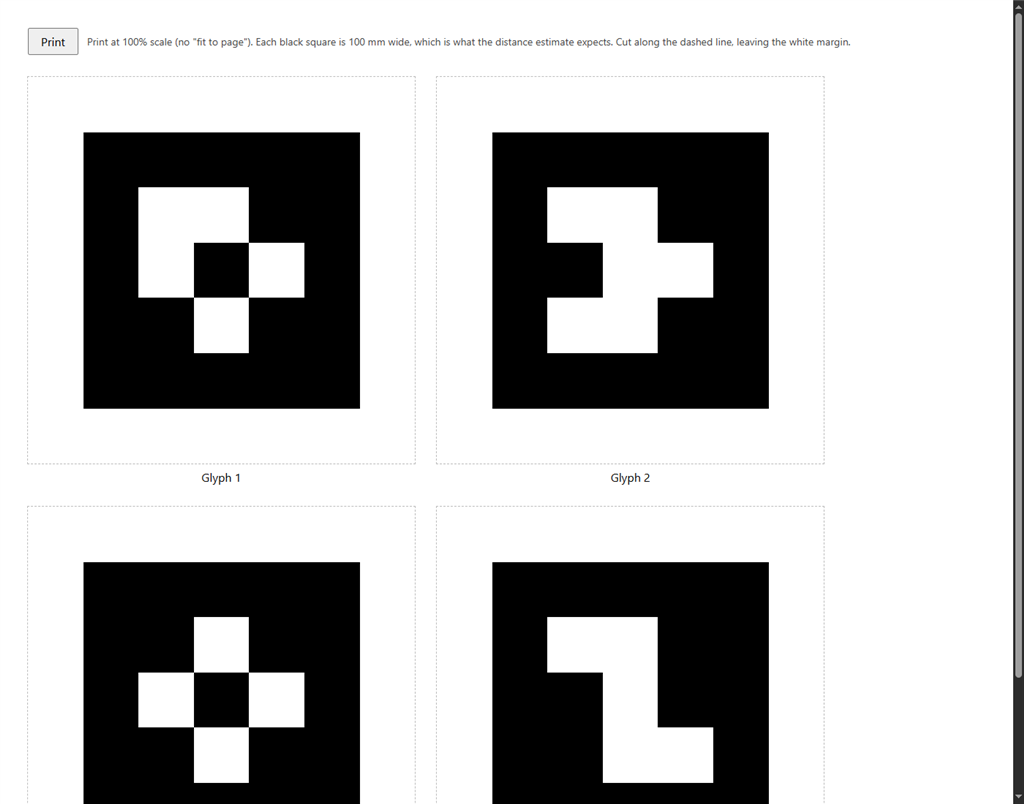
The skill starts with Glyph 1 to Glyph 4, the four glyphs ARC recognised, so glyphs printed for ARC still work and keep their names.
Because the pattern is not the same in every direction, the skill also knows which way the glyph is turned. Two of ARC's glyphs are symmetrical: Glyph 3 looks the same whichever way it is turned, and Glyph 4 looks the same upside down, so their rotation is only known to within a quarter or half turn. Glyphs you design yourself can avoid that, and the designer tells you when they don't.
The Glyphs window
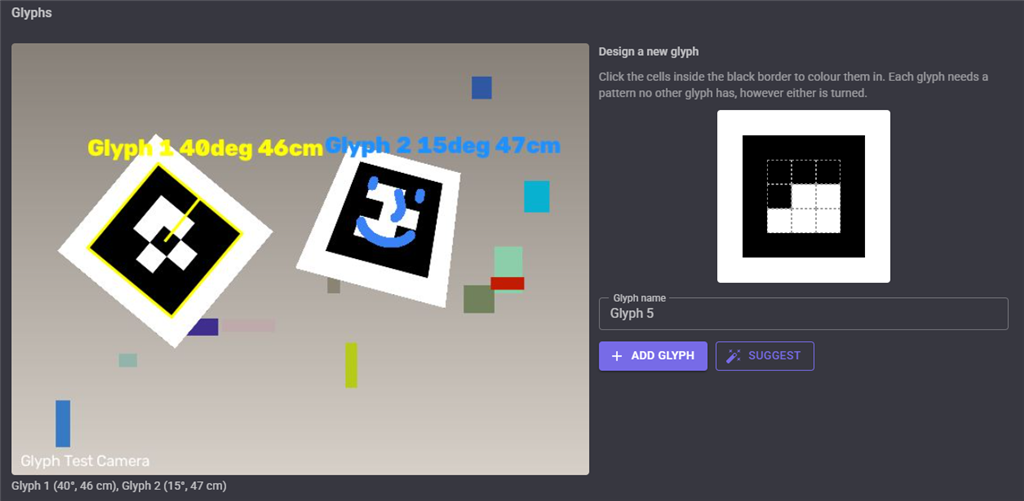
The Glyphs button opens a window with the processed video, the glyph designer and the glyph library.
The video shows each glyph outlined, with a tick from its middle to its printed top edge, and its name, rotation and distance. The largest glyph is yellow; the others are blue.
The designer draws a glyph: click the cells inside the black border to colour them in, give it a name and press Add Glyph. Suggest fills in a pattern that no glyph uses yet and whose rotation can always be told. A pattern cannot be added when it matches another glyph however either is turned, or when it is all black (it looks like any black square) or all white (it looks like an empty frame, such as a monitor bezel).
The library lists every glyph, with:
| Control | What it does |
|---|---|
| Enabled | Disabled glyphs stay in the library but are not looked for |
| Print (printer icon) | A printable page of just this glyph at its real size |
| Download (arrow icon) | The glyph as a PNG |
| Delete (bin icon) | Removes the glyph, after asking |
Print All opens a printable page of every enabled glyph. Print it at 100% scale, not "fit to page": each black square is printed at the Glyph Size set in the configuration (100 mm unless you change it), which is what the distance estimate assumes.
The skill window
| Control | What it does |
|---|---|
| Detect | Looks for glyphs. Turning it off forgets the glyphs in view |
| Glyphs | Opens the Glyphs window |
Below the switch, the status line lists the glyphs in view with their rotation and distance, and each enabled glyph lights up while it is in view, turned the way the camera sees it. The largest glyph has a yellow border.
Configuration
Video
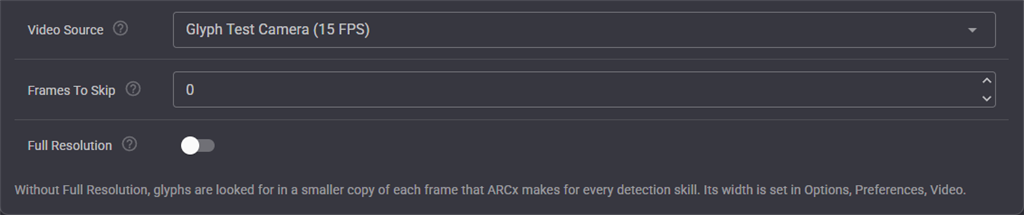
| Setting | Description |
|---|---|
| Video Source | The camera to look for glyphs in |
| Frames To Skip | Frames ignored between each one searched, to save processor time. 0 searches every frame. The outlines stay on the video in between |
| Full Resolution | Search the full camera resolution instead of the smaller copy ARCx makes for computer vision. Finds smaller and more distant glyphs, at a processor cost that grows with the camera resolution |
Detection
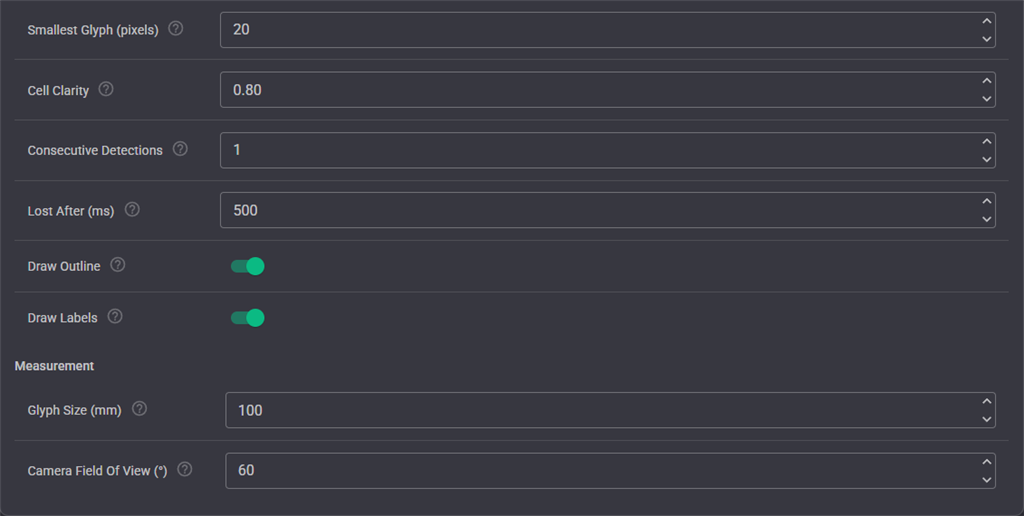
| Setting | Description |
|---|---|
| Smallest Glyph (pixels) | The shortest edge a glyph's black square may have, in pixels of the frame being searched |
| Cell Clarity | How clearly every cell must read as black or white, from 0.5 to 1.0. Raise it to reject blurred or partly covered glyphs; lower it if glyphs at an angle are missed. ARC used 0.8 |
| Consecutive Detections | How many searched frames in a row must see a glyph before it is reported |
| Lost After (ms) | A glyph not seen for this long is reported as lost, and its script runs again the next time it is seen |
| Draw Outline | Outline each glyph on the processed video |
| Draw Labels | Write each glyph's name, rotation and distance beside it |
| Glyph Size (mm) | The printed width of the black square, not counting the white margin. The print pages use it and the distance estimate assumes it |
| Camera Field Of View () | The camera's horizontal field of view. Most webcams are between 55 and 78; the EZ-B camera is about 60 |
To calibrate the distance, hold a glyph at a measured distance and adjust Camera Field Of View until the reported distance matches.
Glyphs
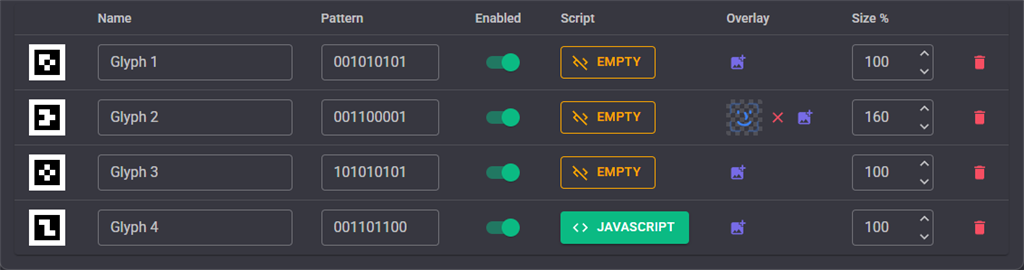
Every glyph in the library, with its name, its pattern, whether it is enabled, its script, and its overlay picture.
The pattern is the 3x3 inner cells as 9 characters, left to right and top row first: 1 is black and 0 is white. Glyph 1 is 001010101.
The script runs when the glyph comes into view.
The overlay is a picture drawn over the glyph on the processed video, turning and tilting with the paper: augmented reality, as ARC called it. Transparent PNGs work best. Size % makes the picture larger than the glyph, so a character can appear to stand on it. Pictures are shrunk to 512 pixels and kept inside the project.
Following glyphs, variables and scripts
This skill detects glyphs. It does not move servos, drive the robot or set variables. Add the Vision Detection Tracking Script skill for the same camera, and it does all of that for glyphs, and for every other detection skill too:
- pan/tilt servo tracking, with scanning when the glyph is lost
- movement tracking, to turn toward and drive up to a glyph
- variables describing the target glyph:
$ObjectName,$ObjectCenterX,$ObjectDistance,$ObjectRotation... - scripts when any glyph, or a particular one, comes into or goes out of view
- control commands for every glyph in view, such as
WaitForObject,GetCountandGetObjectValue
Set its Kinds to glyph to follow only glyphs. Each glyph reaches it as a glyph detection named after the glyph, with these details:
| Detail | Description |
|---|---|
| Rotation | How far the glyph is turned clockwise from upright, 0 to 359 degrees |
| DistanceM | The estimated distance from the camera in metres, which Vision Detection Tracking Script uses as the object's distance |
| Pattern | The glyph's 9 character pattern |
| Confidence | The Cell Clarity the glyph was read with |
The largest glyph in view is flagged as the primary detection.
Drive until the docking glyph is seen:
Movement.Forward();
if (ControlCommand("Vision Detection Tracking Script", "WaitForObject", "Dock", 10000))
  print("Found the dock, " + ControlCommand("Vision Detection Tracking Script", "GetObjectValueByName", "Dock", "Distance") + " m away");
Movement.Stop();
Custom UI widgets
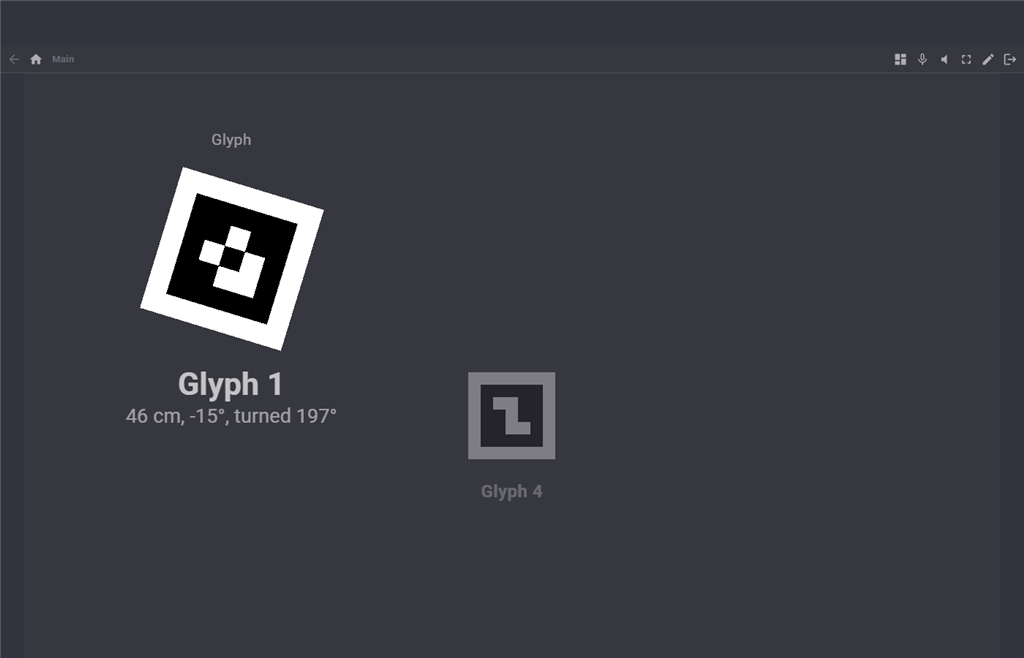
| Widget | Shows |
|---|---|
| Detected Glyph | The largest glyph in view, turned the way the camera sees it, with its name, distance and angle. Its settings can add a button that starts and stops detection |
| Glyph Indicator | One glyph that lights up while it is in view. Put one on the screen for each glyph the robot reacts to |
Tips for reliable detection
- Print glyphs on matt paper. Glossy paper reflects lights and windows as white patches.
- Keep the white margin, and keep fingers off the black border.
- A glyph needs about 20 pixels across in the searched frame. To find glyphs further away, print them larger, raise the computer vision width in Options, Preferences, Video, or turn on Full Resolution.
- Glyphs can be tilted well away from the camera and still be read, but the rotation is most accurate when the glyph faces the camera.
- When several glyphs are in view, Vision Detection Tracking Script follows the largest unless its Target Names names one.
Control Commands for the Glyph Recognition robot skill
There are Control Commands available for this robot skill which allows the skill to be controlled programmatically from scripts or other robot skills. These commands enable you to automate actions, respond to sensor inputs, and integrate the robot skill with other systems or custom interfaces. If you're new to the concept of Control Commands, we have a comprehensive manual available here that explains how to use them, provides examples to get you started and make the most of this powerful feature.
Control Command ManualThis robot skill has 11 control commands, listed below. Send them from a JavaScript or Python script, from Blockly, or from another robot skill.
The first value is always the window title, which is the name in the title bar of the robot skill on your workspace. It starts out as Glyph Recognition, which is what every example below uses. If you rename the robot skill, or add a second copy of it to the project, use the title as it appears on that window instead.
ControlCommand() can be shortened to CC(), and both spellings work in JavaScript and in Python. The examples are JavaScript; Python is the same call, except that true and false are written True and False.
AddGlyph
Add a glyph to the library. The pattern is the 3x3 cells inside the black border as 9 characters, left to right and top row first, 1 for black and 0 for white, i.e. "110010011". It must not match another glyph however either is turned.
Syntax
ControlCommand("Glyph Recognition", "AddGlyph", (String)name, (String)pattern)
Parameters
| # | Name | Type | What to pass |
|---|---|---|---|
| 1 | name | Text | Your text, in quotes |
| 2 | pattern | Text | Your text, in quotes |
Returns: Boolean [true or false]
Example
var result = ControlCommand("Glyph Recognition", "AddGlyph", "name", "pattern");
DeleteGlyph
Remove the named glyph from the library
Syntax
ControlCommand("Glyph Recognition", "DeleteGlyph", (String)name)
Parameters
| # | Name | Type | What to pass |
|---|---|---|---|
| 1 | name | Text | Your text, in quotes |
Returns: Boolean [true or false]
Example
var result = ControlCommand("Glyph Recognition", "DeleteGlyph", "name");
DisableGlyph
Stop looking for the named glyph, without forgetting it
Syntax
ControlCommand("Glyph Recognition", "DisableGlyph", (String)name)
Parameters
| # | Name | Type | What to pass |
|---|---|---|---|
| 1 | name | Text | Your text, in quotes |
Returns: Boolean [true or false]
Example
var result = ControlCommand("Glyph Recognition", "DisableGlyph", "name");
EnableGlyph
Look for the named glyph
Syntax
ControlCommand("Glyph Recognition", "EnableGlyph", (String)name)
Parameters
| # | Name | Type | What to pass |
|---|---|---|---|
| 1 | name | Text | Your text, in quotes |
Returns: Boolean [true or false]
Example
var result = ControlCommand("Glyph Recognition", "EnableGlyph", "name");
GetGlyphDistance
Estimated distance from the camera to the named glyph in metres, or -1 when it is not in view. An empty name is the largest glyph in view.
Syntax
ControlCommand("Glyph Recognition", "GetGlyphDistance", (String)name)
Parameters
| # | Name | Type | What to pass |
|---|---|---|---|
| 1 | name | Text | Your text, in quotes |
Returns: Double [5.0e324 to 1.7e308]
Example
var result = ControlCommand("Glyph Recognition", "GetGlyphDistance", "name");
GetGlyphNames
The names of every glyph in the library, enabled or not
Syntax
ControlCommand("Glyph Recognition", "GetGlyphNames")
Returns: Array of String
Example
var result = ControlCommand("Glyph Recognition", "GetGlyphNames");
GetGlyphRotation
How far the named glyph is turned clockwise from upright, 0 to 359 degrees, or -1 when it is not in view. An empty name is the largest glyph in view.
Syntax
ControlCommand("Glyph Recognition", "GetGlyphRotation", (String)name)
Parameters
| # | Name | Type | What to pass |
|---|---|---|---|
| 1 | name | Text | Your text, in quotes |
Returns: Integer [-2,147,483,648 to 2,147,483,647]
Example
var result = ControlCommand("Glyph Recognition", "GetGlyphRotation", "name");
IsTracking
Is glyph detection running?
Syntax
ControlCommand("Glyph Recognition", "IsTracking")
Returns: Boolean [true or false]
Example
var result = ControlCommand("Glyph Recognition", "IsTracking");
SaveGlyphImage
Save the named glyph as a printable PNG. A file name without a folder is saved in the ARCx data folder. Returns the full path.
Syntax
ControlCommand("Glyph Recognition", "SaveGlyphImage", (String)name, (String)filePath)
Parameters
| # | Name | Type | What to pass |
|---|---|---|---|
| 1 | name | Text | Your text, in quotes |
| 2 | filePath | Text | Your text, in quotes |
Returns: String
Example
var result = ControlCommand("Glyph Recognition", "SaveGlyphImage", "name", "filePath");
Start
Start looking for glyphs
Syntax
ControlCommand("Glyph Recognition", "Start")
Returns: Boolean [true or false]
Example
var result = ControlCommand("Glyph Recognition", "Start");
Stop
Stop looking for glyphs. Glyphs in view are forgotten.
Syntax
ControlCommand("Glyph Recognition", "Stop")
Returns: Boolean [true or false]
Example
var result = ControlCommand("Glyph Recognition", "Stop");
This list is read out of the robot skill itself each time its package is uploaded, so it matches the published version (v2).




This robot skill has been updated to v1.
What has changed
first release
This robot skill has been updated to v2.
What has changed
updated to use some new ARCx UI features for improved performance.