

Publishes an EZB camera as an ARCx video source for tracking, recording, and AI skills over the network, with processed or raw view.
 Windows
 ARM
 Linux
 MacOS
How to add the Camera Source (Ezb) robot skill
- Load the most recent release of ARCx on a compatible operating system (Get ARCx).
- Press the + Skills menu from the top menu bar in ARCx.
- Choose the Camera category tab.
- Press the Camera Source (Ezb) icon to add the robot skill to your project.
Don't have a robot yet?
Follow the Getting Started Guide to build a robot and use the Camera Source (Ezb) robot skill.
How to use the Camera Source (Ezb) robot skill
Makes the camera on an EZB - any board whose firmware streams video, such as the EZ-Robot EZ-B v4 camera - a video source in ARCx.
Every camera skill in ARCx works the same way: it publishes a named video source that other skills subscribe to. Face Tracking, Object Training And Tracking, Video Recorder and Autonomous AI all look for a video source by name - the name is this skill's window title.
Unlike the USB camera skill, this one connects over the network directly to the camera's own address and port. It does not need the EZB Connection skill to be connected, although in practice the same board is usually connected there too.
Requirements
- An EZB with a camera, powered up and on the network.
- Its address. ARCx's EZB scanner finds cameras on the local network and offers them in the address box.
Several instances are allowed, one per camera. Give each a distinct window title, because that title is how other skills refer to it.
Adding it to a project
- Add the skill (Camera category).
- In the Camera address box at the top of the window, pick the camera the scanner found, or type the address yourself.
- Press Start.
- Rename the skill's window title to something meaningful ("Head Camera"), then point your tracking and recording skills at that name.
The address format
address or address:port. The port defaults to 24 when it is not given, so 192.168.1.1 and 192.168.1.1:24 are the same thing. Anything after a space is ignored, which is what lets you pick an entry from the scanner that reads 192.168.1.1:24 (EZ-B v4 Camera).
The window
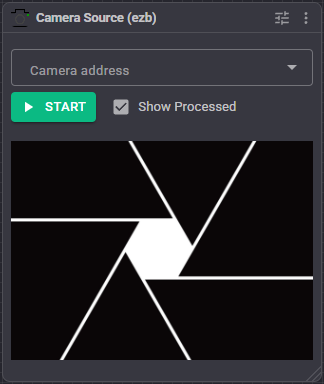
- Camera address - the address box. It is disabled while the video is running, so stop the feed to change it.
- Start / Stop button. While running it shows the live frame rate, for example Stop (18 FPS). Intermediate states say Starting and Stopping.
- Show Processed checkbox - switches the picture between the raw camera image and the processed image, which carries the markup drawn by detection skills.
- The video fills the rest of the window.
Configuration
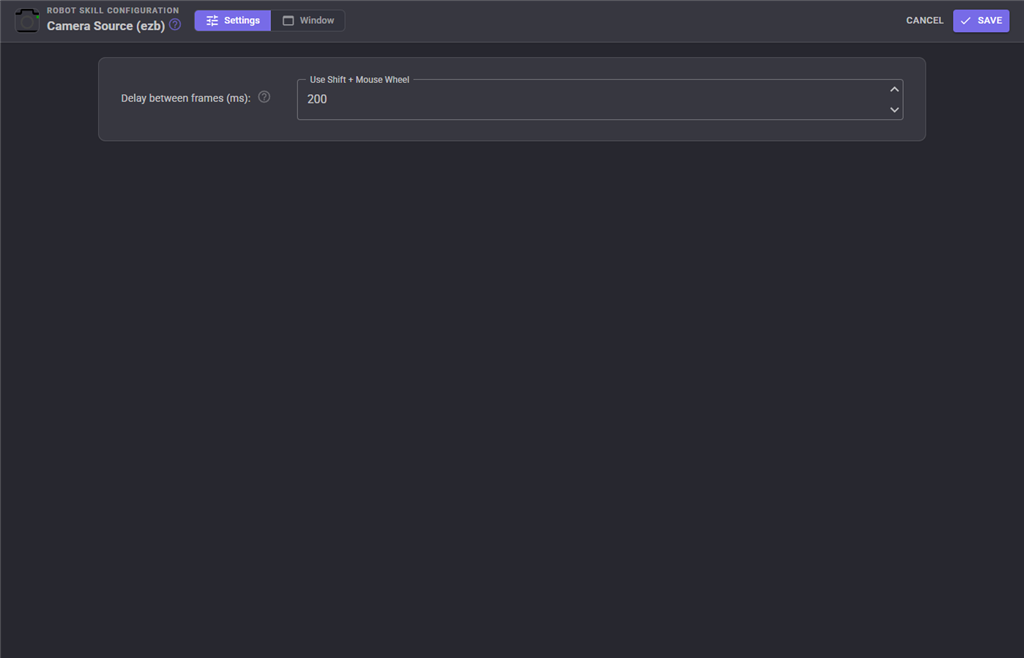
The address and the processed/original choice live in the window itself. The configuration dialog holds one setting:
| Setting | Meaning | Default |
|---|---|---|
| Delay between frames (ms) | Throttles how often a frame is pushed to the browser, to save bandwidth and CPU in the UI. It does not slow the camera down or affect detection - those still run at full rate. 0 disables the throttle. |
100 |
The address (Address) and Show Processed (ShowProcessedVideo) are saved with the project too.
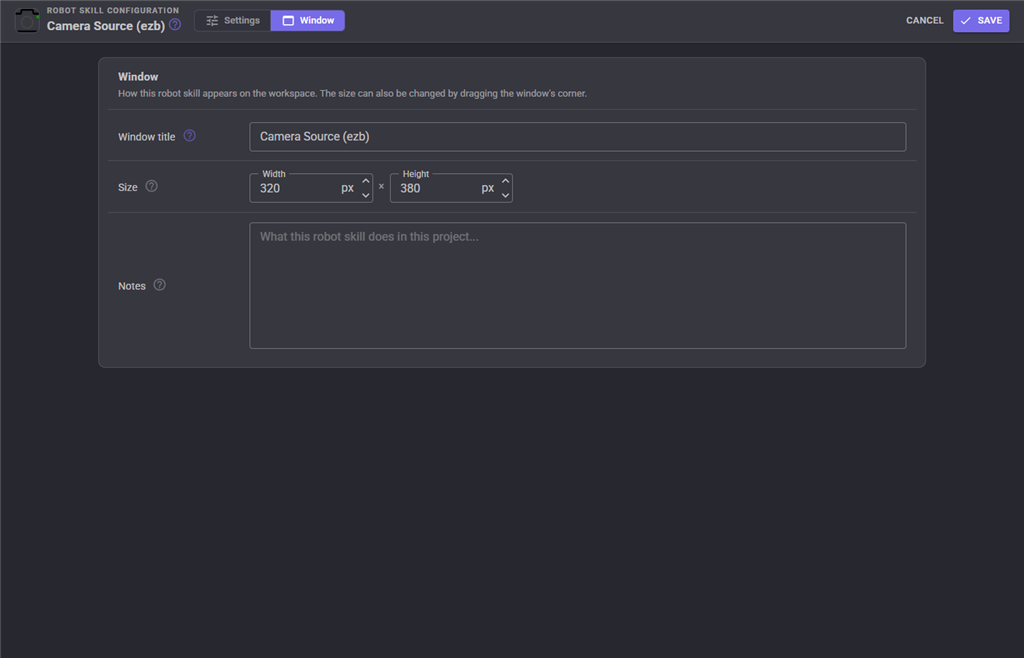
The Window tab sets the robot skill's window title, its size on the workspace and notes about what it does in this project.
Processed versus original
Two images exist for every frame:
- the original, straight from the camera;
- the processed image, which each detection skill draws on as the frame passes through.
The checkbox only changes what you see. Other skills choose for themselves which they want.
Troubleshooting
| Symptom | Cause |
|---|---|
| "No EZB address entered" | The address box is empty. |
| It says Starting and never runs | Wrong address or port, the camera is not powered, or it is on a different network. The address being attempted is written to the ARCx log. |
| The address box is greyed out | The video is running. Press Stop. |
| The scanner offers nothing | The camera is not on the same network segment, or its broadcast is blocked by the router or a firewall. Type the address by hand. |
| Frame rate is low | An EZB camera streams over the network; wifi signal strength is usually the limit. |
| Another skill cannot find the source | Skills look the source up by window title; if you renamed this skill, update them. |
See also
- Camera Source (usb) - a USB or built-in camera instead
- Ezb Connection - connecting to the board itself
- Face Tracking, Object Training And Tracking, Video Recorder - consumers of this source
Control Commands for the Camera Source (Ezb) robot skill
There are Control Commands available for this robot skill which allows the skill to be controlled programmatically from scripts or other robot skills. These commands enable you to automate actions, respond to sensor inputs, and integrate the robot skill with other systems or custom interfaces. If you're new to the concept of Control Commands, we have a comprehensive manual available here that explains how to use them, provides examples to get you started and make the most of this powerful feature.
Control Command ManualThis robot skill has 7 control commands, listed below. Send them from a JavaScript or Python script, from Blockly, or from another robot skill.
The first value is always the window title, which is the name in the title bar of the robot skill on your workspace. It starts out as Camera Source (ezb), which is what every example below uses. If you rename the robot skill, or add a second copy of it to the project, use the title as it appears on that window instead.
ControlCommand() can be shortened to CC(), and both spellings work in JavaScript and in Python. The examples are JavaScript; Python is the same call, except that true and false are written True and False.
GetFPS
The current frames per second of the video feed
Syntax
ControlCommand("Camera Source (ezb)", "GetFPS")
Returns: Integer [-2,147,483,648 to 2,147,483,647]
Example
var result = ControlCommand("Camera Source (ezb)", "GetFPS");
IsActive
Is the video feed started? Stays true while a lost connection is being retried
Syntax
ControlCommand("Camera Source (ezb)", "IsActive")
Returns: Boolean [true or false]
Example
var result = ControlCommand("Camera Source (ezb)", "IsActive");
IsProcessShown
Is the processed video feed the one being displayed?
Syntax
ControlCommand("Camera Source (ezb)", "IsProcessShown")
Returns: Boolean [true or false]
Example
var result = ControlCommand("Camera Source (ezb)", "IsProcessShown");
ShowOriginal
Show the original, unprocessed video feed
Syntax
ControlCommand("Camera Source (ezb)", "ShowOriginal")
Returns: Boolean [true or false]
Example
var result = ControlCommand("Camera Source (ezb)", "ShowOriginal");
ShowProcessed
Show the processed video feed
Syntax
ControlCommand("Camera Source (ezb)", "ShowProcessed")
Returns: Boolean [true or false]
Example
var result = ControlCommand("Camera Source (ezb)", "ShowProcessed");
Start
Start the video feed
Syntax
ControlCommand("Camera Source (ezb)", "Start")
Returns: Boolean [true or false]
Example
var result = ControlCommand("Camera Source (ezb)", "Start");
Stop
Stop the video feed
Syntax
ControlCommand("Camera Source (ezb)", "Stop")
Returns: Boolean [true or false]
Example
var result = ControlCommand("Camera Source (ezb)", "Stop");
This list is read out of the robot skill itself each time its package is uploaded, so it matches the published version (v7).



This robot skill has been updated to v1.
This robot skill has been updated to v2.
This robot skill has been updated to v3.
This robot skill has been updated to v4.
What has changed
compatible with the latest ARCx v2026.09.27.01
This robot skill has been updated to v5.
What has changed
updated to use new threading features of ARCx v2026.10.04.01
This robot skill has been updated to v7.
What has changed
fix to use the latest arcx video framework