
Controls a robot with a Dimension Engineering Sabertooth motor driver, supporting tank steering, ramping, telemetry, failsafes, and multiple protocols
 Windows
 ARM
ARM
 Linux
Linux
 MacOS
MacOS
How to add the Sabertooth Movement Panel robot skill
- Load the most recent release of ARCx on a compatible operating system (Get ARCx).
- Press the + Skills menu from the top menu bar in ARCx.
- Choose the Movement Panels category tab.
- Press the Sabertooth Movement Panel icon to add the robot skill to your project.
Don't have a robot yet?
Follow the Getting Started Guide to build a robot and use the Sabertooth Movement Panel robot skill.
How to use the Sabertooth Movement Panel robot skill
Drives a robot with a Dimension Engineering Sabertooth dual motor driver (2x5, 2x10, 2x12, 2x25, 2x32, 2x60 and the rest of the family). Motor 1 drives one side of the robot and motor 2 the other, so the robot steers like a tank.
This is a movement panel: once it is in the project, everything in ARCx that moves the robot - the Movement Joystick, the Wiimote, Movement.Forward() in a script, the Autonomous AI skill, a ROS /cmd_vel binding - drives the Sabertooth. Only one Movement Panel can be in a project at a time.
The Sabertooth is a big step up from a small H-bridge: it handles 5 to 60 amps per motor, brakes regeneratively (energy goes back into the battery when the robot slows down), and needs only one signal wire.
Requirements
- A Sabertooth with its DIP switches set to a serial mode (see below).
- One of: an EZ-B v4 hardware UART, any EZB digital port, a serial port on the computer (a USB to TTL serial adapter, or the Sabertooth 2x32's own USB port), or a serial to network bridge on the robot (an ESP32 or ESP8266 running ESP-Link, or ser2net).
- A common ground between whatever sends the commands and the Sabertooth's 0V terminal.
Choosing a protocol
The Sabertooth listens for one of several serial languages, chosen by its DIP switches. The Protocol setting must match them.
| Protocol | Models | What it gives you |
|---|---|---|
| Simplified Serial | Every Sabertooth (the 2x32 calls it Legacy Simplified Serial) | One byte per motor, 7 bits of speed in each direction. The simplest to set up, and what the ARC version used. The baud rate is set by DIP switches 4 and 5. |
| Packetized Serial | Every Sabertooth (the 2x32 calls it Legacy Packet Serial) | Checked packets, so electrical noise cannot be mistaken for a command. Up to eight Sabertooths share one wire, each at its own address (128 to 135). The skill can set the Sabertooth's serial timeout failsafe, battery cutoff, ramping and deadband. The baud rate is learned automatically. |
| Plain Text Serial | Sabertooth 2x32 only | The finest speed control (-2047 to 2047), and when the Sabertooth's S2 is wired back, live battery voltage, motor current and temperature. 9600 baud unless changed with Dimension Engineering's DEScribe software. |
If you are not sure, start with Simplified Serial. Move to Packetized Serial for a robot that is big enough to hurt someone, because its serial timeout stops the motors if ARCx, the cable or the EZB ever stops talking to it.
Every Sabertooth model labels its DIP switches a little differently, so set them from the datasheet of your model. Leave the switch that selects "microcontroller mode" on where your datasheet asks, so the Sabertooth does not expect an R/C radio.
Wiring
| Connection | Wire to the Sabertooth's S1 | Can hear the Sabertooth |
|---|---|---|
| EZB hardware UART | The UART's TX pin | Yes, with S2 to the UART's RX (2x32 telemetry) |
| EZB software serial | Any EZB digital port's signal pin | No |
| Serial port on this computer | The adapter's TX pin | Yes, with S2 to the adapter's RX |
| Serial bridge over TCP | The bridge's TX pin | Yes, with S2 to the bridge's RX |
Always connect ground: the EZB's (or adapter's) GND to the Sabertooth's 0V, even when the two run from different batteries. A missing ground is the most common reason a Sabertooth ignores everything it is sent.
The EZB hardware UART is the most reliable way through an EZB. Software serial works on any EZB, but the EZB cannot go below 4800 baud that way, so set the Sabertooth to 9600, 19200 or 38400.
In Packetized Serial, the older Sabertooths use S2 as an active low emergency stop input: wire a normally closed E-stop button between S2 and 0V and the motors stop the instant it is pressed, whatever ARCx is doing. Nothing in this skill is needed for that; it is a feature of the Sabertooth itself.
Nothing is sent to the Sabertooth until the robot is first told to move or stop. Adding the skill to a project whose default UART or port is already wired to something else does not disturb it before you have configured it.
The window
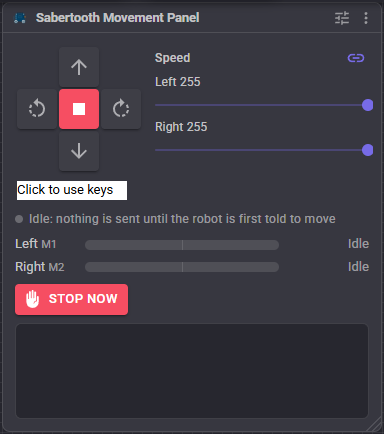
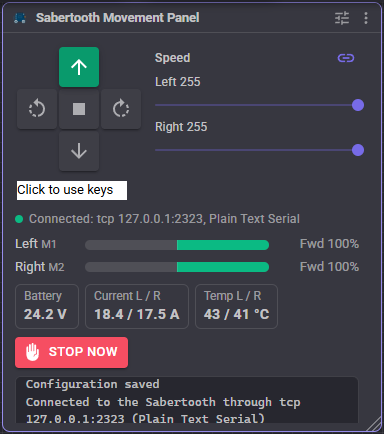
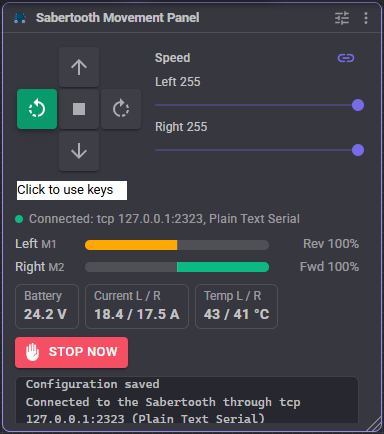
- Direction buttons - forward, reverse, spin left, spin right and stop. The highlighted button is the direction ARCx is moving in, whoever asked for it.
- Click to use keys - click it, then drive with the arrow keys. Releasing the key stops the robot.
- Speed - the left and right speeds, 0 to 255. These are ARCx's global movement speeds, so they also move when a script or another skill changes the speed. The link button beside the title makes both sliders move together; unlink it to set the sides separately and drive in an arc.
- Status - the green dot is lit while the link to the Sabertooth is open, with how it is connected and in which protocol. Before the first movement it says nothing has been sent yet. When the link cannot be opened it says why, and the skill keeps trying every two seconds.
- Left and Right - the Sabertooth channel each side is wired to (M1 or M2), a bar that fills right for forward and left for reverse, and the power being sent. With ramping turned on, this lags the speed above as the motor speeds up and slows down.
- Battery, Current, Temp - shown only for a Sabertooth 2x32 in Plain Text Serial on a connection that can receive. The battery is outlined in red when it drops below the low battery warning.
- Stop Now - stops at once, skipping any ramp.
- Log - what the skill has done: connections, lost links, tests, auto stops and low battery warnings.
How direction works
Turning is done by driving one side forward and the other in reverse (a spin turn):
| Direction | Left motor | Right motor |
|---|---|---|
| Forward | forward | forward |
| Reverse | reverse | reverse |
| Left | reverse | forward |
| Right | forward | reverse |
| Stop | stopped | stopped |
Directions that mean nothing to two wheels on the ground (up, down, roll, take off, land, custom) are ignored and the motors keep doing what they were doing. An emergency stop cuts both motors at once; on a Sabertooth 2x32 in Plain Text Serial it also puts both channels into the Sabertooth's hard brake, which holds until the robot is next told to move.
Different speeds per side (from the Movement Joystick, or a script that sets the left and right speeds separately) drive the robot in an arc.
Speed
ARCx's movement speed of 0 to 255 becomes a motor power between the Minimum power and Maximum power, in percent of the Sabertooth's full output:
- A speed of 0 always stops the motor.
- The slowest speed above zero sends the minimum. A heavy robot often only hums at low power; raising the minimum makes every speed actually move it.
- Speed 255 sends the maximum. Lower it to cap the robot's top speed. A script can change it while the robot runs, for a gentle mode that is switched on when people are near.
Turn speed scales spin turns only. A robot that spins too fast to steer can turn at half its driving speed while still driving straight at full speed.
Speed trim scales one side's speed, for a robot that pulls to one side when driving straight. If it drifts right, the left motor is the stronger one: lower the left trim a few percent.
Ramping
Ramping is off by default, so every speed change reaches the motors at once, as in the ARC version.
- Acceleration limits how fast a motor speeds up, in percent of full speed per second. 200 takes half a second to go from stopped to full speed. It stops a heavy robot from popping a wheelie, spinning its wheels or tipping its load.
- Deceleration limits how fast a motor slows down when it changes speed or reverses. A Sabertooth brakes regeneratively, so a hard stop from full speed pushes a surge of energy back into the battery; deceleration ramping softens that.
- Ramp when stopping makes a Stop slow down at the deceleration rate too. It is off by default because a stop that takes time is not what most people expect when they press Stop. Stop Now, an emergency stop, the panic button and a lost connection always stop at once.
A motor that has to reverse slows to zero first at the deceleration rate, then speeds up the other way at the acceleration rate.
In Packetized Serial the Sabertooth also has its own hardware ramping, set on the Sabertooth tab. Use one or the other; the skill's ramping shows in the window as it happens, the Sabertooth's does not.
Several Sabertooths
A four or six wheel robot with one Sabertooth per axle uses Packetized Serial: set each Sabertooth to its own address with its DIP switches, wire all of their S1 inputs to the same serial TX, and tick each address on the Connection tab. Every ticked Sabertooth is sent the same left and right speeds, so the front and back wheels on a side always drive together. Wire each Sabertooth's motors the same way round so that M1 is the left side on all of them.
In Simplified Serial, several Sabertooths on the same wire all obey every byte, which also works for a robot whose axles should always do the same thing.
Sabertooth settings
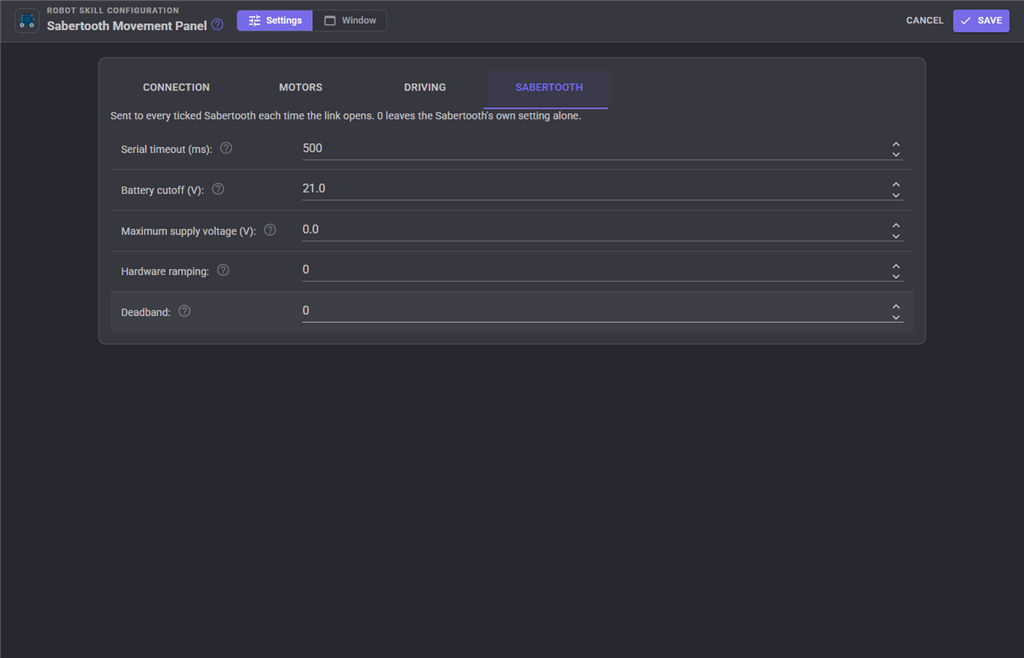
In Packetized Serial, these are sent to every ticked Sabertooth each time the link opens. A value of 0 leaves the Sabertooth's own setting alone.
- Serial timeout - the Sabertooth's own failsafe. It stops its motors when no command has arrived for this long, so a robot whose computer crashes, whose USB cable falls out or whose EZB loses Wi-Fi does not drive away. While it is set, the skill sends the current speeds again at half this interval, so the timeout only fires when something has really gone wrong. 500 to 1000 ms suits most robots. Sabertooth 2x12, 2x25 version 2, 2x32 and 2x60.
- Battery cutoff - the battery voltage below which the Sabertooth shuts its motors off, for a lead acid or NiMH battery where the DIP switch lithium cutoff does not apply.
- Maximum supply voltage - only for a power supply that cannot absorb regenerated energy, such as a computer ATX supply. Above it the Sabertooth brakes instead of regenerating. Leave it at 0 on a battery.
- Hardware ramping - the Sabertooth's own acceleration ramp. 1 to 10 is a fast ramp (1 is a quarter of a second from full forward to full reverse), 11 to 20 a slow ramp, 21 to 80 an intermediate ramp.
- Deadband - how wide the range of commands around stop is that the Sabertooth treats as stop. The Sabertooth remembers this one through a power cycle.
The serial timeout and battery cutoff are forgotten every time the Sabertooth is switched off, which is why they are sent every time the link opens rather than once.
Send bauding character sends the byte 170 when the link opens. Older Sabertooths (2x5, 2x10 and the first 2x25) wait for it before they accept any packet, and learn the baud rate from it. Switch the Sabertooth on a couple of seconds before ARCx first drives, because it can miss the bauding character while it is starting up. Newer models ignore it.
Telemetry (Sabertooth 2x32)
In Plain Text Serial, with the Sabertooth's S2 wired to the receive pin of an EZB hardware UART, a serial port or a TCP bridge, the skill asks the Sabertooth for its battery voltage, each motor's current and each channel's temperature every Telemetry every milliseconds. They are shown in the window and set as global variables for scripts:
| Variable | Meaning |
|---|---|
$SabertoothBattery |
Battery voltage, in volts |
$SabertoothLeftCurrent |
Left motor current, in amps. Negative while it regenerates into the battery |
$SabertoothRightCurrent |
Right motor current, in amps |
$SabertoothLeftTemperature |
Left channel's output transistor temperature, in degrees C |
$SabertoothRightTemperature |
Right channel's temperature, in degrees C |
$SabertoothLowBattery |
True while the battery is below the low battery warning |
The Variable prefix setting changes the Sabertooth part of each name. The current reading is noisy by nature and can wander by a few amps; watch the trend rather than a single reading.
With a Low battery warning set, the skill writes to its log, outlines the battery in red and sets $SabertoothLowBattery when the battery drops below it. A script watching that variable can send the robot back to its charger. A voltage that sags under load and recovers at rest does not flap the warning on and off.
The 2x32's other plain text commands, such as switching its P1 and P2 power outputs or setting a channel's ramp, can be sent from a script as raw lines through this skill. Packetized Serial has the same for raw packets, for a setting this skill has no field for.
Safety
- The panic button stops the robot at once.
- A lost EZB connection while driving stops the robot. Otherwise ARCx would still be "driving forward" and the robot would drive off on its own the moment the EZB reconnected. The UART is set up again and the speeds sent again when it does reconnect.
- A lost link (an unplugged USB adapter, a TCP bridge that drops) is logged and retried every two seconds. Combine it with the Sabertooth's serial timeout so the motors stop by themselves while the link is down.
- Removing the skill or closing the project while the robot drives stops the motors first.
- Opening the configuration stops the robot, so the motors are never left running while the connection is being changed.
- Resend every sends the current speeds again on an interval even when nothing changed, so a command corrupted by noise from the motors is corrected. Mostly useful in Simplified Serial over long wires; Packetized Serial's checksum already rejects a corrupted command.
- Auto stop after stops the robot when it has kept driving this long with no change to its direction or speed. It is a safety net for remote control over a network that may drop. It is off by default because a script that says "drive forward, wait ten seconds" would otherwise be cut short.
Testing the wiring
Both tests use the settings on the configuration page as they are, before they are saved, so the wiring can be checked and corrected in one go.
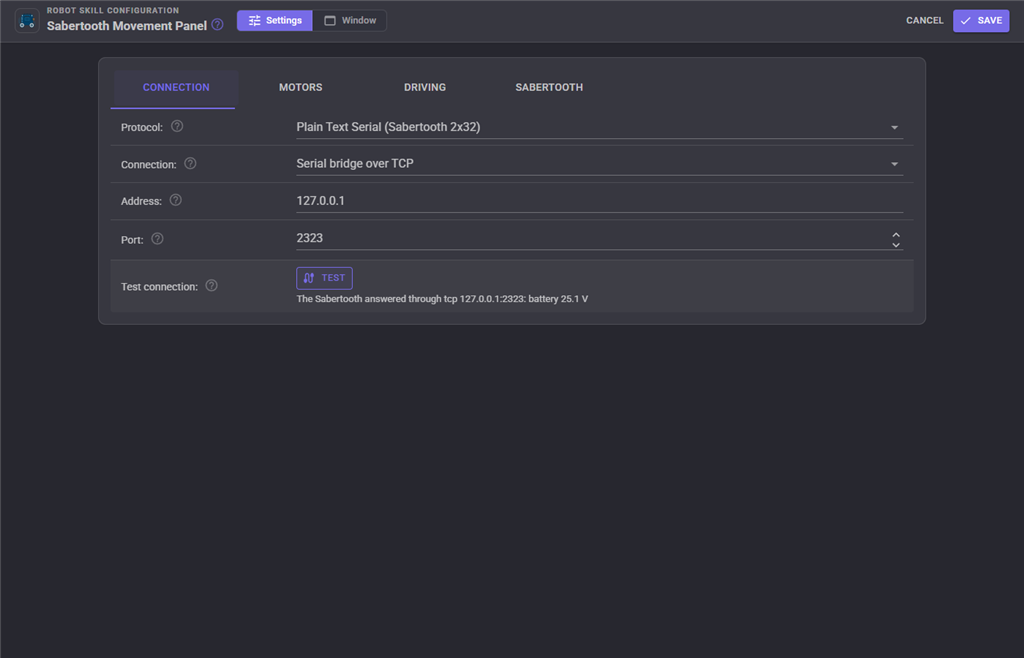
Test connection (Connection tab) opens the connection. A Sabertooth 2x32 in Plain Text Serial on a connection that can receive is asked for its battery voltage, which proves both directions work. The other modes cannot answer back, so the test sends a stop and says the link opened; use the motor test to see the Sabertooth respond.
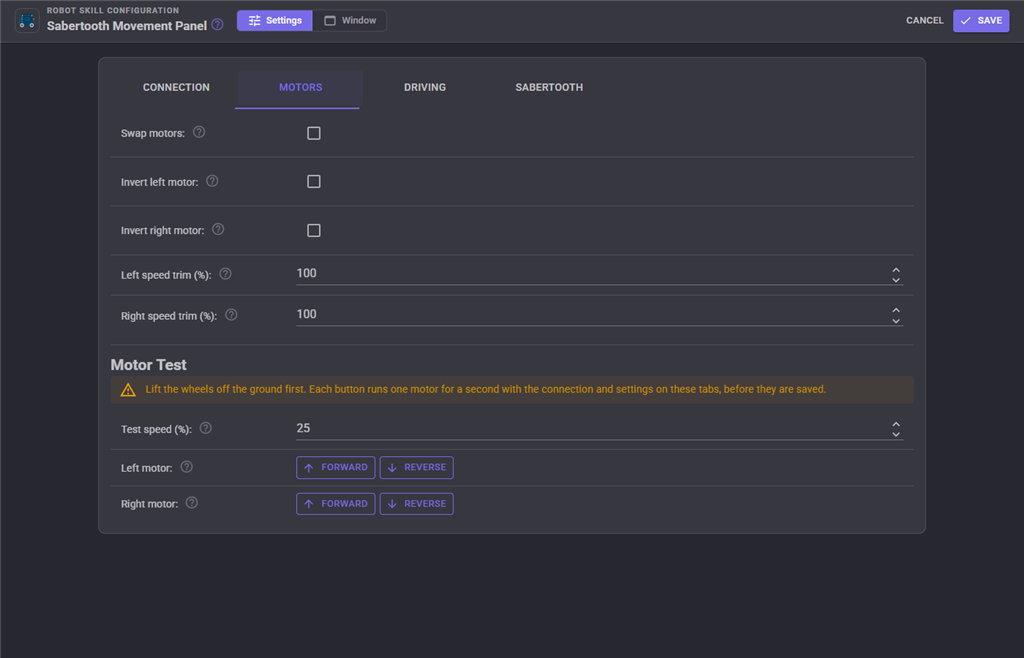
Motor Test (Motors tab) runs one motor for one second, forward or reverse, at the Test speed. Lift the wheels off the ground first. Press Forward for each motor. The wheel on that side should turn the way it would to drive the robot forward.
- If the other side's wheel turns, tick Swap motors.
- If the correct wheel turns but backwards, tick that side's Invert setting rather than swapping the motor wires.
- If nothing turns, see Troubleshooting below.
Configuration
The configuration has four tabs.
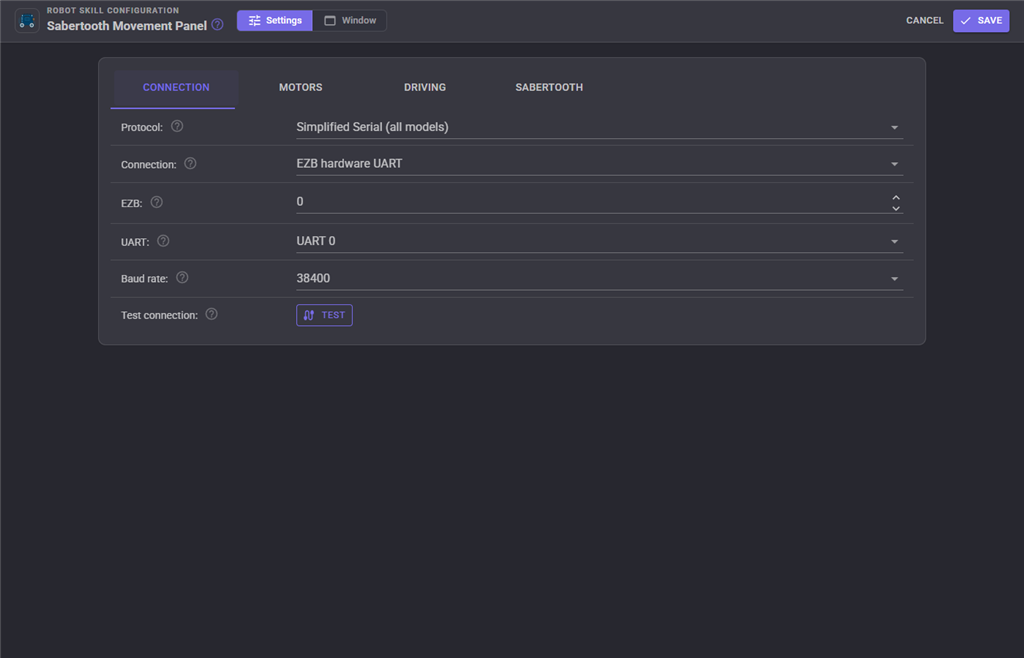
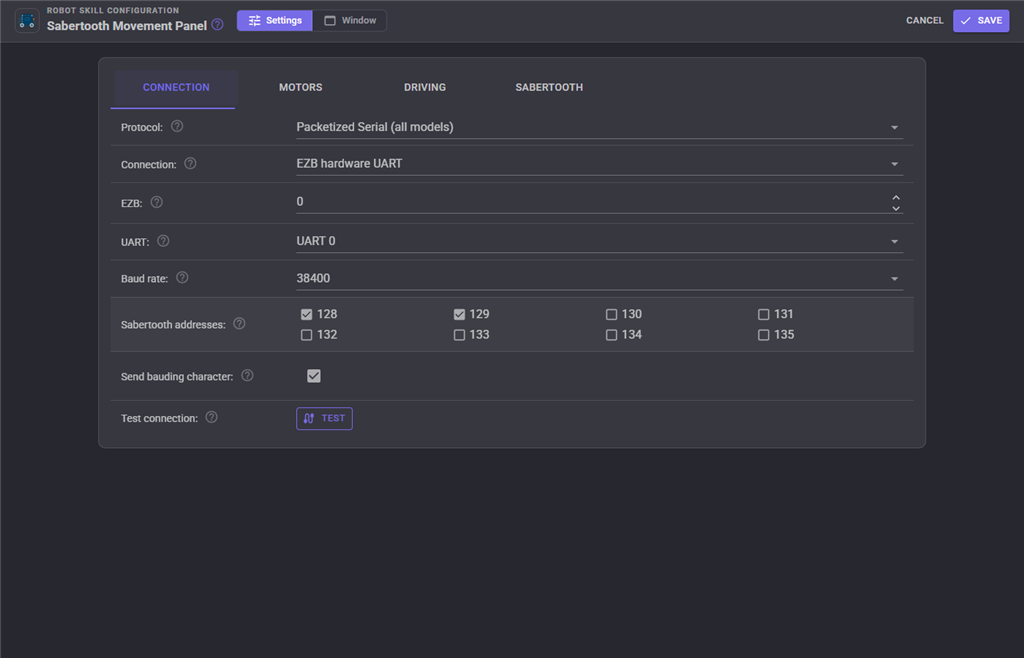
Connection - the protocol, how the Sabertooth is connected, the baud rate, the packet serial addresses and the connection test.
Motors - which channel is which side, which motors are reversed, the speed trims and the motor test.
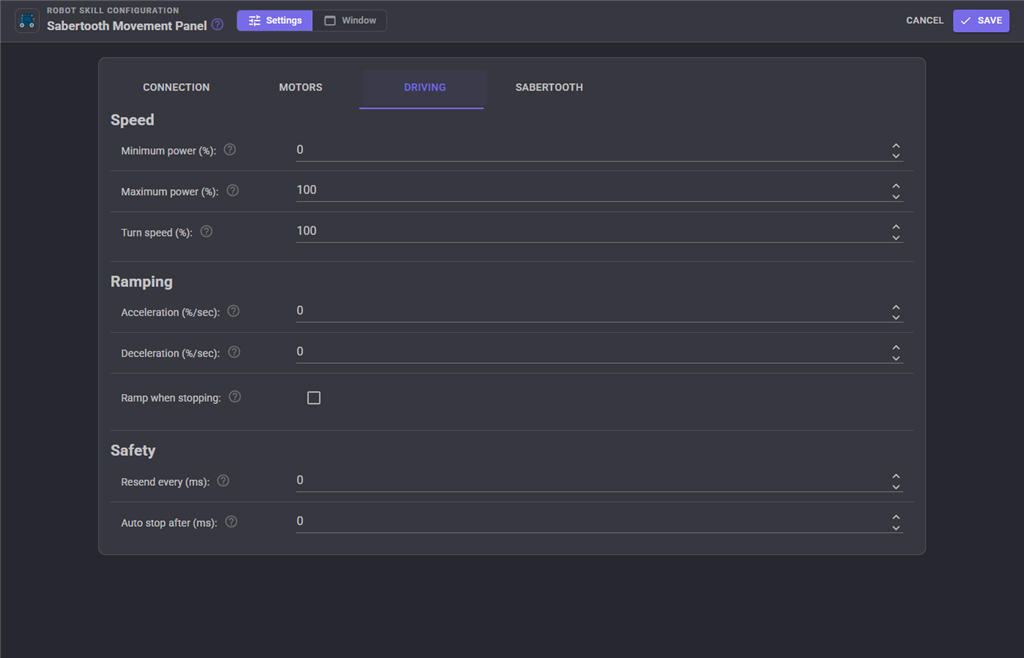
Driving - the power range, turn speed, ramping, resend interval and auto stop.
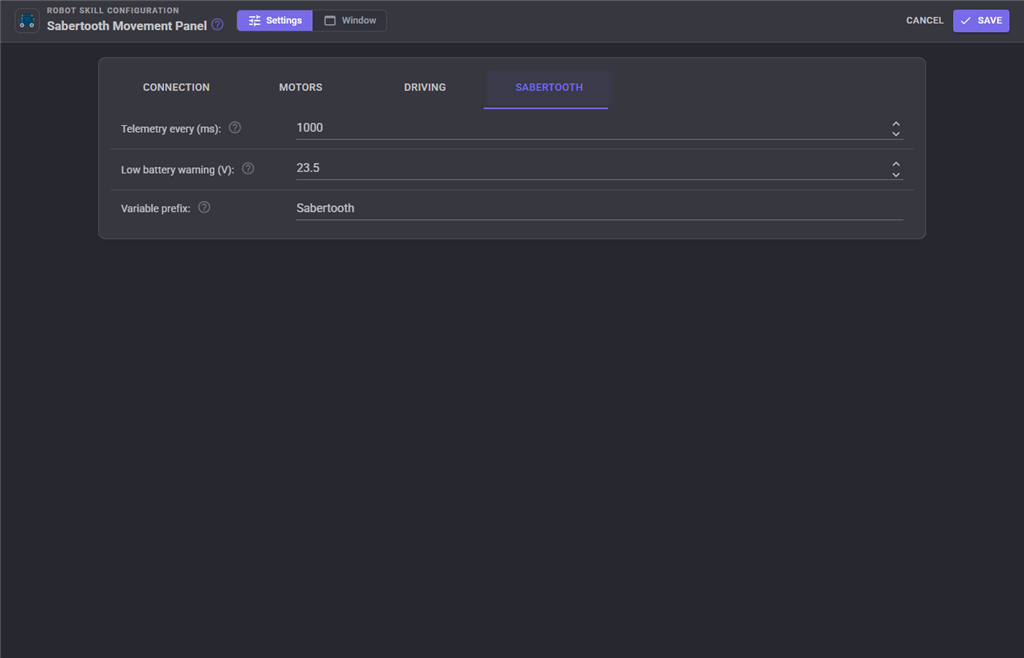
Sabertooth - the Sabertooth's own settings in Packetized Serial, or the telemetry settings in Plain Text Serial.
| Setting | Meaning |
|---|---|
| Protocol | Simplified Serial, Packetized Serial or Plain Text Serial (2x32). Must match the DIP switches. |
| Connection | EZB hardware UART, EZB software serial, a serial port on this computer, or a serial bridge over TCP. |
| EZB / UART | Which EZB (0 is the first) and which of its hardware UARTs. |
| Serial port | The computer's port, i.e. COM3 or /dev/ttyUSB0. The refresh button looks again. |
| Digital port | The EZB port used for software serial. |
| Baud rate | Must match the Sabertooth. |
| Address / Port | The TCP serial bridge's address and port. |
| Sabertooth addresses | Packetized Serial: every Sabertooth that is sent the drive commands. |
| Send bauding character | Packetized Serial: send 170 when the link opens, for older Sabertooths. |
| Swap motors | M1 is the right side instead of the left. |
| Invert left / right motor | Reverse that side's direction. |
| Left / Right speed trim (%) | Scales that side's speed, 1 to 100. |
| Test speed (%) | How fast the motor test runs. Not saved. |
| Minimum power (%) | Sent for the slowest speed above zero. |
| Maximum power (%) | Sent for speed 255. Must be greater than the minimum. |
| Turn speed (%) | Scales spin turns. |
| Acceleration / Deceleration (%/sec) | How fast a motor may speed up and slow down. 0 is instant. |
| Ramp when stopping | Whether Stop also follows the deceleration rate. |
| Resend every (ms) | Send the speeds again on this interval. 0 sends only on a change. |
| Auto stop after (ms) | Stop after this long without a change of direction or speed. 0 is off. |
| Serial timeout (ms) | Packetized Serial: the Sabertooth stops by itself after this long without a command. 0 is off. |
| Battery cutoff (V) | Packetized Serial: the Sabertooth shuts off below this battery voltage. 0 leaves it alone. |
| Maximum supply voltage (V) | Packetized Serial: for a power supply that cannot absorb regeneration. 0 leaves it alone. |
| Hardware ramping | Packetized Serial: the Sabertooth's own ramp, 1 to 80. 0 leaves it alone. |
| Deadband | Packetized Serial: the Sabertooth's deadband, 1 to 127. 0 leaves it alone. |
| Telemetry every (ms) | Plain Text Serial: how often the 2x32 is read. 0 is off. |
| Low battery warning (V) | Plain Text Serial: warn below this battery voltage. 0 is off. |
| Variable prefix | Plain Text Serial: the start of the telemetry variable names. |
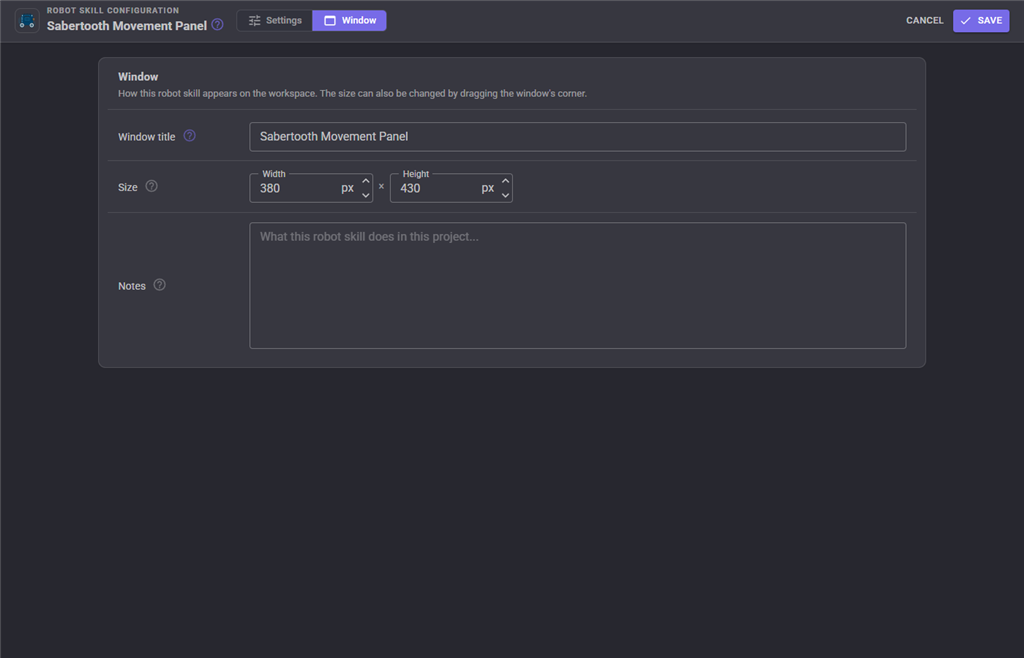
The Window tab sets the robot skill's window title, its size on the workspace and notes about what it does in this project.
Custom UI widget
The skill offers a Sabertooth Motors widget for your own Custom UI screens: a bar per motor showing the power it is being sent, the battery voltage when a Sabertooth 2x32 reports it, and an optional Stop button. Put it beside a joystick widget on a phone screen to see what the motors are doing while you drive.
| Widget setting | Meaning |
|---|---|
| Caption | The label above the bars. |
| ShowStopButton | true or false, whether the Stop button is shown. |
Coming from the ARC version
The ARC version spoke Simplified Serial only and could send to a software serial port, a hardware UART and a PC COM port at the same time. Here one connection is chosen, and with Simplified Serial and the new settings left at their defaults the motors behave exactly as they did in ARC: M1 is the left side, M2 the right, and speed 255 is full power.
What is new: Packetized Serial with several Sabertooths on one wire, the serial timeout failsafe, battery cutoff, hardware ramping and deadband; Plain Text Serial for the 2x32 with battery, current and temperature readings and a low battery warning; the TCP serial bridge; swapping and inverting motors without rewiring; speed trims, a power range and a turn speed; ramping; the connection and motor tests; the live motor readout and link status; Stop Now; the resend interval and auto stop; stopping on a lost connection or the panic button; and the Custom UI widget.
Troubleshooting
| Symptom | Cause |
|---|---|
| Nothing moves and the status says connected | The protocol or baud rate does not match the DIP switches, ground is not connected, or the Sabertooth's TX/RX are swapped (ARCx's TX goes to S1). In Packetized Serial, also check the ticked address matches the Sabertooth's switches. |
| Nothing moves on an older Sabertooth in Packetized Serial | It missed the bauding character because it was switched on after ARCx first drove. Leave Send bauding character on and save the configuration again, or power cycle the Sabertooth before the first movement. |
| The status says it cannot open the connection | The EZB is not connected, the serial port is in use by another program or unplugged, or the TCP bridge is not reachable. The skill keeps retrying every two seconds. |
| The robot spins when told to drive forward | One motor is reversed. Run the motor test and tick Invert for the side that turns backwards. |
| Forward and reverse are swapped | Tick both Invert settings. |
| Left and right are swapped | Tick Swap motors. |
| The robot stops by itself every second or so in Packetized Serial | The serial timeout fires because commands are not getting through often enough. Check the wiring, or raise Serial timeout. |
| The robot stops by itself after a while | Auto stop after is set. Raise it or set it to 0. |
| The motors stutter at low speed | The robot needs more power to start moving. Raise Minimum power. |
| The robot lurches or pops a wheelie | Set an Acceleration of 100 to 300, and some Deceleration. |
| The telemetry tiles show dashes and the log says the Sabertooth is not answering | S2 is not wired to the receive pin, the baud rate does not match, or the connection is EZB software serial, which cannot receive. |
| After an emergency stop a 2x32 will not move from DEScribe or another program | It is still in its hard brake. Tell the robot to move once from ARCx, which sends the startup command, or power cycle it. |
| Two movement panels in the project | Remove one; only one Movement Panel is supported. |
Control Commands for the Sabertooth Movement Panel robot skill
There are Control Commands available for this robot skill which allows the skill to be controlled programmatically from scripts or other robot skills. These commands enable you to automate actions, respond to sensor inputs, and integrate the robot skill with other systems or custom interfaces. If you're new to the concept of Control Commands, we have a comprehensive manual available here that explains how to use them, provides examples to get you started and make the most of this powerful feature.
Control Command ManualThis robot skill has 10 control commands, listed below. Send them from a JavaScript or Python script, from Blockly, or from another robot skill.
The first value is always the window title, which is the name in the title bar of the robot skill on your workspace. It starts out as Sabertooth Movement Panel, which is what every example below uses. If you rename the robot skill, or add a second copy of it to the project, use the title as it appears on that window instead.
ControlCommand() can be shortened to CC(), and both spellings work in JavaScript and in Python. The examples are JavaScript; Python is the same call, except that true and false are written True and False.
GetBatteryVoltage
The battery voltage the Sabertooth 2x32 last reported, in volts. 0 when there is no reading: telemetry needs Plain Text Serial and a connection that can receive.
Syntax
ControlCommand("Sabertooth Movement Panel", "GetBatteryVoltage")
Returns: Double [5.0e324 to 1.7e308]
Example
var result = ControlCommand("Sabertooth Movement Panel", "GetBatteryVoltage");
GetLeftOutput
The power the left motor is being sent right now, in percent of the Sabertooth's full output: positive is forward, negative is reverse, 0 is stopped. It follows the ramp, so it can differ from the speed that was asked for.
Syntax
ControlCommand("Sabertooth Movement Panel", "GetLeftOutput")
Returns: Double [5.0e324 to 1.7e308]
Example
var result = ControlCommand("Sabertooth Movement Panel", "GetLeftOutput");
GetMotorCurrent
The current the Sabertooth 2x32 last reported for one motor, in amps. Positive draws from the battery, negative is regenerating into it. 0 when there is no reading.
Syntax
ControlCommand("Sabertooth Movement Panel", "GetMotorCurrent", (String)motor (Left or Right))
Parameters
| # | Name | Type | What to pass |
|---|---|---|---|
| 1 | motor (Left or Right) | Text | Your text, in quotes |
Returns: Double [5.0e324 to 1.7e308]
Example
var result = ControlCommand("Sabertooth Movement Panel", "GetMotorCurrent", "motor (Left or Right)");
GetMotorTemperature
The output transistor temperature the Sabertooth 2x32 last reported for one motor, in degrees C. 0 when there is no reading.
Syntax
ControlCommand("Sabertooth Movement Panel", "GetMotorTemperature", (String)motor (Left or Right))
Parameters
| # | Name | Type | What to pass |
|---|---|---|---|
| 1 | motor (Left or Right) | Text | Your text, in quotes |
Returns: Double [5.0e324 to 1.7e308]
Example
var result = ControlCommand("Sabertooth Movement Panel", "GetMotorTemperature", "motor (Left or Right)");
GetRightOutput
The power the right motor is being sent right now, in percent of the Sabertooth's full output: positive is forward, negative is reverse, 0 is stopped.
Syntax
ControlCommand("Sabertooth Movement Panel", "GetRightOutput")
Returns: Double [5.0e324 to 1.7e308]
Example
var result = ControlCommand("Sabertooth Movement Panel", "GetRightOutput");
IsConnected
Whether the serial link to the Sabertooth is open. Most Sabertooth modes cannot answer back, so this says the link works, not that the Sabertooth is powered.
Syntax
ControlCommand("Sabertooth Movement Panel", "IsConnected")
Returns: Boolean [true or false]
Example
var result = ControlCommand("Sabertooth Movement Panel", "IsConnected");
SendPacket
Packetized Serial only: send one raw packet, for a setting this skill has no field for. The checksum is added. Address is 128 to 135, command and value are 0 to 127 (see the Sabertooth's datasheet).
Syntax
ControlCommand("Sabertooth Movement Panel", "SendPacket", (Number)address, (Number)command, (Number)value)
Parameters
| # | Name | Type | What to pass |
|---|---|---|---|
| 1 | address | Number | A number, without quotes |
| 2 | command | Number | A number, without quotes |
| 3 | value | Number | A number, without quotes |
Returns: nothing
Example
ControlCommand("Sabertooth Movement Panel", "SendPacket", 0, 0, 0);
SendPlainText
Plain Text Serial only (Sabertooth 2x32): send one raw command line, such as "P1: 2047" to switch on power output 1 or "R1: 1000" to set motor 1's ramp. A get command ("M1: get") returns the Sabertooth's reply line; any other command returns an empty string. Do not use it to drive M1 and M2, which the Movement Panel owns.
Syntax
ControlCommand("Sabertooth Movement Panel", "SendPlainText", (String)command)
Parameters
| # | Name | Type | What to pass |
|---|---|---|---|
| 1 | command | Text | Your text, in quotes |
Returns: String
Example
var result = ControlCommand("Sabertooth Movement Panel", "SendPlainText", "command");
SetMaximumSpeed
Change the top speed limit: the power, in percent of the Sabertooth's full output, sent for the fastest speed. Takes effect at once and is saved with the project. Use a low value for a gentle indoor mode. Returns the limit that was applied after clamping.
Syntax
ControlCommand("Sabertooth Movement Panel", "SetMaximumSpeed", (Number)percent)
Parameters
| # | Name | Type | What to pass |
|---|---|---|---|
| 1 | percent | Number | A number, without quotes |
Returns: Integer [-2,147,483,648 to 2,147,483,647]
Example
var result = ControlCommand("Sabertooth Movement Panel", "SetMaximumSpeed", 0);
StopNow
Stop the robot at once, skipping any ramp.
Syntax
ControlCommand("Sabertooth Movement Panel", "StopNow")
Returns: nothing
Example
ControlCommand("Sabertooth Movement Panel", "StopNow");
This list is read out of the robot skill itself each time its package is uploaded, so it matches the published version (v3).




This robot skill has been updated to v1.
What has changed
first release
This robot skill has been updated to v2.
What has changed
updated to work with latest ARCx NMS
This robot skill has been updated to v3.
What has changed
updated to use some new ARCx UI features for improved performance.