

Manage multiple independent scripts in one robot skill window with grouped controls, shared logs, and control commands.
 Windows
 ARM
ARM
 Linux
Linux
 MacOS
MacOS
How to add the Script Collection robot skill
- Load the most recent release of ARCx on a compatible operating system (Get ARCx).
- Press the + Skills menu from the top menu bar in ARCx.
- Choose the Scripting category tab.
- Press the Script Collection icon to add the robot skill to your project.
Don't have a robot yet?
Follow the Getting Started Guide to build a robot and use the Script Collection robot skill.
How to use the Script Collection robot skill
The Script Collection robot skill lets you keep many scripts together in a single robot skill window instead of filling your workspace with a separate Script skill for every routine.
Each script has its own name, Run/Stop controls, and independent executor. Scripts can run at the same time and can be started, stopped, or queried by name from anywhere else in the project.
Use Script Collection when your robot has a group of related routines, such as:
- Demo routines
- Startup sequences
- Behaviors
- Movement sequences
- Scripts for a specific limb or mechanism
Use the regular Script robot skill when a script is important enough to have its own dedicated window.
The Window
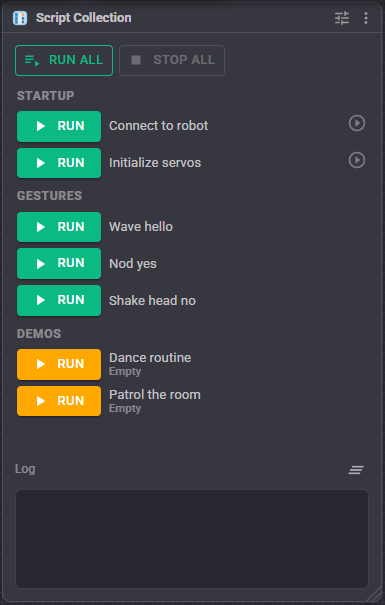
Each script appears in the collection with its own controls and status.
- Run / Stop - Starts or stops the script. The button is green when ready, red while running, and amber when the script is empty.
- Last Run Status - Shows how long the previous execution took and whether an error occurred.
- Run All / Stop All - Starts or stops scripts across the entire collection. The window also displays how many scripts are currently running.
- Log - A shared output log for every script. Each line is prefixed with the name of the script that generated it.
A script's description is also displayed as its tooltip in the window.
Configuration
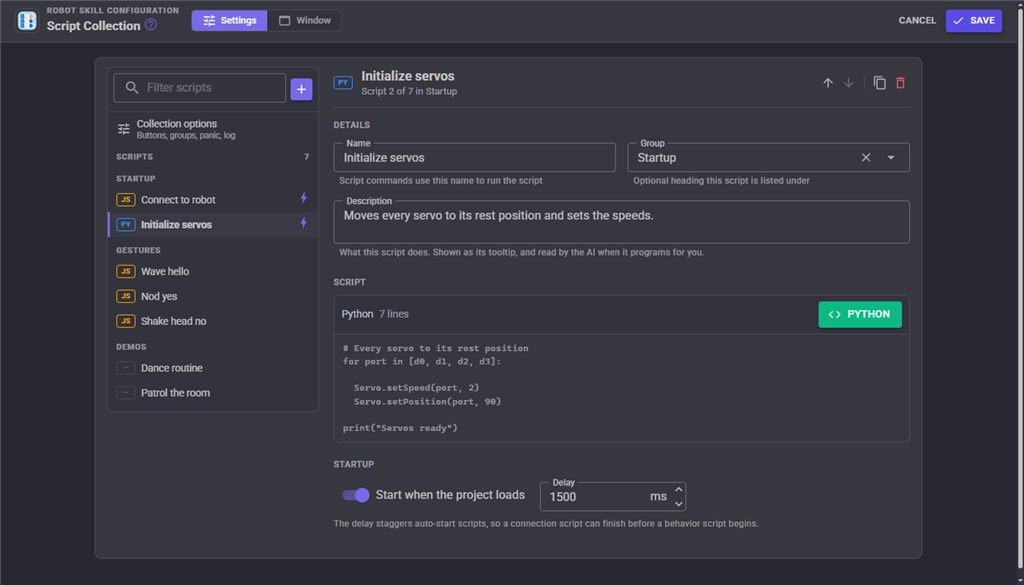
Each script in the collection has the following settings:
| Setting | Description | Default |
|---|---|---|
| Name | The name used to identify the script. Control commands address scripts by this name, so each name should be unique within the collection. | Script |
| Script | The script itself. It is edited using ARCx's script editor, where you can select Blockly, JavaScript, or Python. | Empty |
| Group | An optional group heading used to organize related scripts, such as Startup, Movement, or Demos. |
Empty |
| Description | Describes what the script does. It appears as the script's tooltip, is included in the ControlCommand cheat sheet, and provides context to AI-assisted programming. | Empty |
| Start on project load | Automatically starts this script after the project has finished loading. | Off |
| Delay (ms) | The amount of time to wait after the project loads before starting the script. This can be used to stagger startup scripts so, for example, a connection script finishes before a behavior script begins. | 0 |
The configuration lists the scripts on the left, grouped the same way the robot skill window groups them, and edits the selected script on the right. The list shows each script's language (JS, PY or BL, or a dashed tag when the script has no code yet), a lightning icon for a script that starts on project load, and a warning icon for a script whose name is missing or shared with another script. Type in the filter box to narrow the list by name, group or description, and use the + button to add a script to the group you are looking at. The editor shows the first lines of the script's code, so you can tell scripts apart without opening the script editor.
Use the arrow buttons at the top of a script to move it up or down (within its group when Group Scripts is on), the copy button to duplicate a script and its code, and the delete button to remove it. The collection's own settings are under Collection options at the top of the list.
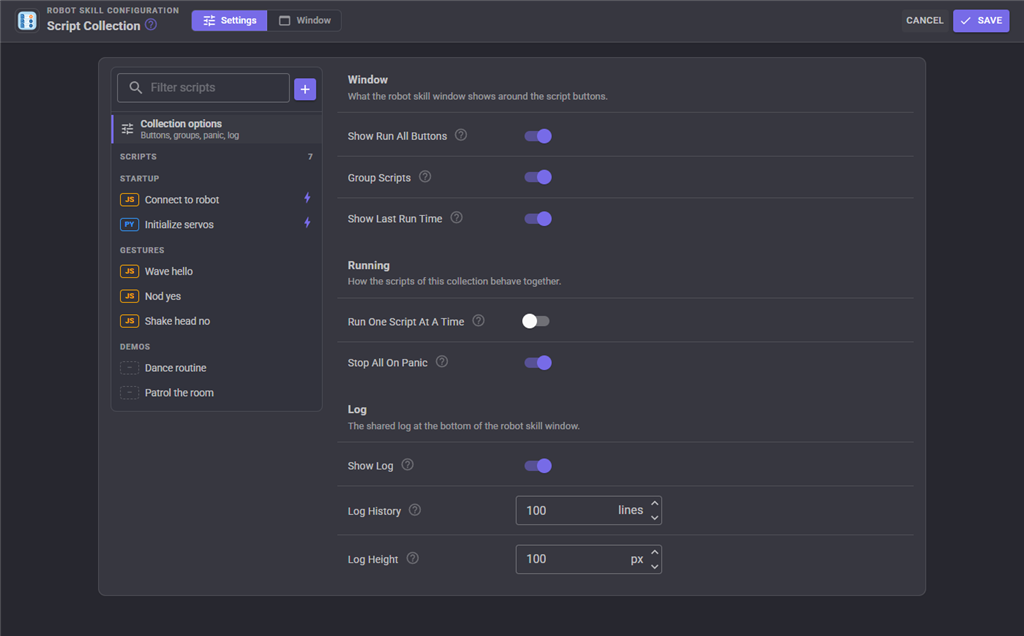
The Script Collection itself also has several settings:
| Setting | Description | Default |
|---|---|---|
| Show Run All Buttons | Displays Run All and Stop All at the top of the window. | On |
| Group Scripts | Organizes scripts beneath their configured group headings. When disabled, groups are ignored and all scripts appear in a single list. | On |
| Show Last Run Time | Displays the duration of the previous run beneath each script's name. | On |
| Run One Script At A Time | Starting a script automatically stops any other script currently running within this Script Collection. Scripts running in other robot skills are not affected. | Off |
| Stop All On Panic | Stops every running script in the collection when ARCx's global Panic button is pressed. | On |
| Show Log | Displays the shared log at the bottom of the window. | On |
| Log History | Number of log lines retained. Valid values are 1-9999. | 100 |
| Log Height | Height of the log area in pixels. Valid values are 40-2000. The log retains this height when the window is resized, allowing the script list to use the remaining space. | 100 |
The configuration dialog cannot be opened while a script in the collection is running. If configuration is blocked, the message identifies the scripts that are still active.
Saving the configuration rebuilds all script executors so the updated scripts and settings are used the next time they run.
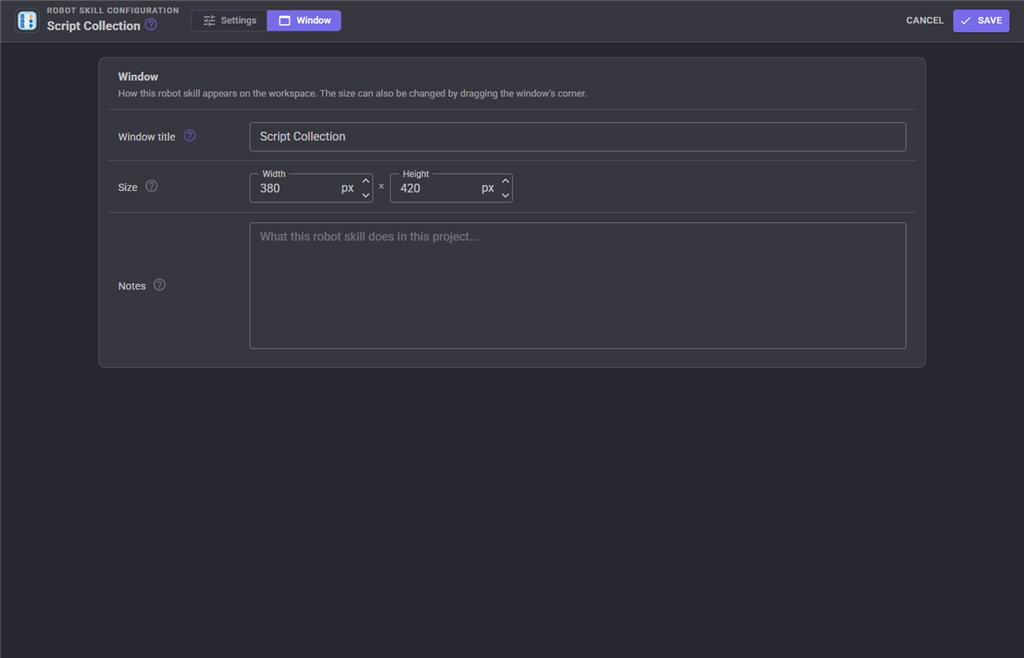
The Window tab sets the robot skill's window title, its size on the workspace and notes about what it does in this project.
Custom UI Widgets
Script Collection provides two widgets for the ARCx Custom UI designer under Workspaces Custom UI.
Script Button
Displays a single button that starts and stops a specific script.
Settings:
- Script - The name of the script controlled by the button.
- Caption - Text displayed on the button. Leave this empty to automatically use the script's name.
Script List
Displays scripts from the collection as a list of Run/Stop buttons.
Settings:
- Group - Displays only scripts belonging to the specified group. Leave empty to display every script.
- ShowStopAll - Displays a button for stopping all running scripts.
Both widgets reflect the same live state as the Script Collection window. For example, if a script is running, its button appears as running everywhere it is displayed.
Stopping and Threads
Each script has its own executor, allowing Script Collection to manage multiple scripts independently.
- Run starts a script on its own thread, leaving the Script Collection window and other scripts responsive.
- Multiple scripts in the same collection can run simultaneously unless Run One Script At A Time is enabled.
- A script started using
StartWaitruns on the caller's thread and blocks the caller until it finishes. - If the calling script is stopped while using
StartWait, cancellation is passed to the script being executed. - Calling
halt()from inside a script stops that script. - Pressing ARCx's global Panic button stops every running script in the collection unless Stop All On Panic is disabled.
- Removing the Script Collection robot skill or loading another project disposes every executor and stops all scripts in the collection.
Each script also appears in ARCx's Script Manager using the following format:
<window title> - <script name>
This makes it possible to locate and stop an individual script from Script Manager if necessary.
Troubleshooting
| Symptom | Cause / Solution |
|---|---|
"script is empty" appears in the log |
The script does not contain any code. Open its script editor and add a script. |
| Configuration will not open | One or more scripts are currently running. The message identifies them. Stop those scripts before opening configuration. |
| A command reports an unknown script | The supplied script name does not match a script in the collection. The error lists the available names. Script names are matched without regard to letter casing. |
| Two scripts have the same name | Script names should be unique. Only the first matching script can be addressed by name. The configuration dialog warns when duplicates exist. |
"Run all ignored" appears in the log |
Run One Script At A Time is enabled, which conflicts with starting every script simultaneously. |
A widget displays "No script named ..." |
The script assigned to the widget was renamed or deleted. Update the widget's Script setting. |
| An auto-start script did not run | Ensure Start on project load is enabled for that script. The log records each automatic startup attempt. |
See Also
- Script robot skill - Use when a single script should have its own dedicated robot skill window.
- Script Manager - Displays every running script in the project and allows individual scripts to be inspected or stopped.
- Control Command Cheat Sheet - Lists the Control Commands available throughout the project with syntax ready to paste into a script.
Control Commands for the Script Collection robot skill
There are Control Commands available for this robot skill which allows the skill to be controlled programmatically from scripts or other robot skills. These commands enable you to automate actions, respond to sensor inputs, and integrate the robot skill with other systems or custom interfaces. If you're new to the concept of Control Commands, we have a comprehensive manual available here that explains how to use them, provides examples to get you started and make the most of this powerful feature.
Control Command ManualThis robot skill has 4 control commands, listed below. Send them from a JavaScript or Python script, from Blockly, or from another robot skill.
The first value is always the window title, which is the name in the title bar of the robot skill on your workspace. It starts out as Script Collection, which is what every example below uses. If you rename the robot skill, or add a second copy of it to the project, use the title as it appears on that window instead.
ControlCommand() can be shortened to CC(), and both spellings work in JavaScript and in Python. The examples are JavaScript; Python is the same call, except that true and false are written True and False.
GetRunningCount
How many scripts of this collection are running right now.
Syntax
ControlCommand("Script Collection", "GetRunningCount")
Returns: Integer [-2,147,483,648 to 2,147,483,647]
Example
var result = ControlCommand("Script Collection", "GetRunningCount");
GetScriptNames
The names of every script in this collection, which are the names the other commands take.
Syntax
ControlCommand("Script Collection", "GetScriptNames")
Returns: Array of String
Example
var result = ControlCommand("Script Collection", "GetScriptNames");
StartAll
Start every script of this collection that is not already running. Ignored when the collection is set to run only one script at a time.
Syntax
ControlCommand("Script Collection", "StartAll")
Returns: Boolean [true or false]
Example
var result = ControlCommand("Script Collection", "StartAll");
StopAll
Stop every running script of this collection.
Syntax
ControlCommand("Script Collection", "StopAll")
Returns: Boolean [true or false]
Example
var result = ControlCommand("Script Collection", "StopAll");
This list is read out of the robot skill itself each time its package is uploaded, so it matches the published version (v4).



This robot skill has been updated to v1.
This robot skill has been updated to v2.
What has changed
compatible with the latest ARCx v2026.09.27.01
This robot skill has been updated to v3.
What has changed
resizable log display
This robot skill has been updated to v4.
What has changed
updated the configuration screen with a better layout